How to fix
Windows upgrade error 0xc00000f0
on Windows
Resolve Windows 10 and Windows 11 upgrade error 0xc00000f0 with our expert-tested solutions. Get your PC running smoothly in minutes!

What causes How to fix Windows upgrade error 0xc00000f0?
- Incompatible hardware
- Out-of-date drivers
- Corrupt system files
- Issues with the boot manager
- Incompatible software
Repairs Windows system files, removes malware, and restores a clean OS state — without reinstalling.
Hello. When I try to upgrade my PC to Windows 11 from Windows 10 I get the 0xc00000f0 error. Help me fix this.
Some people frequently run into the error code 0xc00000f0 when trying to upgrade their operating system from Windows 10 to Windows 11. This problem can be annoying and disruptive to the upgrade procedure since it keeps customers from successfully upgrading to a newer version of Windows. It's critical to comprehend the nature of this issue and how it might affect consumers.
When upgrading from Windows 10 to Windows 11, the error code 0xc00000f0 often denotes a problem with the installation procedure. Various difficulties, such as incompatible hardware or software settings, corrupt system files, or issues with the boot manager, may cause it to emerge. These problems may be brought on by hardware restrictions, out-of-date drivers, or incompatible software with Windows 11.
Error 0xc00000f0 can have a big effect on users. First of all, it keeps users from taking use of the new features and enhancements that Windows 11 offers, which can be annoying, especially if they were anticipating the upgrade. Additionally, because the issue could lead to a broken or unstable system, it could interfere with workflow and production. Users' overall computer experience may be significantly impacted by recurring crashes, application failures, or system instability.
Regarding fixes, dealing with problem code 0xc00000f0 normally necessitates a methodical troubleshooting technique. Users can try a number of approaches to fix the problem, including updating drivers, examining hardware compatibility, conducting system file checks, and fixing the boot manager. Additionally, it might be necessary to remove or update software that is incompatible and confirm that the system satisfies Windows 11's hardware minimum requirements.
In this guide, you will find 7 steps that should help you fix Windows upgrade error 0xc00000f0. You can also run a system repair tool like [d1] that can fix most system errors, BSODs,[ref en-1] corrupted files, registry[ref en-2] issues, or clear cookies and cache.[ref en-3] Otherwise, follow the step-by-step instructions below.
Solution 1. Fix Corrupted System Files
Use Command Prompt commands to repair system file corruption:
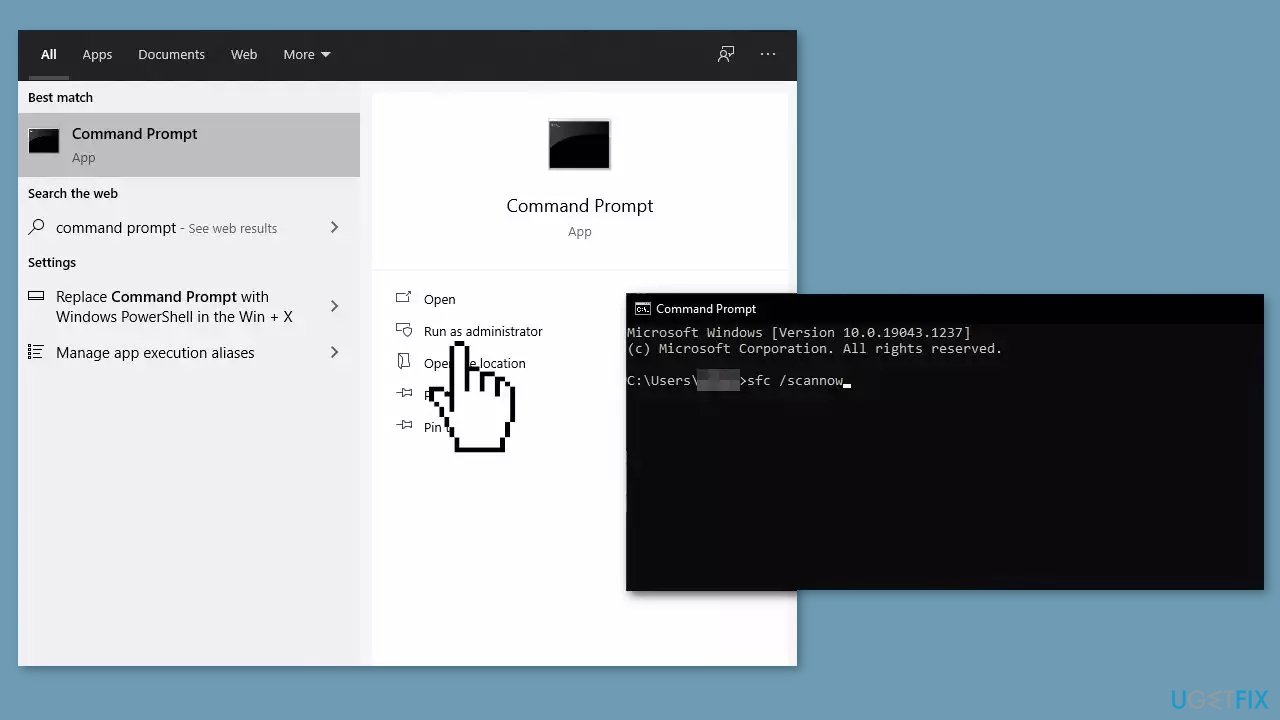
- Open Command Prompt as administrator
- Use the following command and press Enter:
sfc /scannow
- Reboot your system
- If SFC returned an error, then use the following command lines, pressing Enter after each:
DISM /Online /Cleanup-Image /CheckHealth
DISM /Online /Cleanup-Image /ScanHealth
DISM /Online /Cleanup-Image /RestoreHealth
Solution 2. Run the Installer as Administrator
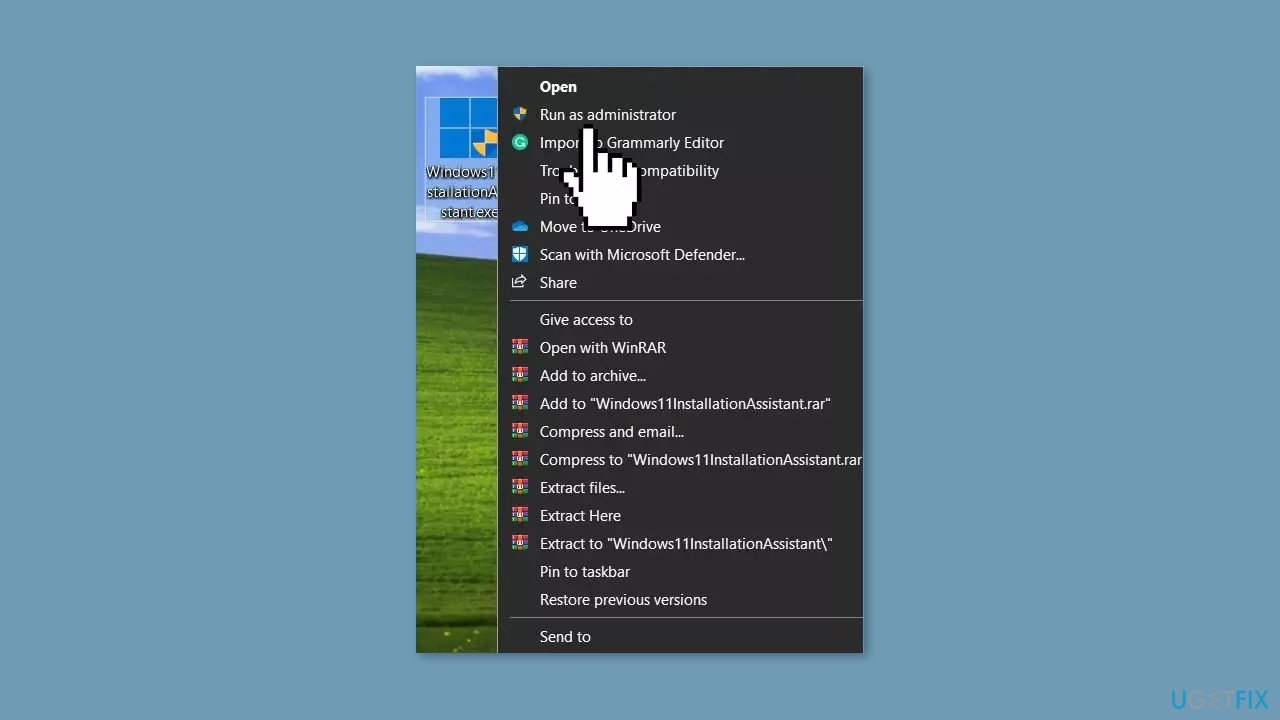
- Locate the Installation assistant setup on your computer.
- Right-click on the Installation assistant setup icon.
- Select Run as administrator from the context menu that appears.
- Wait for the Installation assistant setup to launch.
- Follow the prompts to proceed with the installation.
Solution 3. Update Drivers
Outdated drivers could be the cause of the error. In this case, you can fix it automatically by using [rev id="DriverFix"], which will scan your PC for missing and out-of-date device drivers. Or you can update them manually:
- Open Settings.
- Click on Update & Security.
- Click on Windows Update.
- Click the Check for updates button.
- Click the View optional updates option.
- Click the Driver updates tab.
- Select the driver you want to update.
- Click the Download and install button.
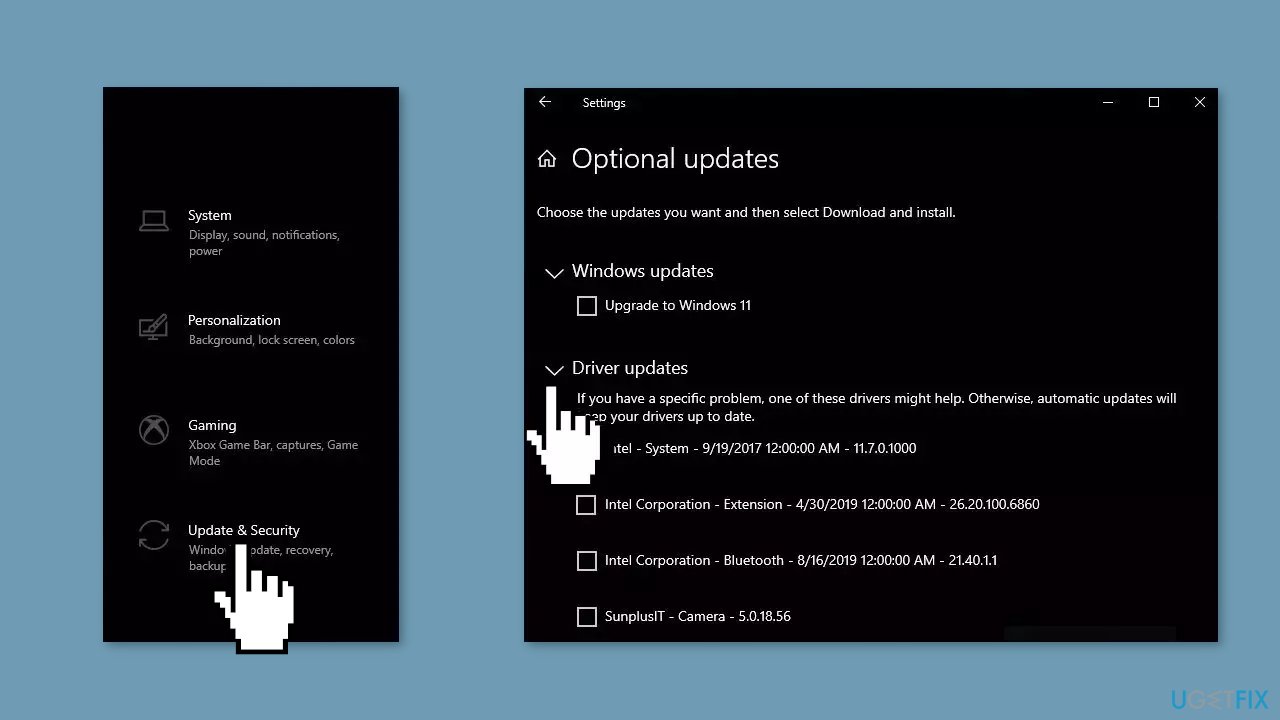
If the View optional updates link is not available after checking for updates, then Windows Update does not have any new drivers or any updates for other products at that particular time.
Solution 4. Enable User Account Control
- Click on the Start button.
- Type control in the search box.
- Press Enter.
- Once the Control Panel opens up, click on User Accounts.
- From the right pane of the next window, select Change User Account Control settings.
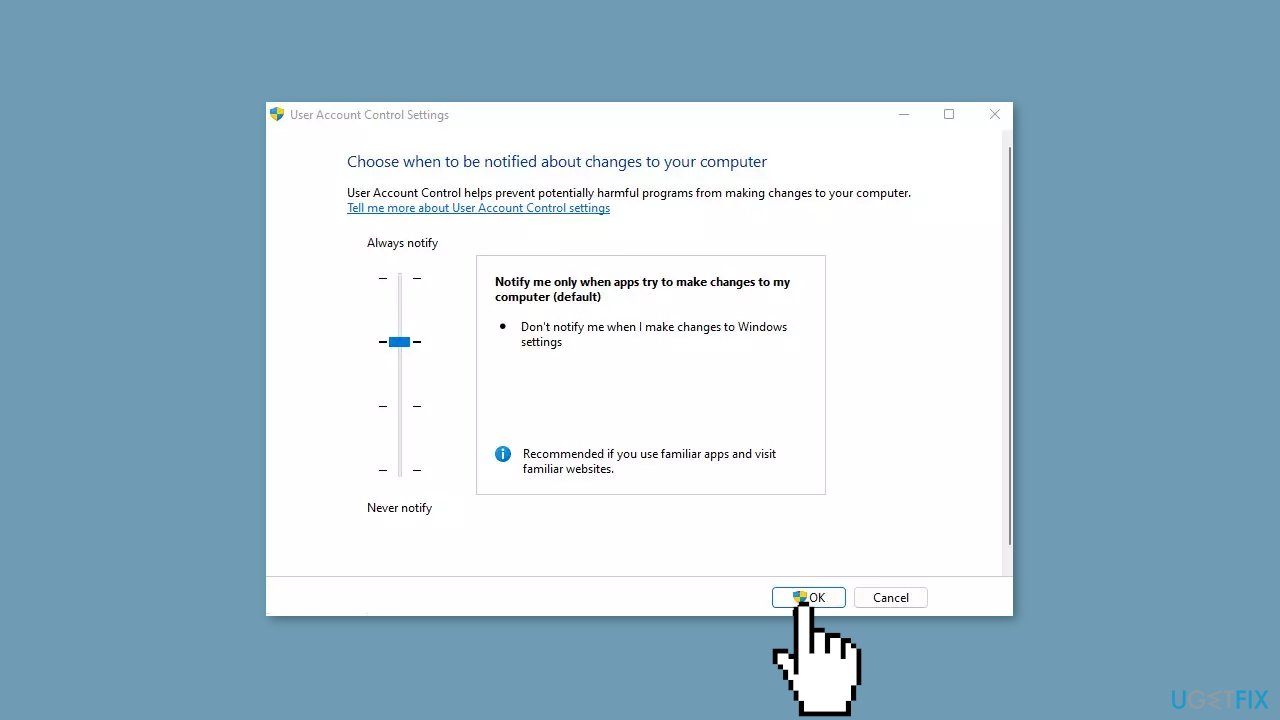
- Drag the slider to Notify me only when apps try to make changes to my computer (default).
- Click OK.
- When the User Account Control (UAC) prompt appears, select Yes.
- Open the installer file.
- Click Yes when the User Account Control dialog appears.
- Run the installation.
Solution 5. Run Disk Cleanup
If you are trying to install Windows on a drive that has low disk space, the installation will fail. You must check the free space on your drive before proceeding. There should a minimum of 30 GB of space.
- Press the Windows key on your keyboard.
- Type cleanmgr in the search box.
- Press Enter.
- Select the drive (C:) and click OK on the pop-up.
- On the next window, click on Clean up system files.
- Again, choose drive (C:).
- Click on OK.
- When the Disk Cleanup for (C:) window appears, check all the options in the Files to delete section.
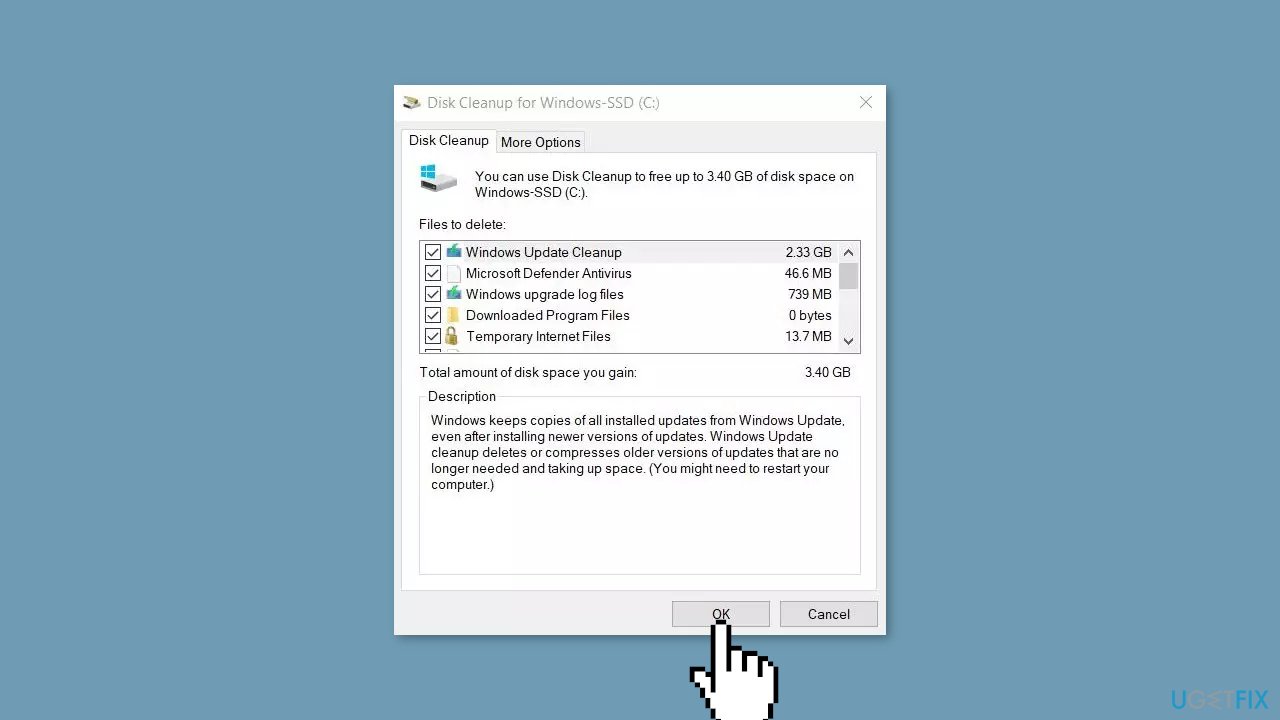
- Click OK.
- Confirm by selecting Delete files.
- Now start installing freshly and the issue will no longer occur.
Solution 6. Uninstall Third-Party Security Software
A third-party antivirus program may be the reason why Windows 11 installation fails. Sometimes security software mistakenly blocks safe downloads.
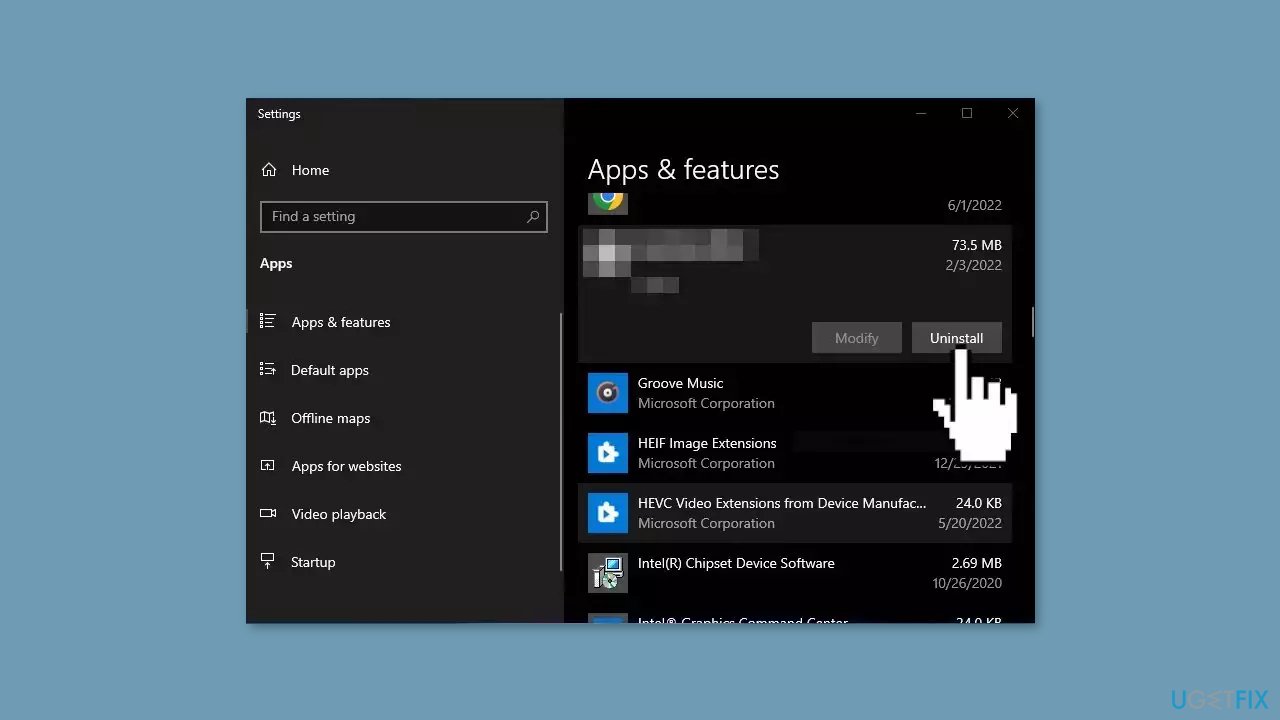
- Go to Apps & Features.
- Find the security program, click on it, and choose Uninstall.
Solution 7. Use ISO
If none of the steps above helped you to fix the issue, the last resort is to reinstall Windows 10 using the Media Creation Tool and then upgrade to Windows 11. Before starting, we recommend backing up your data to an external drive and deleting everything from your hard drive.
- Visit the official Microsoft website to download Windows 10 installation media.
- Double-click the installer and agree to the Terms.
- Click Next.
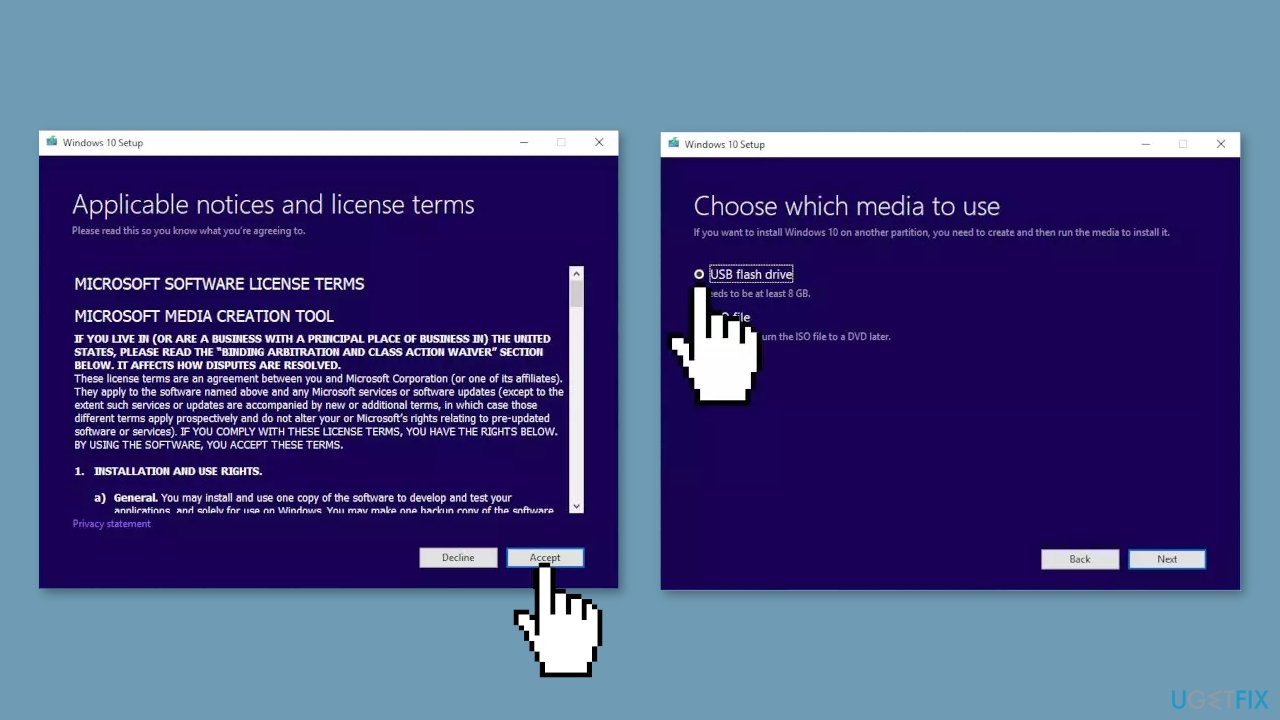
- Download Windows 10 to a USB flash drive.
- Reinstall Windows 10.
- Try to upgrade to Windows 11.
Bottom line
To fix the Windows upgrade error 0xc00000f0, users can try updating drivers, checking hardware compatibility, conducting system file checks, and repairing the boot manager. Additionally, removing or updating incompatible software and ensuring the system meets Windows 11's hardware requirements are recommended. If none of these solutions work, consider using a system repair tool to address the issue.
Frequently asked questions
Error code 0xc00000f0 typically indicates a problem with the boot configuration or system files, preventing Windows 10 or Windows 11 from upgrading properly.
You can repair the boot configuration by booting from a Windows installation media, selecting 'Repair your computer', and using the Command Prompt to run 'bootrec /fixmbr' and 'bootrec /fixboot' commands.
Yes, you can try using the Automatic Repair feature from the Windows recovery environment, which can fix issues related to booting and system files without a full reinstall.




Report an issue
What's wrong with this guide? We review every report and update or remove content.
Report received — thank you. We'll review and fix it.
You need a free account to submit a report.
Be the first to comment