
How to fix Windows upgrade error 0xc004f075?

Prefer to fix it yourself? The manual steps follow.
- 6methods
- 5 to 20 minutes
- Easy
Applies to Windows 11 and Windows 10 Home and Pro, during a product key change, an edition upgrade, activation or a Windows Update that checks the licence
6 methods in this guide
I keep trying to install Windows 11, but it keeps failing with error code 0xc004f075. Can something be done here?
Error 0xc004f075 means the Windows licensing service was shutting down at the moment Windows asked it to install a key or activate, so the job was cancelled. It shows up most often when you upgrade Windows 10 or 11 Home to Pro with a bought key. Restart the PC first and enter the key once more.
0xc004f075 (SL_E_SERVICE_STOPPING) is a timing error, not a bad key: the Software Licensing Service was stopping when Windows asked it to work. Restart the PC and enter the key once (Fix 1). If you are moving from Home to Pro, switch the edition offline with Microsoft's generic Pro key first, then enter your own key (Fix 2).
| Error | 0xc004f075: "The Software Licensing Service reported that the operation cannot be completed because the service is stopping." |
|---|---|
| Where it appears | Settings > System > Activation after Change product key, a Windows Script Host box after an slmgr command, or a Windows Update or upgrade that checks the licence. |
| Main cause | The licensing service (Software Protection, sppsvc) was shutting down or restarting during the job, most often during a Home to Pro edition upgrade. |
| Fastest fix | Restart the PC and enter the key once (Fix 1). For Home to Pro, the generic Pro key offline first (Fix 2). |
| Also written as | 0xC004F075, 0xc004F075, SL_E_SERVICE_STOPPING, "the service is stopping". |
| Affects | Windows 11 and Windows 10. Windows 10 left support on 14 October 2025, so a Windows 10 PC should move to Windows 11 where it can. |
| Microsoft's status | Not listed on Microsoft's page of common activation errors. Microsoft says the code can change after a retry; then follow the new code. |
| When it is not a software problem | When the key is for another edition, already used, or not genuine: the code then usually changes to 0xC004F050, 0xC004C008 or 0xC004C003. |
| Time to fix | 5 minutes for a restart and a retry; about 20 minutes for the Home to Pro switch. |
Facts checked on 15 October 2026. Steps written for Windows 11 (25H2 and 26H2) and Windows 10 22H2.
What error 0xc004f075 means and where you see it
The full message is "The Software Licensing Service reported that the operation cannot be completed because the service is stopping." Its internal name is SL_E_SERVICE_STOPPING. In plain words: the part of Windows that holds your licence was closing down at the very moment a request reached it, so it refused the request.
That is why the code says little about your key. The key may be perfectly fine. Windows simply did not get to check it. A second try after a clean start often goes through, or it shows a different, more useful code.
| Where you see it | What you just did | What it tells you |
|---|---|---|
| Settings > System > Activation (Windows 10: Update & Security > Activation) | Selected Change product key and entered a key | The key was not checked; the service stopped first. |
| Windows Script Host box | Ran slmgr /ipk or slmgr /ato | Same cause, from the command line. |
| Windows Update or the upgrade to Windows 11 | Installed an update or a feature upgrade | The update checked the licence while the service was restarting. |
| A Google search for the code | Typed 0xc004f075 or "service is stopping" | The same error in any spelling. |
The error does not remove files or apps. An unactivated Windows keeps running and shows a reminder, so you have time to try the fixes in order.
Why error 0xc004f075 appears, from most to least common
Microsoft does not publish a cause list for this code. The order below follows the message itself and the cases in our sources: the Home to Pro upgrade with a bought key, and Windows Update checking activation. Find your row, then go to its fix.
| Cause | How often | How to tell | Fix |
|---|---|---|---|
| The edition change from Home to Pro restarts the licensing service while it is still working on your key. | Most often | You entered a Pro upgrade key on a Home PC. | Fix 2 |
| The PC has been running for days, or a restart is pending, and the service was being stopped. | Often | A restart icon on the power button, or Restart required in Windows Update. | Fix 1, Fix 4 |
| The Software Protection service is stopped or keeps stopping. | Sometimes | sc query sppsvc shows STOPPED right after you try. | Fix 3 |
| Windows is behind on updates, so the activation part is old. | Sometimes | winver shows an older version than Windows Update offers. | Fix 4 |
| The real problem is the key or the server, and the code changes on the next try. | Sometimes | The troubleshooter or a second try shows a new code. | Fix 5 |
| Damaged system files around the licensing service. | Rarely | Other parts of Windows fail too. | Fix 6 |
The old version of this page blamed a slow network and busy Microsoft servers first. Those produce their own codes, such as 0x8007267C or 0xC004C012, so they are no longer listed as causes of 0xc004f075 here.
How to fix error 0xc004f075 on Windows 11 and 10
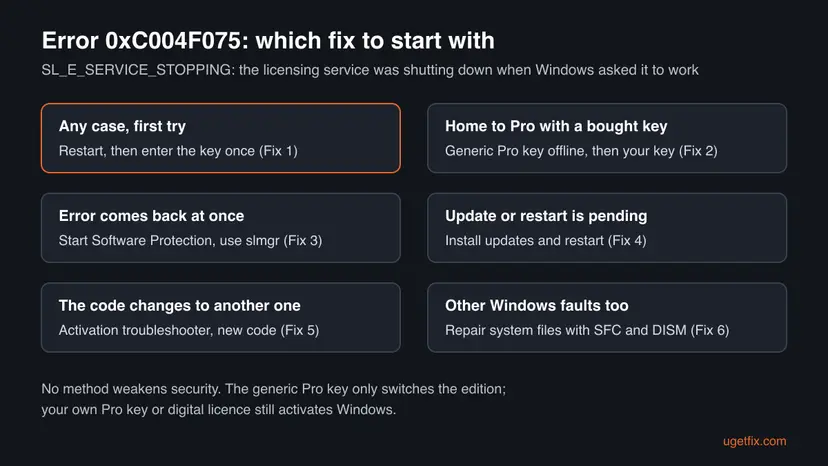
Fix 1 is a clean restart and one more try, which is enough when the service was simply closing. Fix 2 is for the Home to Pro upgrade, the most common case. Fixes 3 to 5 check the service, updates and the real activation result. Fix 6 repairs system files. Never use an activator or a key from an unknown site.
| What you see or have | Start with |
|---|---|
| You saw the error once, after entering a key. | Fix 1 |
| You bought a Home to Pro upgrade key and Windows still says Home. | Fix 2 |
| The error appears again at once, every time. | Fix 3 |
| Windows Update shows pending updates or asks for a restart. | Fix 4 |
| A second try shows another code, or Windows says it is not activated. | Fix 5 |
| Other Windows features fail too, or Fix 3 cannot start the service. | Fix 6 |
Fix 1. Restart the PC and enter the product key once more
5 minutesNo riskEveryone, and first. It takes five minutes and needs nothing else.
The message says the service was stopping when your request arrived. A full restart starts the licensing service fresh, so the same request usually reaches a running service the second time.
- Save your work and close all apps.
- Select Start > Power > Restart. Use Restart, not Shut down, because fast startup can keep the old state after a shutdown.
- After the restart, wait two minutes before you open anything, so Windows can start its services.
- Press Win + I and open System > Activation (Windows 10: Update & Security > Activation).
- Select Change product key (Windows 11: the Change button next to it) and type the 25-character key once.
- Select Next or Activate and wait. Do not click again while it works.
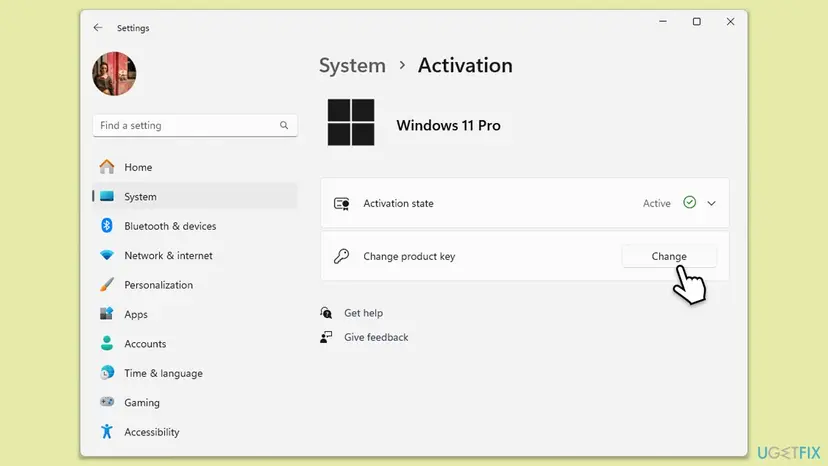
It worked if: The Activation page says Windows is activated, or the edition changes and the PC restarts.
If not: If you are upgrading Home to Pro, go to Fix 2. If the same code comes back right away, go to Fix 3.
Fix 2. Upgrade Home to Pro offline with the generic Pro key, then enter your own key
20 minutesLow riskYou bought a Pro upgrade key for a PC that runs Windows 10 or 11 Home.
The key change also switches the edition, which restarts the licensing service in the middle of the job. Doing the switch offline with a generic key separates the two steps: first the edition, then the activation with your key.
VK7JG-NPHTM-C97JM-9MPGT-3V66T is a generic Windows Pro installation key that reseller support pages, such as BEMO's, give for the Home to Pro switch. It only changes the edition. Windows stays unactivated until you enter the Pro key you bought, so this is not a way around buying a licence.
- Save your work. The PC restarts during the switch.
- Turn off Wi-Fi or unplug the network cable.
- Press Win + I and open System > Activation (Windows 10: Update & Security > Activation).
- Select Change product key and enter the generic Pro key:
VK7JG-NPHTM-C97JM-9MPGT-3V66T - Select Next and let Windows switch to Pro and restart.
- After the restart, connect to the internet again.
- Open System > Activation again, select Change product key and enter the Pro key you bought.
Reseller support pages give a second generic key, NW6C2-QMPVW-D7KKK-3GKT6-VCFB2, for the case where a Home to Pro key ends in error 0xC004F050. Use it the same way, then restart and enter your own key.
It worked if: Settings > System > About shows Windows 11 Pro (or Windows 10 Pro), and the Activation page says Windows is activated with your key.
If not: If the switch itself fails, sign in to a new local user account and repeat the steps (Create a new user account to test a problem). If your own key is refused with a new code, go to Fix 5.
Fix 3. Start the Software Protection service and activate with slmgr
10 minutesLow riskThe error comes back at once, every time, even after a restart.
The service behind this message is Software Protection, service name sppsvc. Checking it by hand shows whether it really stops, and the slmgr commands send your key straight to it without the Settings page.
- Open Start, type cmd, right-click Command Prompt and select Run as administrator. Select Yes.
- Check the state of the licensing service:
sc query sppsvc - If STATE says STOPPED, start it:
net start sppsvc - Install your key (use your own 25 characters):
slmgr /ipk XXXXX-XXXXX-XXXXX-XXXXX-XXXXX - Ask Windows to activate online:
slmgr /ato - Show the licence details and read the Licence Status line:
slmgr /dli
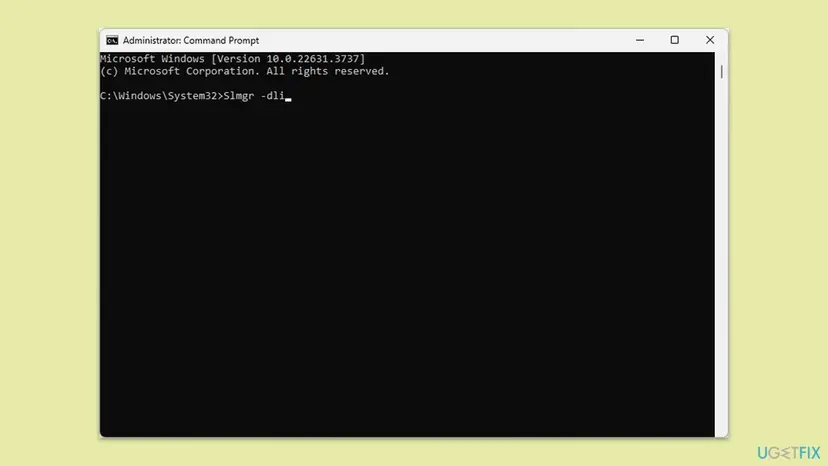

You can also check the service in the Services app, as in Check and restart Windows services. Look for Software Protection in the list.
It worked if: slmgr /ato reports that the product was activated successfully, and slmgr /dli shows Licensed.
If not: If net start sppsvc fails with an error, go to Fix 6. If slmgr /ato shows another code, go to Fix 5 with that code.
Fix 4. Install pending updates and restart before you activate
15 to 30 minutesLow riskWindows Update shows updates waiting, a restart is required, or the error came during an update.
An update in progress stops and restarts system services, the licensing service among them. Microsoft also asks you to run the latest Windows version first, because it carries fixes for activation.
- Press Win + I and open Windows Update.
- Select Check for updates, then Download & install all or Install all.
- When Windows asks, select Restart now and let it finish.
- Type winver in the search box and check that the version is the latest one Windows Update offered.
- Open System > Activation and try the key again.
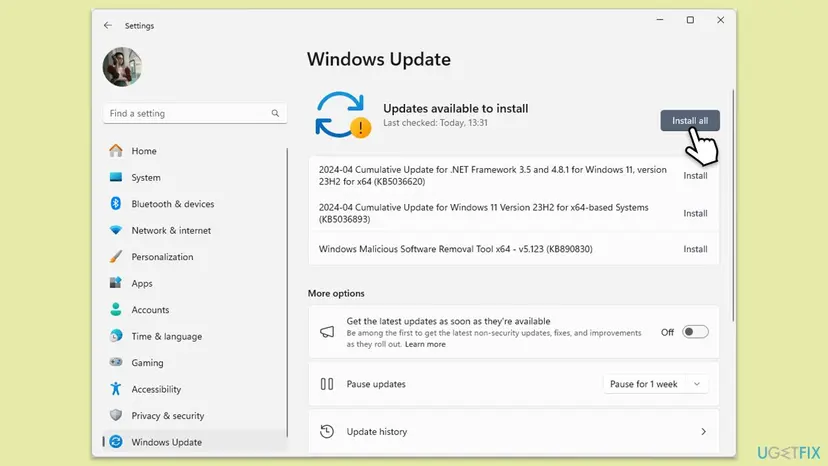
It worked if: Windows Update says You're up to date, and the key goes through after the restart.
If not: If an update itself fails, reset Windows Update (Reset Windows Update components) and try again, then go to Fix 5.
Fix 5. Run the Activation troubleshooter and follow the new code
5 minutesNo riskA second try shows another code, or Windows still says it is not activated.
Microsoft says the error code can change when you retry or run the troubleshooter. A new code names the real problem, such as a wrong edition or a used key, that 0xc004f075 was hiding.
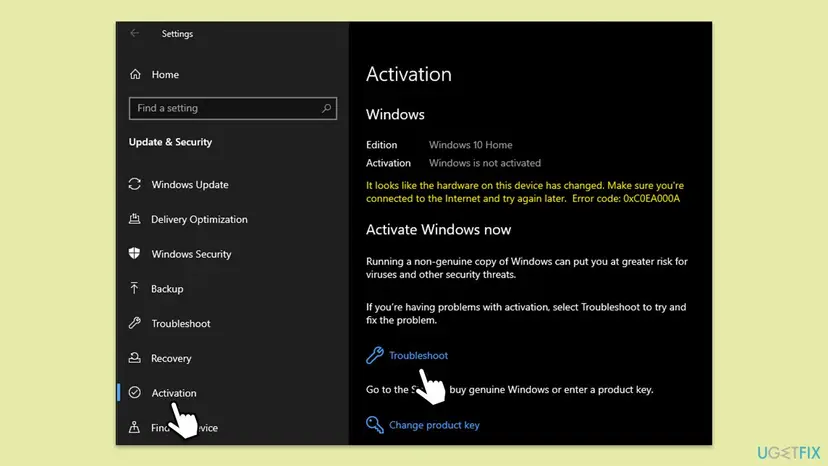
- Press Win + I and open System > Activation (Windows 10: Update & Security > Activation).
- Select Troubleshoot. On Windows 11 it may open the Get Help app.
- Follow the screens. Sign in with the Microsoft account linked to the licence if you are asked.
- Note the code it shows at the end, if any.
- Look up that code in the table below and do what it says.
| New code | What Microsoft says it means | What to do |
|---|---|---|
| 0xC004F050 | A key that cannot be used to activate this Windows, or servers that were busy. | Check the edition (Fix 2), or wait and select Activate later. |
| 0xC004F210, 0xC004F212 | The key or licence is for another edition. | Enter a key for the installed edition, or install the edition you own. |
| 0xC004C008 | The key is already used on another device. | Ask the seller for a new key. |
| 0xC004C003 | The key is not valid. | Contact the seller, or buy a key in the Microsoft Store. |
| 0x8007267C, 0xC004FC03 | No internet connection, or the server is not reachable. | Check the connection (How to check your internet connection in Windows). |
It worked if: The troubleshooter says Windows is activated, or it names a code you can act on.
If not: If it finds nothing and the code is still 0xc004f075, go to Fix 6.
Fix 6. Repair Windows system files with SFC and DISM
20 minutesLow riskFix 3 cannot start the service, or other parts of Windows fail too.
If the files of the licensing service are damaged, it can stop as soon as it starts. DISM repairs the Windows image and SFC then replaces damaged system files from it.
- Open Command Prompt as administrator.
- Repair the Windows image first:
DISM /Online /Cleanup-Image /RestoreHealth - Then check the system files:
sfc /scannow - Restart the PC and repeat Fix 1.
- Open an elevated command window. Right-click Start and select Terminal (Admin), or type cmd in the search box, right-click Command Prompt and select Run as administrator. Select Yes when Windows asks for permission.
- Run DISM first. Type the command below and press Enter. DISM downloads clean copies of damaged components from Windows Update, so it can take several minutes. Wait until it says The operation completed successfully.
DISM.exe /Online /Cleanup-Image /RestoreHealth - Run System File Checker. In the same window, type the command below and press Enter. Do not close the window until the verification reaches 100%.
sfc /scannow - Read the result and restart. Compare the last message with the table below this guide, then restart the PC so that repaired files are loaded.
These steps were written for Windows 11 24H2 and 25H2. The full page with the other versions and what each result means: Run DISM and SFC to repair Windows system files
Full steps with pictures: Run DISM and SFC to repair Windows system files.
It worked if: SFC reports that it found no problems or repaired them, and the key activates after the restart.
If not: If the error stays after the repair, read the section below on what to collect, then contact the seller of the key or Microsoft support.
If error 0xc004f075 is still there
When none of the fixes worked, collect the facts below before you contact the seller of the key or Microsoft support. They are the first things support asks for, and they show whether the key or Windows is at fault.
| What to collect | Where | Why |
|---|---|---|
| Edition and version | Settings > System > About and winver | The key must match the edition. |
| Licence type and status | slmgr /dli in an administrator Command Prompt | Retail, OEM or volume, and whether a key took. |
| State of the licensing service | sc query sppsvc | Shows whether the service really stops. |
| Activation events | Event Viewer, Windows Logs > Application, source Security-SPP | Time and code of each attempt and each service stop. |
| Proof of purchase | The seller's email or receipt | Needed if the key itself is refused. |
Tools that promise to activate Windows for free change system files and the licensing service, and they often carry malware. They can cause this very error. Remove such a tool and repair Windows with Fix 6 before you try a genuine key.
How to keep error 0xc004f075 from coming back
- Restart the PC before you change the product key or the edition, and let pending updates finish first.
- Enter a key once and wait. Clicking again while Windows works sends a second request to a service that may be restarting.
- For Home to Pro, use the offline generic key step (Fix 2) from the start.
- Link your licence to your Microsoft account under System > Activation, so a later hardware change or reinstall activates again.
- Buy keys from Microsoft or a seller who gives a receipt and support.
Frequently asked questions
What does error code 0xc004f075 mean?
It means the Software Licensing Service could not finish a job because it was stopping at that moment. The full text is "The Software Licensing Service reported that the operation cannot be completed because the service is stopping", and the internal name is SL_E_SERVICE_STOPPING. It is a timing problem, not a verdict on your key. Restart the PC and try again; if a different code appears, that new code names the real problem.
How do I fix 0xc004f075 on Windows 11?
Restart the PC with Restart, wait two minutes, then open Settings > System > Activation and enter the key once (Fix 1). If you are upgrading from Home to Pro, turn off the internet, enter the generic Pro key VK7JG-NPHTM-C97JM-9MPGT-3V66T, let Windows switch to Pro, reconnect and enter your own key (Fix 2). If it still fails, start the Software Protection service and activate with slmgr (Fix 3).
Does 0xc004f075 happen on Windows 10 too?
Yes, the code and the fixes are the same on Windows 10. The Activation page is under Settings > Update & Security > Activation instead of System > Activation. Windows 10 left support on 14 October 2025, so it no longer gets security updates. If you are about to buy a Pro key for Windows 10, check first whether the PC can run Windows 11.
Is my product key bad if I get 0xc004f075?
Not necessarily. This code says the licensing service was closing, so Windows did not finish checking the key. Many keys that fail with 0xc004f075 work on the second try after a restart. If the key is wrong, used or for another edition, the code usually changes to one that says so, such as 0xC004F050, 0xC004C008 or 0xC004C003. Then Fix 5 explains what to do.
Why does the error appear when I upgrade Windows 11 Home to Pro?
Entering a Pro key on Home does two jobs at once: it changes the edition and it activates. Changing the edition restarts parts of Windows, the licensing service included, while it is still working on your key. Fix 2 splits the jobs: switch to Pro offline with the generic key, restart, then activate with your own key once the service is running again.
Is the generic key VK7JG-NPHTM-C97JM-9MPGT-3V66T legal to use?
Yes, for switching the edition. It is a generic installation key for Windows Pro, the one reseller support pages give for the Home to Pro switch. It is published openly and is not anyone's personal licence. It does not activate Windows, so Windows stays unactivated until you enter a Pro key you own or have a digital licence for Pro. It is not a free licence and does not replace buying one.
Can 0xc004f075 stop the Windows 11 upgrade from installing?
It can appear during Windows Update or an upgrade when Windows checks the licence while services are restarting. The upgrade files are not the problem then. Install all pending updates, restart, and run the upgrade again (Fix 4). After the upgrade, open System > Activation and check the status. If the PC was activated before, Microsoft says Windows 11 activates by itself, or after you select Activate later.
How do I see my Windows key or licence type?
Run slmgr /dli in an administrator Command Prompt: the box shows the licence description, for example Retail or OEM, the last five characters of the key and the status. A key stored in the PC's firmware can be read in PowerShell with (Get-CimInstance SoftwareLicensingService).OA3xOriginalProductKey. The old wmic command for this is no longer included in current Windows 11 versions. A digital licence has no key to show.
I searched for this error in another language. Is this the right page?
Yes, if the code on your screen is 0xc004f075. People search it in Thai, Arabic, Spanish and Portuguese with words such as "how do I fix this" or "what does it mean". The fix is the same in every language of Windows: restart and try the key again, then use the generic Pro key for Home to Pro. PCs from makers such as Positivo use the same Windows activation, so the steps do not change.
Sources
- Microsoft Support: Get help with Windows activation errors (support.microsoft.com)
- The Windows Club: Windows Update or Activation error code 0xc004f075 (thewindowsclub.com)
- BEMO Docs: Fix Windows 10/11 Home to Pro upgrade error when using the product key purchased (support.bemopro.com)
Did this fix work?
One click, no account. It tells the next reader which guides are worth their time.
Questions and experiences: fix Windows upgrade error 0xc004f075
Still broken, or found a fix we did not cover? Ask here: members and our editors answer. Reading is open; writing needs a free account.
…