How to fix
Windows upgrade error “Failed to determine source edition type”
on Windows
Resolve the "Failed to determine source edition type" error on Windows 10 and 11 effortlessly. Get expert-tested solutions and fix it in minutes!

What causes How to fix Windows upgrade error “Failed to determine source edition type”?
- Corruption of the Windows installation
- Conflicting software
- Incompatible hardware
- Missing Windows registry data
Repairs Windows system files, removes malware, and restores a clean OS state — without reinstalling.
Hello. I tried to upgrade my Windows 10 computer to 21H2 but I received the "Failed to determine source edition type" error. How do I fix this?
The "Failed to determine source edition type" error occurs when people try to upgrade Windows. Some people report the error appears when trying to upgrade Windows 10 to 21H2 (the October 2021 Update). This error message indicates that the upgrade process is unable to determine the edition type of the current version of Windows, and as a result, the upgrade process cannot proceed.
There are several possible reasons why people may be receiving this error when trying to upgrade Windows. Some of the most common reasons include:
- Corruption of the Windows installation: This can occur due to a variety of reasons, such as a virus or malware infection, a hardware failure, or a power outage during the upgrade process.
- Conflicting software: Some software programs may interfere with the upgrade process and prevent it from completing successfully.
- Incompatible hardware: The upgrade process may be unable to continue if the computer's hardware is not compatible with the newest version of Windows.
- Missing Windows registry data
The "Failed to determine source edition type" error can affect people in several ways. They can't upgrade their Windows device which may cause them to miss out on new features and security updates. It can also prevent them from using certain software or apps that require the latest version of Windows.
In this guide, you will find 4 steps that should help you fix Windows upgrade error "Failed to determine source edition type." Keep in mind that the manual troubleshooting process can be lengthy. You can use an automatic maintenance tool like [d1] that can fix most system errors, BSODs,[ref en-1] corrupted files, registry[ref en-2] issues, or clear cookies and cache.[ref en-3] Otherwise, follow the step-by-step instructions below.
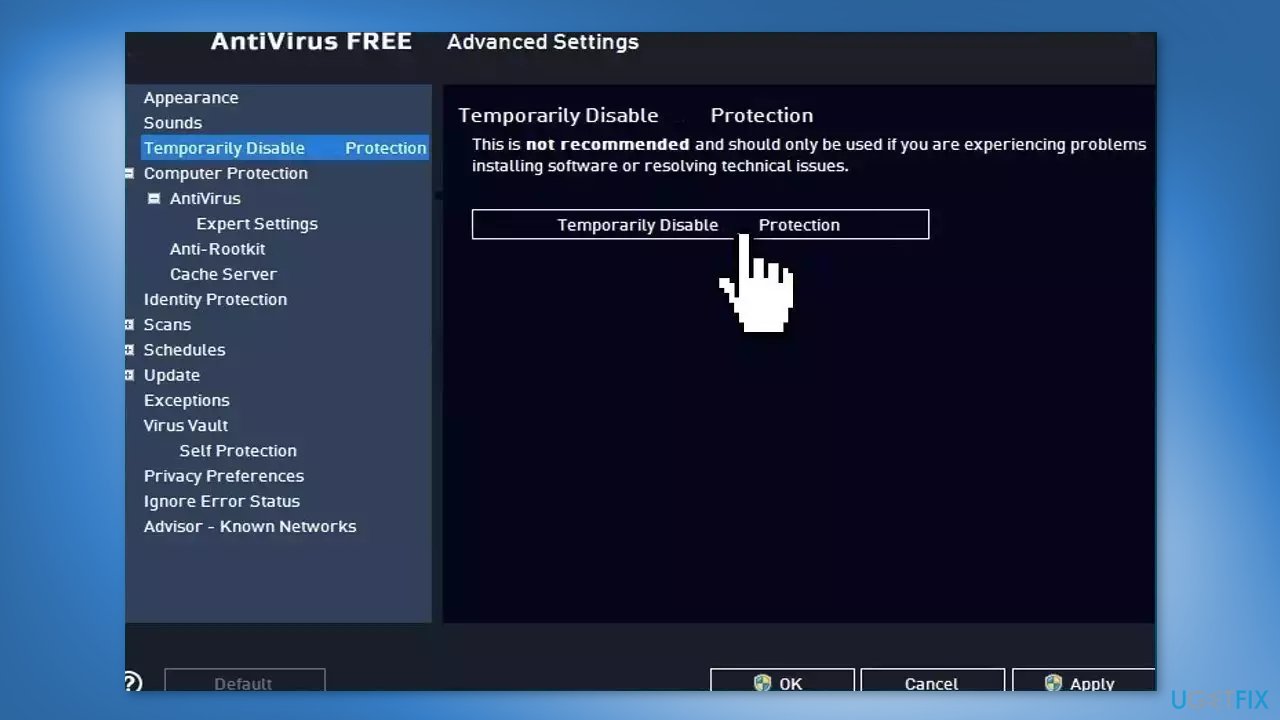
Solution 1. Disable Third-Party Security Software
Sometimes antivirus software can block legitimate processes mistakenly. You should try disabling your antivirus and trying to run the update again.
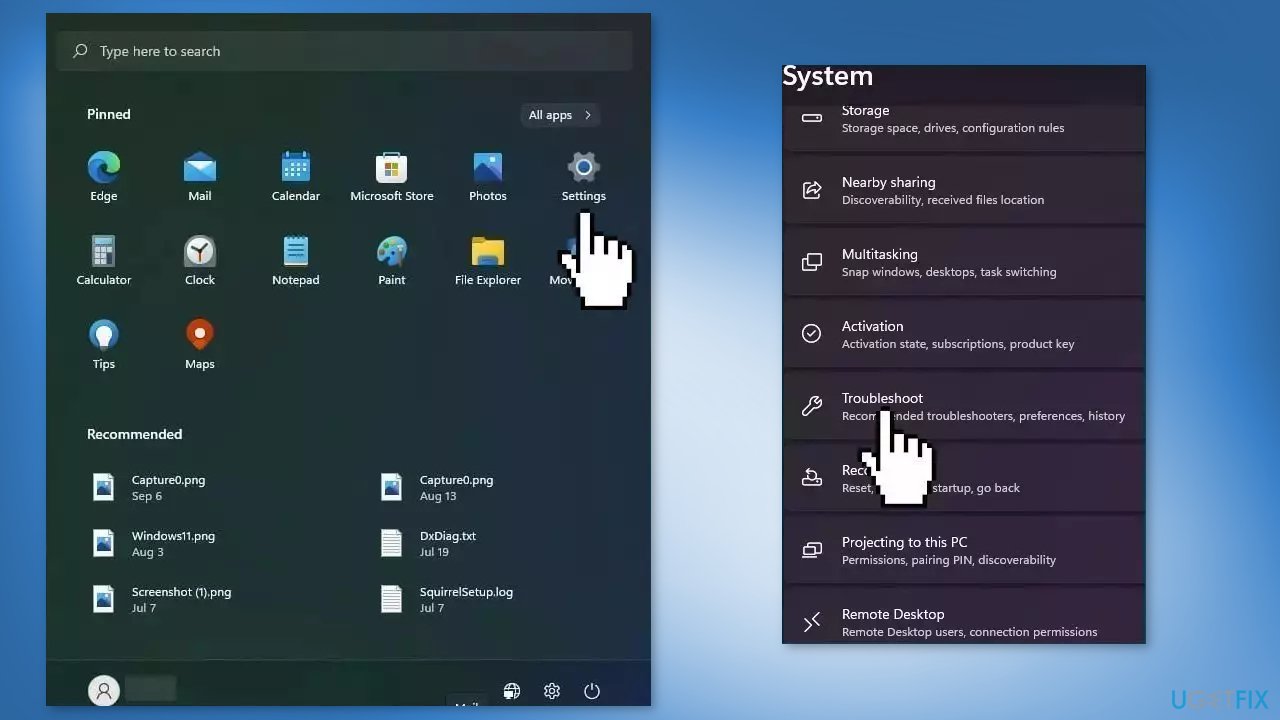
Solution 2. Run the Windows Update Troubleshooter
- Click the Windows button and select Settings
- Select System from the left pane, then scroll down on the right pane, and click on Troubleshoot
- Click on Other troubleshooters
- Locate the Windows Update troubleshooter and hit the Run button
Solution 3. Reset Windows Update Components
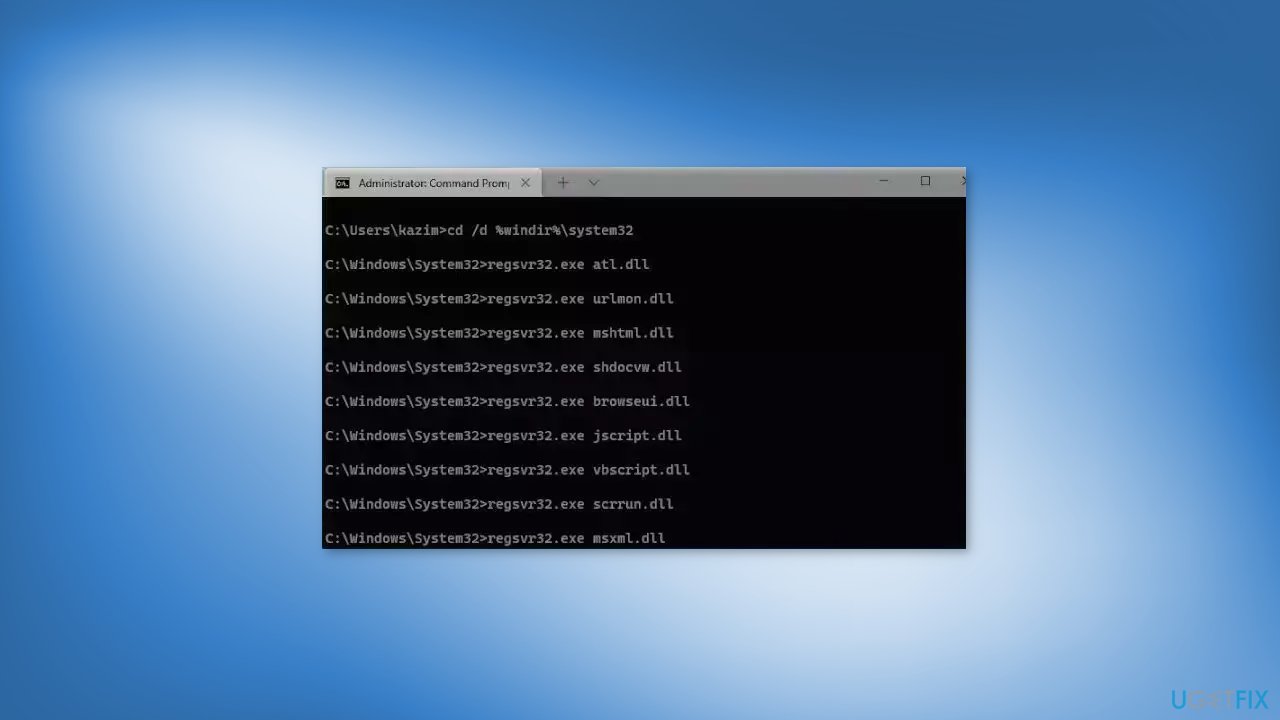
- Open the Command Prompt as an Administrator
- Type the following commands one by one and press Enter after each:
-
net stop bits
net stop wuauserv
net stop cryptsvc
Del “%ALLUSERSPROFILE%\Application Data\Microsoft\Network\Downloader\qmgr*.dat”
Ren %Systemroot%\SoftwareDistribution\DataStore DataStore.bak
Ren %Systemroot%\SoftwareDistribution\Download Download.bak
Ren %Systemroot%\System32\catroot2 catroot2.bak
sc.exe sdset bits D:(A;;CCLCSWRPWPDTLOCRRC;;;SY)(A;;CCDCLCSWRPWPDTLOCRSDRCWDWO;;;BA)(A;;CCLCSWLOCRRC;;;AU)(A;;CCLCSWRPWPDTLOCRRC;;;PU)
sc.exe sdset wuauserv D:(A;;CCLCSWRPWPDTLOCRRC;;;SY)(A;;CCDCLCSWRPWPDTLOCRSDRCWDWO;;;BA)(A;;CCLCSWLOCRRC;;;AU)(A;;CCLCSWRPWPDTLOCRRC;;;PU)
cd /d %windir%\system32
regsvr32.exe atl.dll
regsvr32.exe urlmon.dll
regsvr32.exe mshtml.dll
regsvr32.exe shdocvw.dll
regsvr32.exe browseui.dll
regsvr32.exe jscript.dll
regsvr32.exe vbscript.dll
regsvr32.exe scrrun.dll
regsvr32.exe msxml.dll
regsvr32.exe msxml3.dll
regsvr32.exe msxml6.dll
regsvr32.exe actxprxy.dll
regsvr32.exe softpub.dll
regsvr32.exe wintrust.dll
regsvr32.exe dssenh.dll
regsvr32.exe rsaenh.dll
regsvr32.exe gpkcsp.dll
regsvr32.exe sccbase.dll
regsvr32.exe slbcsp.dll
regsvr32.exe cryptdlg.dll
regsvr32.exe oleaut32.dll
regsvr32.exe ole32.dll
regsvr32.exe shell32.dll
regsvr32.exe initpki.dll
regsvr32.exe wuapi.dll
regsvr32.exe wuaueng.dll
regsvr32.exe wuaueng1.dll
regsvr32.exe wucltui.dll
regsvr32.exe wups.dll
regsvr32.exe wups2.dll
regsvr32.exe wuweb.dll
regsvr32.exe qmgr.dll
regsvr32.exe qmgrprxy.dll
regsvr32.exe wucltux.dll
regsvr32.exe muweb.dll
regsvr32.exe wuwebv.dll
netsh winsock reset
net start bits
net start wuauserv
net start cryptsvc
- Wait for the process to finish and restart your PC
Solution 4. Modify the Registry
- Press the Windows key + R to open the Run box
- Type regedit and press Enter
- Go to the following location in the Registry Editor:
HKEY_LOCAL_MACHINE\SOFTWARE\Microsoft\Windows NT\CurrentVersion
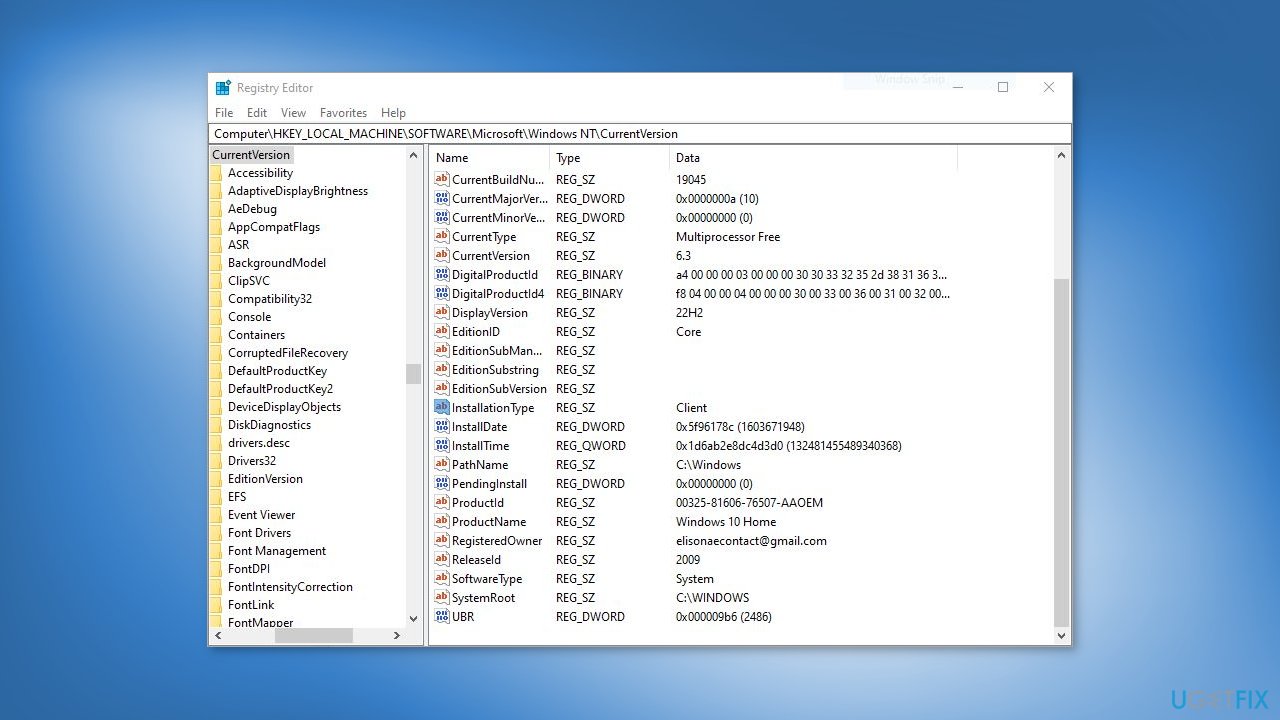
The following is an example for Enterprise Windows:
- InstallationType (REG_SZ) should be Client
- EditionID (REG_SZ) could be Enterprise
And the following are the possible values for EditionID:
| Supported value | OS SKU DEFINITION |
|---|---|
| BusinessN | Windows 10/11 Professional N (49) |
| CloudEdition | CloudEdition (Windows 11 SE (203) |
| CloudEditionN | CloudEditionN (Windows 11 SE N (202) |
| Core | Windows 10/11 Home (10/111) |
| CoreCountrySpecific | Windows 10/11 Home China (99) |
| CoreN | Windows 10/11 Home N (98) |
| CoreSingleLanguage | Windows 10/11 Home single language (100) |
| Education | Windows 10/11 Education (121) |
| EducationN | Windows 10/11 Education (122) |
| Enterprise | Windows 10/11 Enterprise (4) |
| EnterpriseEval | Windows 10/11 Enterprise Evaluation (72) |
| EnterpriseG | Windows 10/11 Enterprise G (171) |
| EnterpriseGN | Windows 10/11 Enterprise G N (172) |
| EnterpriseN | Windows 10/11 Enterprise N (27) |
| EnterpriseNEval | Windows 10/11 Enterprise N Evaluation (84) |
| EnterpriseS | Windows 10 Enterprise LTSC (125) |
| EnterpriseSEval | Windows 10 Enterprise LTSC Evaluation (129) |
| EnterpriseSN | Windows 10 Enterprise LTSC N (162) |
| Holographic | Windows 10 Holographic (136) |
| IoTUAP | Windows 10 IoT Core (123) |
| IoTUAPCommercial | Windows 10 IoT Core Commercial (131) |
| IoTEnterprise | Windows 10/11 IoT Enterprise (188) |
| PPIPro | Windows 10 TeamOS (119) |
| Professional | Windows 10/11 Professional (48) |
| ProfessionalEducation | Windows 10/11 Professional Education (164) |
| ProfessionalEducationN | Windows 10/11 Professional Education N (165) |
| ProfessionalWorkstation | Windows 10/11 Professional for workstation (161) |
| ProfessionalN | Windows 10/11 Professional for workstation N (162) |
| ProfessionalSingleLanguage | Windows 10/11 Professional Single Language (138) |
| ServerRdsh | Windows 10/11 Enterprise multi-session (175) |
Bottom line
To fix the 'Failed to determine source edition type' error, you can try disabling third-party security software, using an automatic maintenance tool, or following the step-by-step instructions provided. If none of these solutions work, consider seeking further technical assistance.
Frequently asked questions
This error indicates that the Windows installation media may not match the edition of Windows currently installed on your device, preventing a successful upgrade on Windows 10 or Windows 11.
To fix this error, ensure that you're using the correct Windows 11 installation media that corresponds to your current Windows edition, or consider using the Windows Update tool for the upgrade.
Yes, you can check your current Windows 10 edition by going to Settings > System > About, and then compare it with the edition on the installation media to ensure they match.




Report an issue
What's wrong with this guide? We review every report and update or remove content.
Report received — thank you. We'll review and fix it.
You need a free account to submit a report.
Be the first to comment