How to fix
Windows upgrade or installation error 0x8030002F
on Windows
Resolve Windows upgrade error 0x8030002F quickly and efficiently. Get expert-tested solutions for Windows 10 and 11 for a smooth installation experience.

What causes How to fix Windows upgrade or installation error 0x8030002F?
- Missing files required by Windows Update
- Incorrect user input
- Accidentally deleted files from the registry
- Conflicting third-party antivirus software
Repairs Windows system files, removes malware, and restores a clean OS state — without reinstalling.
Hello. I am trying to upgrade my Windows computer to a newer version but I am getting an error code 0x8030002F message. How do I resolve the issue?
You can confidently say that Windows is one of the most popular operating systems in the world. It is used by many companies and home users for its easy-to-use interface, built-in troubleshooters, customization abilities, and many more functions. As time goes by, new Windows versions get released by Microsoft introducing additional features unavailable in older versions.
However, some people run into issues when trying to upgrade their outdated Windows PCs. In this article, we are going to talk about the upgrade or installation error 0x8030002F which users can encounter on most versions like Vista, Windows 7,[ref en-1] Windows 10, and Windows 11. It can be very frustrating being unable to renew your operating system as you are missing out on a better user experience.
Most often, upgrade and installation errors like 0x8030002F indicate that Windows is missing files required by Windows Update to perform the upgrade. When an error code such as this appears, Windows cannot finish upgrading the operating system. Other common reasons may include incorrect user input and accidentally deleted files from the registry[ref en-2] that now cause system malfunctions.
Troubleshooting manually could take a while because it is unclear what is causing the issue, so you can try using an automatic solution [d1] to avoid going through all of the possibilities. The repair tool can identify the damaged system components, fix BSODs,[ref en-3] and registry issues by scanning the system. This software could also be used to free up space by clearing cookies and cache, which should boost the device's performance.
Below you will find a few manual methods that could fix the Windows upgrade or installation error 0x8030002 and let you update your system. Note that this will take a while, so please follow all of the steps very carefully:
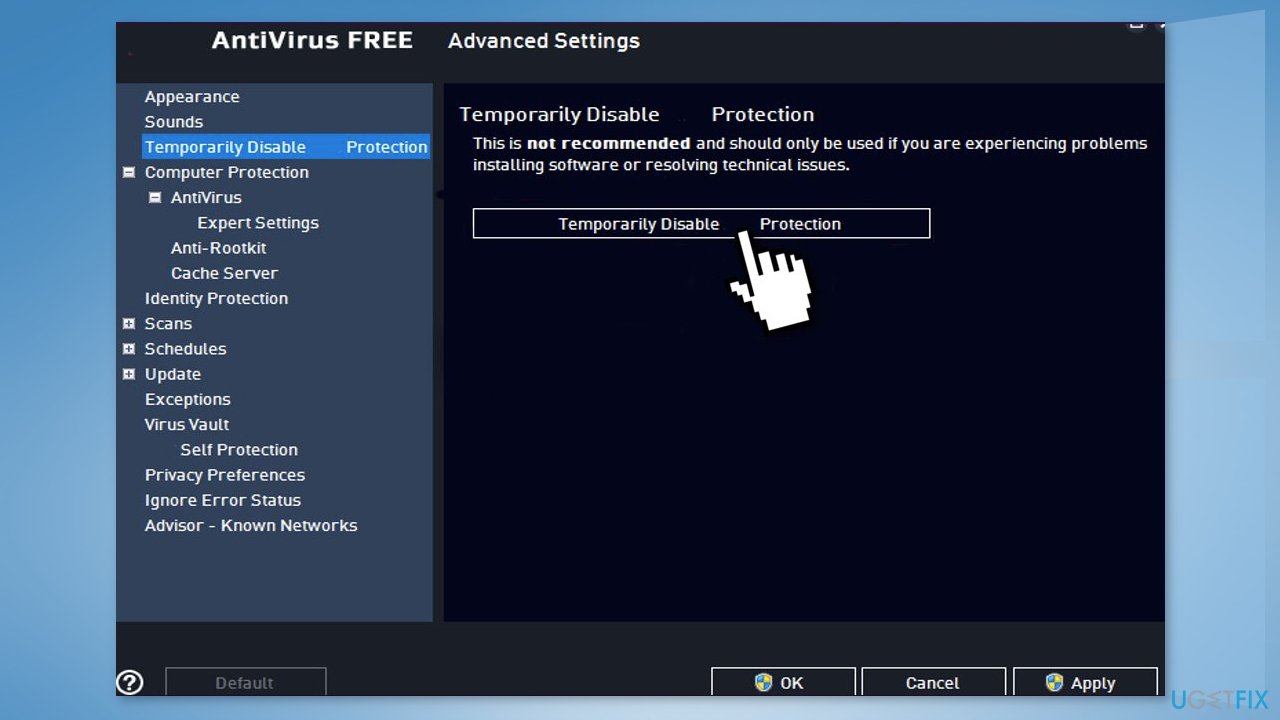
Solution 1. Disable Third-Party Antivirus Software
Some security programs might be conflicting with your applications, mistakenly perceiving some files as insecure. Thus, it is known that removing or disabling AV software helped some users when trying to upgrade Windows.
- Right-click the antivirus icon and select Disable
- You can also double-click the antivirus icon and look for a Disable option there
Solution 2. Repair Corrupted System Files
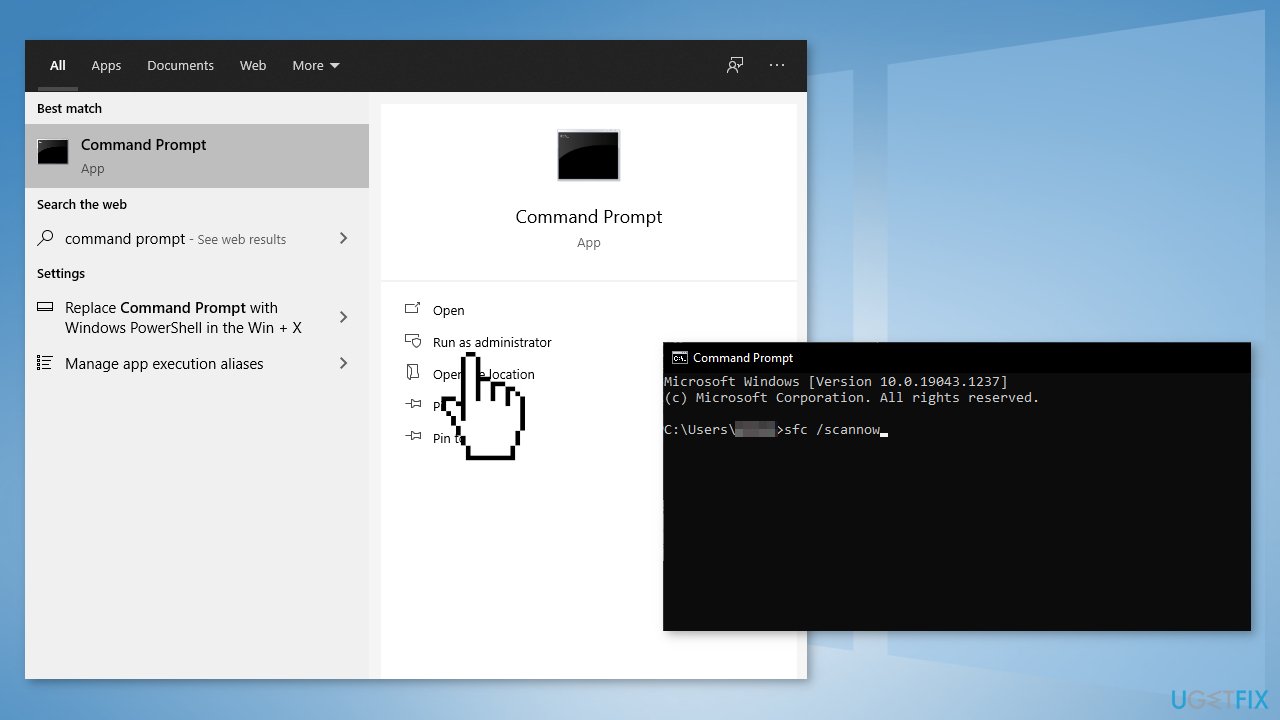
Use Command Prompt commands to repair system file corruption:
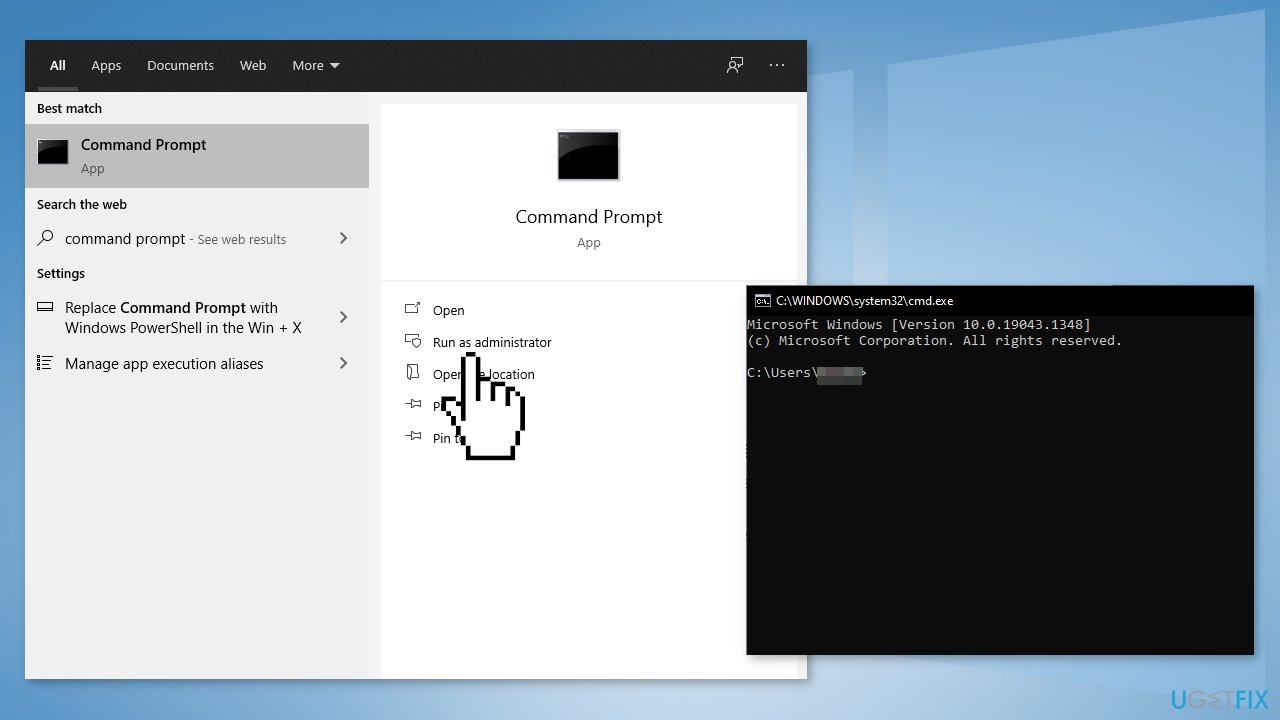
- Open Command Prompt as administrator
- Use the following command and press Enter:
sfc /scannow
- Reboot your system
- If SFC returned an error, then use the following command lines, pressing Enter after each:
DISM /Online /Cleanup-Image /CheckHealth
DISM /Online /Cleanup-Image /ScanHealth
DISM /Online /Cleanup-Image /RestoreHealth
Solution 3. Check Disk
- Ensure that your disk is not damaged. You can perform checks using Administrative Command Prompt:
- If you are using an HDD as your main driver (where your operating system is installed - C: by default), use the following command and press Enter:
chkdsk c: /f - If you are using SSD, use this command:
chkdsk c: /f /r /x
- If you receive an error, type in Y and hit Enter
- Restart your device to perform the check
Solution 4. Clean Boot
Sometimes third-party software can interfere with the upgrading process which results in an error. Disable all non-Microsoft services:
- Press Windows + R, type msconfig, and hit Enter
- Go to the Services tab and tick the Hide all Microsoft services checkbox
- Select Disable all
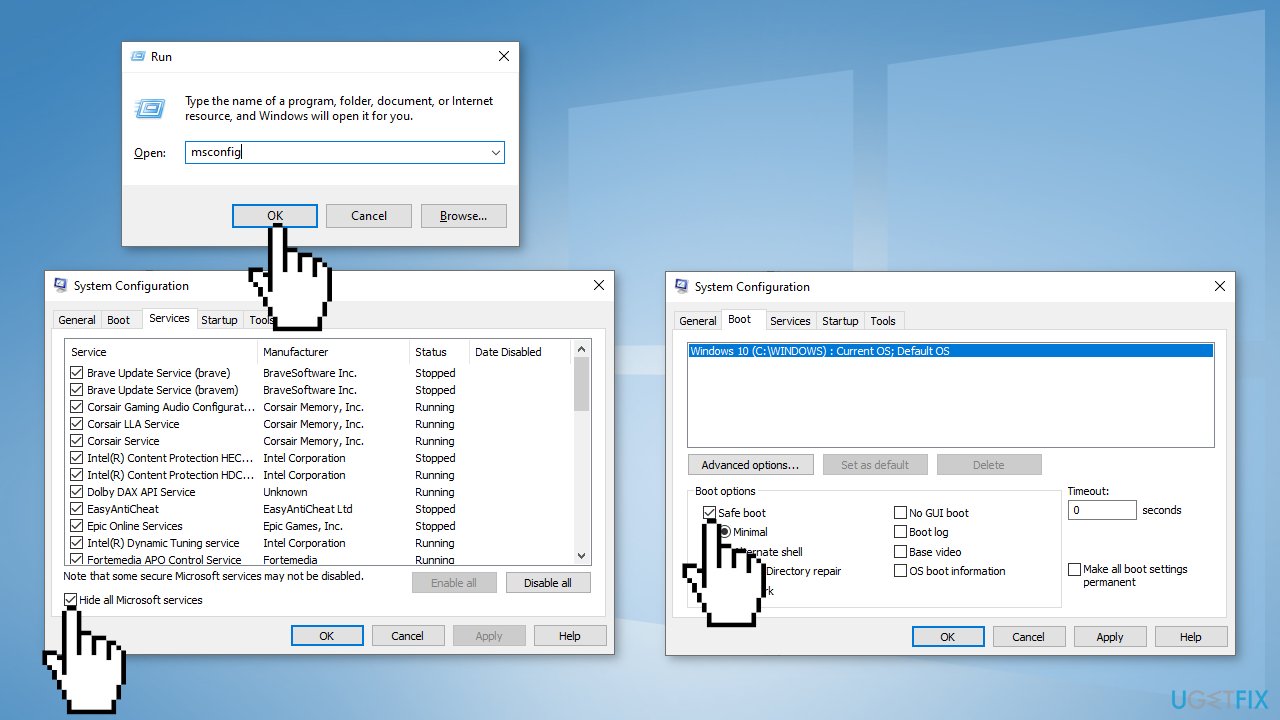
- Go to the Startup tab and click Open Task Manager
- Here, right-click on each of the non-Windows entries and select Disable
- Close down the Task Manager
- Go to the Boot tab and tick the Safe boot option
- Click Apply, OK, and restart your PC
Solution 5. Repair the Master Boot Record
- Shut down your computer
- Press the power button to boot up your system
- When your system boots up, press and hold the power button again to force shutdown your system as soon as you have seen the manufacturer’s logo
- Continue this for 2-3 more times and it will automatically reach the startup repair screen
- Click on Advanced options and then Troubleshoot
- Click on Advanced options again
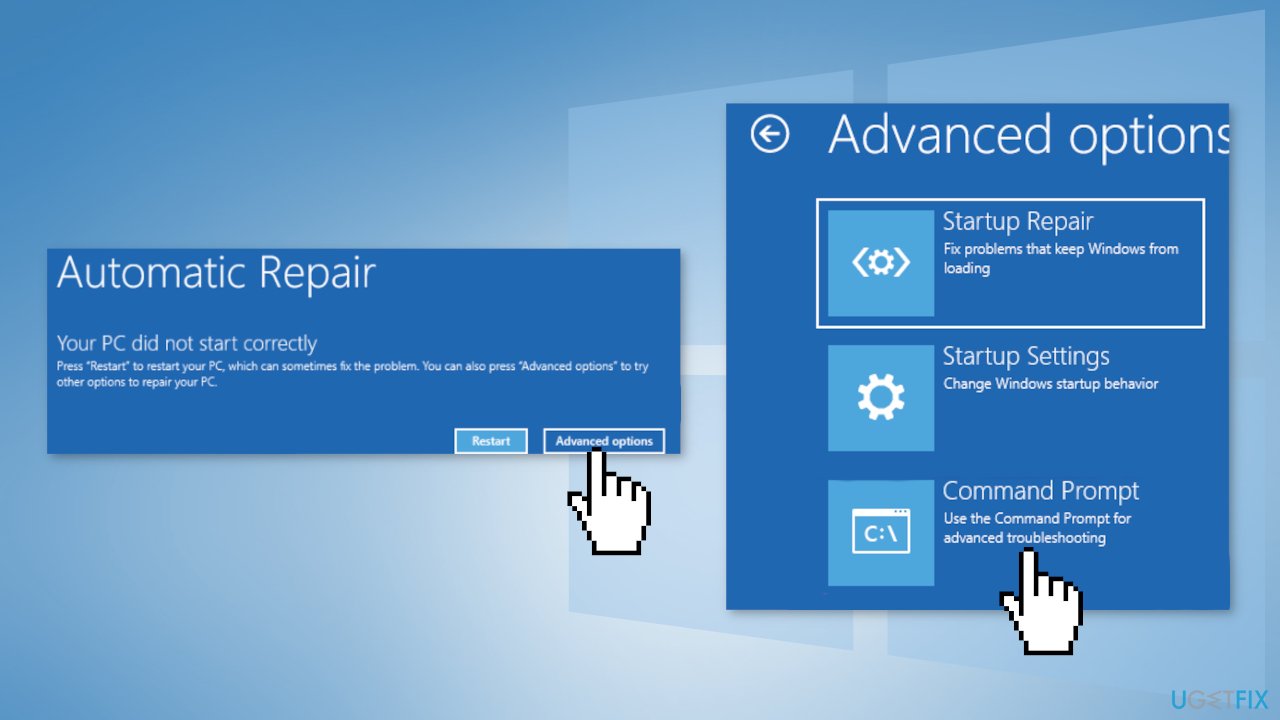
- Choose the Command Prompt
- Select your administrative account and put in your account password
- Tap Continue
- Copy-paste these commands one-by-one and hit Enter:
bootrec /fixmbr
bootrec /fixboot
bootrec /rebuildbcd
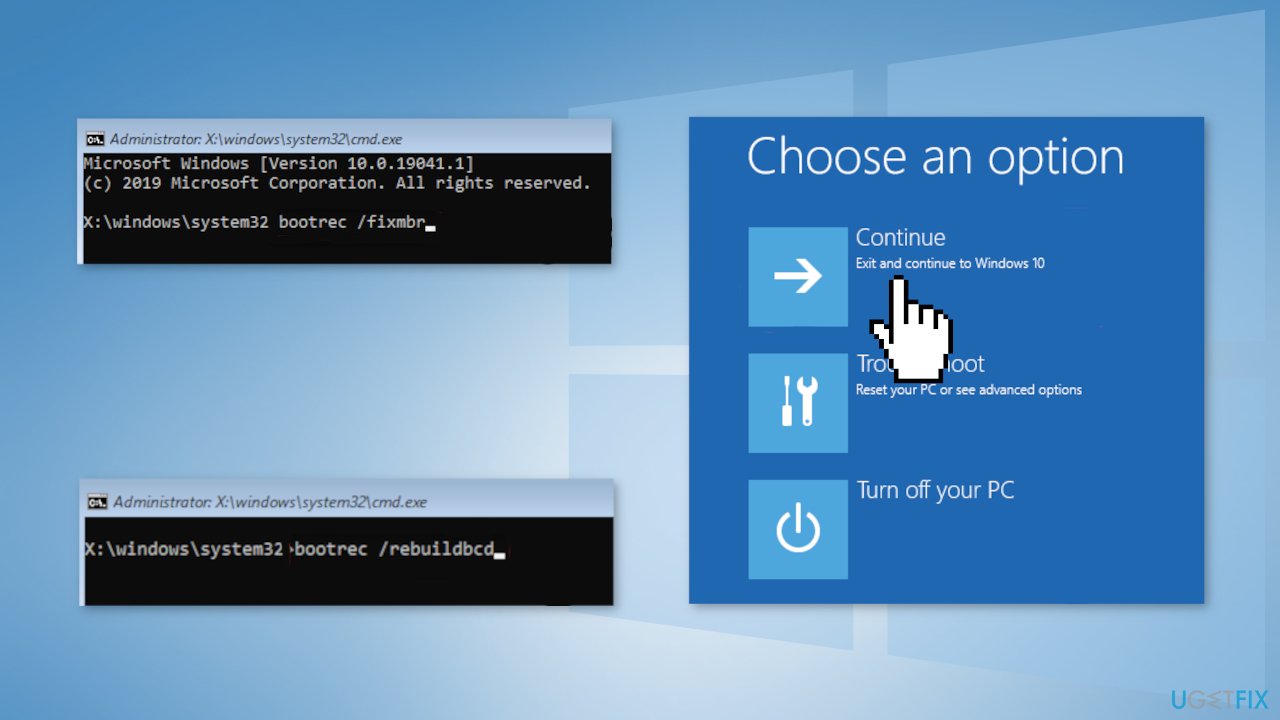
- Tap on Continue to boot your PC normally
- Try to upgrade again
Solution 6. Perform a Clean Installation
Performing a clean install wipes out data from the PC, so please create backups before you proceed.
- Download the ISO file
- Select Create installation media for another PC and click Next
- Select ISO file and click Next
- Click Finish
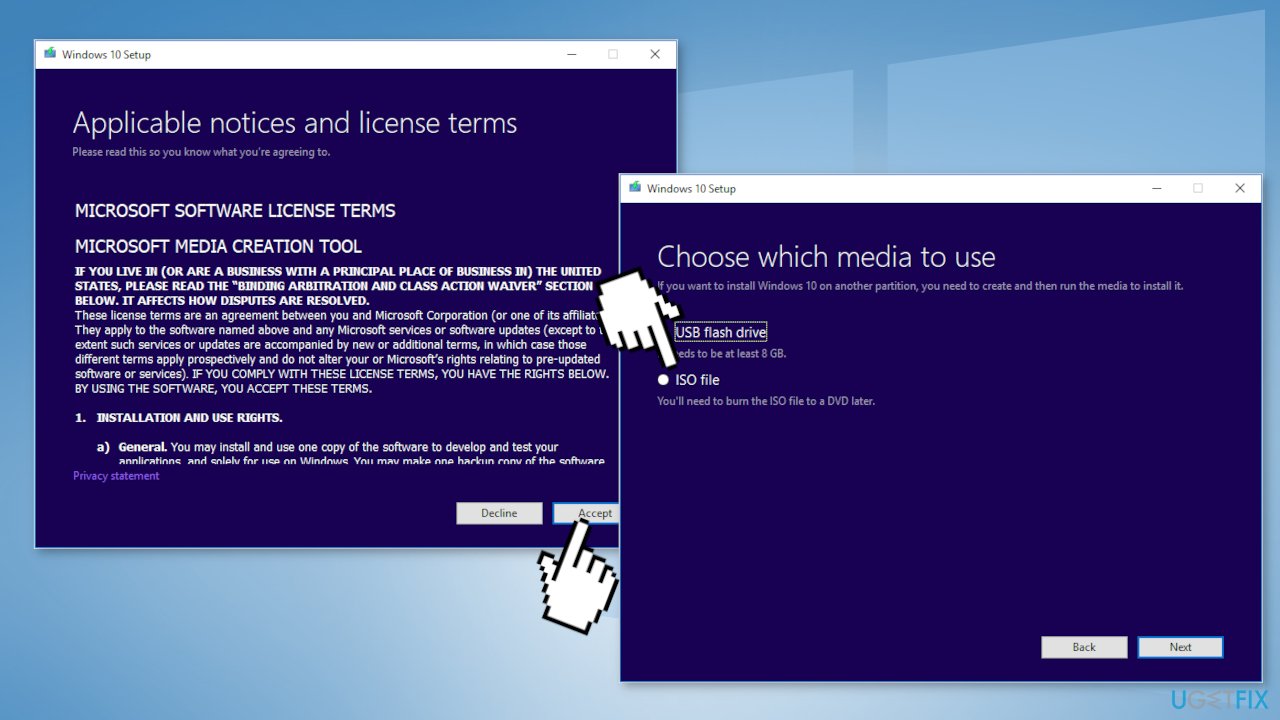
- Open the Windows ISO file you downloaded
- Open Setup and click Next
- Click Accept (Be prepared to wait; this next part may take a while)
- Click Install
- Wait for your system to restart and install Windows
Bottom line
To resolve the Windows upgrade or installation error 0x8030002F, you can disable third-party antivirus software, use an automatic repair tool, or manually troubleshoot the issue. If these solutions do not work, consider seeking further assistance or exploring additional troubleshooting methods.
Frequently asked questions
The error code 0x8030002F typically indicates a problem with the hard drive or partition where Windows is attempting to install, often related to disk space or file system issues.
To resolve the error, ensure that your hard drive is properly connected, check for sufficient disk space, and consider using the Disk Management tool to format or delete problematic partitions.
Yes, using the Windows installation media can help fix the error; you can run the setup and choose the 'Repair your computer' option to attempt a fix without losing your files.




Report an issue
What's wrong with this guide? We review every report and update or remove content.
Report received — thank you. We'll review and fix it.
You need a free account to submit a report.
Be the first to comment