How to fix
Windows Volume Mixer not saving changes
on Windows
Troubleshoot and fix the Windows Volume Mixer not saving changes effectively. Get your audio settings back on track with our expert-tested solutions.

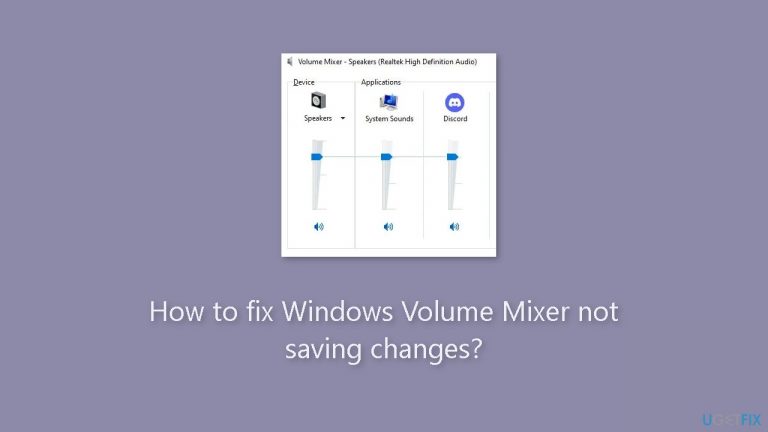
What causes How to fix Windows Volume Mixer not saving changes?
- Audio drivers are outdated
- Windows Audio service is not running
- Volume Mixer settings are corrupted
- System errors affecting audio settings
Repairs Windows system files, removes malware, and restores a clean OS state — without reinstalling.
Hello. When I change the volume using the Windows Volume Mixer and close it, the changes disappear immediately. Is there a way to fix this?
The Windows Volume Mixer is a program that allows users to control the volume of individual applications that are running on their computers. It is a useful feature because it allows users to adjust the volume of individual applications without affecting the overall system volume.
However, some users have reported that the Volume Mixer does not save their changes. This means that when users change the volume settings in the Volume Mixer and then close the Window, the changes are lost or are not saved. This issue can be aggravating for users, especially if they must frequently adjust the volume levels.
The severity of this problem varies depending on the user's situation. For example, if a user is working on a project that requires them to use various applications with varying sound levels, it may be inconvenient for them to have to re-adjust the volume levels every time they open an application. Furthermore, if a user is using headphones, they may discover that the Volume Mixer does not save their changes, which affects their overall listening experience.
Updating the audio drivers, restarting the Windows Audio service, and resetting the Volume Mixer settings are all possible solutions to this problem. However, the precise solution may be dependent on the root cause of the problem. This guide will walk you through 5 steps that should help you fix Windows Volume Mixer not saving changes.
Keep in mind that the manual troubleshooting process can be lengthy. You can try using a system repair tool like [d1] that can fix most system errors, BSODs,[ref en-1] corrupted files, and registry[ref en-2] issues, or clear cookies and cache.[ref en-3] Otherwise, follow the step-by-step instructions provided below.
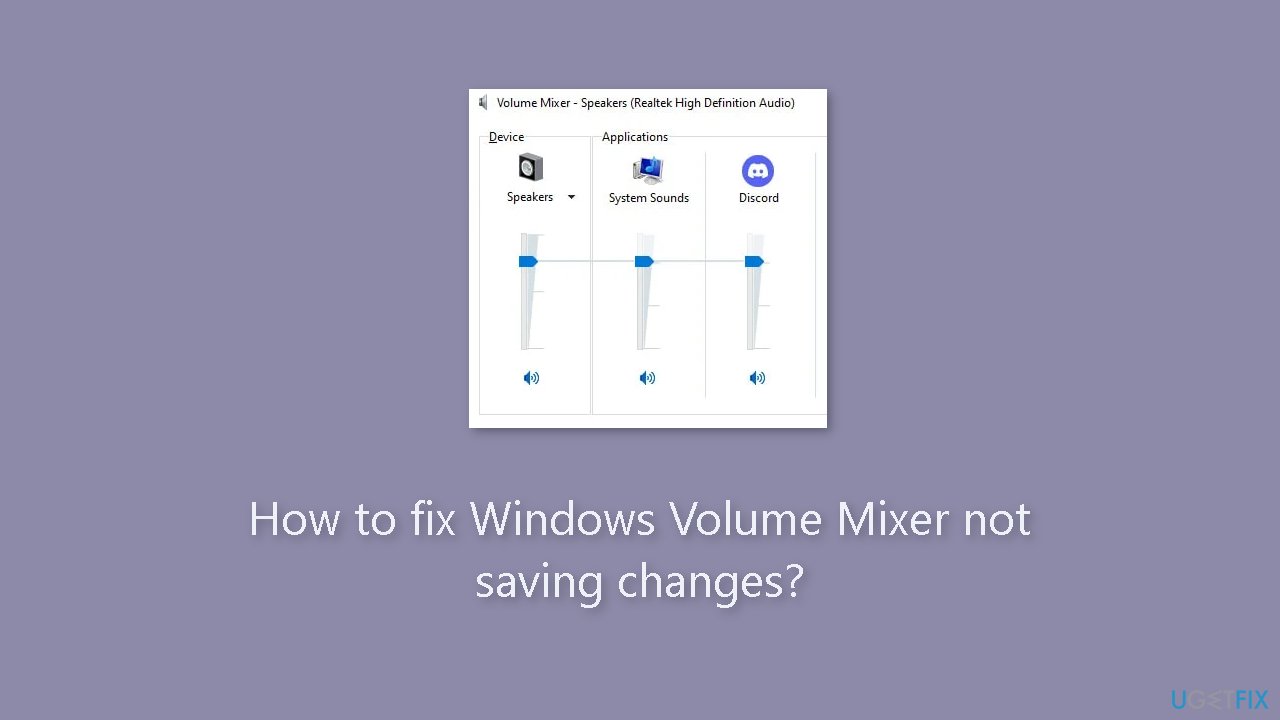
Solution 1. Run Windows Audio Troubleshooter
- Press the Windows key + I to open Settings.
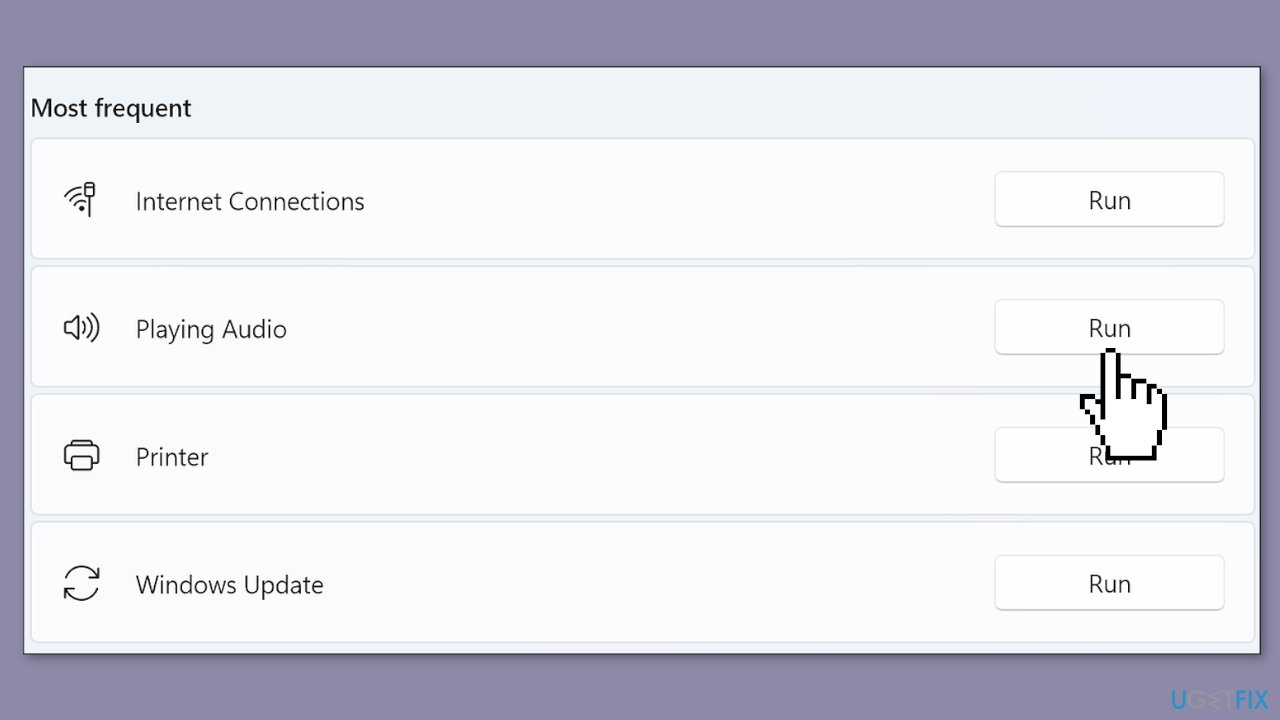
- Scroll down and select Troubleshoot > Other Troubleshooters.
- Click on Run beside Playing Audio.
- Wait for the process to complete.
- Restart your device.
- Check to see if the error has been resolved.
Solution 2. Update Audio Drivers
Outdated drivers could be the cause of this issue. In this case, you can fix it automatically by using [rev id="DriverFix"], which will scan your PC for missing and out-of-date device drivers. Or you can update them manually:
- Open Settings.
- Click on Update & Security.
- Click on Windows Update.
- Click the Check for updates button.
- Click the View optional updates option.
- Click the Driver updates tab.
- Select the driver you want to update.
- Click the Download and install button.
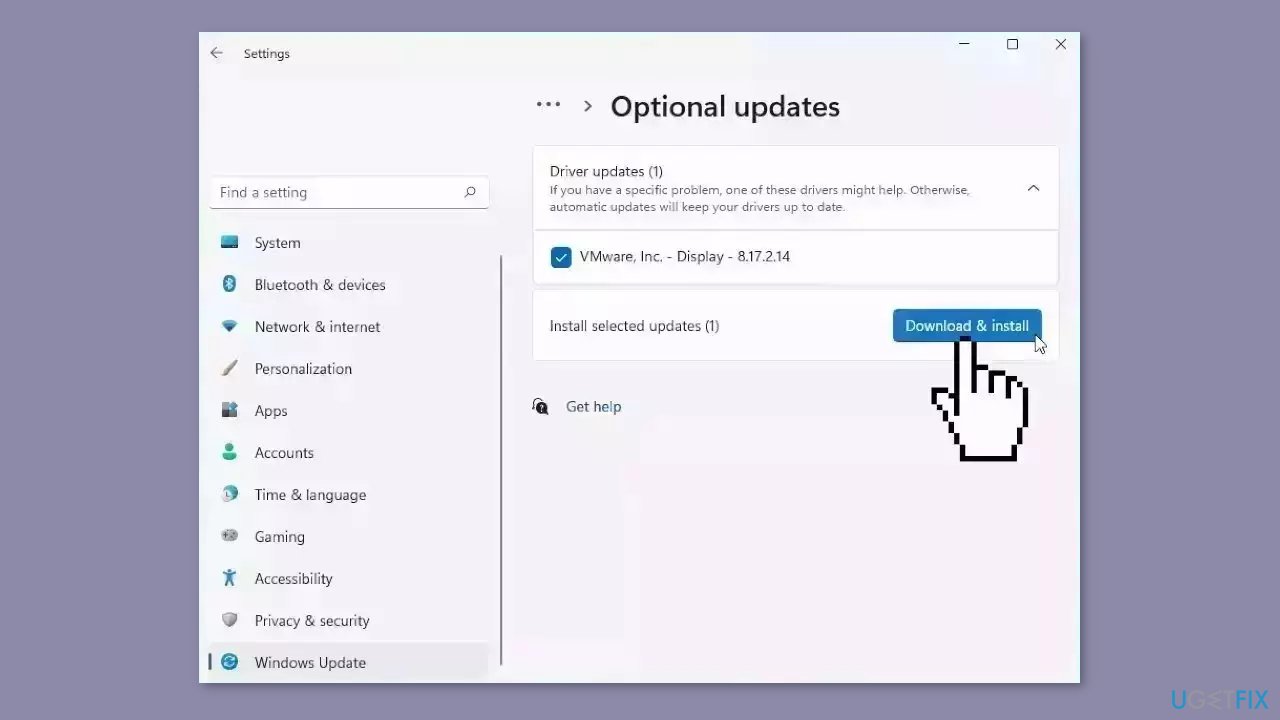
If the View optional updates link is not available after checking for updates, then Windows Update does not have any new drivers or any updates for other products at that particular time.
Solution 3. Enable Exclusive Mode
- Press the Windows key + R to open the Run dialog box.
- Type sndvol and hit Enter.
- Once the Volume Mixer opens, click on the Speaker icon.
- The Speaker Properties dialog will now open; here, navigate to the Advanced tab.
- Under Exclusive mode, check the options Allow applications to take exclusive control of this device and Give exclusive mode application priority.
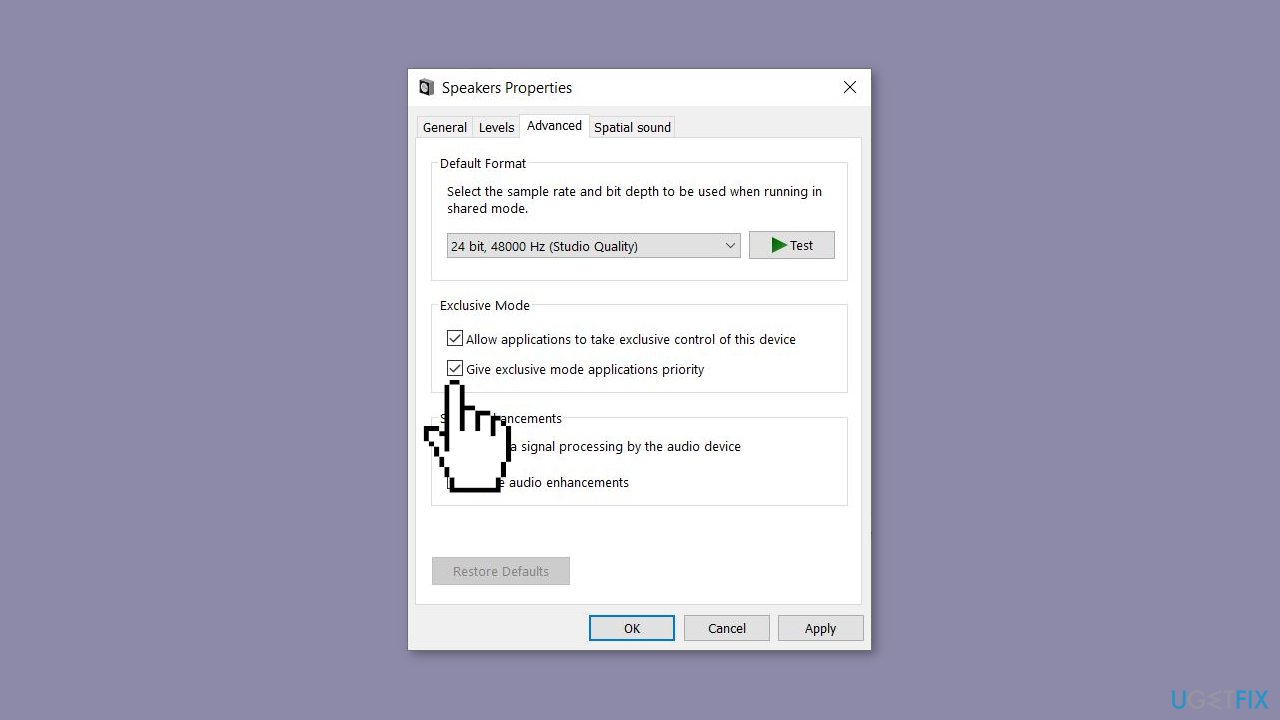
- Click on Apply and then on Ok to save the changes.
Solution 4. Uninstall the most recent Windows Update
Updates can sometimes cause conflicts with audio drivers or settings, resulting in problems with the Volume Mixer. The user can eliminate the possibility that the most recent Windows update is the source of the problem by uninstalling it.
- Press the Windows key + R to open the Run dialog box.
- Type appwiz.cpl and hit Enter.
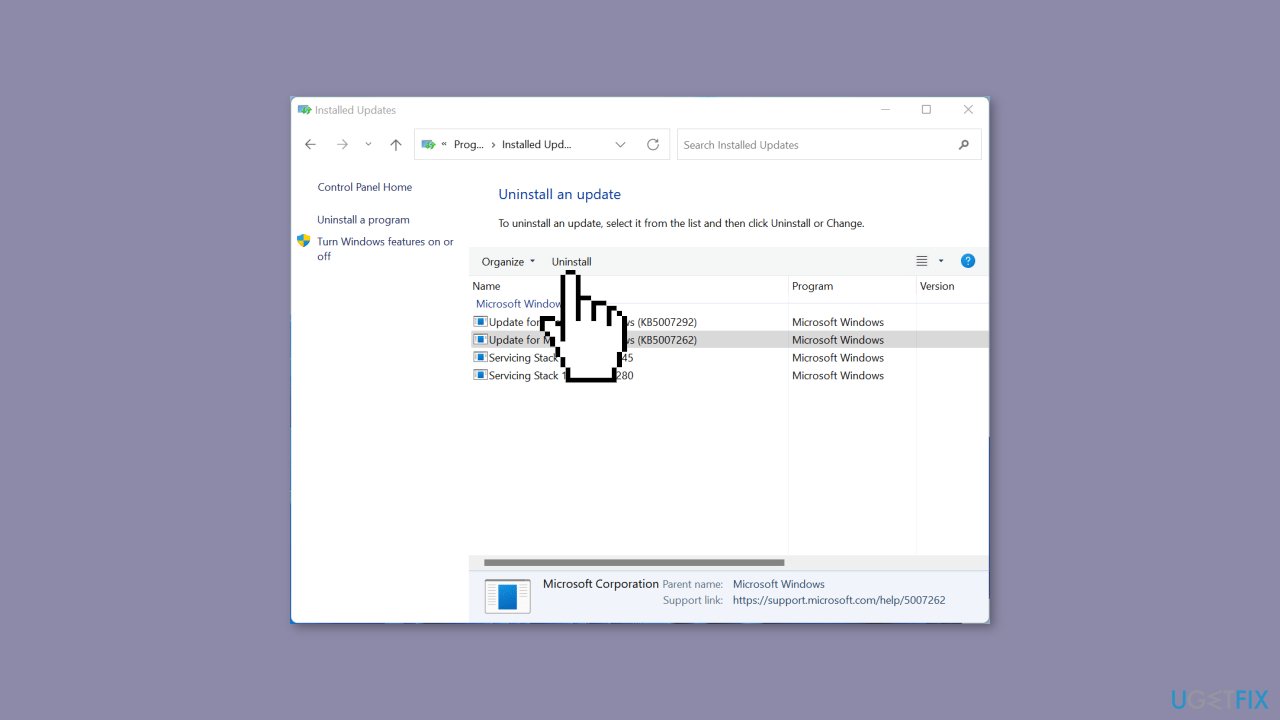
- In the Uninstall or view a program page click on View Installed Updates.
- Find the recently installed update.
- Right-click on the recently installed update and select Uninstall.
Solution 5. Try Clean Boot
Third-party applications and services can sometimes interfere with the Volume Mixer settings, causing changes to be lost. Users can identify which program or service is causing the problem and take the necessary steps to resolve it by performing a clean boot.
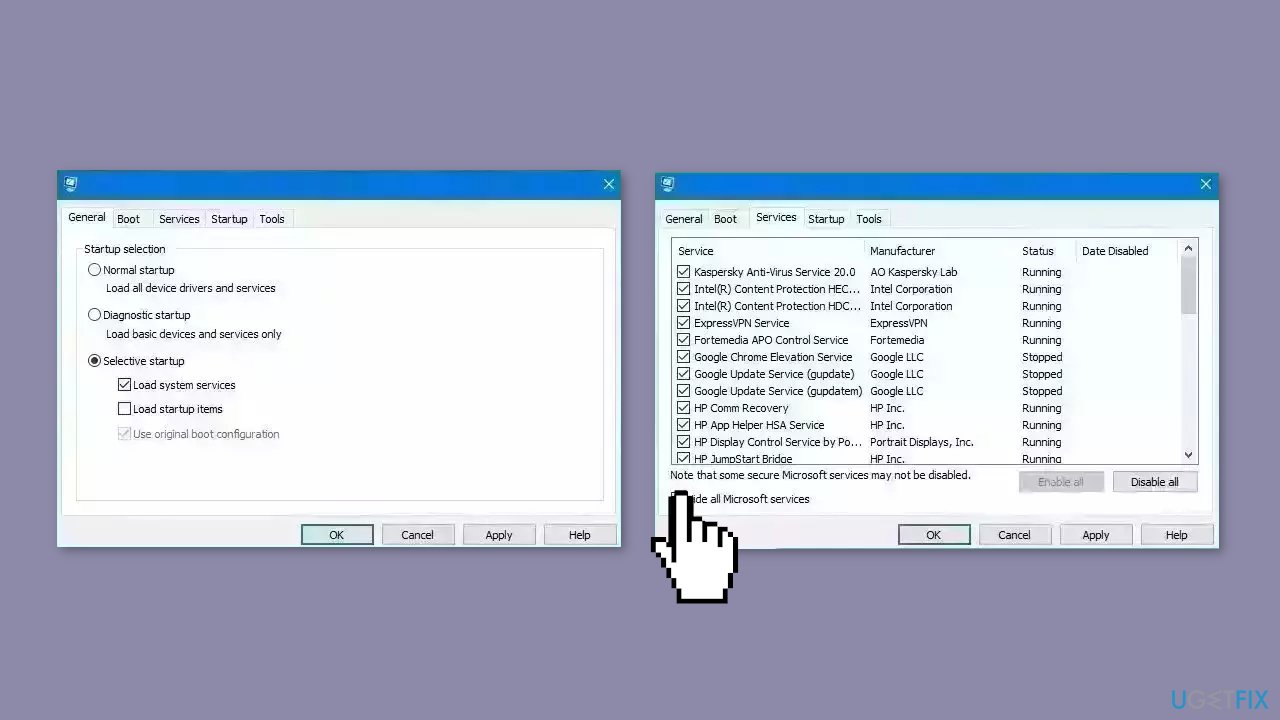
- Open the Search menu, type in system configuration, and press Enter.
- Under the Services tab, tick the Hide all Microsoft services box.
- Click on Disable all button.
- Head over to the Startup tab and click on Open Task Manager.
- Select a third-party program and click on Disable at the top.
- Repeat this step to disable all third-party apps and programs.
- Restart your PC to enter the clean boot state and see if the issue persists.
- If the issue disappeared in the clean boot state, then you can be certain that a third-party app is causing it.
- Go through all recently installed apps or programs and remove them one by one.
Bottom line
To fix the Windows Volume Mixer not saving changes, you can try updating the audio drivers, restarting the Windows Audio service, or resetting the Volume Mixer settings. If these solutions do not resolve the issue, consider using a system repair tool or following additional troubleshooting steps.
Frequently asked questions
This issue may occur due to corrupted audio drivers or conflicting software settings. Try updating your audio drivers and checking for any third-party audio applications that might interfere.
Yes, resetting audio settings can help; go to Settings > System > Sound, and then reset the audio settings to their default values to see if that resolves the issue.
If the problem persists, consider creating a new user account to see if it’s a profile-specific issue or perform a system restore to revert any recent changes that might have caused the problem.




Report an issue
What's wrong with this guide? We review every report and update or remove content.
Report received — thank you. We'll review and fix it.
You need a free account to submit a report.
Be the first to comment