How to fix
Windows volume stuck at 100%
on Windows
Resolve the frustrating issue of Windows volume stuck at 100% with our expert-tested solutions. Get your sound back to normal in minutes!

What causes How to fix Windows volume stuck at 100%?
- Corrupt update of the Realtek Audio Driver
- Corruption in the voice settings in Windows
- Volume set to maximum in the operating system
- Volume set to maximum in apps
- Volume on speakers or headphones set to maximum
- Outdated or faulty audio drivers
Repairs Windows system files, removes malware, and restores a clean OS state — without reinstalling.
Hello. The volume on my Windows PC is stuck at 100%. Why is this happening and is there a way to fix this?
If the volume on your Windows computer is stuck at 100%, it can be quite frustrating. There are a few potential causes for the volume on a Windows computer being stuck at 100%. One common cause is a corrupt update of the Realtek Audio Driver. In other cases, the issue may be related to corruption in the voice settings in Windows.
There is also a possibility that the volume is set to maximum in the operating system or in any apps you are using. Make sure to check the volume settings in these places and adjust them as necessary. It's also a good idea to check the volume on your speakers or headphones, as having the volume set to maximum on these devices can cause the volume on your computer to be stuck at 100%.
If you have checked the volume settings and your speakers or headphones, and the volume is still stuck at 100%, you can try restarting your computer. Sometimes, a simple restart can fix issues with the volume. If the issue persists after trying these solutions, you may have a hardware issue or your audio drivers[ref en-1] are outdated or faulty. In this case, you may need to update your audio drivers through the Device Manager or by visiting the website of your computer's manufacturer.
In this guide, you will find 6 steps that should help you fix Windows volume stuck at 100%. Keep in mind that the manual troubleshooting process can be lengthy. You can try using a maintenance tool like [d1]. It can fix most system errors, BSODs,[ref en-2] corrupted files, or registry[ref en-3] issues. Otherwise, follow the step-by-step instructions below.
Solution 1. Adjust Sound Settings
- Click on the Windows icon in the taskbar and click on the Power icon
- Choose Restart from the context menu
- Right-click on the sound icon in the taskbar and choose Sound settings
- Click on More sound settings in the following window
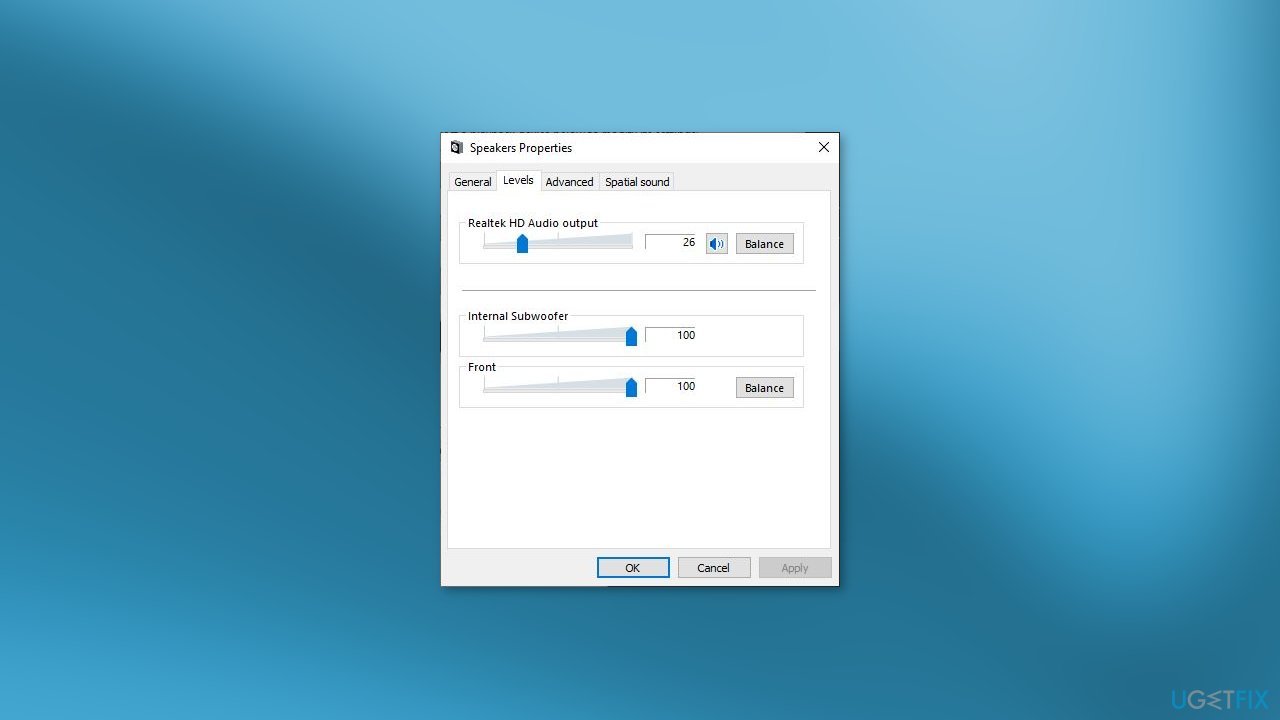
- In the Playback tab, right-click on your sound device and choose Properties
- Go to the Levels tab and adjust the sound as per your preferences
- Click Apply > OK to save the changes
Solution 2. Run the Audio Troubleshooter
- Press the Windows key + I together to open the Settings app
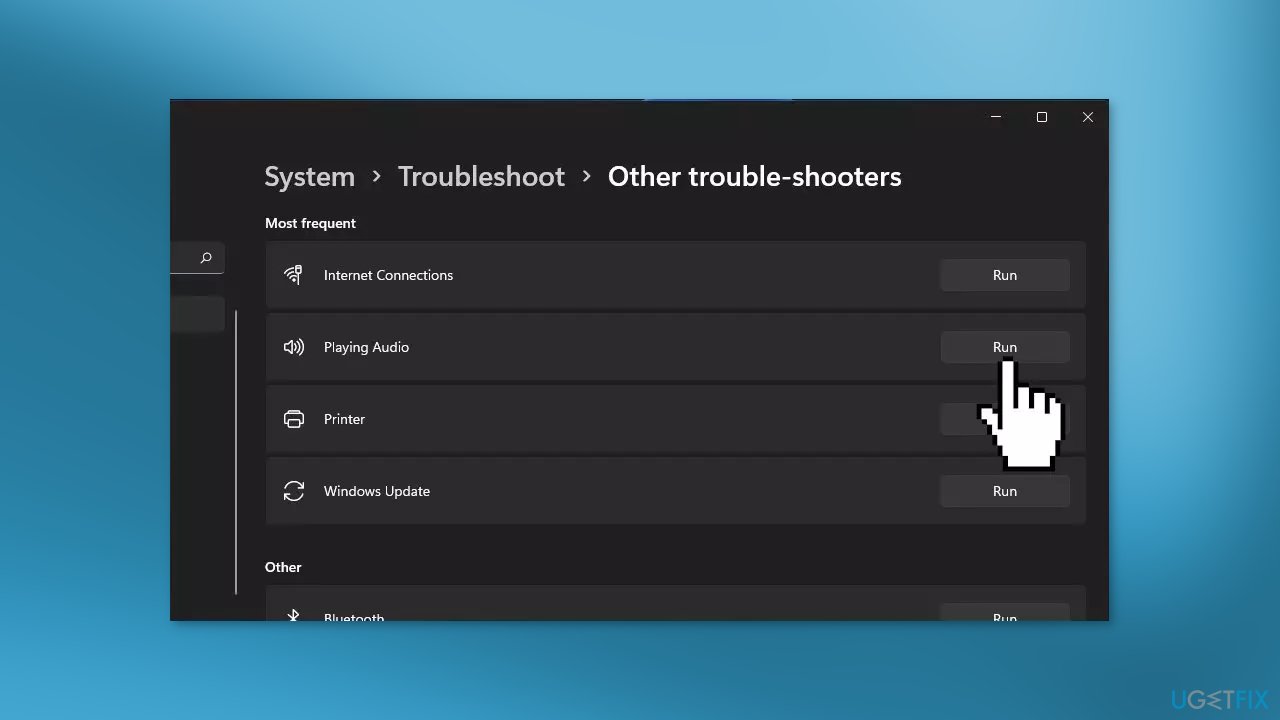
- Choose System > Troubleshoot > Other troubleshooters
- Locate the Playing Audio troubleshooter and click on the Run button
- The troubleshooter will now begin scanning for errors in the system
- After the troubleshooter has finished scanning, check if any issues have been identified
- After the troubleshooter has found a problem and suggested a fix, click on Apply this fix
- Otherwise, click the Close troubleshooter option and continue with the next solution
Solution 3. Rollback the Audio Driver
- Open the Device Manager
- Right-click on the audio driver and choose Properties from the context menu
- Click the Update driver button
- Click on Browse my computer for drivers
- Select an older driver
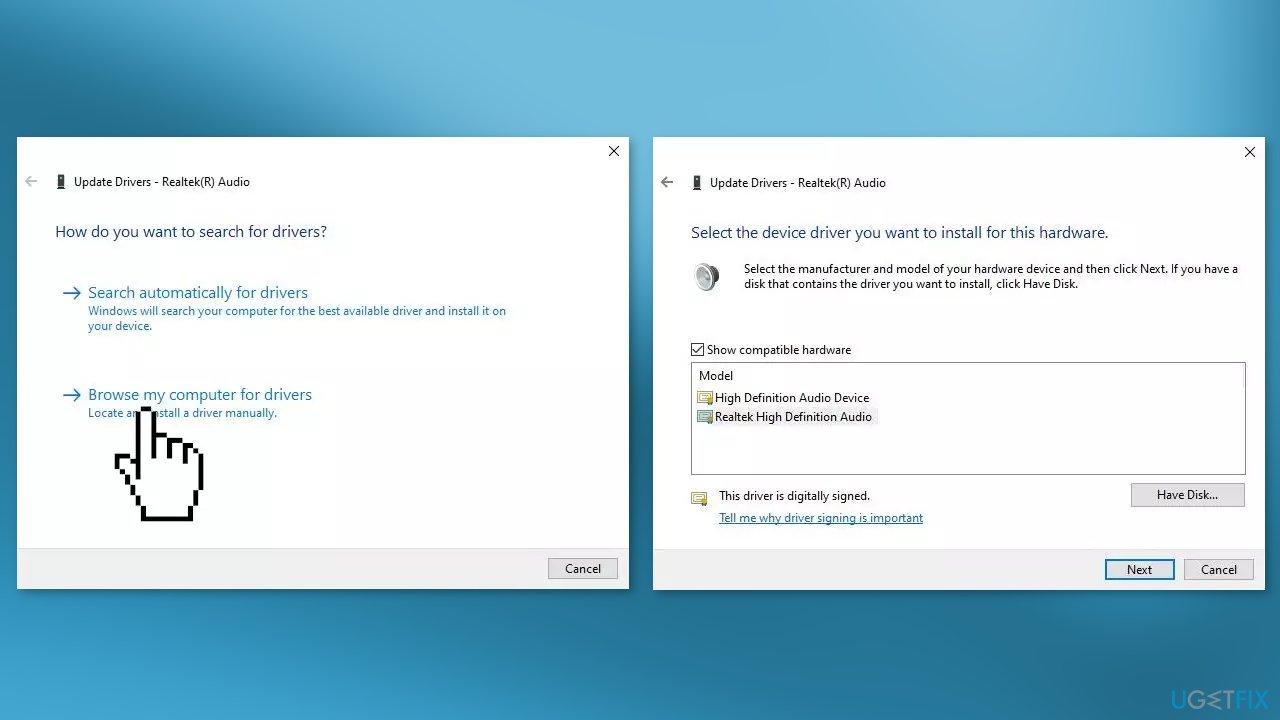
- Follow the on-screen instructions to proceed and then check if the issue is resolved
Solution 4. Update Audio Driver
- Type Device Manager in Windows Search and click Open
- Right-click on the problematic driver in the Audio inputs and outputs section
- Choose Update driver from the context menu
- Click on Search automatically for drivers and then let the system select a driver for you
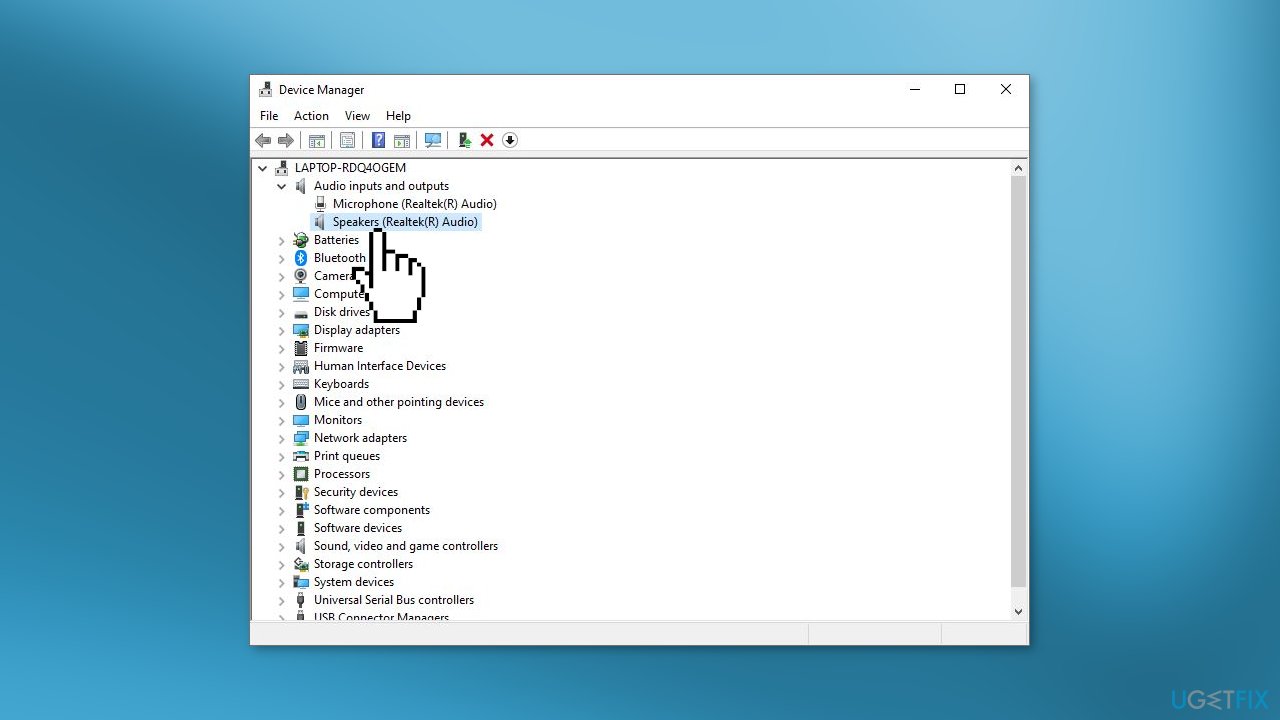
- Proceed by following the on-screen instructions and restart your computer
- You can also use a dedicated utility like [rev id="DriverFix"] that can find the best drivers for your machine and install them automatically
Solution 5. Restart Windows Audio Service
- Right-click on the taskbar’s Start button to select the Run shortcut
- To open Services, type this in the text box and click OK:
services.msc
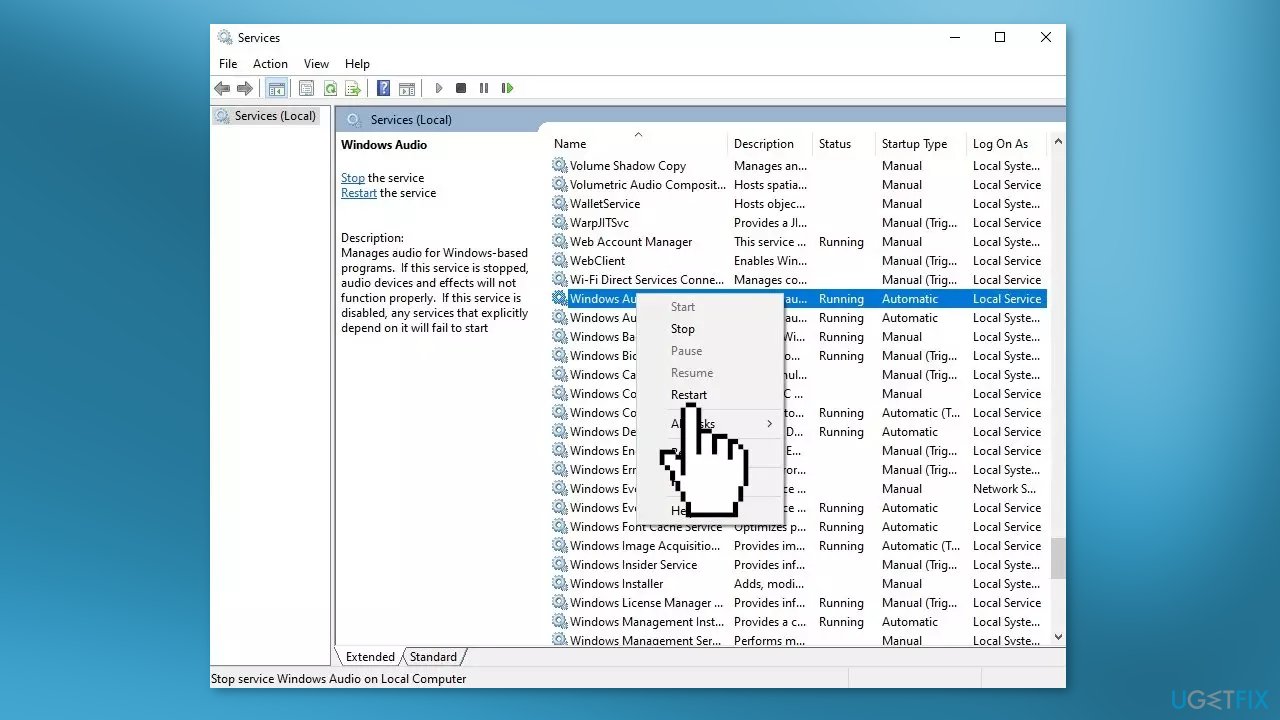
- Right-click the Windows Audio service and select Restart
- Do the same for the Windows Audio Endpoint Builder and Remote Procedure Call (RPC) services
Solution 6. Try Clean Boot
- Open the Search menu, type in system configuration, and press Enter
- Under the Services tab, tick the Hide all Microsoft services box
- Click on Disable all button
- Head over to the Startup tab and click on Open Task Manager
- Select a third-party program and click on Disable at the top
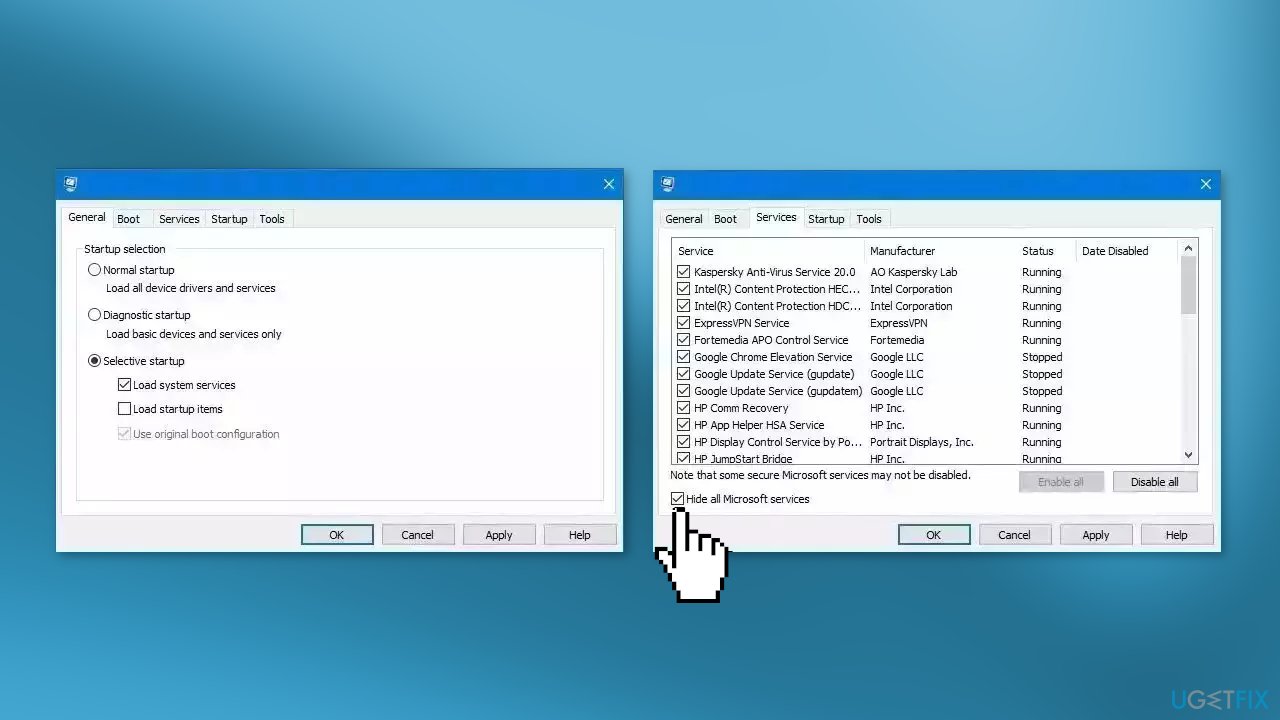
- Repeat this step to disable all third-party apps and programs
- Restart your PC to enter the clean boot state and see if the issue persists
- If the issue disappeared in the clean boot state, then you can be certain that a third-party app is causing it
- Go through all recently installed apps or programs and remove them one by one
Bottom line
To fix the volume stuck at 100%, you can try adjusting sound settings, restarting your computer, or updating your audio drivers. If these solutions do not resolve the issue, consider using a maintenance tool to fix system errors or check for hardware issues.
Frequently asked questions
This issue may occur due to a glitch in the audio driver or incorrect sound settings. Try updating your audio drivers or checking the sound settings in the Control Panel.
You can resolve this by resetting the audio service or adjusting the volume settings in the Sound settings menu. Restarting your device may also help.
Yes, you can run the Audio Troubleshooter from the settings, check for Windows updates, or reinstall your audio driver to fix the volume stuck at 100% issue.




Report an issue
What's wrong with this guide? We review every report and update or remove content.
Report received — thank you. We'll review and fix it.
You need a free account to submit a report.
Be the first to comment