How to fix
Windows won’t turn off after clicking “Shut down”
on Windows
Discover quick solutions for when Windows 10 or 11 won't shut down. Resolve this frustrating issue effortlessly with expert-tested methods.

What causes How to fix Windows won’t turn off after clicking “Shut down”?
- System is updating
- Hardware running continuously
- Overheating issues
- Registry issues
- Damaged system components
Repairs Windows system files, removes malware, and restores a clean OS state — without reinstalling.
Hello. Whenever I try to shut down my Windows computer it does not work. Sometimes the screen goes black, but I can still hear the fans running. What could be the problem?
Windows is one of the most widely used operating systems around the world. It is used in corporate environments as well as at homes. Sometimes users run into a serious issue where they click the "Shut down" button, but their Windows computer does not turn off. Some users say that their screen turns black and at first glance, you might think that the system is off, but they can still hear the device working.
It is unknown what could be causing this problem but one thing is clear - if unfixed, it could have detrimental consequences on the machine. The CPU[ref en-1] and other hardware running constantly could lead to a significantly shorter lifespan of the device and various other issues, like overheating, system malfunctions. Sometimes the system does not turn off because it is updating, so check if it keeps happening more than once.
The manual troubleshooting process could take a while because it is unclear what is causing the issue, so you can try using an automatic solution [d1] to avoid going through all of the possibilities. The repair tool can identify the damaged system components, fix BSODs,[ref en-2] and registry issues by scanning the system. This software could also be used to free up space by clearing cookies and cache,[ref en-3] which should boost the device's performance.
Below you will find a few manual methods that could fix the Windows won't turn off after clicking "Shut down" issue. Note that this will take a while, so please follow all of the steps very carefully and in an orderly manner:
Method 1. Force Shut Down The Computer
- Press and hold the power button until the computer is turned off
- Remove all power (battery/power cord/unplug the power cord) for 5-10 minutes
- Start your computer and try to shut it down normally
Method 2. Check for Updates
- Click Settings from your start menu and click Updates & Security
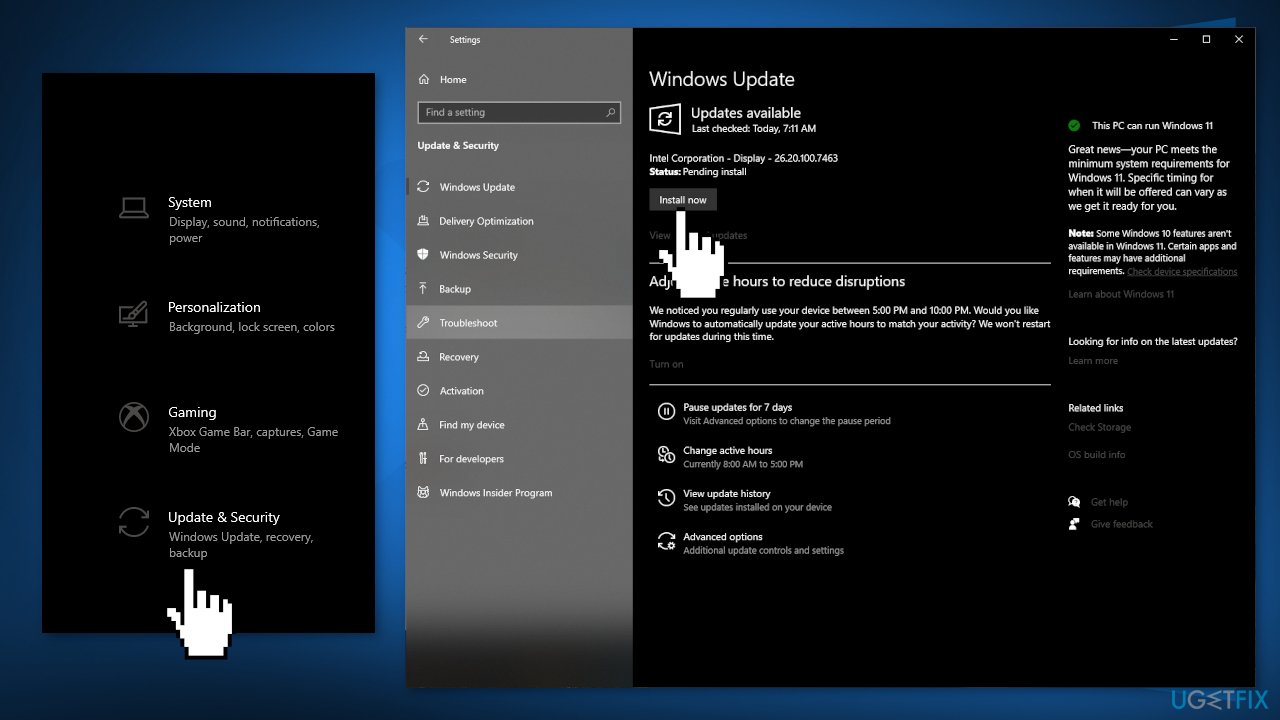
- Choose Windows Upgrade from the left panel and click Check for updates button, and then your computer will check for, download, and install any updates found
Method 3. Run the Power Troubleshooter
- Open the Settings app and click on Update & Security
- Select Troubleshoot in the left sidebar, and click on Additional troubleshooters
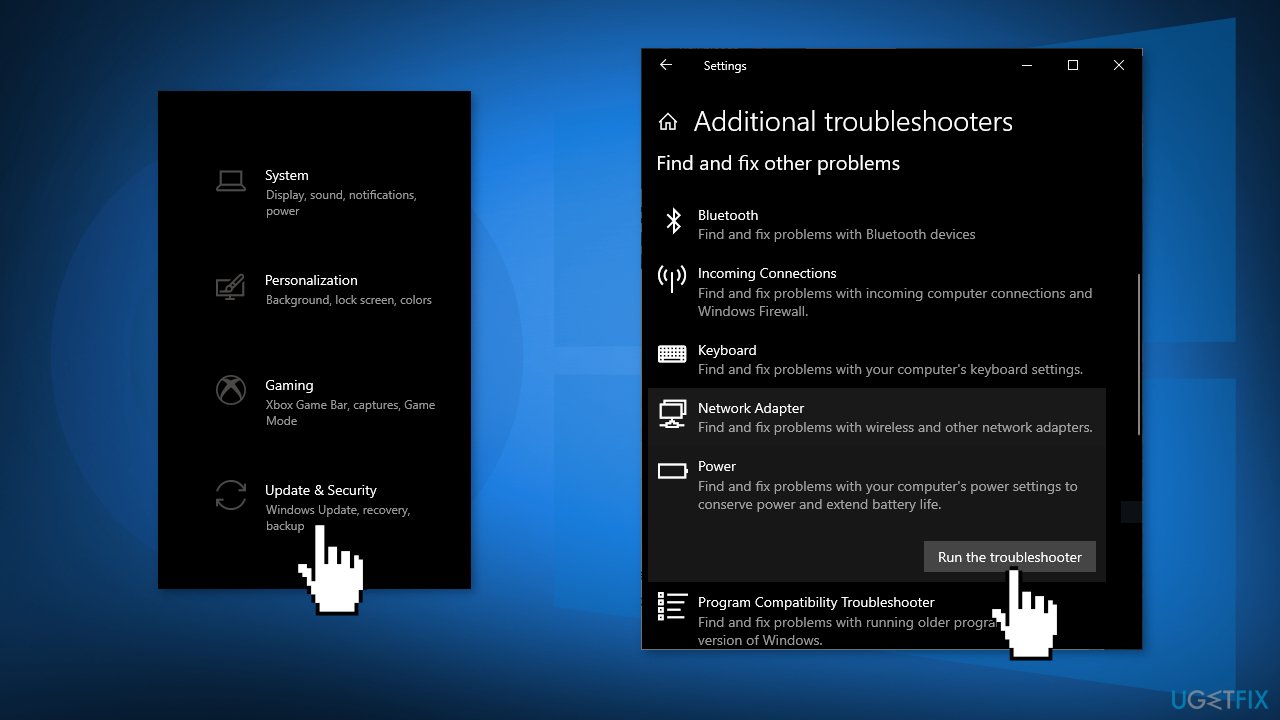
- Click on Power, and choose Run the troubleshooter
- Let the troubleshoot run, detect issues, and offer you possible fixes
Method 4. Repair Corrupted System Files
Use Command Prompt commands to repair system file corruption:
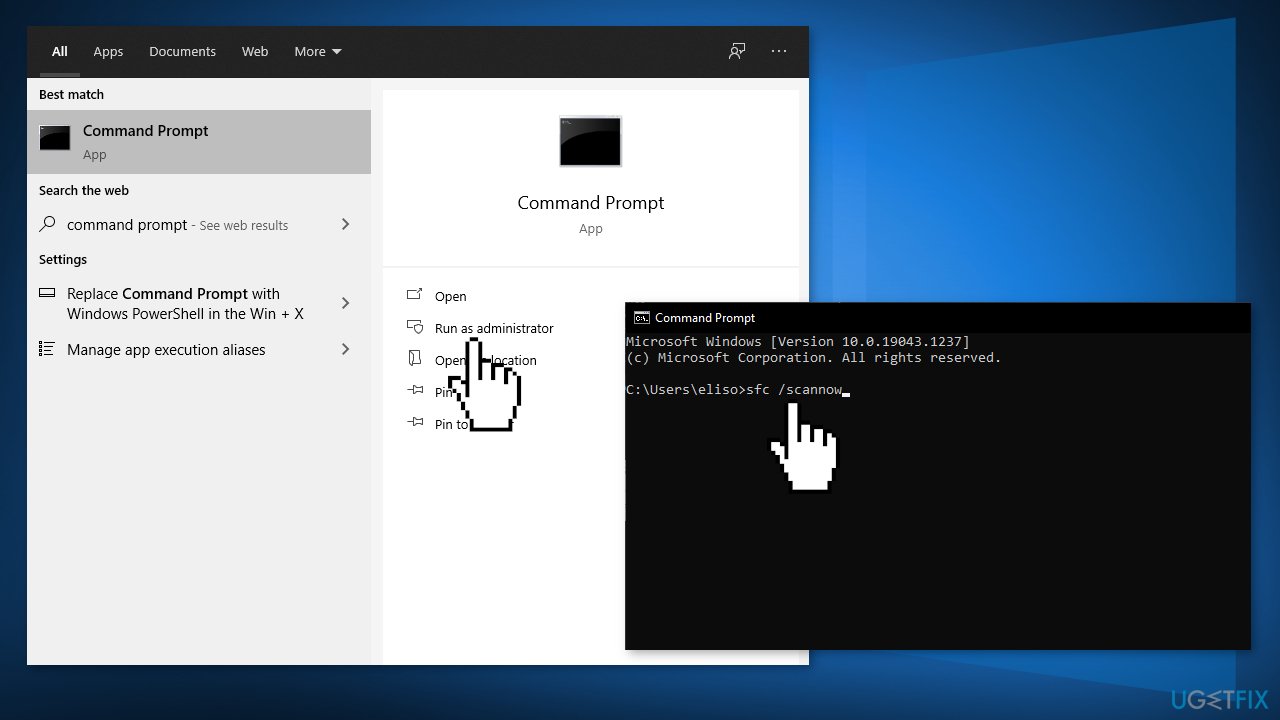
- Open Command Prompt as administrator
- Use the following command and press Enter:
sfc /scannow
- Reboot your system
- If SFC returned an error, then use the following command lines, pressing Enter after each:
DISM /Online /Cleanup-Image /CheckHealth
DISM /Online /Cleanup-Image /ScanHealth
DISM /Online /Cleanup-Image /RestoreHealth
Method 5. Use Command Prompt To Shut Down Windows
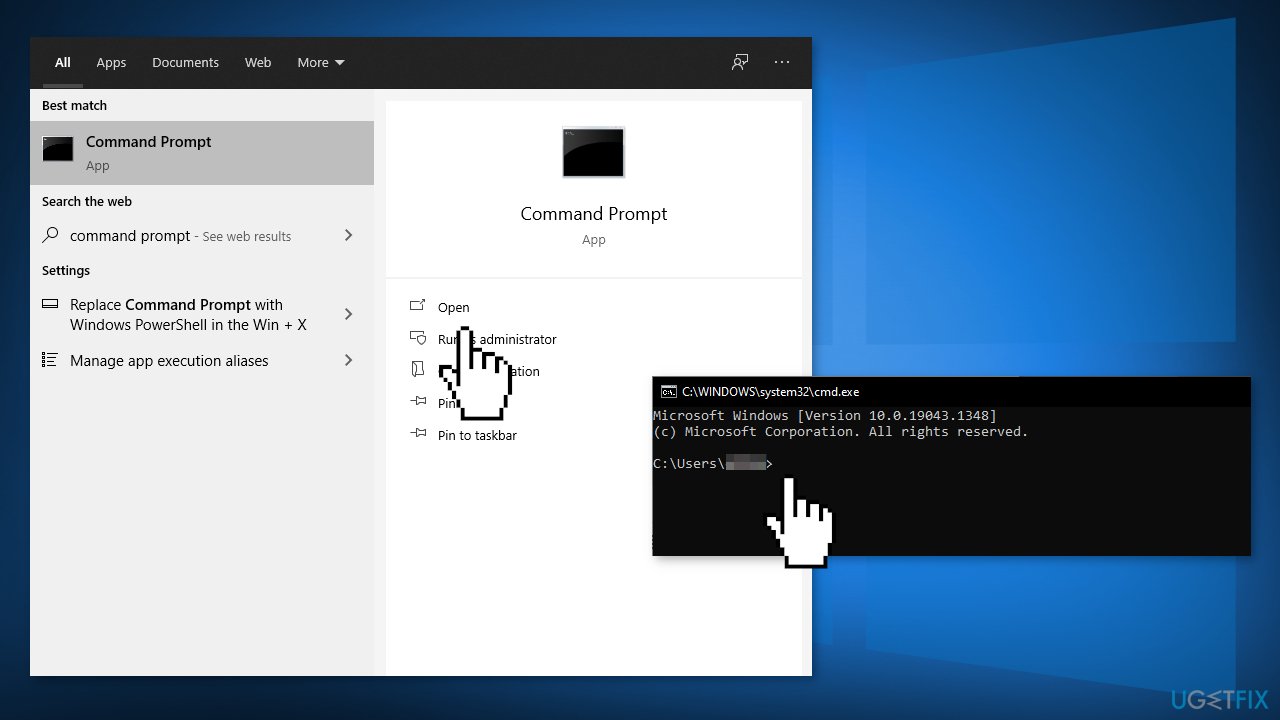
- Use the search box to search for Command Prompt and click on it when it appears in the search results
- When it opens, type in the following command and press Enter:
shutdown /s /f /t 0
Method 6. Disable Fast Startup
- Launch Control Panel and select the Power Options option
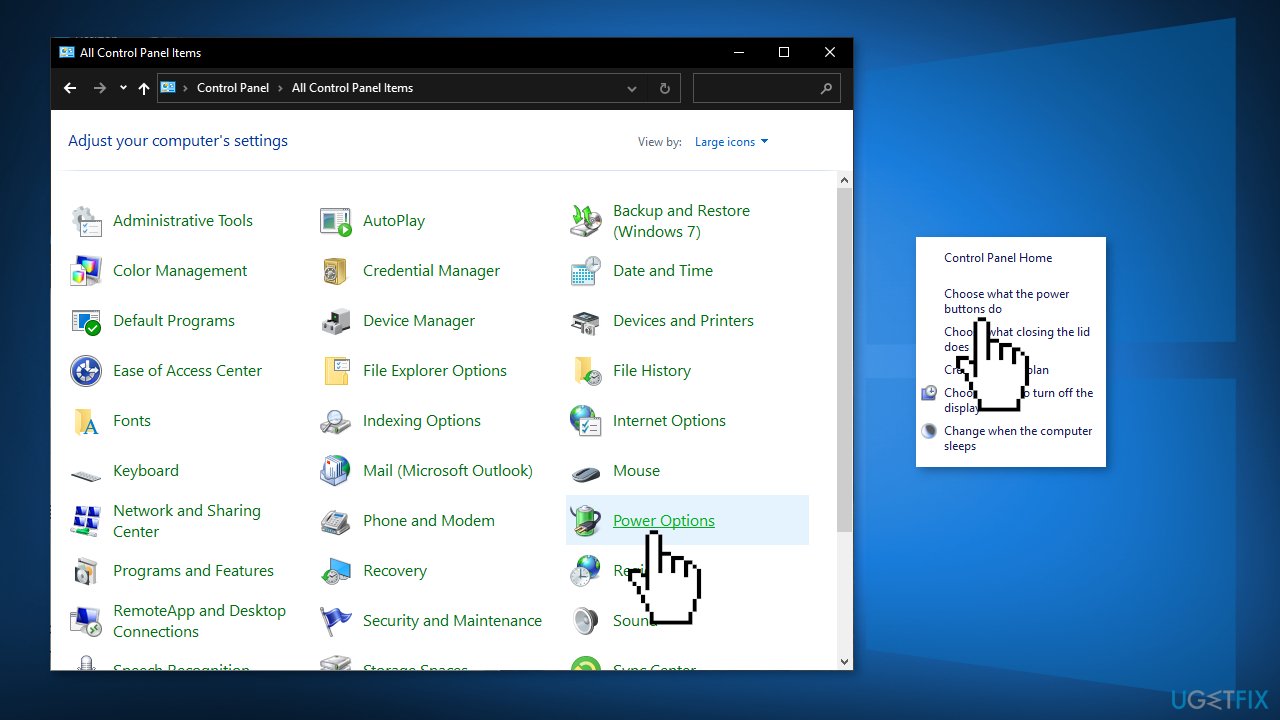
- Select Choose what the power button does in the left sidebar
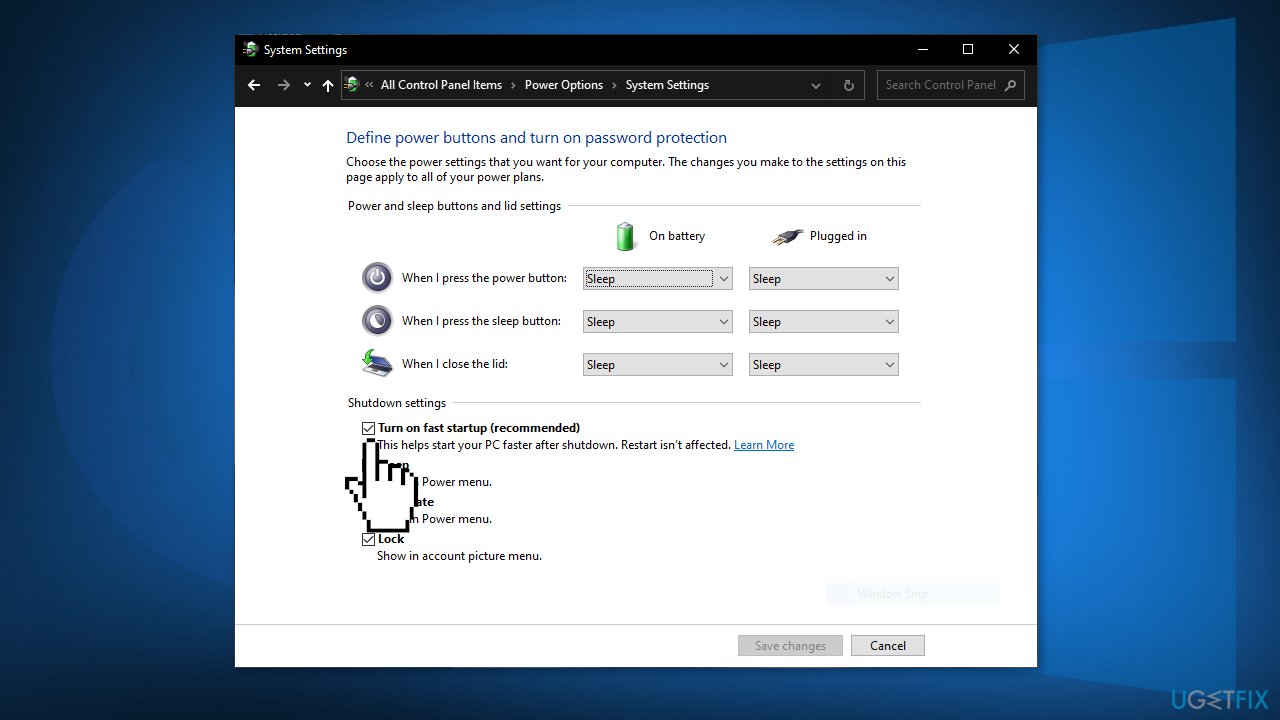
- Untick the option that says Turn on fast startup (recommended), and click Save changes at the bottom
Method 7. Stop Windows Delivery Update Optimization
- In the Start menu, please click Settings to open the setting interface.
- When you enter the main interface, choose Update & Security
- Click on Delivery Optimization to continue
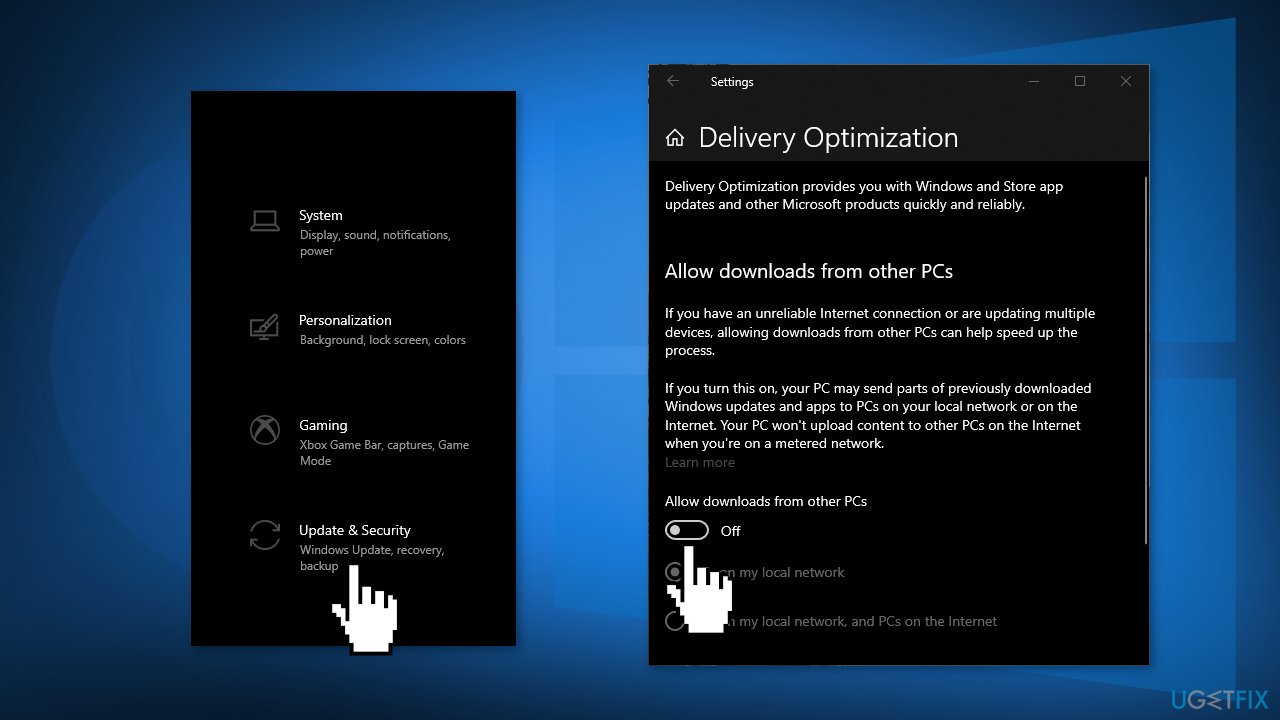
- Turn off the Allow downloads from other PCs button to forbid downloads from other PCs
Method 8. Perform a Repair Install
- Download the Windows 10 ISO file
- Now mount the ISO file
- Double-click on the file setup.exe to start the repair, install from the mounted drive
- When the installation provides the License Terms, read them and click Accept
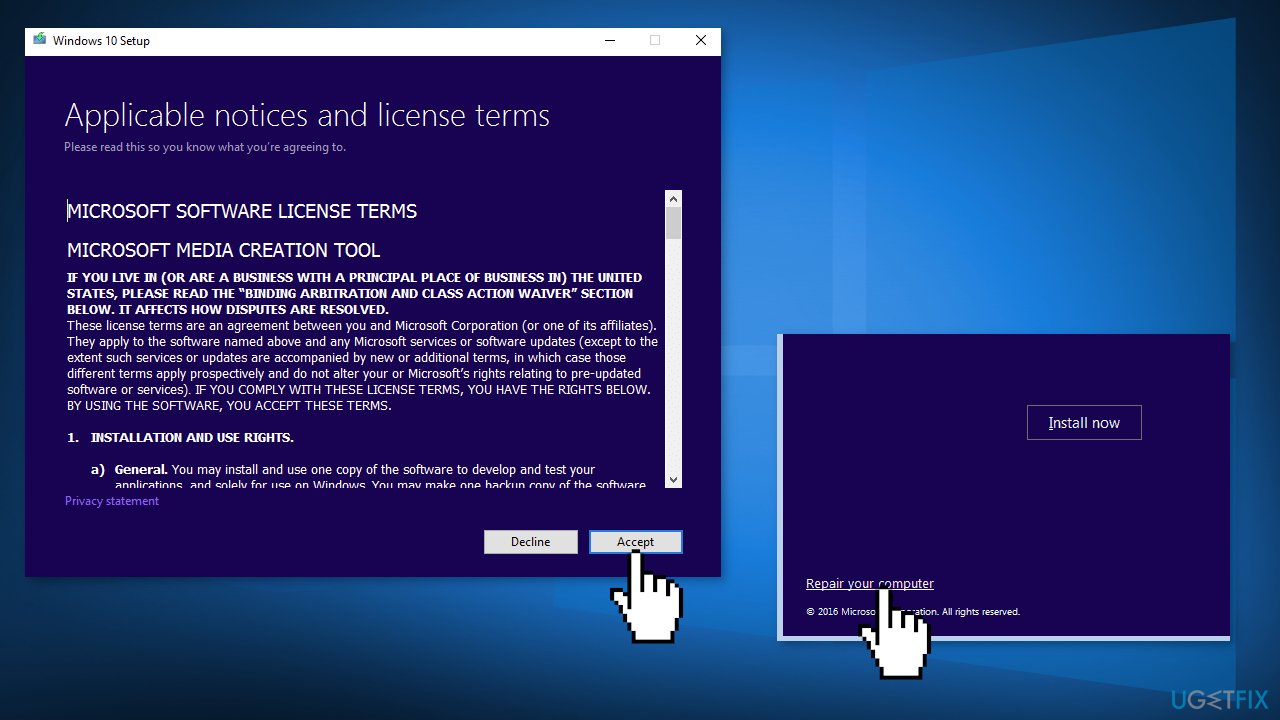
- Windows 10 will now check for updates and will install the ones available
- When all is set, click Install
- When the installation is complete, follow the on-screen instructions
Bottom line
To address the issue of Windows not turning off, you can try forcing a shutdown by holding the power button and removing all power sources for a few minutes. Additionally, checking for updates through the Settings menu may help resolve the problem. If these methods do not work, consider using an automatic repair tool to identify and fix underlying issues.
Frequently asked questions
First, try holding down the power button for a few seconds to force a shutdown. If the problem persists, check for any pending updates or troubleshoot power settings in the Control Panel.
Yes, a corrupted driver can interfere with the shutdown process in Windows 11. Update or uninstall any recently added drivers to see if that resolves the issue.
You can open Task Manager and look for any applications that are running in the background before trying to shut down. Closing these applications may help facilitate a proper shutdown.




Report an issue
What's wrong with this guide? We review every report and update or remove content.
Report received — thank you. We'll review and fix it.
You need a free account to submit a report.
Be the first to comment