How to fix
WinGet COM Server high CPU usage
on Windows
Resolve high CPU usage from WinGet COM Server in Windows 10 or 11 quickly and effectively. Expert-tested solutions for smooth performance!

What causes How to fix WinGet COM Server high CPU usage in Windows?
- Underlying software conflict
- Corrupted installation or update
- Redundant background processes
- Inefficient process operation
Repairs Windows system files, removes malware, and restores a clean OS state — without reinstalling.
For a few weeks now, WinGet COM Server high CPU usage is way too high on my Windows. It goes up as much as 30-35% at random times, which makes my computer fans spin faster. I have no clue what caused it, but I'd like to get rid of this issues as soon as possible.
Resource usage in Windows operating systems is typically well-regulated, with various processes running concurrently to ensure smooth operation. Under normal circumstances, these processes consume system resources such as CPU, RAM, and disk space within acceptable limits. However, due to various reasons, certain processes might exceed their standard resource allocations.
One such process known to exhibit high CPU usage for some individuals is the WinGet COM Server, which is a vital component of the Windows Package Manager, colloquially known as WinGet. This tool facilitates the automation of software installation on Windows systems, allowing users to efficiently install, update, configure, and uninstall applications via the command line.
It's essential to understand that excessive CPU usage by any process can hamper the computer's overall performance. When the CPU operates at elevated levels for extended periods, it risks overheating. This persistent strain can not only reduce the hardware's lifespan but also contribute to application crashes, system lags, and a compromised user experience. Therefore, addressing issues like high CPU usage by the WinGet COM Server is of paramount importance.
Several factors might be at play if the WinGet COM Server consumes more CPU than typically expected. There might be an underlying software conflict or a corrupted installation or update causing inefficiencies. In some cases, background processes associated with WinGet could be operating redundantly or inefficiently.
If you find yourself grappling with this issue, it's crucial to identify the root cause and implement the appropriate solutions. A detailed troubleshooting guide is provided below this article to help you navigate and rectify the problem. Furthermore, for a comprehensive and effective solution, it might be worthwhile to explore the [d1] PC repair tool, which is engineered to pinpoint and resolve various system-related issues.
Fix 1. Run Memory Diagnostic
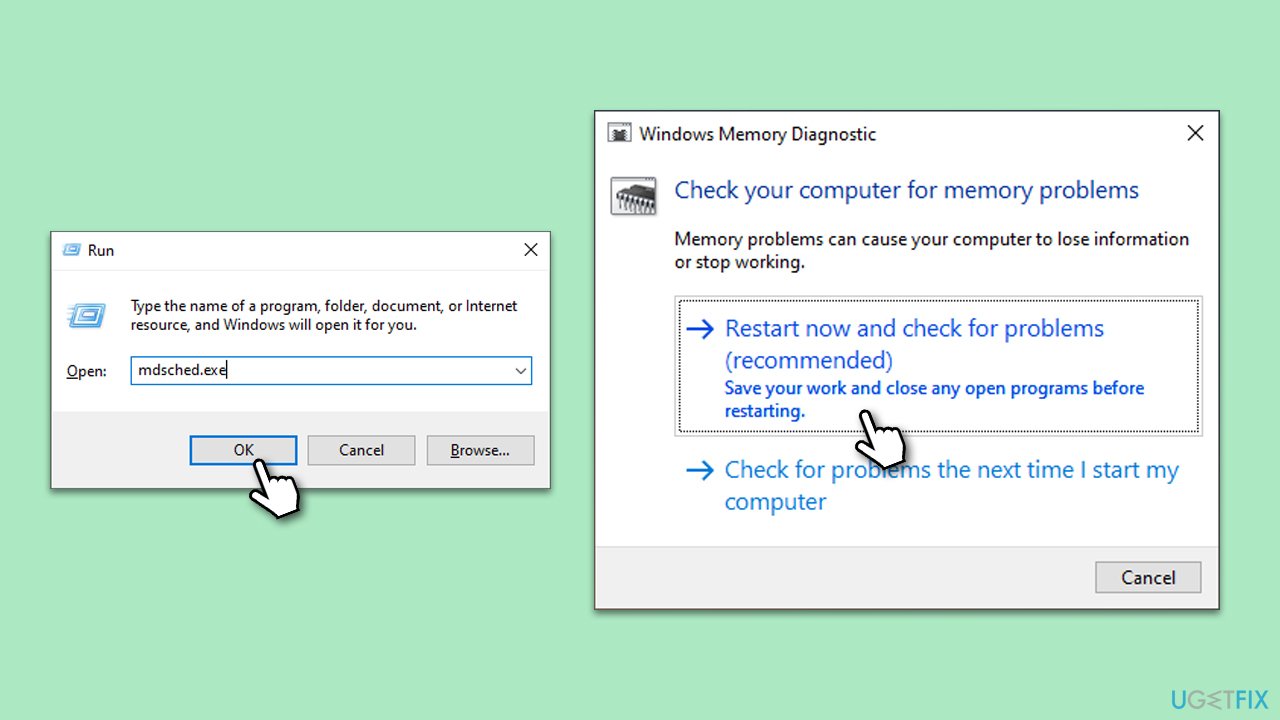
Running the Memory Diagnostic tool can help identify any memory problems that might be responsible for the excessive CPU usage.
- Press Win + R to open the Run dialog.
- Type mdsched.exe and press Enter.
- Select Restart now and check for problems (recommended).
- Your computer will restart and the Memory Diagnostic tool will start automatically.
- Once the diagnostic completes, Windows will provide a summary of the results upon restart.
Fix 2. Perform SFC and DISM scans
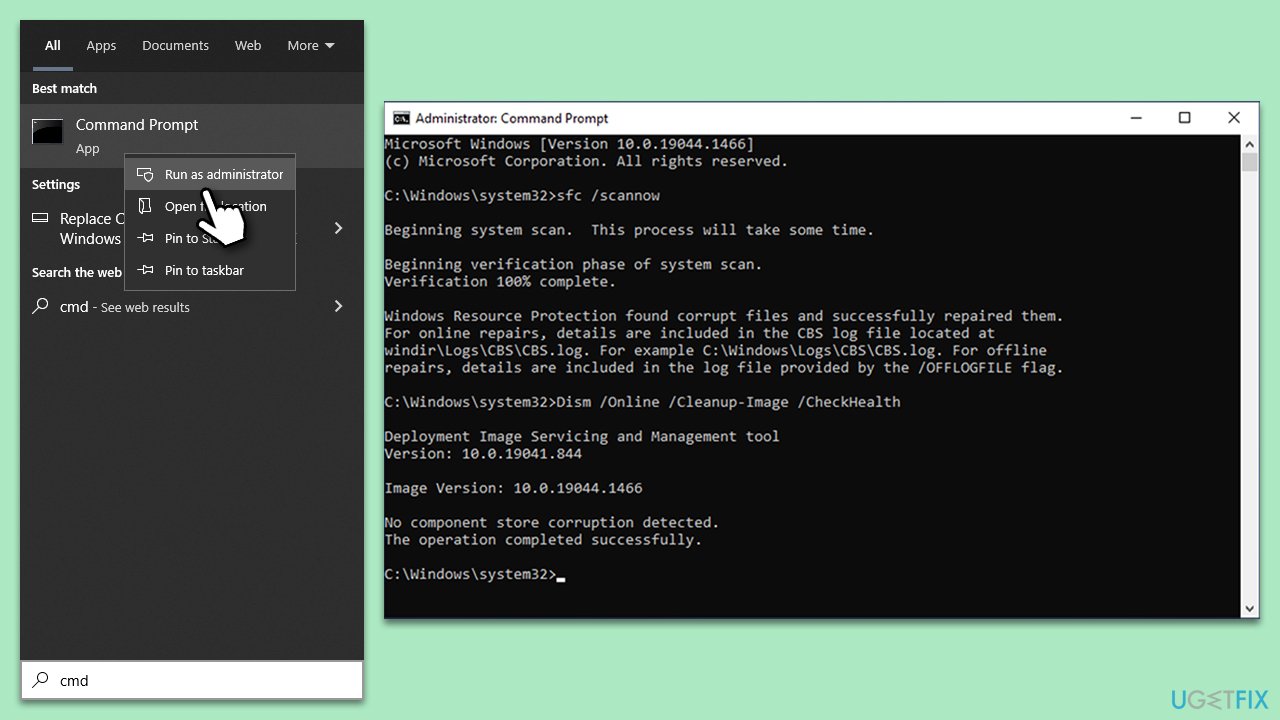
The System File Checker (SFC) and Deployment Image Servicing and Management (DISM) tools help repair potentially corrupted system files, which could be causing the high CPU usage.
- To run an elevated Command Prompt, type in cmd in Windows search.
- Right-click the Command Prompt result and pick Run as administrator.
- User Account Control will ask whether you want to allow changes - click Yes.
- Copy and paste the following commands and press Enter:
DISM.exe /Online /Cleanup-image /Scanhealth
DISM.exe /Online /Cleanup-image /Restorehealth
DISM.exe /online /cleanup-image /startcomponentcleanup
sfc /scannow - Reboot your system.
Fix 3. Try Clean Boot
Executing a clean boot can help pinpoint whether a background program is the culprit behind the high CPU usage.
- Press the Win + R to open the Run dialog.
- Type msconfig and press Enter.
- In the System Configuration window, select Selective Startup, and uncheck Load startup items.
- Go to the Services tab and check the box Hide all Microsoft services, then click Disable all.
- Click on the Startup tab and open Task Manager.
- Disable all the startup items in the Task Manager.
- Click OK, and restart the computer.
Once in the clean boot state:
- Return to the System Configuration (msconfig) and start enabling half of the services.
- Restart your computer.
- If the problem persists, it means one of the enabled services is the culprit. Disable half of these services and restart.
- Continue this process until you isolate the problematic service or application. Once identified, you can decide to uninstall, update, or disable the specific service or application causing the issue.
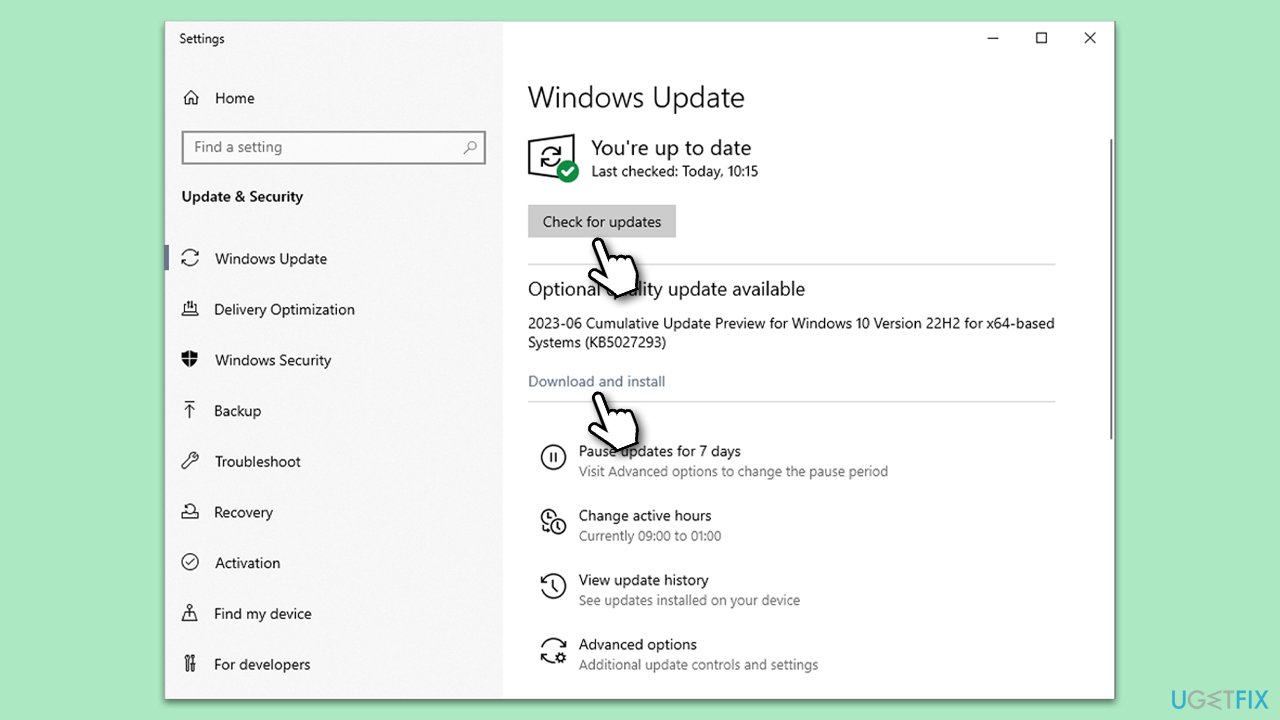
Fix 4. Update Windows
Outdated system files or incompatible updates might be causing the high CPU usage. Ensuring you have the latest Windows updates can resolve these conflicts.
- Type Updates in Windows search and press Enter.
- Here, click Check for updates.
- Wait till Windows downloads and installs all the files.
- If optional updates are available, install them as well.
- Reboot your device.
Fix 5. Disable unnecessary startup programs
Some programs that start up with Windows can cause high CPU usage. Disabling unnecessary ones can help.
- Press Ctrl + Shift + Esc to open Task Manager.
- Go to the Startup tab.
- Right-click on any unnecessary startup programs and choose Disable.
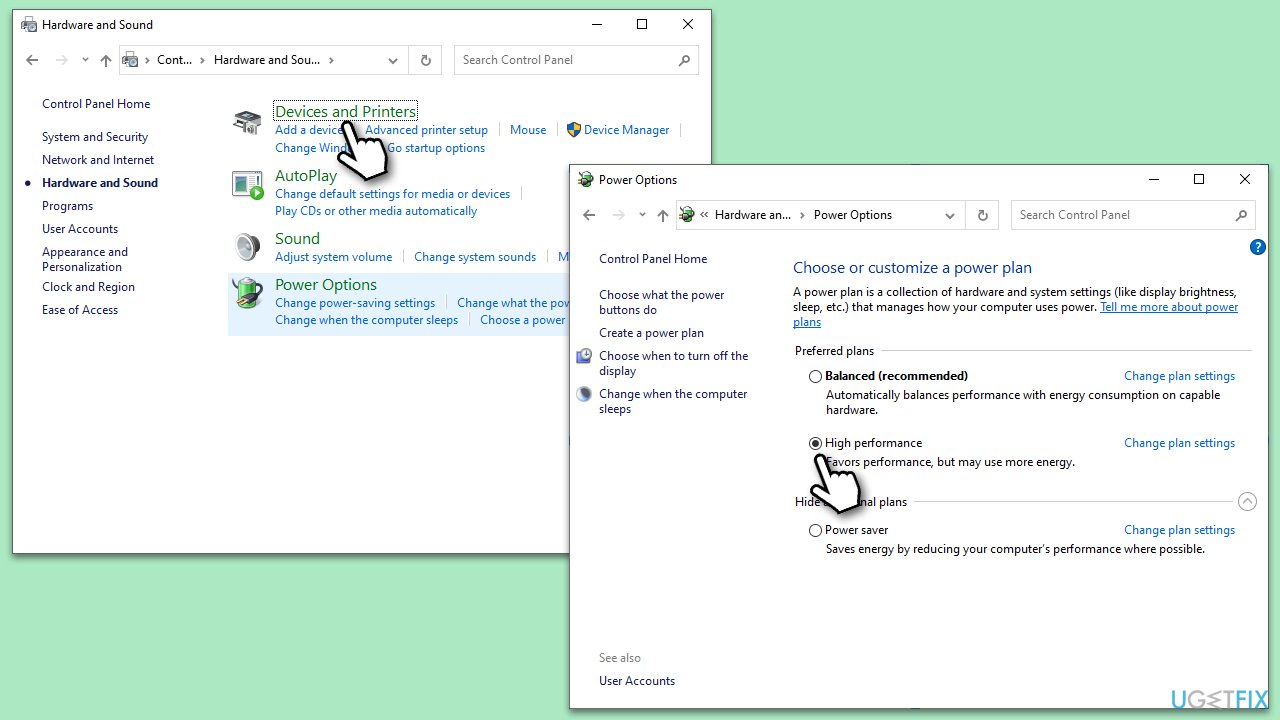
Fix 6. Adjust power settings
Changing your power settings to a higher performance can sometimes reduce high CPU usage.
- Type Control Panel in Windows search and hit Enter.
- Here, go to Hardware and Sound > Power options.
- Here, you will see the listed plans.
- Change the plan from Power saver to High performance.
Fix 7. Check for malware
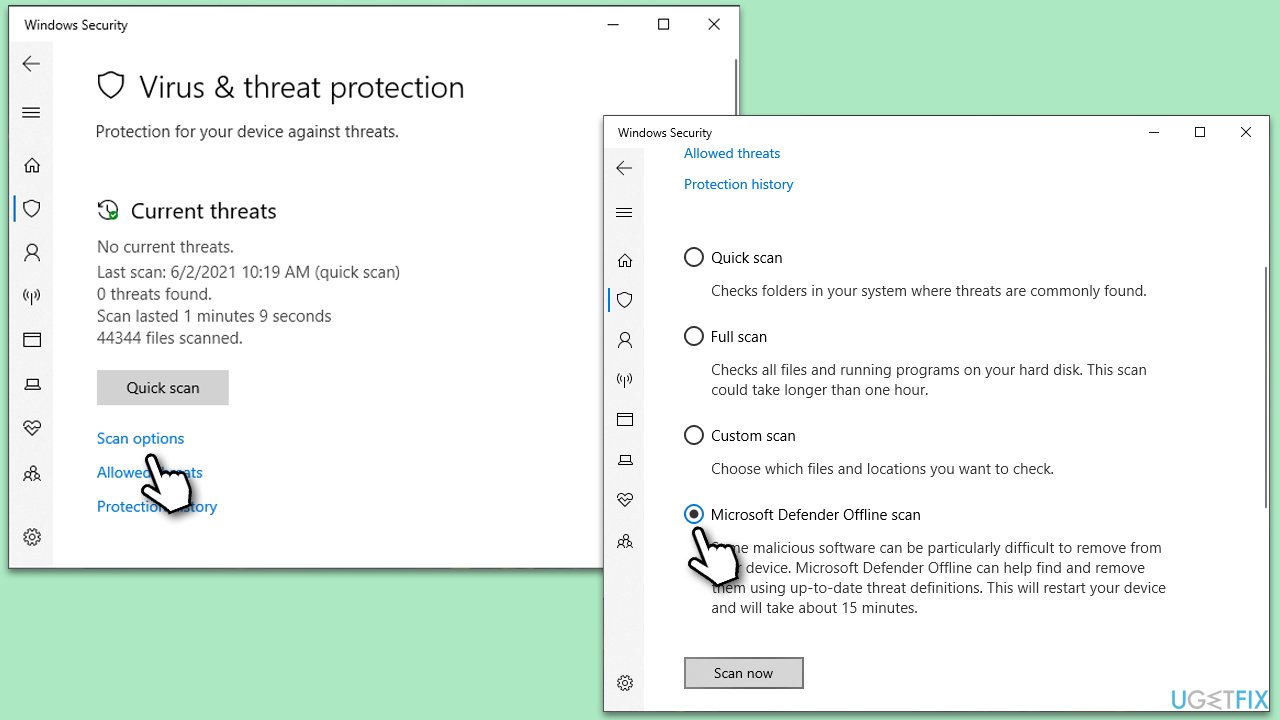
Malware or viruses can often lead to increased CPU usage. Running a thorough scan might resolve this. You can employ a third-party anti-malware, Microsoft Security Scanner, or the built-in Microsoft Defender:
- Type Windows Security in the Windows search bar and hit Enter.
- Select Virus & threat protection.
- Pick Scan options.
- Choose Microsoft Defender Offline scan and click Scan now.
- Your PC will immediately reboot and begin a deep scan.
Fix 8. Reset your PC
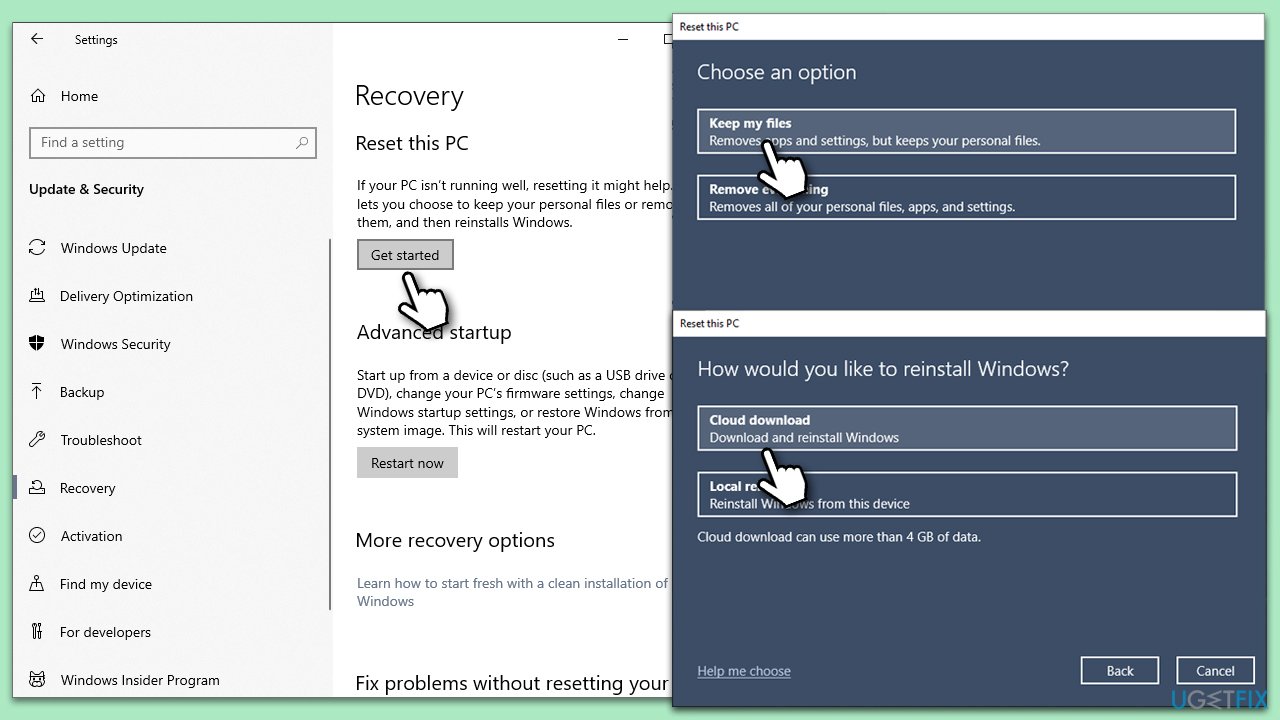
As a last resort, if none of the above solutions work, resetting your PC might help. This will reinstall Windows and can resolve underlying issues causing high CPU usage. Remember to back up important data before proceeding.
- Right-click on Start and then select Settings.
- Go to Update & Security and pick Recovery on the left side of the window.
- Find Reset this PC section and click Get Started.
- Select Keep my files and Cloud download.
- Next, pick whether you want to reinstall the apps.
- Click Reset.
- Your system will restart, and the process of Windows reset will begin.
Bottom line
To address the high CPU usage by the WinGet COM Server, you can troubleshoot by identifying the root cause and implementing appropriate solutions. Consider using a PC repair tool to help resolve system-related issues. If none of these fixes work, further investigation may be necessary.
Frequently asked questions
High CPU usage by WinGet COM Server can be caused by background processes related to software installations or updates that are not properly managed. This can lead to excessive resource consumption while the system tries to execute these tasks.
To reduce CPU usage, try restarting the WinGet COM Server process through Task Manager or check for any stuck installations that may be causing the issue. Additionally, ensure that your Windows 11 is updated to the latest version to minimize bugs.
Disabling WinGet COM Server may resolve high CPU usage, but it can also prevent you from using certain features related to package management in Windows 10. It's advisable to only disable it temporarily while troubleshooting.




Report an issue
What's wrong with this guide? We review every report and update or remove content.
Report received — thank you. We'll review and fix it.
You need a free account to submit a report.
Be the first to comment