How to fix
Wininet.dll Error
on Windows
Resolve the Wininet.dll error on Windows 10 or 11 quickly and efficiently with expert-tested solutions that ensure a smooth user experience. Fixed in mi…

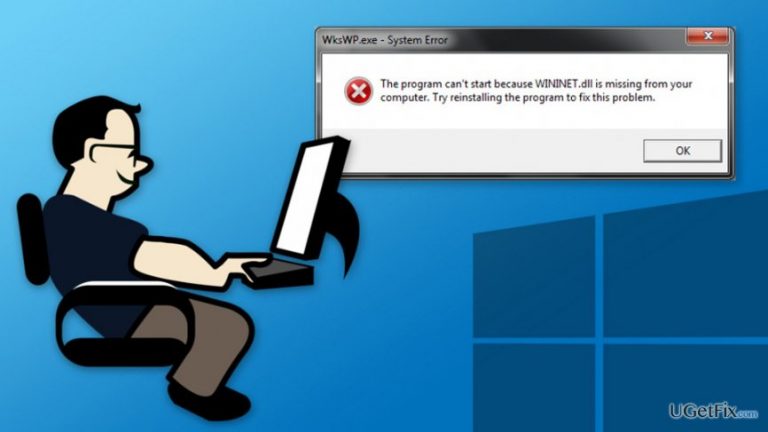
What causes How to Fix Wininet.dll Error?
- Invalid or corrupted Wininet.dll registry entry
- Program deleted or uninstalled the required version of the file
- Program overwrote the required version of the file
- Malware infection corrupting or deleting the Wininet.dll file
Repairs Windows system files, removes malware, and restores a clean OS state — without reinstalling.
When I tried to open Windows Explorer, I received an error message saying “Unable To Locate Component. This application failed to start because wininet.dll was not found. Re-installing the application may fix this problem." How can I fix it?
Wininet.dll is a dynamic link library (DLL) file that can be found on Windows operating system. These files are designed to let various programs to share the same functionality and complete important tasks. If this file is missing or corrupted, users will receive an error message and might not be able to use particular software. These errors might show up when installing programs, starting or shutting down Windows OS. The most common error messages that might show up on user’s screen are these:
- "Wininet.dll Not Found."
- "The file wininet.dll is missing.”
- "Cannot find [PATH]\wininet.dll.”
- "Cannot start [PROGRAM]. A required component is missing: wininet.dll. Please install [PROGRAM] again."
- "This application failed to start because wininet.dll was not found. Re-installing the application may fix this problem."
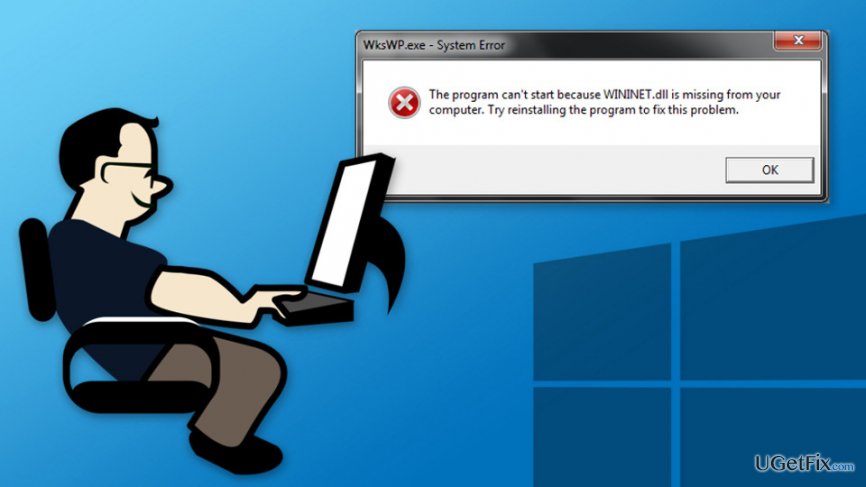
There might be numerous reasons why this error has been triggered. Usually, the error is caused by invalid or corrupted Wininet.dll registry entry. However, sometimes this error might show up because some program deleted, uninstalled or overwrote the required version of the file. Sometimes the error is triggered by malware. If the computer is infected with a particular virus, it might have corrupted or deleted Wininet.dll file. If you suspect that your device might have been infected, you should run a full system scan with [rev id=“Reimage”]. However, if malware removal program hasn’t detected any cyber infections, you are dealing with other issues that can be fixed using one of the methods suggested below.
How to Fix Wininet.dll Errors?
First of all, want to point out that downloading a single DLL file is not a good way to solve this error. On the web, you can find numerous sites that allow downloading these files. However, these websites are not approved sources and might include infected files. Originally, these files are created by various companies and are often distributed with specific software packages. Thus, only developers of the program can provide you a copy of safe DLL file. However, downloading it from the official source may not solve the main problem. Sooner or later you might encounter other errors reporting about other missing files. Thus, usually, it’s better to re-install the program that caused the error.
Method 1. Reinstall the program
If Wininet.dll error occurred when you have used a particular program, you should uninstall it and install it again. In order to do that go to Control Panel -> Add/Remove Programs (or Programs and Features) -> in the list find the necessary program and choose “Uninstall.” Then follow the uninstallation guidelines.
Method 2. Scan system with malware removal program
As we already mentioned, the error might occur because your computer is infected with a virus. Thus, scan the device with [rev id=“Reimage”] or other reputable software and make sure that your PC is not infected.
Method 3. Update drivers
Outdated hardware drivers might be another reason for error to show up. In order to fix the Wininet.dll error, you need to update drivers.
Method 4. Install Windows updates
Microsoft continuously updates their software packages. Thus, the corrupted DLL file might be replaced with an updated version. Thus, installation of Windows updates might fix the Wininet.dll error.
Windows 10 users can check available updates following these steps:
1. Go to Start Menu -> Settings.
2. In Settings choose Update & Security.
3. On the left, you will find Windows Update option.
4. Click Check for updates button. If there are any updates, their installation will start automatically.
Windows 8, 8 and Vista users need to follow these steps:
1. Go to Control Panel and choose Windows Update option.
2. Click Check for updates option. If the installation does not start automatically, you may have to click Install Updates button.
Method 5. Run sfc command
If the missing or corrupted DLL File is created by Microsoft corporation, you can run a System File Checker program:
1. Open Command Prompt:
Windows 10, 8/8.1: Start button -> All apps -> Windows System folder -> Command Prompt.
Windows 7, Vista or XP: Start -> All programs -> Accessories -> Command Prompt.
2. Once the Command Prompt window shows up, enter this command and press Enter:
sfc /scannow
3. System File Checker will scan the device, and when the verification reaches 100%, you will see the list of fixed corrupted files or that “Windows Resource Protection did not find any integrity violations.” Thus, if you see that Wininet.dll file is fixed, your problem is solved.
Bottom line
To fix Wininet.dll errors, you can try running a full system scan for malware, reinstalling the affected application, or restoring the original DLL file from a trusted source. If none of these methods work, consider seeking professional technical support.
Frequently asked questions
The Wininet.dll error can be caused by corrupted system files, outdated drivers, or malware infections affecting your Windows installation.
You can use the System File Checker tool by running 'sfc /scannow' in an elevated Command Prompt to automatically repair corrupt Wininet.dll files.
It is not recommended to download DLL files from third-party websites, as they may contain malware; instead, try repairing or restoring your system files.




Report an issue
What's wrong with this guide? We review every report and update or remove content.
Report received — thank you. We'll review and fix it.
You need a free account to submit a report.
Be the first to comment