How to fix
“Winload.efi is missing or contains errors”
on Windows
Resolve the "Winload.efi is missing or contains errors" issue in Windows 10 and 11 quickly and easily. Expert-tested solutions await you!

What causes How to fix “Winload.efi is missing or contains errors” in Windows?
- Corrupted Winload.efi file
- Missing Winload.efi file
- Corrupted system files
- Disk errors
- Issues with UEFI settings
Repairs Windows system files, removes malware, and restores a clean OS state — without reinstalling.
Hello. My Windows computer seems to be malfunctioning because it fails to boot up and shows a message "Winload.efi is missing or contains errors." Can you help me fix it?
Unfortunately, people sometimes experience Windows crashes that prevent them from using the operating system. The computer may fail to boot up, and users may see a Blue Screen of Death.[ref en-1] Some people have run into a "Winload.efi is missing or contains errors," and are looking for ways to fix this problem. In this guide, we will discuss the part that Winload.efi plays in keeping the system running smoothly and how to fix the malfunction.
Winload.efi is an EFI (Extensible Firmware Interface) file. It is an executable file for the computer's firmware[ref en-2]. It is mainly based on UEFI and executes the tasks of loading the files to the bootloader of the computer. These files are used for a specific set of tasks like turning on the computer, restarting the computer, installing Windows, resetting the computer, etc. Hence, Winload.efi is a really important file. If this file is lost, corrupted, or damaged, it becomes impossible for the Windows operating system to work properly.
In many cases, users are able to fix errors like "Winload.efi is missing" on their own but it is quite complicated for less IT-savvy individuals. To avoid system malfunctions, keep the system healthy, avoid corrupted files, registry[ref en-3] issues, we recommend having a maintenance tool like [d1] that can take care of PC problems automatically. Otherwise, if you are ready to begin the process, carefully follow the step-by-step instructions below.

Solution 1. Use Automatic Startup Repair
- Boot from Windows 10 installation media
- Click Repair your computer
- Go to Troubleshoot, Advanced options, then Startup repair
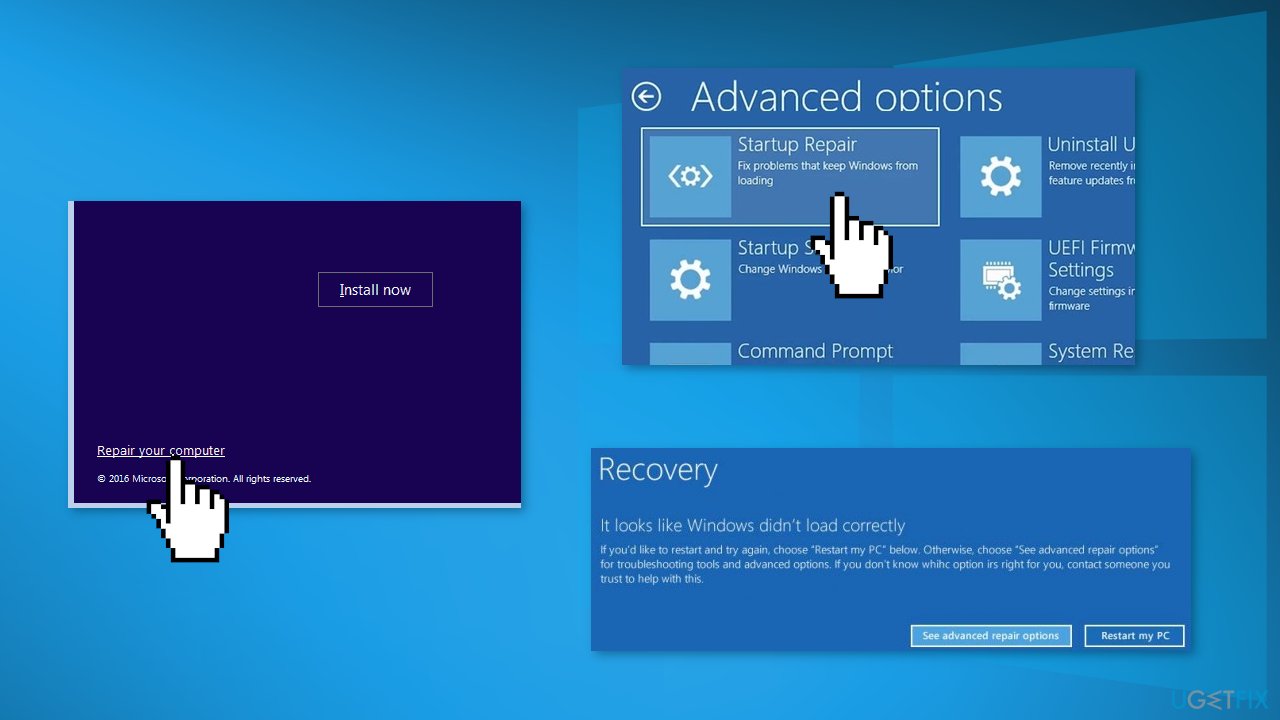
- Follow the Recovery Wizard instructions
Solution 2. Fix Corrupted System Files
- Boot from Windows 10 installation media
- Click Repair your computer
- Select Troubleshoot and then Command Prompt
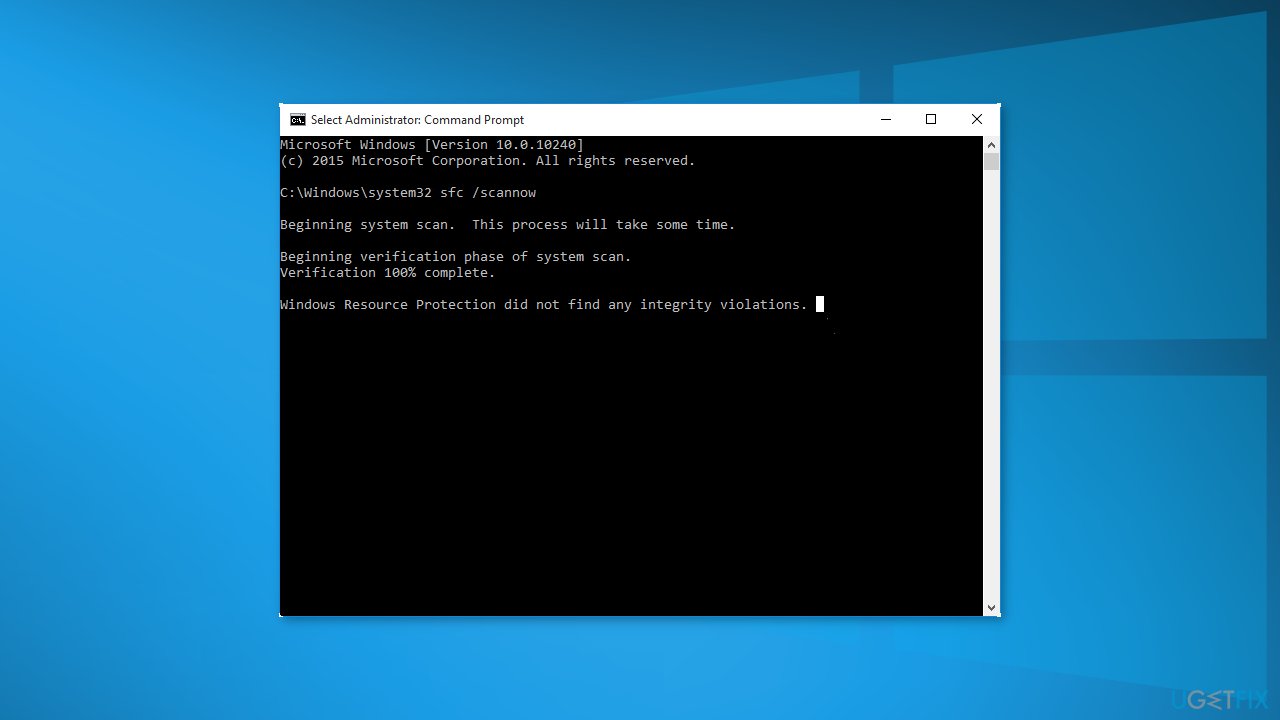
- Type sfc /scannow and press Enter
Solution 3. Check Disk
- Boot from Windows 10 installation media
- Click Repair your computer
- Select Troubleshoot and then Command Prompt
- Type chkdsk c: /f and press Enter
Solution 4. Enable CSM Compatibility and Disable Secure Boot
- Restart your computer and constantly press F2, F8, Del (the key might be different depending on the PC manufacturer) to enter the UEFI configuration menu
- Enable CSM Boot compatibility mode in UEFI settings (in some versions of UEFI firmware it is called Legacy Boot)
- Then find and disable Secure Boot mode (usually, it can be found in the Security, Authentication, or Boot sections
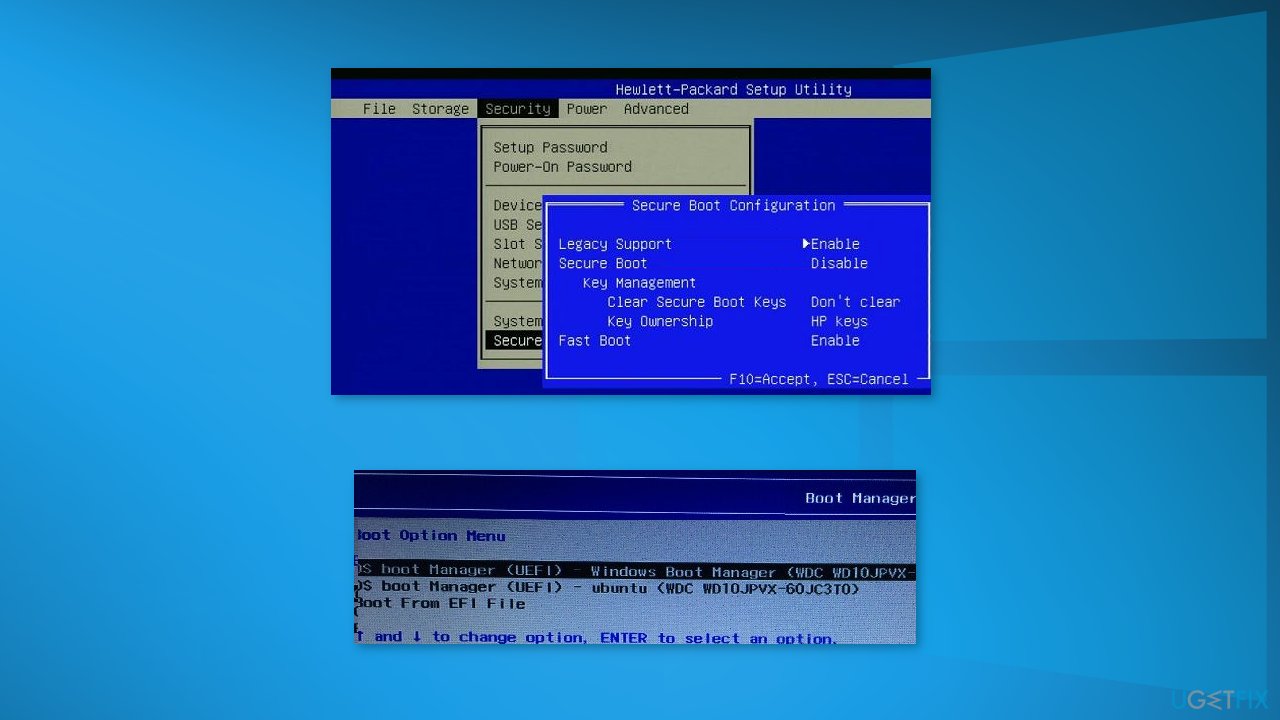
- Change the Secure Boot mode to Disabled or Off
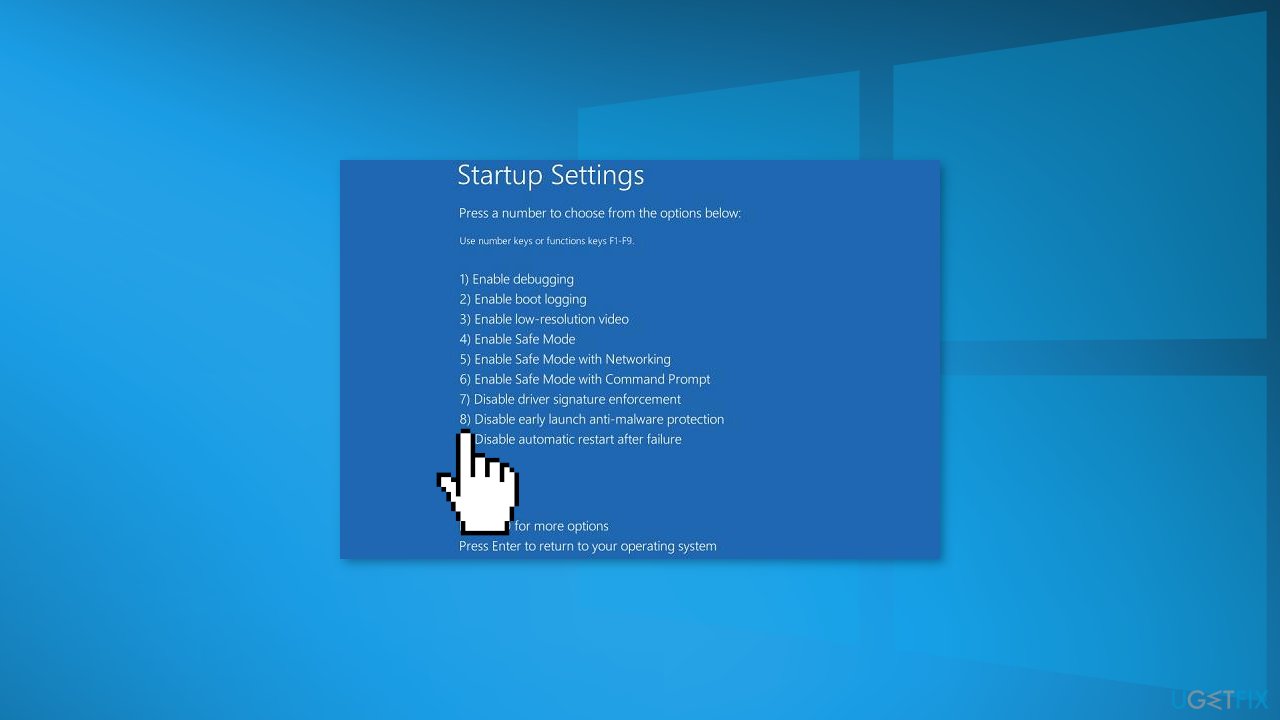
Solution 5. Disable Early Launch Anti-Malware Protection
- Boot from Windows 10 installation media
- Click Repair your computer
- Go to Troubleshoot, Advanced options, then Startup settings
- Restart your computer
- Press
F8to select the item 8) Disable early launch anti-malware protection
Solution 6. Repair BCD and Winload.efi File
- Boot from Windows 10 installation media
- Click Repair your computer
- Select Troubleshoot and then Command Prompt
- Execute the diskpart command
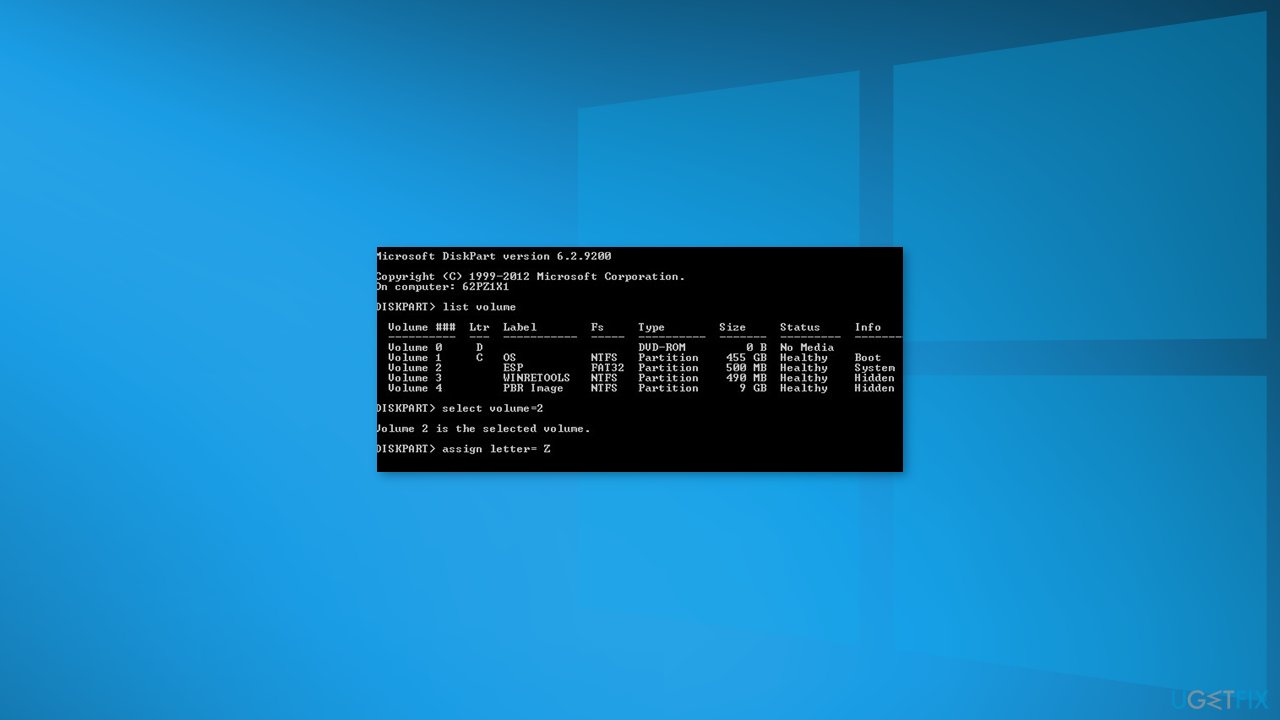
- List the partitions on the disks by typing list volume
- Find a partition labeled ESP or EFI with a size of 100 MB (file system must always be FAT32). If the EFI partition was accidentally deleted, it can be restored as follows:
Select this partition: select volume 2
Assign a drive letter to the partition: assign letter=Z
Exit the diskpart: exit
- Copy the boot files from the Windows directory: bcdboot c:\\Windows /s Z: /f ALL (replace
c:\\with the drive letter on which you have the Windows installed). If you did everything correctly, the message will appear: Boot files successfully created; - Reboot your device and check if the boot problem is fixed
Solution 7. Rebuild the BCD and Master Boot Record
- Boot from Windows 10 installation media
- Click Repair your computer
- Select Troubleshoot and then Command Prompt
- Run the following commands one by one by pressing Enter after each one:
bootrec /FixMbr
bootrec /FixBoot
bootrec /ScanOs
bootrec /RebuildBcd
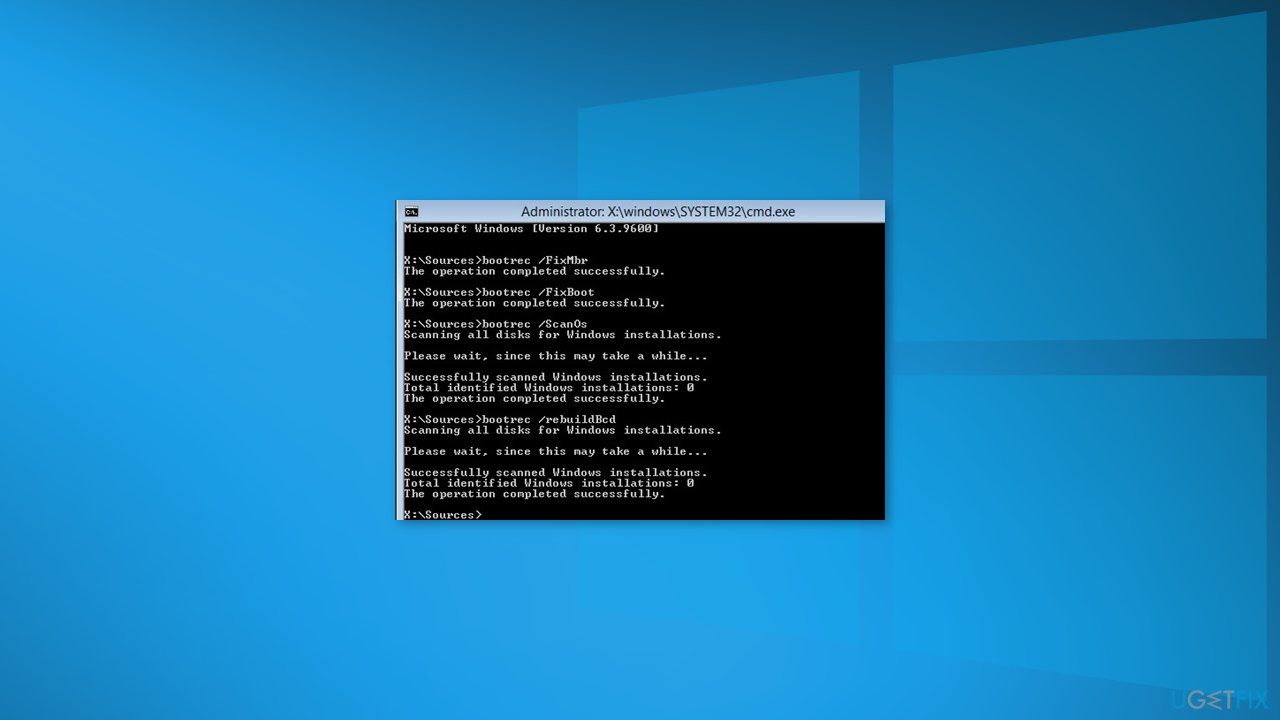
- Close the Command Prompt by typing exit
- Restart your computer
Bottom line
To fix the "Winload.efi is missing or contains errors" issue, you can use Automatic Startup Repair, fix corrupted system files with the Command Prompt, or check for disk errors. If these solutions do not resolve the problem, consider using a maintenance tool or seeking professional help.
Frequently asked questions
This error indicates that the Windows boot manager file, Winload.efi, is either corrupted or missing, preventing your system from starting properly. It often requires repair through recovery options or command prompt in Windows 10.
In Windows 11, you can repair Winload.efi by booting from a Windows installation media and selecting 'Repair your computer' to access recovery options, then using Startup Repair or Command Prompt to rebuild the boot configuration.
Yes, you can fix this issue without reinstalling Windows by using the Automatic Repair feature from the Windows recovery environment or by executing specific commands in Command Prompt to rebuild the Boot Configuration Data (BCD).




Report an issue
What's wrong with this guide? We review every report and update or remove content.
Report received — thank you. We'll review and fix it.
You need a free account to submit a report.
Be the first to comment