How to fix
Winmmbase.dll error
on Windows
Resolve the winmmbase.dll error in Windows 10 and 11 effortlessly. Follow our expert-tested solutions for a quick fix and get your system running smoothly!

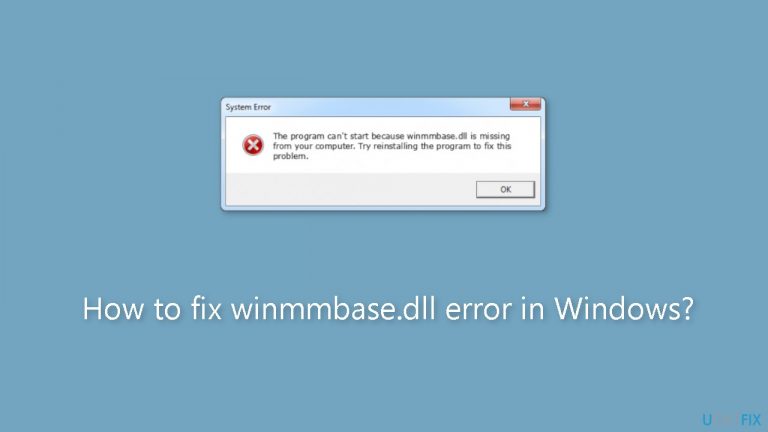
What causes How to fix winmmbase.dll error in Windows?
- Missing winmmbase.dll file
- Corrupted winmmbase.dll file
- Program trying to access winmmbase.dll fails
- Outdated system files
- Issues with dependent programs
Repairs Windows system files, removes malware, and restores a clean OS state — without reinstalling.
Hello. Recently, when I try to open certain apps, I get winmmbase.dll errors. What is it and how do I fix it?
Winmmbase.dll is a system file that comes pre-loaded with Microsoft Windows. This Dynamic Link Library (DLL) file is an essential component of the Windows operating system. Multiple programs can use DLL files like winmmbase.dll simultaneously, which improves system efficiency and frees up disk space by minimizing redundant code and data.
When users run into this issue on Windows, it means that a crucial system file is malfunctioning. Such issues may appear in a number of different ways, including error messages stating that "winmmbase.dll is missing," "winmmbase.dll not found," or "winmmbase.dll is corrupted." When a program or application tries to access winmmbase.dll and runs into trouble, error messages like these frequently appear.
The error's effects can be upsetting and irritating for users. It may result in system instability, program crashes, and generally subpar system performance. Winmmbase.dll-dependent programs or features can stop functioning properly. Any Windows user, regardless of their level of skill, may be impacted by this problem because it relates to a crucial system file that many programs rely on.
Errors involving winmmbase.dll are typically fixed by replacing or restoring the damaged or absent file. Reinstalling the program that caused the error might replace the corrupted winmmbase.dll with a working copy, so users can try to fix this problem this way. As an alternative, executing a Windows Update to make sure all system files are current or using system repair tools like System File Checker (SFC) can also assist in fixing the issue.
In this guide, you will find 5 steps that should help you fix winmmbase.dll error in Windows. You can also use a system repair tool like [d1] that can fix most system errors, BSODs,[ref en-1] corrupted files, and registry[ref en-2] issues. Otherwise, follow the step-by-step instructions below.

Solution 1. Replace the DLL
- Locate the critical winmmbase.dll component, which is included in the default Windows installation.
- Confirm that the file size is 170 KB.
- Find the file at this location on your computer: C:\WINDOWS\System32.
- On another computer running the same architecture of Windows (32-bit or 64-bit), access the winmmbase.dll file.
- Copy the winmmbase.dll file to a USB flash drive.
- Insert the USB flash drive into the affected PC.
- Navigate to the System32 folder on the affected PC.
- Paste the copied winmmbase.dll file from the USB flash drive into the System32 folder.
- Confirm that the file is successfully transferred to the System32 folder on the affected PC.
Solution 2. Repair Corrupted System Files
Use Command Prompt commands to repair system file corruption:
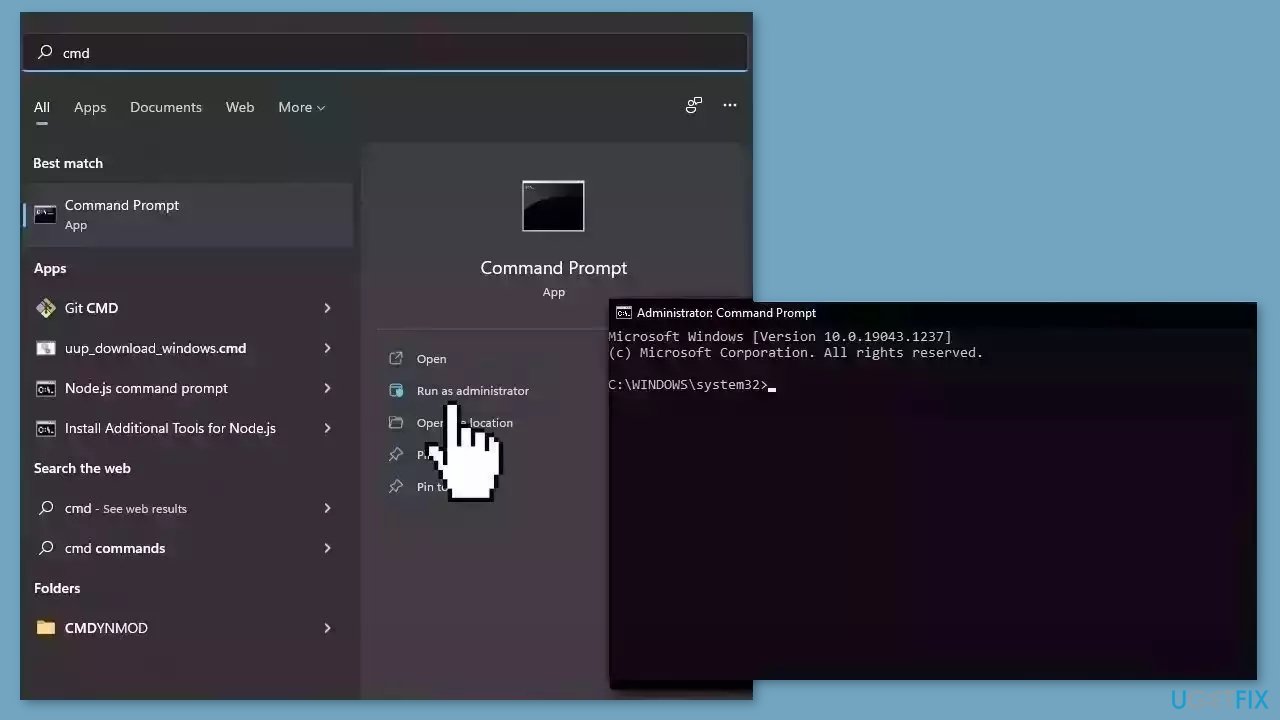
- Open Command Prompt as administrator
- Use the following command and press Enter:
sfc /scannow
- Reboot your system
- If SFC returned an error, then use the following command lines, pressing Enter after each:
DISM /Online /Cleanup-Image /CheckHealth
DISM /Online /Cleanup-Image /ScanHealth
DISM /Online /Cleanup-Image /RestoreHealth
Solution 3. Update the Audio and Bluetooth Drivers
- To resolve the issue, start by updating your Bluetooth drivers.
- Visit the manufacturer's website for your Bluetooth device.
- Locate and download the latest version of the Bluetooth driver setup.
- Manually install the downloaded driver on your computer.
- Ensure that you complete the installation process successfully to update your Bluetooth drivers effectively.
You can also use a dedicated utility like [rev id="DriverFix"] that can find the best drivers for your machine and install them automatically.
Solution 4. Reinstall the Affected Application
- Press the Windows key + R to open the Run dialog.
- Type appwiz.cpl in the text field and press Enter.
- Locate the application that is causing the error in the list.
- Click on the application and select Uninstall.
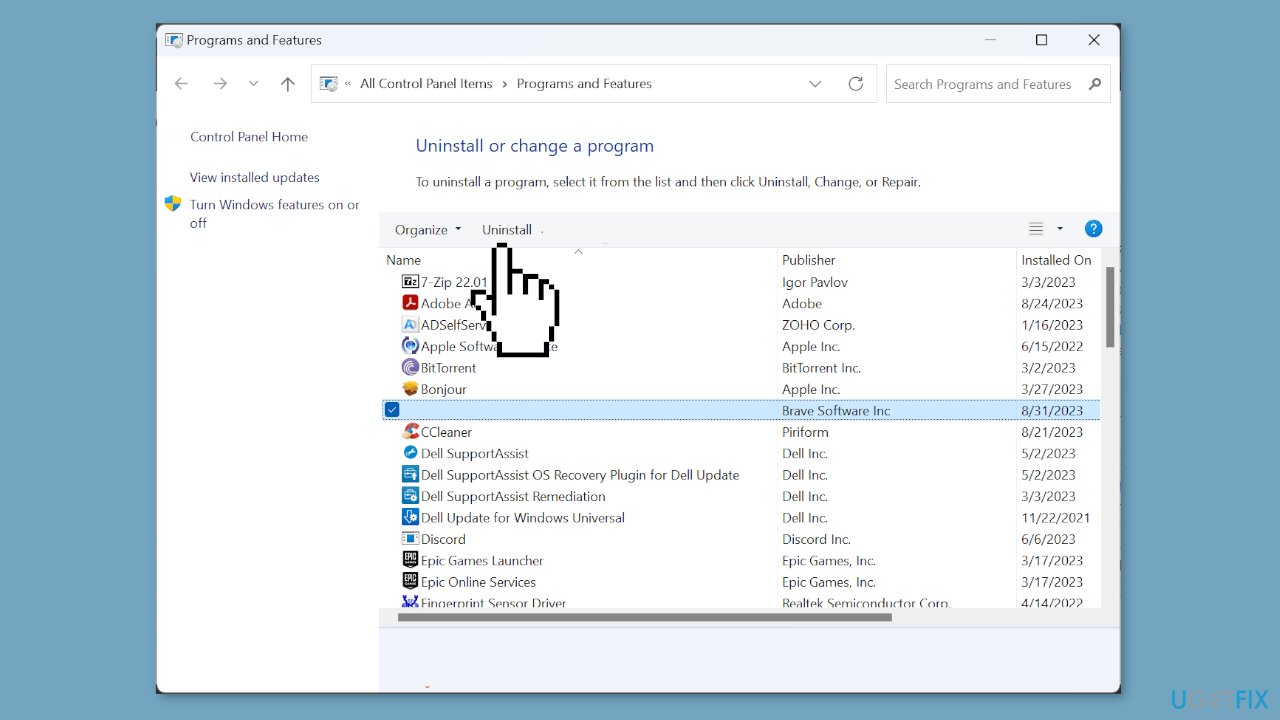
- Follow the on-screen instructions to complete the uninstallation process.
- After uninstalling, restart your computer.
- Reinstall the application from an official source such as the website or Microsoft Store.
Solution 5. Perform an in-place Upgrade
- Visit Microsoft's official website.
- Choose the desired product language and OS edition for Windows 11.
- Download the Windows 11 ISO file.
- Locate the downloaded ISO file and double-click it.
- In the prompt that appears, click Open.
- Run the setup.exe file.
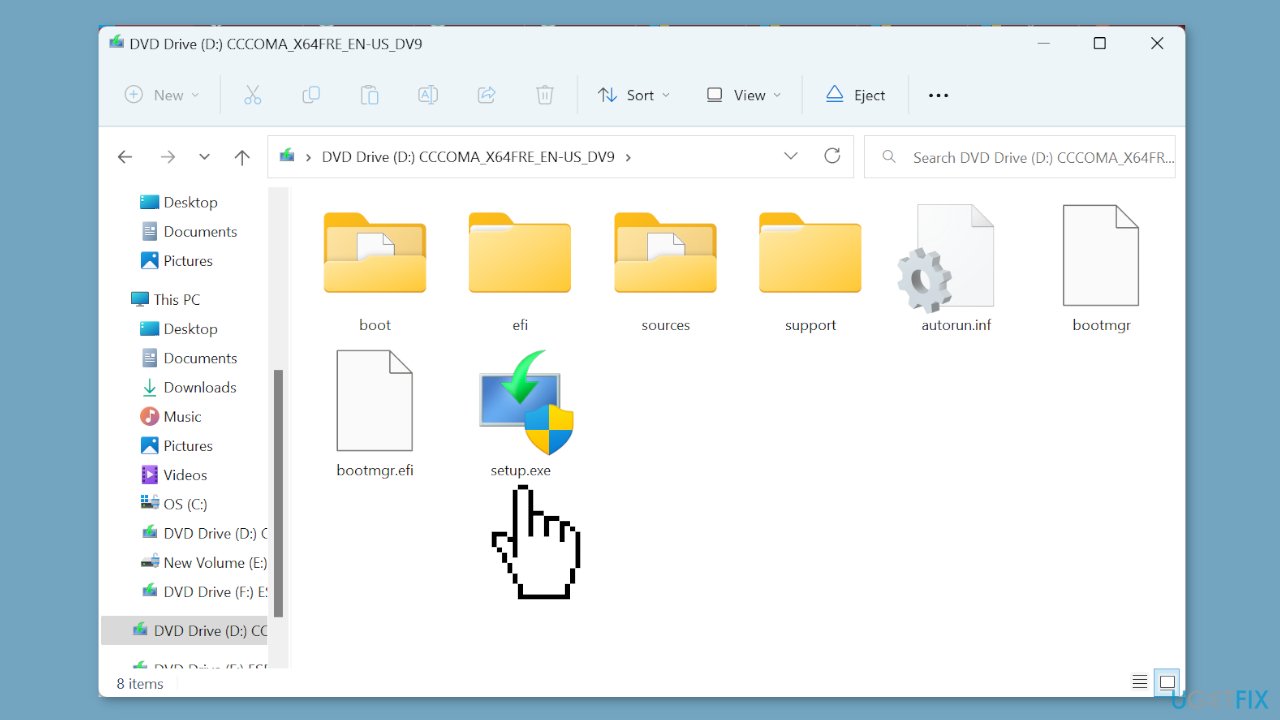
- When the UAC (User Account Control) dialog box appears, click Yes to continue.
- Click Next to proceed with the installation.
- Accept Microsoft's license terms by clicking Accept.
- Make sure the setup option reads Keep personal files and apps.
- Click Install to begin the Windows 11 repair upgrade.
- Wait patiently for the repair upgrade to complete.
Bottom line
To fix the winmmbase.dll error, you can replace or restore the damaged file, reinstall the program that caused the error, or execute a Windows Update. Additionally, using system repair tools like System File Checker (SFC) may help resolve the issue. If none of these solutions work, consider using a dedicated system repair tool.
Frequently asked questions
The winmmbase.dll error typically occurs due to corrupted system files, malware infections, or improper software installations affecting the Windows multimedia framework.
You can repair the winmmbase.dll file by running the System File Checker tool; simply open Command Prompt as an administrator and execute the command 'sfc /scannow'.
Downloading a new winmmbase.dll file from unverified sources can pose security risks, so it's recommended to use built-in Windows repair tools instead.




Report an issue
What's wrong with this guide? We review every report and update or remove content.
Report received — thank you. We'll review and fix it.
You need a free account to submit a report.
Be the first to comment