How to fix
Winservices.exe error
on Windows
Fix the winservices.exe error on Windows 10 and 11 with proven methods for seamless performance. Expert-tested solutions for quick results!

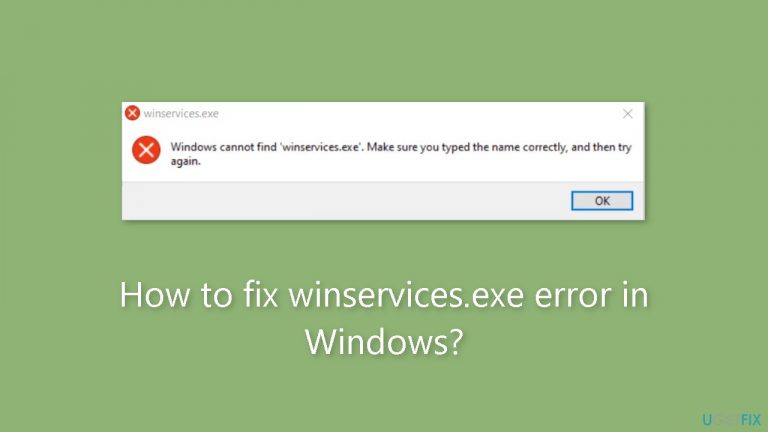
What causes How to fix winservices.exe error in Windows?
- Malware infection
- High CPU usage
- High memory usage
- Impersonation by dangerous applications
Repairs Windows system files, removes malware, and restores a clean OS state — without reinstalling.
Hello. I keep getting various winservices.exe errors on my Windows PC. What is this file? Any way to fix the errors?
The winservice.exe error in Windows is a problem that occasionally prevents a computer from running efficiently. Numerous processes and executable files actively work behind the scenes in the complicated environment of Windows operating systems to ensure the system's functionality. Winservice.exe is a crucial component of the SCM_Service process, a Windows system program created by NETGEAR, even though it is frequently hidden from the user's view.
Winservice.exe's main function is to facilitate different NETGEAR device-related operations. These jobs cover essential duties like firmware updates, configuration adjustments, and performance tracking. Winservice.exe often resides in the C:Program FilesNETGEARSCM folder and runs invisibly in the background, effectively doing its assigned duties.
Winservice.exe-related problems are not frequent, but they can have an impact on users' experiences. Its propensity to result in significant CPU or memory use is one of the most frequent issues connected with this service. Such resource-intensive behavior may potentially result in system instability and slow computer performance.
Users must be cautious since dangerous applications can impersonate legitimate programs by using the winservice.exe file name. These spoofers may endanger the integrity of the system or steal private data, which poses serious security issues. To prevent being a victim of malware or other security risks, users should be attentive and constantly check the legitimacy of the winservice.exe process that is currently operating on their PCs.
To address issues related to winservice.exe, users can explore various solutions. In this guide, you will find 4 steps that should help you fix winservices.exe error in Windows. You can also run a maintenance tool like [d1] that can fix most system errors, BSODs, corrupted files, and registry issues. Otherwise, follow the step-by-step instructions below.

Solution 1. Scan for Malware
It is possible that a malware infection may be the cause of winservices.exe error in Windows. It is important to run a comprehensive security scan to rule out this possibility and ensure that the computer is not infected. This can help to prevent further issues with the Windows operating system and ensure that it is functioning properly.
If you have access to a security scanner, or if your organization pays for one, you can use it to scan your entire system to check for a virus infection. Otherwise, you can use Windows Defender to scan your system:
- Click on the Windows Start menu or press the Windows key on your keyboard.
- Type Microsoft Defender in the search bar and click on Microsoft Defender Antivirus to open the application.
- Click on the Virus & threat protection option in the left-hand menu.
- Click on the Quick scan or Full scan option, depending on your preference.
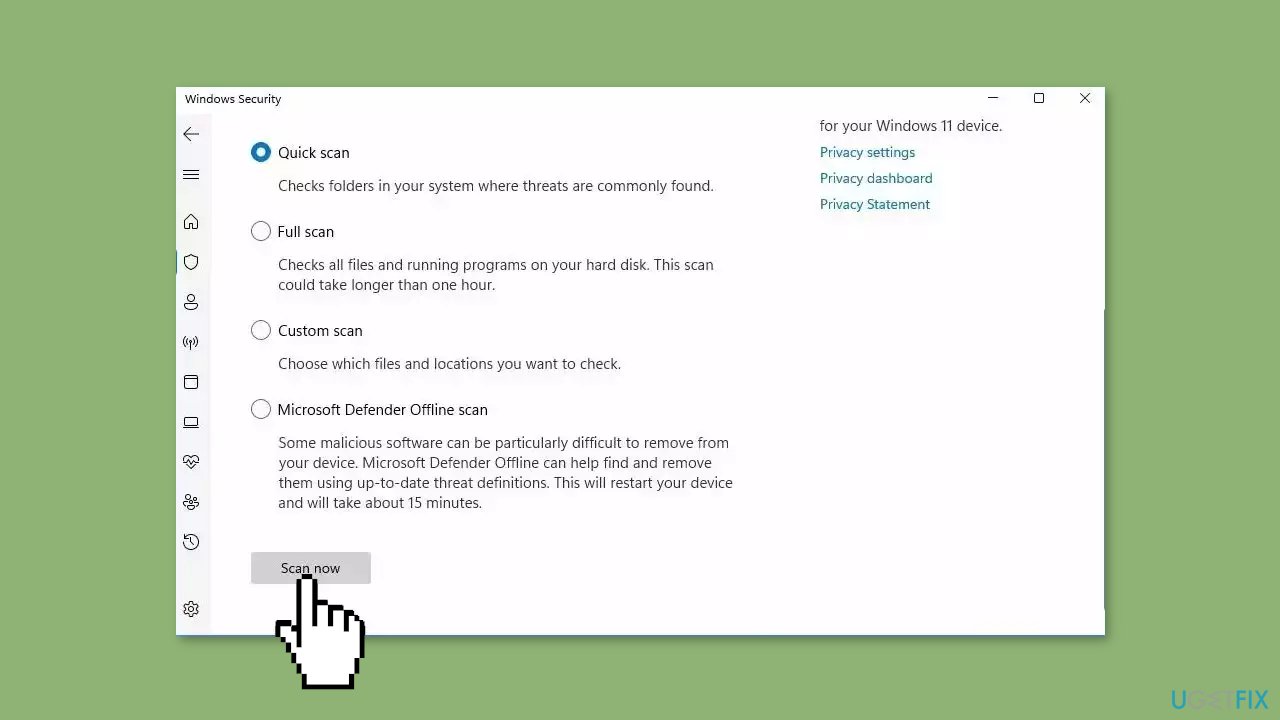
- If you choose Quick scan, Microsoft Defender Antivirus will scan the most vulnerable and commonly infected areas of your computer.
- If you choose Full scan, Microsoft Defender Antivirus will scan your entire computer, including all files, folders, and programs.
- Click on the Scan now button to start the selected scan type and wait for the scan to complete.
- The time it takes will depend on the size of your hard drive and the number of files being scanned.
- Once the scan is complete, you will be informed of any detected threats, and you can choose to quarantine or remove them.
- If no threats are found, Microsoft Defender Antivirus will inform you that your device is secure.
Solution 2. Delete the Wincludes Folder
- Launch File Explorer.
- Navigate to C:\Program Files\Wincludes.
- Alternatively, type Wincludes in the search bar of File Explorer.
- Right-click on the Wincludes folder.
- Choose Delete from the context menu.
- Confirm your action in the User Account Control prompt by clicking Yes to proceed.
- After the folder is deleted, restart your computer.
- Check if the problem is resolved.
Solution 3. Clean the Windows Registry
- Press the Windows key + S to open the Windows Search utility.
- Type Disk Cleanup and click Open.
- Expand the dropdown for Drives and choose the C: drive.
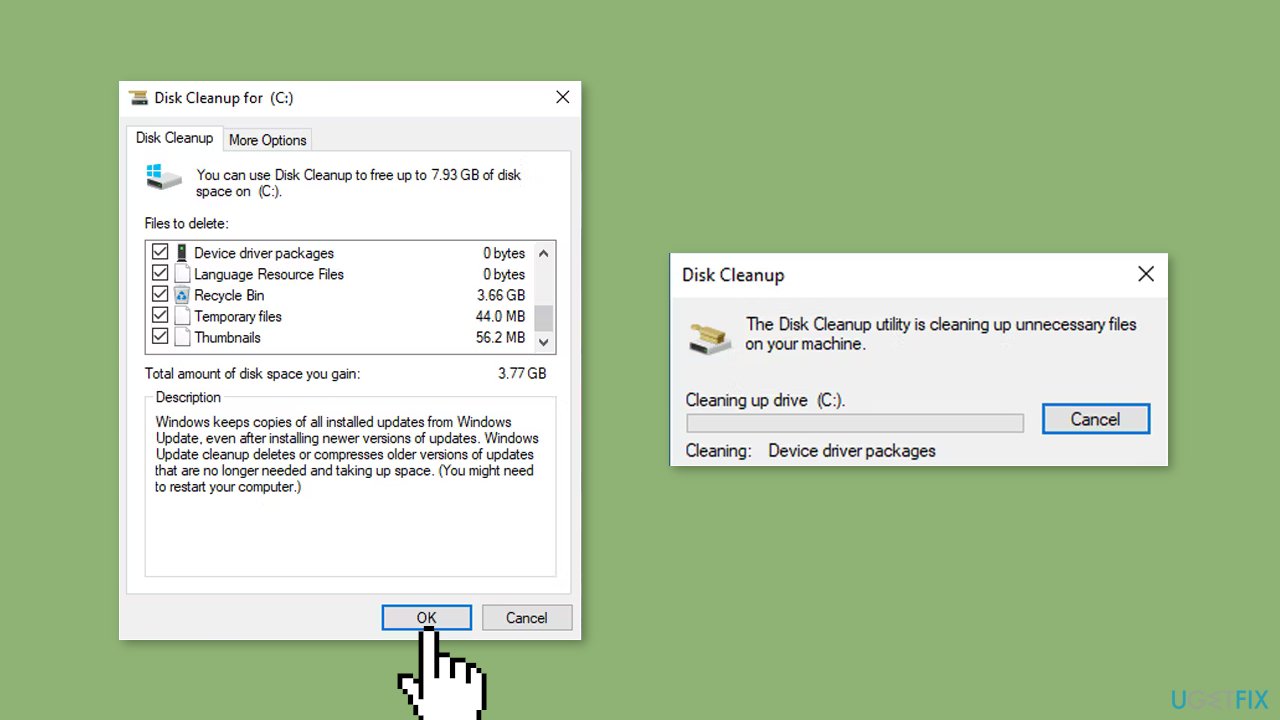
- Click OK and wait for the tool to complete its scan.
- In the following window, click on Clean up system files. You will need administrative access to the system for this.
- Click OK and once the process is completed, check if the issue is fixed.
Solution 4. Use System Restore
System Restore is a feature in Microsoft Windows that allows users to revert their computer's state to a previous point in time. This can be helpful if you have made changes to your system that are causing problems.
- Press the Windows key + R on your keyboard to open the Run box.
- Type SystemPropertiesProtection and press Enter.
- Go to the System Protection tab.
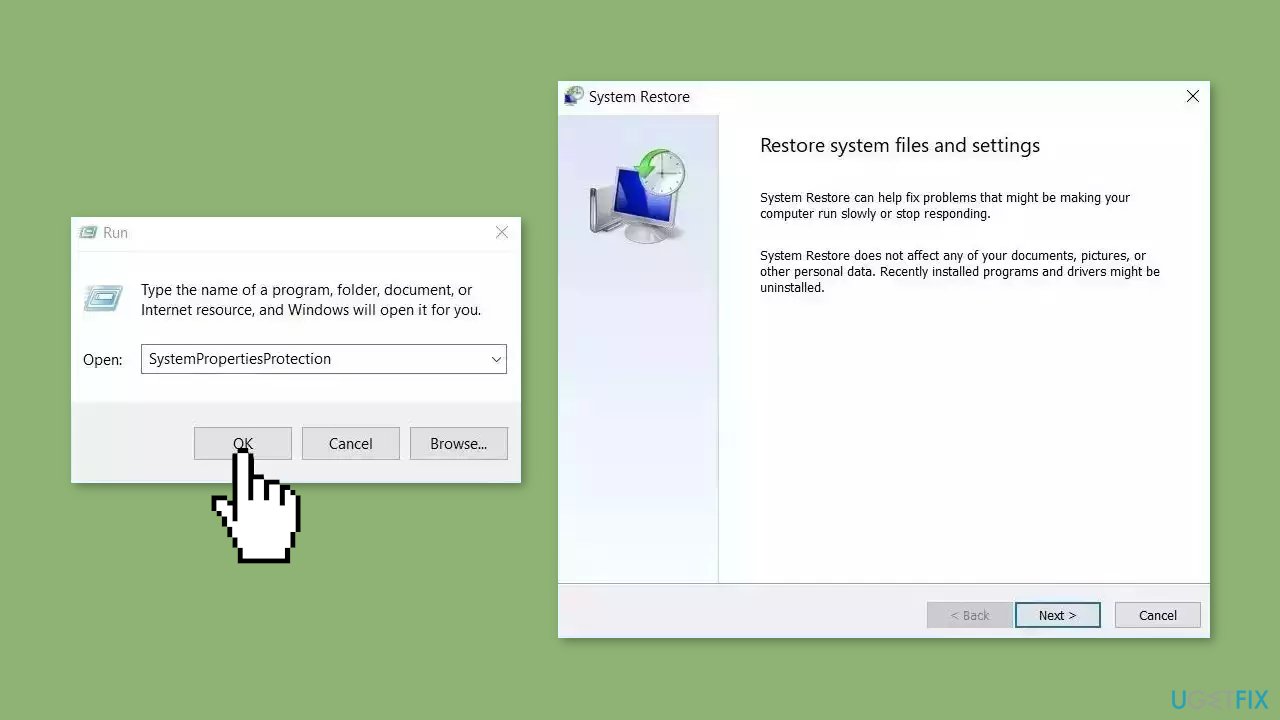
- You will see the System Restore… button. Click it to run System Restore.
- Follow the prompts until you can select a restore point.
- Select the one you want (ideally before the issue started occurring) and go ahead with the process.
Bottom line
To fix the winservices.exe error in Windows, users can scan for malware, run a maintenance tool, and check the legitimacy of the winservice.exe process. If these solutions do not resolve the issue, further investigation into system settings and configurations may be necessary.
Frequently asked questions
The winservices.exe error can be caused by corrupted system files, malware infections, or issues with Windows services not starting properly.
You can use Windows Defender or a trusted antivirus program to perform a full system scan to detect and remove any malware associated with winservices.exe.
You can run the System File Checker tool by opening Command Prompt as an administrator and typing 'sfc /scannow' to repair any corrupted files.




Report an issue
What's wrong with this guide? We review every report and update or remove content.
Report received — thank you. We'll review and fix it.
You need a free account to submit a report.
Be the first to comment