How to fix
WinWord.exe application error
on Windows
Resolve the WinWord.exe application error on Windows 10 and 11 easily. Get expert-tested solutions to fix your issues in minutes, ensuring smooth perfor…

What causes How to fix WinWord.exe application error?
- Corrupted system files
- Incorrectly installed Office suite
- Conflict with other software
- Outdated Windows
- Virus infections
Repairs Windows system files, removes malware, and restores a clean OS state — without reinstalling.
Hi, I have a problem I hope you can help me with. I am a frequent user of Microsoft Office applications, as I need them for work. Unfortunately, I have recently encountered an error "WINWORD.EXE - The exception unknown software exception (0xe0000002) occurred in the application at location 0x758ec41f". What happened? I have no clue how to proceed, and I need MS office to be working! Any advice on the issue?
A winword.exe application error is commonly reported on the internet because Microsoft Office is a set of tools that are one of the most used applications in the world. It is a great office suite used by a variety of companies, regular users, and students.
Therefore, it is extremely unfortunate when such helpful software does not work and prevents users from doing their work properly. However, we compiled a few solutions which will help you fix WinWord.exe application error.
WinWord.exe is a process that runs in the Task Manager and, once the error pops up, prevents users from starting MS Office and some other applications.
Many users complained about the issue, and Microsoft quickly released WinWord.exe application error fix in the new patch.[ref en-4] Unfortunately, many users kept receiving the WinWord.exe application error message and were unable to start Microsoft Word or other applications.
There are several reasons why users might be experiencing WinWord.exe application error. Some of them might include:
- Corrupted system files;
- Incorrectly install Office suite;
- Conflict with other software;
- Outdated Windows;
- Virus infections.
Since there are tons of different reasons for WinWord.exe error including corruption of the Office suite or DLLs and other Microsoft components, you can encounter different messages and errors relating to this executable file. During a computer or program startup, while trying to use a specific function on the machine or application, you can see of the most common WinWord.exe errors:
- WinWord.exe Application Error;
- WinWord.exe failed;
- WinWord.exe is not running;
- WinWord.exe not found;
- Cannot find WinWord.exe;
- Faulting Application Path: WinWord.exe;
- WinWord.exe is not a valid Win32 application.
Ways to solve WinWord.exe application error
Before you start the step-by-step guide below, we highly recommend you scan your computer for malware.[ref en-1] While many viruses do not show many symptoms, some malicious programs modify the system in a way that prevents regular applications from starting correctly. To get the best results, you should download and install [d1] after the virus removal is performed. This software is capable of repairing all malware damage and might be able to fix WinWord.exe application error automatically.
However, we have prepared a handful of possible solutions. You should try all of the listed methods if automatic repair gives no results. You should find at least a few that works for your particular device. Follow up each method by restarting the computer, so the machine can apply all necessary changes to fix WinWord.exe application error.
Fix WinWord.exe application error by disabling your antivirus engine
AV software often indicates the Office suite falsely positive and block the operations. This is why disabling it for a moment can help check if the interaction is causing these errors and frustration.
Repair the installation of MS Office
If MS Office was installed incorrectly, repairing the installation will help you fix WinWord.exe error:
- Click on Start and type in Control Panel
- Hit Enter and go to Programs > Uninstall a program
- Locate Microsoft Office installation, right click on it and select Change
- In the new pop-up window, pick Repair and then Continue
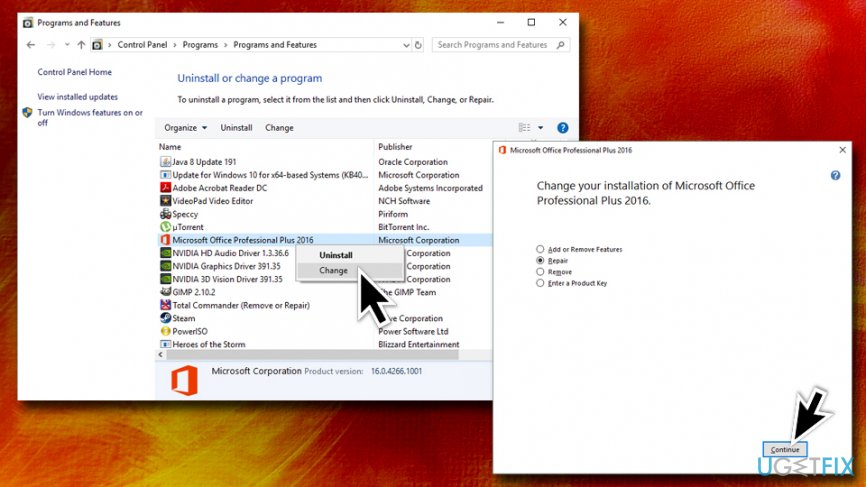
Winword exe application error repair office install
Run System File Checker to solve WinWord.exe application problem
If your computer is experiencing any type of problems that are not specific, your first troubleshooting steps should be a virus scan and SFC[ref en-2] scan. To scan your machine, please follow these steps:
- Type in Command Prompt or cmd into the search box
- Right-click on it an pick Run as administrator
- Type in sfc /scannow and hit Enter
- Windows will fix errors automatically and will inform you if any were found
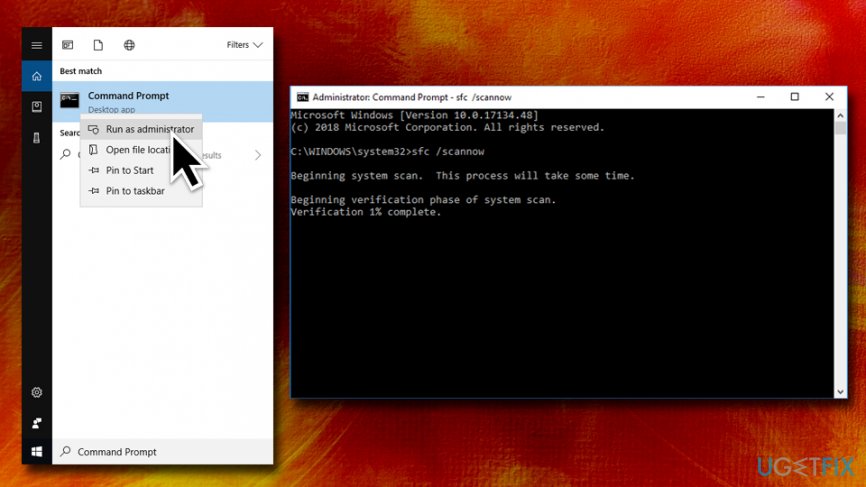
Winword exe application error run system file chekcer
Run DISM scam to solve WinWord.exe application error issue
Another check that you can perform via Command Prompt is DISM[ref en-3] scan:
- Go to Command Prompt (Admin) again and type in DISM /Online /Cleanup-Image /RestoreHealth
- Press Enter and wait for the scan to finish (beware that this process can last up to a few hours, depending on your system configuration)
Restart the Winword.exe process
This is one of the more simple solutions that might help you. Follow these steps:
- Press Ctrl+Shift+Esc to open Task Manager
- In the older Windows versions, you will see the process winword running, while in the newer ones it will be called MicrosoftWord
- Select the process and press End Task
Make sure Windows is up to date
Windows updates are essential for every computer user, as it increases the performance and security of the operating system. Unfortunately, some users neglect this important step. To update Windows OS, follow these instructions:
- Right-click on the Start button and pick Settings
- Locate Updates and security
- Click on Check for updates
- Wait till Windows installs the newest updates and then reboot your device
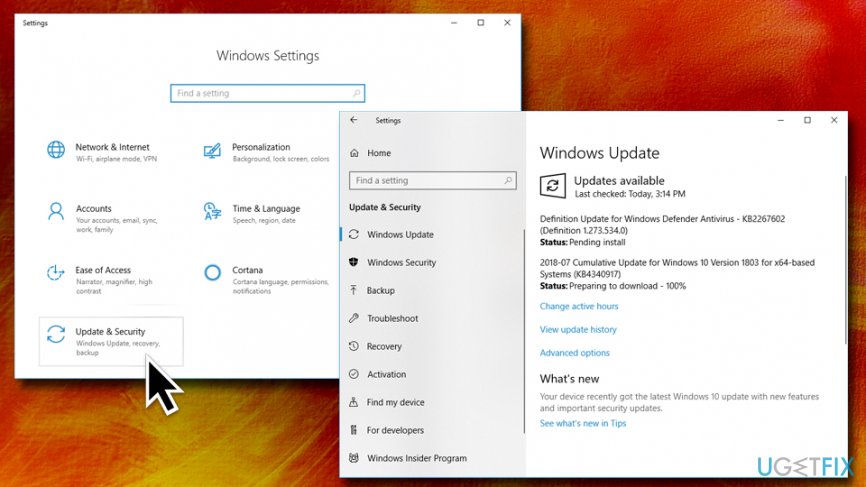
Winword exe application error update windows
Remove conflicting software
Users reported that several programs caused a WinWord.exe application error. Removing it might help you fix the issue. Watch out for these add-ons and applications:
- Abbyy Finereader
- Fun Tools
- Toshiba Book Reader
- Acrobat PDFMaker
- FastPictureViewer
Also, users reported that Nvidia driver NVWGF2UM.DLL and Canon MF8000 UFRI LT XPS driver might cause the problem. In such a case, remove the driver.
Check for problematic software on application manager to end WinWord.exe errors
Various software packages may include issues with the permissions of the installation of the Office suite. Often Adobe Acrobat is reported as the one that causes issues with WinWord.exe. You can check for programs and Uninstall them:
- Press the Windows button and R;
- Go to Application manager by searching appwiz.cpl in the dialogue window;
- Then choose the program and right-click to Uninstall.;
- Then check for any recently installed application on your computer. If you recall the time WinWord.exe error started to appear check for software downloaded around that time.
- Uninstall the application and Restart the computer after that to apply all needed changes.
Use System Restore point
If none of the above solutions work, you can try using system restore if you created a restore point previously. Note that newly installed programs or added files will not be affected by this procedure.
- Type Control Panel into the search box
- Then, go to System and Security > System
- Pick System Protection on the left pane and then select System Restore
- Choose a restore point and follow on-screen instructions
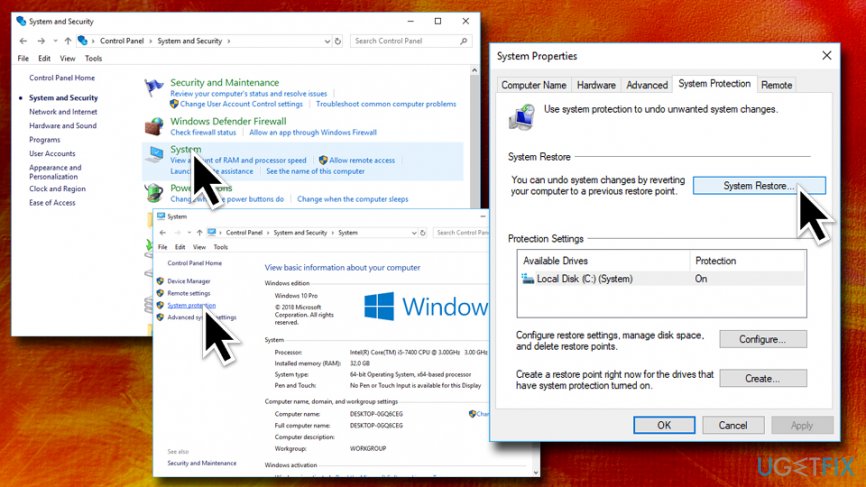
Winword exe application error perform system restore
If you did not create a system restore point, you can try reinstalling MS Office entirely.
Bottom line
To resolve the WinWord.exe application error, you can try scanning your computer for malware, repairing the Office installation, or updating your Windows system. If these solutions do not work, consider seeking further technical support.
Frequently asked questions
First, try repairing Microsoft Office through the Control Panel by selecting 'Programs and Features', then right-click on Microsoft Office and choose 'Change'. If the issue persists, consider reinstalling the Office suite.
Boot Word in safe mode by holding the 'Ctrl' key while opening the application, then disable any problematic add-ins by navigating to 'File' > 'Options' > 'Add-ins'.
Ensure that your Windows 10 or Windows 11 system is up to date by checking for updates in 'Settings' > 'Update & Security', as well as keeping Microsoft Office updated through the application itself.




Report an issue
What's wrong with this guide? We review every report and update or remove content.
Report received — thank you. We'll review and fix it.
You need a free account to submit a report.
Be the first to comment