How to fix
Wireless controller connection not working
on Windows
Resolve wireless controller connection issues on Windows 10 and 11 quickly. Get expert-tested solutions that fix problems in minutes.

What causes How to fix wireless controller connection not working on Windows PC?
- Outdated drivers
- Missing drivers
- Corrupted Windows registry
- Lack of necessary accessories
- Incorrect Bluetooth pairing
Repairs Windows system files, removes malware, and restores a clean OS state — without reinstalling.
Hello. I have been trying to connect my wireless controller to my Windows computer but I have not been successful. Any tips would be appreciated.
Generally, people use Xbox controllers with their Windows PCs. The Xbox app[ref en-1] for Windows makes it easy to play console games on a computer. However, many users run into issues when trying to connect their wireless controller to their Windows machine for various reasons.
Generally, people can use the Xbox 360 controller with Windows either via USB or wirelessly using the dedicated adapter from Microsoft. When it comes to Xbox One controllers, it depends on which version of the controller people have. The original controller model uses a proprietary wireless standard that needs a dongle accessory to work.
If you have experienced the wireless controller connection not working on Windows PC, you should first make sure that you have all the necessary accessories for the controller to work. If everything is in check, the connection might fail because of outdated or missing drivers,[ref en-2] a corrupted Windows registry, etc.
You can use a maintenance tool like [d1] if you want a fast and smooth troubleshooting process. This powerful software can fix most system errors, BSODs,[ref en-3] corrupted files, and registry issues. It helps in keeping the system running smoothly. Otherwise, if you are ready to proceed with the manual guide, carefully follow the steps posted below.
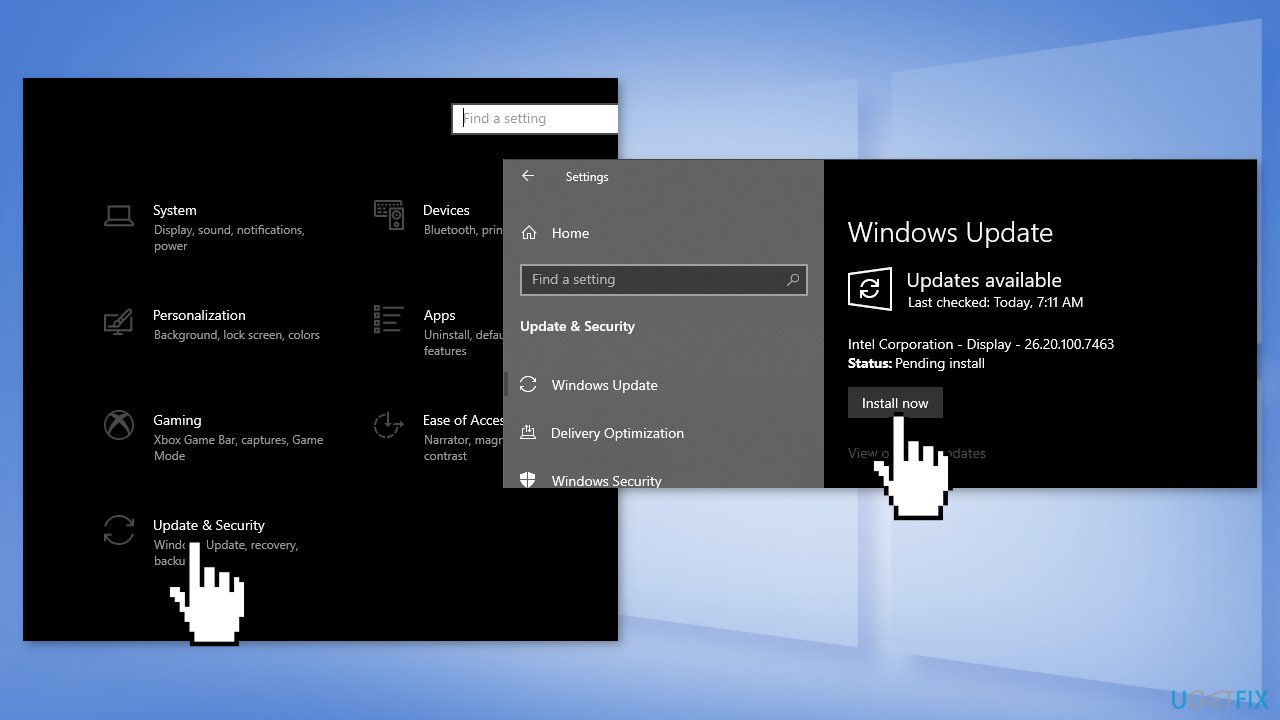
Solution 1. Update Windows
- Click Settings from your start menu and click Update & Security
- Choose Windows Upgrade from the left panel and click the Check for updates button, and then your computer will check for, download, and install any updates found
Solution 2. Re-connect your Controller by Bluetooth
- Turn on your controller by pressing the middle button.
- Press the Pair button until it flashes rapidly
- Press the start button on your PC
- Type Bluetooth and click on Bluetooth & other devices
- Press the Add Bluetooth or other devices
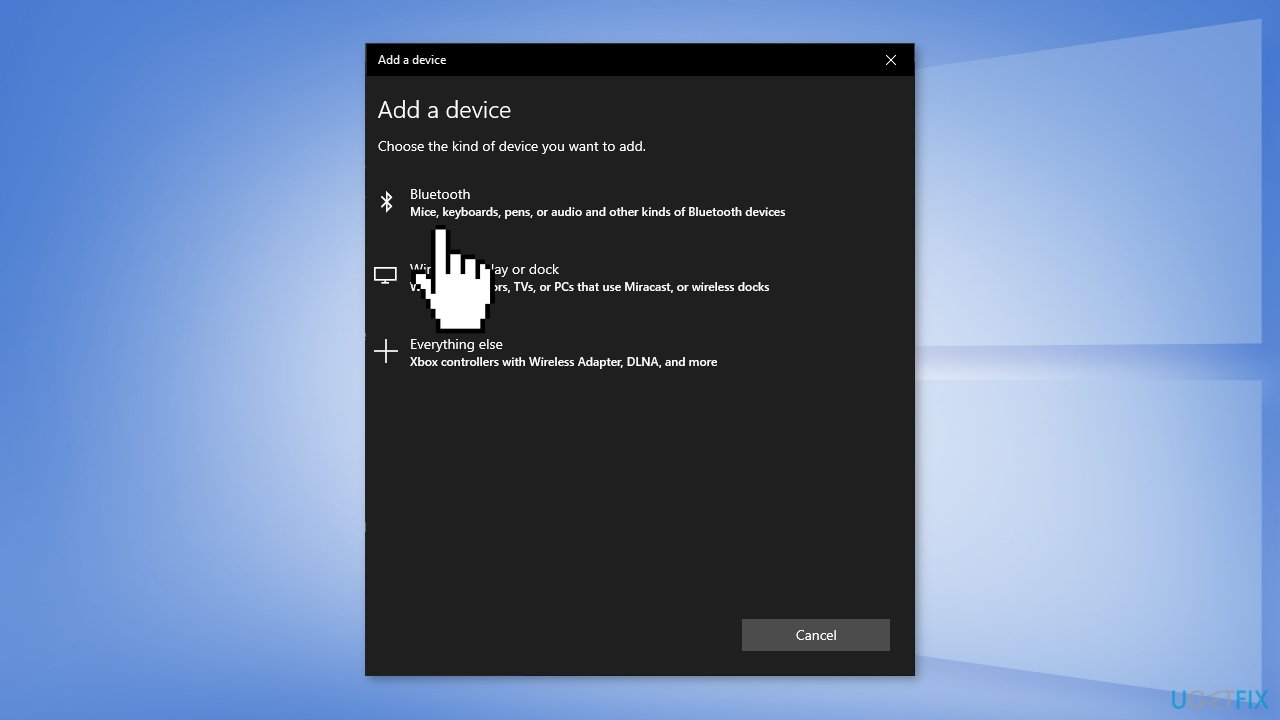
- Press Bluetooth
- Select your controller
Solution 3. Run the Bluetooth Troubleshooter
- Press the Windows Key + I
- Go to Update & Security
- Select Troubleshoot on the left-hand panel and press Additional troubleshooters
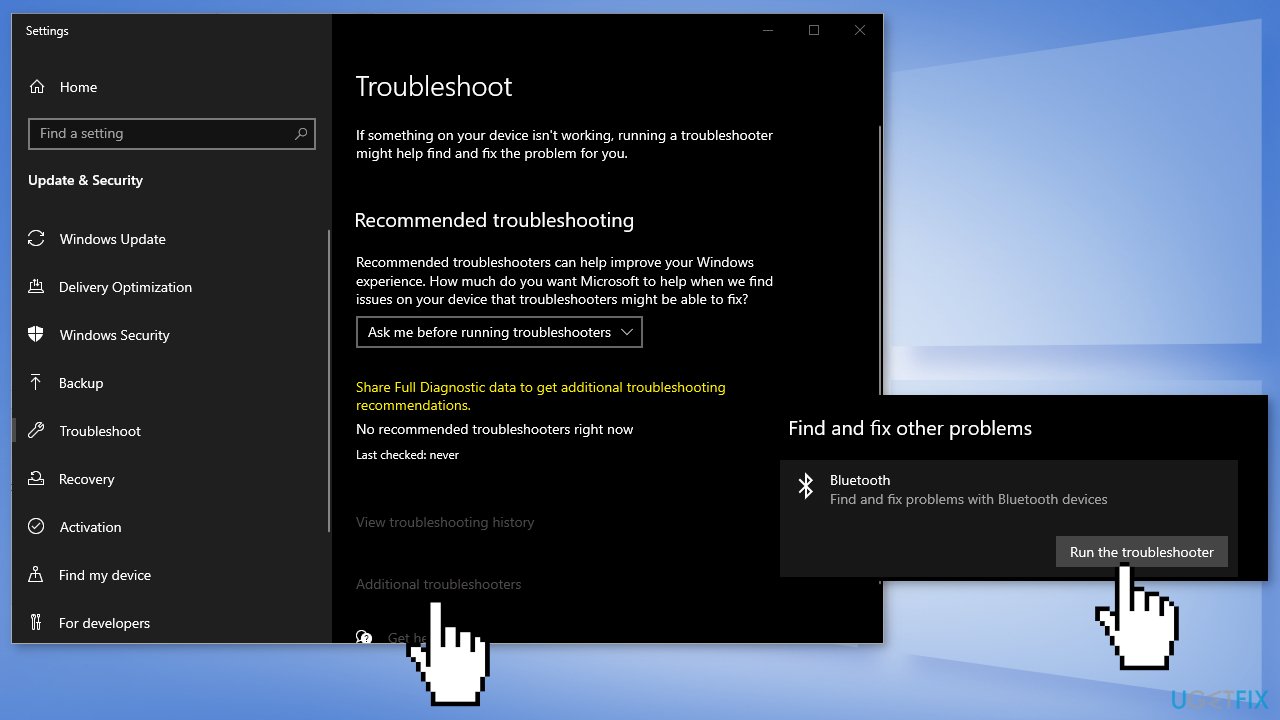
- Press Bluetooth and let the wizard run
Solution 4. Update Xbox Controller’s Firmware
- Go to the Microsoft Store and get the Xbox Accessories app
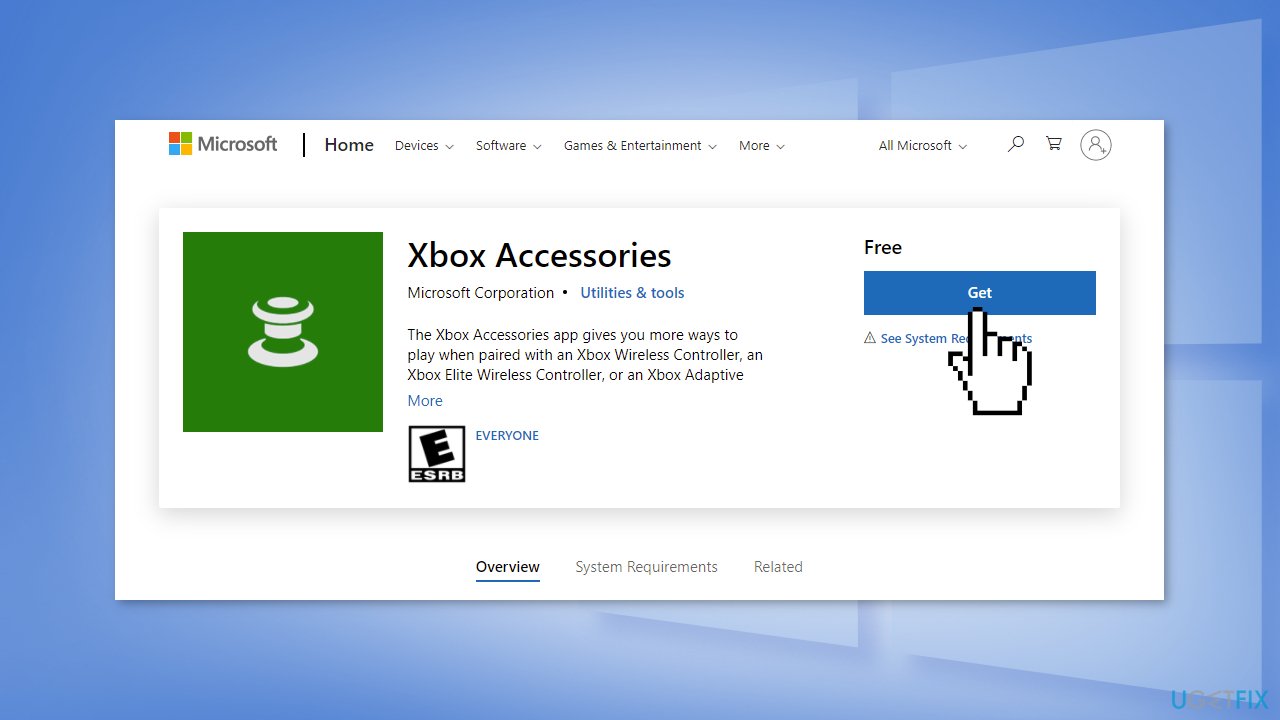
- Connect your Xbox controller to your PC with the USB cable
- Open the Xbox Accessories app
- It will prompt an Update Required message if needed
- Let it update, and close it after the process is finished
Solution 5. Update Controller Driver
- Press the Windows key + R at the same time to open the Run box
- Type devmgmt.msc and press Enter on your keyboard
- Expand Microsoft Xbox One Controller or the name of your controller if you are using a different one
- Right-click on it and click Update Driver Software
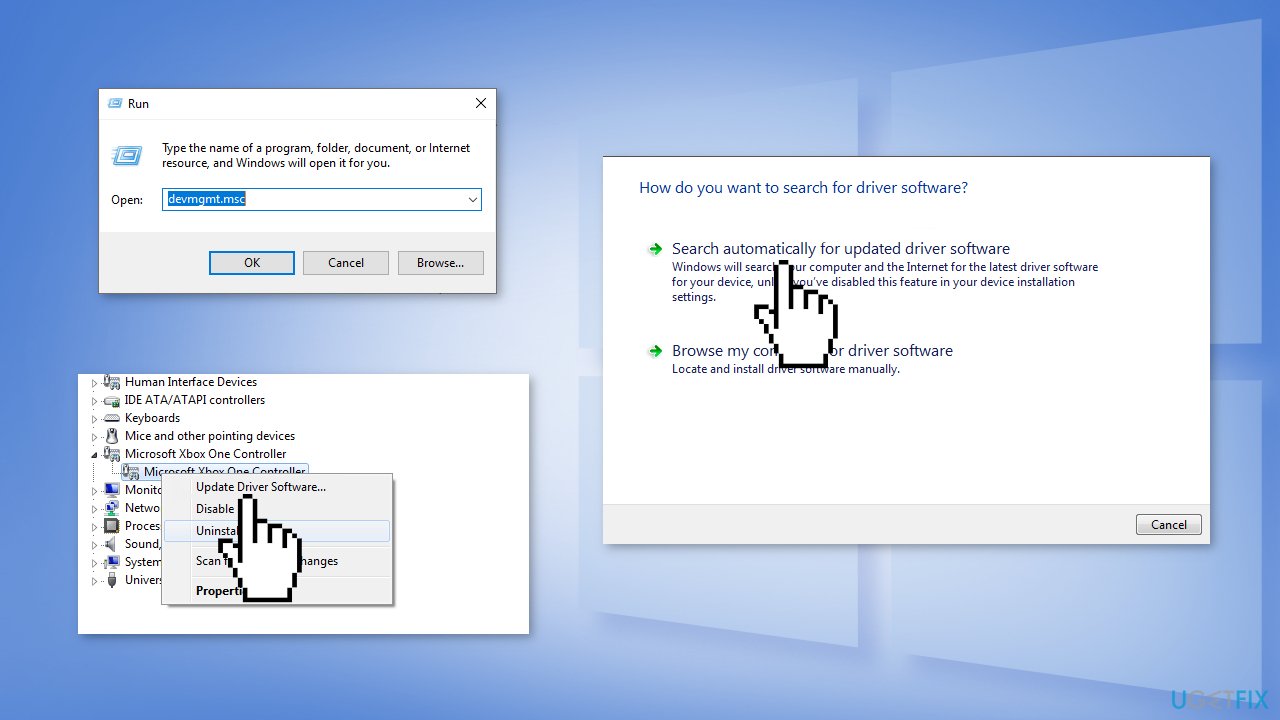
- Select Search automatically for updated driver software
- You can also use a tool like [rev id="DriverFix"] that can update all drivers automatically and search for the best ones
Additional fixes:
- Replace the batteries
- Try using a cable
Bottom line
To fix the wireless controller connection issue on your Windows PC, you can update Windows, re-connect your controller via Bluetooth, or run the Bluetooth troubleshooter. If these solutions do not resolve the problem, consider using a maintenance tool to address potential system errors.
Frequently asked questions
First, ensure that your controller is fully charged and in pairing mode. Then, check your Bluetooth settings to see if the controller appears and try to reconnect it.
You can update the drivers by going to Device Manager, finding your controller under 'Human Interface Devices', right-clicking it, and selecting 'Update driver'.
This issue can often be resolved by disabling power management settings for the Bluetooth device in Device Manager, which prevents Windows from turning off the device to save power.




Report an issue
What's wrong with this guide? We review every report and update or remove content.
Report received — thank you. We'll review and fix it.
You need a free account to submit a report.
Be the first to comment