How to fix
Wireless keyboard not working
on Windows
Resolve your wireless keyboard issues on Windows 10 or 11 quickly and easily. Expert-tested solutions ensure seamless typing in minutes!


What causes How to fix Wireless keyboard not working?
- Faulty OS update
- Outdated drivers
- Corrupted system files
- Improper settings
- Faulty USB ports
Repairs Windows system files, removes malware, and restores a clean OS state — without reinstalling.
Hello. I was using my wireless keyboard but recently received problems with the device. I cannot type on it and get normal results. It stops working out of nowhere. It manages to normally run for some time and then fails again. Checked the batteries, connections. Other pieces connect and work fine. The only issue is with Logitech wireless keyboard. Can you help me?
The Wireless keyboard not working can be a common issue, and even though users have these problems, sometimes solutions are not there or easily accessible and achievable. Rebooting the machine and troubleshooting the issue can be the first step in any Windows operating system issue. Of course, there is particularly faulty OS update[ref en-1] that leads to problems with the functions and applications.
Keyboard issues are generally straightforward when you can find the solution by troubleshooting, finding workarounds. But there are always more complicated incidents when a random thing triggers the problem, and users cannot locate the root cause that easily. Broken or not working keys and power issues can be fixed, but this is the particular wireless device problem.
The specific Logitech Wireless keyboard, not working issue[ref en-2] is commonly reported online by many users, and various connections can lead to the problem. Your drivers might need updates or installed applications to interfere with connections and particular Logitech files on the machine. Some of the reasons can include improper settings, plugged receivers, or faulty ports.
Corrupted system files or outdated drivers can lead to various issues on the machine, there are common and quick fixes for these causes. You can run [d1] and repair system files that got affected by past cyber infections[ref en-3] or altered settings, faulty installations.
You should make sure that the USB connection device is directly plugged into the computer, not via the root hub. You can also check batteries if you haven't already, make sure that the receiver is correctly plugged in, or change the port for it. Another quick way for the issue would be checking for updates to your OS.
It is possible that some issues with Windows can be solved and the help you fix Wireless keyboard not working issue. Unfortunately, these are not the only solutions, so follow the list with options if any of the quick suggestions didn't work.
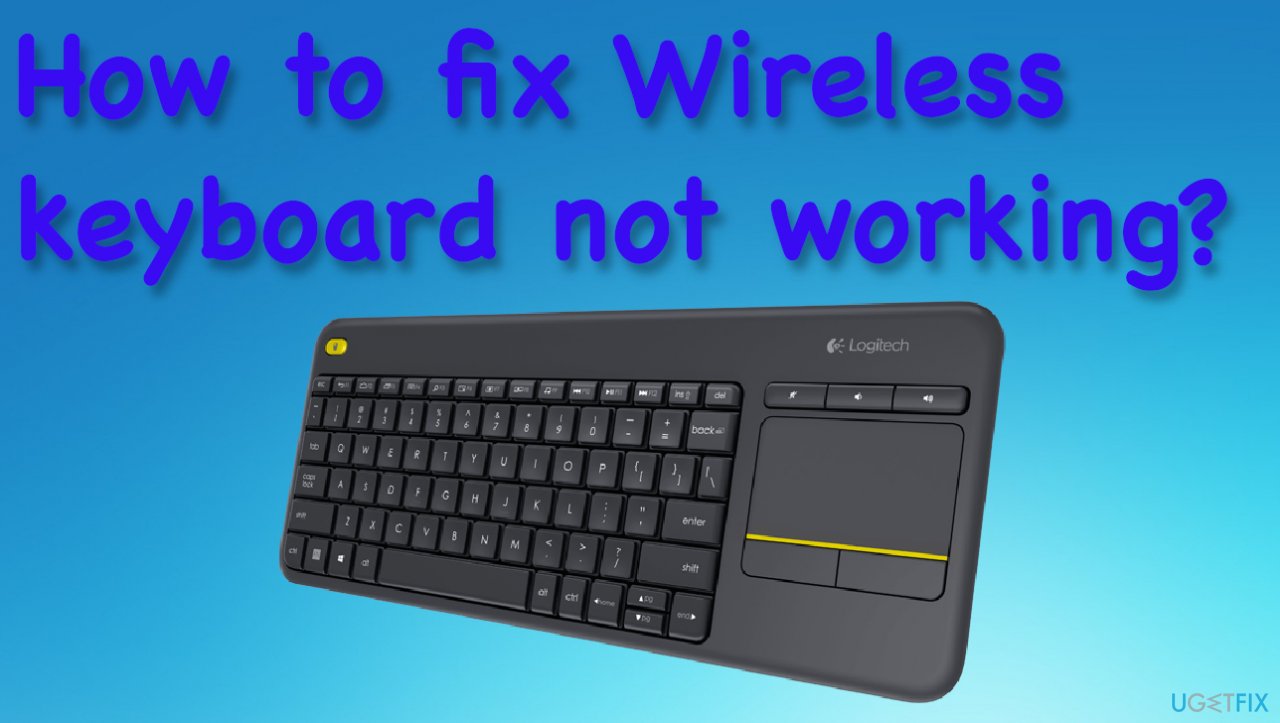
1. Uninstall Logitech wireless keyboard driver
- Right-click Windows icon - Start button and choose the device manager option from the context menu to open Device Manager.
- Expand Keyboards category.
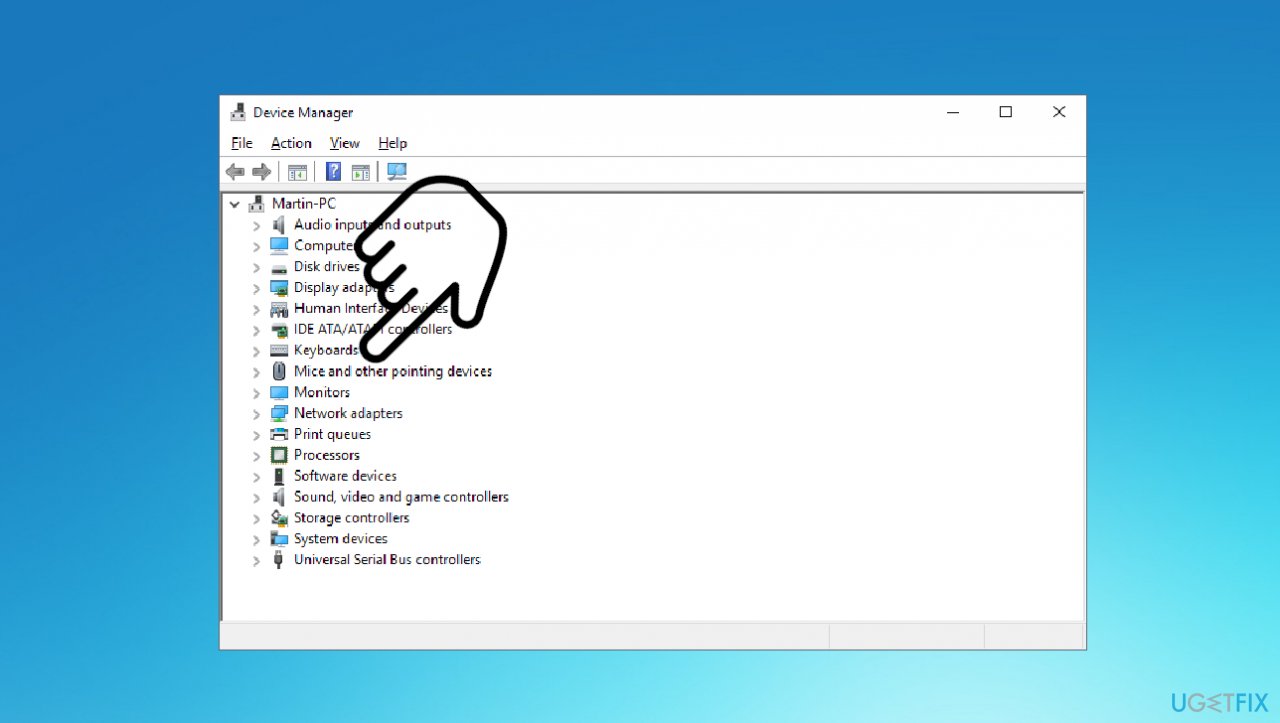
How to fix wireless keyboard not working update keyboards - Right-click the Logitech wireless keyboard device name.
- Choose Uninstall option.
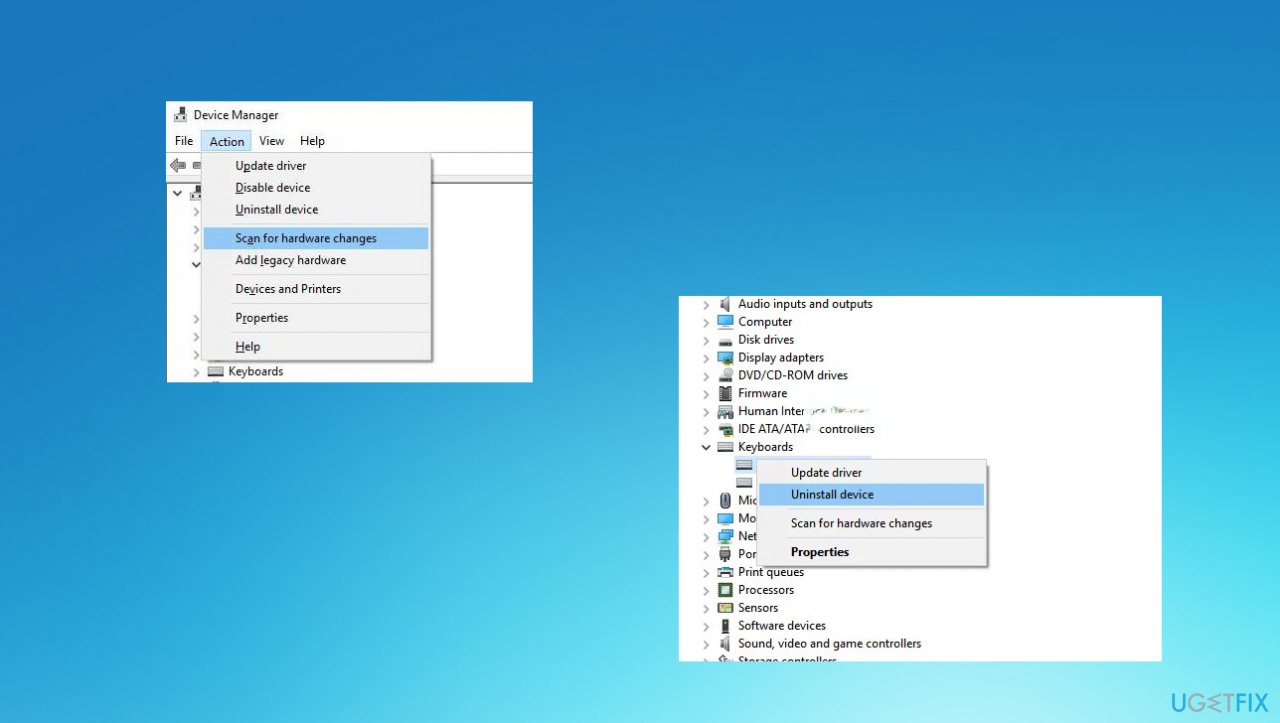
How to fix wireless keyboard not working uninstall drivers - Click Scan for hardware changes.
- Restart the computer.
- Windows will automatically detect your input devices, including the wireless keyboard, and install the driver for it.
2. Update drivers
- Press the Win and R keys to open the Run window.
- Enter devmgmt.msc.
- Hit Enter and open Device Manager.
- Expand the section and right-click the particular driver.
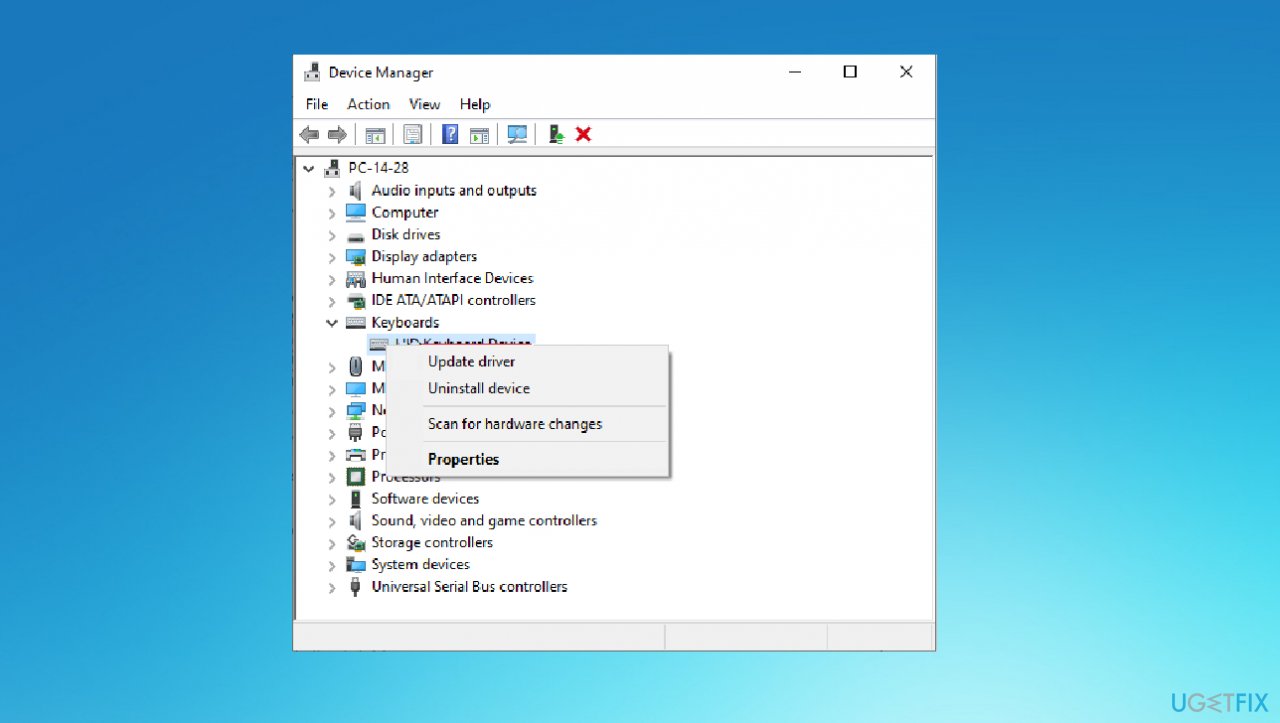
How to fix wireless keyboard not working update driver - Choose to Update driver.
- Select to Search automatically for driver software.

How to fix wireless keyboard not working update search for drivers - Follow the steps.
You can also rely on the proper driver updater tool like [rev id="DriverFix"] that finds and upgrades needed drivers. It can locate the ones that require updates and help with the process by downloading compatible pieces without the need for your permission.
3. Check the Human Interface Device Access Service
- Type services in the search box.
- Choose services from the result to open the window.
- Find the Human Interface Device Access from the local services list.
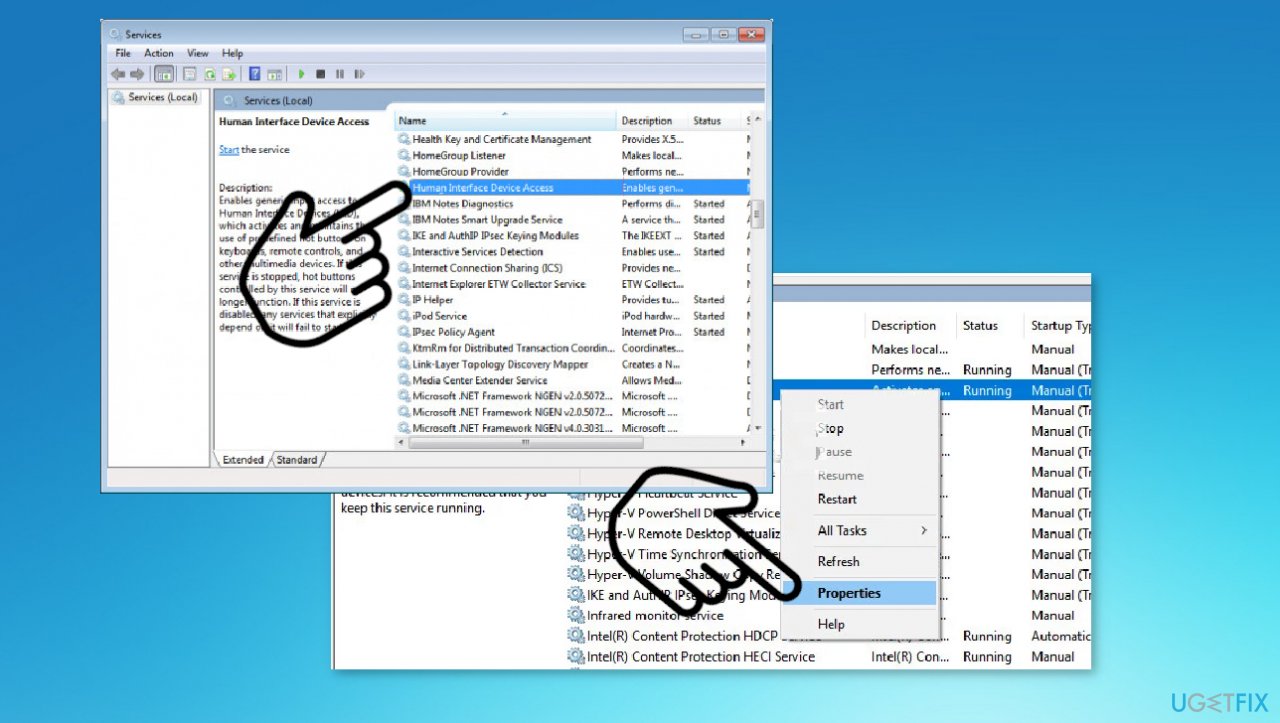
How to fix wireless keyboard not working update services - Right-click it and choose Properties.
- In the General tab, select Automatic from the Startup type list.
- Click Apply and OK.
- Restart the computer to save changes.
4. Troubleshoot issues
- Hold the Windows key and press R to open the Run box.
- Type control.exe /name Microsoft.Troubleshooting and press Enter.
- Select Hardware and Sound.
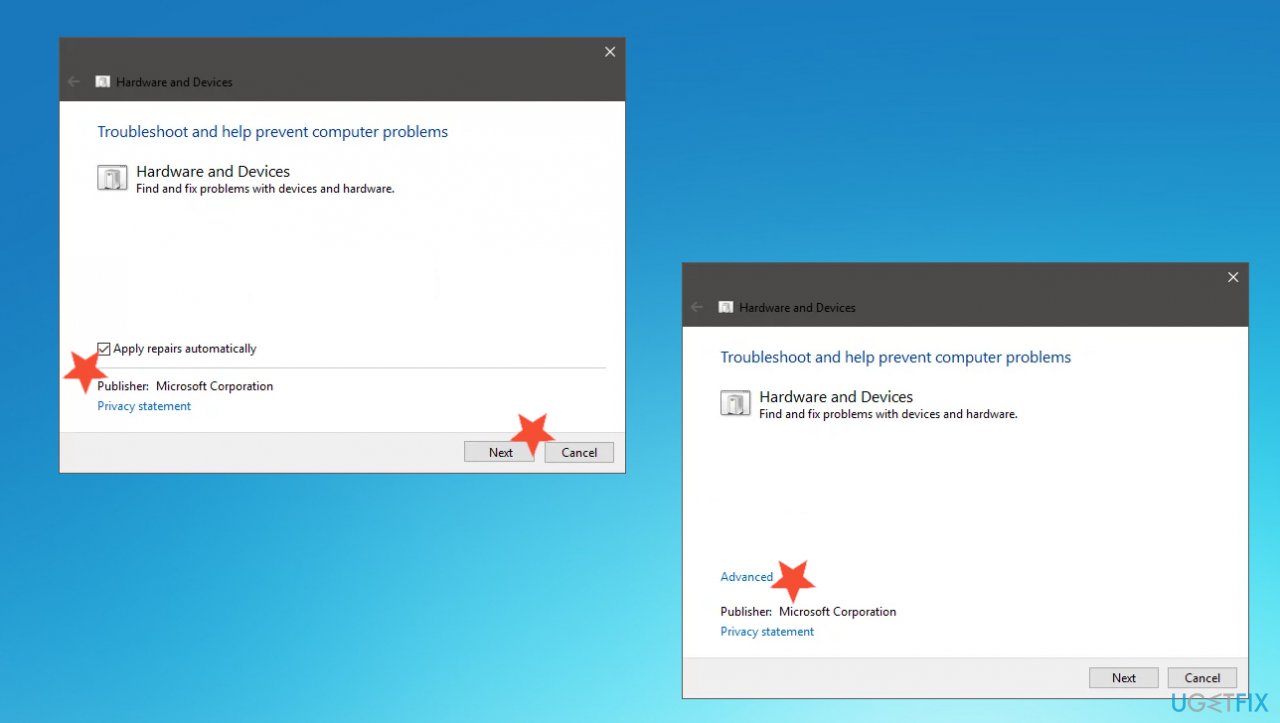
How to fix wireless keyboard not working troublehooting - Then choose Hardware and Devices.
- Click Advanced.
- Make sure the option Apply repair automatically is checked.
- Click Next.
- Wait for the system to search and detect any problems. It will automatically resolve any issue that might occur.
Bottom line
To fix the wireless keyboard issue, try rebooting your machine, checking the USB connection, and ensuring the receiver is plugged directly into the computer. Additionally, check for OS updates and verify that the batteries are functioning properly. If these steps do not resolve the problem, further troubleshooting may be necessary.
Frequently asked questions
First, ensure that the keyboard is charged or has fresh batteries, then try reconnecting it through the Bluetooth settings in Windows 10. If the issue persists, check for any available driver updates in Device Manager.
You can start by restarting your computer and then re-pairing the keyboard in the Bluetooth settings of Windows 11. If that doesn't work, try using a different USB port for the receiver or check for interference from other devices.
Common issues include low battery power, Bluetooth connectivity problems, or outdated drivers on Windows 10 or Windows 11. Make sure to rule out any physical obstructions between the keyboard and receiver as well.




Report an issue
What's wrong with this guide? We review every report and update or remove content.
Report received — thank you. We'll review and fix it.
You need a free account to submit a report.
Be the first to comment