How to fix
Wlanapi.dll missing or not found error
on Windows
Resolve the Wlanapi.dll missing error in Windows 10 or 11 quickly and effectively. Follow our expert-tested guide for a hassle-free fix!

What causes How to fix Wlanapi.dll missing or not found error in Windows?
- Corruption of files due to improper shutdowns
- Virus infection
- Conflicts during system updates
- Deletion or misplacement of the DLL file
- Outdated or incompatible network drivers
- Registry issues or incomplete software installations
Repairs Windows system files, removes malware, and restores a clean OS state — without reinstalling.
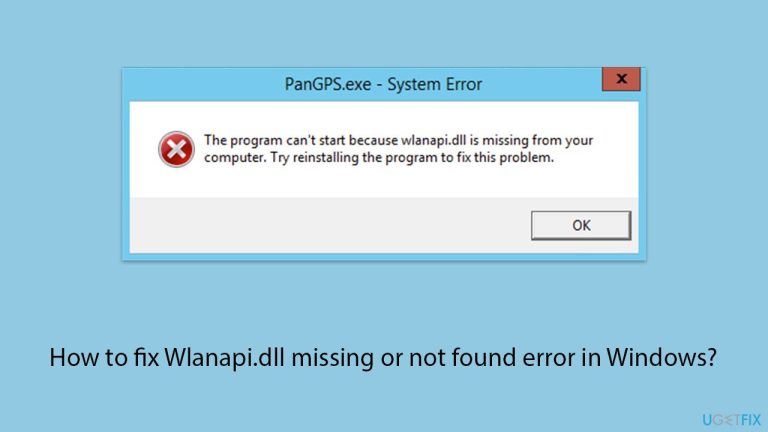
Whenever my PC launches, I get a strange pop-up saying "The code execution cannot proceed because Wlanapi.dll was not found. Reinstalling the program may fix this problem." How can I reinstall this file?
The "Wlanapi.dll missing or not found" is one of the common errors in Windows that may interfere with your normal connection to a wireless network. It's a vital DLL file to the Wireless LAN API that enables communication between your OS and wireless network adapters. If it goes missing, gets corrupted, or becomes obsolete, that is when connectivity issues might arise, thereby crippling some apps or services from working.
The majority of the time, the "Wlanapi.dll missing or not found" error arises due to a few major reasons. First and foremost, corruption of files is very common, caused by improper shutdowns, virus infection, or conflicts during system updates. Secondly, if the DLL file gets deleted or misplaced by mistake, the system cannot find it when needed.
"Wlanapi.dll missing or not found" error can also occur if the network drivers are outdated or incompatible since they use Wlanapi.dll for functioning properly. Finally, registry issues or incomplete software installations can be the reason why the file cannot be recognized or accessed properly.
Wlanapi.dll error may manifest through anything from not being able to connect to any Wi-Fi network to the application crashes that try to use wireless features. For those users who rely on a stable wireless connection to be able to work, communicate, or entertain themselves, this news may be very bad.
In general, such errors can be fixed by replacing a missing or corrupted Wlanapi.dll file, updating the network drivers to the latest versions, and taking care of registry and system files issues. Scanning for malware or even repairing an operating system might also be required in some cases.
Using [d1] repair could be a convenient way to automatically detect and resolve the underlying issues causing the Wlanapi.dll error, saving time and effort while restoring your system's wireless functionality.

Fix 1. Run SFC and DISM
Corrupted system files can cause the Wlanapi.dll error. Running both the System File Checker (SFC) and the DISM tool can repair damaged files and restore system integrity.
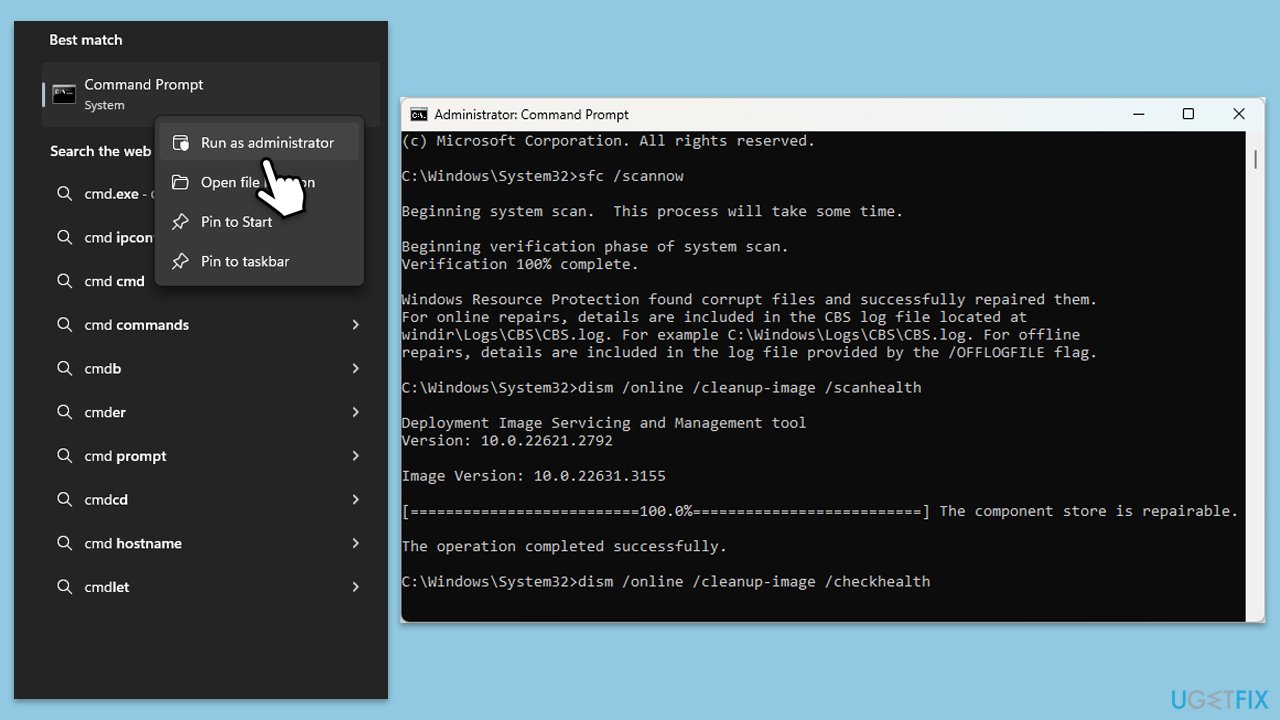
- Type cmd in Windows search.
- Right-click on Command Prompt and selecy the Run as administrator option.
- When User Account Control shows up - click Yes.
- Then, copy and paste the following command, pressing Enter after:
sfc /scannow - Wait till the scan is finished. If Windows finds system file integrity violations, it will attempt to fix them. After this, use the set of the following commands, pressing Enter each time:
DISM /Online /Cleanup-Image /CheckHealth
DISM /Online /Cleanup-Image /ScanHealth
DISM /Online /Cleanup-Image /RestoreHealth
Note: if you get an error executing this last command, add /Source:C:\RepairSource\Windows /LimitAccess to it and try again. - Close down the Command Prompt and restart your computer.
Fix 2. Update network drivers
If you do not want to be bothered with manually updating drivers, you can always rely on powerful software such as [rev id="DriverFix"].
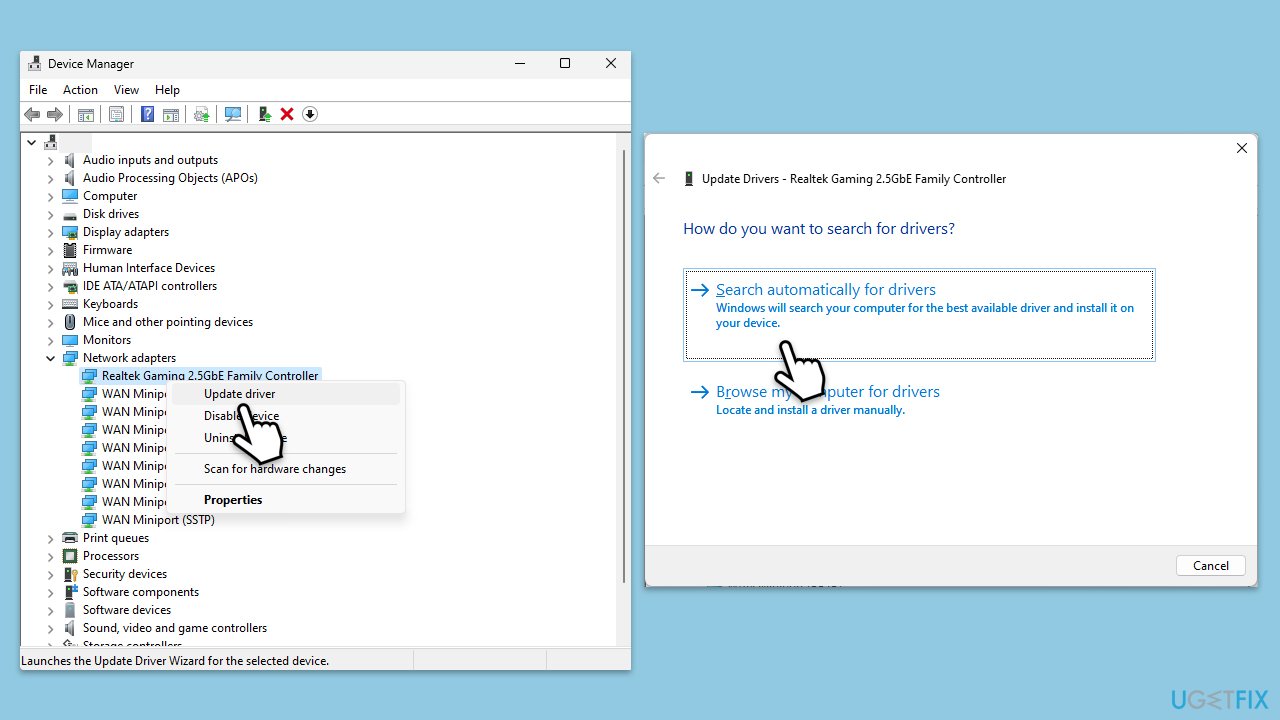
- Right-click on the Start menu and select Device Manager.
- Expand the Network adapters section.
- Right-click on your network adapter and choose Update driver.
- Select Search automatically driver.
- Follow the prompts to complete the driver update and restart your computer.
Fix 3. Reinstall network drivers
Note that your network will stop working after you uninstall the driver, thus make sure you have the driver pre-downloaded and located on your PC/external drive.
- Open Device Manager from the Start menu.
- Expand the Network adapters section.
- Right-click on one of the Intel network adapter and select Uninstall device.
- Confirm the uninstallation.
- Restart your computer.

Fix 4. Re-register the Wlanapi.dll file
If the file is corrupted or unregistered, re-registering it can resolve the error.
- Open Command Prompt as administrator.
- Type in the following commands and press Enter after each:
regsvr32 /u Wlanapi.dll
regsvr32 Wlanapi.dll - Close down everything and restart your computer.
Fix 5. Scan for malware
You can use a trusted third-party security software, although Microsoft Safety Scanner or the built-in Windows Defender can do the job just as well:
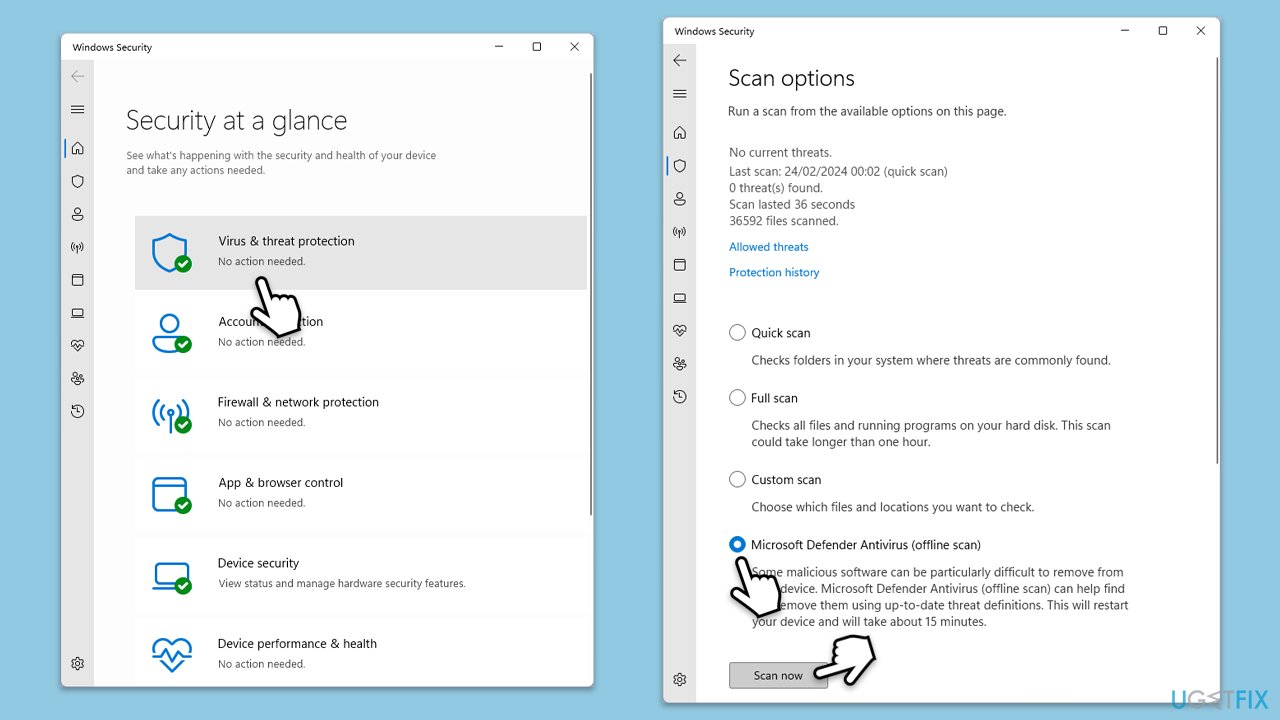
- Type Windows Security in the Windows search bar and hit Enter.
- Select Virus & threat protection.
- Pick Scan options.
- Choose Microsoft Defender Offline scan and click Scan now.
- Your computer will immediately reboot and begin a deep scan.
Fix 6. Repair-install Windows
If none of the previous methods resolve the Wlanapi.dll error, a repair installation of Windows can fix deeper system issues while keeping your files and programs intact.
- Visit the official Microsoft website and download Windows 10 installation media (Windows 11 version).
- Double-click the installer, select Yes when UAC shows up, and agree to the terms.
- Select the ISO file and click Next, then follow the instructions to finish the process.
- Right-click on ISO and click Mount.
- Open the location of the ISO, right-click on it, and select Mount.
- Launch the installer.
- Select Upgrade this PC now and click Next.
- Windows will start downloading the needed files.
- Agree to the terms once again and click Next.
- Before installing, ensure you are happy with your choices (otherwise, you can click the Change what to keep option).
- Finally, click Install to begin the upgrade process.

Bottom line
The 'Wlanapi.dll missing or not found' error can be fixed by replacing the missing or corrupted Wlanapi.dll file, updating network drivers, and addressing registry and system file issues. Additionally, scanning for malware or repairing the operating system may be necessary. If none of these solutions work, consider using a dedicated repair tool to automatically detect and resolve underlying issues.
Frequently asked questions
This error typically occurs due to corrupted or deleted Wlanapi.dll files, often after a software update or a malware infection.
You can restore the Wlanapi.dll file by running the System File Checker tool; simply open Command Prompt as an administrator and enter 'sfc /scannow'.
Yes, reinstalling the network adapter driver can help resolve Wlanapi.dll errors by ensuring all associated files are correctly installed and updated in Windows 10 or Windows 11.




Report an issue
What's wrong with this guide? We review every report and update or remove content.
Report received — thank you. We'll review and fix it.
You need a free account to submit a report.
Be the first to comment