How to fix
WLDCore.dll not found or missing error
on Windows
Resolve the WLDCore.dll missing error on Windows 10 or 11 with expert-tested solutions. Get your system running smoothly again—fixed in minutes!

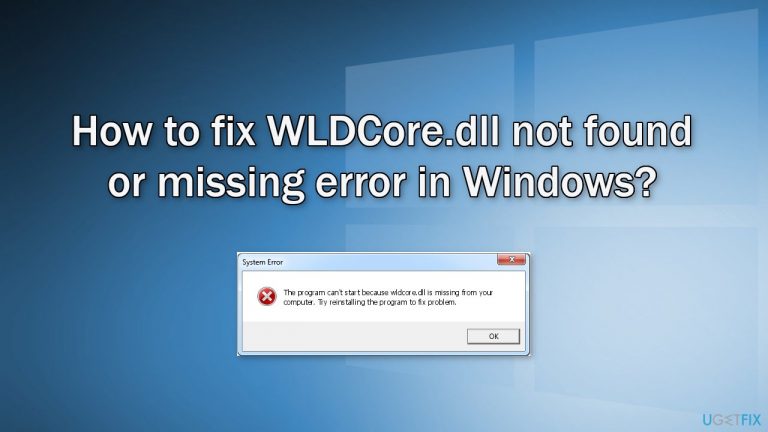
What causes How to fix WLDCore.dll not found or missing error in Windows?
- Corrupted updates
- Corrupted installations
- Third-party antivirus software
- Accidental deletion of the file
Repairs Windows system files, removes malware, and restores a clean OS state — without reinstalling.
Hello. I keep receiving an error message "WLDCore.dll is missing from your computer" and cannot open any Windows Essentials applications. Any tips would be appreciated.
The "WLDCore.dll is missing" error is related to the Windows Essentials suite of Microsoft freeware applications. It includes email, instant messaging, photo sharing, blogging, and parental control software. If you encountered this error, it means that an important system file, required by those apps to run is not present.
Missing DLL (Dynamic-Link Library)[ref en-1] errors often appear after corrupted updates, and installations. These system files contain code and data that can be used by multiple programs at the same time. That is why users may fail to open multiple programs and receive the same error.
However, they can also be caused by third-party antivirus software so if you have recently installed any anti-malware tools, try uninstalling them first to see if it makes any difference. Although it may be surprising, the "WLDCore.dll not found or missing" error could be also caused by accidental deletion. More often than they should, users go through system file folders and mess around with them not understanding the possible consequences.
If you experience this issue and want to fix it, we have a 4 step guide that could help you. But as we know with Windows errors, troubleshooting can be a lengthy process. [d1] is a maintenance tool that can fix various system errors, BSoDs,[ref en-2] corrupted files, registry[ref en-3] issues, and more. This powerful software can also optimize the machine by getting rid of junk files, cookies, and cache which can improve performance.
If you are ready to begin the manual troubleshooting guide that could fix the WLDCore.dll not found or missing error in Windows, proceed with the steps below carefully:
Solution 1. Fix Corrupted System Files
Use Command Prompt commands to repair system file corruption:
- Open Command Prompt as administrator
- Use the following command and press Enter:
sfc /scannow
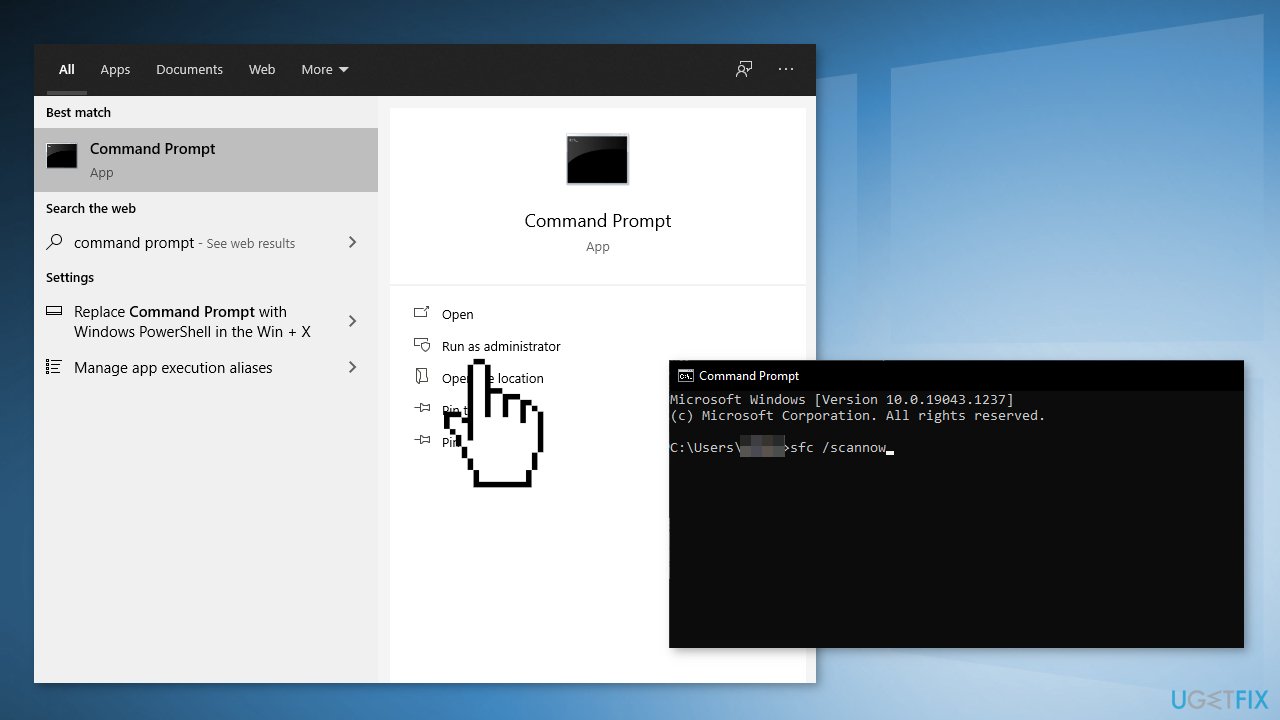
- Reboot your system
- If SFC returned an error, then use the following command lines, pressing Enter after each:
DISM /Online /Cleanup-Image /CheckHealth
DISM /Online /Cleanup-Image /ScanHealth
DISM /Online /Cleanup-Image /RestoreHealth
Solution 2. Repair Affected Apps
- Search for Control Panel in your taskbar
- Change the view mode to Large icons
- Click on Programs and Features
- Locate Windows Live Messenger, Windows Live Mail, and Windows Live Contacts applications
- Right-click and choose Repair
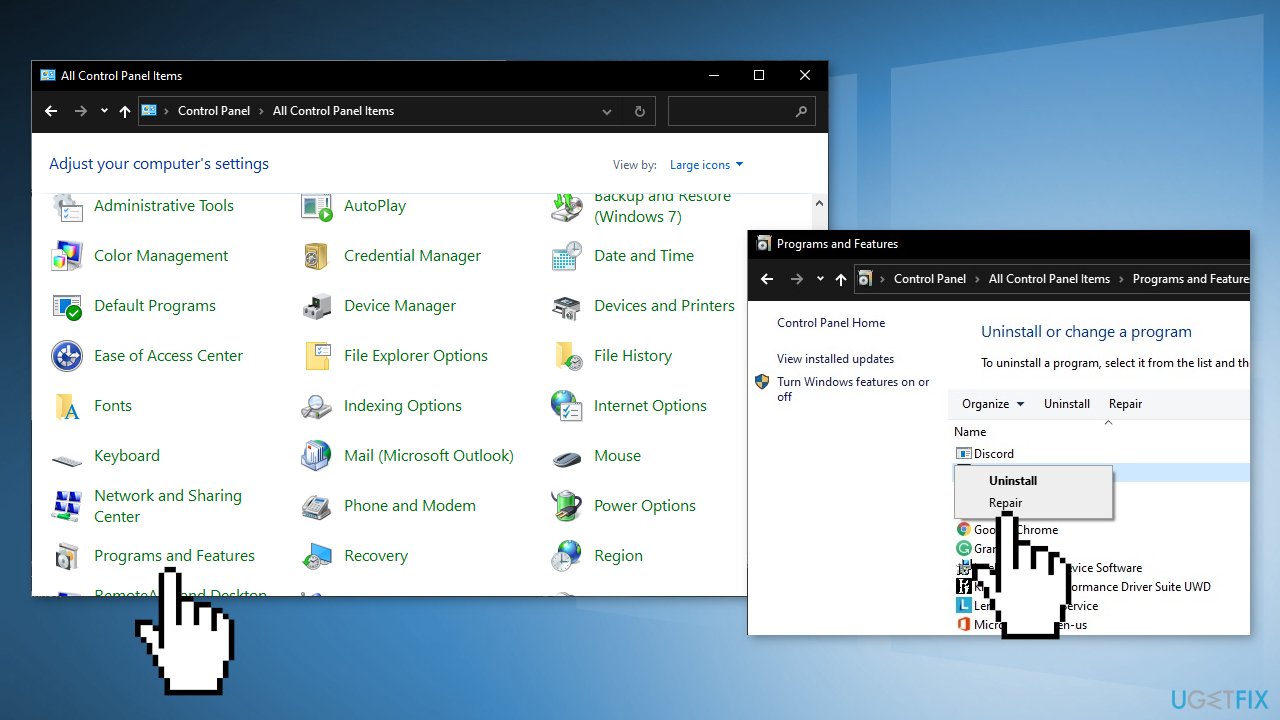
- Restart your computer and try using Windows Live again
Solution 3. Copy and Paste the Missing DLL
- Open File Explorer and navigate to C:\\Program Files (x86)\\Windows Live\\Shared
- Find the wldcore.dll and wldlog.dll files, and select them
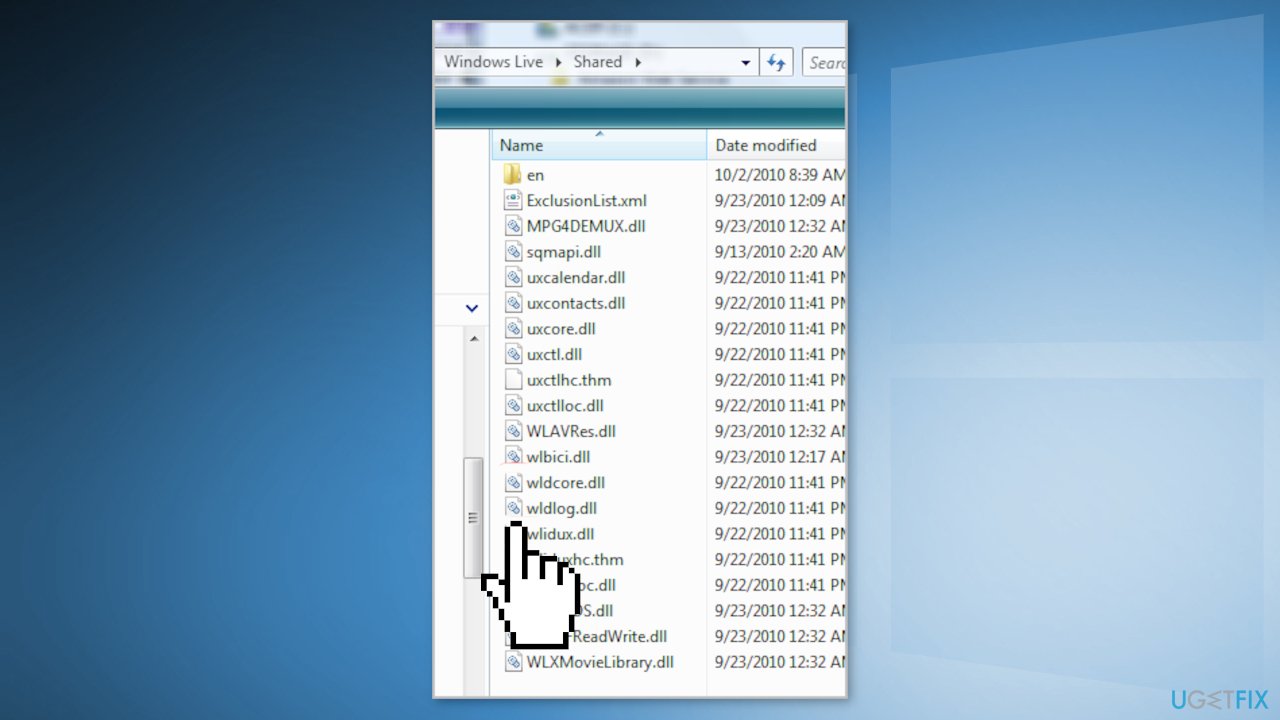
- Right-click on one of the selected files and click Copy
- Navigate to C:\\Program Files (x86)\\Windows Live
- Paste the two DLL files into the Messenger, Contacts, and Mail folders
- Restart your computer and try using Windows Live again
Solution 4. Use System Restore
System Restore can roll back the system back to a previous point when the error was not present. Use this utility and choose a restore point before the error started appearing.
- Search for Control Panel in your taskbar
- Change the view mode to Large icons
- Click on Recovery, then Open System Restore
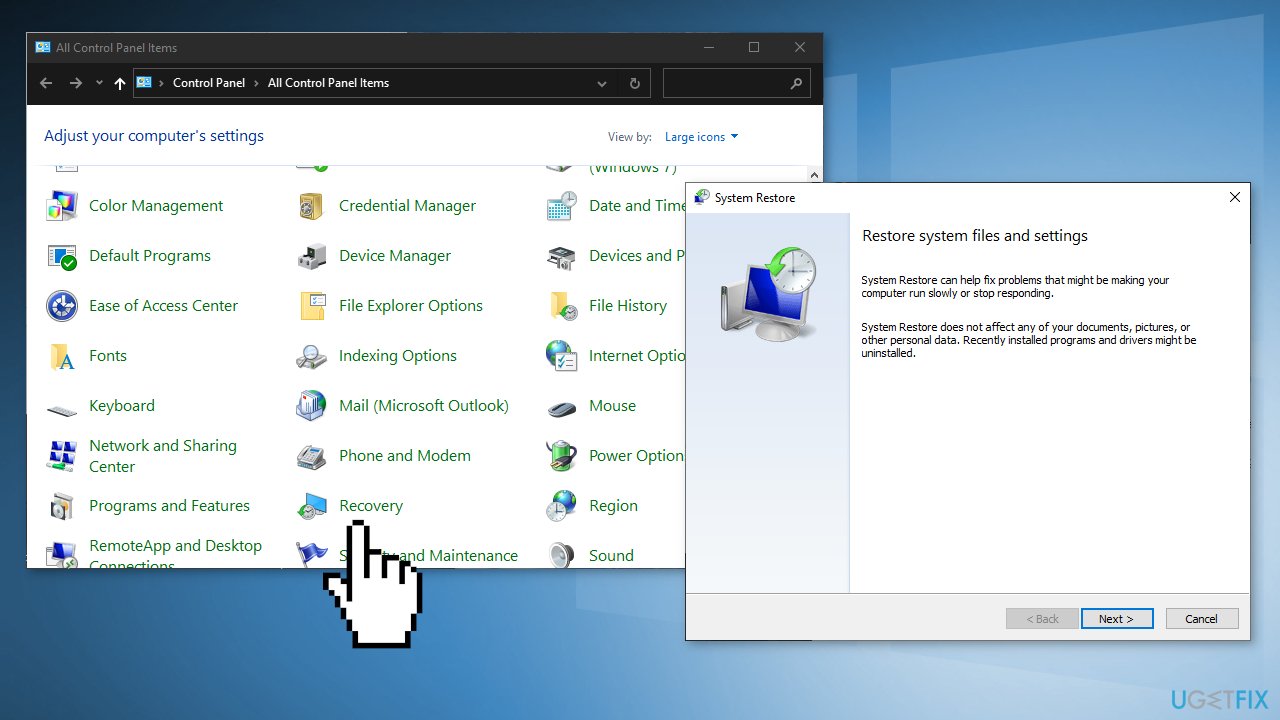
- If prompted, enter your user password
- Follow the on-screen instructions and wait for the wizard to complete the restoration
- Restart your computer
Bottom line
To fix the WLDCore.dll not found or missing error, you can repair corrupted system files using Command Prompt commands, or uninstall any recently installed antivirus software. If these solutions do not resolve the issue, consider using a maintenance tool to fix various system errors.
Frequently asked questions
The WLDCore.dll not found error can be caused by a corrupted or missing WLDCore.dll file, often due to improper installation of software or malware infection.
You can restore the WLDCore.dll file by reinstalling the application that requires it or by running a System File Checker scan using the command 'sfc /scannow' in the Command Prompt.
No, downloading WLDCore.dll from third-party websites is not recommended as it may lead to further issues or malware infection; it's best to obtain it through official channels.




Report an issue
What's wrong with this guide? We review every report and update or remove content.
Report received — thank you. We'll review and fix it.
You need a free account to submit a report.
Be the first to comment