How to fix
Word Dictation not working
on Windows
Resolve Word Dictation issues in Windows 10 or 11 effortlessly. Get expert-tested solutions for seamless voice typing. Fixed in minutes!

What causes How to fix Word Dictation not working in Windows?
- Software not updated
- Audio settings misconfigured
- Microphone not working properly
- Conflicting applications
- Corrupted files or registry issues
Repairs Windows system files, removes malware, and restores a clean OS state — without reinstalling.
Hello. When I try to use the Dictate option in Microsoft Word, it keeps turning off. Is there any way to fix this?
Microsoft Word has several advantages, including simple formatting tools, the ability to collaborate with others, and a large library of templates from which users can quickly create documents. Furthermore, Microsoft Word includes a Dictate feature that allows users to create text content by speaking into their computer's microphone. For people who struggle with typing or have physical disabilities that make typing difficult, this feature can be a game changer.
Word's Dictate feature is essential for users who prefer to speak rather than type. This feature converts spoken words into text in real time using advanced voice recognition technology. This enables users to create documents and other types of content more quickly and efficiently. The Dictate feature supports a wide range of languages, including English, Spanish, French, and German, among others.
When Word Dictation is not working in Windows, users may experience frustration and inconvenience. This issue may prevent them from using the Dictate feature and may impact their productivity. Users may need to type more or find alternative ways to create text-based content.
This problem may have several solutions, including updating the software, checking the audio settings, or running a troubleshooter. It is critical to investigate each potential solution to determine which one will work best for the given situation.
In this guide, you will find 7 steps that should help you fix Word Dictation not working in Windows. In case you are too lazy for manual troubleshooting, you can try a maintenance tool like [d1]. It can fix most system errors, BSODs,[ref en-1] corrupted files, registry[ref en-2] issues, or clear cookies and cache.[ref en-3] Otherwise, follow the step-by-step instructions below.
Solution 1. Install Windows Updates
You can check if there are any available updates for your Windows device. Running Windows Update, automatically updates Office applications.
- Press the Windows key + R to open the Run box
- Type ms-settings:windowsupdate in the text box and press Enter
- Click the Check for updates button
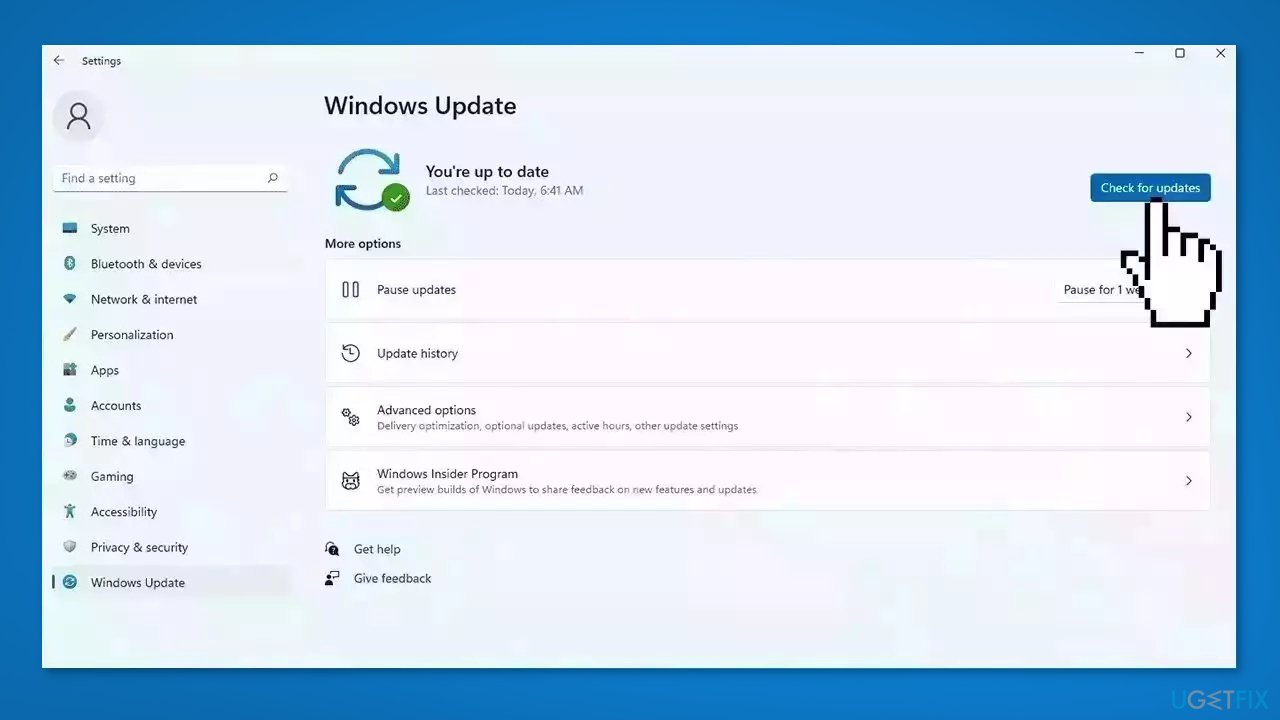
- If a new update is available, click the Download & Install all button.
- Restart your computer after the process is finished and check to see if the problem is fixed
Solution 2. Fix Corrupted System Files
Use Command Prompt commands to repair system file corruption:
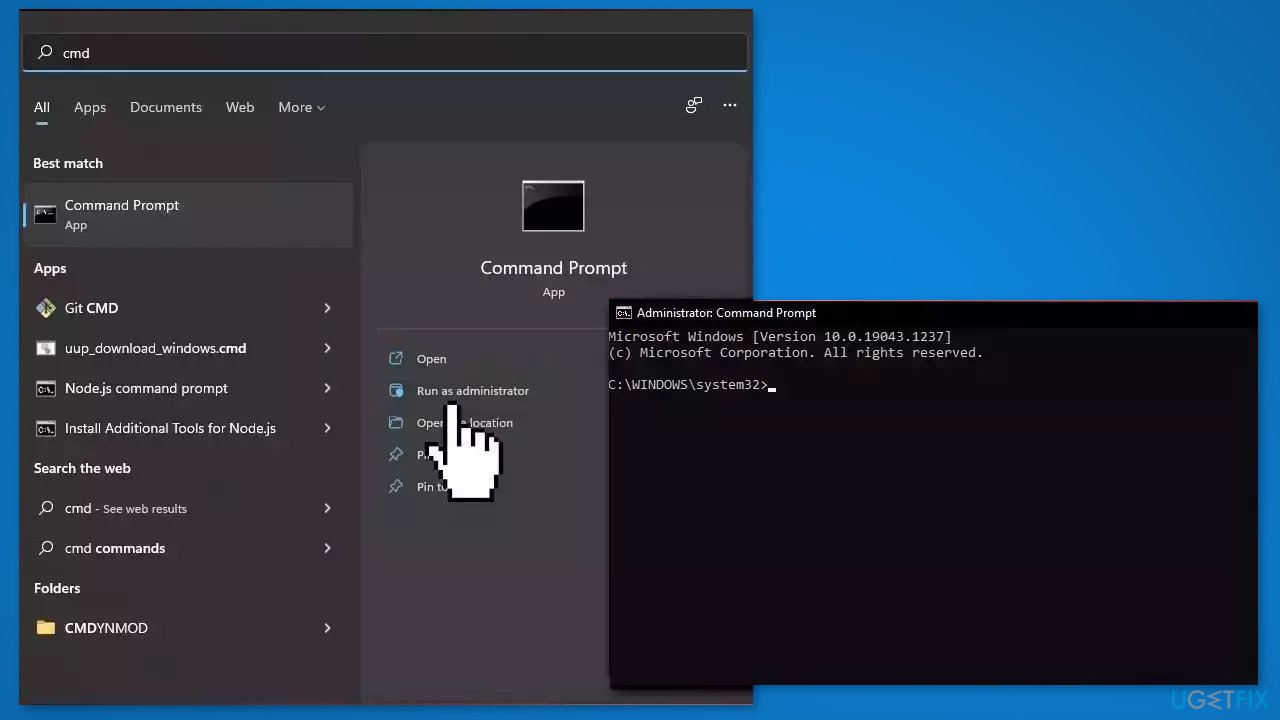
- Open Command Prompt as administrator
- Use the following command and press Enter:
sfc /scannow
- Reboot your system
- If SFC returned an error, then use the following command lines, pressing Enter after each:
DISM /Online /Cleanup-Image /CheckHealth
DISM /Online /Cleanup-Image /ScanHealth
DISM /Online /Cleanup-Image /RestoreHealth
Solution 3. Repair Office
- Press the Windows key + I to open the Settings app
- Click on Apps in the Settings window
- Click on Apps & Features in the menu
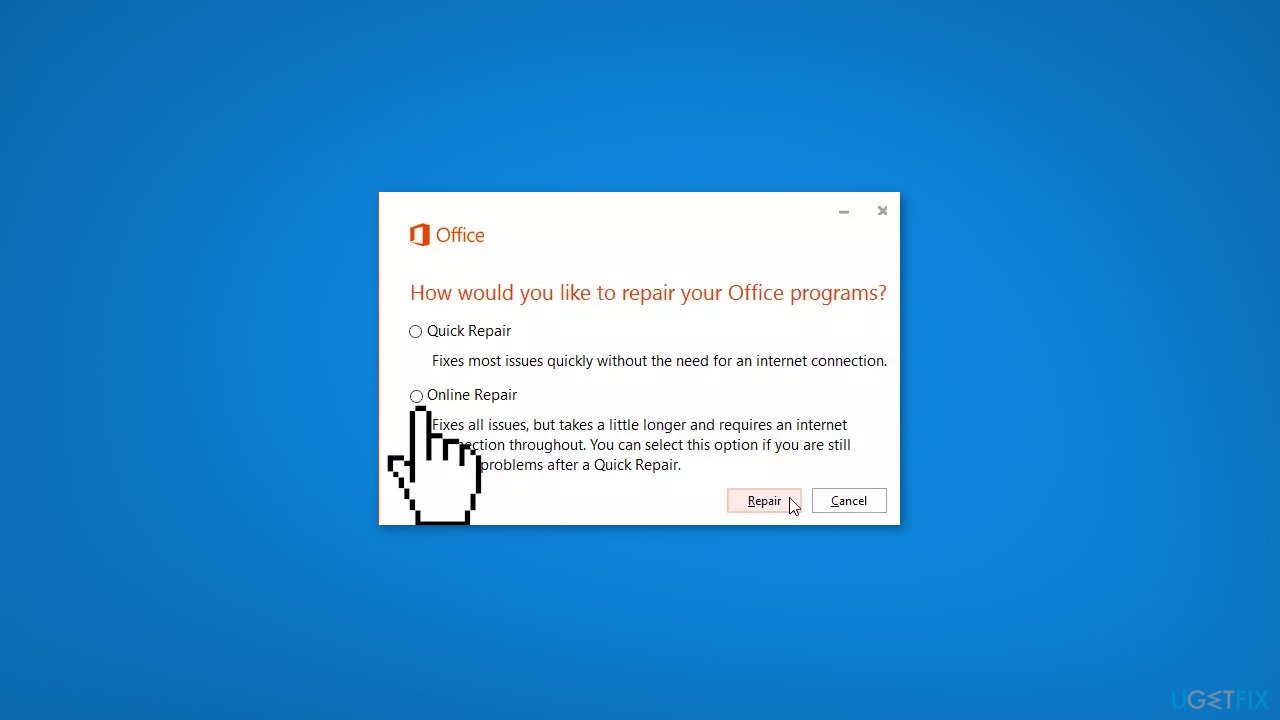
- Scroll down the list of apps and click on the Office product you want to repair
- Click on Modify button
- Select Online Repair option
Solution 4. Adjust Microphone Volume
- Click on the Start menu in the Windows taskbar
- Click on the Settings option
- Click on Sound under System settings
- Scroll down to the Input section
- Click on the device name you’ve paired for speaking or recording on your Windows PC
- Under the Input Settings section, locate the Input Volume slider
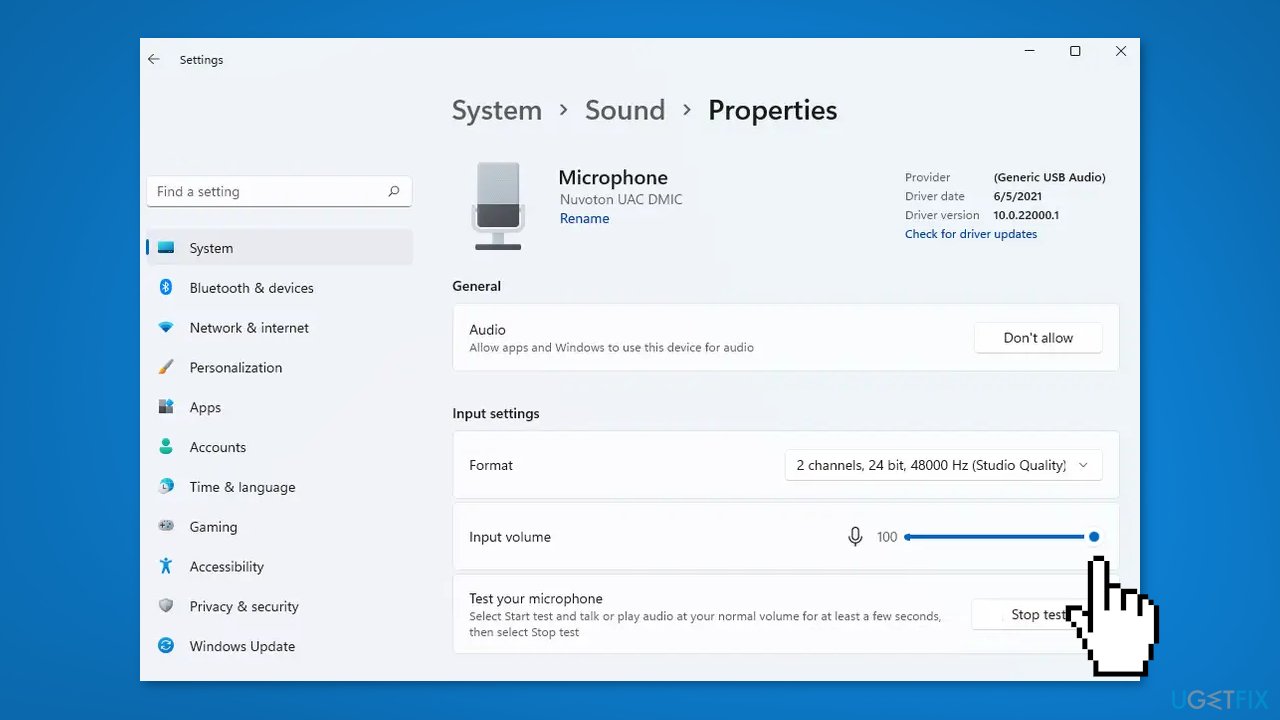
- Move the Input Volume slider to the right to increase the volume of your microphone
Solution 5. Try Microsoft Support and Recovery Assistant
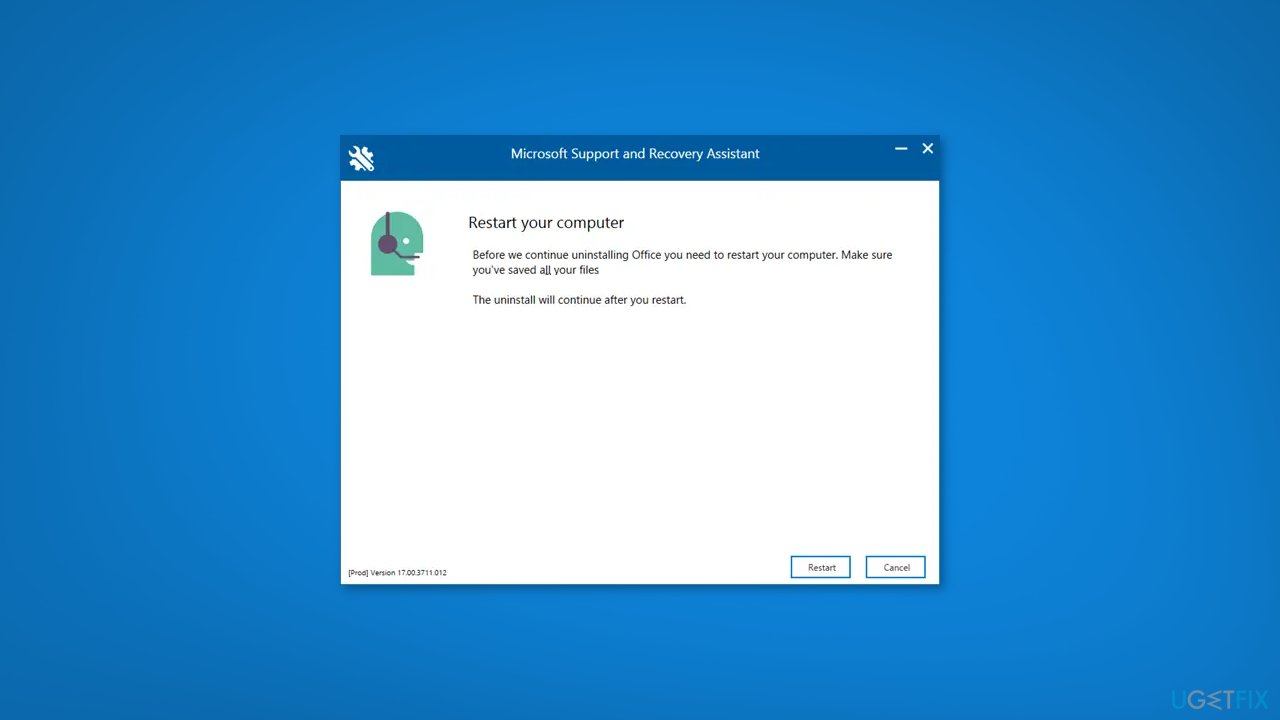
If you encounter problems with Microsoft's internal offerings like Office 365, Outlook, or OneDrive for Business, you can leverage the Microsoft Support and Recovery Assistant. Running this tool can help diagnose and resolve the issue you're experiencing with Word Dictate.
Solution 6. Clear Browser Cache
When browsing data is accumulated over time, it can cause the browser to slow down, become unresponsive, or display pages incorrectly. If you are using the browser version of Word, this can also result in the malfunctioning of certain functions.
Chrome:
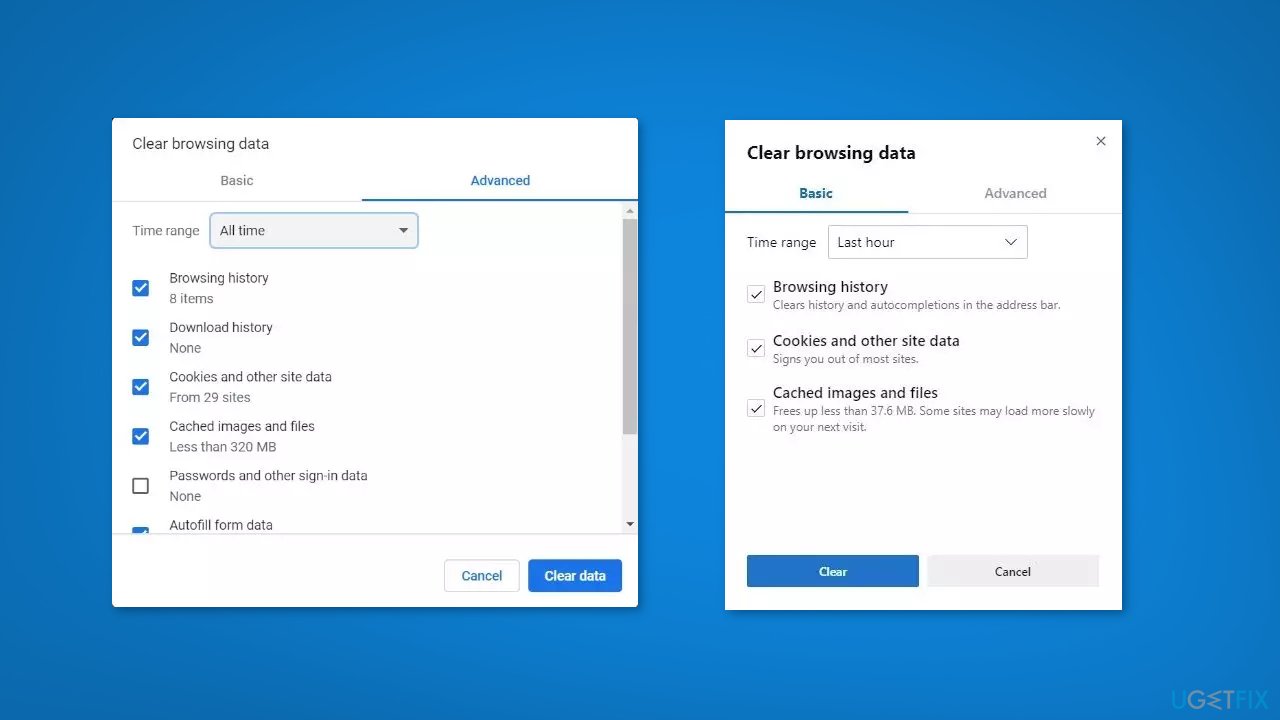
- Open Google Chrome and click on the three vertical dots at the top right corner
- Click on Settings and navigate to Security and Privacy
- Click on Clear Browsing Data
- Check all the options
- Click on Clear Data
Edge:
- Launch Edge browser
- Open Settings and more
- Switch to the Privacy and services section
- Navigate to Clear browsing data
- Check the boxes next to what you want to clear from browsing data
- Select Clear now
Solution 7. Use the Default Dictation Feature
- Open your Word document
- Press the Windows key + H
- The voice dictation tool will be activated
- Start speaking into your microphone
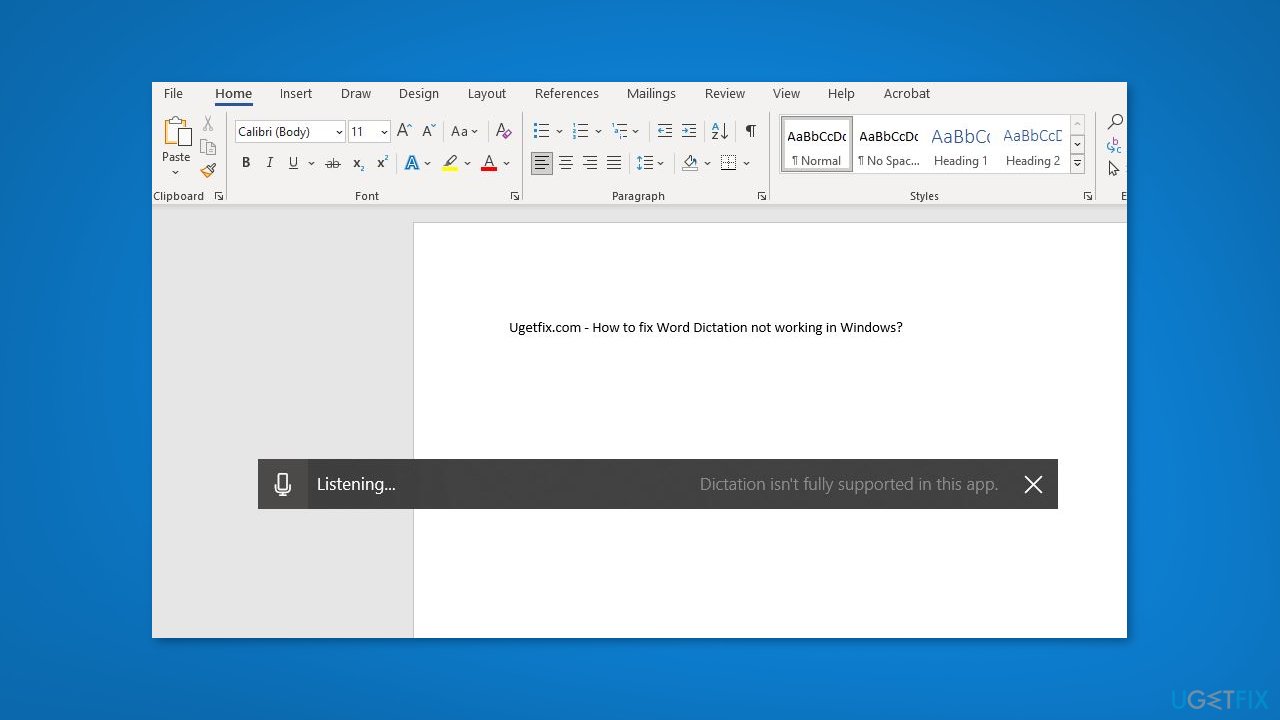
- To pause voice dictation, click on the microphone icon or press the Windows key + H again
- To exit voice dictation, click on the close icon
Bottom line
To fix Word Dictation not working in Windows, you can try installing Windows updates, checking your audio settings, or running a troubleshooter. If these solutions do not resolve the issue, consider using a maintenance tool to fix system errors.
Frequently asked questions
Ensure that your microphone is properly connected and recognized by Windows 10. Also, check if the Dictation feature is enabled in the Word settings.
Go to Settings > System > Sound to verify that your microphone is set as the default input device and check its volume levels. You can also run the Windows Troubleshooter for sound problems.
Make sure that both Windows and Microsoft Office are updated to their latest versions, as updates often include fixes for bugs that may affect features like Dictation.




Report an issue
What's wrong with this guide? We review every report and update or remove content.
Report received — thank you. We'll review and fix it.
You need a free account to submit a report.
Be the first to comment