How to fix
Word not displaying images
on Windows
Resolve the issue of Word not displaying images in Windows 10 or 11 easily. Follow our expert-tested solutions for a quick fix!

What causes How to fix Word not displaying images in Windows?
- Unsupported image format
- Issues with Word or MS Office
- Images are incorrectly embedded
- Problem with your GPU
Repairs Windows system files, removes malware, and restores a clean OS state — without reinstalling.
So I started experiencing this strange issue a few days ago. Whenever I open Word documents that include pictures, they are not displaying at all. In other words, they're just not there. How do I fix this? I'm using Office 2016 on Windows 10.
Microsoft Office has long been recognized as an indispensable suite of productivity tools, serving millions of users worldwide with its powerful features and user-friendly interface. At the heart of this suite is Microsoft Word, one of the most popular word-processing programs globally. It facilitates the creation of various types of documents, ranging from academic papers to business reports, memos, and more.
Microsoft Word's expansive utility doesn't end at text; it also supports the integration of images, enhancing your documents' visual appeal and informative potential. This functionality allows users to create more engaging and comprehensive documents, be it a business presentation with graphs, an educational handout with illustrations, or a personal project with photographs.
However, a persistent issue that some users encounter is the non-display of images in Word documents. This problem can considerably hinder productivity and compromise document quality. While it can be frustrating, understanding the possible causes can help in troubleshooting.
Here are some of the primary reasons why Word might not display images:
- Unsupported Image Format. Word may fail to display images if they are in a format that the software cannot recognize or support.
- Issues with Word or MS Office. There could be issues with the Word application or the MS Office suite itself, like bugs, outdated versions, or corrupted installations.
- Images are Incorrectly Embedded. If images are not properly embedded or linked in the document, Word may not display them correctly.
- Problem with your GPU. If there is a problem with your Graphics Processing Unit (GPU), it could impact the rendering and visibility of images in Word.
Recognizing these potential culprits can steer you toward an appropriate solution. Detailed instructions for addressing these issues will be provided in the subsequent part of this article.
Finally, it's worth mentioning that employing a PC repair tool like [d1] can aid in maintaining the overall health of your computer system. While it may not directly fix the specific issue of Word not displaying images, it can help optimize your PC performance and prevent other potential problems.
Fix 1. Convert the image format
Some image formats might not be supported by Word, which is why it doesn't display them. Converting the image to a universally supported format like JPEG or PNG can solve this issue.
- Right-click the image file.
- Select Open with and choose an image editing software (like Paint).
- Navigate to File and then Save as.
- Choose either JPEG or PNG as the format.
- Save the image and try inserting it into Word again.

Fix 2. Update MS Office
Bugs or issues with the Word application or the entire MS Office suite can cause images not to display. Updating the software may resolve such problems.
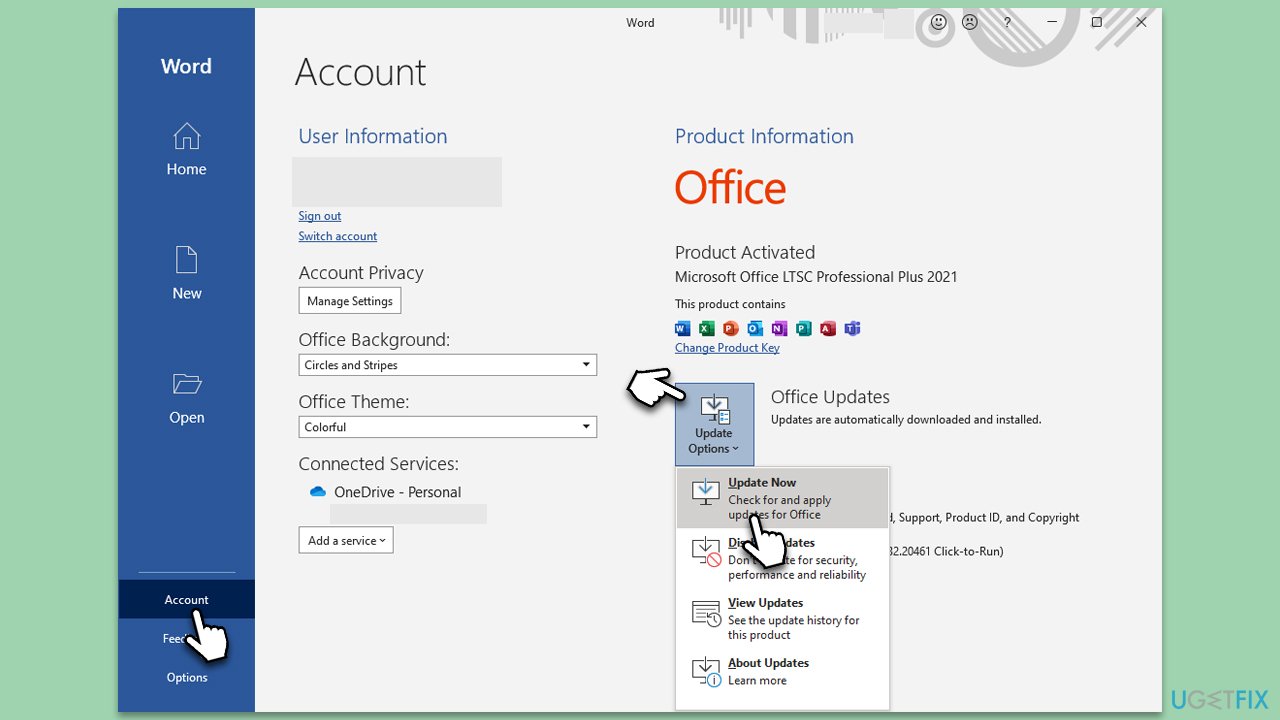
- Open Microsoft Word and navigate to File.
- From the file menu, select Account.
- Under Product Information, locate and click on Update Options.
- From the dropdown list, select Update Now. The program will then check for available updates and install them.
Fix 3. Repair MS Office
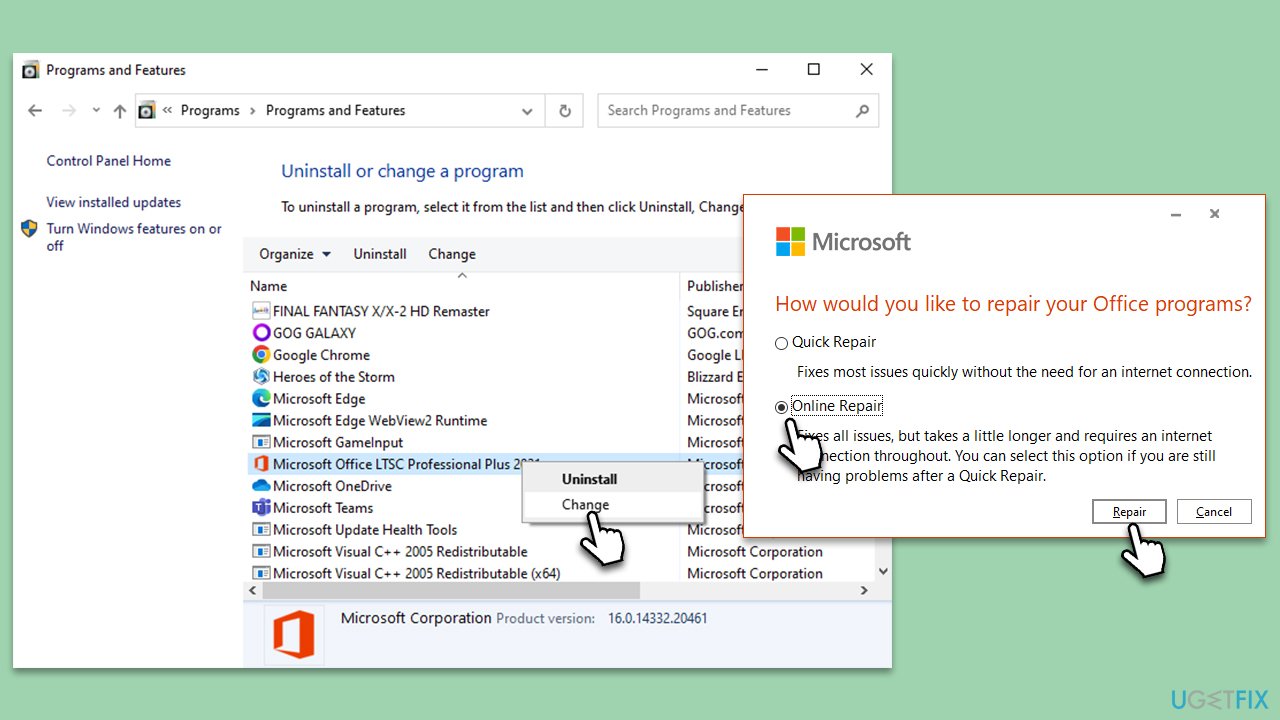
- Type Control Panel in Windows search and press Enter.
- Select Programs > Programs and Features.
- Select Microsoft Office and click on Change.
- Choose the option for Online Repair and click Repair.
- Follow the prompts to finish the process.
Fix 4. Embed images correctly
If images are incorrectly embedded in Word, they might not display properly. Ensuring correct embedding can resolve this.
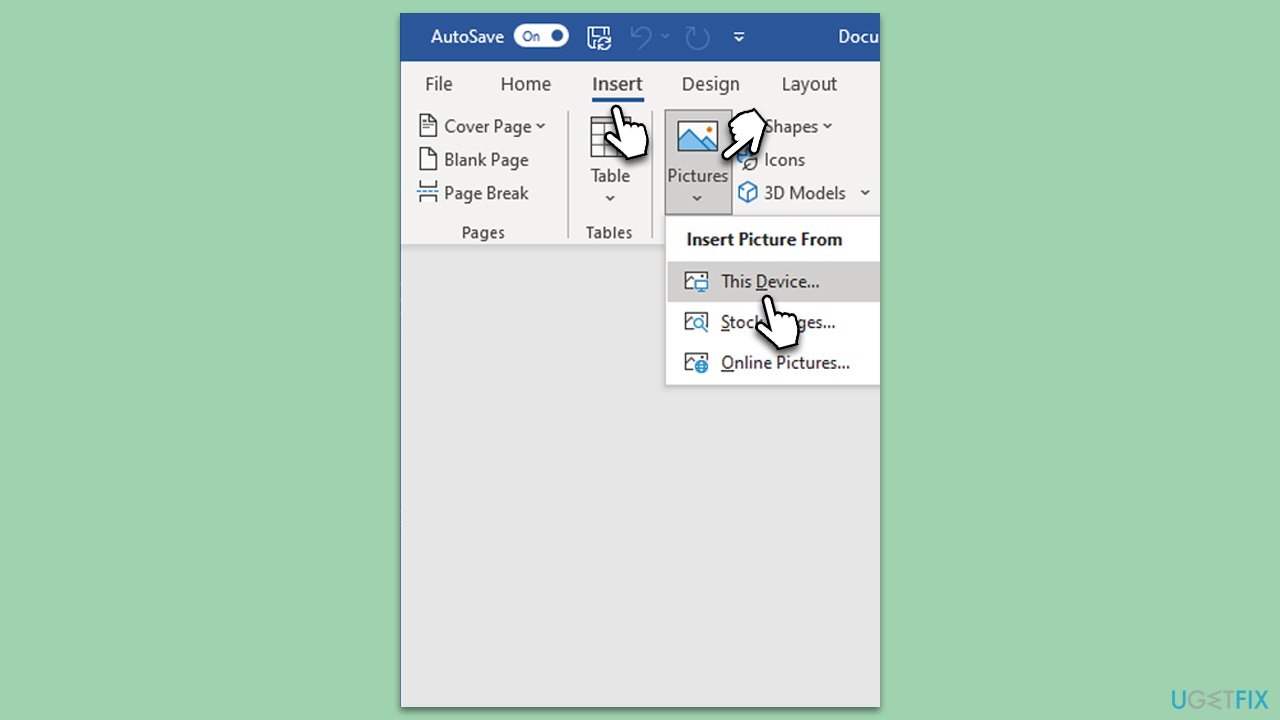
- Open your Word document.
- Click on Insert from the top menu and then select Pictures.
- Choose the image file you want to embed and click Insert.
- Make sure the image is not set to Behind Text or as a Hidden object.
Fix 5. Clear the Word cache
Sometimes, Word's cache could be causing the problem. Clearing this cache might make the images appear again.
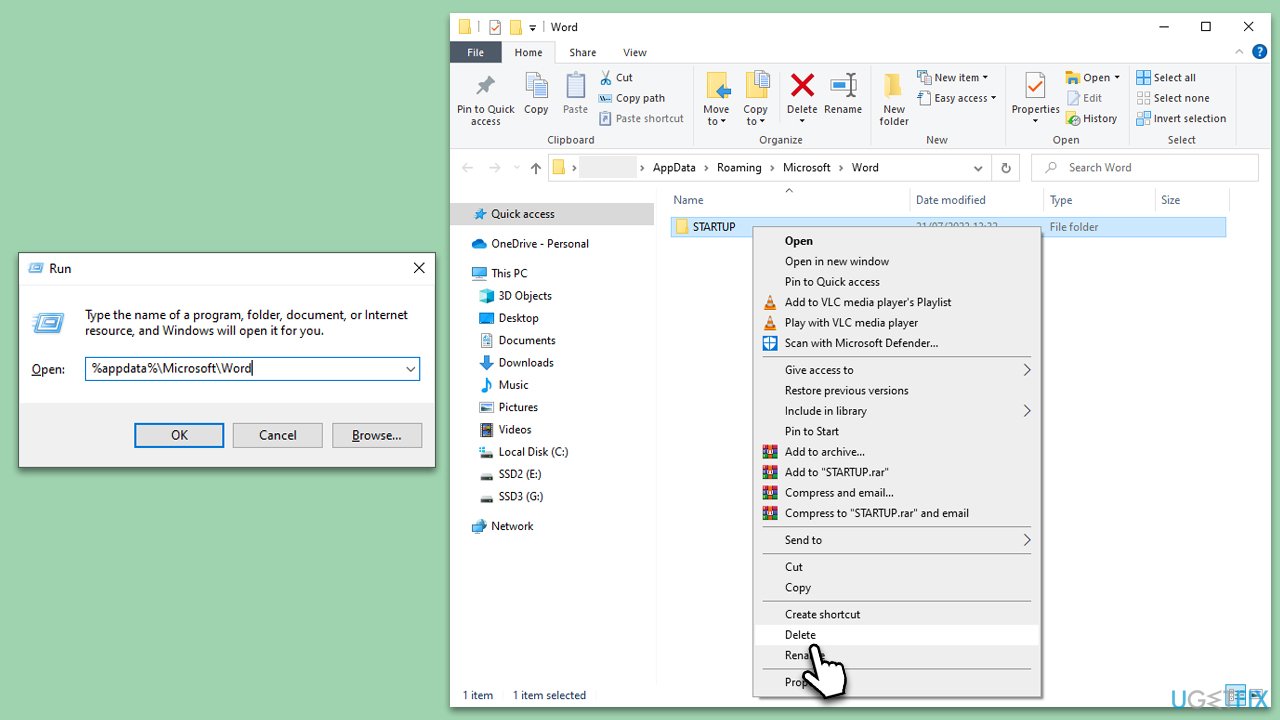
- Close Word and press the Win + R to open the Run dialog.
- Type %appdata%\Microsoft\Word and press Enter.
- Delete any temporary files that end in .tmp.
- Open Word again and check if the images are visible.
Fix 6. Check document view settings
At times, the problem might be as simple as having the wrong settings in the document view. Changing this can make the images visible again. Below you will find several setting changes that could resolve Word not displaying images issue.
- Open Word and click File, then select Options.
- On the left, select the Advanced section.
- In the right pane, scroll down to find the Show document content section.
- Untick the tickmark from Show Picture Placeholders.
- Enable the Show drawings and text boxes on screen option.
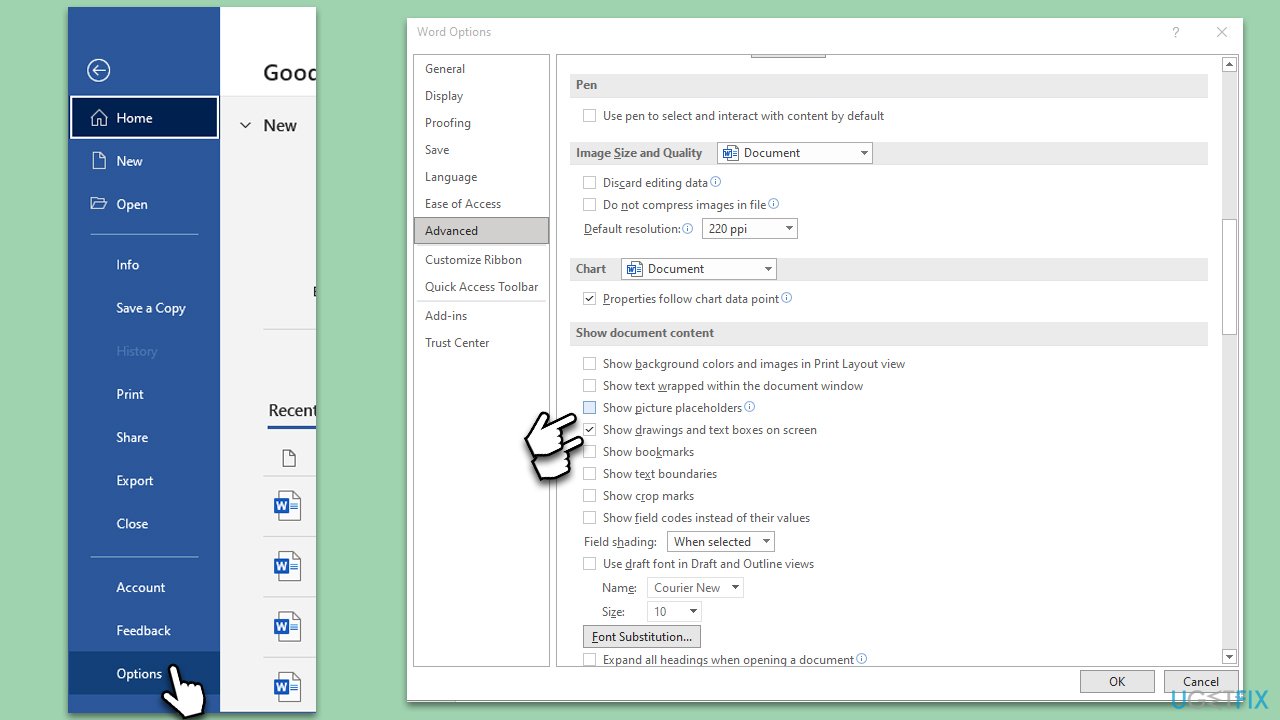
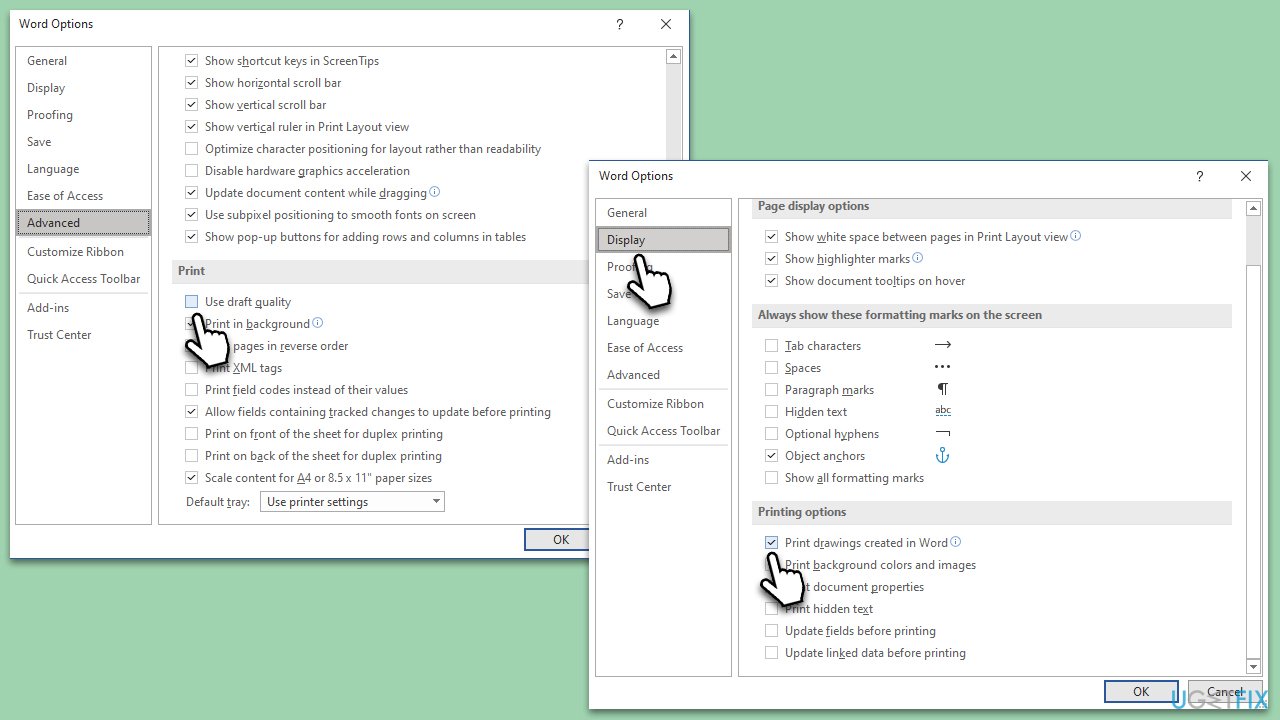
- Under the Print section, unmark the Use draft quality.
- In the left pane, click Display.
- Scroll down to the Printing options section and tick Print drawings created in Word.
Bottom line
To fix the issue of Word not displaying images, you can check for unsupported image formats, ensure that your Office installation is up to date, verify that images are properly embedded, and troubleshoot any GPU problems. If none of these solutions work, consider employing a PC repair tool.
Frequently asked questions
Images may not display in Word on Windows 10 due to issues like disabled graphics acceleration or corrupted Office installation. Try disabling hardware graphics acceleration in Word's options or repairing your Office installation.
To ensure images display in Word on Windows 11, check your internet connection for online images and ensure you have the latest updates installed for Office. Additionally, verify that your document isn't set to display in 'Draft' view.
Check your Word options under 'Advanced' to see if 'Show picture placeholders' is unchecked, and ensure your document's view settings are correct. Also, consider checking your printer settings, as Word may sometimes hide images if a printer is not properly configured.




Report an issue
What's wrong with this guide? We review every report and update or remove content.
Report received — thank you. We'll review and fix it.
You need a free account to submit a report.
Be the first to comment