How to fix
Wordpad missing
on Windows
Restore missing WordPad on Windows 10 and Windows 11 effortlessly with our expert-tested solutions. Get back to work in minutes, no traces left!

What causes How to fix Wordpad missing from Windows?
- Windows 24H2 update removed WordPad
- WordPad may be disabled on the system
- No clear replacement offered for casual document editing
- Users reported app missing from Start menu or search results
- Error messages when opening .rtf or .docx files
Repairs Windows system files, removes malware, and restores a clean OS state — without reinstalling.
So my Windows got updated automatically yesterday, and today I found out that Wordpad is missing from it. It is an extremely important app and does everything I need it to do. What happened? Why did it get removed, and how do I bring it back?
Over the years, WordPad has been the default text editor in Windows, which could provide users with a lightweight text editing for those not requiring all the features of Microsoft Word. However, when the Windows 24H2 update was launched, users started reporting that somehow WordPad was nowhere to be found on their respective systems.
This has frustrated users who used the application for quick text editing, not necessarily requiring a full-fledged word processor. While Microsoft had announced the retirement of WordPad, the sudden disappearance of the app after the update has managed to catch many users off guard. Since its removal, there have been some disappointed reactions due to the fact that no clear replacement had been offered for casual document editing.
For users affected by this change, the missing WordPad issue can appear in several ways. Some report that the app no longer appears in the Start menu or search results, while others have found that attempting to open a ".rtf" or ".docx" file results in an error message. Since WordPad was a pre-installed component in previous versions of Windows, its removal has left users searching for alternatives or ways to bring it back.
In some cases, WordPad may still be present on the system but disabled, while for others, the update appears to have removed it completely. Users who frequently work with rich text files or prefer a simple word processor now have to look for third-party alternatives or use built-in apps like Notepad, which lacks many of WordPad’s formatting features.
If WordPad is missing from your system and you need a quick resolution, you may find a solution below. Before proceeding, consider using an automatic Windows repair tool like [d1], which can help resolve underlying system issues efficiently.
Fix 1. Downgrade to Windows 11 23H2
If you prefer to use WordPad as before, rolling back to version 23H2 is an option. Keep in mind that this will undo any changes introduced in the 24H2 update.
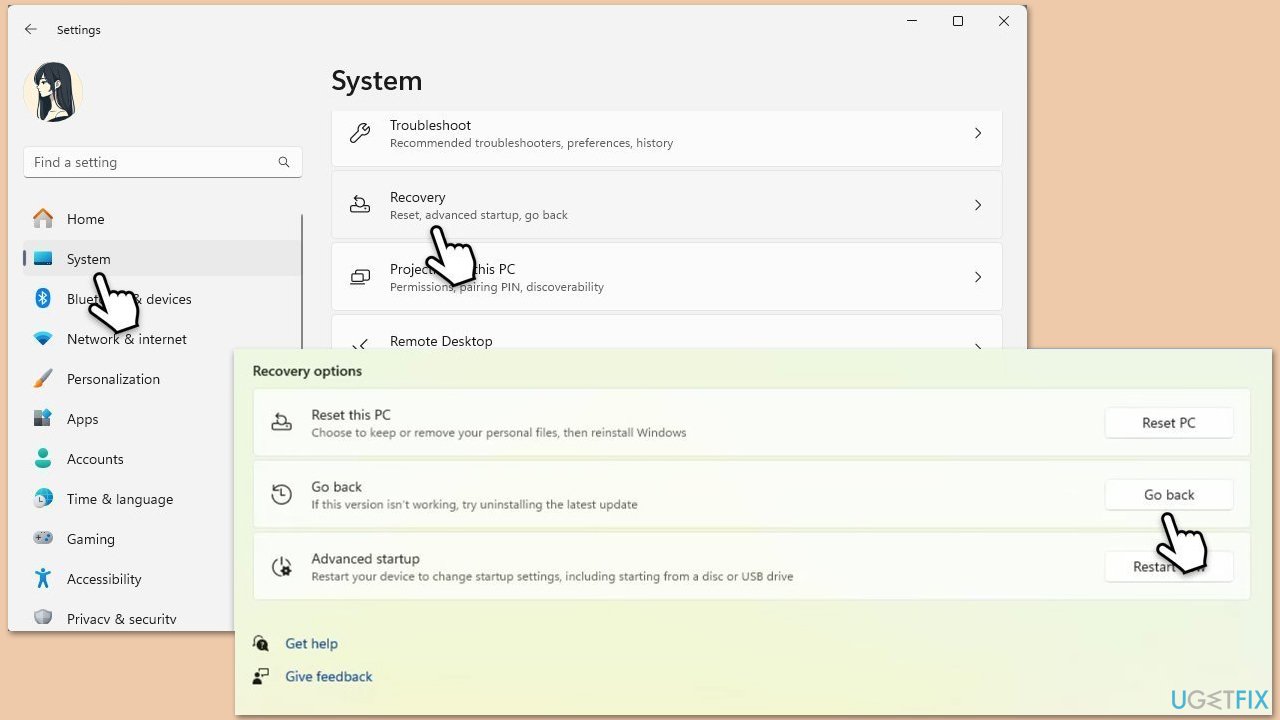
- Right-click on Start and click Settings.
- Go to System and find Recovery options.
- Find the Go back option and click Go back.
- Click Next and then follow up with No, thanks.
- In the next two prompts, simply select Next and Next again.
- Finally, click Go back to earlier build.
- Restart your system to go back to version 23H2.
If the roll back feature is not available anymore, please check out our dedicated article on how to downgrade to Windows 11 version 23H2.
Fix 2. Manually reinstall WordPad using older Windows files
Although WordPad has been removed in Windows 11 24H2, it is possible to restore it by manually copying the necessary files from an older Windows installation. This method requires access to a Windows 11 23H2 system or installation media.
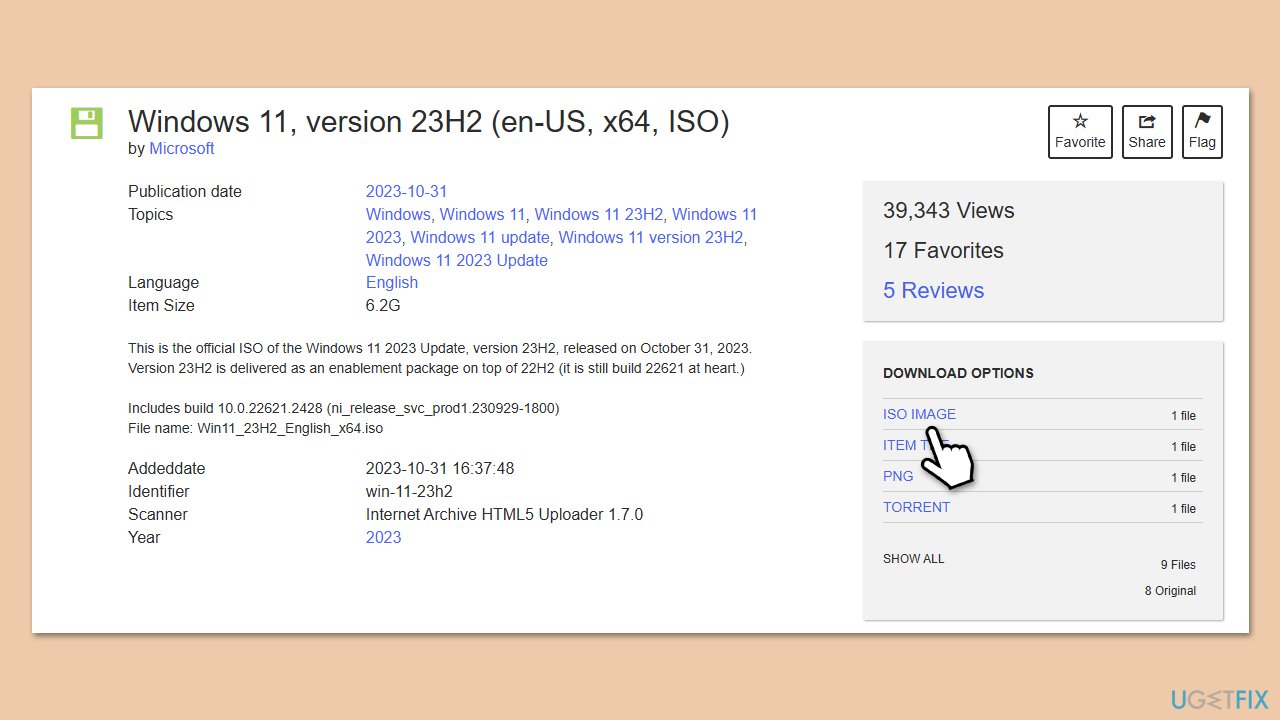
- Obtain a Windows 11 23H2 ISO or USB from the following link: https://archive.org/details/win-11-23h2
- Mount the Windows 11 23H2 ISO by double-clicking it in File Explorer, or insert the USB into your PC.
- Navigate to the necessary files:
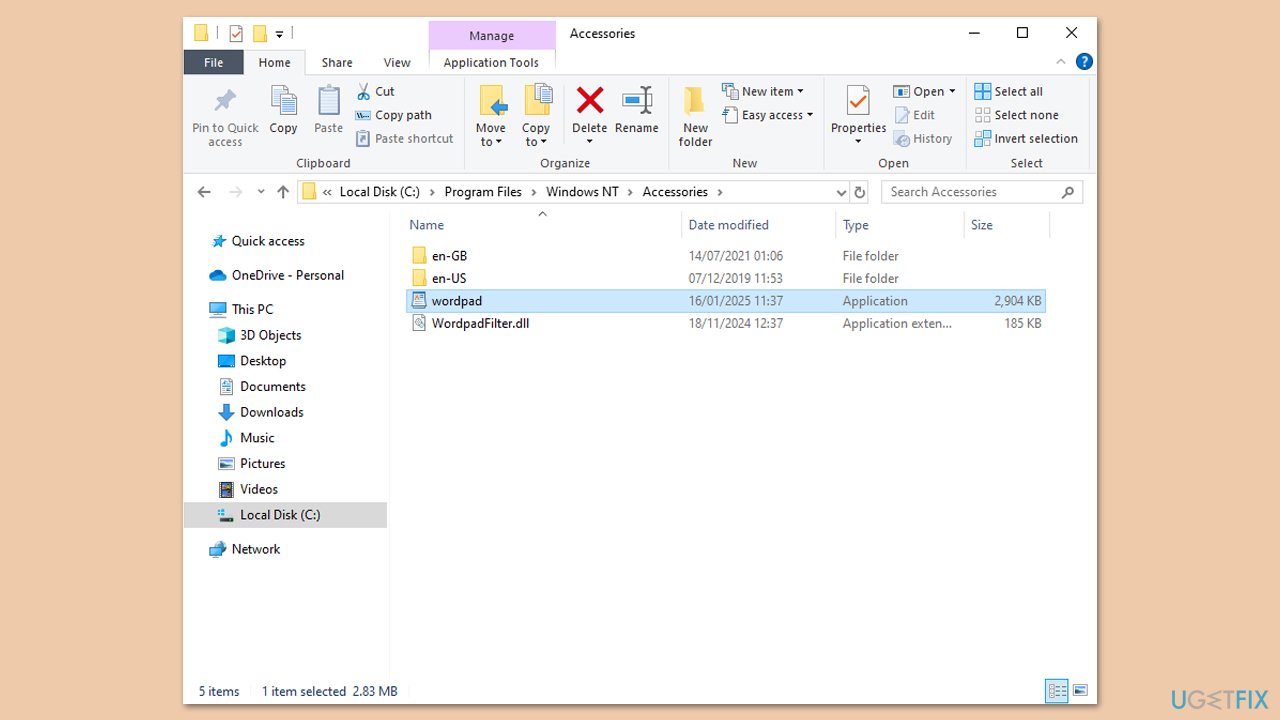
- Open the C:\Program Files\Windows NT\Accessories folder on the Windows 11 23H2 system or installation media.
- Locate the wordpad.exe file and the corresponding .mui file inside the C:\Windows\System32\en-US folder (or a different language folder if your system uses another language).
- Copy the files to your Windows 11 24H2 system:
- Transfer wordpad.exe to C:\Program Files\Windows NT\Accessories on your current installation.
- Place the .mui file into C:\Windows\System32\en-US.
- Create a shortcut for WordPad:
- Right-click wordpad.exe and select Create shortcut.
- Move the shortcut to your desktop or pin it to the Start menu for easy access.
- Check out WordPad to ensure it launches properly and can open .rtf files as expected.
Fix 3. Use Microsoft 365 instead
Since WordPad has been removed from Windows 11 24H2, Microsoft suggests using Microsoft 365 apps like Word as an alternative. Microsoft Word offers more features and better compatibility with modern document formats.
- Open the Start menu and search for Microsoft Word.
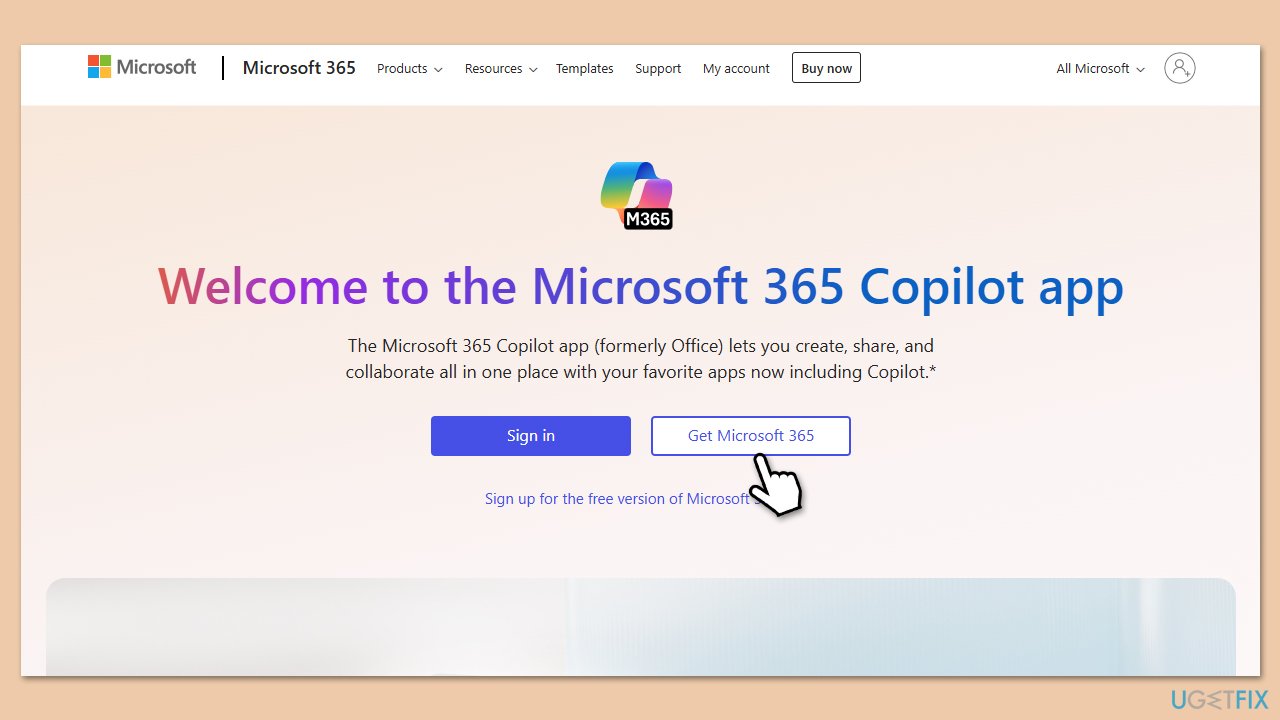
- If you don’t have it installed, visit Microsoft 365 and download it.
- Use the free web version of Word if you don’t want to install the desktop app.
- Set Microsoft Word as the default app for opening .rtf files by right-clicking a file, selecting Open with, and choosing Word.
Bottom line
To fix the missing WordPad issue, users can consider downgrading to Windows 11. If this does not resolve the problem, it may be necessary to look for third-party alternatives or use built-in apps like Notepad.
Frequently asked questions
You can reinstall WordPad by going to 'Settings' > 'Apps' > 'Optional features', clicking 'Add a feature', and then selecting 'WordPad' from the list.
In Windows 11, try searching for WordPad in the Start menu; if it doesn't appear, you can reinstall it through 'Settings' > 'Apps' > 'Optional features'.
Yes, you can easily reinstall WordPad by accessing 'Settings' > 'Apps' > 'Optional features' and adding it back to your system.




Report an issue
What's wrong with this guide? We review every report and update or remove content.
Report received — thank you. We'll review and fix it.
You need a free account to submit a report.
Be the first to comment