How to fix
WordPad not opening
on Windows
Solve the WordPad not opening issue on Windows 10 or 11 quickly with our expert-tested tips. Get back to writing in minutes!

What causes How to fix WordPad not opening in Windows?
- Corrupted program installation
- Conflicts with other applications
- Problems with user permissions
- Damaged or missing WordPad executable file
Repairs Windows system files, removes malware, and restores a clean OS state — without reinstalling.
Hello. The WordPad application is not opening on my Windows PC. How do I fix this?
WordPad is a simple text editor that comes with Windows operating systems. It offers users a simple and user-friendly interface for creating and editing text documents. However, users may experience problems with WordPad not opening or functioning properly in some cases.
WordPad is intended to handle plain text and rich text formats, and it allows users to perform basic formatting tasks such as changing font styles, sizes, and colors. It includes features such as spell checking, find and replace, and the ability to insert objects such as images and tables into documents. While WordPad lacks the advanced features found in more powerful word processing software, it is an excellent choice for quick editing tasks.
When WordPad fails to open on a Windows system, users who rely on the application for basic text editing may be inconvenienced and frustrated. This issue may prevent users from efficiently accessing and editing their documents. It has the potential to disrupt workflows and reduce productivity, particularly for people who frequently work with text files.
WordPad may not open or function properly for a variety of reasons. It could be due to a corrupted program installation, conflicts with other applications or system files, or problems with user permissions. It's also possible that the WordPad executable file is damaged or missing, which would cause the problem.
In this guide, you will find 3 steps that should help you fix WordPad not opening in Windows. However, you can also try a maintenance tool like [d1] that can fix most system errors, BSODs,[ref en-1] corrupted files, and registry[ref en-2] issues. Otherwise, follow the step-by-step instructions below.
Solution 1. Fix Corrupted System Files
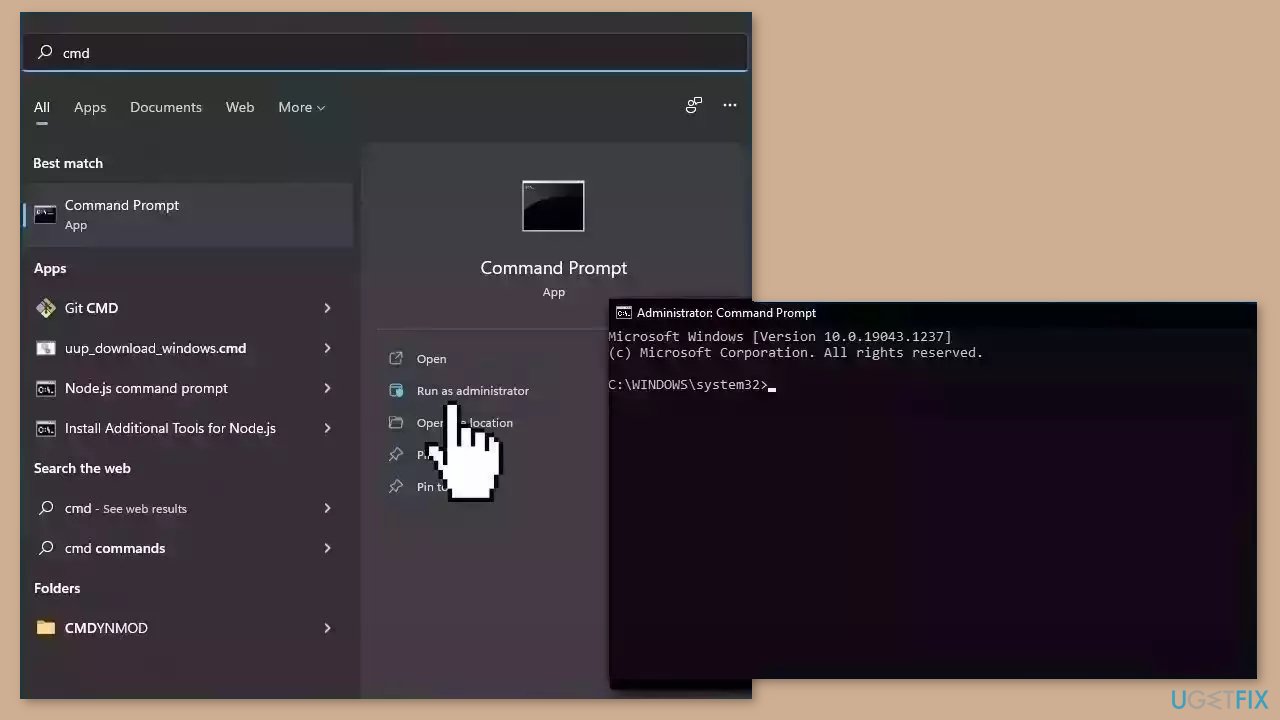
Use Command Prompt commands to repair system file corruption:
- Open Command Prompt as administrator
- Use the following command and press Enter:
sfc /scannow
- Reboot your system
- If SFC returned an error, then use the following command lines, pressing Enter after each:
DISM /Online /Cleanup-Image /CheckHealth
DISM /Online /Cleanup-Image /ScanHealth
DISM /Online /Cleanup-Image /RestoreHealth
Solution 2. Scan for Malware
It is possible that a malware infection may be the cause of WordPad not opening in Windows. It is important to run a comprehensive security scan to rule out this possibility and ensure that the computer is not infected. This can help to prevent further issues with the Windows operating system and ensure that it is functioning properly.
If you have access to a security scanner, or if your organization pays for one, you can use it to scan your entire system to check for a virus infection. Otherwise, you can use Windows Defender to scan your system:
- Click on the Windows Start menu or press the Windows key on your keyboard.
- Type Microsoft Defender in the search bar and click on Microsoft Defender Antivirus to open the application.
- Click on the Virus & threat protection option in the left-hand menu.
- Click on the Quick scan or Full scan option, depending on your preference.
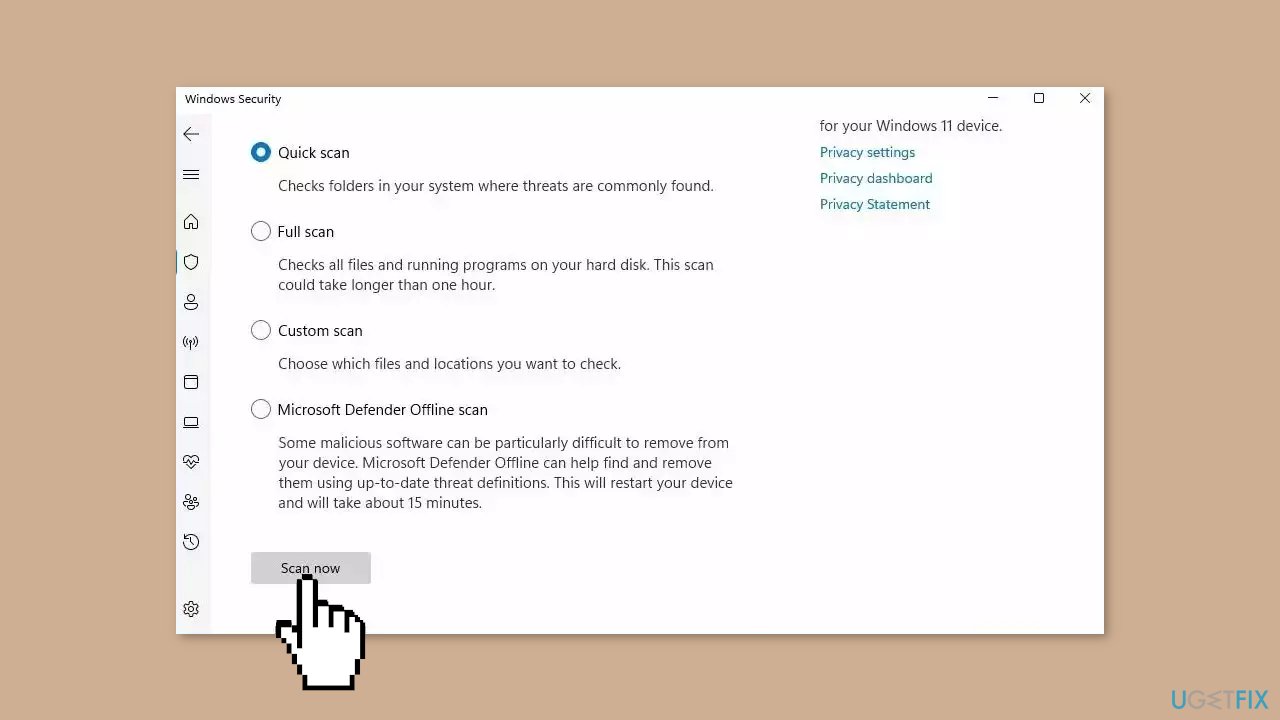
- If you choose Quick scan, Microsoft Defender Antivirus will scan the most vulnerable and commonly infected areas of your computer.
- If you choose Full scan, Microsoft Defender Antivirus will scan your entire computer, including all files, folders, and programs.
- Click on the Scan now button to start the selected scan type and wait for the scan to complete.
- The time it takes will depend on the size of your hard drive and the number of files being scanned.
- Once the scan is complete, you will be informed of any detected threats, and you can choose to quarantine or remove them.
- If no threats are found, Microsoft Defender Antivirus will inform you that your device is secure.
Solution 3. Start WordPad from the Installation Folder
- Navigate to the following path:
C:\Program Files (x86)\Windows NT\Accessories\
- Look for the file named WordPad.exe.
- Double-click on WordPad.exe to run it.
- If necessary, choose to run WordPad as an administrator by right-clicking on WordPad.exe and selecting Run as administrator.
- Once WordPad is launched, locate the files you want to open with WordPad.
- Select the file you want to edit and open it with WordPad.
- Begin editing the file using the WordPad interface.
Bottom line
To fix WordPad not opening in Windows, you can repair corrupted system files using Command Prompt commands, and scan for malware. If these solutions do not resolve the issue, consider using a maintenance tool to fix system errors and corrupted files.
Frequently asked questions
Try running the Windows Troubleshooter to identify and fix any issues with WordPad. If that doesn't work, consider resetting the app through the Settings menu under Apps & Features.
You can repair WordPad by going to Settings, selecting Apps, then Apps & Features, finding WordPad, and clicking on 'Modify' or 'Repair' to fix any potential issues.
Yes, you can reinstall WordPad by going to Settings, selecting Apps, then Optional features, and uninstalling it before reinstalling from the same menu.




Report an issue
What's wrong with this guide? We review every report and update or remove content.
Report received — thank you. We'll review and fix it.
You need a free account to submit a report.
Be the first to comment