How to fix
Wpcmon.exe high CPU usage
on Windows
Resolve high CPU usage from wpcmon.exe on Windows 10 or 11 effortlessly with expert-tested solutions. Get your PC running smoothly again!


What causes How to fix wpcmon.exe high CPU usage in Windows?
- Software conflicts
- Outdated system files
- Corruption within user profiles
- Configuration issues with parental controls
- Malware masquerading as wpcmon.exe
Repairs Windows system files, removes malware, and restores a clean OS state — without reinstalling.
Hello. I have noticed that when I enable Family Safety Monitor on my child's PC, the wpcmon.exe CPU usage goes up to 100%, which I think is rather abnormal. Is there anything I can do to reduce the resource usage somehow?
Wpcmon.exe, part of Windows' parental control features, is designed to monitor and enforce restrictions on user accounts, particularly those set up for children. While it plays a crucial role in maintaining the safety and security of computer usage, there are instances where wpcmon.exe may exhibit high CPU usage, leading to performance degradation and a less responsive system. This issue often arises due to software conflicts, outdated system files, or corruption within the user profiles being monitored.
High CPU usage by wpcmon.exe can significantly impact system performance, making it challenging to execute daily tasks smoothly. This situation commonly occurs when there's an underlying issue with the configuration of the parental controls, or when wpcmon.exe encounters an error it cannot properly handle. In some cases, malware masquerading as wpcmon.exe can also cause excessive CPU usage, as malicious software often exploits legitimate system processes to avoid detection.
Addressing the high CPU usage caused by wpcmon.exe involves a series of troubleshooting steps aimed at identifying and resolving the root cause of the problem. This may include updating Windows to ensure all system files are current, scanning for malware using reputable security software, and checking the integrity of user profiles under parental control. Additionally, resetting or reconfiguring parental controls can help resolve any conflicts or errors that may be causing the high CPU usage. For a more straightforward solution for your PC troubles, try using [d1].

Fix 1. Update Windows
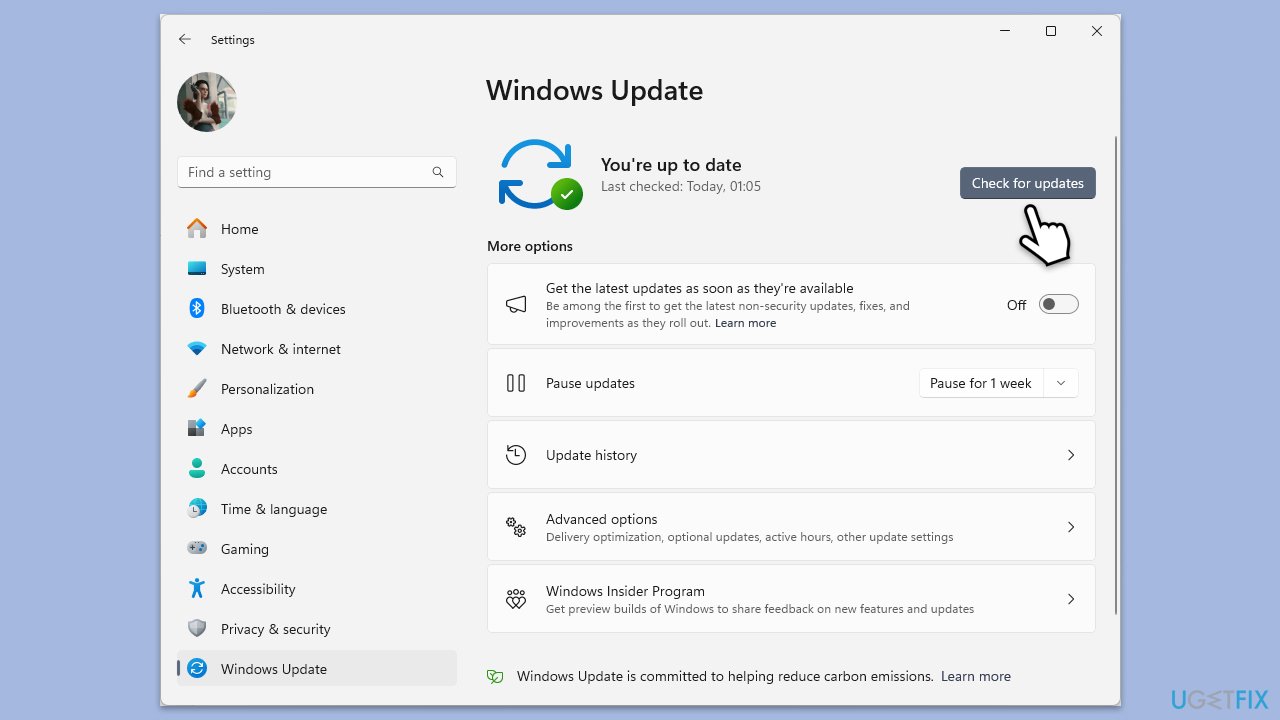
Keeping your operating system up-to-date is crucial for the smooth running of all processes, including wpcmon.exe. Updates often include patches for known bugs that could be causing high CPU usage.
- Click on the Start and go to Settings.
- Select Update & Security.
- Click on Windows Update.
- If there are updates available (including optional ones), click Install. If not, click Check for updates.
- Restart your PC to implement the changes.
Fix 2. Scan for malware
Malware can sometimes masquerade as legitimate processes like wpcmon.exe, leading to high CPU usage. Running a thorough malware scan can help identify and remove such threats.
- Type Windows Security in the Windows search bar and hit Enter.
- Select Virus & threat protection.
- Pick Scan options.
- Choose Microsoft Defender Offline scan and click Scan now.
- Your computer will immediately reboot and begin a deep scan.

Fix 3. Create another user account and make it administrator
Corrupted user profiles, especially those with parental controls, can cause issues with wpcmon.exe. Creating a new user account can sometimes resolve this issue.
- Open Windows Settings.
- Go to Accounts then Family/Family & other users.
- Under Other users, click Add account/Add someone else to this PC.
- Follow the prompts to create a new user account. If you don't have Microsoft account details, you can choose I don't have this person's sign-in information followed by Add a user without a Microsoft account.
- Assign a username and password for the new account and complete the setup.
- Then go back to the Accounts section. Under Family/Family & other users, select the newly created account and click Change account type.
- Under Account type, pick Administrator and click OK.

Fix 4. Perform a Clean Boot
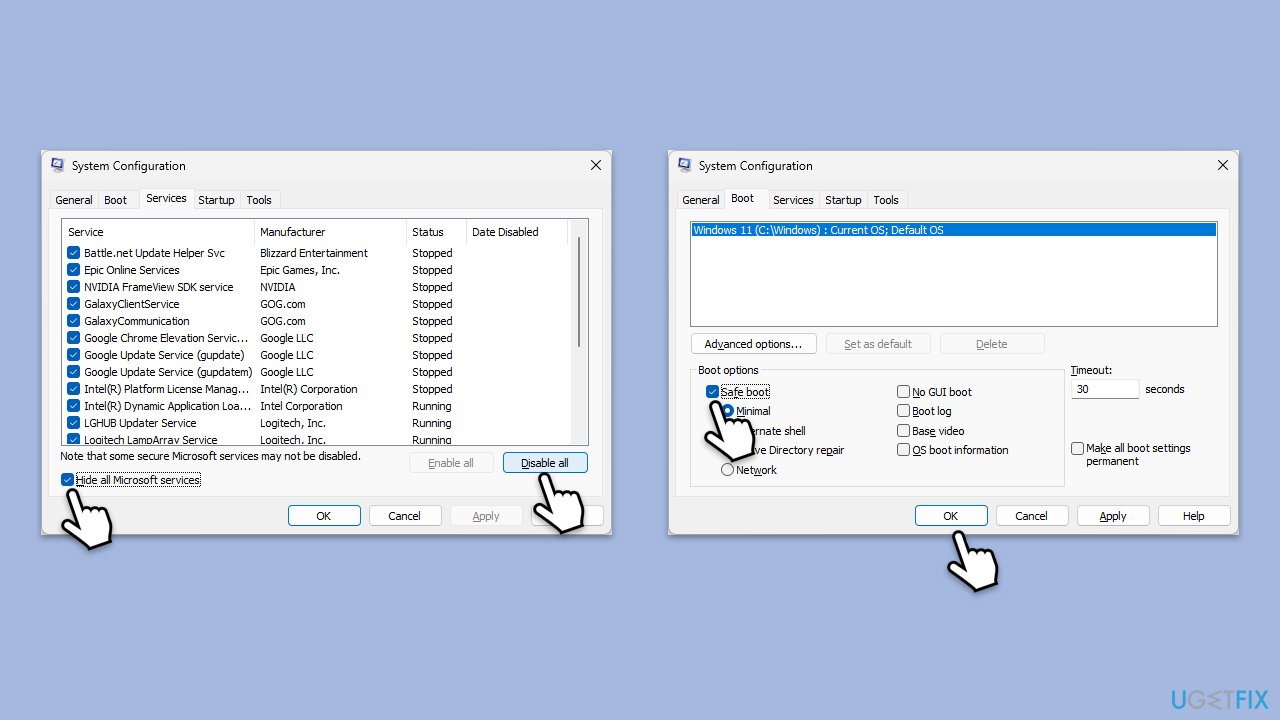
A clean boot starts Windows with a minimal set of drivers and startup programs, helping to identify if background programs are causing high CPU usage.
- Type msconfig in the Windows search box and press Enter.
- Pick the Services tab.
- Mark Hide all Microsoft services and select Disable all.
- Select the Startup tab and click Open Task Manager.
- In the Task Manager, right-click on each of the items and select Disable, then close the Task Manager.
- Go to the Boot tab, mark the Safe Boot option, then click Apply and OK.
- On the System Configuration window, click OK.
- Restart your computer.
- Once in the Clean Boot state, enable half of the processes and see if the problem is resolved. If it is, continue using the elimination technique until you find the problematic app.
Fix 5. Use SFC and DISM
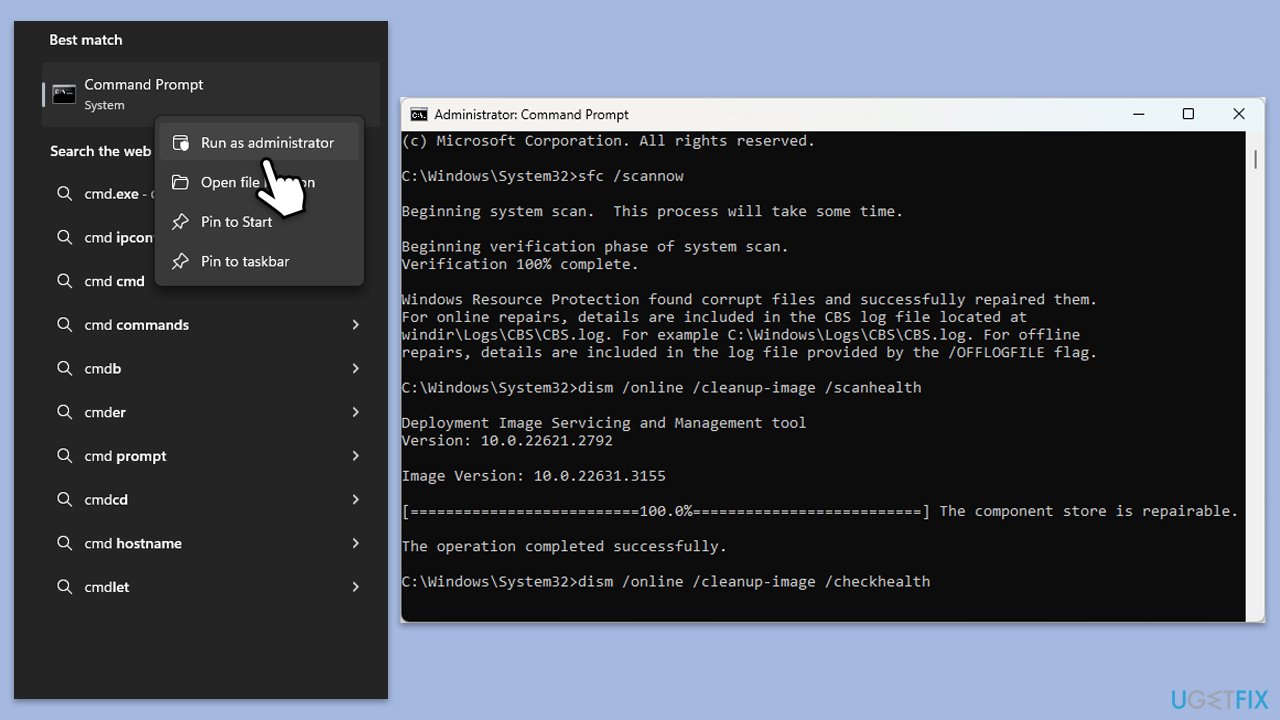
These tools allow users to scan for and restore corruptions in Windows system files. Running this scan can fix corrupted files affecting wpcmon.exe.
- Type cmd in Windows search, right-click on Command Prompt, and select Run as administrator.
- When UAC shows up, click Yes.
- Copy and paste the following command, pressing Enter after:
sfc /scannow - Wait till the scan is finished. If Windows finds system file integrity violations, it will attempt to fix them. After this, use the set of the following commands, pressing Enter each time:
DISM /Online /Cleanup-Image /CheckHealth
DISM /Online /Cleanup-Image /ScanHealth
DISM /Online /Cleanup-Image /RestoreHealth - Close down the Command Prompt and restart your system.
Fix 6. Reset Windows
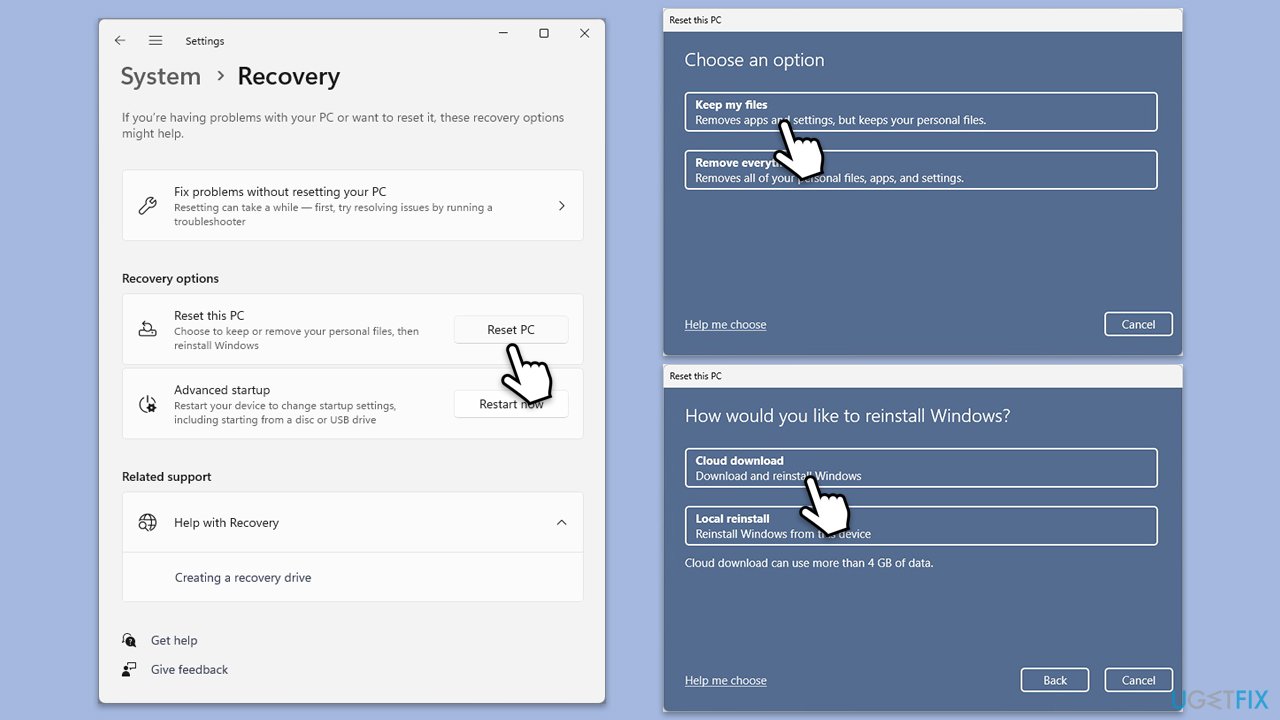
Resetting Windows is not a difficult task to do - you will also keep all your personal files.
- Click on Start and pick Settings.
- Go to Windows Update/Update & Security.
- Select Advanced options.
- Under Additional options, select Recovery.
- Under Recovery options, click Reset PC.
- Select the option to Keep your files and then press Cloud download.
- Follow on-screen instructions to finish the process.
Bottom line
To address high CPU usage by wpcmon.exe, consider updating Windows, scanning for malware, and checking the integrity of user profiles. Additionally, resetting or reconfiguring parental controls may help resolve conflicts. If these solutions do not work, further troubleshooting may be necessary.
Frequently asked questions
High CPU usage by wpcmon.exe is often caused by issues with Windows Print Spooler or conflicts with printer drivers. It can also occur if there are pending print jobs or corrupted print settings.
You can reduce wpcmon.exe CPU usage by clearing the print queue, reinstalling printer drivers, or stopping and restarting the Print Spooler service in Windows 10.
Disabling wpcmon.exe is not recommended as it may affect your printing capabilities, but if it consistently causes high CPU usage, you can temporarily disable it while troubleshooting printing issues in Windows 11.




Report an issue
What's wrong with this guide? We review every report and update or remove content.
Report received — thank you. We'll review and fix it.
You need a free account to submit a report.
Be the first to comment