How to fix
Xbox app error 0x00000001
on Windows
Resolve the Xbox app error 0x00000001 on Windows 10 or 11 effortlessly. Follow our expert-tested tips for a seamless gaming experience, fixed in minutes.

What causes How to fix Xbox app error 0x00000001 in Windows?
- Problems with the Windows Update service
- Issues with the Microsoft Store
- Corrupted system files
- Cache issues in the Microsoft Store
- General system errors
Repairs Windows system files, removes malware, and restores a clean OS state — without reinstalling.
Hello. When I try to install Game Pass games through the Xbox app in Windows, I get the 0x00000001 error. Everything was working fine a couple of weeks ago. What should I do?
Users may find the 0x00000001 error code within the Xbox software for Windows to be rather annoying. When there are problems with the Windows Update service or the Microsoft Store, this error frequently appears. It's crucial to remember that this problem can affect a number of Windows Store-related operations and is not exclusive to the Xbox app.
Microsoft provides a subscription service called Xbox Game Pass that enables users to access a vast library of games for a set monthly charge. It is an appealing alternative for players wishing to enjoy a varied assortment of games without having to buy them separately because it covers a large range of games from various genres and developers.
The Xbox app's error code 0x00000001 can seriously interfere with users' ability to play games. By preventing consumers from downloading games they want to play through the Game Pass service, this issue can reduce the value of the subscription. Due to the lack of clear instructions in this error number on how to fix the problem, users may also feel frustrated and confused.
This problem may be fixed by performing troubleshooting procedures like checking for Windows updates, clearing the Microsoft Store cache, or fixing system files. This guide includes 7 steps that should enable you to resolve the Xbox app problem code 0x00000001 in Windows. You can also run a repair tool like [d1] that can fix most system errors, BSODs,[ref en-1] corrupted files, registry[ref en-2] issues, or clear cookies and cache.[ref en-3] Otherwise, follow the step-by-step instructions below.
Solution 1. Run the Microsoft Store Apps Troubleshooter
- Press the Windows key + I to open Windows Settings.
- Select the System section and scroll down until you see Troubleshoot and click on it.
- Click on Other troubleshooters to see more troubleshooters available on your computer.
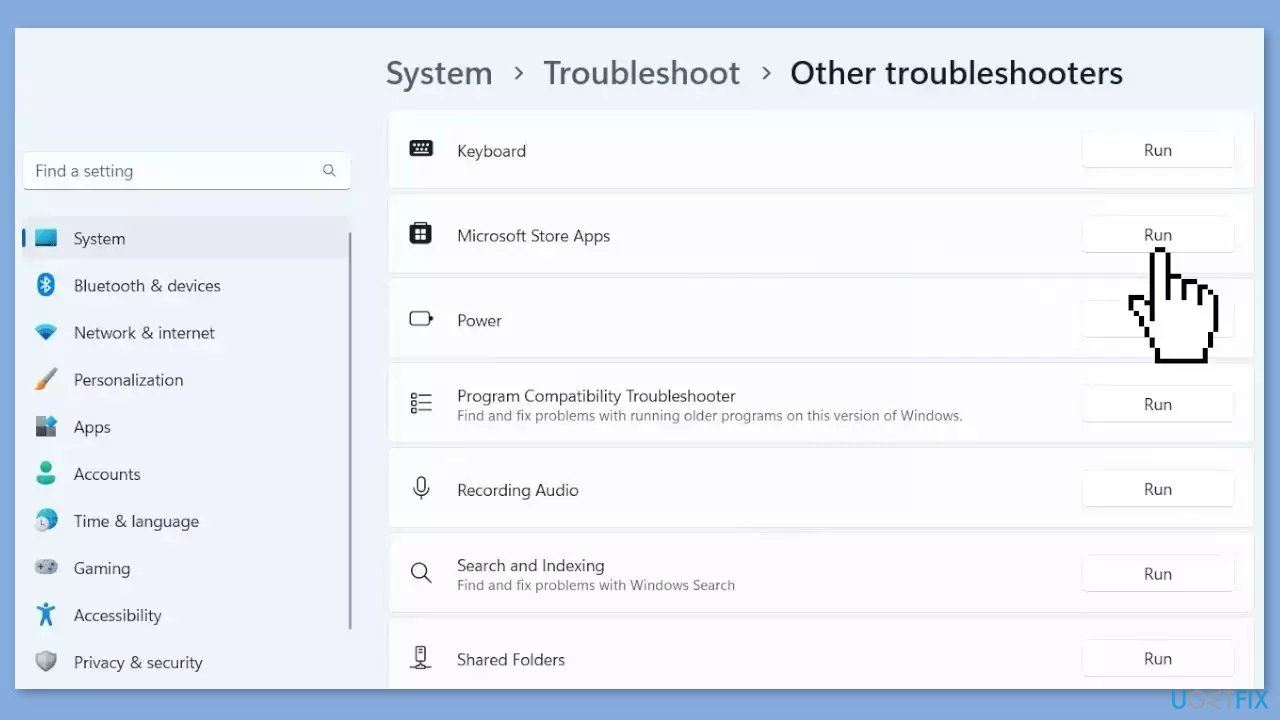
- Scroll down at the bottom until you see Microsoft Store Apps.
- Click on Run to start the troubleshooting process.
- Wait until the process is complete.
Solution 2. Install Windows Updates
- Click Start and select Settings.
- Go to the Windows Update section.
- Click Check for updates and wait.
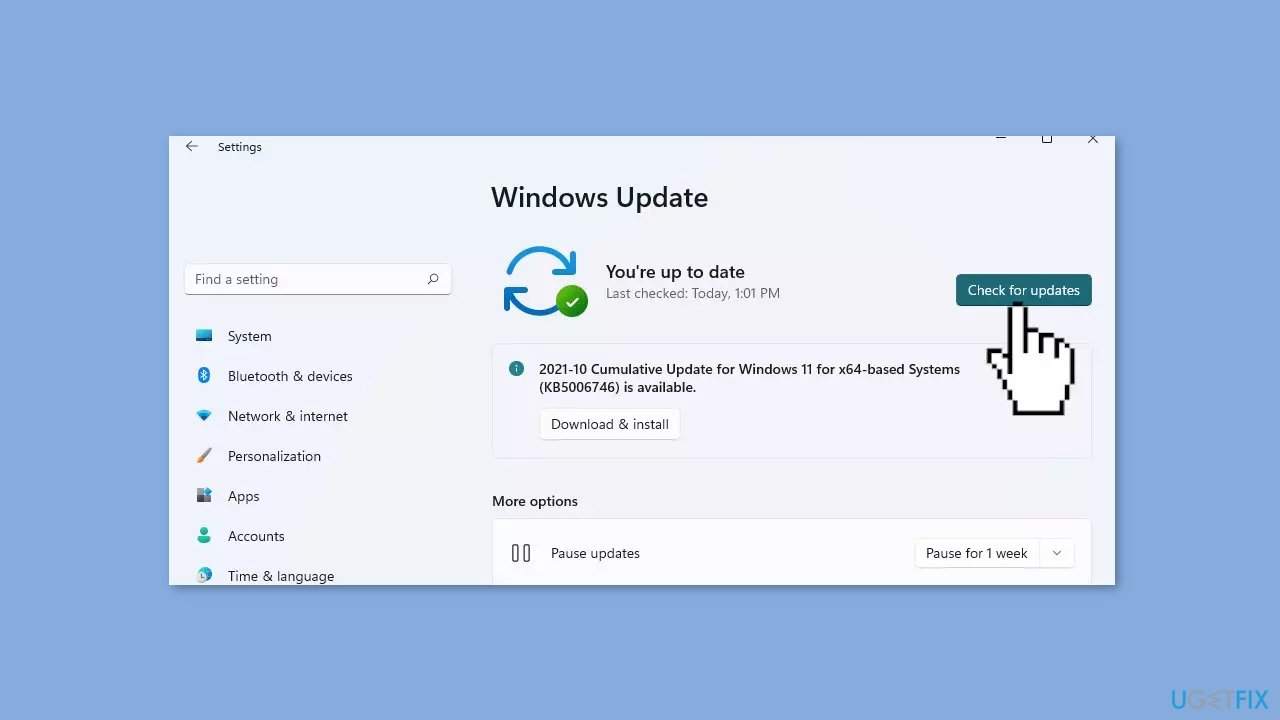
- Go to the Advanced options and install optional updates.
- Reboot your system.
Solution 3. Clear Microsoft Store Cache
- Open the Windows Powershell from the search bar by typing powershell.
- Right-click on the search result and select Run as Administrator.
- If a UAC opens, hit Yes to provide your consent.
- Type WSReset.exe and hit Enter.

Solution 4. Change the Installation Location
- Press the Windows key + I to open the Windows Settings app.
- In the left pane, click on System.
- From the System settings, select Storage.
- Under Advanced storage settings, choose Where new content is saved.
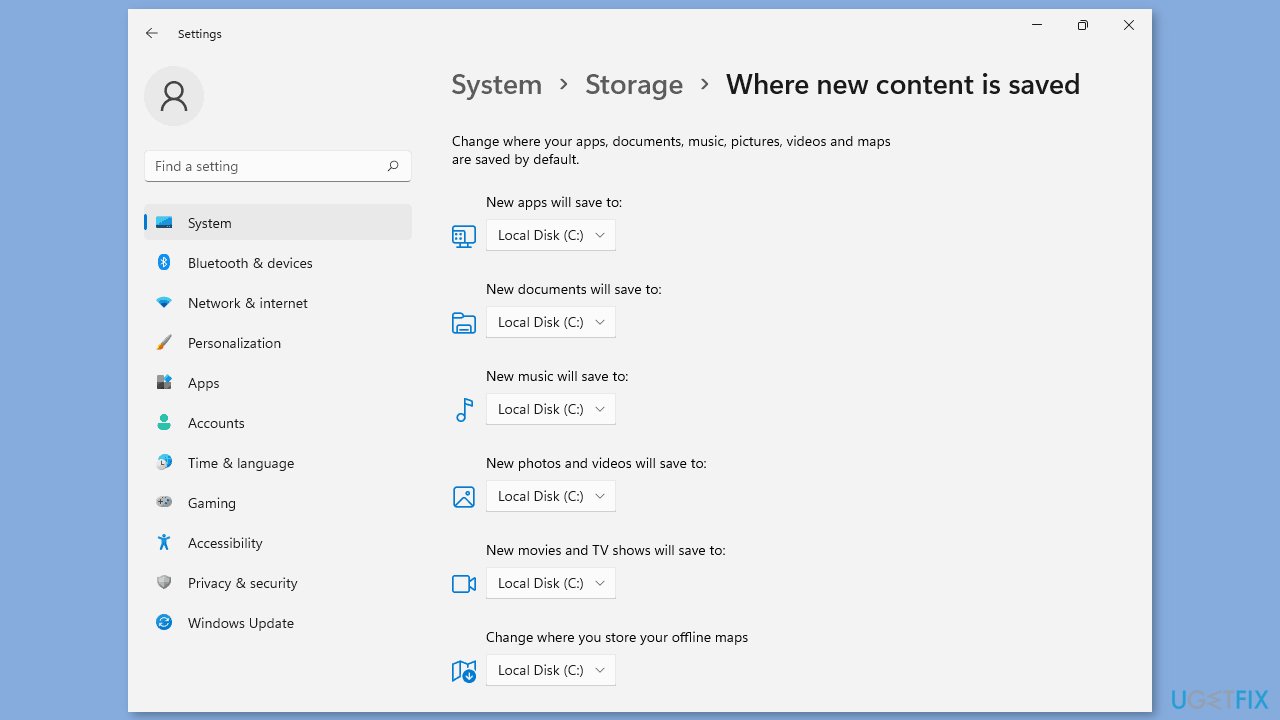
- Locate the New apps will save to option.
- Select the system drive associated with your device.
- Restart your computer.
- Attempt to install the game again to check if the issue has been resolved.
Solution 5. Repair or Reset the Microsoft Store
If the problem you're experiencing with the Xbox app is due to corruption, you can try repairing the app to fix the issue. To do this:
- Open the Settings app by pressing the Windows key + I, and go to the Apps tab.
- Select the Installed apps option, and then find the problematic game in the list.
- Click the three-dot menu button, and then choose Advanced options.
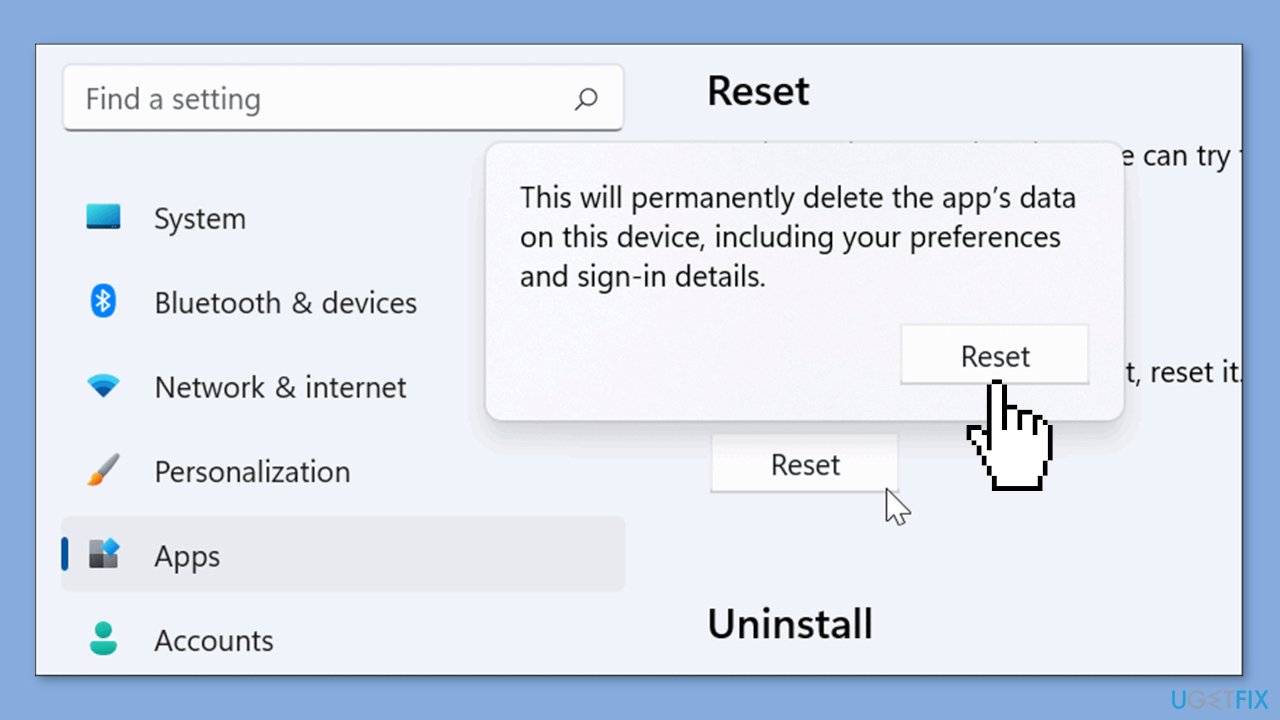
- Scroll down to the Reset section, and click the Repair button.
- Once the repair process is finished, reopen the app and see if the problem has been resolved.
- If not, go back and click on Reset.
Solution 6. Check Xbox Services
- Press the Windows button.
- Type Services in the search bar.
- From the list of results, right-click on Services App.
- Select Run as administrator.
- Scroll to the bottom of the Services window.
- Locate the following services:
IP Helper
Xbox Live Auth Manager
Xbox Live Game Save
Xbox Live Networking Service
Gaming Services
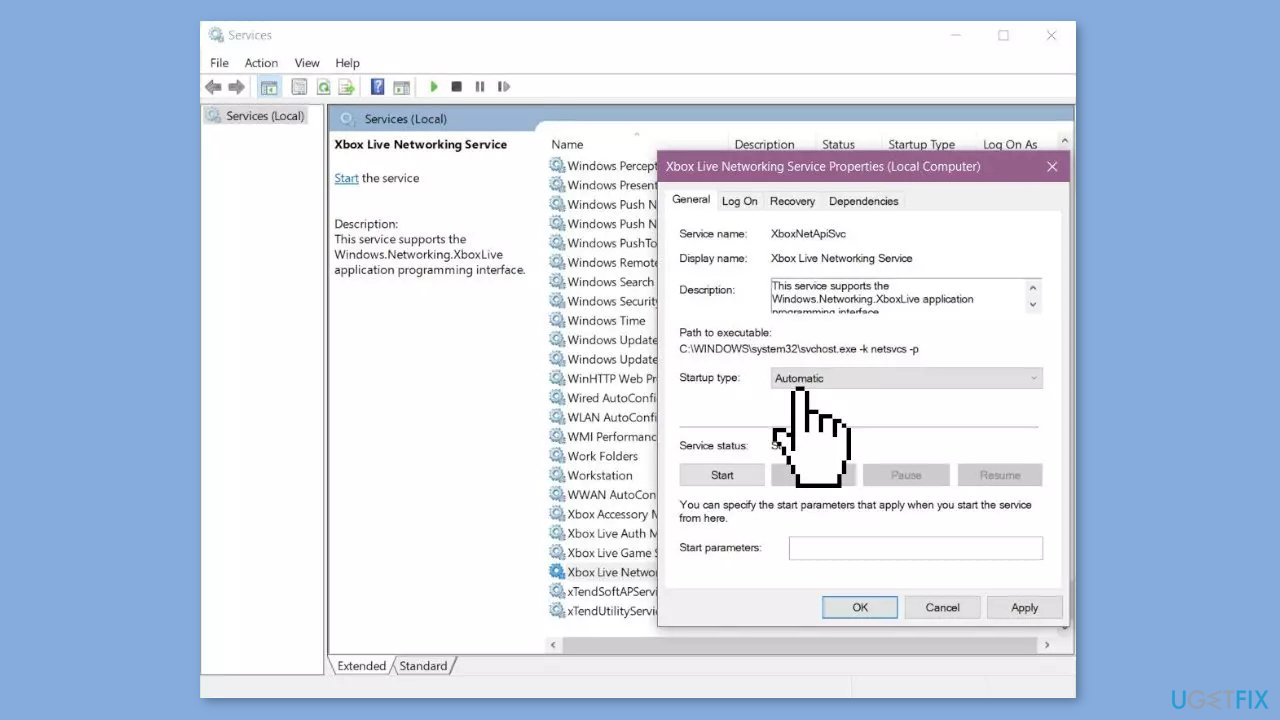
- Right-click over the service.
- Select Properties.
- In the Properties window, find the Startup type section.
- Ensure that it is set to Automatic. If not, change it to Automatic.
- If the service isn't started, click on Start to start the service.
- Restart your PC.
- Try again after the restart.
Solution 7. Reinstall the Gaming Services Package
- Click on the taskbar search icon.
- Type Windows PowerShell.
- Select the Windows PowerShell option that appears on top of the search results.
- Right-click on the PowerShell option.
- Select Run as administrator.
- Click on Yes in the User Account Control dialogue box.
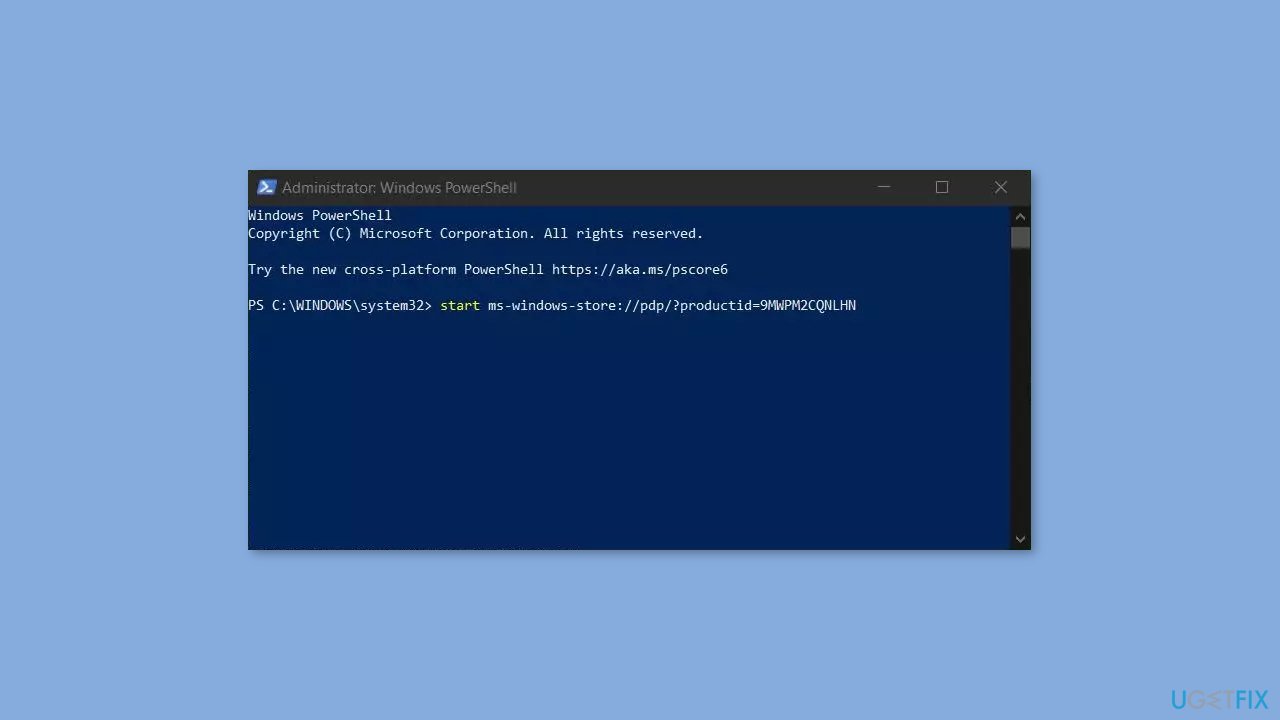
- In the PowerShell window, enter the following command:
Get-AppxPackage gamingservices -allusers | remove-appxpackage -allusers
- Press the Enter key.
- This command will uninstall the Gaming Services app and remove its registry keys from your Windows PC.
- In the same PowerShell window, enter the following command:
start ms-windows-store://pdp/?productid=9MWPM2CQNLHN
- Press the Enter key.
- This will take you to the Gaming Services app page in the Microsoft Store.
- Click on the Install button.
- Click on Yes in the User Account Control dialogue box that appears.
- Once the Gaming Services app is installed, try installing, launching, or uninstalling the Xbox Game Pass game again.
Bottom line
To fix the Xbox app error 0x00000001, you can run the Microsoft Store Apps Troubleshooter, check for Windows updates, clear the Microsoft Store cache, or repair system files. If these steps do not resolve the issue, consider using a repair tool to address more complex system errors.
Frequently asked questions
The error 0x00000001 typically indicates a problem with the Xbox app's connection to the Microsoft servers or issues with the app itself on Windows 10 or Windows 11.
To troubleshoot, you can try resetting the Xbox app via Settings > Apps > Apps & features, then select the Xbox app and click 'Advanced options' to reset it.
Yes, ensuring that your Windows 10 or Windows 11 is up to date can resolve compatibility issues, which may help fix the Xbox app error 0x00000001.




Report an issue
What's wrong with this guide? We review every report and update or remove content.
Report received — thank you. We'll review and fix it.
You need a free account to submit a report.
Be the first to comment