How to fix
Xbox App error 0x406
on Windows
Resolve Xbox App error 0x406 on Windows 10/11 effortlessly. Follow expert-tested methods for a smooth gaming experience, fixed in minutes!

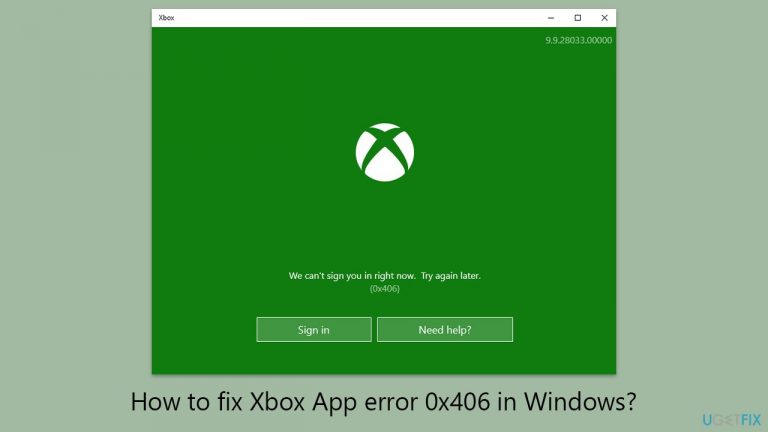
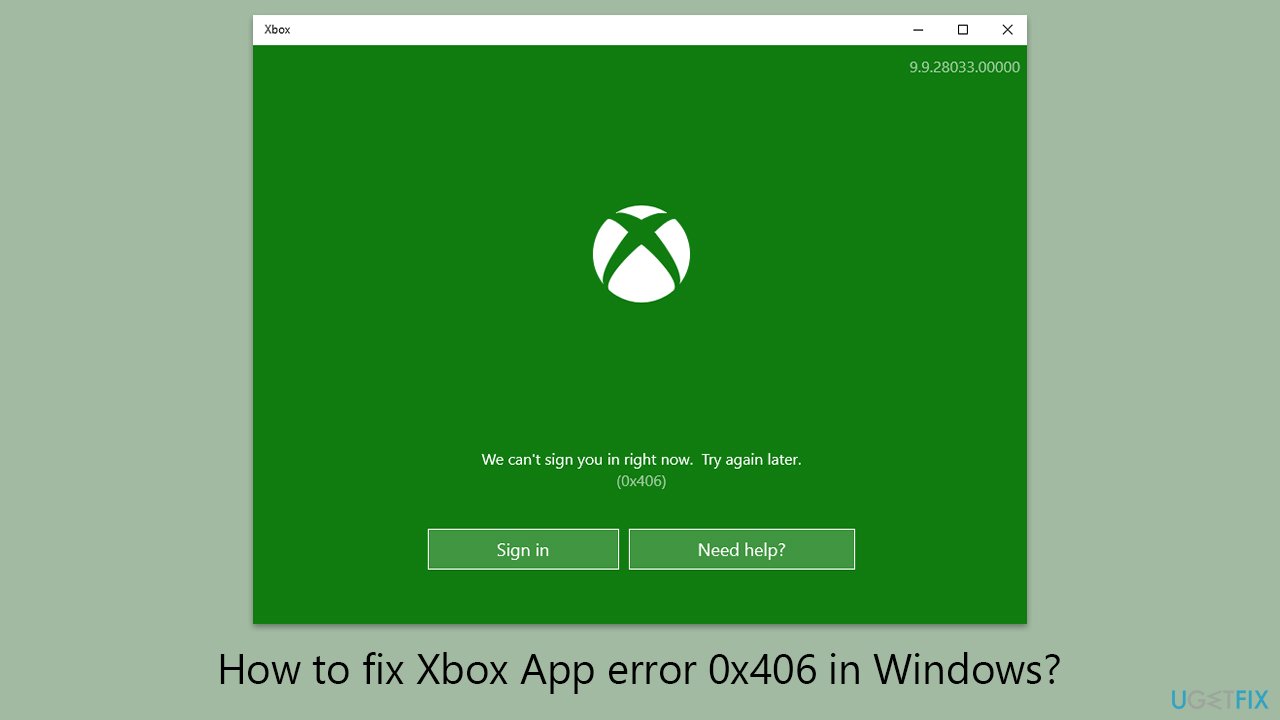
What causes How to fix Xbox App error 0x406 in Windows?
- Faulty Microsoft Store cache
- Outdated program versions
- Incorrect app installation
- Malfunctioning Windows services
- Xbox Live Auth Manager issues
Repairs Windows system files, removes malware, and restores a clean OS state — without reinstalling.
I am using Windows 11 and whenever I try to log in to Xbox app I receive an error 0x406. What can I do to fix this?
The Xbox App for Windows allows users to access Xbox Live, interact with friends, and play Xbox games on their PCs. However, a persistent error code, 0x406, has been causing users problems, preventing them from logging into the app and using its functions. This problem is generally caused by issues with Microsoft Store apps or the Xbox App itself, appearing as a failure to sign in or use the app properly.
Understanding the source of the error 0x406 is critical for troubleshooting. The problem could be caused by a faulty Microsoft Store cache, outdated program versions, or an incorrect app installation. Furthermore, Windows services required for the operation of the Xbox App, such as the Xbox Live Auth Manager, may be shut down or malfunctioning, exacerbating the problem.
To fix error code 0x406, several solutions can be used, albeit specific instructions can be found below this article. Important actions include resetting the Microsoft Store cache, updating the Xbox App and Windows, and checking the status of connected Windows services. The Windows Store Apps troubleshooter can also help detect and repair issues that are stopping the Xbox App from working properly.
For users who are uncomfortable with manual troubleshooting or are experiencing ongoing problems, using PC repair software [d1] provides a simple option. Such technologies instantly identify and resolve underlying system issues that may be producing error 0x406, speeding up the process of restoring the Xbox App to its optimal state.
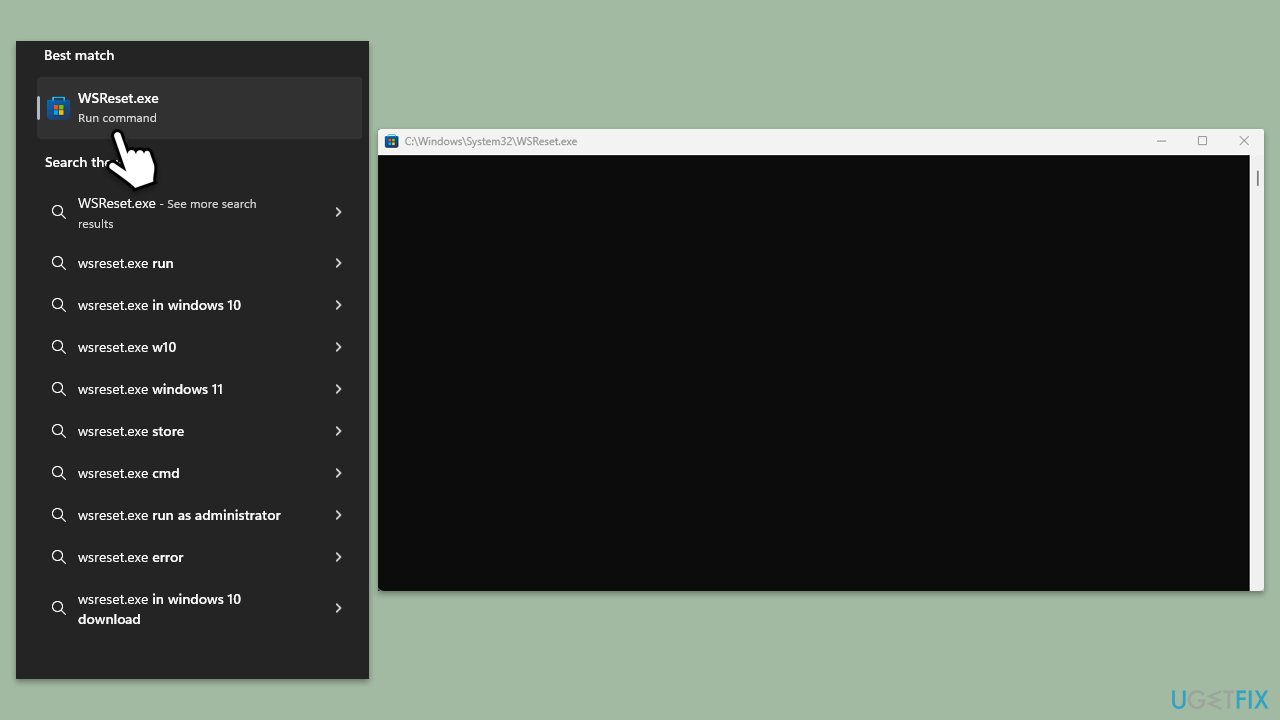
Fix 1. Reset Microsoft Store cache
Resetting the Microsoft Store cache clears temporary files that might be causing issues, potentially resolving errors like 0x406 by refreshing the app's data without affecting your installed apps or settings.
- In Windows search, type Wsreset and press Enter.
- Wait till a black window shows up – do not close it.
- Once it's gone, the Microsoft Store should restart.
- Try using the Xbox app again.
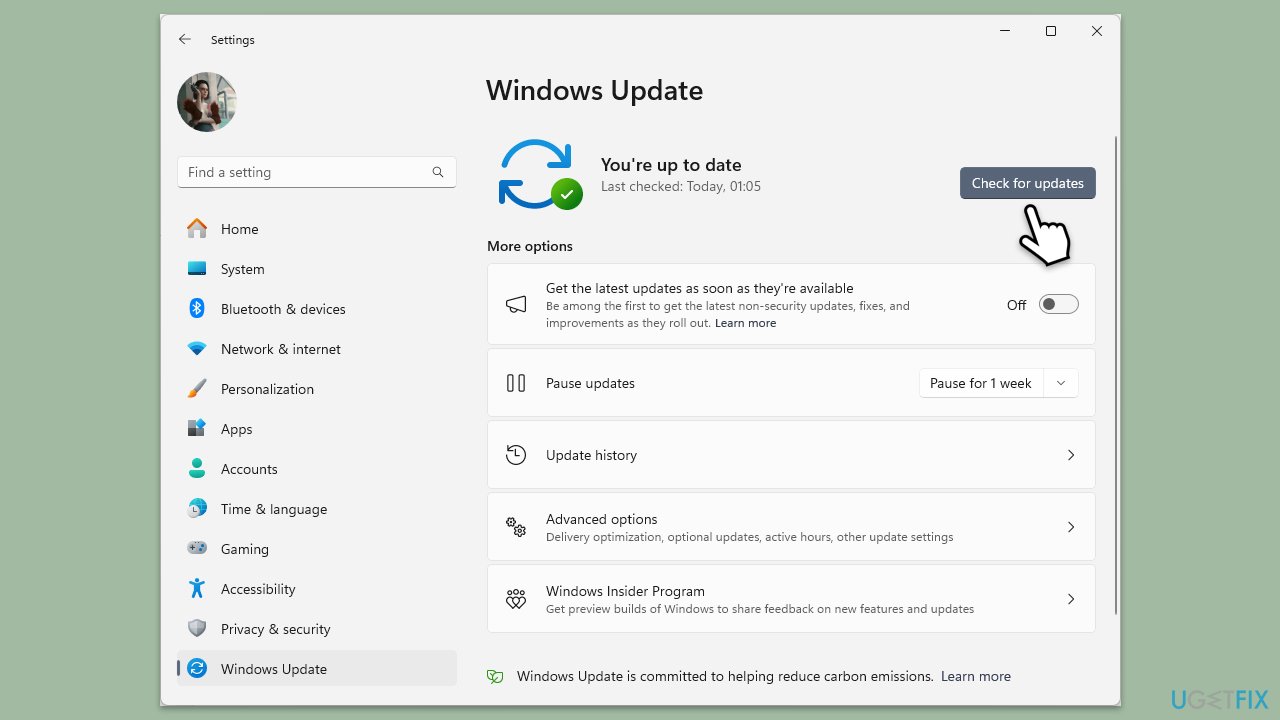
Fix 2. Update Windows
Ensuring your Windows is up to date can fix compatibility issues and bugs that might be causing the Xbox App error. Updates often include patches for system errors and improvements for integrated apps like Xbox.
- Type Updates in Windows search and press Enter.
- Here, click Check for updates.
- Wait till Windows downloads and installs all the files.
- If optional updates are available, install them as well.
- Reboot your device.
Fix 3. Update Xbox App
An outdated Xbox App can lead to various errors, including 0x406. Updating the app ensures you have the latest features and bug fixes.
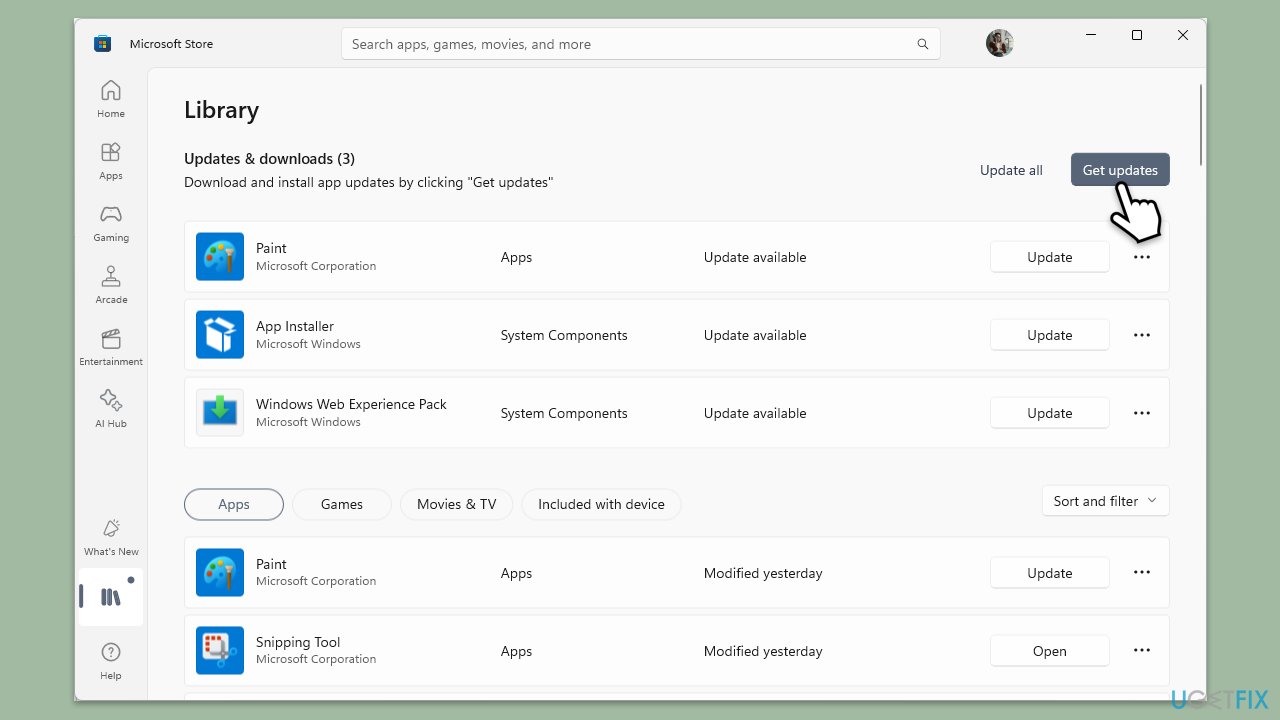
- Open Microsoft Store.
- Go to the Library.
- Click Get Updates and install Xbox app updates if available.
Fix 4. Repair or reset the Xbox App and other apps
This process checks for app corruption and attempts to repair or reset it.
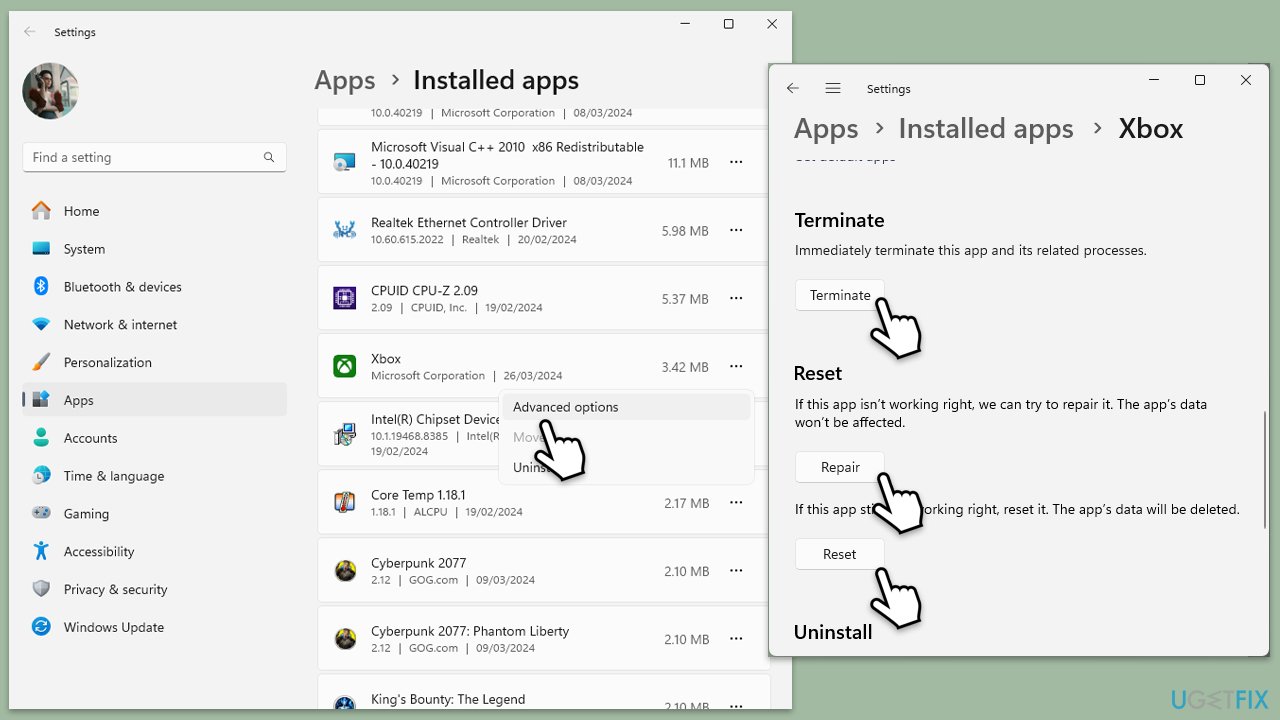
- Right-click on Start and pick Apps & Features/Installed apps.
- Scroll down to locate the Xbox app and click Advanced options.
- Click Terminate and Repair.
- If that does not help, try the Reset option instead.
- Repeat the same with the Microsoft Store and Gaming Services.
Fix 5. Reinstall Xbox app
If repairing or resetting the app did not help, you can reinstall it instead.
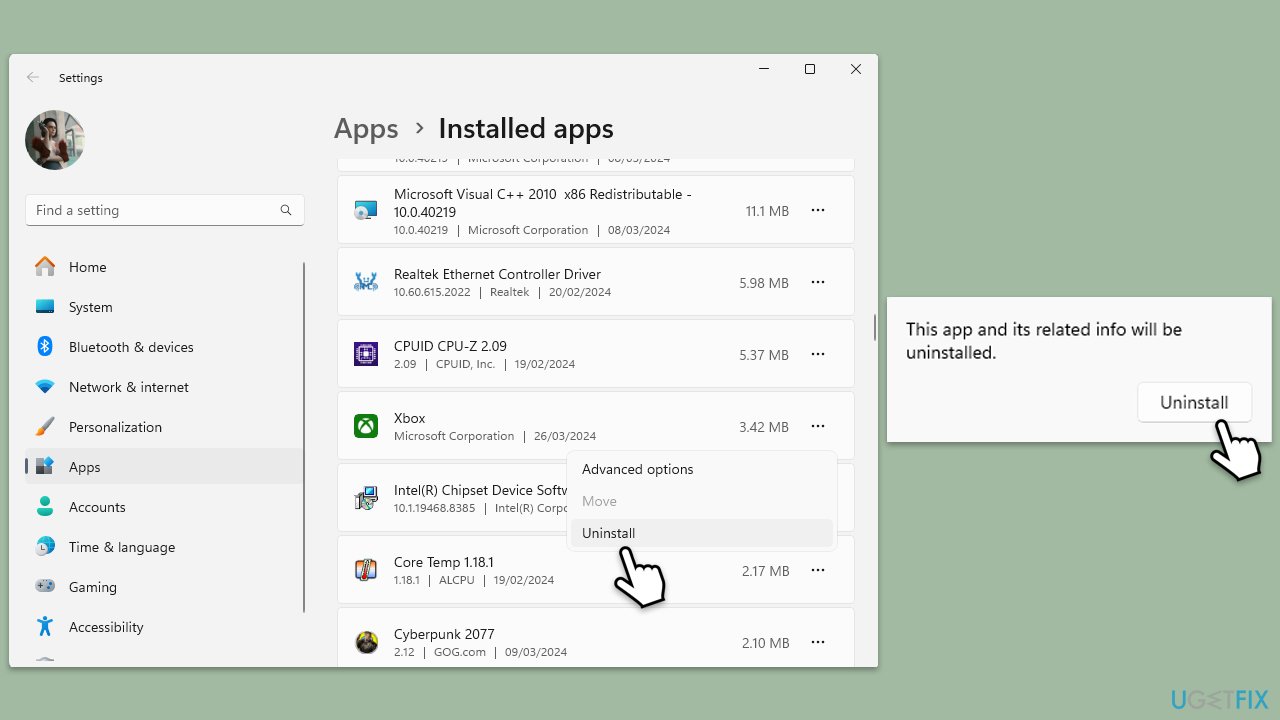
- Right-click on Start and pick Apps & Features/Installed apps.
- Scroll down to the Xbox app, select it (or click three vertical dots), and click Uninstall.
- Confirm any prompts and follow on-screen instructions.
- Restart your PC.
- Reinstall the app from the Microsoft Store.
Fix 6. Re-register Microsoft Store apps
Re-registering Microsoft Store apps can resolve issues caused by corrupted app files, potentially fixing the Xbox App error 0x406.
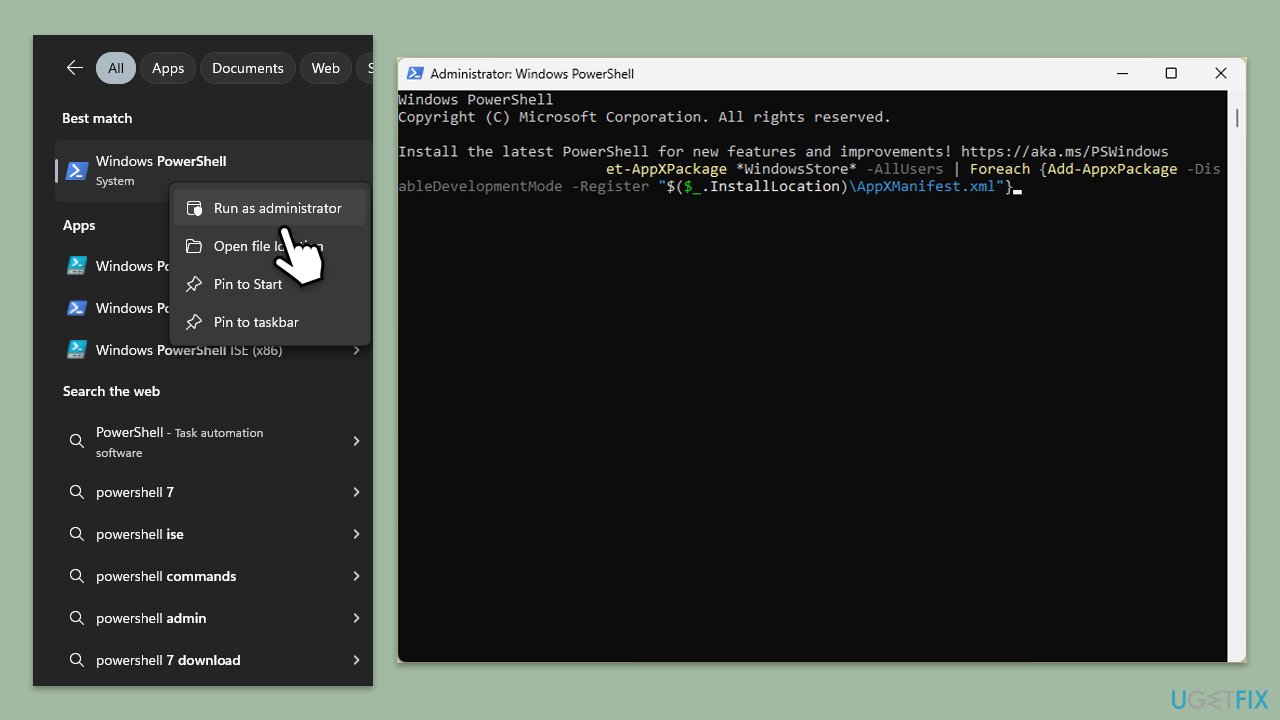
- Type PowerShell in Windows search, right-click, and select Run as administrator.
- When UAC shows up, click Yes.
- Copy and paste the following command, pressing Enter after each:
Get-AppXPackage | Foreach {Add-AppxPackage -DisableDevelopmentMode -Register "$($_.InstallLocation)\AppXManifest.xml"} - Close down PowerShell and restart your system.
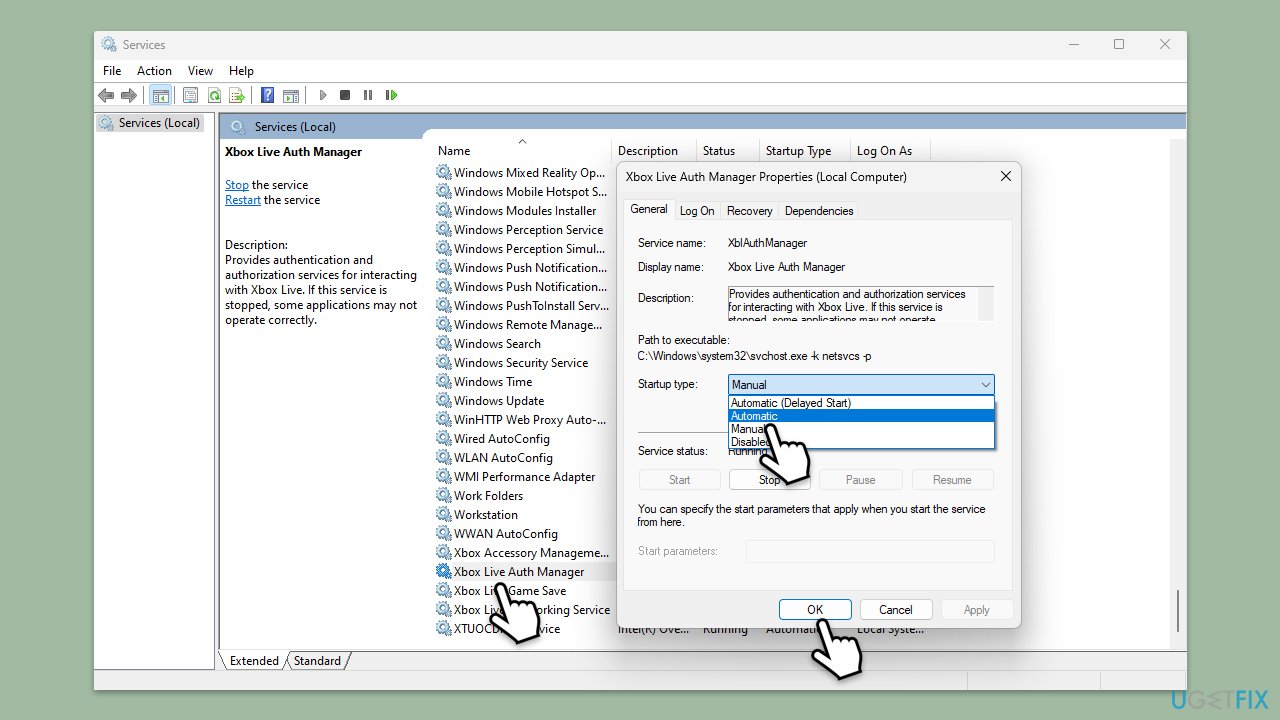
Fix 7. Check Xbox Live services
Ensuring Xbox Live services are running is crucial for the Xbox App's functionality. Disabled services can lead to error 0x406.
- Type Services in Windows search and press Enter.
- Scroll through the list and ensure the following services are running: Windows Update, Xbox Live Auth Manager, Xbox Live Game Save, and Xbox Live Networking Service. If any are not running, right-click on the service, select Properties, set the Startup type to Automatic, and click Start if the service is stopped.
- Click OK and close the Services window.
- Restart your computer and check if the issue with the Xbox app persists.
Fix 8. Create a new user account
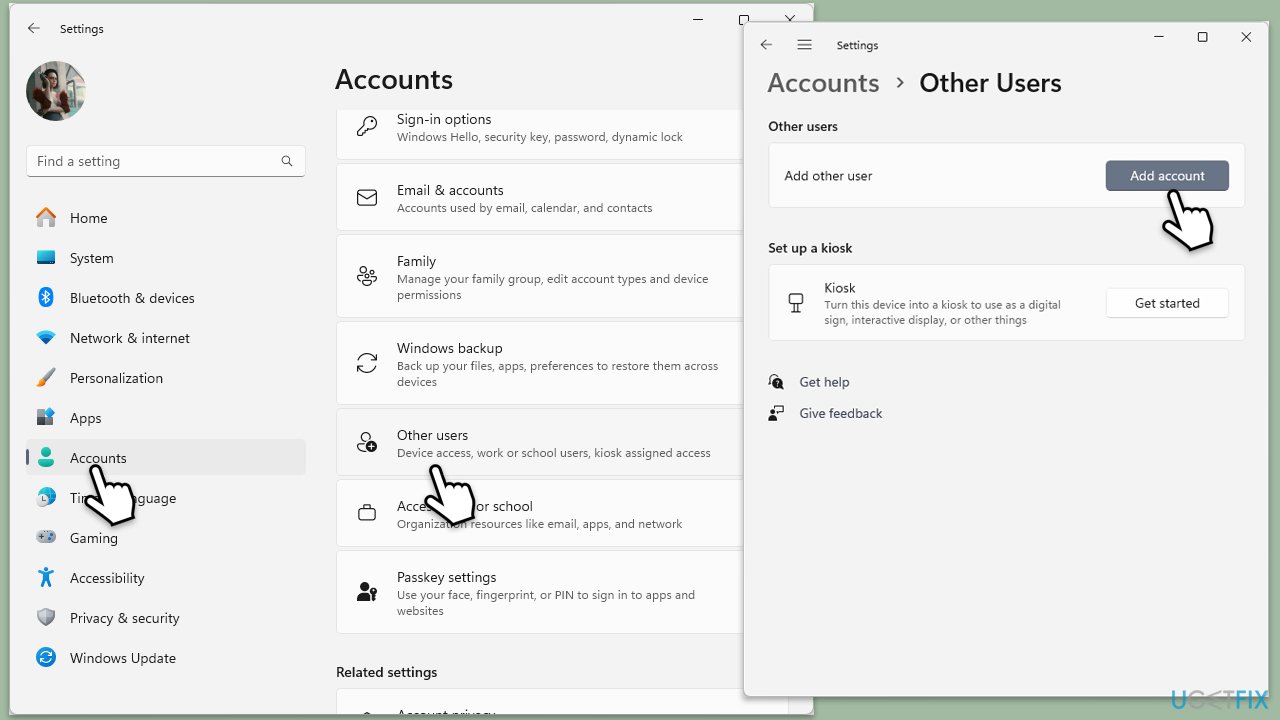
Sometimes, the problem could be tied to your user account. Creating a new Windows user account can help determine if the issue is account-specific.
- Open Windows Settings.
- Go to Accounts then Family/Family & other users.
- Under Other users, click Add account/Add someone else to this PC.
- Follow the prompts to create a new user account. If you don't have Microsoft account details, you can choose I don't have this person's sign-in information followed by Add a user without a Microsoft account.
- Assign a username and password for the new account and complete the setup.
- Then go back to the Accounts section. Under Family/Family & other users, select the newly created account and click Change account type.
- Under Account type, pick Administrator and click OK.
Fix 9. Perform a Clean Boot
Performing a clean boot starts Windows with a minimal set of drivers and startup programs. This can help identify if background programs are causing the error.
- Type msconfig inWindows Search and press Enter to open the System Configuration window.
- Click on the Services tab and check the Hide all Microsoft Services box.
- Click Disable all to disable non-Microsoft services, then click the Startup tab.
- Open the Task Manager, disable all startup items, and close the Task Manager.
- Go to the Boot tab and mark the Safe boot option.
- Click OK on the System Configuration window and restart your computer.
- If the problem does not exist, third-party software is at fault. To determine which app is causing it try enabling half of the available programs, restarting, and checking if the the problem is still absent. Continue till you find the offending software and either update or uninstall it.
Bottom line
To fix error code 0x406, you can reset the Microsoft Store cache, update the Xbox App and Windows, and check the status of required Windows services. Additionally, using the Windows Store Apps troubleshooter may help detect and repair issues. If these solutions do not work, consider using PC repair software for further assistance.
Frequently asked questions
This error typically occurs due to issues with the app's installation, corrupted files, or problems with Xbox Live services. Ensuring that your Windows is up to date can also help resolve this issue.
To reset the Xbox App, go to Settings > Apps > Apps & features, find the Xbox App, click on Advanced options, and select Reset. This will clear the app's data and may resolve the error.
Yes, uninstalling and then reinstalling the Xbox App can fix error 0x406, especially if the app files are corrupted. Make sure to download the latest version from the Microsoft Store for the best results.




Report an issue
What's wrong with this guide? We review every report and update or remove content.
Report received — thank you. We'll review and fix it.
You need a free account to submit a report.
Be the first to comment