How to fix
Xbox app error 0x800701c4
on Windows
Resolve Xbox app error 0x800701c4 on Windows 10 and 11 effortlessly. Get expert-tested solutions and enjoy seamless gaming in minutes!

What causes How to fix Xbox app error 0x800701c4 in Windows?
- Corrupted app files
- Buggy app update
- Unstable network connection
- Outdated drivers
- Misconfigured Microsoft Store
Repairs Windows system files, removes malware, and restores a clean OS state — without reinstalling.
Hi, I’ve been trying to download a game through the Xbox app on my Windows PC, but I keep hitting error 0x800701c4. It starts the download, then just stops with this code. I’ve tried a few things like restarting, but it’s still not working. How do I fix this annoying error?
The Xbox app on Windows is a gateway to gaming, where you can download games, manage your Game Pass, and chat with your friends - all from your PC. It's a simple utility, blissfully bringing console and desktop worlds together. But sometimes something goes wrong, and you're greeted by the Xbox app error 0x800701c4. This bug tends to strike when trying to install or update a game, locking up the process with an unhelpful "Something went wrong" message and leaving you frozen and searching for a solution.
Online forums show that this is no isolated glitch. Error 0x800701c4 tends to arise partway through a download, occasionally following a Windows update, and it's not always immediately apparent why. You may see the progress bar stall - perhaps at 10% or 50% - or the program simply won't begin the install at all. In some cases, it's an isolated annoyance; in others, it's a recurring obstacle that keeps their gaming library inaccessible. Either way, it's an interruption that requires action.
If you are wondering what is the cause of the 0x800701c4 error, it could be an issue with the app itself - maybe corrupted files or a buggy update. Network issues are another suspect; an unstable connection can throw the download off course. Some point to deeper system conflicts, like outdated drivers or a misconfigured Microsoft Store, which the Xbox app leans on heavily. Even server-side troubles at Microsoft’s end have been whispered about in forums, though that’s harder to pin down.
Thankfully, there are paths forward. You might try resetting the app or Store to clear out any glitches, ensuring your network is solid, or checking for Windows updates to align everything properly. If the error 0x800701c4 lingers, digging into system files or reinstalling components could help. For those tougher cases tied to broader Windows quirks, a repair tool like [d1] might step in to smooth out the underlying issues, getting your Xbox app back to downloading games.
Fix 1. Check internet connection
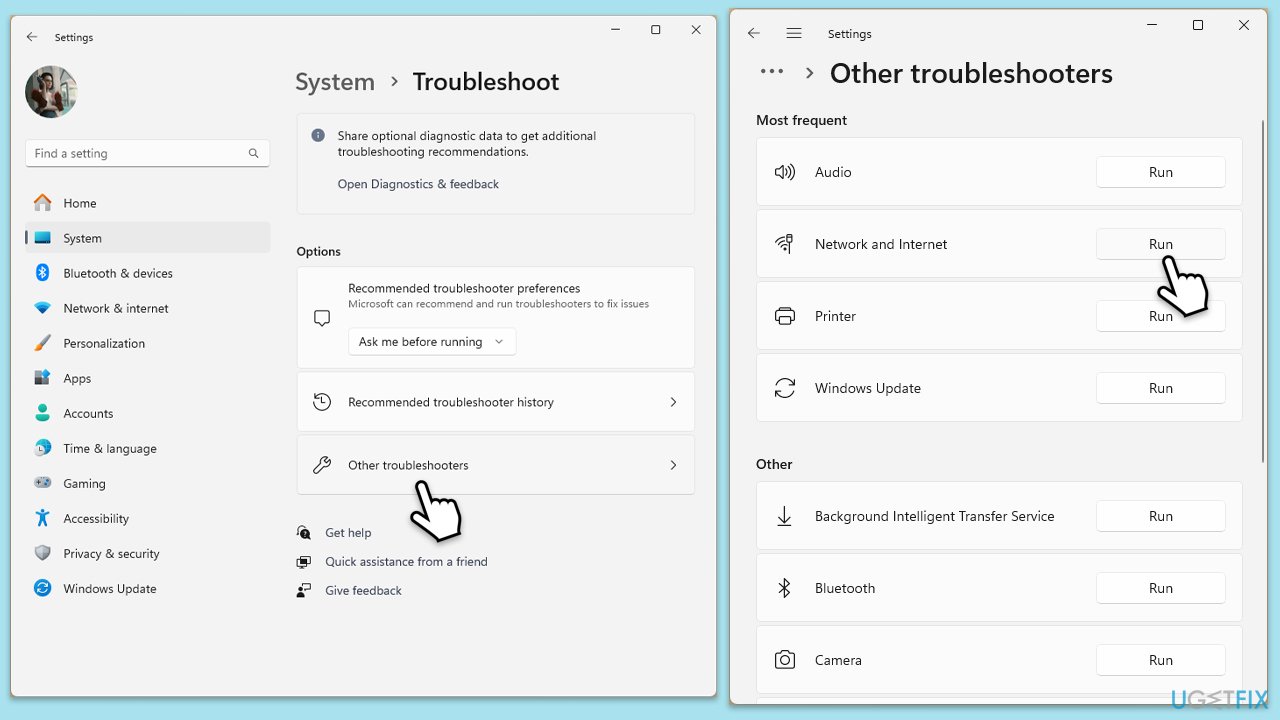
If the issue is caused by unstable internet or similar issues, network troubleshooter could help.
Windows 11
- Type Troubleshoot in Windows search and press Enter.
- Select Other troubleshooters.
- Locate Network & Internet troubleshooter from the list and click Run.
- The system will scan for issues - let it finish and implement all the changes.
- Restart your system.
Windows 10
- Right-click on Start and pick Settings.
- Go to the Network & Internet section.
- On the right side, find the Advanced network settings section.
- Click Network troubleshooter and wait.
- The fixes will be automatically applied.
Fix 2. Reset Microsoft Store cache
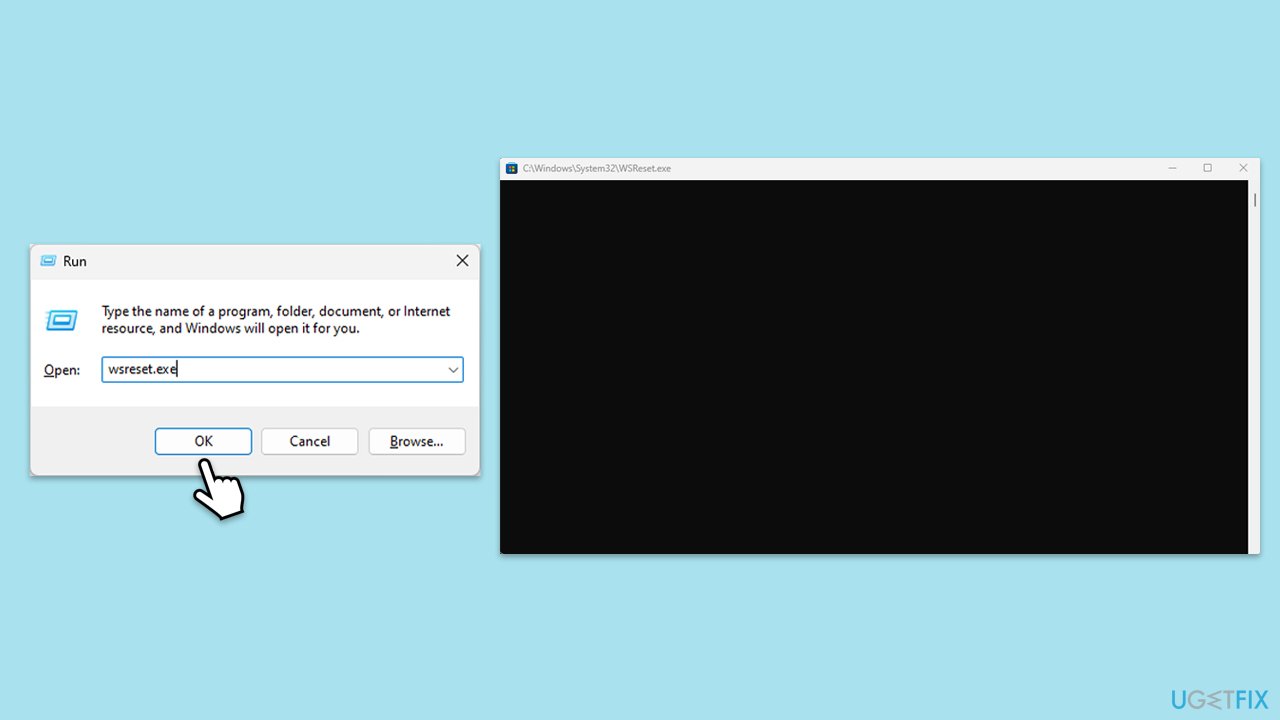
If Microsoft Store app cache is corrupted, it might prevent you from downloading new games. Here's how to address it:
- Press Win + R to open the Run dialog.
- Type wsreset.exe and press Enter.
- Wait for the blank Command Prompt window to close automatically.
- Open the Xbox app and attempt the download once more.
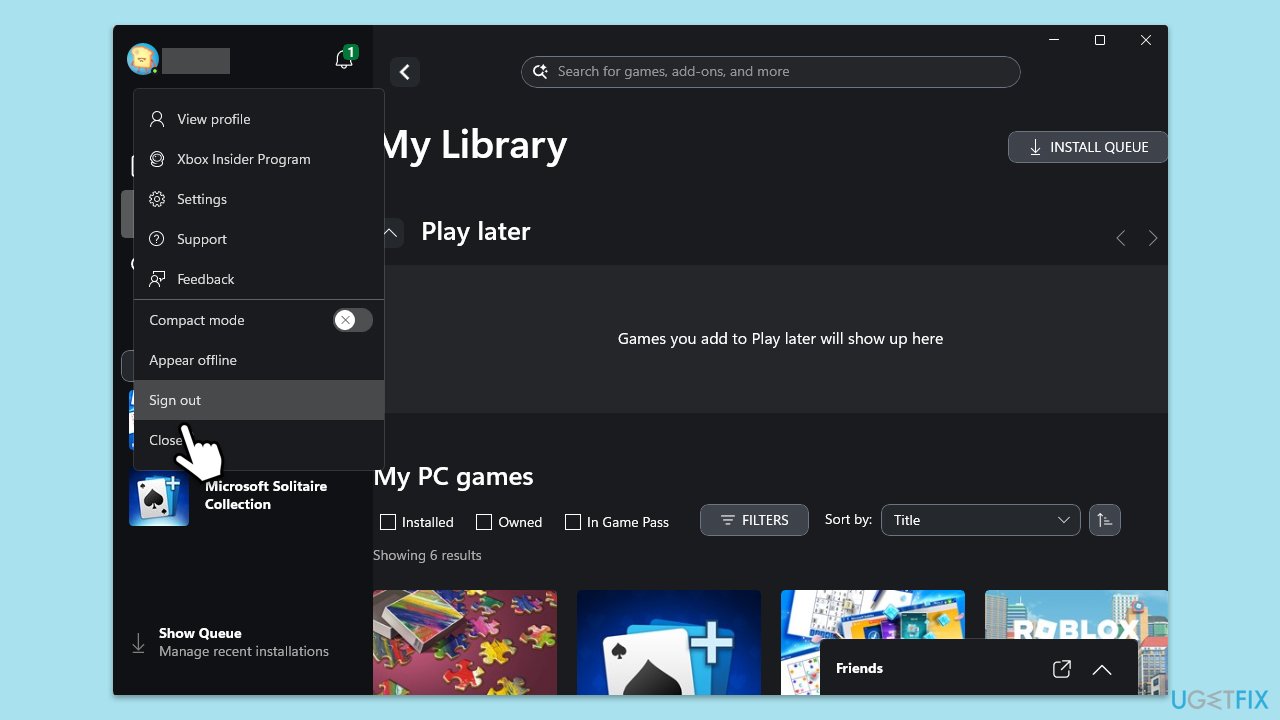
Fix 3. Sign out and sign back in
Signing out and back in could prevent authentication glitches with your Microsoft account might block downloads.
- Open the Xbox app.
- Click on your profile picture in the top-right corner and select Sign out.
- Sign back in with the correct Microsoft account credentials.
- Verify that your account details match those linked to the Windows Store.
Fix 4. Update Windows and Xbox app
Update Windows:
- Right-click on Start and select Settings.
- Go to Update & Security/Windows Update (depending on Windows version).
- If updates are pending, click Install updates.
- Otherwise, click Check for updates and wait.
- If there are optional updates available, install them as well.
- Restart your system to implement the changes.
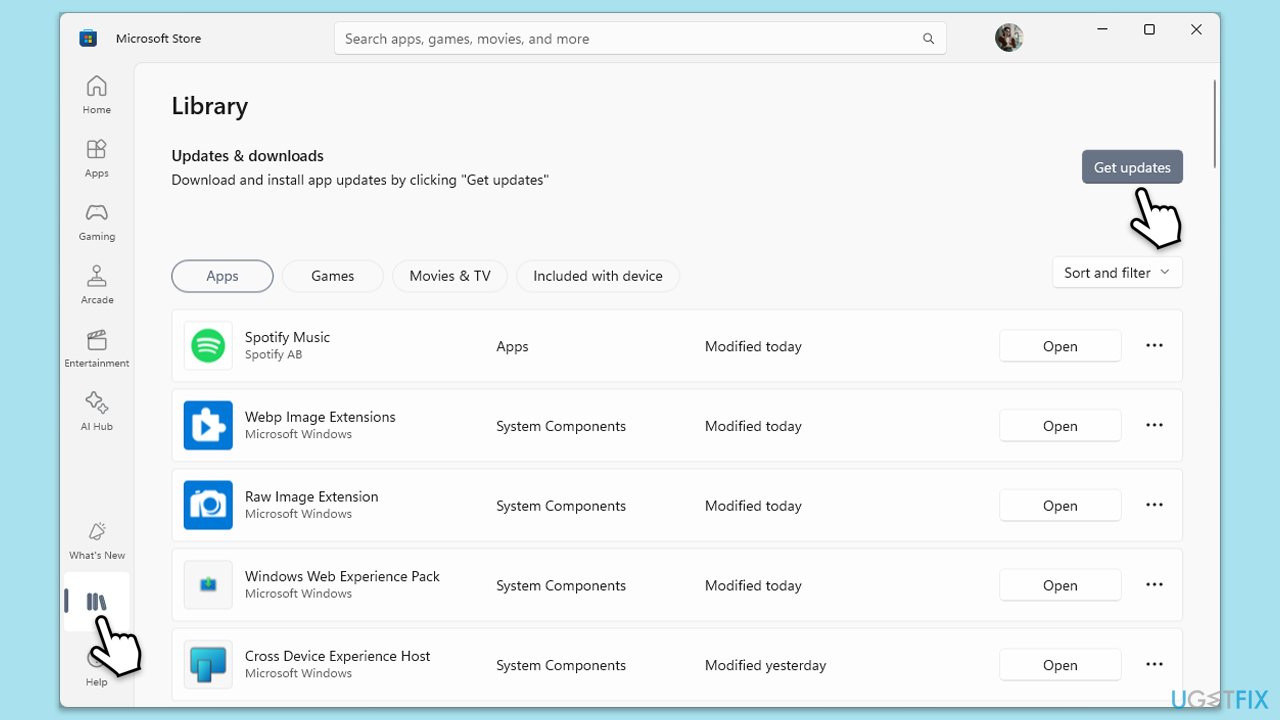
Update Xbox app:
- Open Microsoft Store and go to the Downloads section.
- Here, click Get updates.
- Wait till all the apps are updated, including Xbox app.
Fix 4. Repair or reset Xbox app and Gaming Services
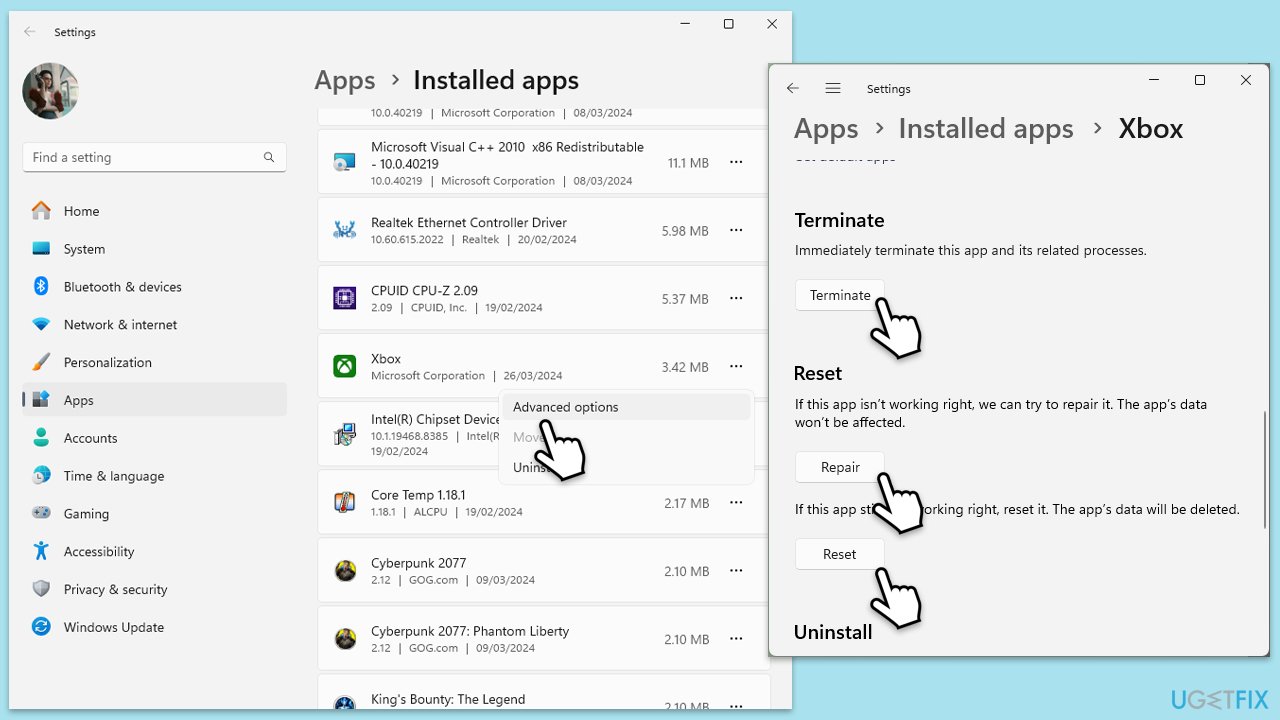
If the Xbox app's settings or data become corrupted, resetting it can help resolve the issue by returning it to its default configuration.
- Right-click on Start and select Apps & Features/Installed apps.
- Scroll down to find Xbox app and click Advanced options.
- Scroll down again and click Terminate and Repair.
- If that does not work, try using Reset.
- Repeat this process with Xbox Live.
Fix 5. Run SFC and DISM
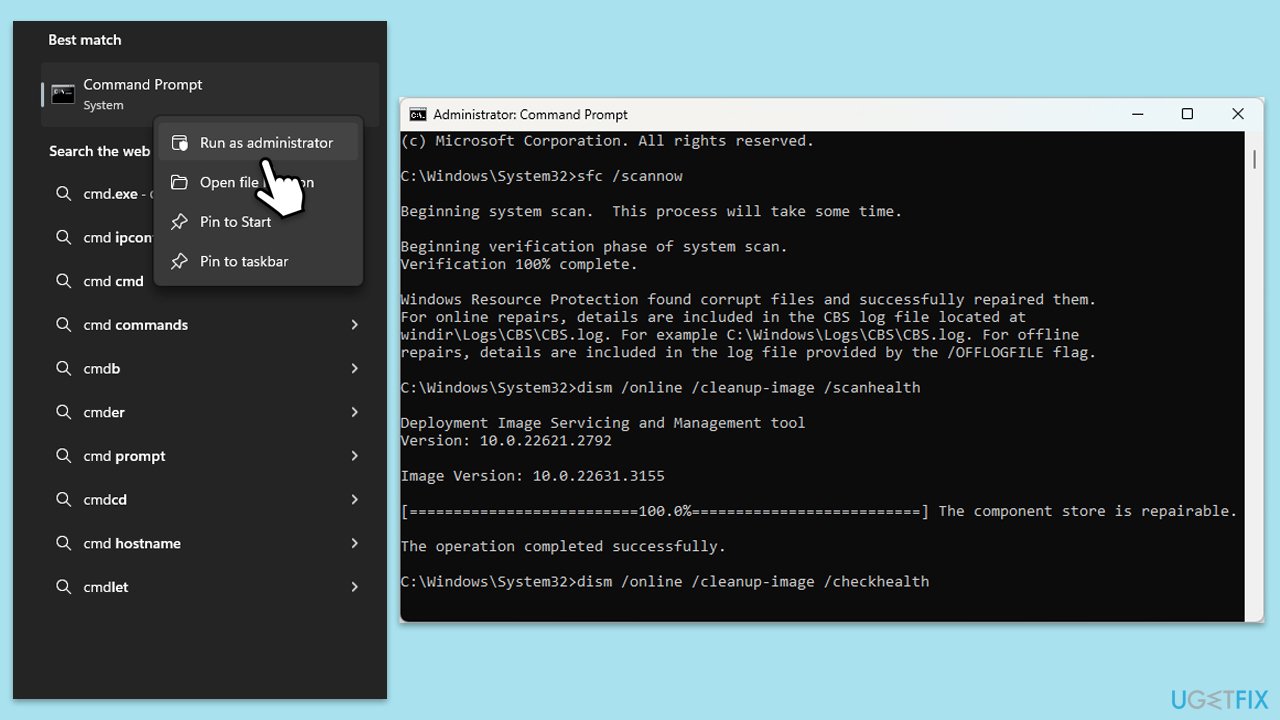
- Type in cmd in Windows search.
- Right-click on Command Prompt and select Run as administrator.
- In the User Account Control window, click Yes.
- In the Command Prompt window, paste the following command and hit Enter:
sfc /scannow - Next, use the following commands, pressing Enter each time:
Dism /Online /Cleanup-Image /CheckHealth
Dism /Online /Cleanup-Image /ScanHealth
Dism /Online /Cleanup-Image /RestoreHealth
(Note: if you get an error executing this last command, add /Source:C:\RepairSource\Windows /LimitAccess to it and try again). - Reboot your computer.
Fix 6. Reinstall Gaming Services
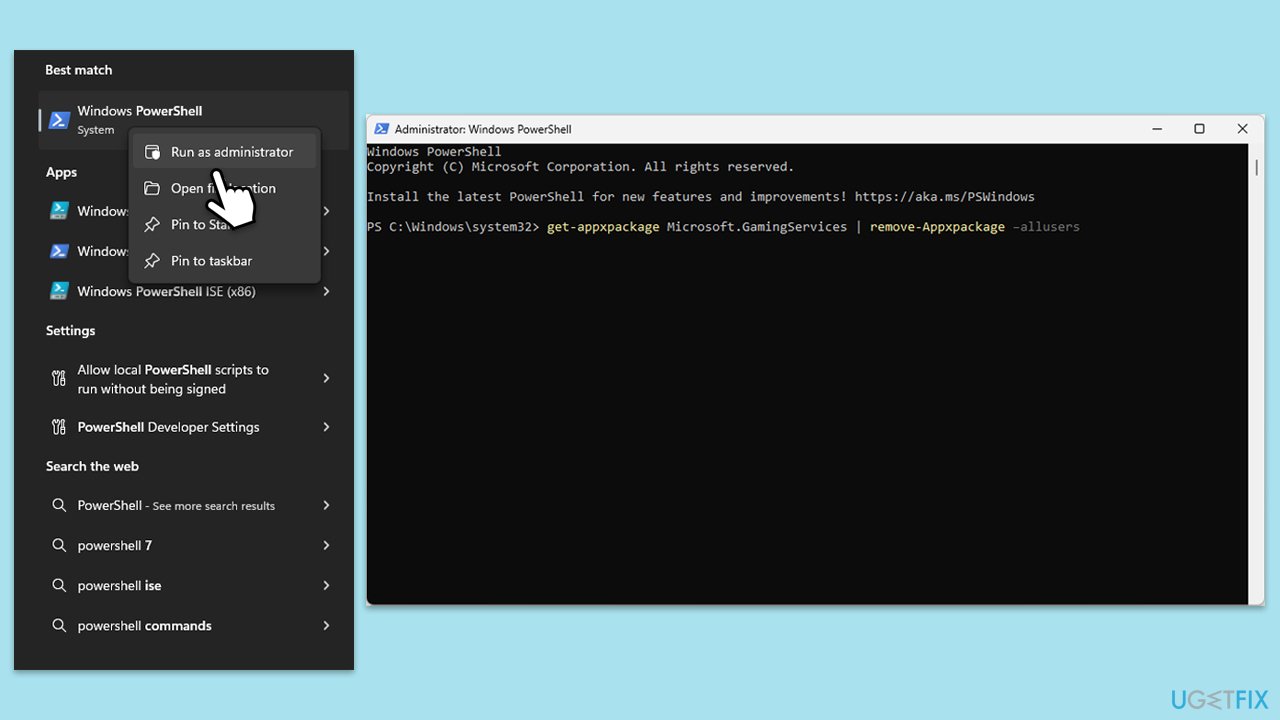
- Type PowerShell in Windows search.
- Right-click on the result and select Run as administrator.
- When User Account Control shows up, click Yes.
- In the new window, copy and paste the following commands and hit Enter:
get-appxpackage Microsoft.GamingServices | remove-Appxpackage –allusers
Remove-Item -Path "HKLM:\System\CurrentControlSet\Services\GamingServices" -recurse
Remove-Item -Path "HKLM:\System\CurrentControlSet\Services\GamingServicesNet" -recurse - Close down PowerShell and restart your system.
- Next, install Gaming Services from the Microsoft Store.
Bottom line
To fix the error 0x800701c4, you can try resetting the Xbox app or Microsoft Store, ensuring your network connection is stable, and checking for Windows updates. If the issue persists, consider digging into system files or reinstalling components. If none of these solutions work, further troubleshooting may be necessary.
Frequently asked questions
Error 0x800701c4 typically indicates an issue with the Xbox app's connection to the Microsoft server, often related to account or network problems.
To fix this error, try resetting the Xbox app through Settings > Apps > Apps & features, then select Xbox and click on 'Advanced options' to reset it.
Yes, ensure your internet connection is stable and try running the Windows Network Troubleshooter to identify and resolve any connectivity issues.




Report an issue
What's wrong with this guide? We review every report and update or remove content.
Report received — thank you. We'll review and fix it.
You need a free account to submit a report.
Be the first to comment