How to fix
Xbox app error 0x80070422
on Windows
Resolve Xbox app error 0x80070422 on Windows 10/11 effortlessly. Get quick fixes and expert-tested solutions to enhance your gaming experience. Fixed in…


What causes How to fix Xbox app error 0x80070422 in Windows?
- Windows Update service is disabled
- Network connectivity problems
- Outdated system components
- Conflicts with other software
- Incorrect Windows configuration settings
Repairs Windows system files, removes malware, and restores a clean OS state — without reinstalling.
Hi, I am on Windows 11 and I can't log in to the Xbox app. The shown error code is 0x80070422. What can I do to fix this?
Xbox app on Windows provides users with access to a variety of gaming experiences, allowing them to connect with friends, access game libraries, and manage their gaming activities.
However, some users encounter the error code 0x80070422 when trying to sign in to the app. This error prevents access to the app's features, disrupting your gaming experience and making it difficult to stay connected with your gaming community.
Reasons behind the Xbox app error 0x80070422
This error typically occurs due to issues with system services that the Xbox app depends on. One common cause is the Windows Update service being disabled, which can interfere with the app’s ability to sign in.
Additionally, network connectivity problems, outdated system components, or conflicts with other software can also trigger this error. Sometimes, specific settings in your Windows configuration might prevent the Xbox app from functioning correctly, leading to the 0x80070422 error.
Addressing the issue
Resolving the Xbox app error 0x80070422 involves ensuring that essential services are running and properly configured. Checking and enabling the Windows Update service is crucial, as it supports the app’s operations. Verifying network settings and connectivity can help eliminate potential issues that block the sign-in process.
Updating Windows and the Xbox app ensures all components are current and compatible. Additionally, reviewing your system’s configuration and adjusting necessary settings can restore the app's functionality.
Using the [d1] repair app can automatically detect and fix underlying Windows issues, helping to resolve the Xbox app error 0x80070422 efficiently.

Fix 1. Enable relevant services
Ensuring the Windows Update and other services are enabled is crucial for the Xbox app to function properly.
- Type Services in Windows search and hit Enter.
- Scroll down to find Gaming Services.
- Right-click on it and select Restart.
- If it is grayed out, double-click the service to open its Properties.
- Under Startup type, select Automatic from the drop-down menu.
- Click Start, Apply, and OK.
- Repeat this process with the following services:
Windows Update
Microsoft Store Install Service
Xbox Live Auth Manager
Xbox Live Game Save
Xbox Live Networking Service
Gaming Services.

Fix 2. Check network connectivity
Network issues can prevent the Xbox app from signing in. Ensuring a stable internet connection can resolve this problem.
- Check your internet connection.
- Restart your router.
- Test other devices to confirm network stability.
Fix 3. Update Windows
Keeping your Windows operating system up to date can fix known issues that may affect the Xbox app.
- Right-click on Start and select Settings.
- Go to Update & Security/Windows Update (depending on Windows version).
- If updates are pending, click Install updates.
- Otherwise, click Check for updates and wait.
- If there are optional updates available, install them as well.
- Restart your system to implement the changes.

Fix 4. Update Xbox app and Gaming Services
Ensuring the Xbox app is up to date can resolve compatibility and functionality issues.
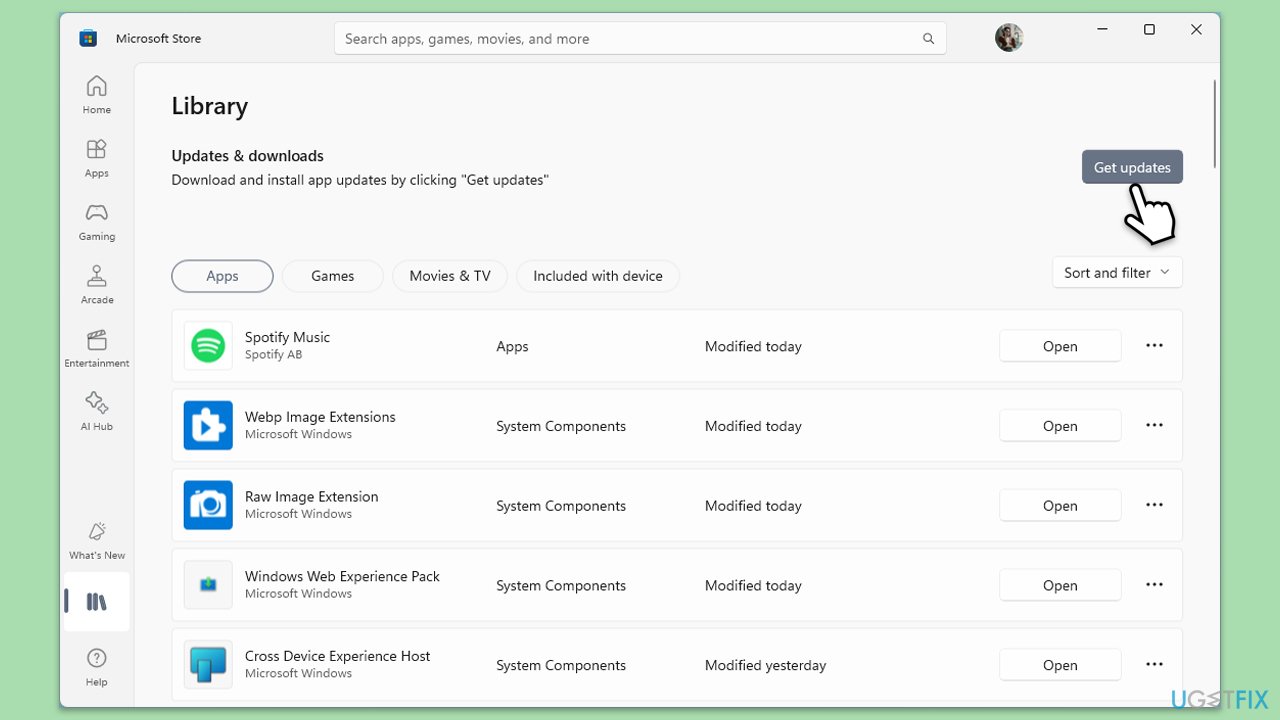
- Open Microsoft Store.
- Click on Library.
- If updates are pending, click Update all.
- Otherwise, click Get updates.
- Wait till the apps are updated.
- Restart your computer after the update is complete.
Fix 5. Check Xbox Live services status
Sometimes, the issue might be with Xbox Live services being down or having issues.
- Visit the Xbox Live status page online.
- Check if any services are experiencing outages or issues.
Fix 6. Run the Windows Store Apps troubleshooter
Running the Windows Store Apps troubleshooter can help diagnose and fix issues with the Xbox app.
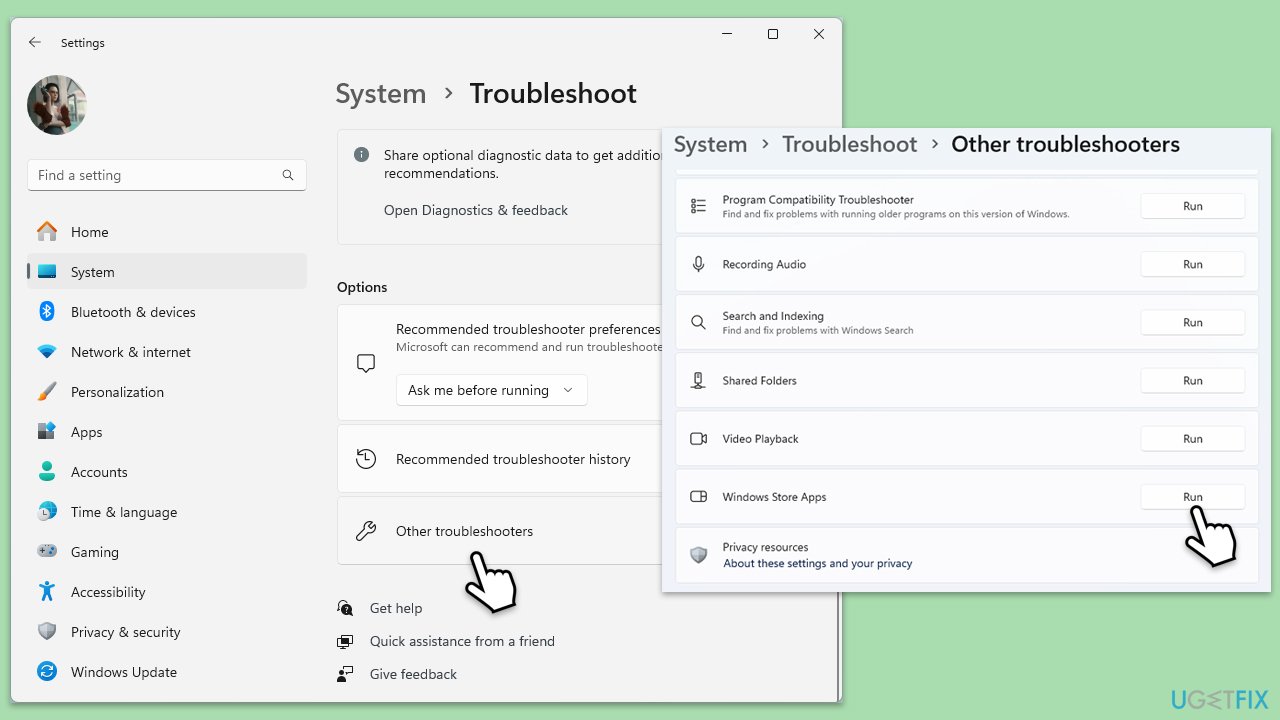
- Type troubleshoot in Windows search and hit Enter.
- Click Additional troubleshooters/Other troubleshooters.
- Find Windows Store Apps.
- Click on it, and select Run the troubleshooter/Run.
- Wait for the scan to be completed and apply the suggested fixes.
- You can also try running the Windows update troubleshooter.
Fix 7. Repair or Reset the Xbox app, Microsoft Store and Gaming Services
- Right-click on Start and pick Apps & Features/Installed apps.
- Scroll down to locate the Xbox app and click Advanced options.
- Click Terminate and Repair.
- If that does not help, try the Reset option instead.
- Repeat the same with the Microsoft Store and Gaming Services.

Fix 8. Reinstall the Xbox app
Reinstalling the Xbox app can provide a fresh start and resolve persistent issues.
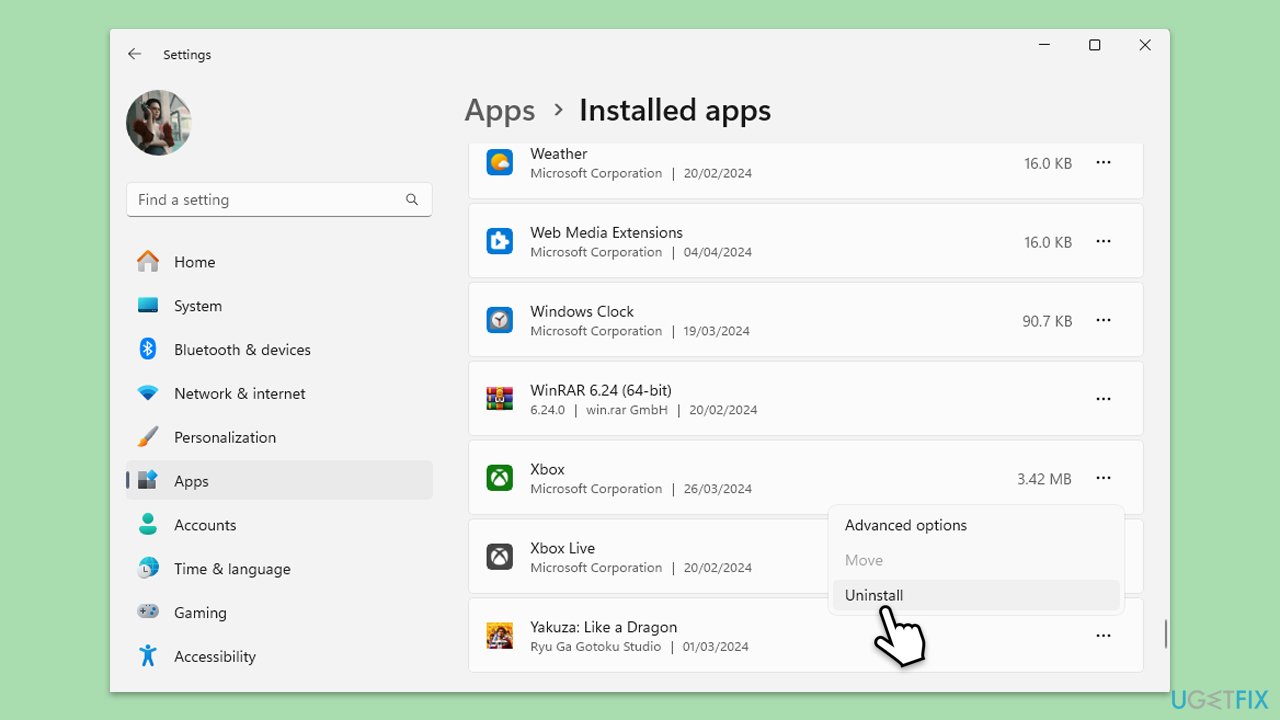
- Right-click on Start and pick Apps & Features/Installed apps.
- Scroll down to the Xbox app, select it (or click three vertical dots), and click Uninstall.
- Confirm any prompts and follow on-screen instructions.
- Restart your PC.
- Reinstall the app from the Microsoft Store.
Fix 9. Check account settings
Ensuring your Microsoft account is properly set up and synced can resolve sign-in issues.
- Open Settings.
- Select Accounts.
- Click Your info and ensure your Microsoft account is properly linked.
- Make sure you are using the same account to log in to the Xbox app.
Fix 10. Re-register all Windows apps
- Type PowerShell in Windows search.
- Right-click on the result and select Run as administrator.
- When UAC shows up, click Yes.
- Use the following command and press Enter:
Get-AppXPackage *WindowsStore* -AllUsers | Foreach {Add-AppxPackage -DisableDevelopmentMode -Register "$($_.InstallLocation)\AppXManifest.xml"} - When done, restart your PC.

Bottom line
To fix the Xbox app error 0x80070422, ensure that the Windows Update service and other relevant services are enabled, verify network settings, and update both Windows and the Xbox app. If the issue persists, consider using a repair app to automatically detect and fix underlying Windows issues.
Frequently asked questions
Error code 0x80070422 typically indicates that a necessary service is not running, which prevents the Xbox app from functioning properly on your Windows device.
To enable the Xbox Game Monitoring service, press Windows + R, type 'services.msc', find 'Xbox Game Monitoring', right-click it, and select 'Start'.
Yes, you can quickly fix this error by ensuring that the 'Windows Update' service is running; access it through the Services app and start the service if it's stopped.




Report an issue
What's wrong with this guide? We review every report and update or remove content.
Report received — thank you. We'll review and fix it.
You need a free account to submit a report.
Be the first to comment