How to fix
Xbox app error 0x80070426
on Windows
Resolve Xbox app error 0x80070426 on Windows 10 and 11 easily. Follow our expert-tested solutions for a quick fix and enjoy gaming again!


What causes How to fix Xbox app error 0x80070426 in Windows?
- Complications within Windows services
- Service interruptions
- Problems in account connectivity with Microsoft’s servers
- Issues with Microsoft services
- Account verification process disruptions
Repairs Windows system files, removes malware, and restores a clean OS state — without reinstalling.
Hello, I keep getting Xbox app error 0x80070426 every time I attempt to launch it on Windows 11. What is going on?
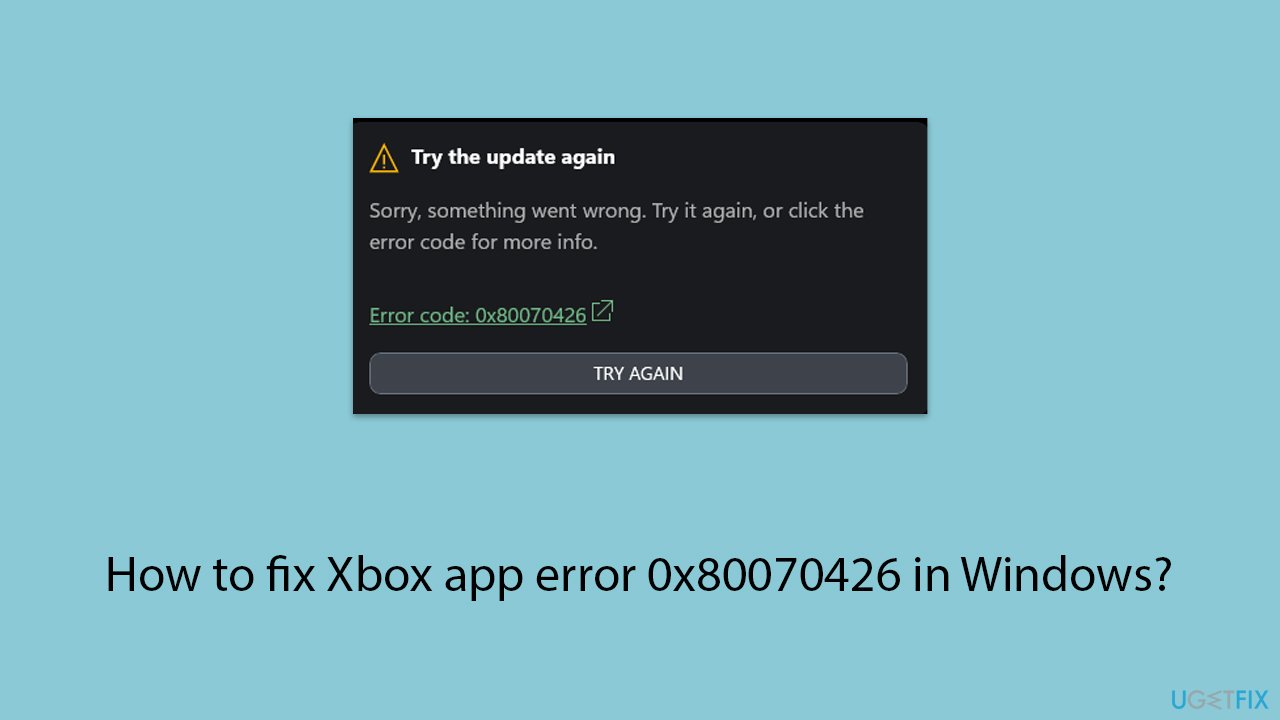
The Xbox app error code 0x80070426 in Windows is a common stumbling block for users, often occurring during sign-in or while using the app. This error can disrupt gaming sessions unexpectedly and is generally indicative of underlying issues with Microsoft services or account verification processes. Essentially, it signals a hiccup in the seamless operation of the services that the Xbox app relies on, such as the Microsoft Store or Windows Update.
Error 0x80070426 typically arises from complications within Windows services (usually related to the update process), which are vital for the Xbox app’s functionality. These could range from service interruptions to problems in account connectivity with Microsoft’s servers. The error message itself provides little insight into its cause, leaving users to troubleshoot a broad range of potential issues.
Addressing this error involves a series of standard yet effective steps, including verifying that Windows is fully updated, checking Microsoft service statuses and clearing the app’s cache. These measures aim to tackle possible causes head-on, from rectifying service disruptions to refreshing system components essential for app operations.
If you follow the steps below, you should be able to fix Xbox app error 0x80070426 in Windows quite easily. If you would rather automate this process, you should try employing PC repair software [d1].
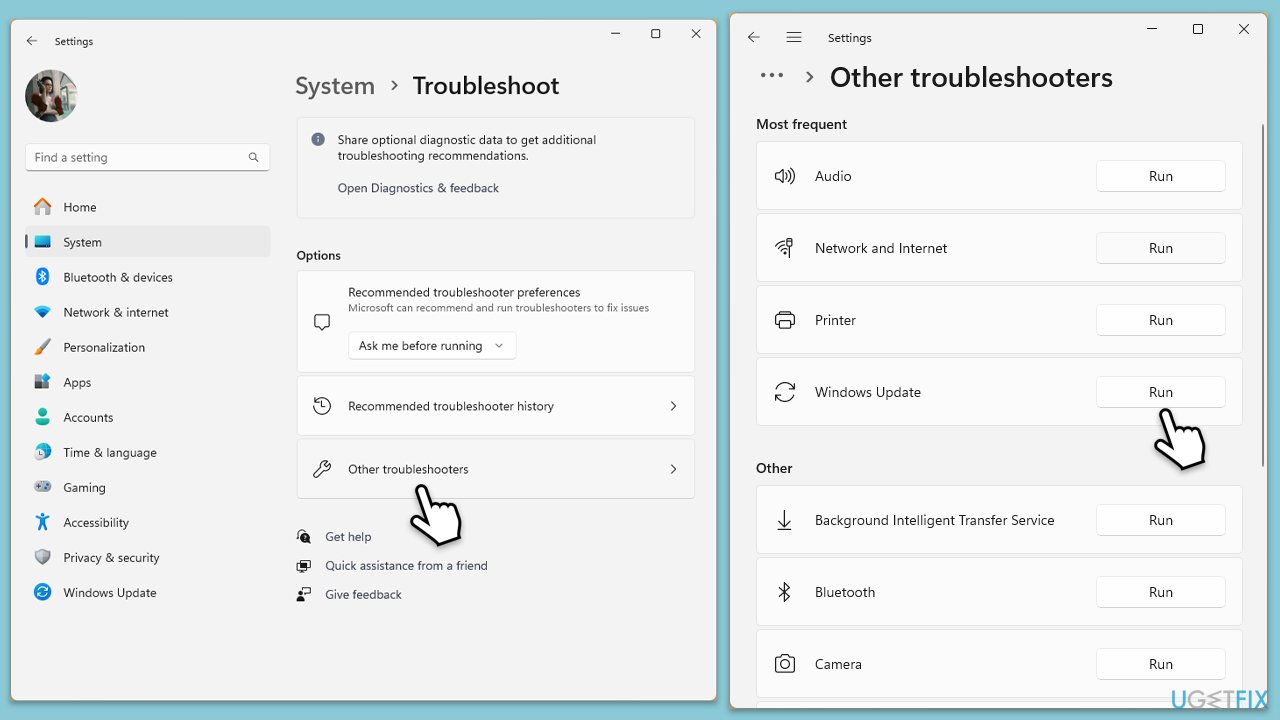
Fix 1. Run Windows Update and Windows Store apps troubleshooter
Windows Update and Windows Store apps troubleshooter automatically identifies and resolves issues with Windows Updates and apps from the Microsoft Store. This can help fix the Xbox app error 0x80070426 by ensuring all system components and store apps are up to date and functioning properly.
- Type Troubleshoot in Windows search and press Enter.
- Select Additional troubleshooters/Other troubleshooters.
- Find Windows Update from the list.
- Click it and select Run the troubleshooter/Run.
- Return to Additional troubleshooters/Other troubleshooters, find Windows Store Apps, click it, and then select Run the troubleshooter/Run.
- Complete the troubleshooting process by following the on-screen instructions.
- Restart your computer and check if the error has been resolved.
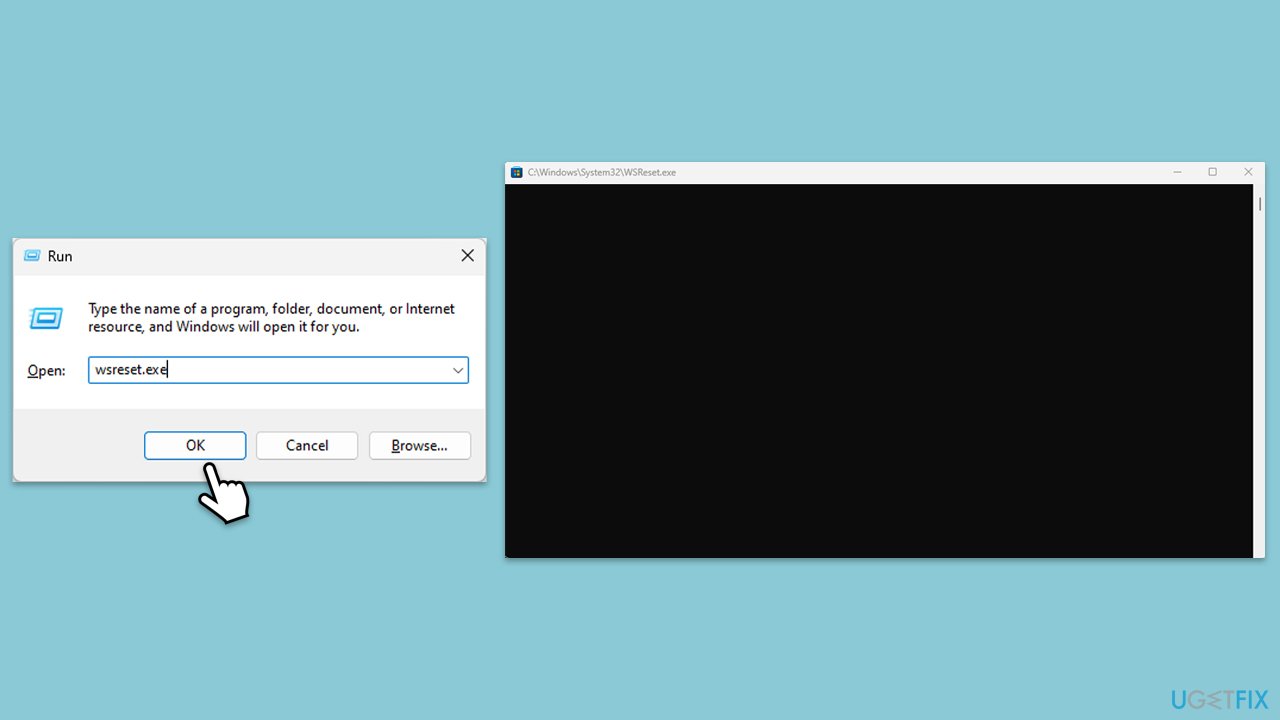
Fix 2. Clear Microsoft Store cache files
Clearing the Microsoft Store cache can resolve issues caused by corrupted cache files, potentially fixing the Xbox app error 0x80070426 by refreshing the store's data and removing any corrupt files that could hinder app functionality.
- Press Win + R to open the Run dialog box.
- Type wsreset.exe and press Enter.
- A blank Command Prompt window will open. Wait for it to close automatically.
- Once closed, the Microsoft Store will open automatically, indicating the cache has been reset.
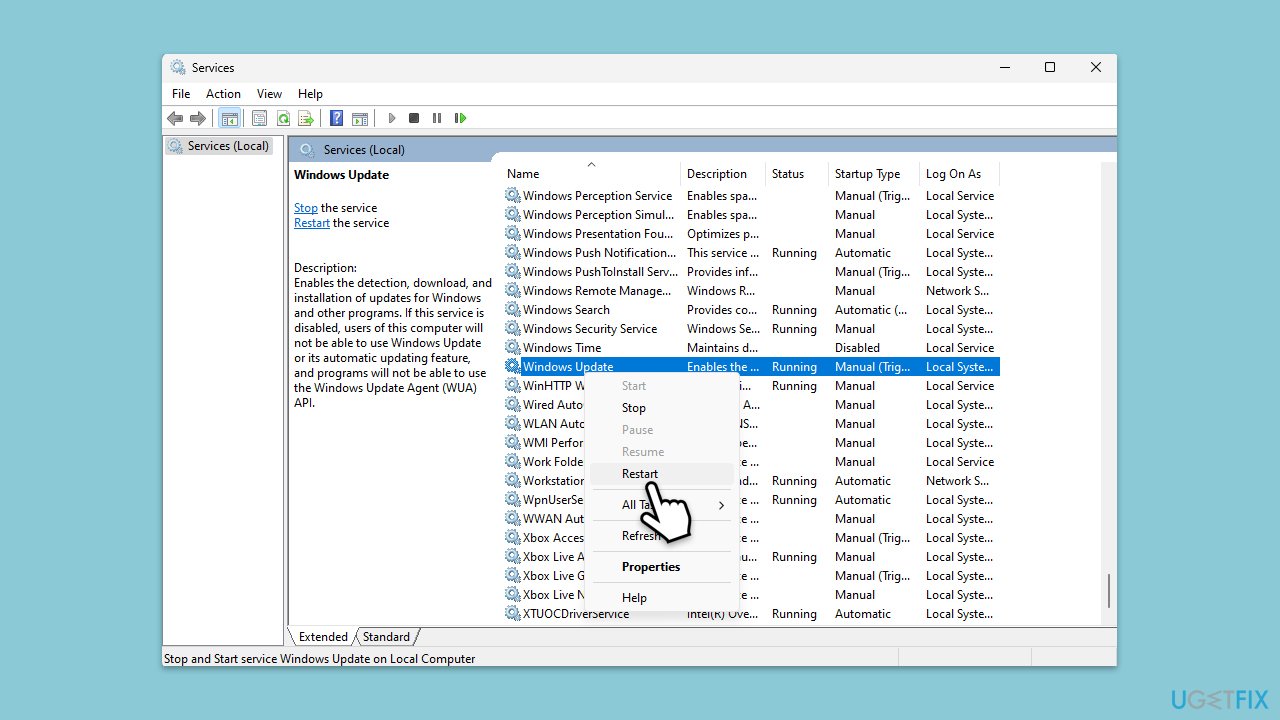
Fix 3. Check all relevant services
Ensuring that all relevant Windows services are running is crucial for the Xbox app's operation. Services like Windows Update, Background Intelligent Transfer Service (BITS), and Xbox Live services must be active.
- Type Services in Windows search and press Enter.
- Scroll through the list and ensure the following services are running: Windows Update, Xbox Live Auth Manager, Xbox Live Game Save, and Xbox Live Networking Service. If any are not running, right-click on the service, select Properties, set the Startup type to Automatic, and click Start if the service is stopped.
- Click OK and close the Services window.
- Restart your computer and check if the issue with the Xbox app persists.
Fix 4. Repair or reset Xbox app and Gaming Services
Repairing or resetting the Xbox app and Gaming Services can fix issues by restoring the apps to their default state without affecting app data.
- Right-click on Start and pick Apps & Features.
- Scroll down to locate the Xbox app and click Advanced options.
- Click Terminate and Repair.
- If that does not help, try the Reset option instead.
- Repeat the same with Gaming Services.
Fix 5. Run SFC and DISM scans
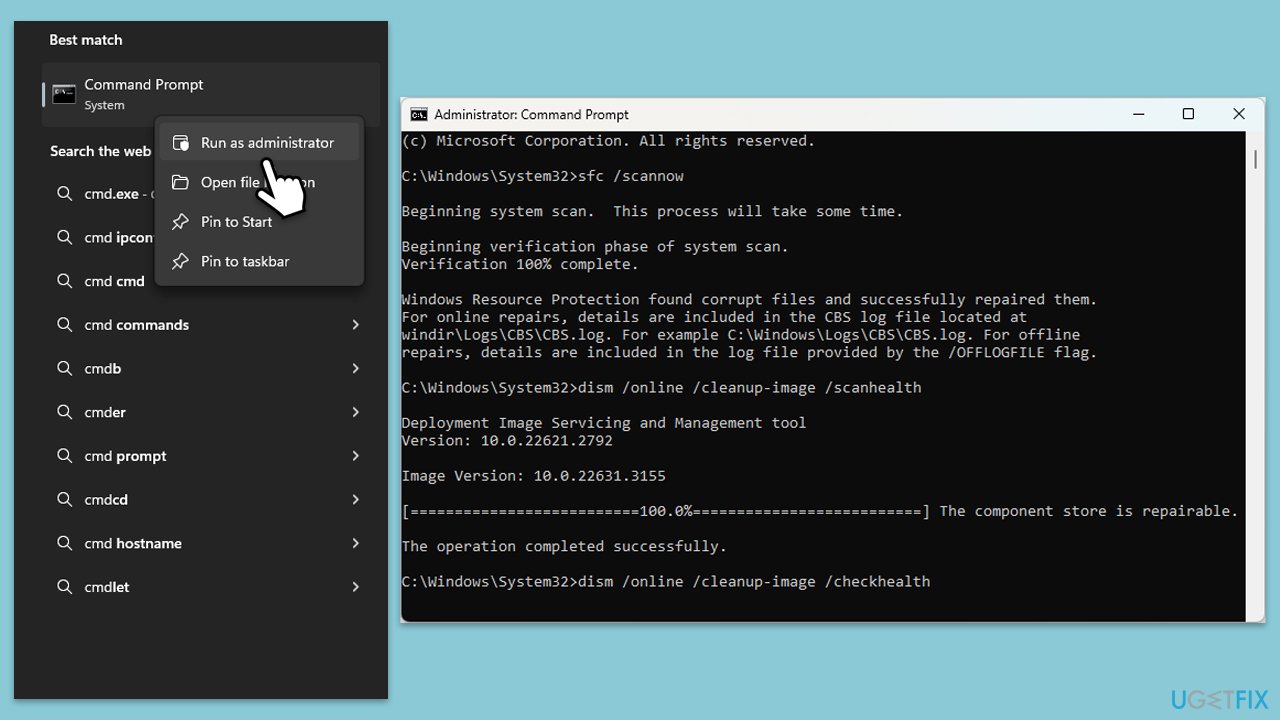
Check for system file corruption by using specific commands using an elevated Command Prompt.
- Type cmd in Windows search.
- Right-click on the Command Prompt result and select Run as administrator.
- When the UAC window pops up, click Yes.
- In the Command Prompt window, paste the following command and press Enter:
sfc /scannow - Wait for the scan to complete.
- Once the SFC scan is finished, run the following set of DISM commands, pressing Enter after each one:
DISM /Online /Cleanup-Image /CheckHealth
DISM /Online /Cleanup-Image /ScanHealth
DISM /Online /Cleanup-Image /RestoreHealth - After completing the DISM commands, restart your computer.
Fix 6. Reregister all Windows apps via PowerShell
Reregistering all Windows apps refreshes their registration information and can resolve conflicts or errors, potentially fixing the Xbox app error.
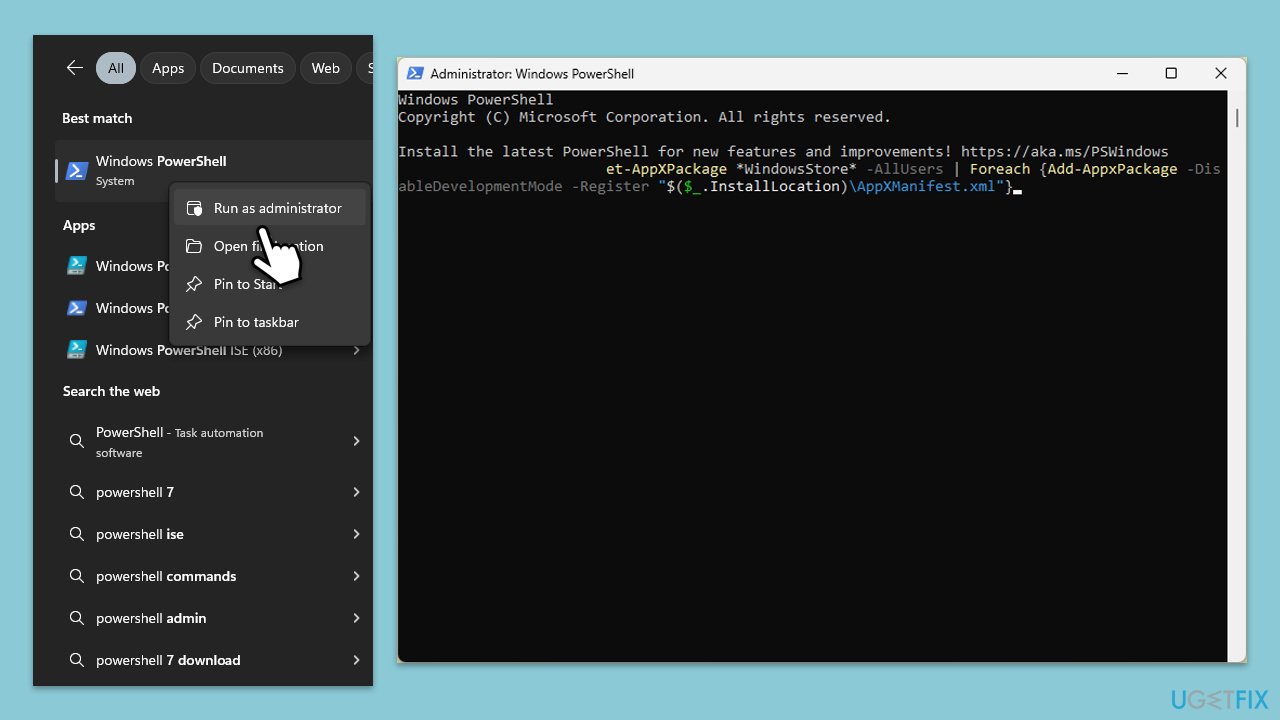
- Type PowerShell in Windows search.
- Right-click on the result and select Run as administrator.
- When UAC shows up, click Yes.
- Use the following command and press Enter:
Get-AppXPackage *WindowsStore* -AllUsers | Foreach {Add-AppxPackage -DisableDevelopmentMode -Register "$($_.InstallLocation)\AppXManifest.xml"} - When done, restart your PC.
Fix 7. Reset Windows
Resetting Windows reinstalls the operating system, potentially resolving underlying issues causing the Xbox app error. This step should be taken with caution, as it can affect installed apps and settings.
- Click on Start and pick Settings.
- Go to Windows Update/Update & Security.
- Select Advanced options.
- Under Additional options, select Recovery.
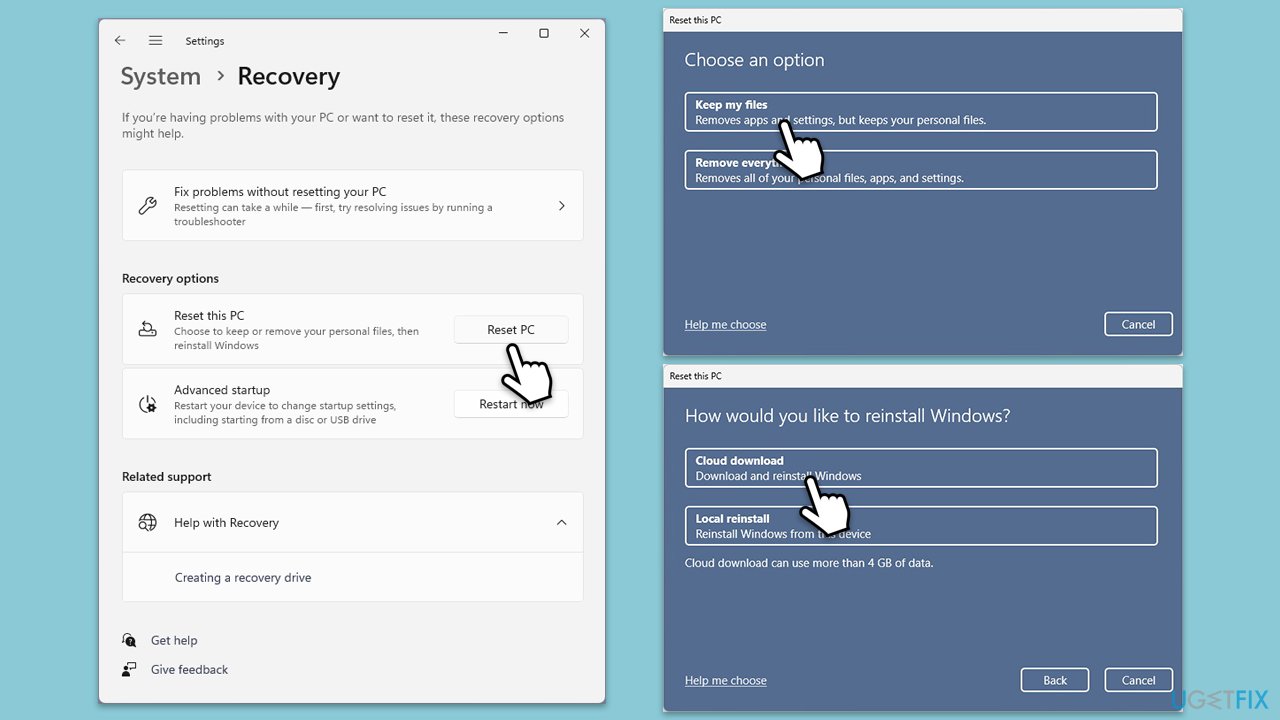
- Under Recovery options, click Reset PC.
- Select the option to Keep your files and then press Cloud download.
- Follow on-screen instructions to finish the process.
Fix 8. Reset Windows Update components
Resetting Windows Update components clears the update cache and restarts the update services, resolving issues that may be causing the Xbox app error 0x80070426.
- Type in cmd in Windows search.
- Right-click on Command Prompt and select Run as administrator.
- In the User Account Control window, click Yes.
- Stop the Windows Update and related services by running these commands one by one:
- net stop wuauserv
- net stop cryptSvc
- net stop bits
- net stop msiserver
- Rename the SoftwareDistribution and Catroot2 folders with these commands:
- ren C:\Windows\SoftwareDistribution SoftwareDistribution.old
- ren C:\Windows\System32\catroot2 Catroot2.old
- Restart the stopped services:
- net start wuauserv
- net start cryptSvc
- net start bits
- net start msiserver
- Try running Windows Update again.
Bottom line
To fix Xbox app error 0x80070426, ensure that Windows is fully updated, run the Windows Update and Windows Store apps troubleshooters, and clear the app’s cache. If these steps do not resolve the issue, consider using PC repair software to automate the troubleshooting process.
Frequently asked questions
Error 0x80070426 typically indicates that there is an issue with your Xbox Live account not being recognized, which can prevent you from accessing certain features of the Xbox app.
You can fix this error by signing out and then signing back into your Xbox app, or by resetting the app through the Settings menu under Apps.
If basic steps don't work, you can try reinstalling the Xbox app, checking for Windows updates, or running the Windows Store Apps troubleshooter for further assistance.




Report an issue
What's wrong with this guide? We review every report and update or remove content.
Report received — thank you. We'll review and fix it.
You need a free account to submit a report.
Be the first to comment