How to fix
Xbox app error 0x8007042b
on Windows
Resolve Xbox app error 0x8007042b effortlessly on Windows 10 and 11. Get expert-tested solutions with easy-to-follow steps and zero traces left.

What causes How to fix Xbox app error 0x8007042b in Windows?
- Corrupted Microsoft Store apps
- System file corruption
- Registry issues
- Cookies and cache problems
Repairs Windows system files, removes malware, and restores a clean OS state — without reinstalling.
Hello. When I try to launch certain games using the Windows Xbox app I get the 0x8007042b error code. Is there a way to fix this?
Xbox games have a sizable and committed fan base, with games like Destiny 2 attracting a sizable gaming community. However, despite the pleasure these games provide, a current annoyance has surfaced that prevents gamers from fully immersing themselves in their gaming experiences. Error 0x8007042b, a problem that appears when attempting to launch Xbox games, represents this interruption. This is what the full error message says:
Something went wrong launching your game. Error code: (0x8007042b).
Users' ability to enjoy their favorite games may be substantially impacted by this issue. When anticipation is at its highest, it can be disappointing to receive an error notice. Especially when gaming is used as a form of amusement and leisure, players may discover that they are unable to access the game they were anxious to play, which can cause disappointment and a sense of loss.
Additionally, the presence of Error 0x8007042b may interfere with online community or friend-based gaming activities. Due to the importance of synchronized play in multiplayer games in particular, players may be prevented from joining their friends or teams if they encounter such a mistake, which would interfere with the social side of gaming.
To address this issue, several potential solutions have been identified. These methods aim to rectify the error and allow players to once again engage with their favorite games. In this guide, you will find 5 steps that should help you fix Xbox app error 0x8007042b. You can also run a maintenance tool like [d1] that can fix most system errors, BSODs,[ref en-1] corrupted files, registry[ref en-2] issues, or clear cookies and cache.[ref en-3] Otherwise, follow the step-by-step instructions below.
Solution 1. Run the Microsoft Store Apps Troubleshooter
- Press the Windows key + I to open Windows Settings.
- Select the System section and scroll down until you see Troubleshoot and click on it.
- Click on Other troubleshooters to see more troubleshooters available on your computer.
- Scroll down at the bottom until you see Microsoft Store Apps.
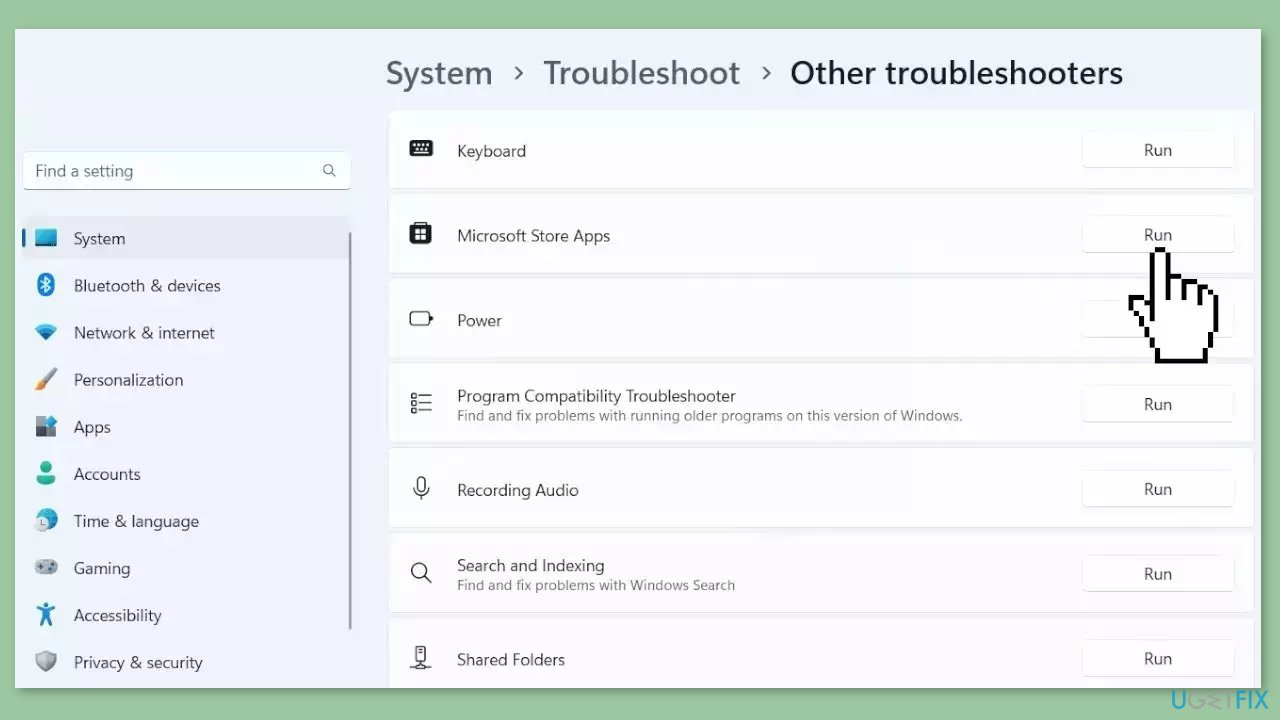
- Click on Run to start the troubleshooting process.
- Wait until the process is complete.
Solution 2. Run the Game with Administrative Rights
If you encounter an error when attempting to start a game, it might be due to insufficient permissions granted to the launcher. To address this issue, you can troubleshoot by trying to launch the game with administrator privileges.
- To do this, simply right-click on the game and choose the Run as administrator option.
- When the User Account Control (UAC) prompt appears, click Yes to confirm.
In case the game isn't located on your desktop, you can use the Xbox app.
- Click on the three dots associated with your game within the app, and then opt for the Create desktop shortcut feature.
- This will enable you to launch the game with administrative privileges.
Solution 3. Repair or Reset the Game
If the problem you're experiencing with the Xbox app is due to corruption, you can try repairing the app to fix the issue. To do this:
- Open the Settings app by pressing the Windows key + I, and go to the Apps tab.
- Select the Installed apps option, and then find the problematic game in the list.
- Click the three-dot menu button, and then choose Advanced options.
- Scroll down to the Reset section, and click the Repair button.
- Once the repair process is finished, reopen the app and see if the problem has been resolved.
If repairing the game doesn't help, you can try resetting it to its original state and settings:
- Follow the first three steps above to access the Advanced options for the game.
- Instead of clicking the Repair button, click the Reset button and follow the prompts to reset the app.
- Relaunch the game and see if the problem has been fixed.

Solution 4. Clear Microsoft Store Cache
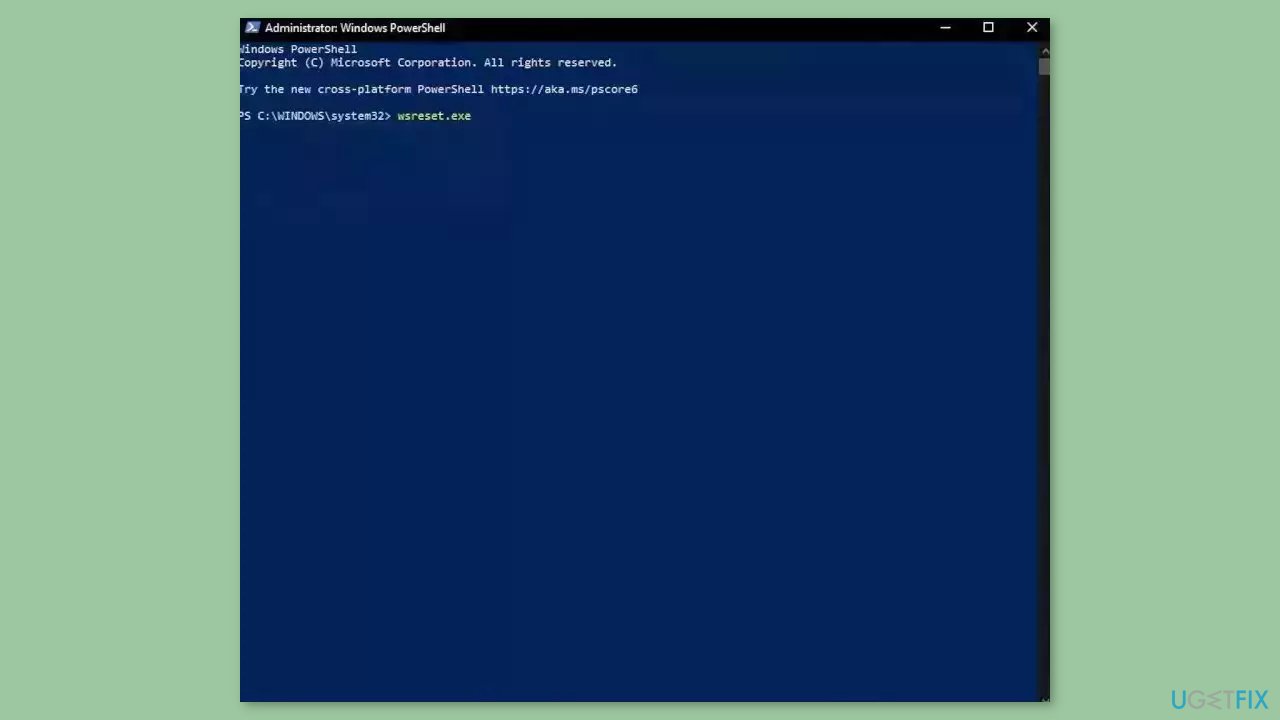
- Open the Windows Powershell from the search bar by typing powershell.
- Right-click on the search result and select Run as Administrator.
- If a UAC opens, hit Yes to provide your consent.
- Type WSReset.exe and hit Enter.
Solution 5. Check Xbox Services
- Press the Windows button.
- Type Services in the search bar.
- From the list of results, right-click on Services App.
- Select Run as administrator.
- Scroll to the bottom of the Services window.
- Locate the following services:
IP Helper
Xbox Live Auth Manager
Xbox Live Game Save
Xbox Live Networking Service
Gaming Services
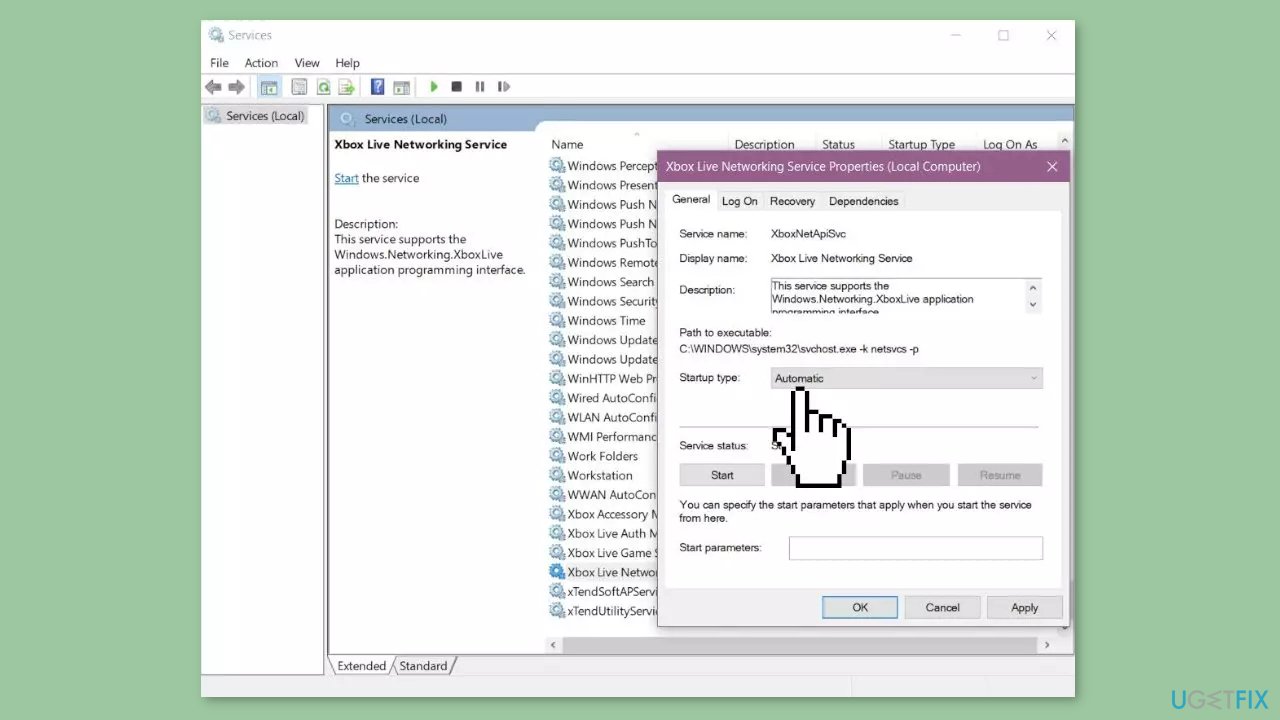
- Right-click over the service.
- Select Properties.
- In the Properties window, find the Startup type section.
- Ensure that it is set to Automatic. If not, change it to Automatic.
- If the service isn't started, click on Start to start the service.
- Restart your PC.
- Try again after the restart.
Bottom line
To fix the Xbox app error 0x8007042b, you can run the Microsoft Store Apps Troubleshooter, clear cookies and cache, or use a maintenance tool to address system errors. If these solutions do not resolve the issue, consider seeking further technical support.
Frequently asked questions
The error 0x8007042b typically indicates that there is a problem with the Xbox app's installation or its connection to the Xbox services. This can prevent users from accessing games and features within the app.
To reset the Xbox app, go to Settings > Apps > Apps & features, find the Xbox app, click on it, and select 'Advanced options' to find the 'Reset' button. This will clear the app's data and may resolve the error.
Yes, reinstalling the Xbox app can help fix error 0x8007042b by ensuring you have the latest version and that any corrupted files are replaced. You can uninstall it from the Settings app and then reinstall it from the Microsoft Store.




Report an issue
What's wrong with this guide? We review every report and update or remove content.
Report received — thank you. We'll review and fix it.
You need a free account to submit a report.
Be the first to comment