How to fix
Xbox app error 0x8007112A
on Windows
Resolve the Xbox app error 0x8007112A on Windows 10 and 11 effortlessly. Get expert-tested solutions with screenshots for quick fixes!

What causes How to fix Xbox app error 0x8007112A in Windows?
- Outdated graphics driver
- Corrupted application files
- Issues with Windows Store Apps
- Windows not updated
- Registry issues
Repairs Windows system files, removes malware, and restores a clean OS state — without reinstalling.
Hello. I tried to install a video game using the Xbox app but I received the 0x8007112A error. Are there any possible solutions to this issue?
The Xbox app for Windows is a gaming app that allows users to play Xbox games on their computers. The app also allows users to connect with their Xbox Live friends, view their achievements, and access their gaming activity. It also includes features such as Game DVR, which allows users to record and share gameplay footage, and the ability to stream Xbox games to a Windows device.
Overall, the Xbox app for Windows is a convenient way for Xbox users to access their games and connect with the Xbox community on their computers. However, some people report that they are having issues with the Xbox app and receive an error every time they try to install a game.
The Xbox error 0x8007112a occurs when the users attempt to install any game from the Xbox app. The error code comes with the message "An unexpected error has occurred" when the installation is in process. It is unknown what exactly causes the error to appear as there are many possibilities. The error could be related to an outdated graphics driver,[ref en-1] corrupted application files, etc.
In this guide, you will find 7 steps that should help you fix Xbox app error 0x8007112A in Windows. Keep in mind that the manual troubleshooting process can be lengthy. You can use a maintenance tool like [d1] that can fix most system errors, BSODs,[ref en-2] corrupted files, and registry[ref en-3] issues automatically. Otherwise, follow the step-by-step instructions below.
Method 1. Run Windows Store Apps Troubleshooter
- Type Troubleshoot in Windows search and press Enter
- Click Additional troubleshooters if you can't see them listed
- Scroll down to find Windows Store Apps
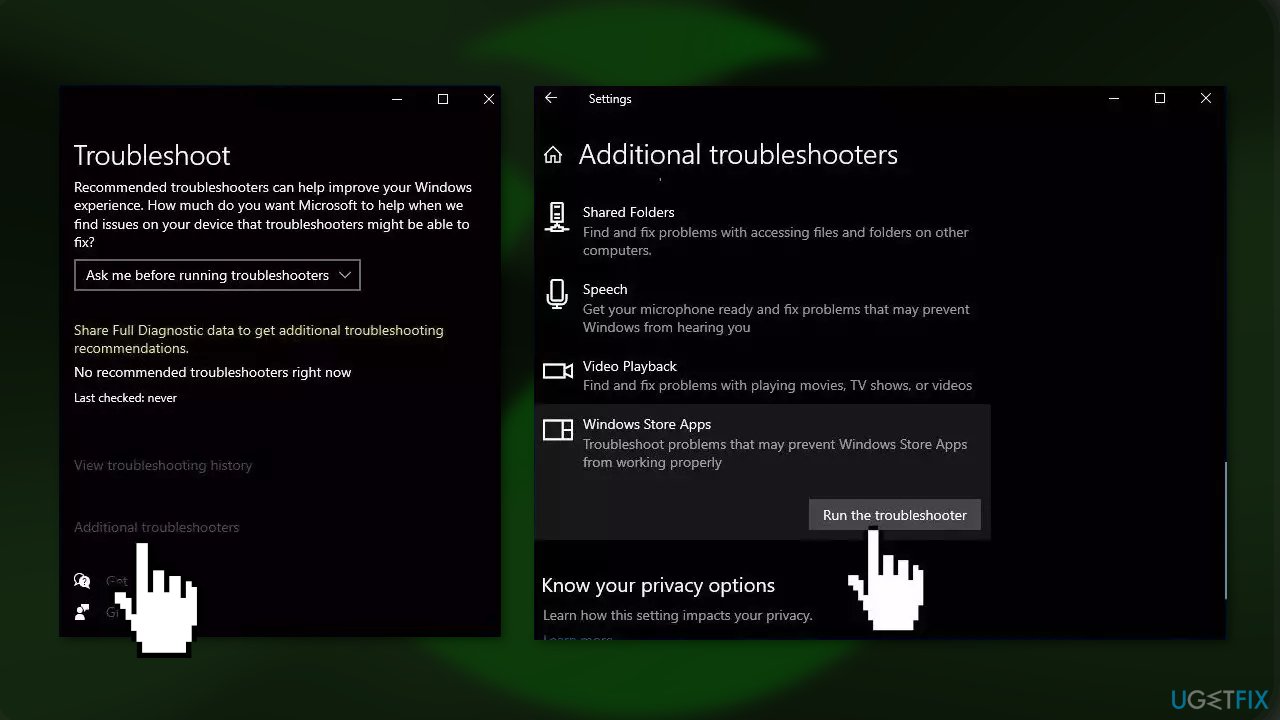
- Click and select Run the troubleshooter
Method 2. Update Windows
- Press the Windows key + R to open the Run box
- Type ms-settings:windowsupdate in the text box and press Enter
- Click the Check for Updates button
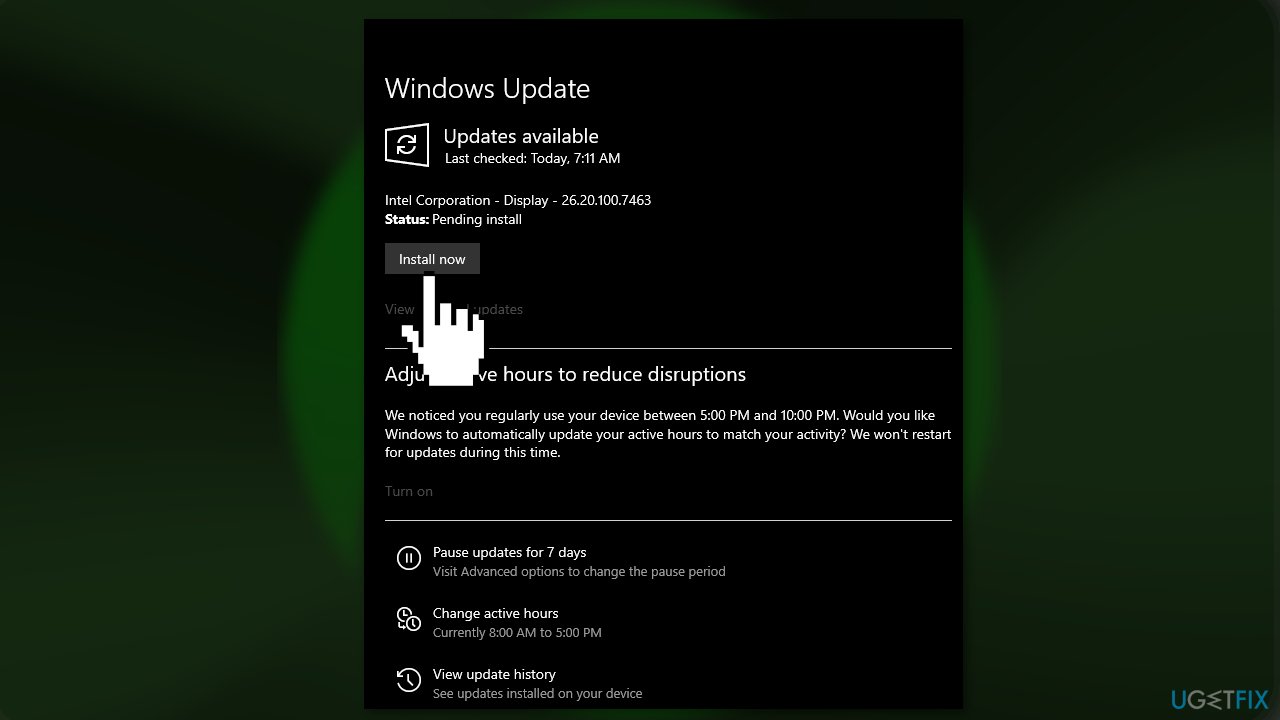
- If a new update is available, click the Download & Install all button.
- Restart your computer after the process is finished and check to see if the problem is fixed
Method 3. Update the Graphics Driver
- Open Device Manager and expand the Display Adapters tab
- Right-click on your graphics driver and select Properties
- Go to the Driver tab and click on Update Driver
- Press on Search Automatically for Drivers
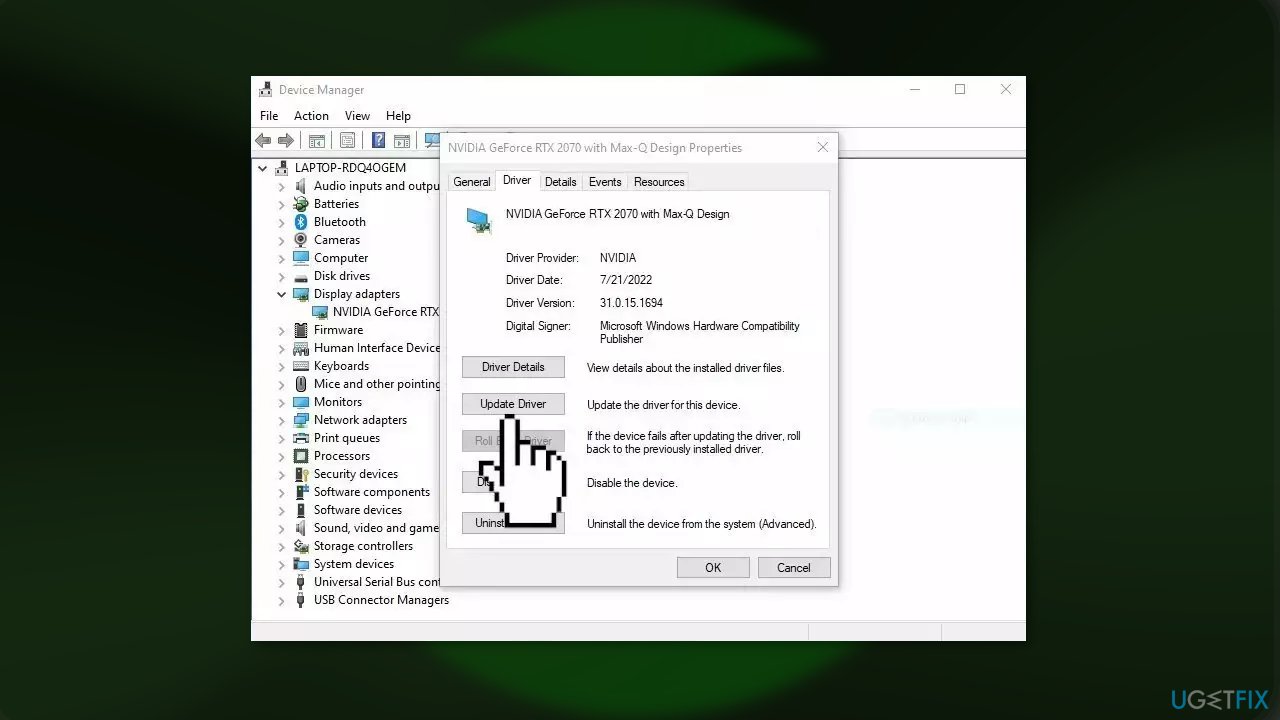
- If a graphic driver update is available, install it and then restart your PC
- Upon restart, launch the Modern Warfare game and check if it fixed the issue.
- You may also use a dedicated utility like [rev id="DriverFix"] that can find the best drivers for your machine and install them automatically
Method 4. Check Internet Connection and Xbox Server
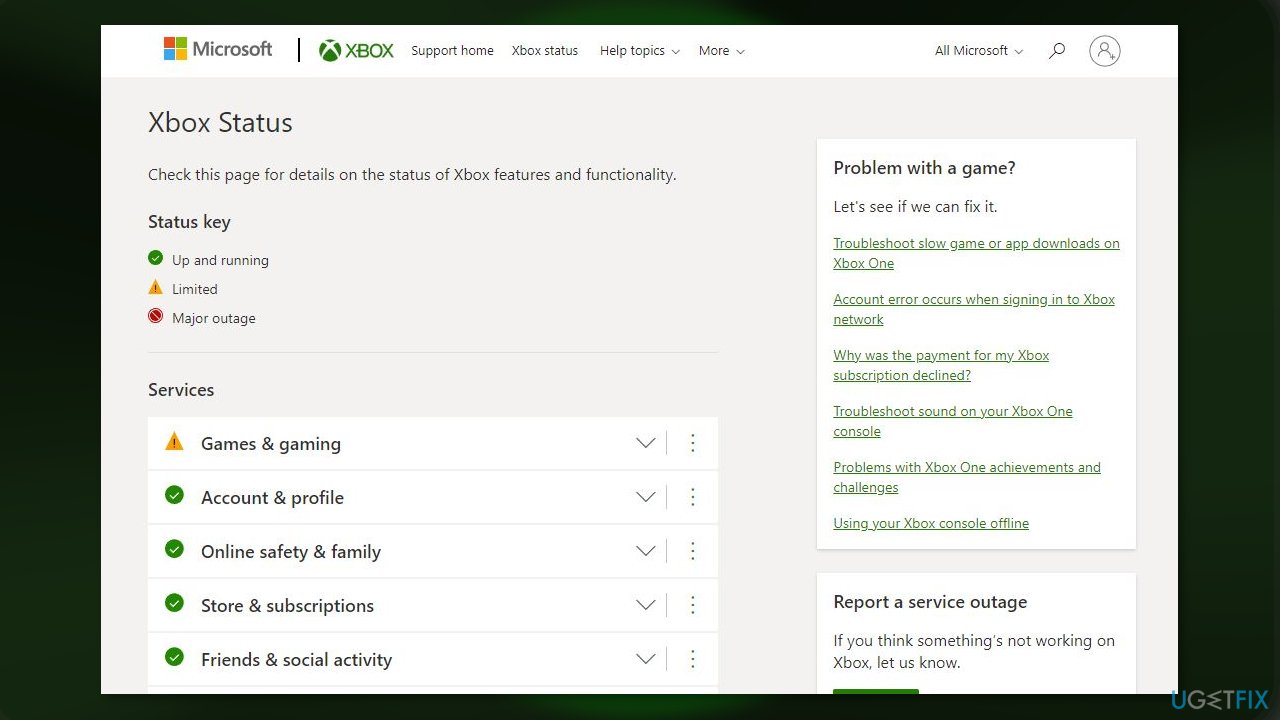
The Xbox App Error 0x8007112A can also be caused by internet connectivity issues. To check if this is the problem, perform a speed test to see if the internet connection is stable. If the connection is unstable, try restarting your router and contacting your service provider. Additionally, check if the Xbox server is down. If it is, you will need to wait for the server to come back up and keep checking the server status.
Method 5. Reinstall Gaming Services
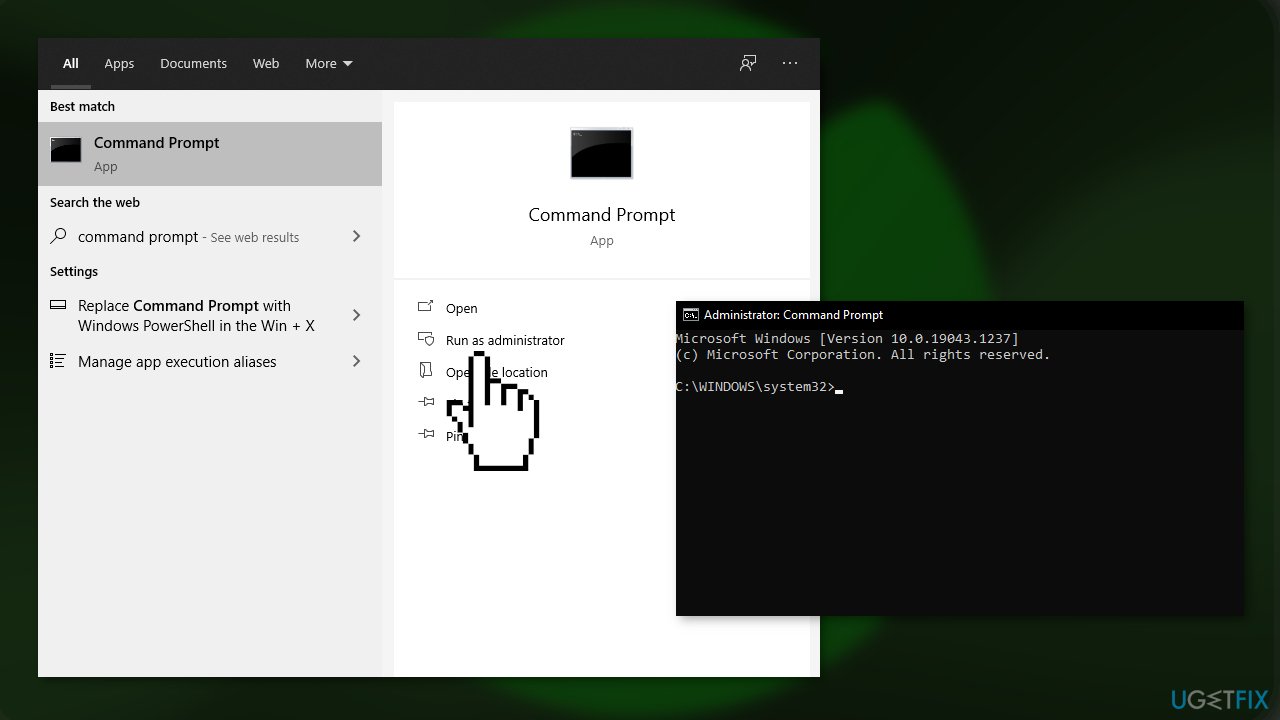
- Right-click on the Start button and search for the Command Prompt
- Click on Run as administrator, and click Yes on a UAC prompt
- Enter the following commands and press Enter after each one:
get-appxpackage Microsoft.GamingServices | remove-AppxPackage -allusers
start ms-windows-store://pdp/?productid=9MWPM2CQNLHN
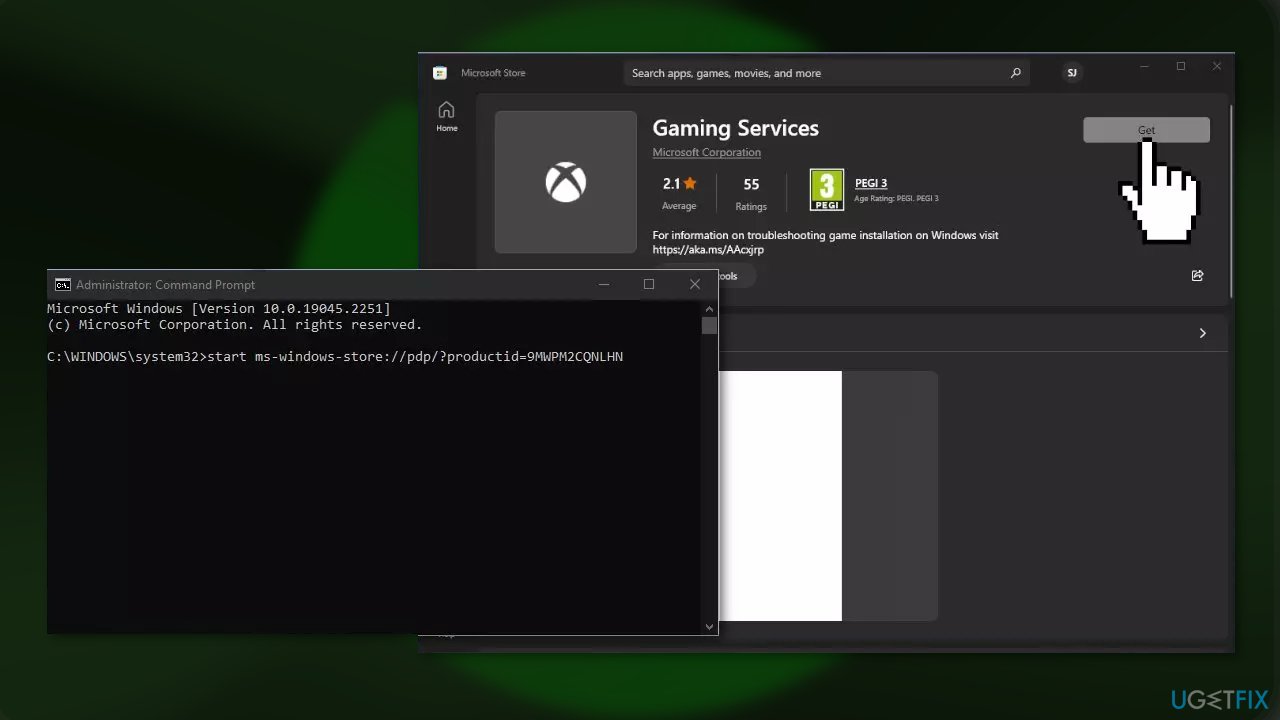
- You will be directed to the Microsoft Store where you should install Gaming Services
- Finish the process and see if the issue is fixed
Method 6. Repair Microsoft Store and Xbox App
- Press the Windows key + I to open Settings
- Navigate to Apps
- Press on Installed Apps and click on Xbox
- Scroll down and click on Repair
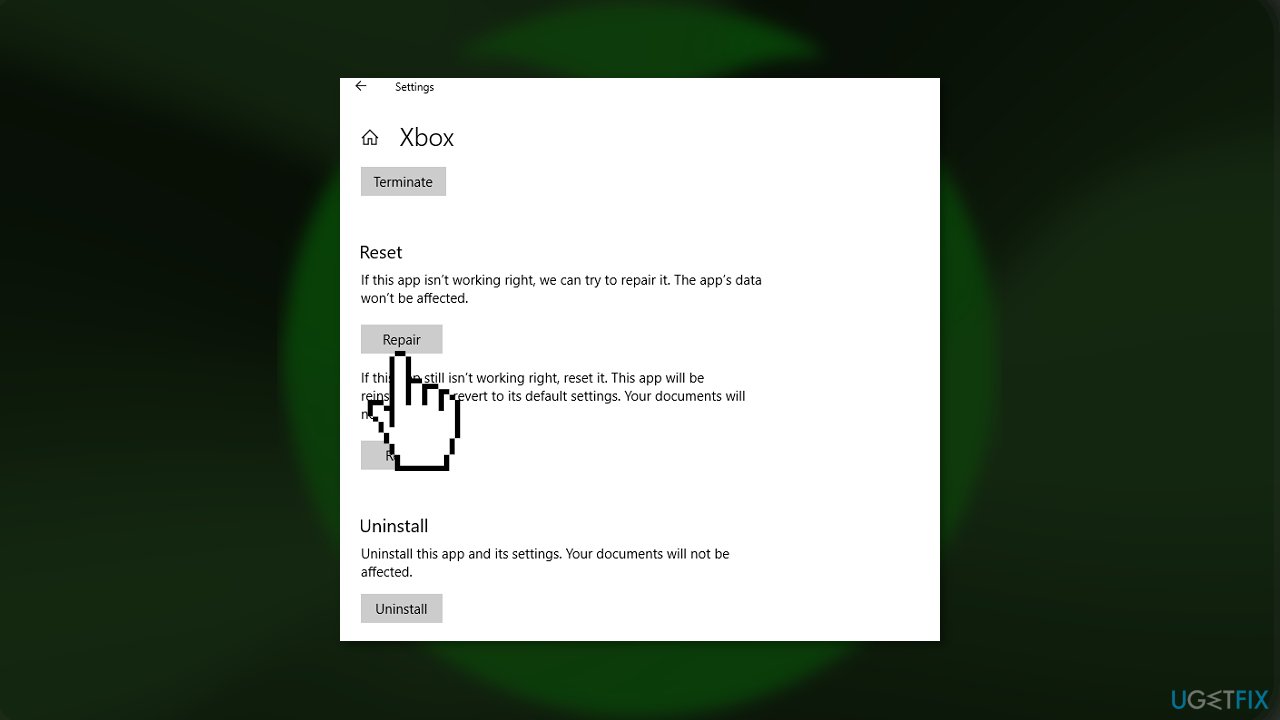
- Once the procedure completes, do the same for Microsoft Store
Method 7. Use the Command Prompt
- Right-click on the Start button and search for the Command Prompt
- Click on Run as administrator, and click Yes on a UAC prompt
- Execute the following commands by pressing Enter after each one:
net stop bits
net stop wuauserv
net stop appidsvc
net stop cryptsvc
del "%ALLUSERSPROFILE%\Application Data\Microsoft\Network\Downloader\*.*"
rmdir %systemroot%\SoftwareDistribution /S /Q
rmdir %systemroot%\system32\catroot2 /S /Q
regsvr32.exe /s atl.dll
regsvr32.exe /s urlmon.dll
regsvr32.exe /s mshtml.dll
netsh winsock reset
netsh winsock reset proxy
net start bits
net start wuauserv
net start appidsvc
net start cryptsvc
- Close the Command Prompt and see if the issue is fixed
Bottom line
To fix the Xbox app error 0x8007112A in Windows, you can run the Windows Store Apps Troubleshooter and update Windows. If these steps do not resolve the issue, consider using a maintenance tool to fix system errors automatically.
Frequently asked questions
Error 0x8007112A typically indicates a problem with the Xbox app's installation or a conflict with your Windows settings, preventing the app from functioning correctly.
To resolve this error, try resetting the Xbox app through the Settings menu, or reinstalling the app from the Microsoft Store.
Ensure that your Windows 10 is updated to the latest version and that your Xbox app is also updated, as outdated software can contribute to error 0x8007112A.




Report an issue
What's wrong with this guide? We review every report and update or remove content.
Report received — thank you. We'll review and fix it.
You need a free account to submit a report.
Be the first to comment