How to fix
Xbox app error 0x80073CF4
on Windows
Resolve Xbox app error 0x80073CF4 on Windows 10 and 11 effortlessly. Follow our expert-tested solutions and get back to gaming in minutes!

What causes How to fix Xbox app error 0x80073CF4 in Windows?
- Corrupted cache within the app
- Overloaded cache within the app
- Bugs within the Xbox app
- Issues with Gaming Services
- Insufficient updates on Windows
Repairs Windows system files, removes malware, and restores a clean OS state — without reinstalling.
I have plenty of space on my drive (800GB), and despite that, I keep getting the error code 0x80073CF4 whenever I try to download Ark: Survival Evolved, with a message saying that there's not enough space. Are there any fixes available for this?
The Xbox app on Windows is a dynamic platform that allows users to download and play a diverse range of games, enhancing their gaming experience. For those playing Microsoft games, this app is essential for gaming.
However, users might sometimes encounter error code 0x80073CF4, which disrupts the game download process almost immediately after it begins. The message provided also claims that there's a lack of space, despite sufficient space being available, which makes the whole ordeal quite confusing to people.
0x80073CF4 error might be caused by numerous reasons, including a corrupted or overloaded cache within the app, which can impede its functionality.
Additionally, general bugs within the Xbox app or issues with Gaming Services, which are essential for the app's operation, can also be the cause of it. In order for the Xbox platform to work properly, Gaming services are essential, so any issues with it could cause app malfunctions.
If you're facing the 0x80073CF4 error, initial steps might involve clearing the app's cache or addressing issues with Gaming Services. We have compiled several troubleshooting steps (which you can find below) that you should try - keep in mind that there is no universal fix for everyone, and different solutions work for different people.
For a simpler resolution, we recommend trying a powerful PC repair application [d1], which is designed to automatically detect and fix underlying Windows issues, which might include the 0x80073CF4 error.
Fix 1. Install all Windows updates
Ensuring your Windows is up to date is crucial for system stability and performance. Updates often include patches for known bugs and errors, which could be causing the 0x80073CF4 error.
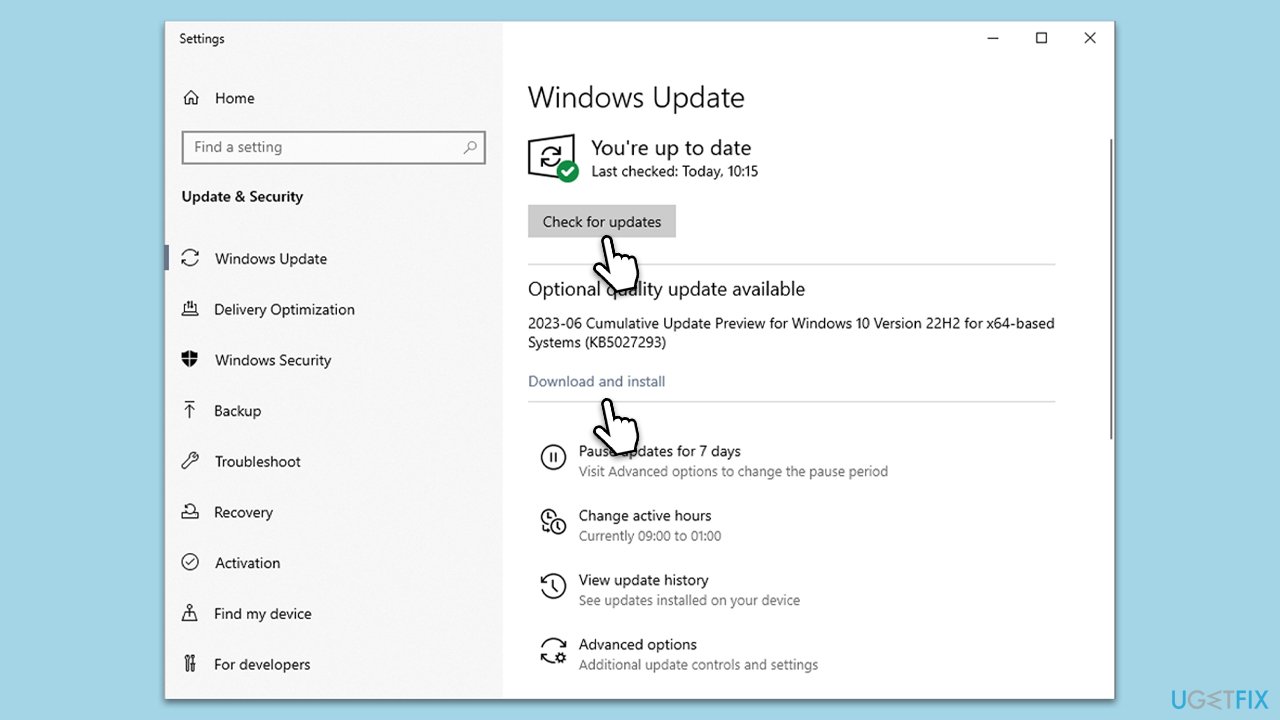
- Type Updates in the Windows search box and hit Enter.
- Click Check for Updates and wait till all the needed files are downloaded.
- If optional updates come up, install them too.
- When all is done, restart your system to implement the changes.
Fix 2. Reset Microsoft Store cache
Clearing the Microsoft Store cache can help fix issues that arise from corrupt cache data. This process refreshes the store's data without impacting your installed applications or settings.
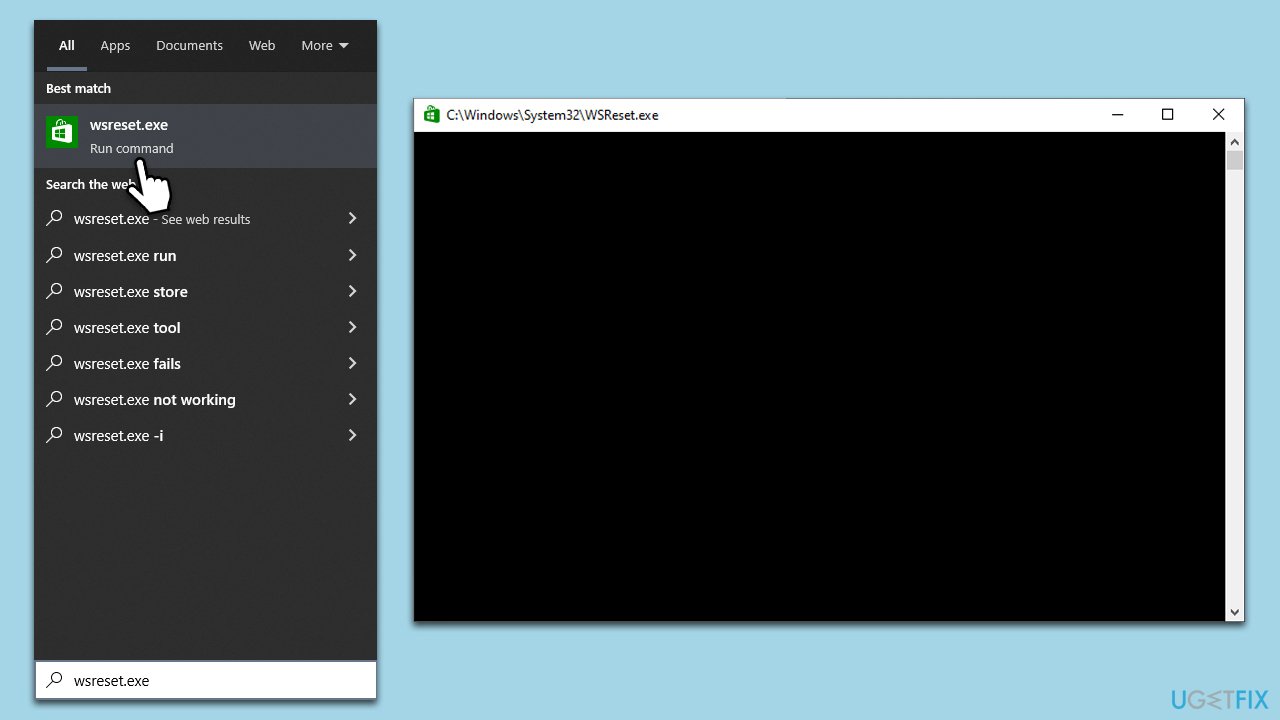
- Type wsreset.exe in Windows search and hit Enter.
- A blank Command Prompt window will appear. When the cache reset is complete, this window will close, and the Microsoft Store will open automatically.
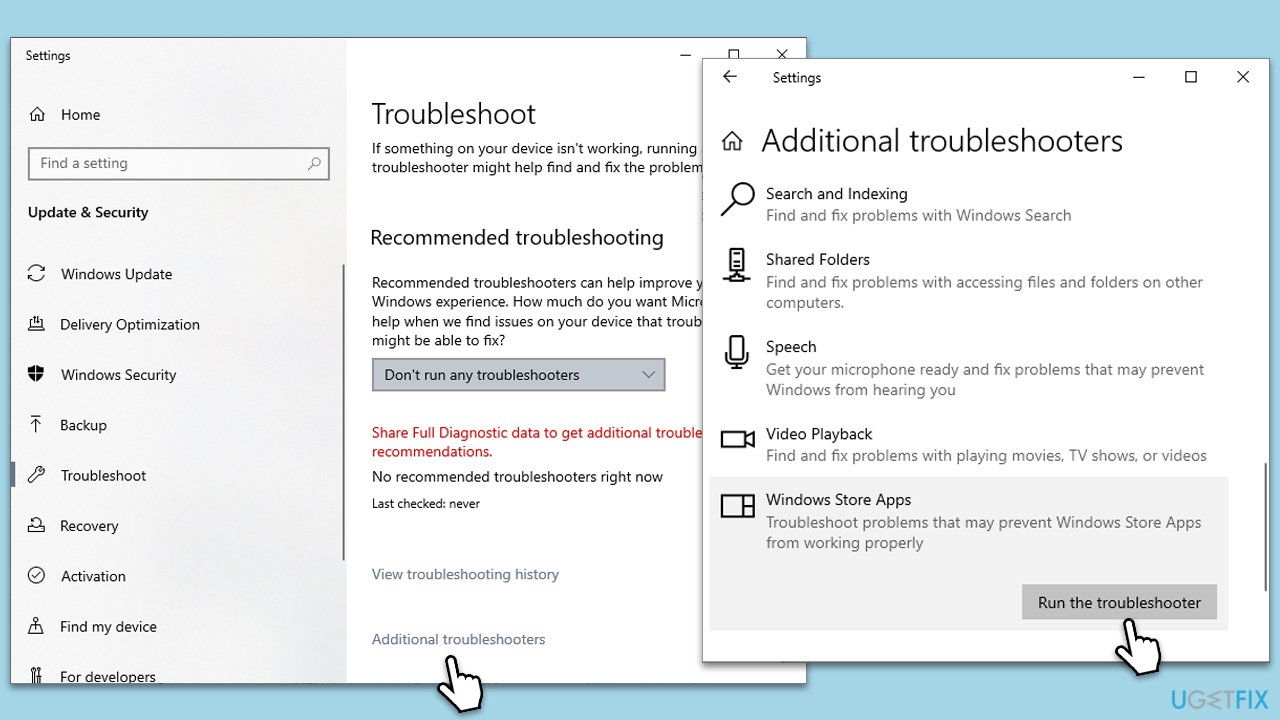
Fix 3. Run Windows Store apps troubleshooter
Windows includes built-in troubleshooters to diagnose and fix various system issues. The Windows Store apps troubleshooter can help identify and resolve problems with the Xbox app.
- Type Troubleshoot in Windows search and hit Enter.
- Click Additional troubleshooters/Other troubleshooters.
- Scroll down to find Windows store apps and select it.
- Click Run the troubleshooter/Run.
- Wait till the process is finished and apply the fixes.
Fix 4. Repair corrupted system files
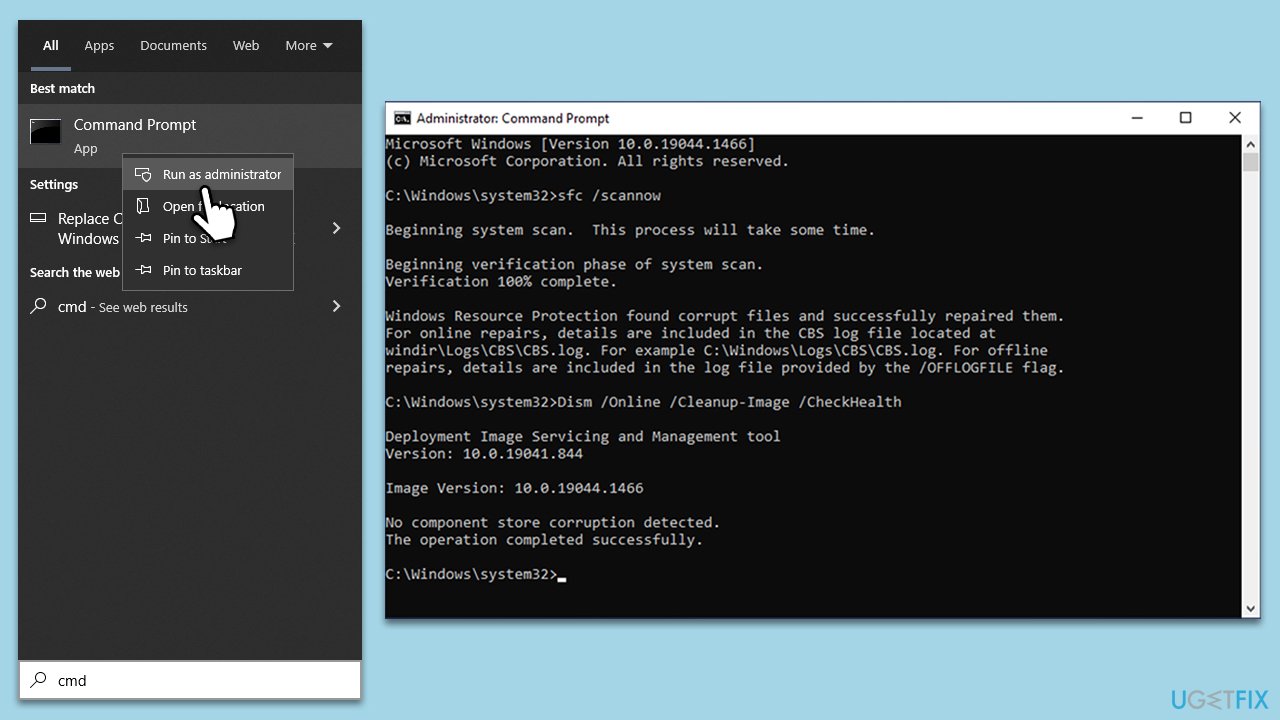
System file corruption is not an uncommon issue, and running commands via an elevated Command Prompt can address this.
- Type in cmd in Windows search.
- Right-click on Command Prompt and select Run as administrator.
- User Account Control will ask you whether you want to allow to make changes to the system - click Yes.
- In the Command Prompt window, paste the following command and hit Enter:
sfc /scannow - Next, use these commands (don't forget to press Enter every time):
Dism /Online /Cleanup-Image /CheckHealth
Dism /Online /Cleanup-Image /ScanHealth
Dism /Online /Cleanup-Image /RestoreHealth - Restart your system.
Fix 5. Use Disk Cleanup
- Type Disk Cleanup in Windows search and hit Enter.
- If your Windows is installed on drive C, pick it from the list (should be by default) and press OK.
- Click Clean up system files.
- Select your main drive again and click OK.
- Here, select the largest portions of the data used - these typically include Temporary Internet Files, Windows Update, Temporary Files, Recycle Bin, Delivery Optimization Files, and others. Marking Windows Update is vital here.
- Click OK - the process should be finished shortly.

Fix 6. Enable relevant services
Certain Xbox and Windows services are essential for the proper functioning of the Xbox app. Ensuring they are running can resolve issues related to the app.
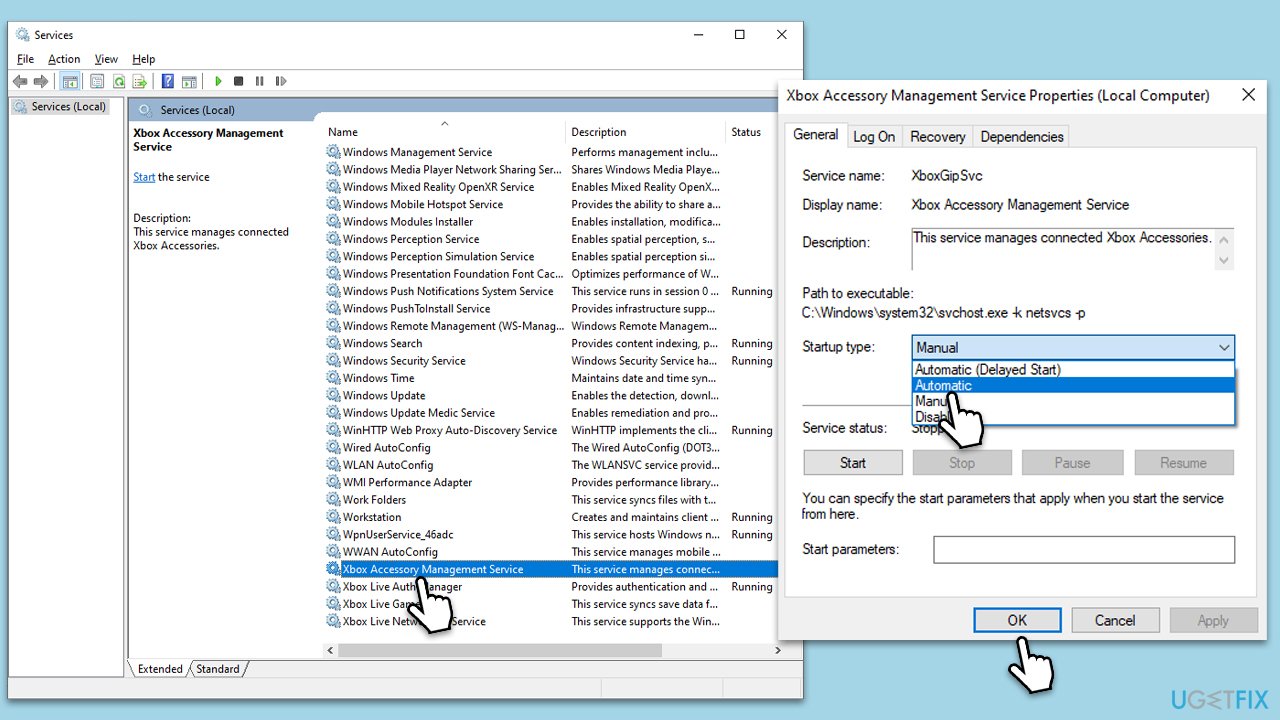
- Type Services in Windows search and press Enter.
- In the Services window, find and double-click on Xbox Accessory Management Service.
- Set the Startup type to Automatic and click Start if the service is not running. Click OK.
- Repeat the steps for Live Auth Manager, Live Game Save, Live Networking Service, and Gaming Services.
Fix 7. Repair and reset the Microsoft Store, Gaming Services, and Xbox app
Repairing and resetting these apps can fix issues caused by corrupt files or settings without affecting your data.
- Right-click on Start and select Apps & Features.
- Scroll down to find Microsoft Store and click Advanced options.
- Scroll down again and click Terminate and Repair.
- Next, click Reset.
- Repeat this process with the Xbox app and Gaming Services.

Fix 8. Reinstall the Microsoft Store, Gaming Services, and Xbox app
If all else fails, reinstalling these apps can provide a clean slate, potentially resolving the error.
Microsoft Store
- Type PowerShell in Windows search.
- Right-click on PowerShell and select Run as administrator.
- When UAC shows up, click Yes.
- In the new window, copy and paste the following command, pressing Enter after:
Get-AppxPackage Microsoft.WindowsStore | Remove-AppxPackage - With the next command, you will install the Store:
Add-AppxPackage -register "C:\Program Files\WindowsApps\Microsoft.WindowsStore*\AppxManifest.xml" -DisableDevelopmentMode - Press Enter.
Gaming Services
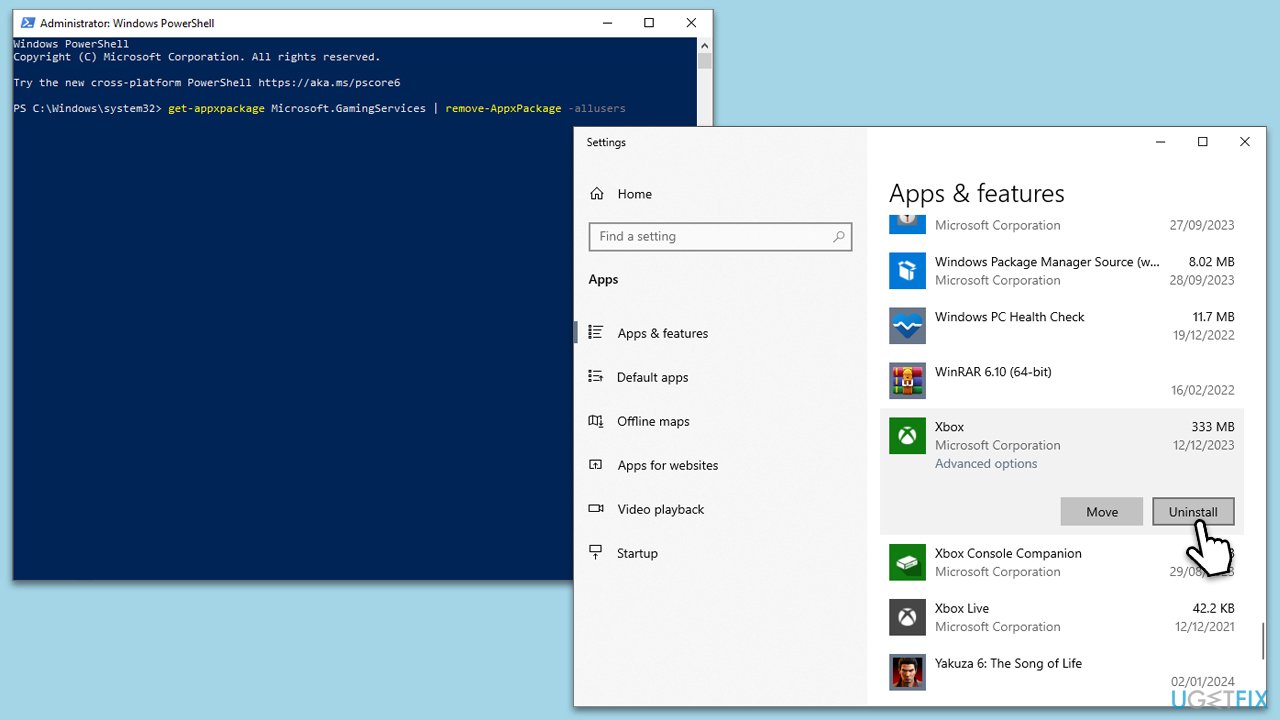
- Open PowerShell as administrator.
- Use the following command, and press Enter:
get-appxpackage Microsoft.GamingServices | remove-AppxPackage -allusers - Then use the next command:
start ms-windows-store://pdp/?productid=9MWPM2CQNLHN - Close down PowerShell.
Xbox app
- Right-click on Start and pick Apps and Features.
- Scroll down and find the Xbox app.
- Select it and pick Uninstall > Uninstall.
- Follow the prompts to remove the app.
- Restart your computer and reinstall the app.
Bottom line
To fix the 0x80073CF4 error, you can try clearing the app's cache, addressing issues with Gaming Services, and ensuring your Windows is up to date. If these steps do not resolve the issue, consider using a powerful PC repair application to automatically detect and fix underlying Windows problems.
Frequently asked questions
The error 0x80073CF4 typically indicates a problem with the installation or update of the Xbox app, often related to corrupted files or issues with the Microsoft Store.
You can try resetting the Xbox app via the Settings > Apps > Apps & features menu, or reinstalling the app from the Microsoft Store to fix the error.
Windows 10 users can run the Windows Store Apps troubleshooter and check for pending Windows updates, as these steps often help resolve the error.




Report an issue
What's wrong with this guide? We review every report and update or remove content.
Report received — thank you. We'll review and fix it.
You need a free account to submit a report.
Be the first to comment