How to fix
Xbox app error 0x80073d0d
on Windows
Resolve Xbox app error 0x80073d0d on Windows 10 and 11 quickly. Follow our expert-tested guide and get back to gaming in no time!


What causes How to fix Xbox app error 0x80073d0d in Windows?
- Insufficient disk space
- Problems with the installation directory
- Issues with the Windows Store Cache
- Corrupt or incomplete game download
- User profile issues
- Conflicts with other software
Repairs Windows system files, removes malware, and restores a clean OS state — without reinstalling.
When I try to download and install Fallout 76 on the Xbox app, I always receive an error 0x80073d0d, which is a real pain. I've tried several times after rebooting the system but to no avail. How do I fix this?
The Xbox app is a popular gaming platform developed by Microsoft, designed to serve as a hub for Xbox Live users on Windows. This application allows users to access their games, friends list, achievements, and more, right from their desktop. With features like the ability to stream Xbox games on your Windows device, join clubs, and explore game hubs, the Xbox app has brought the console gaming experience to computers. It also provides access to Xbox Game Pass, a subscription service that offers access to an extensive library of games.
Despite its numerous benefits and seamless integration with Windows, the Xbox app is not without its flaws. Some users occasionally encounter errors and technical issues that disrupt their gaming experience. One such error is the 0x80073d0d error, which typically manifests itself when users attempt to install games, either through the GamePass subscription service or standalone purchases.
The 0x80073d0d error is typically associated with installation failures, and there can be several reasons behind its occurrence. For instance, it could be due to issues with the system's storage space, like insufficient disk space or problems with the directory where the game is being installed.
It could also be a result of underlying issues with the Windows Store Cache, system updates, or even conflicts with other software on the user's computer. The error might also arise due to a corrupt or incomplete game download. In some cases, the error might be connected to user profile issues or problems with the game servers.
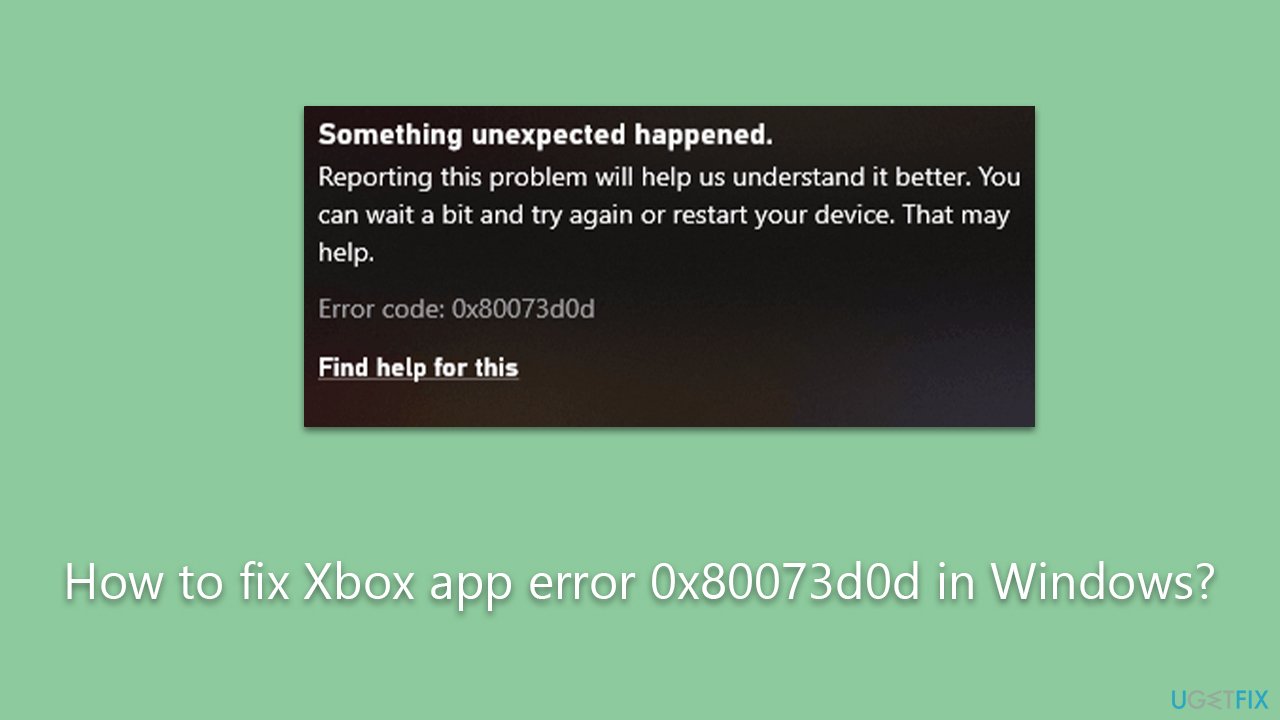
Please note that while these reasons can help users better understand why they are experiencing the 0x80073d0d error, the specific steps to resolve it will depend on the unique configuration and issues present on their system. Detailed instructions to fix the error can be found below the article.
In some cases, using a PC repair tool, such as the [d1] PC repair tool, may assist in resolving these types of issues. This tool has been designed to diagnose and rectify common PC problems, potentially including the 0x80073d0d error, enhancing the overall performance of the system.
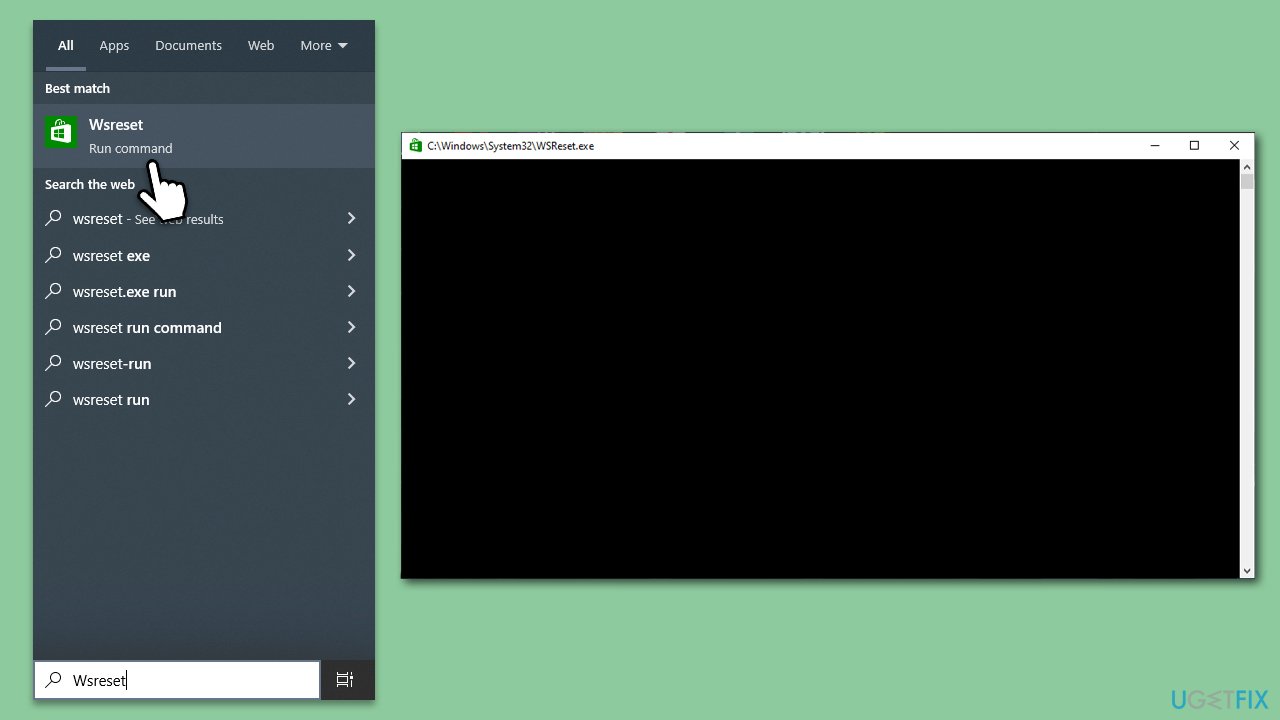
Fix 1. Clear Windows Store cache
Sometimes, issues with the Windows Store Cache can cause installation errors, so clearing it might fix the 0x80073d0d error.
- In Windows search, type wsreset and press Enter.
- Wait till a black window shows up - do not close it.
- As soon as it closes, the store should be reset and will reopen.
- Try updating or downloading apps again.
Fix 2. Run Windows Store Apps troubleshooter
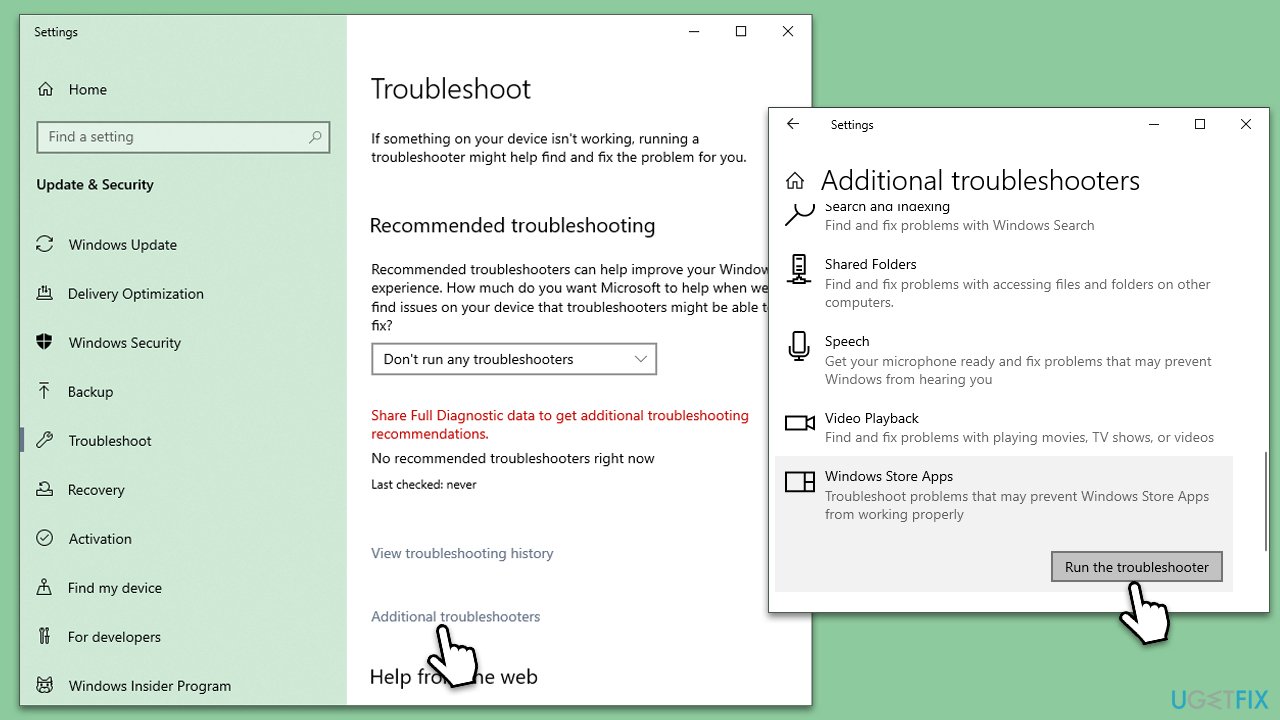
Troubleshooter is a built-in tool that could help you resolve various issues related to Windows apps, including Xbox app.
- Type Troubleshoot in Windows search and press Enter.
- On the right side, click Additional troubleshooters/Other troubleshooters.
- Scroll down to find the Windows Store Apps entry.
- Select it and click Run the troubleshooter/Run.
- Wait till the scan finishes and apply the suggested fixes, then reboot your system.
Fix 3. Check for corrupted files
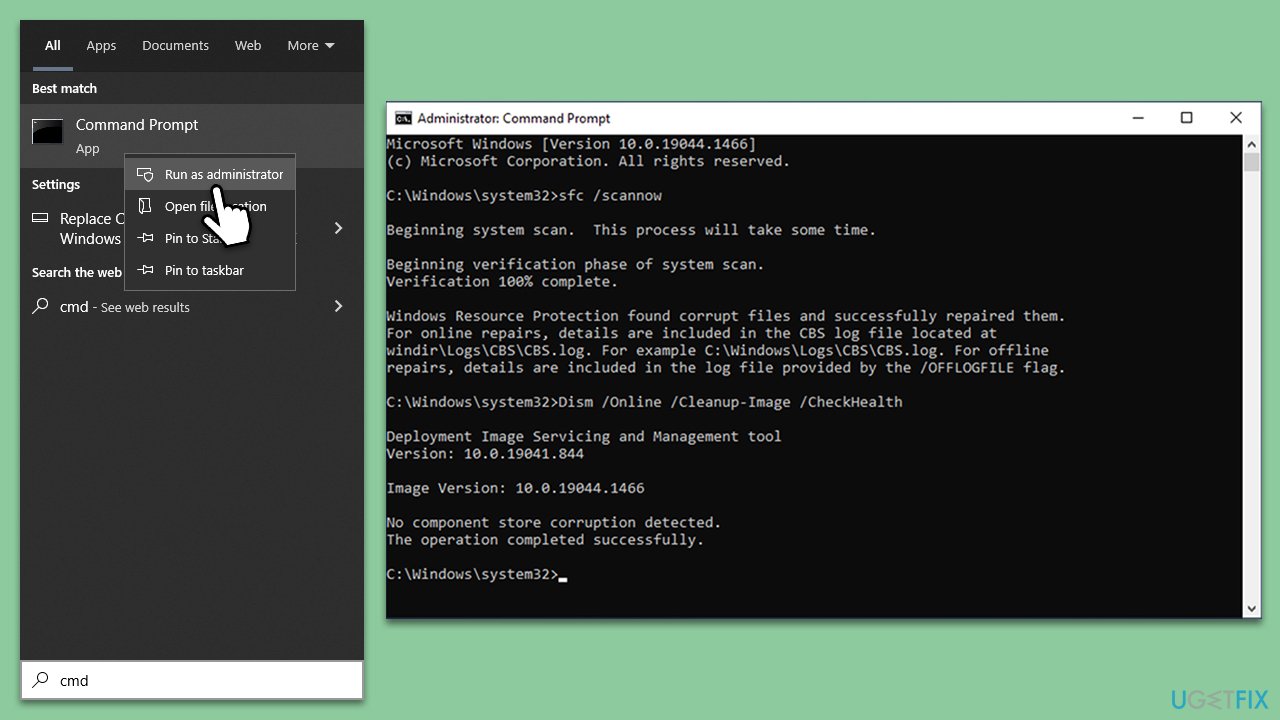
- Type cmd in Windows search.
- Right-click on the Command Prompt result and select Run as administrator.
- User Account Control will ask whether you want to allow changes - click Yes.
- Next, copy and paste the following command and press Enter:
sfc /scannow - When the scan is complete, run the these commands as well:
dism /online /cleanup-image /scanhealth
dism /online /cleanup-image /checkhealth
dism /online /cleanup-image /restorehealth - Restart your system.
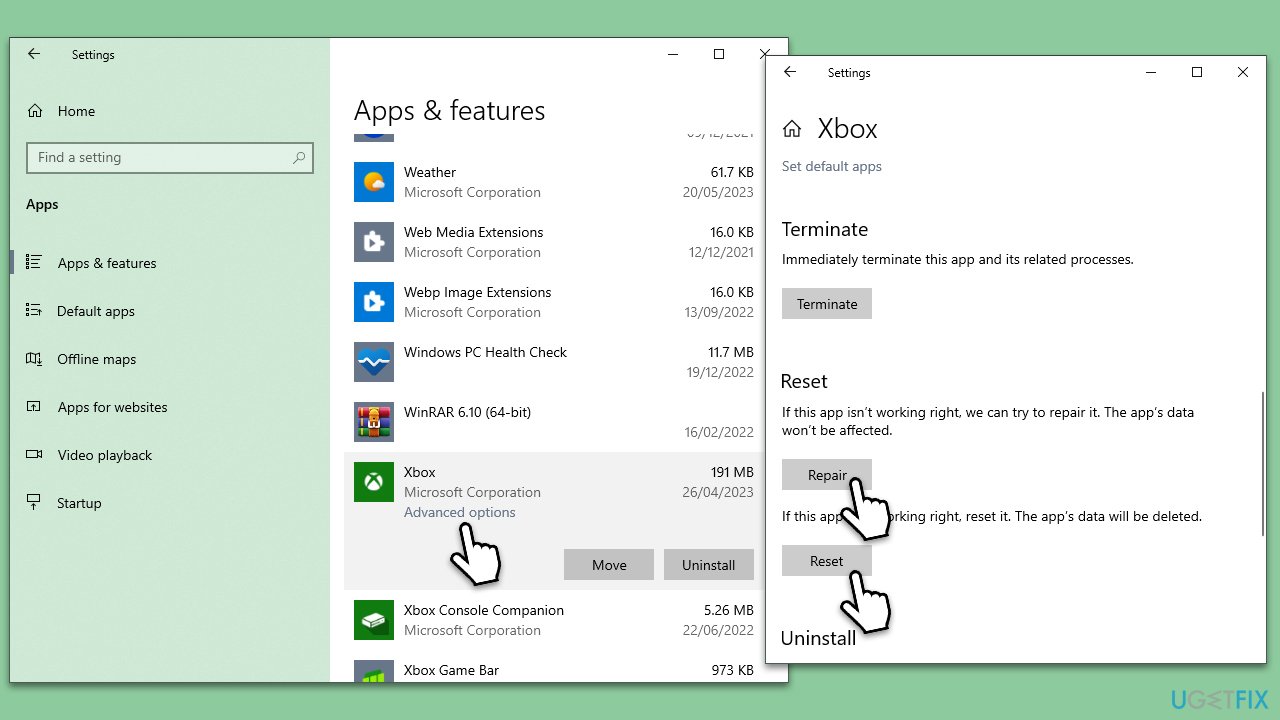
Fix 4. Reset the Xbox app and Microsoft Store
If resetting the cache files did not work, you can try to reset the associated apps instead:
- Right-click on Start and pick Apps & Features.
- Scroll down to locate Microsoft Store and click Advanced options.
- Click Terminate and Repair.
- If that does not help, try the Reset option instead.
- Repeat the same with the Xbox app.
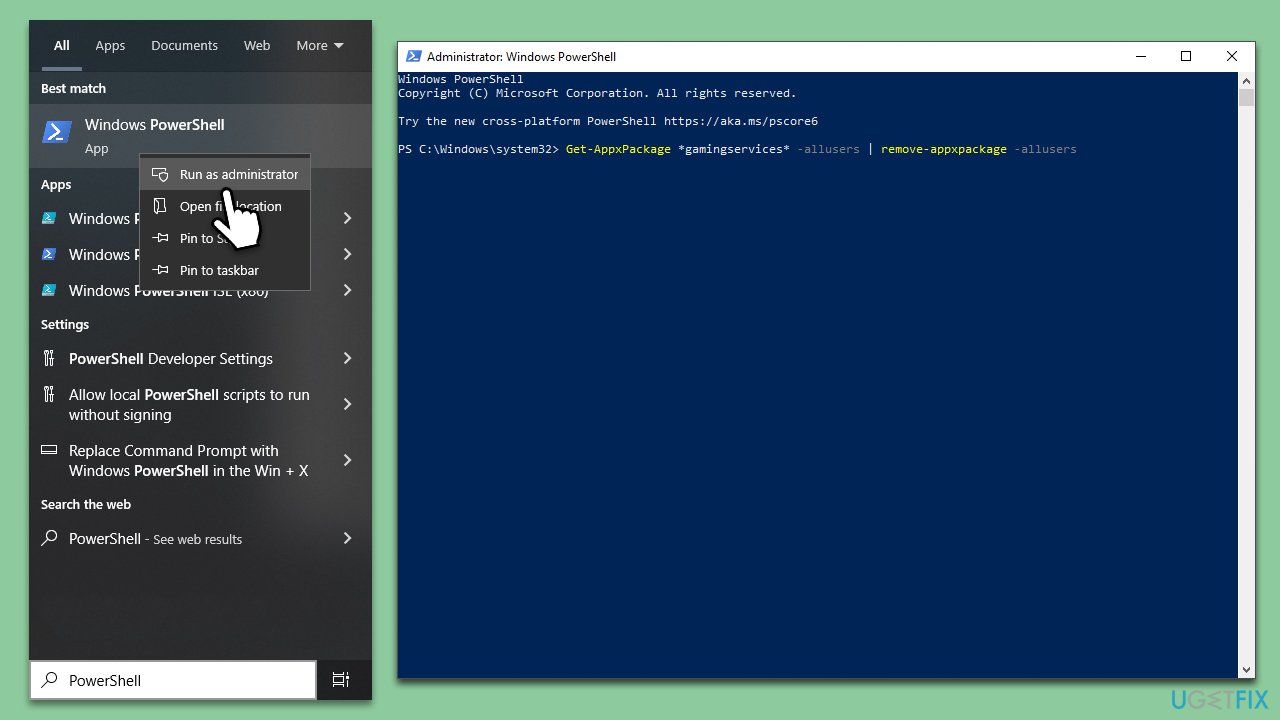
Fix 5. Reinstall Gaming Services
Gaming Services are directly related to all Microsoft games, so reinstalling them might resolve installation errors.
- Type PowerShell in Windows search.
- Right-click on the result and select Run as administrator.
- When User Account Control shows up, click Yes.
- In the new window, copy and paste the following commands and hit Enter:
get-appxpackage Microsoft.GamingServices | remove-Appxpackage –allusers
Remove-Item -Path "HKLM:\System\CurrentControlSet\Services\GamingServices" -recurse
Remove-Item -Path "HKLM:\System\CurrentControlSet\Services\GamingServicesNet" -recurse - Close down PowerShell and restart your system.
- Next, install Gaming Services from the Microsoft Store.
Other solutions to try
- Restart your computer if you haven't done so.
- Scan your system for malware.
- Temporarily disable third-party security software and see if that allows you to install the game.
- Reinstall the game in the same drive where the Xbox app is installed.
Bottom line
To fix the 0x80073d0d error, users can try clearing the Windows Store Cache, checking their disk space, and ensuring their system is up to date. If these steps do not resolve the issue, further investigation into user profile settings or potential software conflicts may be necessary.
Frequently asked questions
Error 0x80073d0d usually indicates that the Xbox app cannot access the required files or that the app is not installed correctly. This can happen due to corrupted installations or missing packages.
To repair the Xbox app, go to Settings > Apps > Apps & features, find the Xbox app, click on it, and select 'Advanced options' followed by 'Repair'. This will fix any corrupted files without affecting your app data.
Yes, uninstalling and then reinstalling the Xbox app can resolve error 0x80073d0d, as it ensures a fresh installation of the app. You can do this via Settings > Apps > Apps & features.




Report an issue
What's wrong with this guide? We review every report and update or remove content.
Report received — thank you. We'll review and fix it.
You need a free account to submit a report.
Be the first to comment