How to fix
Xbox app error 0x80073D25
on Windows
Resolve Xbox app error 0x80073D25 on Windows 10 and 11 swiftly with proven solutions. Get back to gaming effortlessly, expert-tested for reliability.

What causes How to fix Xbox app error 0x80073D25 in Windows?
- Corrupt files in the Xbox app
- Corrupt files in the Microsoft Store
- Outdated Gaming Services
- Windows Update problems
- Permissions issues
- Storage problems
Repairs Windows system files, removes malware, and restores a clean OS state — without reinstalling.
I updated Xbox app on Windows and now I keep getting error code 0x80073D25 when I try to launch it. Any tips for me?
The Xbox app error 0x80073D25 is a problem that often happens when someone tries to update or install the app on Windows. This error usually stops the app from finishing updates or installing games, which can be really annoying for gamers. The error message normally says the app won’t install or that something went wrong during the update.
Many people have said this problem shows up after trying to update the Xbox app through the Microsoft Store, but the update either freezes or doesn’t go through. Some users noticed the issue after recent system updates. Changes to system files or settings could be causing trouble for the app.
Several things can cause error 0x80073D25. One usual reason is corrupt files in the Xbox app or the Microsoft Store, hurting communication between the app and Microsoft’s servers. Sometimes, outdated Gaming Services or Windows Update problems affect the update and installation process.
Permissions or storage problems come up often, too. If the Xbox app doesn’t have the right permissions to change storage locations, or if it tries installing games on external drives without access, the installation might not work. Internet connection issues, like DNS errors or firewall blocks, may also make updating harder.
People have tried different ways to solve the error. Some reset or reinstall the Xbox app, clear the Microsoft Store cache, or change permissions. If the problem keeps coming back, though, conflicts within the system may be causing it. In these tougher cases, using a PC repair tool such as [d1] could help. This tool might find and solve deeper system problems messing with the Xbox app.

Fix 1. Check for Windows updates
Windows updates often contain important fixes for app-related issues. Ensuring your system is up to date can resolve the error.
- Updates in Windows search and hit Enter.
- In the new window, click Check for updates and wait till everything is installed.
- Make sure you also install any available optional updates.
- When done, restart your device to implement the changes.

Fix 2. Clear Microsoft Store cache
A corrupted Microsoft Store cache can interfere with the Xbox app’s updates. Clearing the cache can resolve this issue.
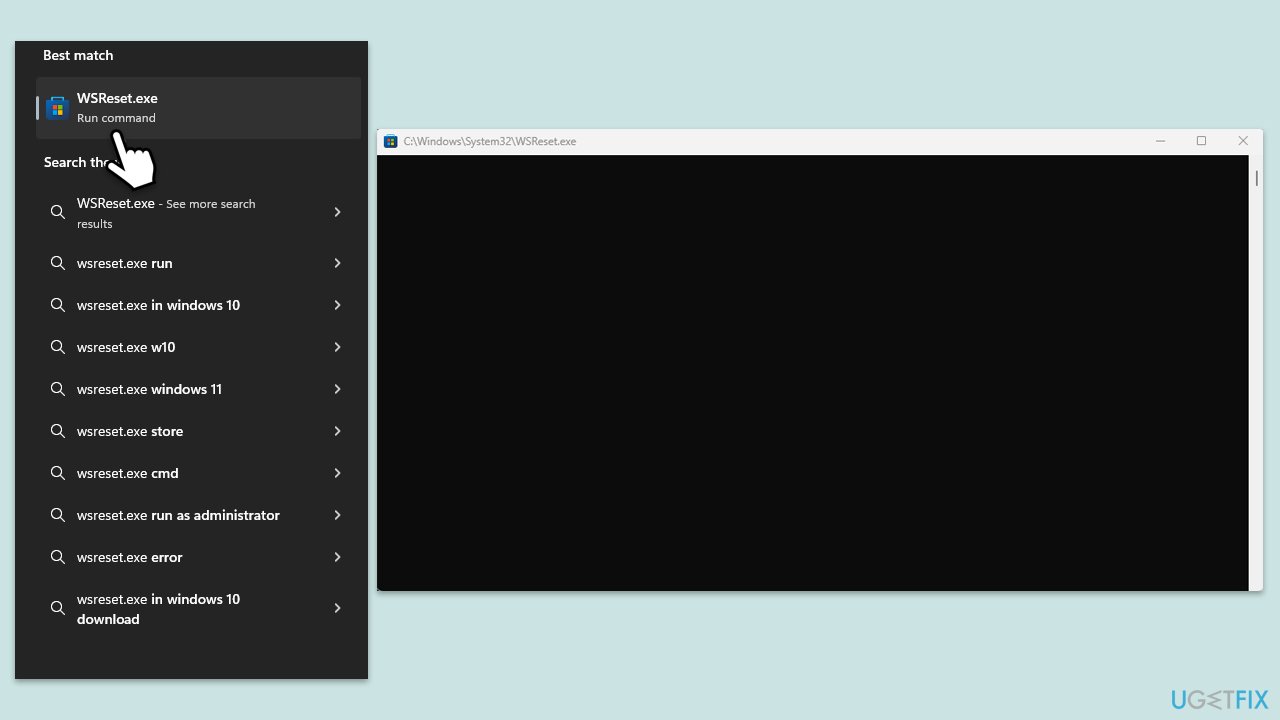
- Type WSReset.exe in the Windows search bar and press Enter.
- Wait till a black pop-up window shows up – do not close it.
- The pop-up window will close soon, and the Windows Store should reopen.
- Check if the error is gone.
Fix 3. Check storage permissions
If the Xbox app does not have sufficient permissions to access the necessary storage, it may fail to update or install games.
- Right-click on Start and pick Settings.
- Go to System, then select Storage.
- Under Advanced storage settings, click Change where new content is saved.
- Make sure that the drive where you want to install or update games is selected as the default location for new apps.
- If you’re using an external drive, ensure it is connected and accessible.
- Right-click on the folder or drive where the Xbox app is attempting to install games, and select Properties.
- Go to the Security tab, and ensure that your user account has Full control (both read and write permissions) over the folder or drive.
- If permissions are incorrect, click Edit, select your user account, and check the box for Full control.
- Click Apply and OK to save changes.

Tip: If you’re using an external drive, make sure it is formatted using the NTFS file system. Xbox games require NTFS formatting, and using another format, like FAT32, can cause errors during installation.
Fix 4. Repair or reset the Xbox app
- Right-click on Start and select Apps & Features/Installed apps.
- Scroll down to find Xbox app and click Advanced options or go to Settings > System > System Components > Advanced options.
- Scroll down again and click Terminate and Repair.
- If that does not work, try using Reset option instead.

Fix 5. Reinstall Microsoft Gaming Services
Corrupted Gaming Services can cause issues with the Xbox app. Reinstalling this component can resolve error 0x80073D25.
- Ensure the Microsoft Store and Xbox App are closed.
- Type PowerShell in Windows search.
- Right-click on the result and select Run as administrator.
- When User Account Control shows up, click Yes.
- In the new window, copy and paste the following commands and hit Enter:
get-appxpackage Microsoft.GamingServices | remove-Appxpackage –allusers
Remove-Item -Path "HKLM:\System\CurrentControlSet\Services\GamingServices" -recurse
Remove-Item -Path "HKLM:\System\CurrentControlSet\Services\GamingServicesNet" -recurse - Close down PowerShell and restart your system.
- Next, install Gaming Services from the Microsoft Store.

Fix 6. Reset internet components
Network-related issues, such as corrupted DNS data, can interfere with the Xbox app’s connection to servers. Try resetting internet-related components as follows:
- Type cmd in Windows search.
- Right-click on the Command Prompt result and select Run as administrator.
- Copy and paste each of the following commands, pressing Enter every time:
ipconfig /flushdns
ipconfig /registerdns
ipconfig /release
ipconfig /renew
netsh winsock reset - Restart your computer.

Fix 7. Repair corrupted files
- Open Command Prompt as administrator.
- Paste the following command into the new window:
sfc /scannow - Press Enter and wait till the scan is finished
- Once done, run this set of commands, pressing Enter each time:
DISM /Online /Cleanup-Image /CheckHealth
DISM /Online /Cleanup-Image /ScanHealth
DISM Online /Cleanup-Image /RestoreHealth /Source:C:\RepairSource\Windows /LimitAccess - Restart your computer.

Bottom line
To fix the Xbox app error 0x80073D25, you can check for Windows updates, reset or reinstall the Xbox app, clear the Microsoft Store cache, or change permissions. If the problem persists, consider using a PC repair tool to address deeper system issues.
Frequently asked questions
Error 0x80073D25 typically indicates a problem with the app installation or a corrupted file in the Xbox app. This can prevent the app from launching or functioning properly.
You can fix this error by resetting the Xbox app through the Settings menu or by reinstalling the app via the Microsoft Store on Windows 10 or Windows 11.
Yes, you can try running the Windows Store Apps troubleshooter, which may resolve issues related to the Xbox app without needing to reinstall it.




Report an issue
What's wrong with this guide? We review every report and update or remove content.
Report received — thank you. We'll review and fix it.
You need a free account to submit a report.
Be the first to comment