How to fix
Xbox app error 0x80073d28
on Windows
Resolve Xbox app error 0x80073d28 on Windows 10 and 11 efficiently with our expert-tested solutions. Get your gaming back on track in minutes!

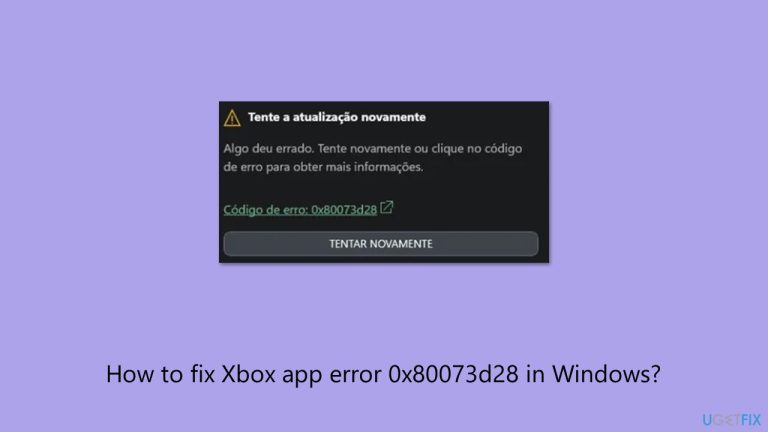
What causes How to fix Xbox app error 0x80073d28 in Windows?
- Linked to the Gaming Services component
- Corrupted or partially installed Gaming Services
- Files from previous installations interfering
- Issues in the Windows registry related to Gaming Services
- Network problems disrupting installation or update
Repairs Windows system files, removes malware, and restores a clean OS state — without reinstalling.
I have launched the Xbox app as usual (on Windows) and it looked like it was about to update. However, just a few moments later, I received a pop-up which showed an error 0x80073d28. I restarted the app and PC several times, but to no avail.
Xbox app is one of the platforms where gamers can access their game libraries, social features and also have all integrated Xbox services in one place. Just as with any other app, however, users might experience problems, and one of them is error code 0x80073d28. The error tends to manifest itself when players are trying to update or install the app, which can ruin the fun of gaming completely.
When you receive error 0x80073d28, you may find that the Xbox app won't update or install correctly. It might even display the error code with minimal information. This can keep you from accessing your game library, connecting with friends, or using other Xbox services on your Windows device.
According to what users have posted, this issue can be frustrating, especially since basic troubleshooting might not resolve it. For instance, someone said they tried uninstalling and reinstalling the app in various manners, including with XboxInstaller.exe, but couldn't shake the error anyway.
So, what causes the 0x80073d28 error? Often, it’s linked to the Gaming Services component, which the Xbox app relies on. If that’s corrupted or only partially installed, problems can arise. Files from previous installations could also interfere, or there can be an issue in the Windows registry related to Gaming Services. Network problems, like an unstable internet connection or incorrect settings, can also generate this error by disrupting the installation or update of the app.
Luckily, there are measures you can take to fix it. A few people have managed by manually uninstalling and reinstalling Gaming Services - essentially removing the previous one and re-downloading it from scratch in the Microsoft Store.
The alternative solution is to edit the Windows registry to remove some Gaming Services entries, which allows for a fresh start. It's also a good idea to ensure your Windows environment is current and your internet connection is stable. Troubleshooting these options should allow you to get the Xbox app running again smoothly.
For an all-in-one solution, you might consider the [d1] repair and maintenance tool. It’s designed to handle various Windows issues, like system file corruption or DLL errors, and could help resolve this problem efficiently.
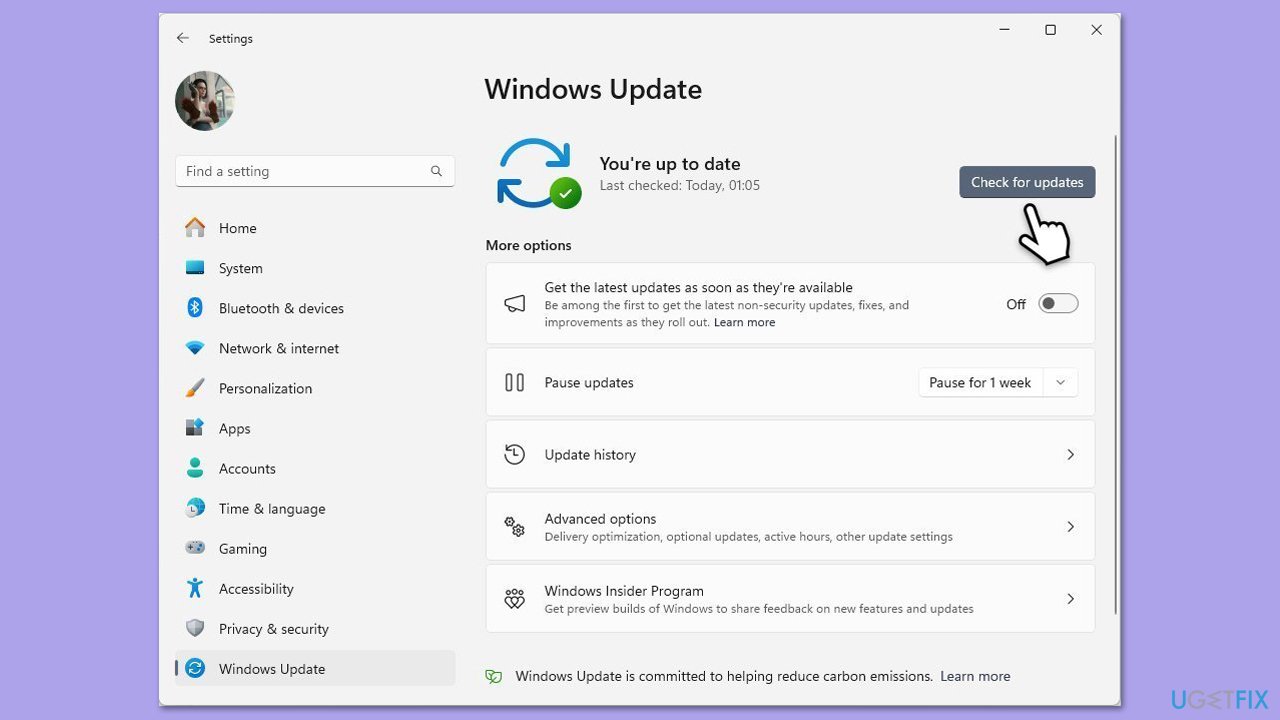
Fix 1. Update Windows
- Right-click on Start and select Settings.
- Go to Update & Security/Windows Update (depending on Windows version).
- If updates are pending, click Install updates.
- Otherwise, click Check for updates and wait.
- If there are optional updates available, install them as well.
- Restart your system to implement the changes.
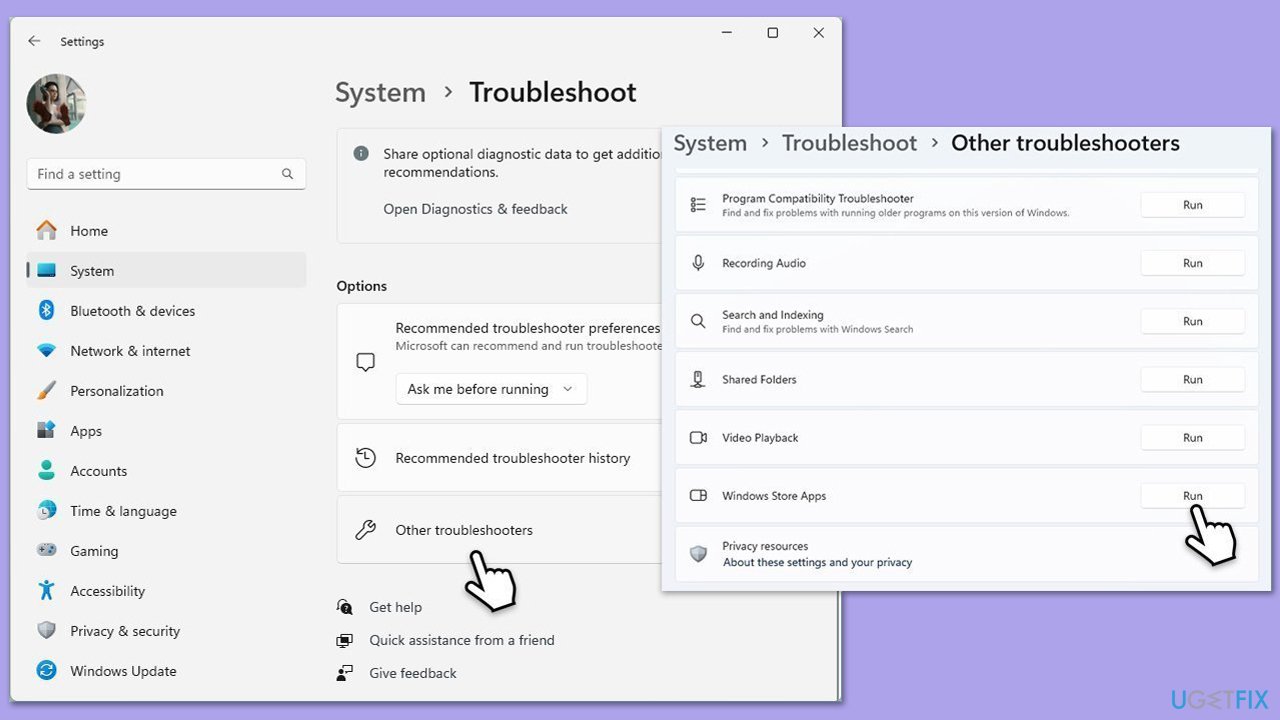
Fix 2. Run the Windows Store Apps troubleshooter
- Type Troubleshoot in Windows search and press Enter.
- Select Additional troubleshooters/Other troubleshooters.
- Find Windows Update from the list.
- Click it and select Run the troubleshooter/Run.
- Return to Additional troubleshooters/Other troubleshooters, find Windows Store Apps, click it, and then select Run the troubleshooter/Run.
- Complete the troubleshooting process by following the on-screen instructions.
- Restart your device.
Fix 3. Reinstall Gaming Services
- Type PowerShell in Windows search, right-click, and select Run as administrator.
- When UAC shows up, click Yes.
- In the new window, copy and paste the following commands and hit Enter:
get-appxpackage Microsoft.GamingServices | remove-Appxpackage –allusers
Remove-Item -Path "HKLM:\System\CurrentControlSet\Services\GamingServices" -recurse
Remove-Item -Path "HKLM:\System\CurrentControlSet\Services\GamingServicesNet" -recurse - Close down PowerShell and restart your system.
- Next, install Gaming Services from the Microsoft Store.

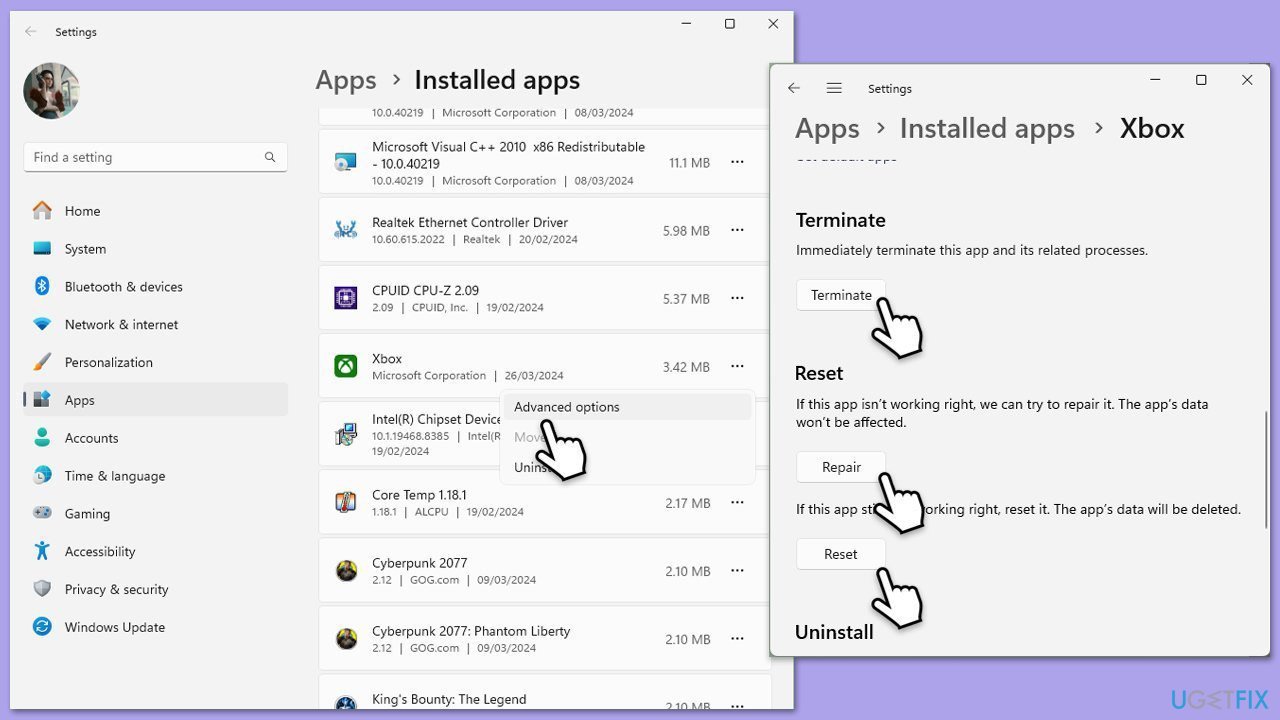
Fix 4. Repair or reset the Xbox app and other components
- Right-click on Start and pick Apps & Features.
- Scroll down to locate the Xbox app and click Advanced options.
- Click Terminate and Repair.
- If that does not help, try the Reset option instead.
- Repeat the same with Gaming Services and Microsoft Store.
Fix 5. Clear the Microsoft Store cache
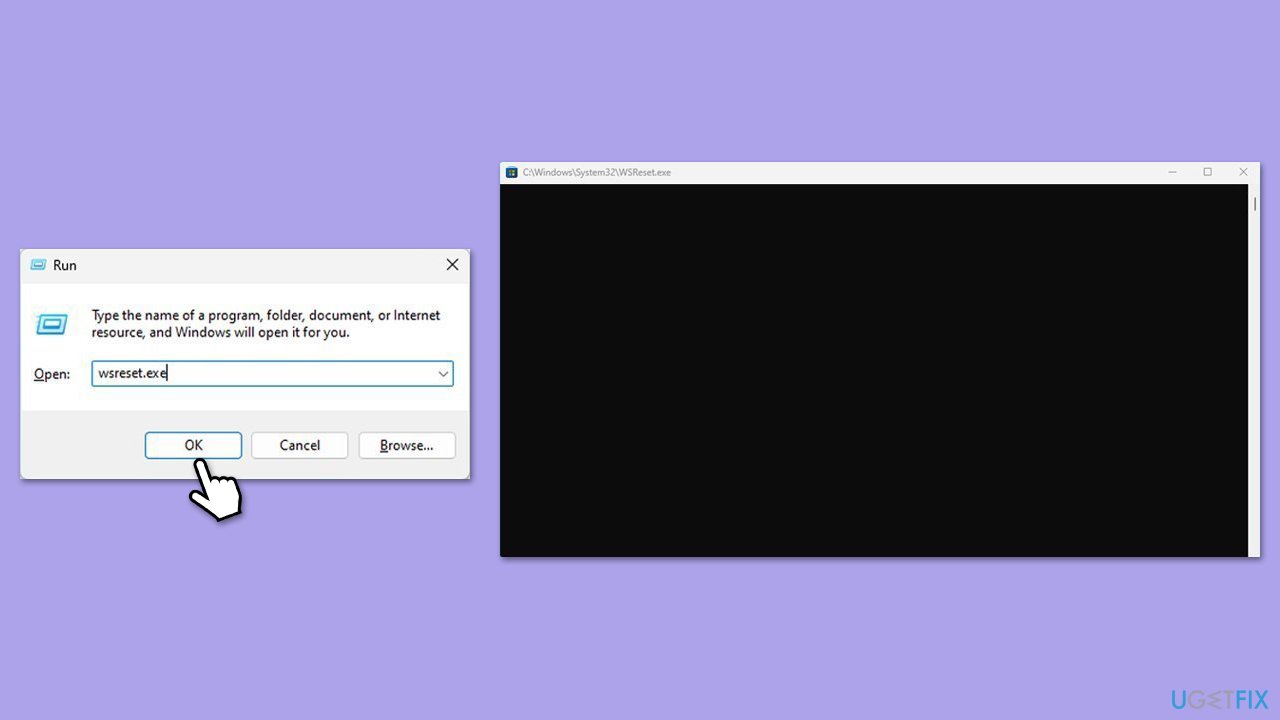
- Press Win + R to open the Run dialog box.
- Type wsreset.exe and press Enter.
- A blank Command Prompt window will open. Wait for it to close automatically.
- Once closed, the Microsoft Store will open automatically, indicating the cache has been reset.
Fix 6. Re-register the Xbox app
- Open PowerShell as administrator.
- Copy and paste the following command, pressing Enter after each:
Get-AppXPackage | Foreach {Add-AppxPackage -DisableDevelopmentMode -Register "$($_.InstallLocation)\AppXManifest.xml"} - Close down PowerShell and restart your computer.

Fix 7. Perform a Clean Boot
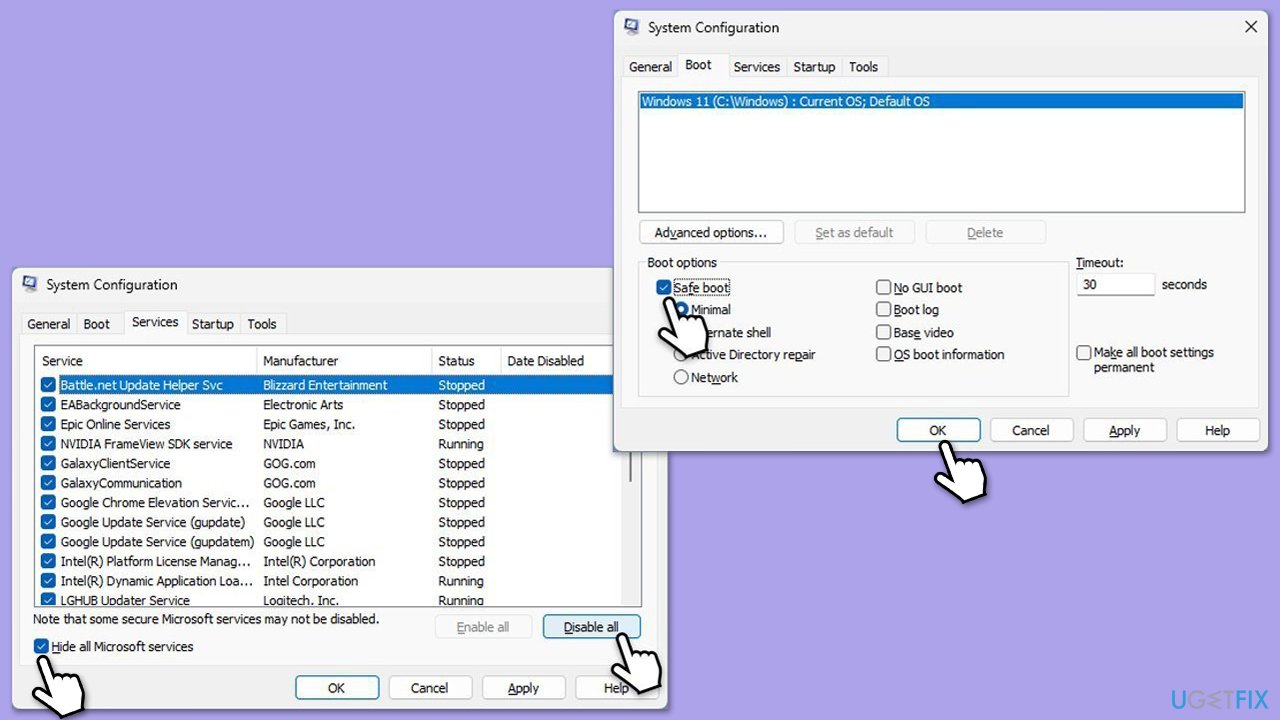
- Type msconfig in Windows Search and press Enter to open the System Configuration window.
- Click on the Services tab and check the Hide all Microsoft Services box.
- Click Disable all to disable non-Microsoft services, then click the Startup tab.
- Open the Task Manager, disable all startup items, and close the Task Manager.
- Go to the Boot tab and mark the Safe boot option.
- Click OK on the System Configuration window and restart your computer.
- If the problem does not exist, third-party software is at fault. To determine which app is causing it try enabling half of the available programs, restarting, and checking if the the problem is still absent. Continue till you find the offending software and either update or uninstall it.
Bottom line
To fix the error 0x80073d28, you can manually uninstall and reinstall Gaming Services or edit the Windows registry to remove certain entries. Additionally, ensure your Windows environment is current. If these solutions do not work, further troubleshooting may be necessary.
Frequently asked questions
The error 0x80073d28 typically indicates that the Xbox app or game installation is corrupted or incomplete, preventing it from launching properly.
To reset the Xbox app, go to Settings > Apps > Apps & features, find the Xbox app, click on it, select Advanced options, and then click the Reset button.
Yes, ensure that your Windows 11 is fully updated by going to Settings > Windows Update and checking for any available updates, as this can resolve compatibility issues.




Report an issue
What's wrong with this guide? We review every report and update or remove content.
Report received — thank you. We'll review and fix it.
You need a free account to submit a report.
Be the first to comment