How to fix
Xbox app error 0x87DD0003
on Windows
Resolve Xbox app error 0x87DD0003 on Windows 10 and 11 effortlessly. Follow our expert-tested guide to get gaming again in no time! Fixed in minutes.

What causes How to fix Xbox app error 0x87DD0003 in Windows?
- Xbox Live service outage
- Internet connection issues
- Flaws in the Xbox software
- Account-related problems
- Server maintenance
Repairs Windows system files, removes malware, and restores a clean OS state — without reinstalling.
Hi, I can't seem to be able to login to Xbox Live services on PC - the message says "We couldn't sign you in to Xbox Live" with an error code 0x87DD0003. This has been going on for a few days already. Any tips would be really appreciated.
The Xbox application for Windows is essential for gaining access to Xbox Live, which lets users purchase digital goods, play games online, and chat with friends. Xbox Live connects players across multiple platforms using this program, enabling social interactions and multiplayer gaming.
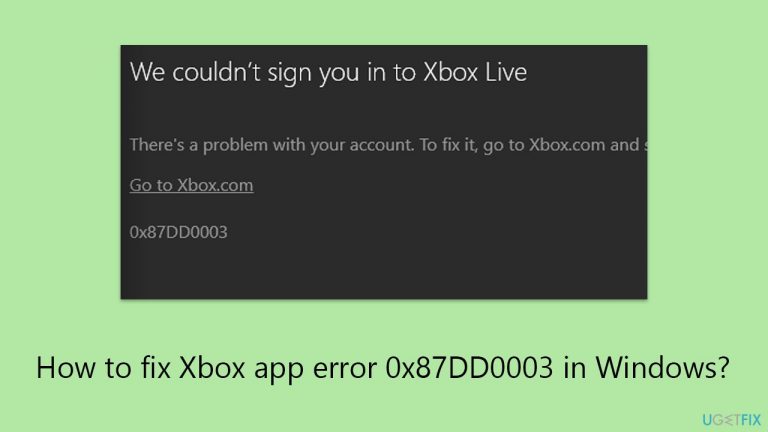
But for certain users, the error code 0x87DD0003 appears along with the message, "We couldn't sign you in to Xbox Live. There's a problem with your account. To fix it, go to Xbox.com and sign in." Usually, this error signals an issue that keeps customers from using Xbox Live services.
When error 0x87DD0003 occurs, it frequently indicates that there may be an Xbox Live service outage, which prevents users from connecting to the service. As a first step, it is advisable to check the server status. Other possible causes of this error include problems with your internet connection or probable flaws or issues in the Xbox software itself.
Comprehensive fixes for the 0x87DD0003 error are given below in this post for individuals who are experiencing it. Whether the problems are related to connectivity problems, app-specific failures, or service outages, these remedies try to address the underlying reasons.
A PC repair tool [d1] may be useful in fixing the error 0x87DD0003 and other issues automatically, so if you would rather avoid manual troubleshooting, it is a perfect solution for you.
Fix 1. Check Xbox Live service status
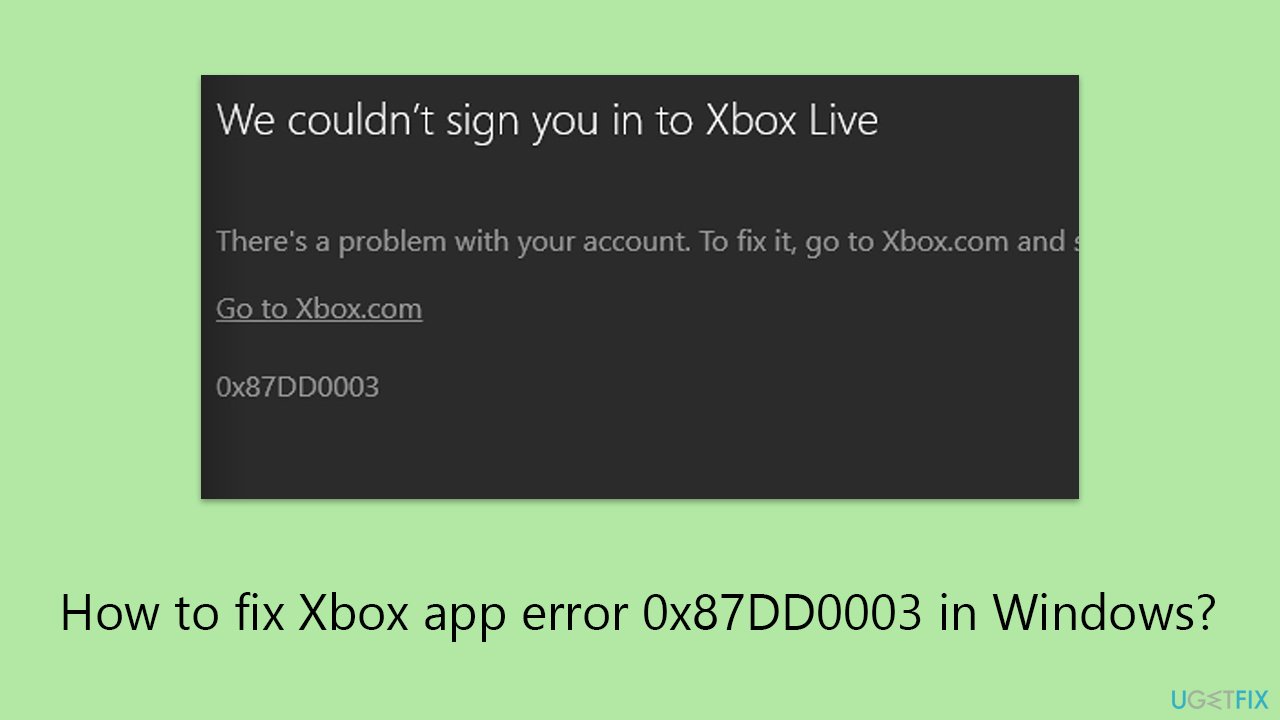
This step helps you determine if the issue is on Microsoft's end, as server outages or maintenance can prevent you from accessing Xbox Live services. By checking the status, you can see if there are any reported problems with Xbox Live that might be causing the error.
- Visit the official Xbox Live status website.
- Look for any alerts or notifications about service outages or maintenance.
- If there are any issues reported, wait for Microsoft to resolve them before trying to connect again.
Fix 2. Run Network troubleshooter
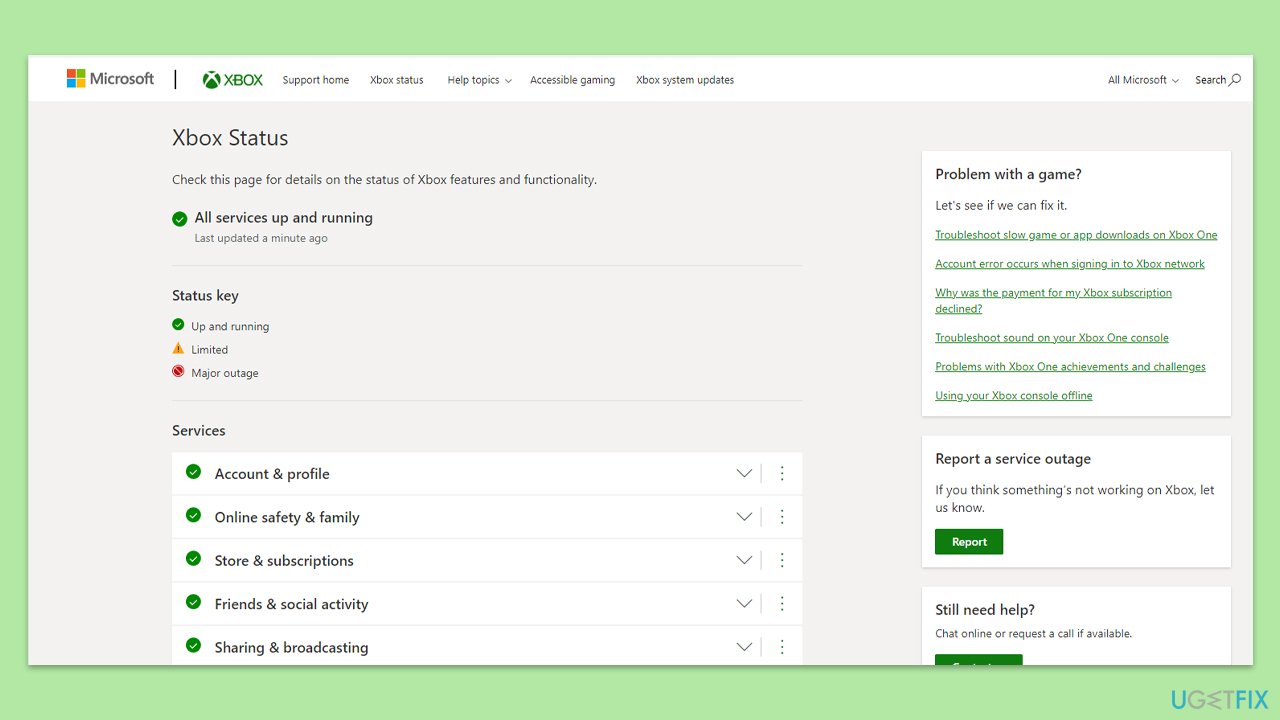
Windows includes a variety of troubleshooters designed to quickly diagnose and automatically resolve various computer problems. The Network troubleshooter can help fix problems with your internet connection that might be preventing the Xbox app from accessing Xbox Live.
- Right-click on Start and pick Settings.
- Go to Network & Internet section.
- On the right side, find the Advanced network settings section.
- Click Network troubleshooter and wait.
- The fixes should be automatically applied.
Fix 3. Disable third-party antivirus and firewall (if applicable)
Sometimes, third-party antivirus and firewall software can interfere with your internet connection or block the Xbox app from functioning correctly. Temporarily disabling these can help determine if they are the cause of the error.
- Locate the antivirus icon in your system tray, right-click it, and select Disable, Stop, or a similar option.
- To disable the firewall, open Control Panel, go to System and Security > Windows Defender Firewall and select Turn Windows Defender Firewall on or off.
- Choose to turn off the firewall for both private and public networks, but remember to turn it back on after testing.
Fix 4. Ensure Xbox Live Multiplayer is connected
This fix ensures that your PC is properly configured to connect to Xbox Live Multiplayer, which is essential for accessing many Xbox Live services.
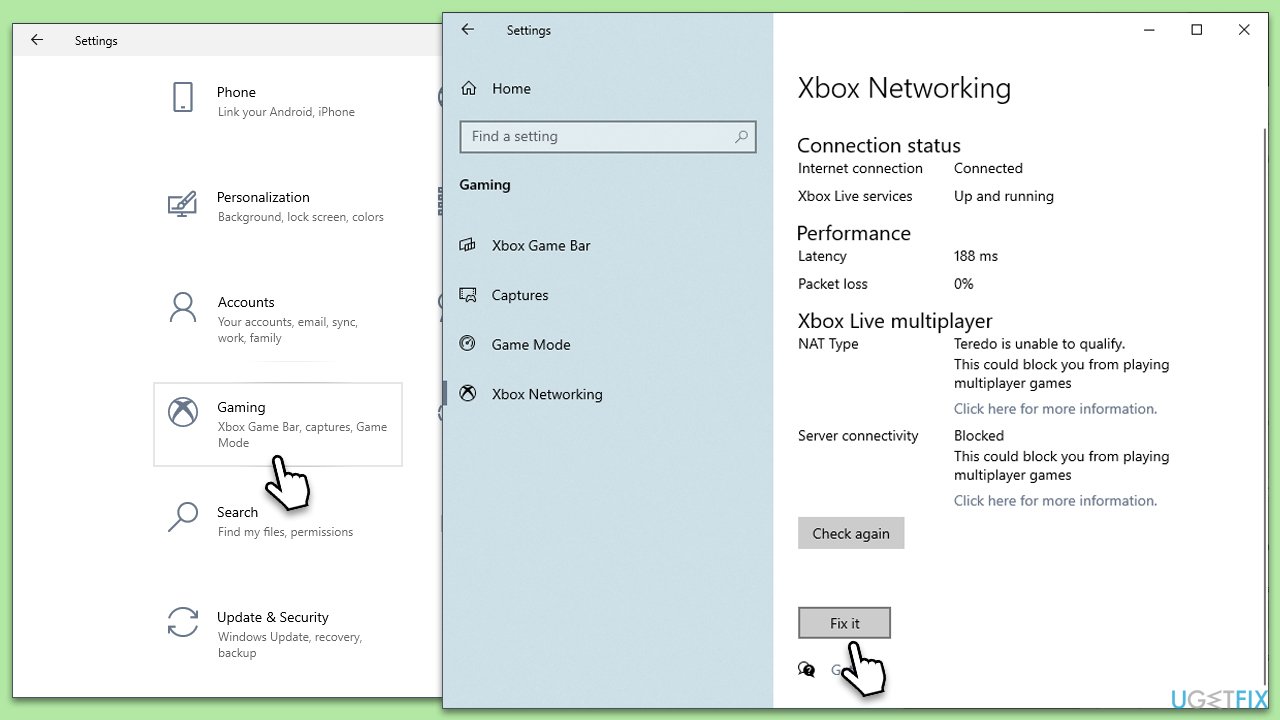
- Right-click on Start and pick Settings.
- Go to the Gaming section.
- Select Xbox Networking on the left.
- Under Xbox Live multiplayer, make sure the Internet connection shows as Connected.
- If not, you can click the Fix it button and follow the on-screen instructions.
Fix 5. Reinstall Gaming Services
Corruption in the Gaming Services on your system can lead to various issues with accessing Xbox Live services. Reinstalling Gaming Services can resolve these problems by refreshing its components.
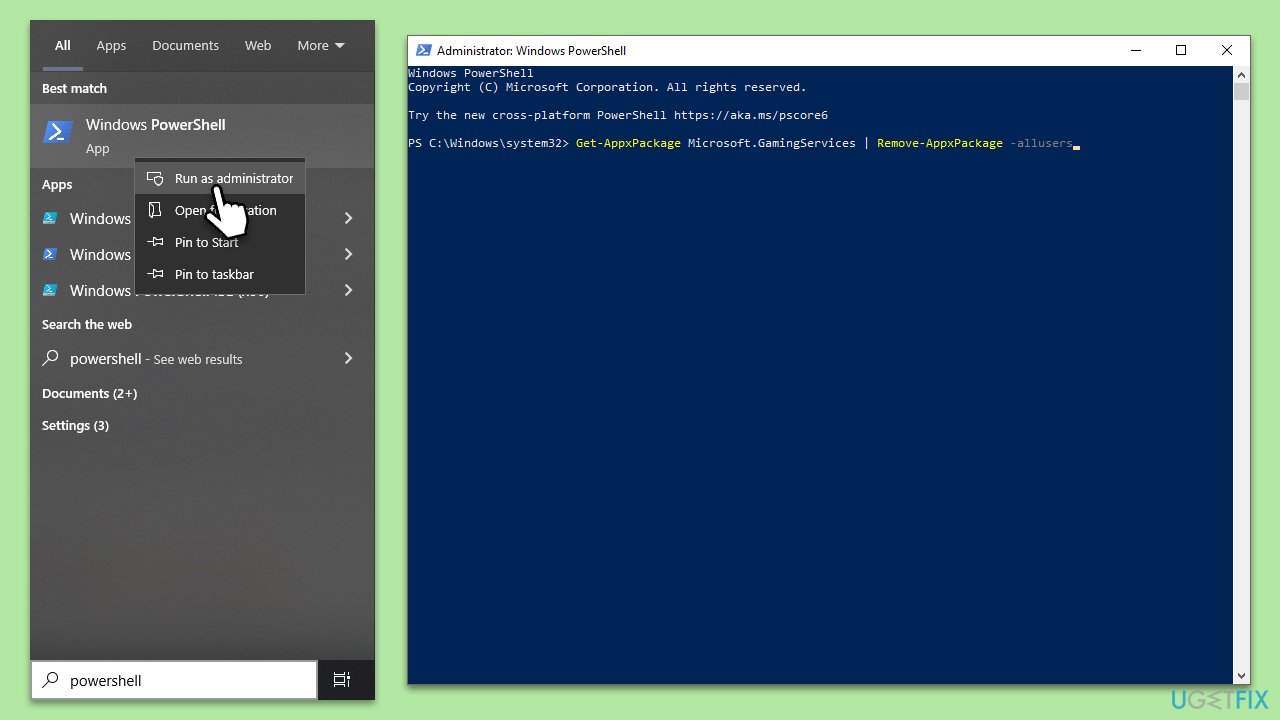
- Type PowerShell in Windows search.
- Right-click on the result and select Run as administrator.
- When User Account Control shows up, click Yes.
- In the new window, copy and paste the following commands and hit Enter:
get-appxpackage Microsoft.GamingServices | remove-Appxpackage –allusers
Remove-Item -Path "HKLM:\System\CurrentControlSet\Services\GamingServices" -recurse
Remove-Item -Path "HKLM:\System\CurrentControlSet\Services\GamingServicesNet" -recurse - Close down PowerShell and restart your system.
- Next, install Gaming Services from the Microsoft Store.
Fix 6. Use Googles DNS
Changing your DNS settings to Google's DNS can improve your internet connection stability and speed, potentially resolving issues connecting to Xbox Live.
- Right-click on Start and select Settings.
- Go to Network and Internet section.
- Click on Change adapter options.
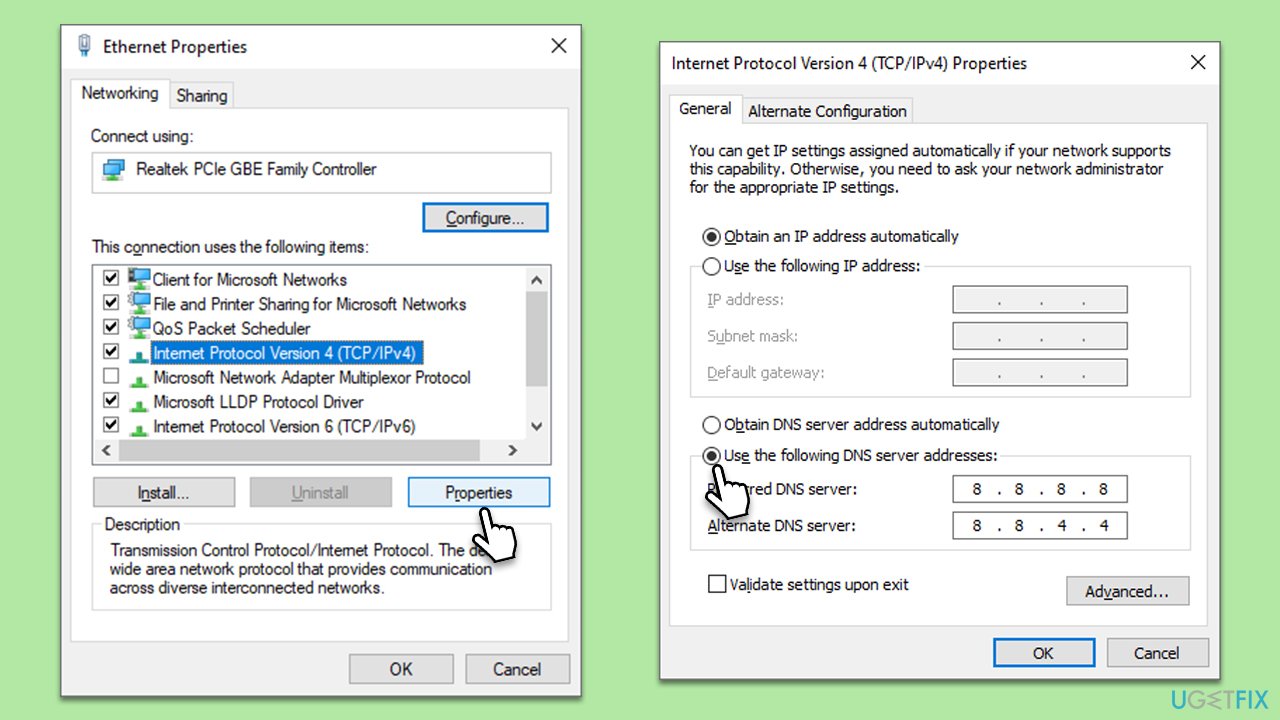
- Right-click on your internet connection and pick Properties.
- Click Internet Protocol Version 4 (TCP/IPv4) once and go to Properties
- Select Use the following DNS server addresses option and set your DNS to Google's:
Preferred DNS server: 8.8.8.8
Alternate DNS server: 8.8.4.4 - Click OK.
Bottom line
To fix the Xbox app error 0x87DD0003, check the Xbox Live service status, ensure your internet connection is stable, and consider using a PC repair tool for automatic fixes. If these solutions do not resolve the issue, further troubleshooting may be necessary.
Frequently asked questions
The error 0x87DD0003 typically occurs due to issues with the Xbox Live service, incorrect account settings, or network connectivity problems.
You can visit the official Xbox Live status page to check if there are any ongoing issues with the service affecting Windows 10 or Windows 11 users.
To resolve this error, try signing out and back into your Xbox account, resetting the Xbox app, or checking your internet connection on Windows 10 or Windows 11.




Report an issue
What's wrong with this guide? We review every report and update or remove content.
Report received — thank you. We'll review and fix it.
You need a free account to submit a report.
Be the first to comment