How to fix
Xbox app error 0x87e00006
on Windows
Resolve Xbox app error 0x87e00006 on Windows 10 or 11 quickly and easily. Get back to gaming with expert-tested solutions! Fixed in minutes.

What causes How to fix Xbox app error 0x87e00006 in Windows?
- Corrupted Gaming Services installation
- Xbox app not having proper permissions
- Stuck download cache
- Broken network configuration
Repairs Windows system files, removes malware, and restores a clean OS state — without reinstalling.
How do I fix 0x87e00006 error? I’ve been trying to download a Game Pass title for a couple of days now and it either fails halfway or just doesn’t start at all. I already tried restarting the app and my PC, but nothing’s working. Not sure if this started after the last Windows update, but everything was fine before that. Any ideas on how to fix it?
The Xbox app on Windows continues to improve as a hub for controlling Game Pass titles, social experiences, and game installations. However, all things do not always go smoothly. One of the issues recently brought to the limelight is the 0x87e00006 error, typically when trying to download or update a game via the Xbox app.
Some only noticed the issue following a Windows update, however, and it just showed up out of the blue for others. As long as the issue occurs, immediate failures or updates or downloads remain stuck indefinitely. Of course, this is understandably maddening - to say nothing about simply being wanting to just dig in to the start of game play.
When looking deeper into why error 0x87e00006 appears, several things might be going on. In many cases, it points to corrupted files related to the Gaming Services, network configuration problems, or permission conflicts within the Windows Store or Xbox infrastructure. Below, we’ve listed a few possible causes of the issue, along with the methods that have helped other users fix it.
- Corrupted Gaming Services installation – reinstalling Gaming Services may resolve conflicts.
- Xbox app not having proper permissions – repairing or resetting the app can help.
- Stuck download cache – clearing the Microsoft Store cache may help get things moving again.
- Broken network configuration – running network troubleshooter can sometimes do the trick.
If none of the standard fixes help, the problem might stem from deeper system corruption. In that case, we recommend using [d1], a professional repair tool that can automatically detect and fix underlying Windows issues.
Fix 1. Update Xbox app and Windows
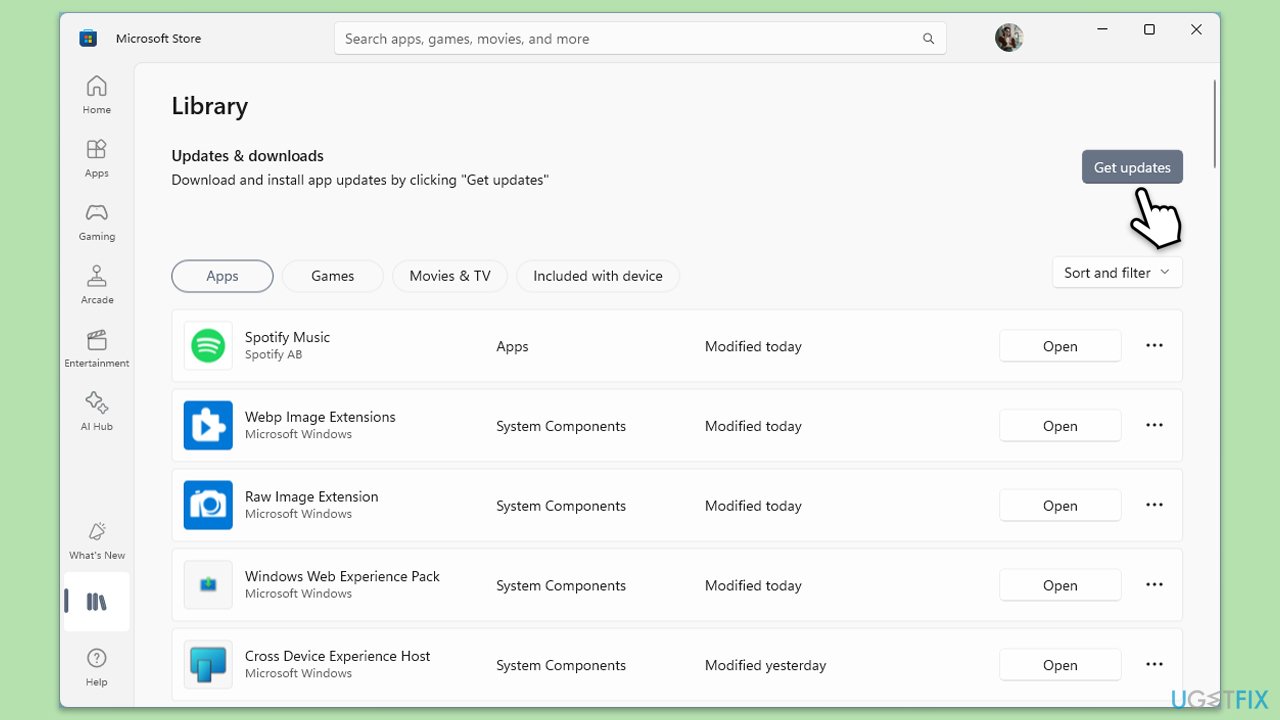
Update Xbox app:
- Open Microsoft Store.
- Click on Library.
- If updates are pending, click Update all.
- Otherwise, click Get updates.
- You can also update the app individually.
Update Windows:
- Type Updates in Windows search and hit Enter.
- If updates are available, click Install updates.
- Otherwise, click Check for updates.
- If optional updates are available, install them as well.
- When all the update processes are complete, restart your computer.
Fix 2. Clear Store and Xbox app cache
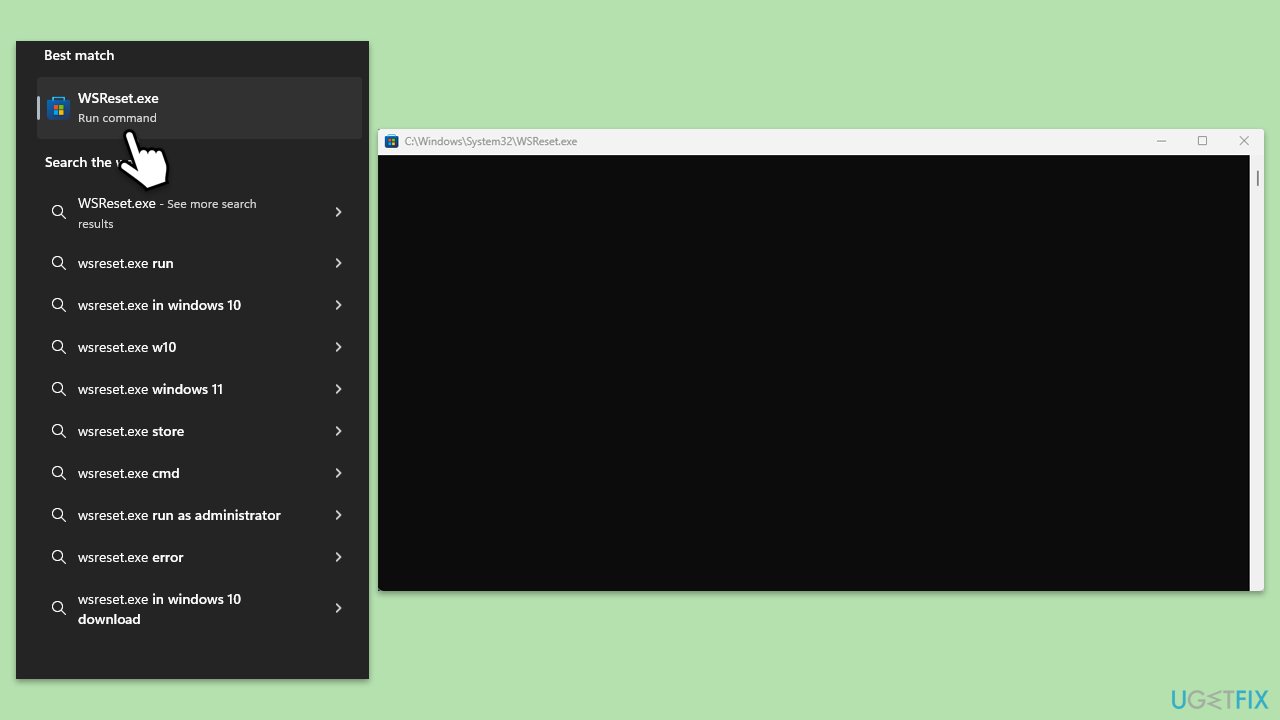
- In Windows search, type wsreset.exe and press Enter.
- Wait till a black window shows up – do not close it.
- Once it's gone, Microsoft Store should restart
- Try using the Store again.
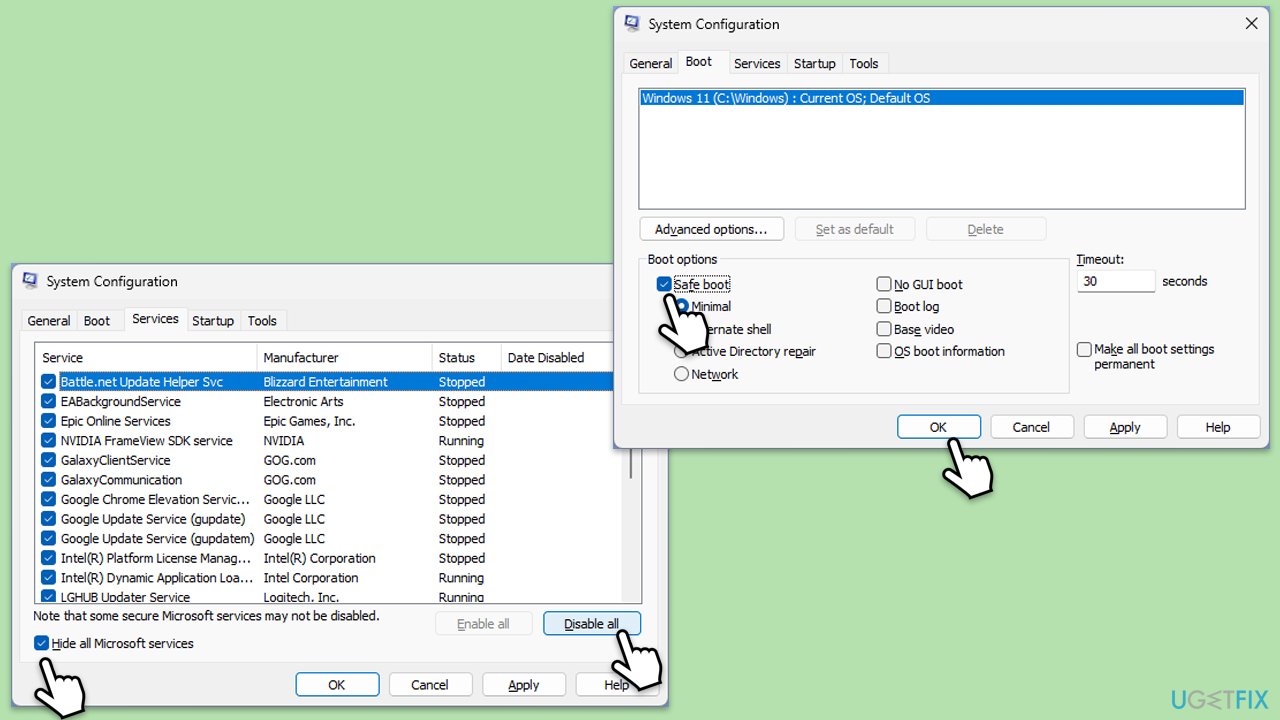
Fix 3. Try Clean Boot
- Type msconfig in Windows Search and press Enter to open the System Configuration window.
- Click on the Services tab and check the Hide all Microsoft Services box.
- Click Disable all to disable non-Microsoft services, then click the Startup tab.
- Open the Task Manager, disable all startup items, and close the Task Manager.
- Go to the Boot tab and mark the Safe boot option.
- Click OK on the System Configuration window and restart your computer.
- If the problem does not exist, third-party software is at fault. To determine which app is causing it try enabling half of the available programs, restarting, and checking if the the problem is still absent. Continue till you find the offending software and either update or uninstall it.
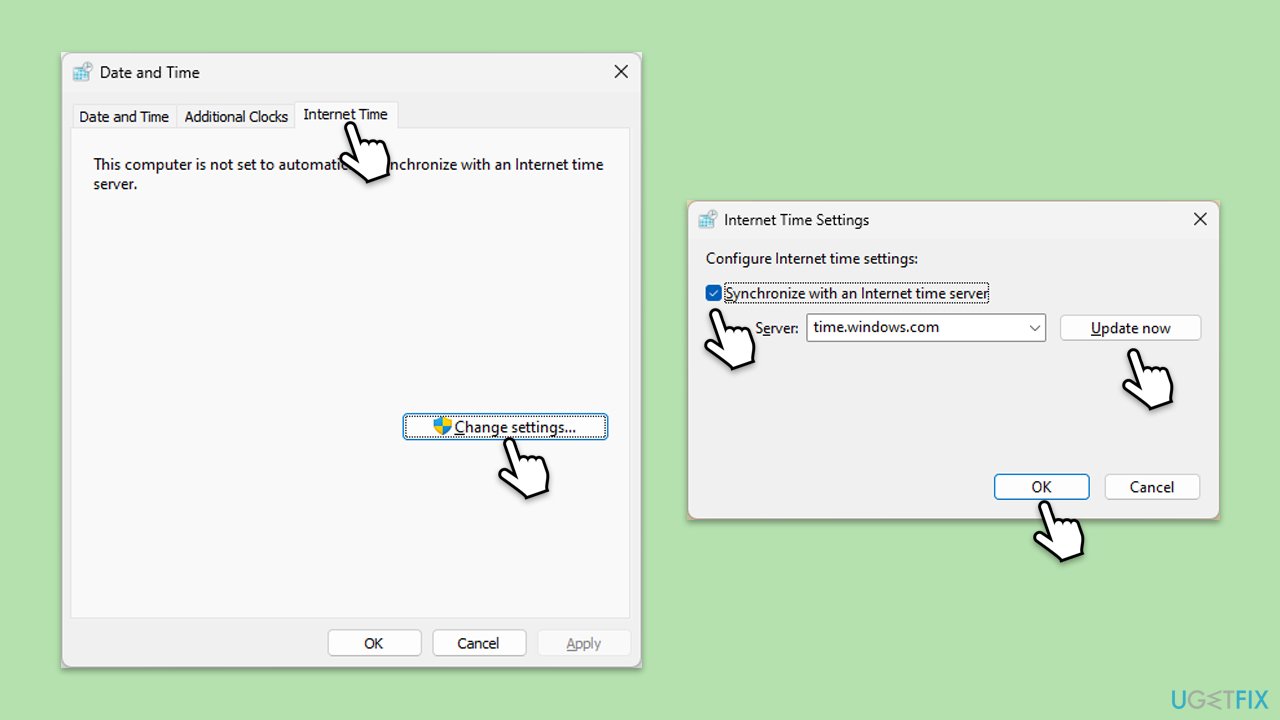
Fix 4. Sync your time and date
- Type in Control Panel in Windows search and press Enter.
- Go to Clock and Region and click on Date and Time.
- Pick the Internet Time tab and select Change Settings.
- Make sure that Synchronize with an Internet time server box is ticked.
- Click Update now and OK.
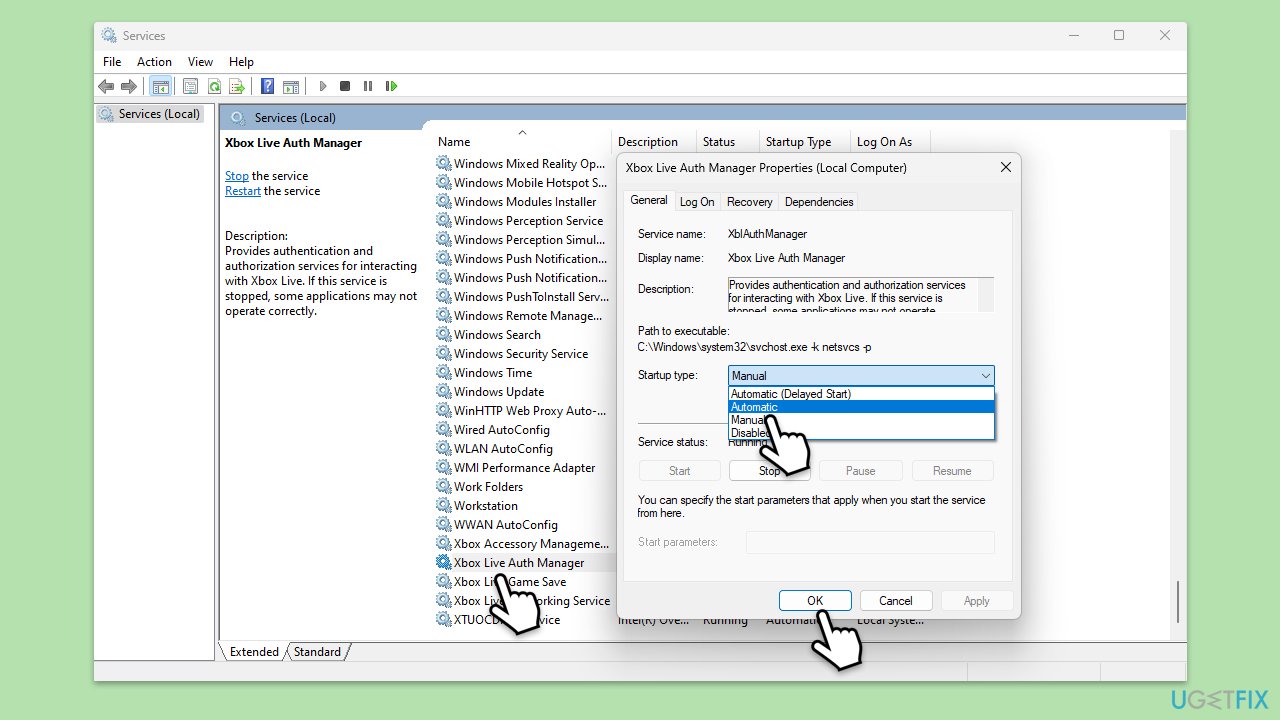
Fix 5. Set relevant services to Automatic startup
- Type Services in Windows search and press Enter.
- Scroll through the list and ensure the following services are running: Windows Update, Xbox Live Auth Manager, Xbox Live Game Save, and Xbox Live Networking Service. If any are not running, right-click on the service, select Properties, set the Startup type to Automatic, and click Start if the service is stopped.
- Click OK and close the Services window.
- Restart your computer and check if the issue with the Xbox app persists.
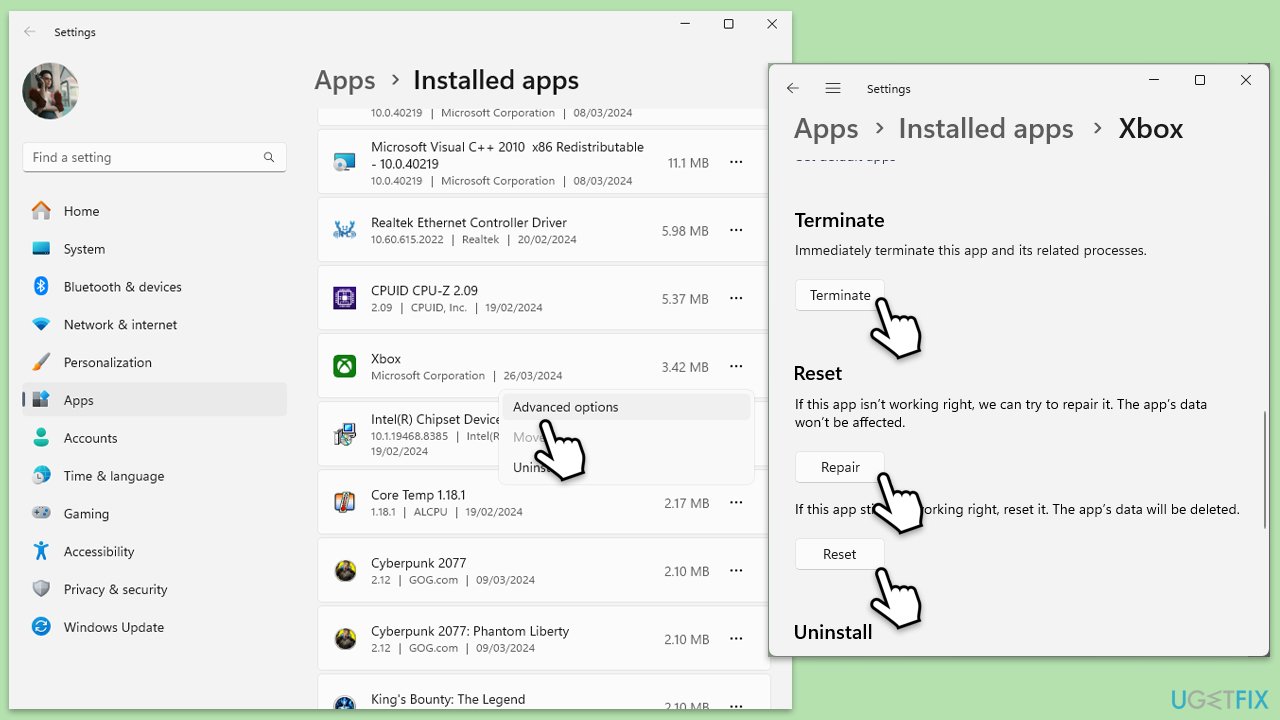
Fix 6. Repair or reset Store, Xbox Live and Xbox apps
- Right-click on Start and select Apps & Features/Installed apps.
- Scroll down to find Microsoft Store and click Advanced options.
- Scroll down again and click Terminate and Repair.
- If that does not work, try using Reset.
- Repeat this process with the Xbox app and Xbox Live as necessary.
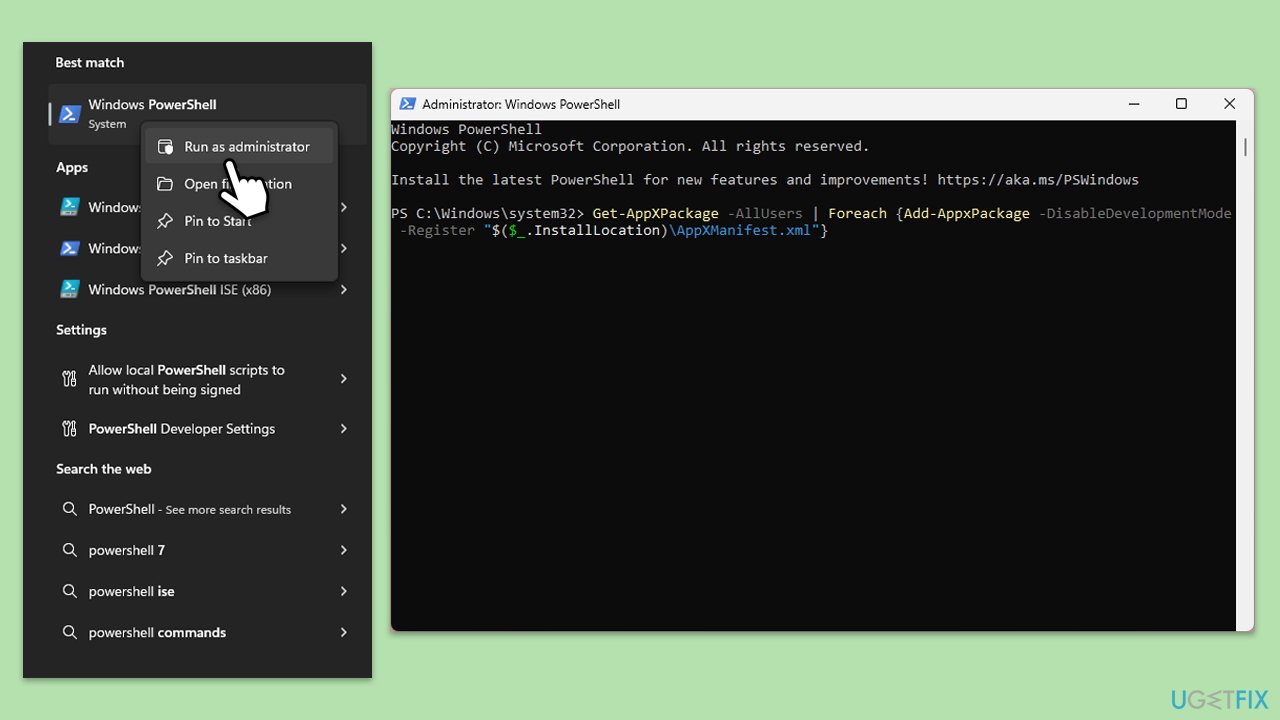
Fix 7. Re-register all Windows apps
- Ensure the Microsoft Store and Xbox App are closed.
- Type PowerShell in Windows search.
- Right-click on the result and select Run as administrator.
- When User Account Control shows up, click Yes.
- Copy and paste the following command, pressing Enter after each:
Get-AppXPackage | Foreach {Add-AppxPackage -DisableDevelopmentMode -Register "$($_.InstallLocation)\AppXManifest.xml"} - Close down PowerShell and restart your computer.
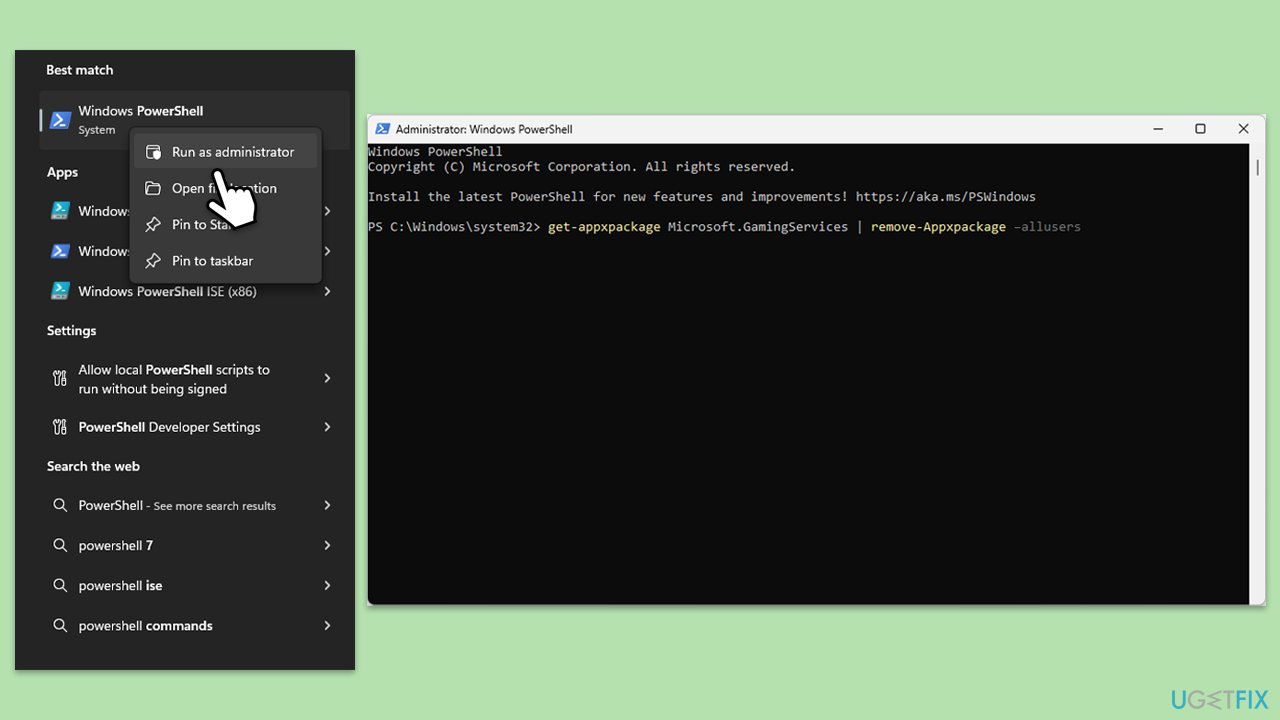
Fix 8. Reinstall Gaming Services
- Open PowerShell as administrator.
- In the new window, copy and paste the following commands and hit Enter:
get-appxpackage Microsoft.GamingServices | remove-Appxpackage –allusers
Remove-Item -Path "HKLM:\System\CurrentControlSet\Services\GamingServices" -recurse
Remove-Item -Path "HKLM:\System\CurrentControlSet\Services\GamingServicesNet" -recurse - Close down PowerShell and restart your system.
- Next, install Gaming Services from the Microsoft Store.
Bottom line
To fix the 0x87e00006 error, users can try reinstalling Gaming Services, repairing or resetting the Xbox app, clearing the Microsoft Store cache, or running the network troubleshooter. If none of these standard fixes resolve the issue, it may be necessary to use a professional repair tool to address deeper system corruption.
Frequently asked questions
The Xbox app error 0x87e00006 typically indicates a problem with the app's connection to the Xbox Live servers or issues with your Microsoft account settings.
To resolve this error, try resetting the Xbox app via the Settings > Apps > Apps & features menu, or reinstalling the app from the Microsoft Store.
Yes, clearing the Xbox app cache can help fix error 0x87e00006; you can do this by navigating to Settings > Apps > Apps & features, selecting the Xbox app, and choosing the option to clear the cache.




Report an issue
What's wrong with this guide? We review every report and update or remove content.
Report received — thank you. We'll review and fix it.
You need a free account to submit a report.
Be the first to comment