How to fix
Xbox app error 0x87e50036
on Windows
Resolve Xbox app error 0x87e50036 on Windows 10 or 11 quickly and easily. Expert-tested solutions to get you back gaming in minutes!

What causes How to fix Xbox app error 0x87e50036 in Windows?
- Network connection issues
- Lack of storage space
- Windows Firewall interference
- Third-party firewall interference
- Incorrect DNS settings
Repairs Windows system files, removes malware, and restores a clean OS state — without reinstalling.
Hi. Whenever I attempt to launch any game via the Xbox app, I receive a 0x87e50036 error. I tried rebooting the app and Windows, as well as reinstalling some of the games, and nothing has worked so far. Any tips would be appreciated.
The Xbox app is a software application developed by Microsoft for Windows users. It allows users to access their Xbox Live accounts, browse and purchase games, and connect with friends. One of the features of the Xbox app is Game Pass, which offers a wide range of games that users can play on their Windows PC, Xbox console, or mobile devices.
Game Pass has become a popular choice among gamers as it provides access to a vast library of games without the need for expensive hardware. Users can subscribe to Game Pass and play as many games as they like for a monthly fee. Additionally, new games are regularly added to the library, giving users a reason to keep coming back.
However, some users have reported an error when trying to launch games via the Xbox app. The error code is 0x87e50036, and it can be frustrating for users who are unable to play their favorite games. This error usually occurs when there is an issue with network connection, lack of space, or other issues.
Microsoft has not provided an official explanation for the 0x87e50036 error, but it is believed to be related to the user's network settings. Some users have reported that disabling the Windows Firewall or other third-party firewalls has resolved the issue. Others have suggested that changing their DNS settings or resetting their network connection has also helped.
Despite the inconvenience caused by this error, it is important to note that it is not a widespread issue. Most users do not experience this error when using the Xbox app or Game Pass. For those who do encounter the error, there are steps that can be taken to resolve it.
You can find all the possible solutions for the 0x87e50036 error below, although we do recommend scanning the system with the PC repair tool [d1] to automatically fix any inconsistencies related to Windows itself.
Fix 1. Free up some space
Some users reported that they managed to fix the error after freeing up some space. For example, Windows update files may sometimes take a lot of space, and if not cleared, they might result in no space remaining for the game to be launched properly.
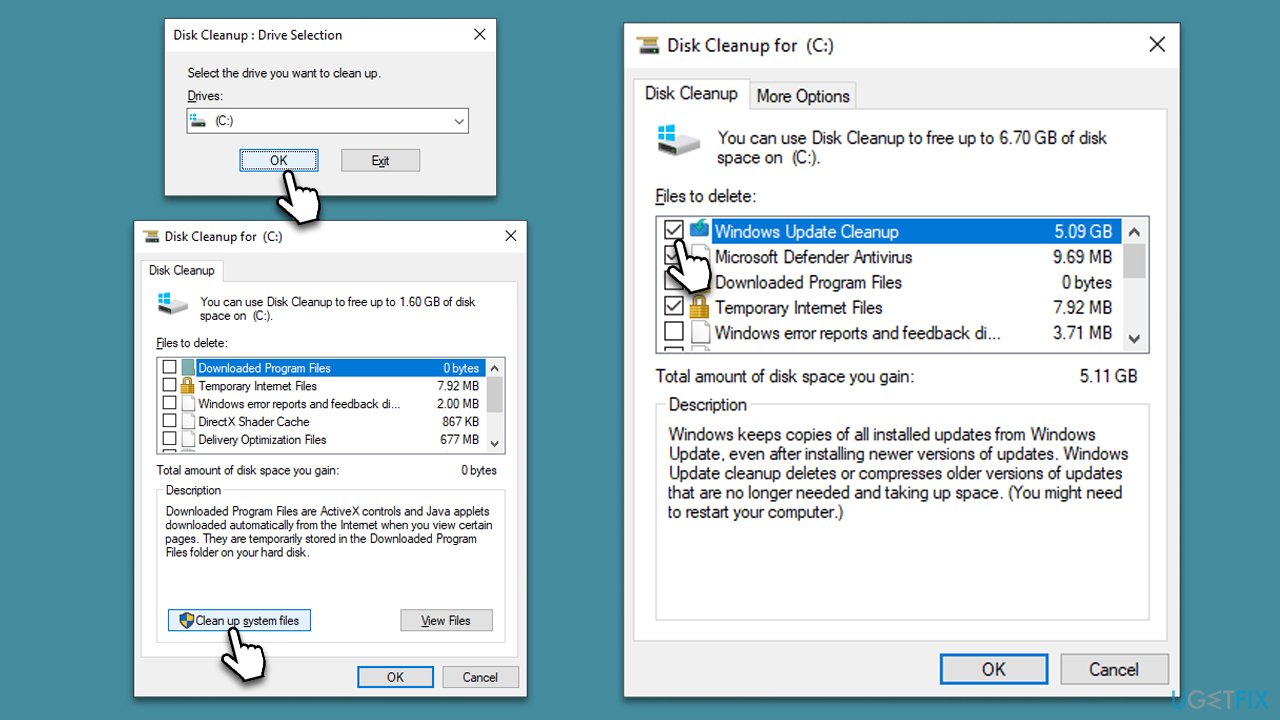
- Type Disk Cleanup in Windows search and press Enter.
- If your Windows is installed on drive C, pick it from the list (it should be by default) and press OK.
- Click Clean up System Files.
- Here, mark the areas you want to be deleted, such as Setup log files, Recycle bin, Temporary files, etc.
- Click OK - the removal process of various leftover files will begin.
- Once done, try launching games again.
Fix 2. Check your network connection
An unstable or poor network connection might result in a 0x87e50036 error. To resolve it, follow these steps:
- Right-click on Start and pick Settings.
- Go to Network & Internet section.
- On the right side, find the Advanced network settings section.
- Click Network troubleshooter and wait.
- Apply the suggested fixes.
Fix 3. Run the troubleshooter
Another useful tip is to run the built-in Store App troubleshooter.
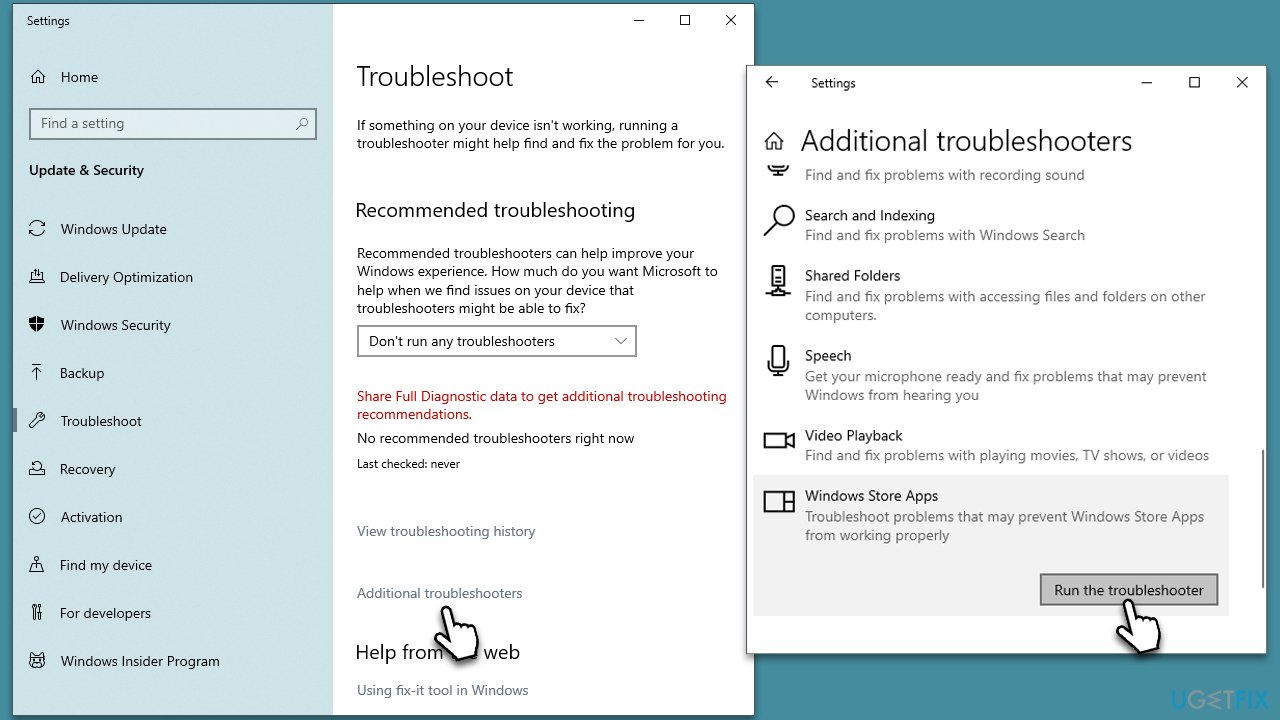
- Type troubleshoot in Windows search and press Enter.
- On the right, choose Additional troubleshooters/ Other troubleshooters.
- Find Windows Store Apps and click Run the troubleshooter.
- Wait till the process is finished and apply the recommended changes.
Fix 4. Install updates for Xbox app and Windows
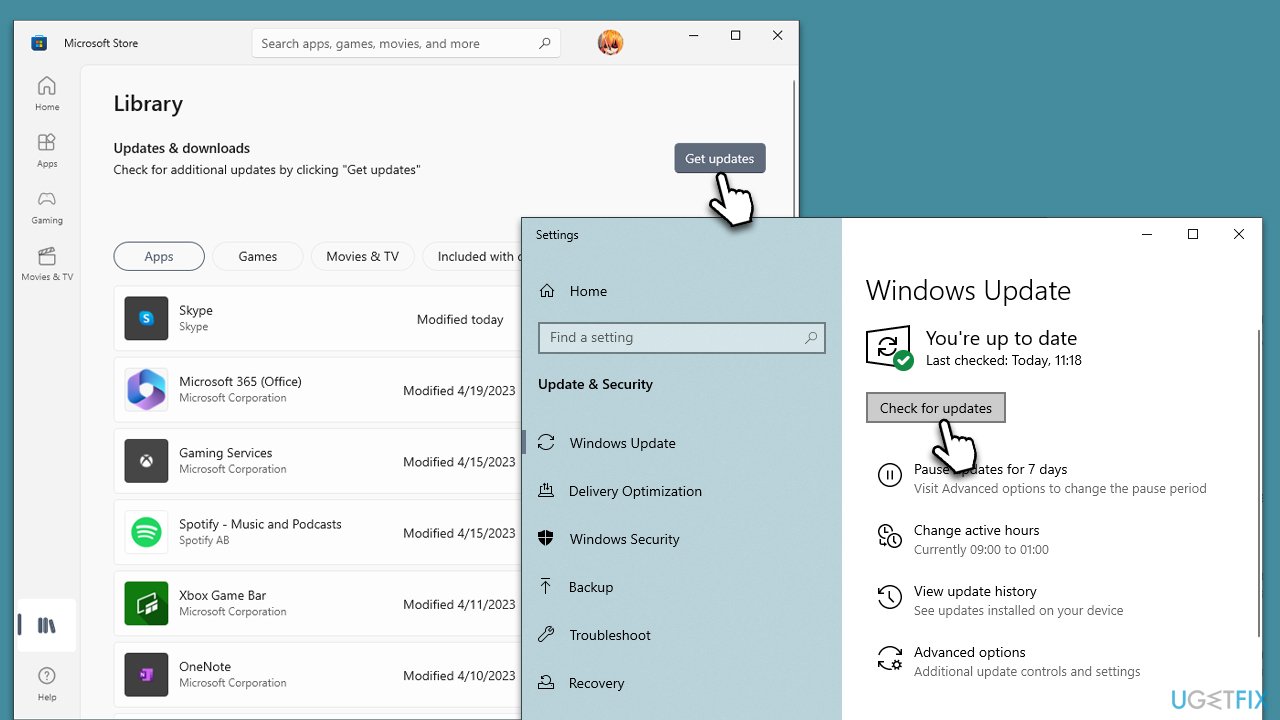
- Type Updates in Windows search and press Enter.
- Click the Check for updates button and wait.
- If optional updates are available, install them too.
- Open Microsoft Store.
- Go to Library.
- Here, click Get updates and wait till they are installed.
- Restart your system when done.
Fix 5. Clean Microsoft Store cache
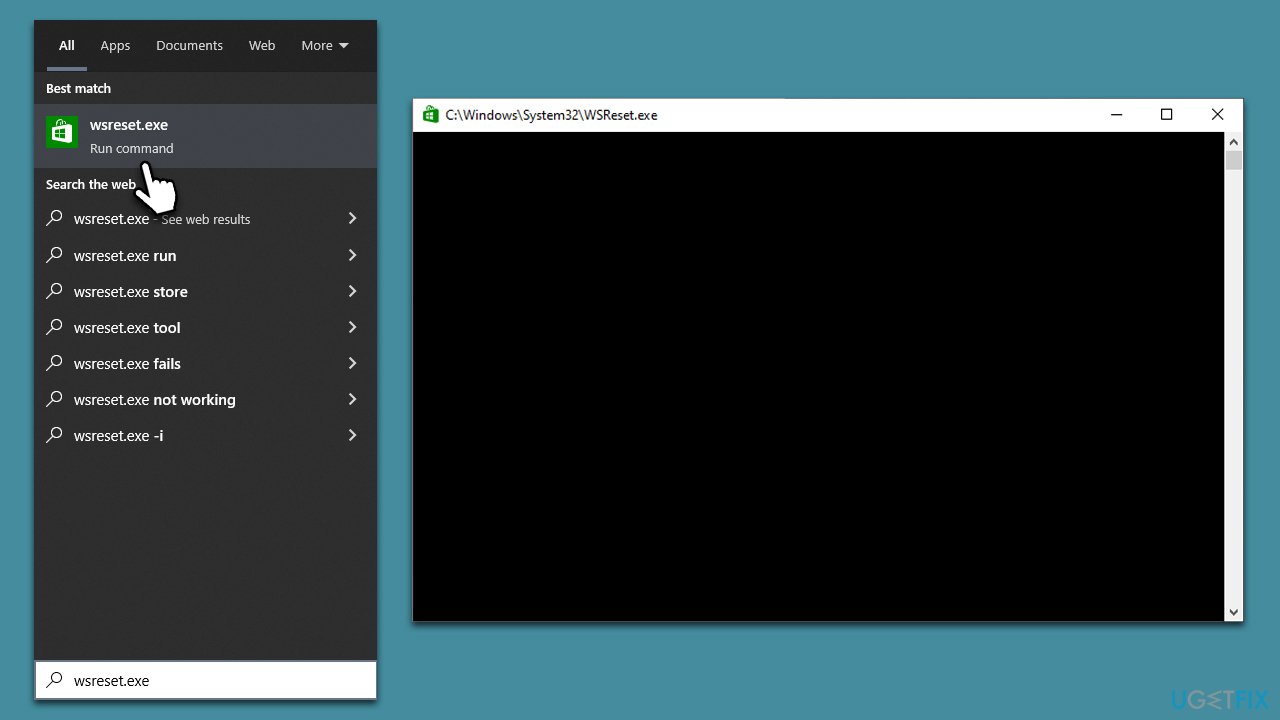
- In Windows search, type wsreset.exe and press Enter.
- Wait till a black window shows up – do not interact with it or close it.
- Once it's gone, Microsoft Store should restart.
- Try downloading apps once again.
Fix 6. Repair or reset the Xbox app
If none of the solutions helped, you could try resetting or repairing the app.
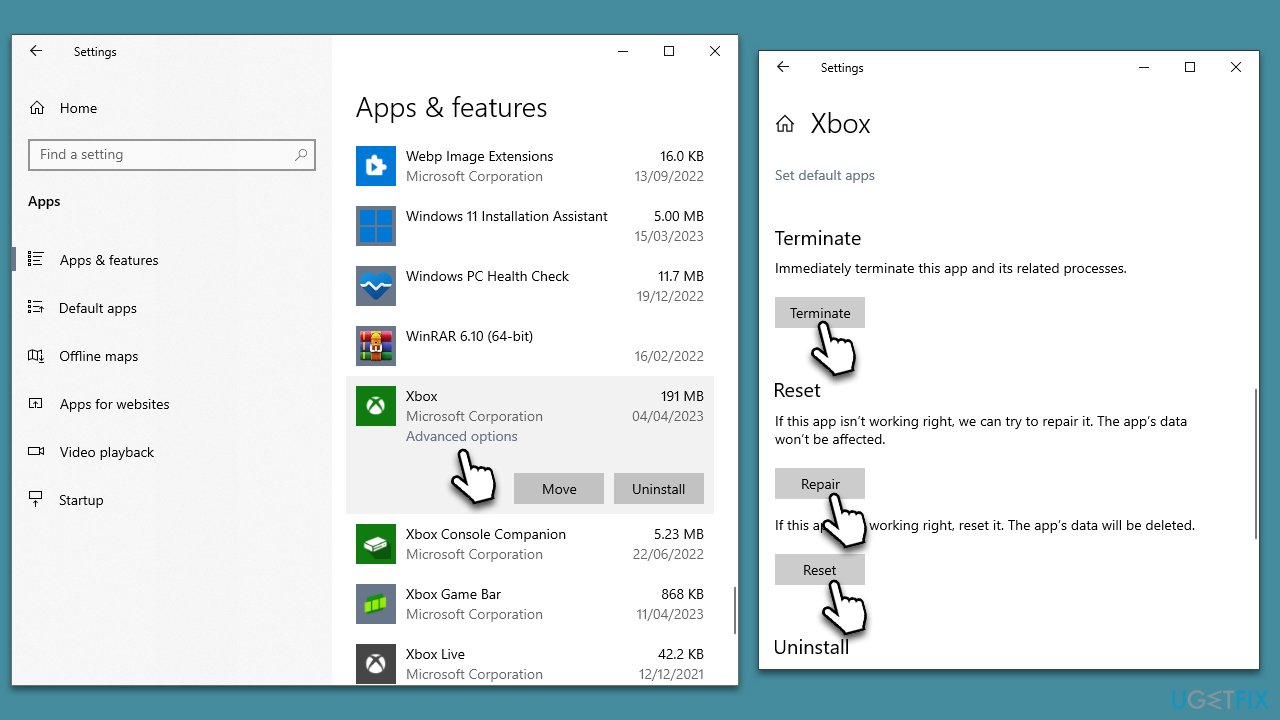
- Right-click on Start and pick Apps & Features.
- Scroll down to locate Xbox app and click Advanced options.
- Click Terminate and Repair.
- If that does not help, try the Reset option instead.
Bottom line
To resolve the 0x87e50036 error, users can try disabling the Windows Firewall, changing their DNS settings, or resetting their network connection. If these steps do not work, it may be necessary to seek further assistance or check for additional troubleshooting methods.
Frequently asked questions
The error 0x87e50036 typically indicates a problem with the Xbox app's connection to the Xbox Live services, which can prevent games from launching properly.
To fix the error, try resetting the Xbox app via Settings > Apps > Apps & features, then select Xbox and click on 'Advanced options' to reset it.
Yes, ensure your internet connection is stable, and try running the Windows Network Troubleshooter by going to Settings > Update & Security > Troubleshoot > Additional troubleshooters.




Report an issue
What's wrong with this guide? We review every report and update or remove content.
Report received — thank you. We'll review and fix it.
You need a free account to submit a report.
Be the first to comment