How to fix
Xbox app error 0x89235003
on Windows
Resolve Xbox app error 0x89235003 on Windows 10 and 11 with our expert-tested solutions. Get back to gaming in minutes, hassle-free!

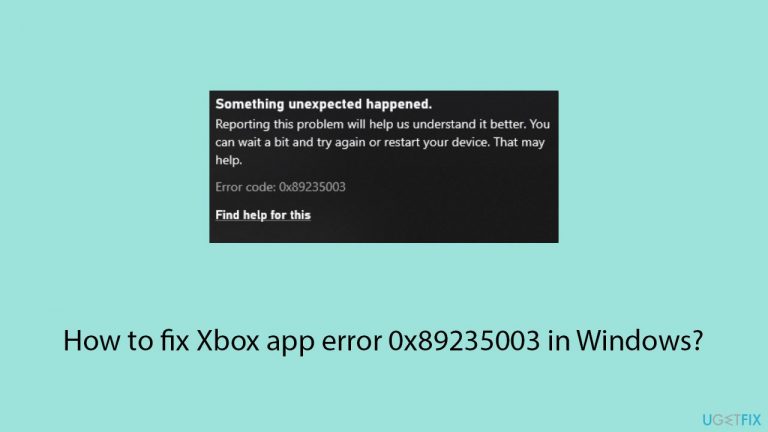
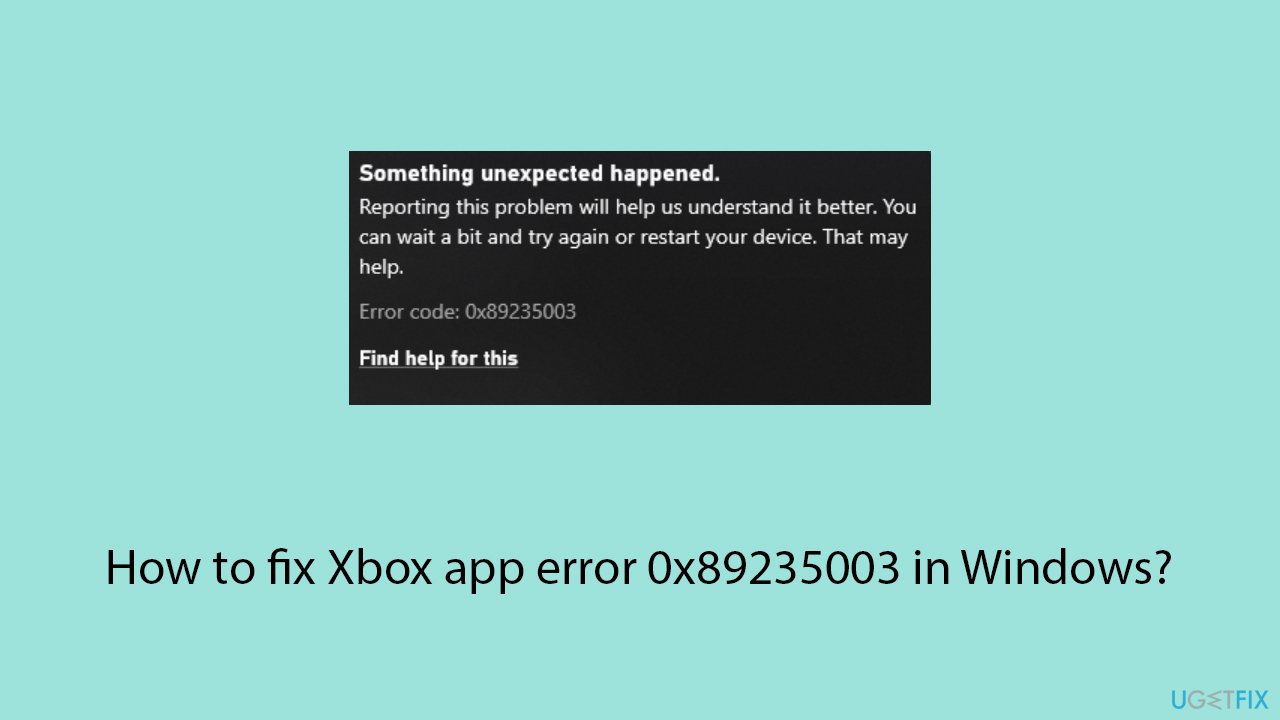
What causes How to fix Xbox app error 0x89235003 in Windows?
- Network issues reducing download stability and speed
- Interference from external network hardware
- Poor wireless signals
- Incorrectly configured networks
- Out-of-date software in the Xbox app
- Corrupted data in the app's cache
Repairs Windows system files, removes malware, and restores a clean OS state — without reinstalling.
I keep getting the error code 0x89235003 when trying to download a game on the Xbox app. Is there any advice you could give me? I am using Windows 11 version 23H2.
The Xbox app for Windows allows users to download and play games, connect with friends, and track their gaming achievements. Despite this, players might occasionally run into error code 0x89235003, which occurs either during game download or installation. Unsurprisingly, this could be really frustrating, as it prevents them from enjoying their games.
Error 0x89235003 is usually associated with network issues that reduce download stability and speed. These can include interference caused by external network hardware, poor wireless signals, and incorrectly configured networks. The Xbox app may also contain internal issues that are the source of the error, such as bugs brought on by out-of-date software or corrupted data in the app's cache.
To fix the 0x89235003 error, users should first check their internet connection to ensure it is stable and robust enough to support large file transfers like game downloads. This might involve running relevant troubleshooters or restarting one's modem/router.
Updating or resetting the Xbox app can also resolve any compatibility issues or bugs that could be contributing to the problem. It is also advisable to review antivirus settings to ensure that they aren't mistakenly blocking or restricting the app’s ability to download content.
Clearing the cache of the Xbox app can help by removing temporary files that might have become corrupted and are interfering with the app’s operations. Users might also consider temporarily disabling any active firewall or antivirus software to see if these are interfering with the download process.
The use of a PC repair program [d1] can be helpful for people seeking a more comprehensive answer to these problems. These utilities are intended to remedy registry issues, clear out system clutter, fix corrupted files, increase system stability, and more. They might also help fix error 0x89235003 and enhance the Xbox app's general operation on Windows.
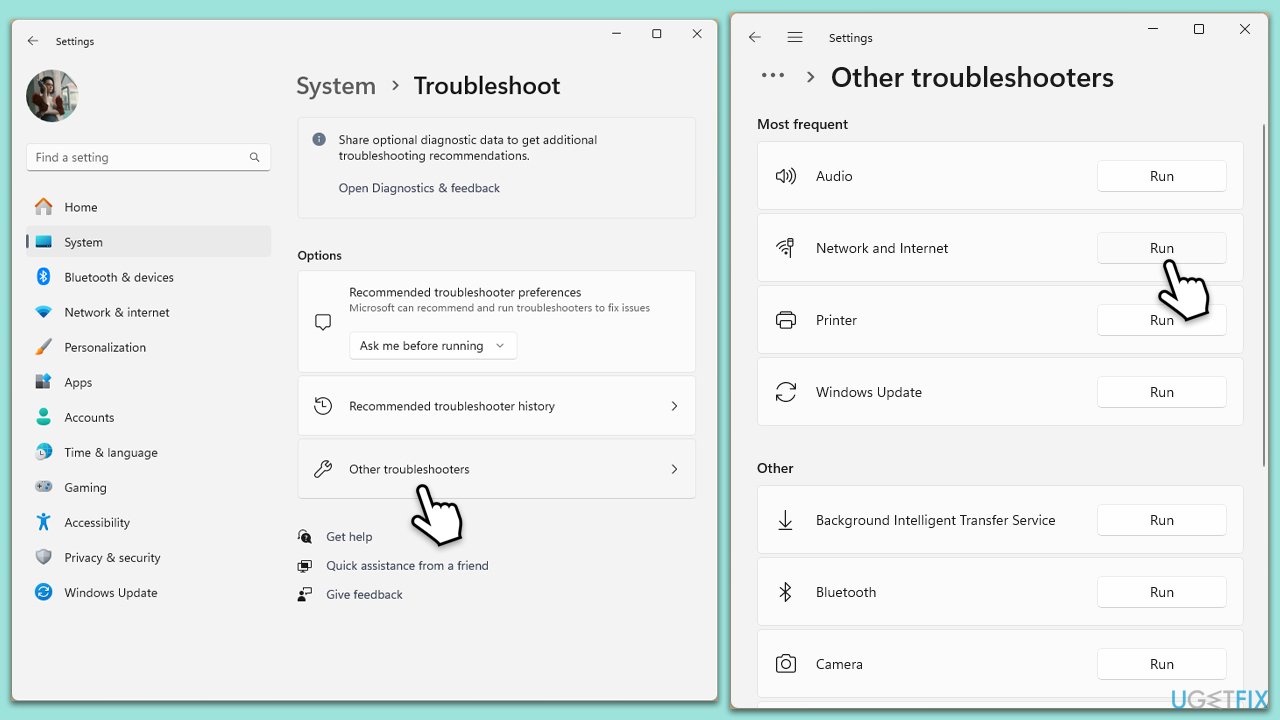
Fix 1. Run Windows Store apps and Network troubleshooters
Windows includes built-in troubleshooters that can automatically find and fix issues with Windows Store apps and your network settings, which might be causing problems with the Xbox app.
- Type Troubleshoot in Windows search and hit Enter.
- Select Additional troubleshooters/Other troubleshooters.
- Find Windows Update from the list and click Run the troubleshooter/Run.
- The troubleshooter will automatically scan your system for potential problems and display any issues it finds.
- If the troubleshooter finds any issues, it will provide recommended solutions - apply them.
- Repeat this with Network & Internet troubleshooter.
Fix 2. Check for Microsoft servers
Sometimes the issue can be on the server side, so checking Microsoft's server status can help determine if the problem is with your connection or their servers.
- Visit the official Xbox status webpage to check for any alerts about service outages or maintenance that could affect downloading games.
- If there is a problem on the server side, monitor the page for updates on when the issue will be resolved.
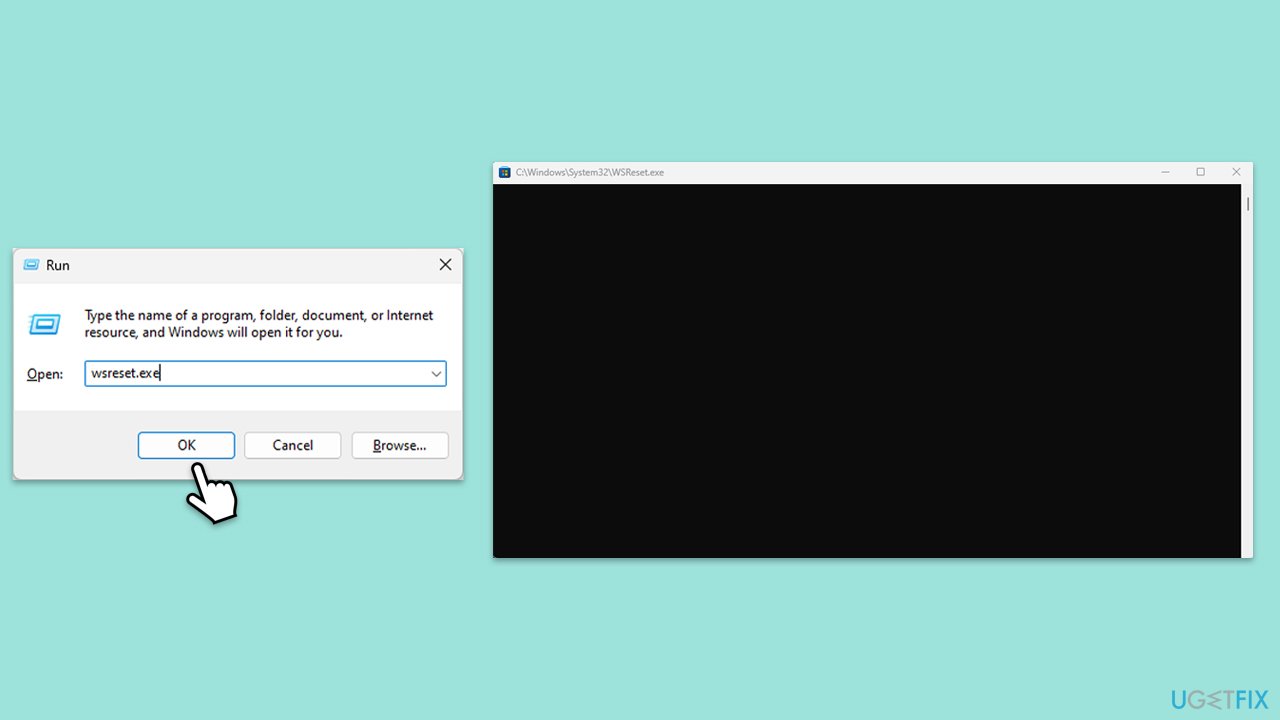
Fix 3. Clear Windows Store cache
Clearing the cache for the Windows Store can resolve issues by removing outdated or corrupt files that may be interfering with app functionality.
- Press Win + R to open the Run dialog box.
- Type wsreset.exe and press Enter.
- A blank Command Prompt window will open. Wait for it to close automatically.
- Once closed, the Microsoft Store will open automatically, indicating the cache has been reset.
Fix 4. Repair/reset Xbox app and Microsoft Store
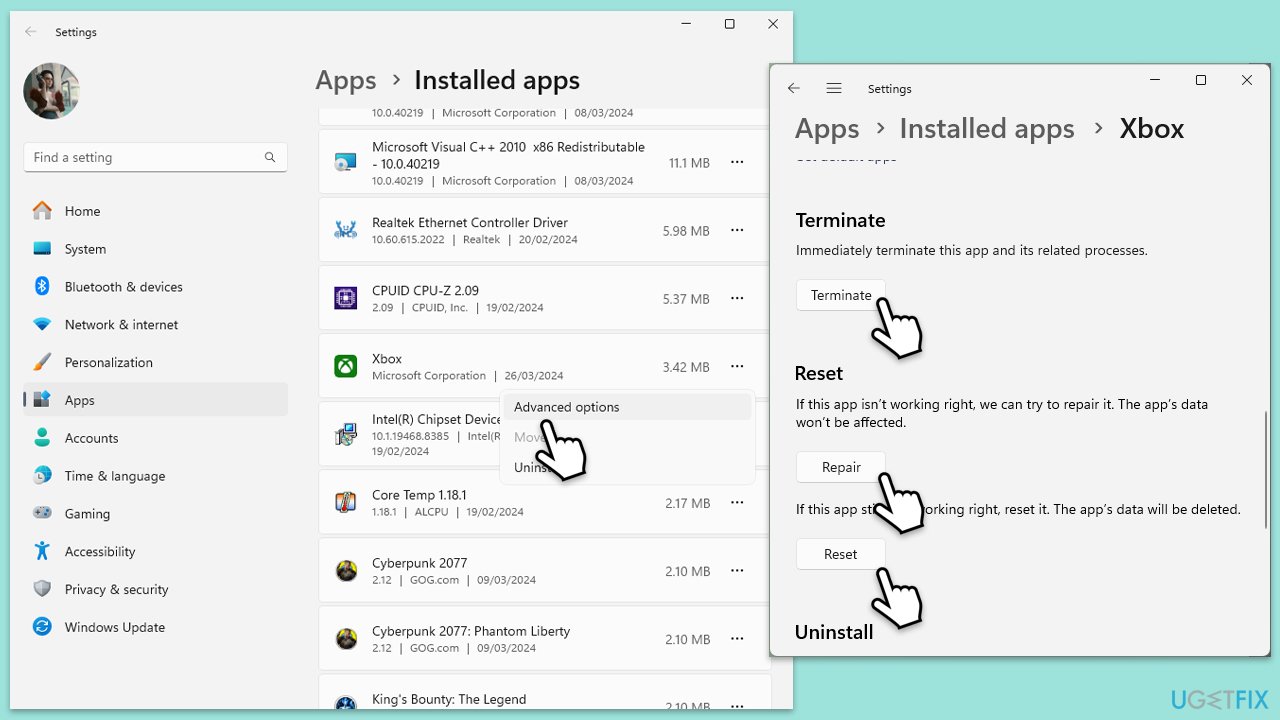
Repairing or resetting the Xbox app and Microsoft Store can fix errors due to corrupted app data.
- Right-click on Start and select Apps & Features/Installed apps.
- Scroll down to find Microsoft Store and click Advanced options.
- Scroll down again and click Terminate and Repair.
- If that does not work, try using Reset.
- Repeat this process with the Xbox app if necessary.
Fix 5. Check relevant services
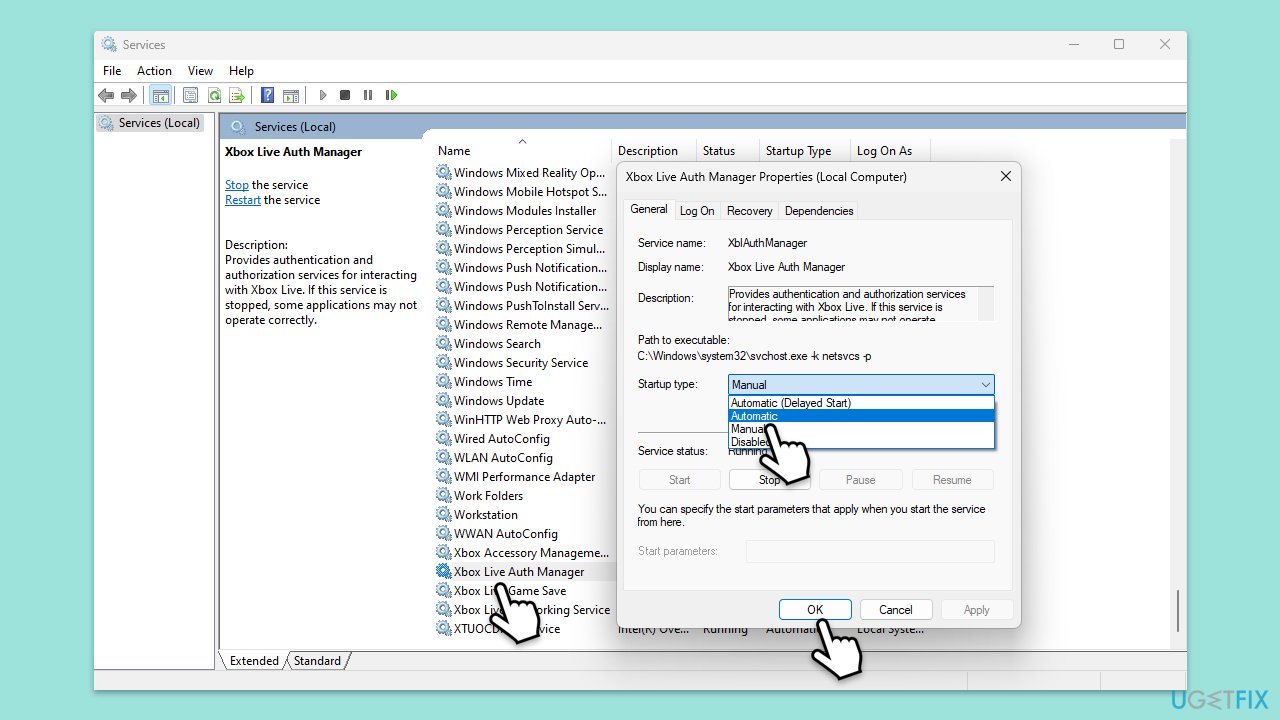
Ensuring that certain Windows services are running can help resolve issues with the Xbox app and Microsoft Store.
- Type Services in Windows search and hit Enter.
- Scroll down to find Gaming Services.
- Right-click on it and select Restart.
- If it is grayed out, double-click the service to open its Properties.
- Under Startup type, select Automatic from the drop-down menu.
- Click Start, Apply, and OK.
- Repeat this process with the following services:
Windows Update
Microsoft Store Install Service
Xbox Live Auth Manager
Xbox Live Game Save
Xbox Live Networking Service.
Fix 6. Reregister all Store apps via PowerShell
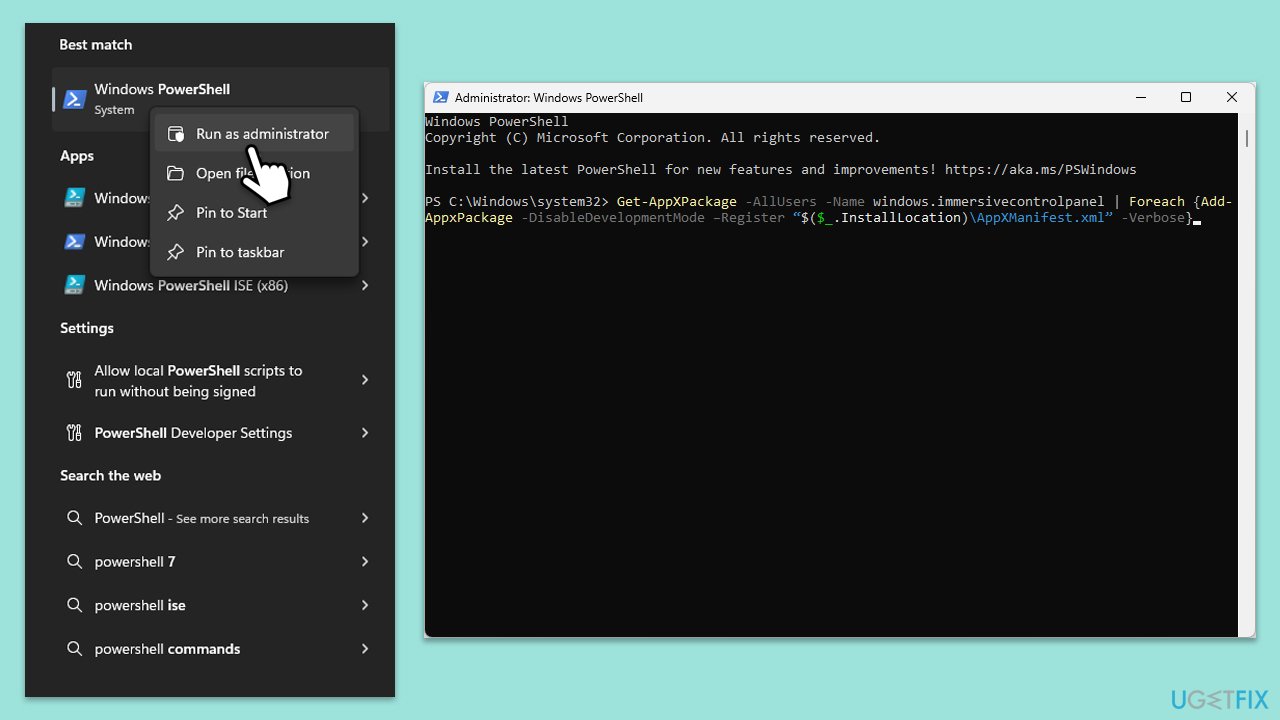
- Type PowerShell in Windows search.
- Right-click on the result and select Run as administrator.
- When UAC shows up, click Yes.
- Use the following command and press Enter:
Get-AppXPackage *WindowsStore* -AllUsers | Foreach {Add-AppxPackage -DisableDevelopmentMode -Register "$($_.InstallLocation)\AppXManifest.xml"} - When done, restart your PC.
Fix 7. Repair corrupted files
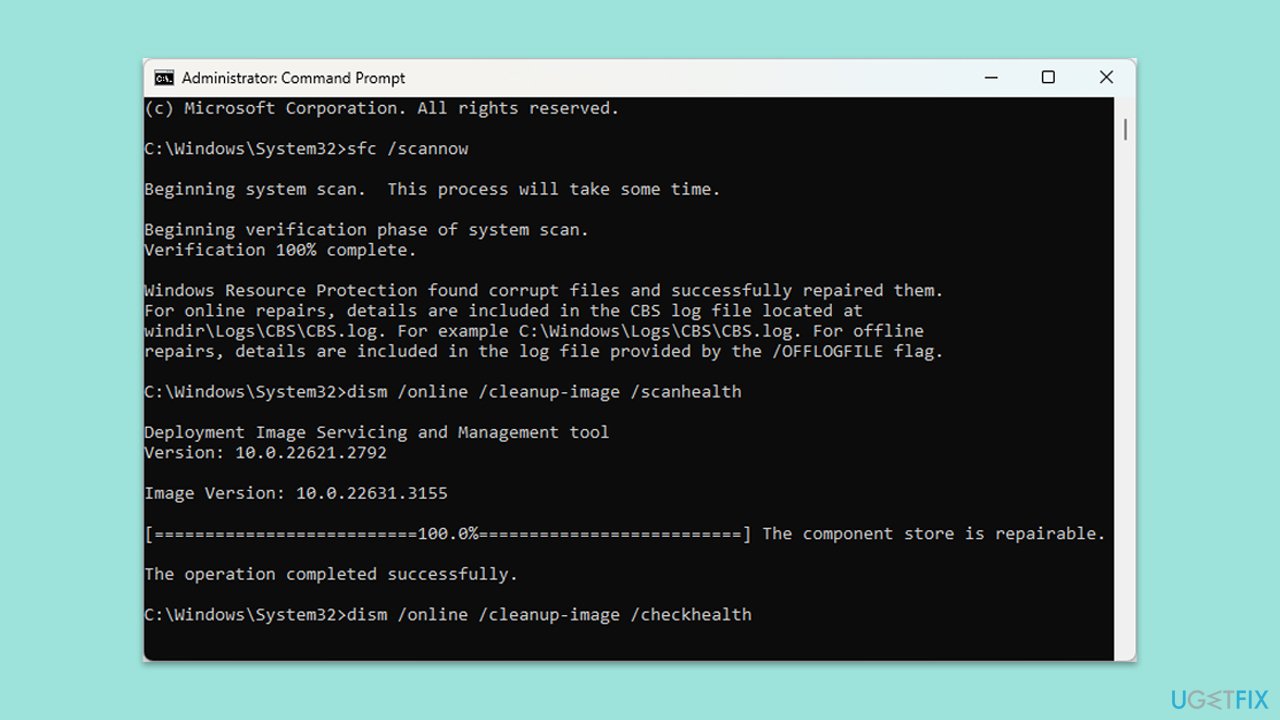
- Type in cmd in Windows search.
- Right-click on Command Prompt and select Run as administrator.
- In the User Account Control window, click Yes.
- In the Command Prompt window, paste the following command and press Enter:
sfc /scannow - Wait for the scan to complete.
- Once the SFC scan is finished, run the following set of DISM commands, pressing Enter after each one:
DISM /Online /Cleanup-Image /CheckHealth
DISM /Online /Cleanup-Image /ScanHealth
DISM /Online /Cleanup-Image /RestoreHealth - After completing the DISM commands, restart your system.
Fix 8. Reset Windows update components
Resetting Windows update components can resolve issues affecting the installation and updates of apps from the Windows Store.
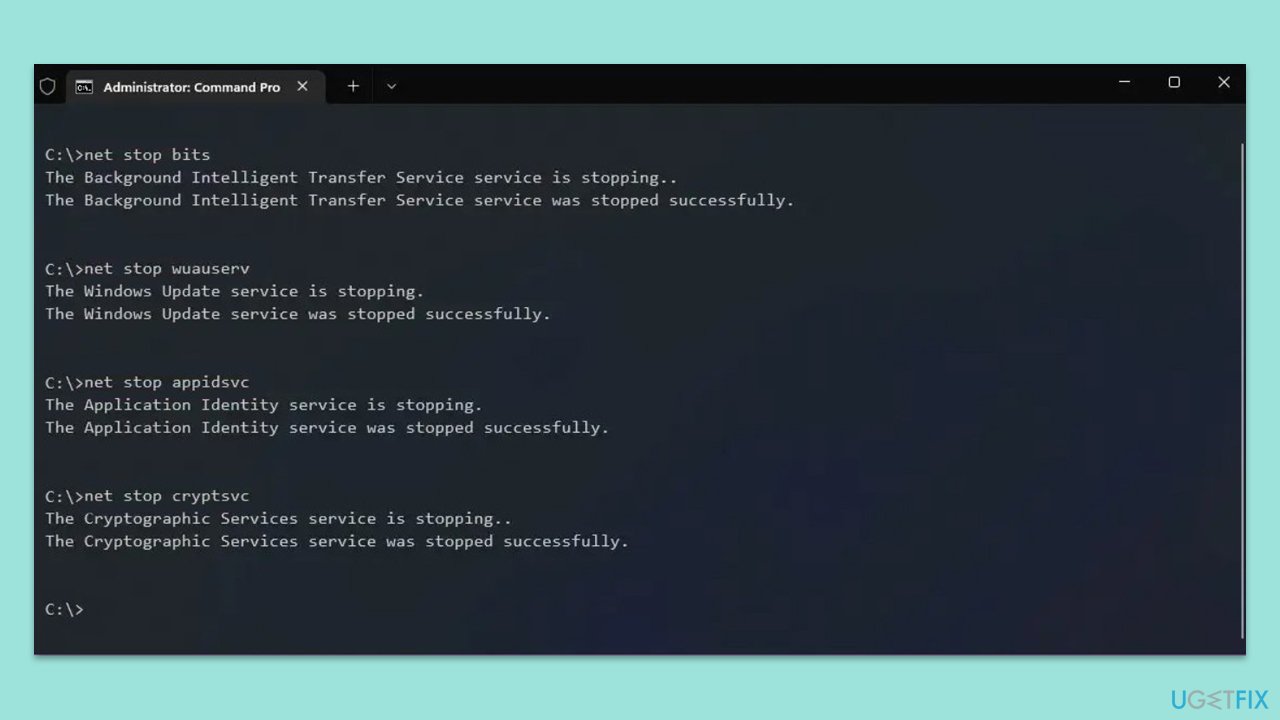
- Open Command Prompt as administrator.
- Stop the Windows Update and related services by running these commands one by one:
- net stop wuauserv
- net stop cryptSvc
- net stop bits
- net stop msiserver
- Rename the SoftwareDistribution and Catroot2 folders with these commands:
- ren C:\Windows\SoftwareDistribution SoftwareDistribution.old
- ren C:\Windows\System32\catroot2 Catroot2.old
- Restart the stopped services:
- net start wuauserv
- net start cryptSvc
- net start bits
- net start msiserver
- Try running Windows Update again.
Fix 9. Reinstall Xbox app
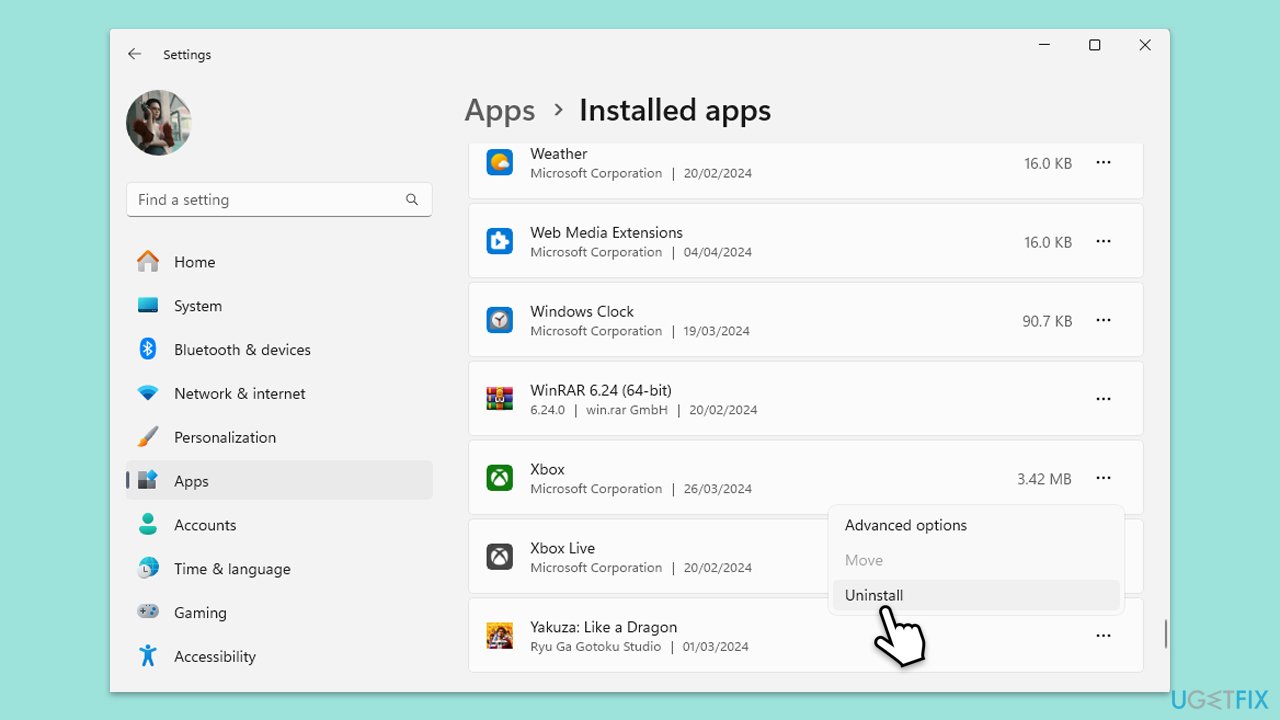
- Right-click on Start and pick Apps & Features/Installed apps.
- Scroll down to the Xbox app, select it (or click three vertical dots), and click Uninstall.
- Confirm any prompts and follow on-screen instructions.
- Restart your PC.
- Reinstall the app from the Microsoft Store.
Bottom line
To fix the error 0x89235003, users should check their internet connection, update or reset the Xbox app, review antivirus settings, and clear the app's cache. If these solutions do not resolve the issue, consider temporarily disabling firewall or antivirus software and using a PC repair program for further assistance.
Frequently asked questions
This error typically occurs due to network connectivity issues or problems with the Xbox app itself, such as outdated software or corrupted files.
You can try resetting the Xbox app through the Settings menu, or reinstalling it from the Microsoft Store to fix the error.
Yes, ensuring that your internet connection is stable and running a speed test can help determine if connectivity issues are causing the error on Windows 10 or Windows 11.




Report an issue
What's wrong with this guide? We review every report and update or remove content.
Report received — thank you. We'll review and fix it.
You need a free account to submit a report.
Be the first to comment