How to fix
Xbox app error 0xc00CEE3A
on Windows
Resolve Xbox app error 0xc00CEE3A on Windows 10 and 11 effortlessly with our expert-tested solutions. Get back to gaming in minutes!

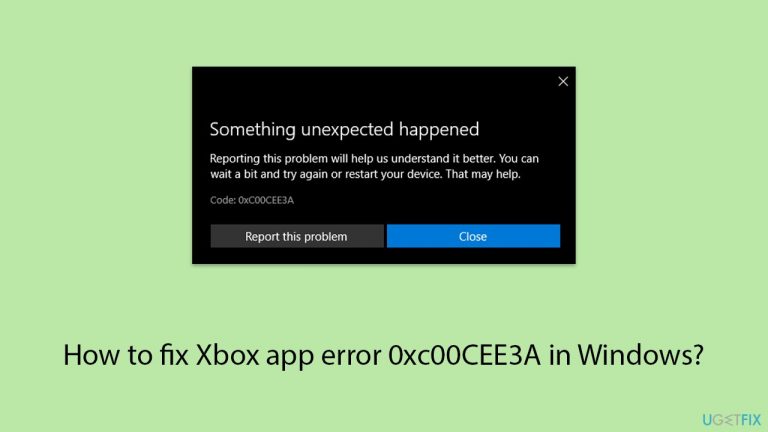
What causes How to fix Xbox app error 0xc00CEE3A in Windows?
- Corrupted system files
- Out-of-date Windows version
- Out-of-date Xbox app version
- Corrupted store cache
- Issues with Gaming Services
Repairs Windows system files, removes malware, and restores a clean OS state — without reinstalling.
Hello. I am receiving error 0xc00CEE3A whenever I try to download games in the Xbox app. Due to this, I can't play any games I have previously purchased either. Please help me with this.
The Xbox app serves as an interface for Windows gamers, allowing them to easily purchase, download, and manage their games. This program works smoothly with Microsoft's GamePass, giving users access to a large library of games for a monthly price. Despite its user-friendly interface and extensive capabilities, some users receive a specific error when attempting to download games using the Xbox app: error 0x00CEE3A.
Generally, 0xc00CEE3A error can be caused by underlying problems with the Xbox app, Gaming Services, or the Microsoft Store itself. It might make it difficult for players to update or download their games, which can be frustrating and interfere with their gaming experience. The issue can be caused by a number of factors, such as corrupted system files that prevent gaming-related services from operating properly, out-of-date Windows and app versions, or corrupted store cache.
In order to resolve the 0xc00CEE3A error, you may need to delete any corrupted data that might be the source of the error by clearing the Microsoft Store cache. Updating your Windows operating system and all associated applications - such as the Xbox app, Gaming Services, and Microsoft Store - is also essential because updates frequently include solutions for bugs that have been identified.
Deployment Image Servicing and Management (DISM) and System File Checker (SFC) scans can be used to potentially fix errors by repairing corrupted system files. Moreover, resetting the troublesome apps will return them to their original configurations and remove any faults caused by inaccurate settings or data.
When troubleshooting manually seems too complicated or fails to solve the problem, there may be an easier way to tackle it using a professional PC repair tool [d1]. Error 0xc00CEE3A may be resolved by using these apps, which are intended to automatically identify and resolve underlying Windows problems without the need for complex technical expertise or manual intervention.

Fix 1. Install all Windows updates
Keeping your system and applications up to date is crucial for ensuring compatibility and functionality. Updates often include patches for bugs that could be causing the error.
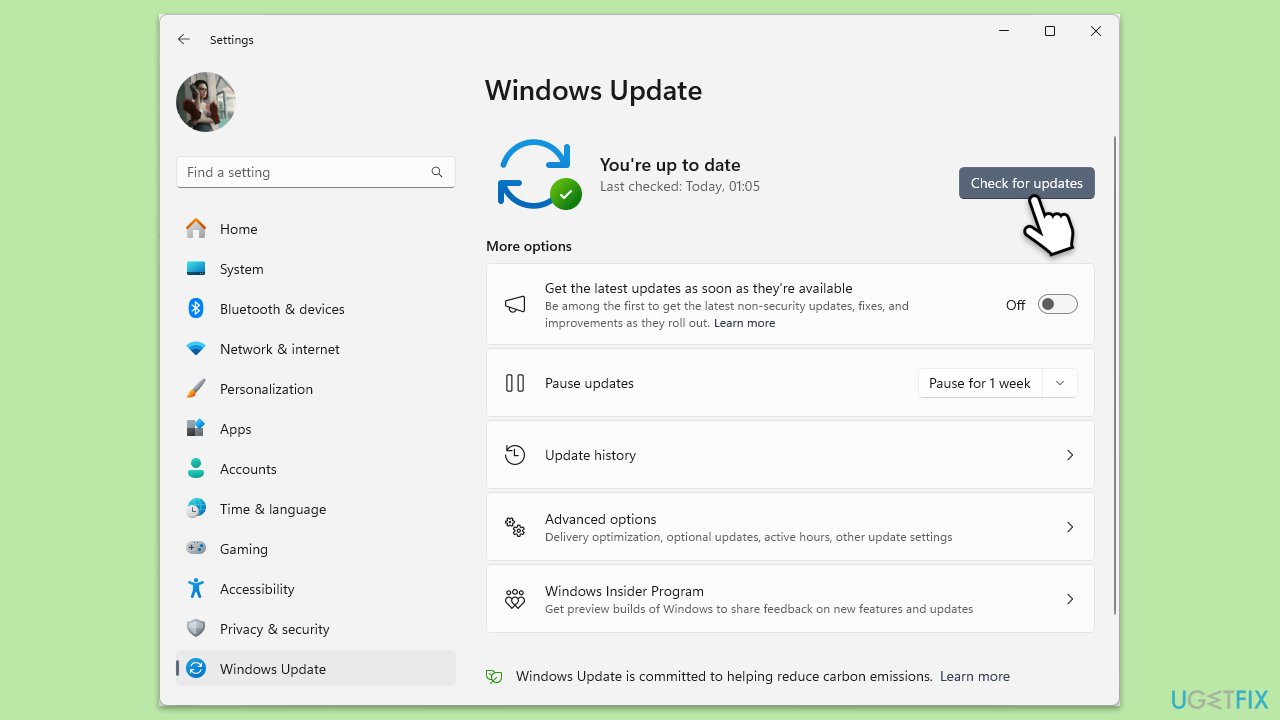
- Click on the Start and go to Settings.
- Select Update & Security.
- Click on Windows Update.
- If there are updates available (including optional ones), click Install. If not, click Check for updates.
- Restart your PC to implement the changes.
Fix 2. Repair corrupted files
System File Checker (SFC) and Deployment Image Servicing and Management (DISM) are tools designed to fix corrupt system files and Windows image files, respectively.
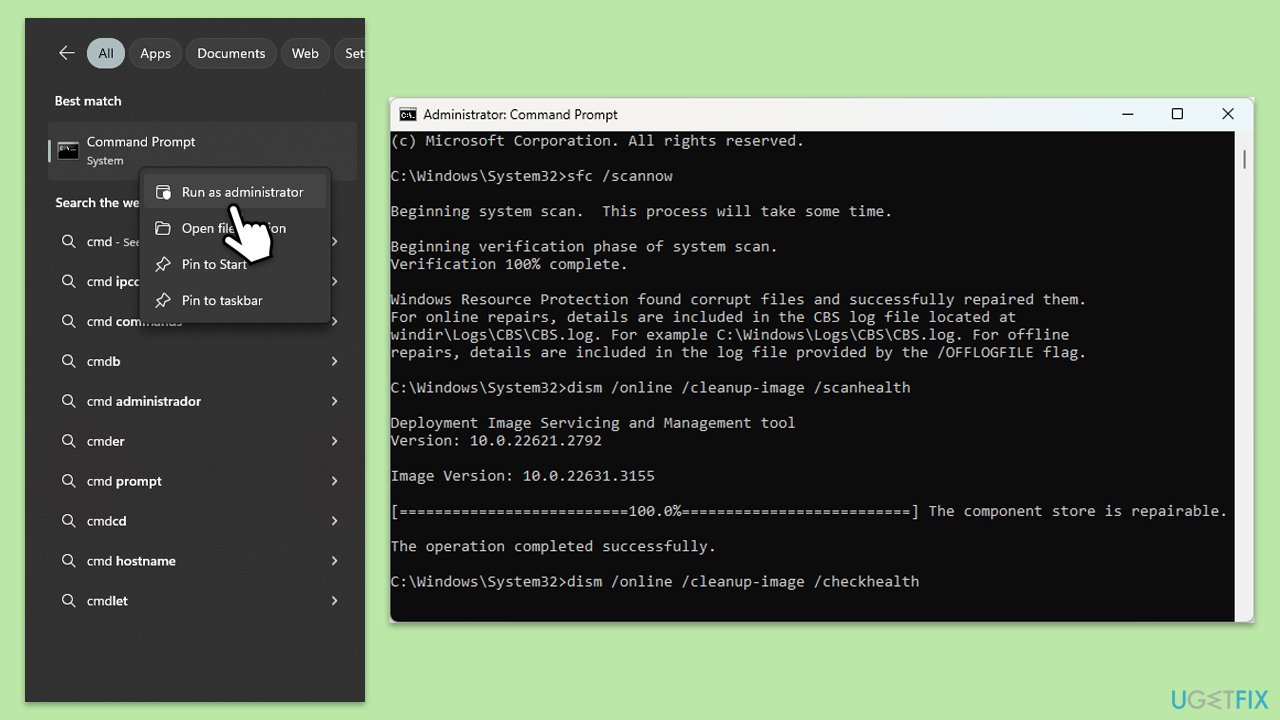
- Type in cmd in Windows search.
- Right-click on Command Prompt and select Run as administrator.
- In the User Account Control window, click Yes.
- In the Command Prompt window, paste the following command and hit Enter:
sfc /scannow - Next, use the following commands, pressing Enter each time:
Dism /Online /Cleanup-Image /CheckHealth
Dism /Online /Cleanup-Image /ScanHealth
Dism /Online /Cleanup-Image /RestoreHealth
(Note: if you get an error executing this last command, add /Source:C:\RepairSource\Windows /LimitAccess to it and try again). - Reboot your computer.
Fix 3. Reset Windows Store cache
Resetting the Windows Store cache can resolve issues related to corrupt cache files that might be causing the error.
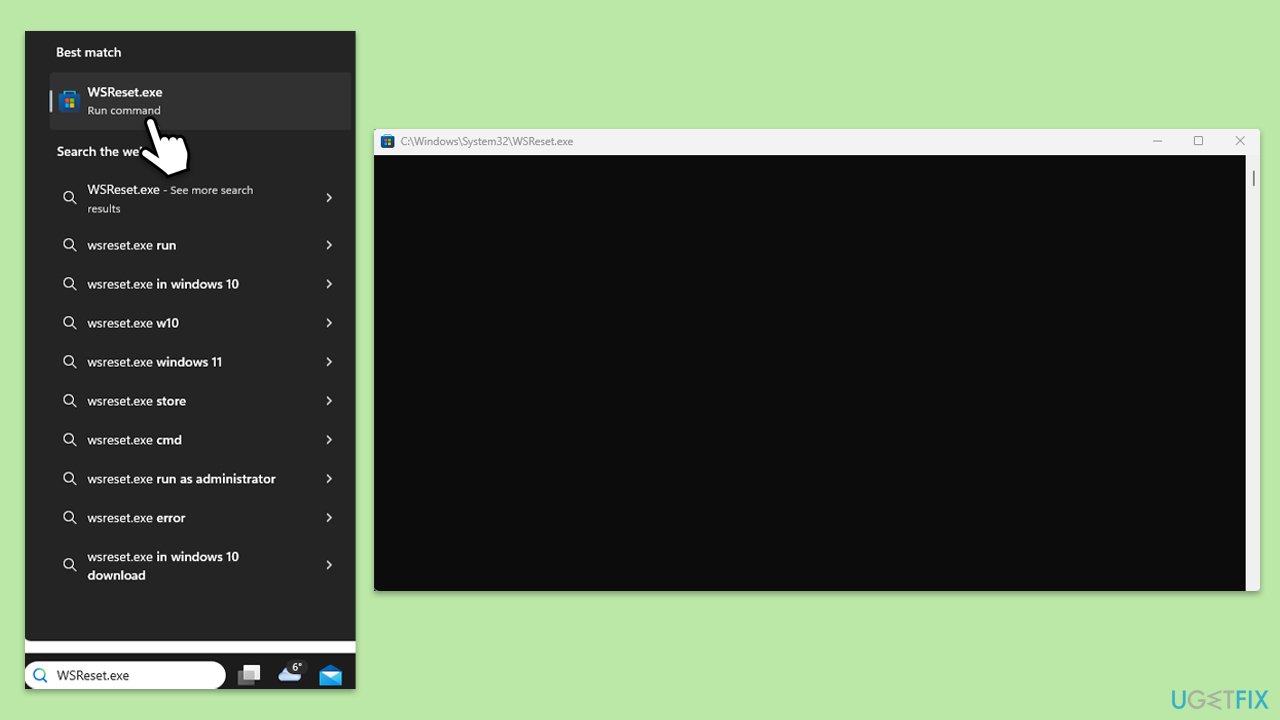
- Type WSReset.exe in the Windows search bar and press Enter.
- Wait till a black pop-up window shows up – do not close it.
- The pop-up window will close soon, and the Windows Store should reopen.
Fix 4. Change Xbox services to Automatic
Ensuring Xbox services start automatically can help avoid errors related to these services not running when needed.
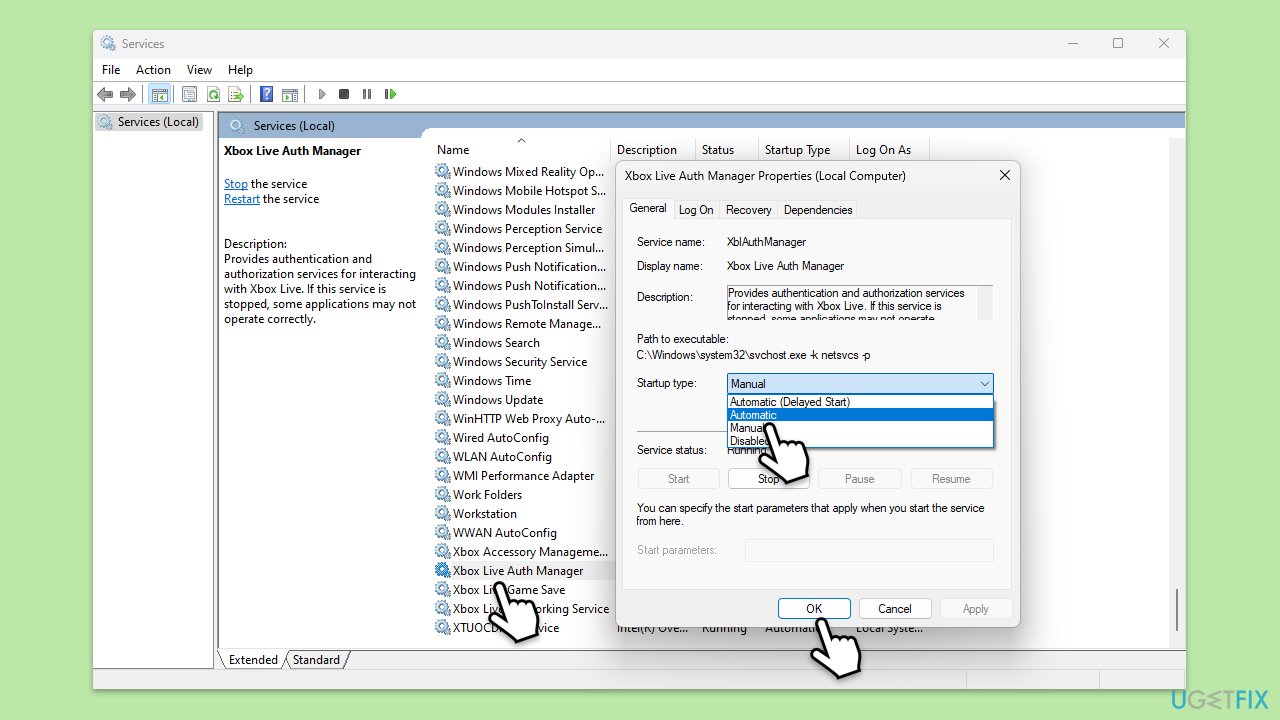
- Type Services in Windows search and hit Enter.
- Scroll down to find Gaming Services.
- Right-click on it and select Restart.
- If it is grayed out, double-click the service to open its Properties.
- Under Startup type, select Automatic from the drop-down menu.
- Click Start, Apply, and OK.
- Repeat this process for Xbox Live Auth Manager, Xbox Live Game Save, and Xbox Live Networking Service.
Fix 5. Repair or reset the Microsoft Store, Xbox app, and Gaming Services
Repairing or resetting these apps can fix issues by restoring them to their default state without deleting your data.
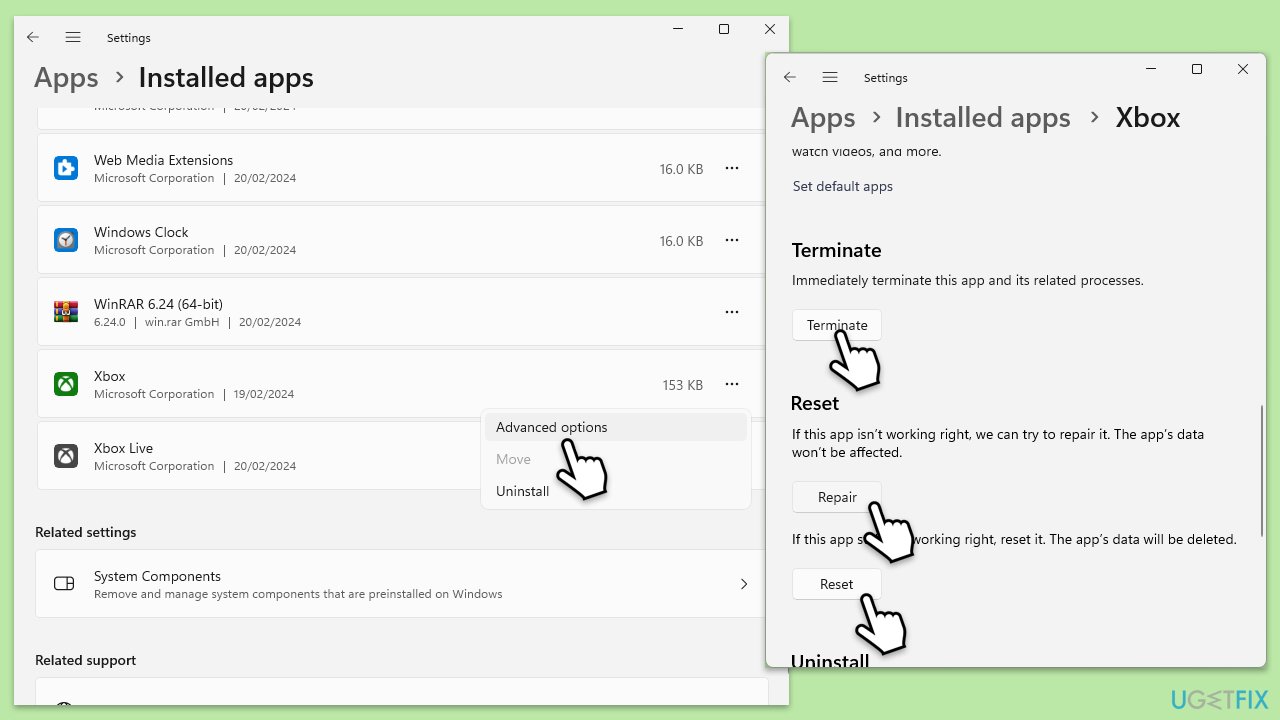
- Right-click on Start and pick Apps & Features/Installed apps.
- Scroll down to locate the Xbox app and click Advanced options.
- Click Terminate and Repair.
- If that does not help, try the Reset option instead.
- Repeat the same with the Microsoft Store and Gaming Services.
Fix 6. Reregister all Windows apps
Reregistering all Windows apps can resolve issues caused by corrupted or improperly registered applications.
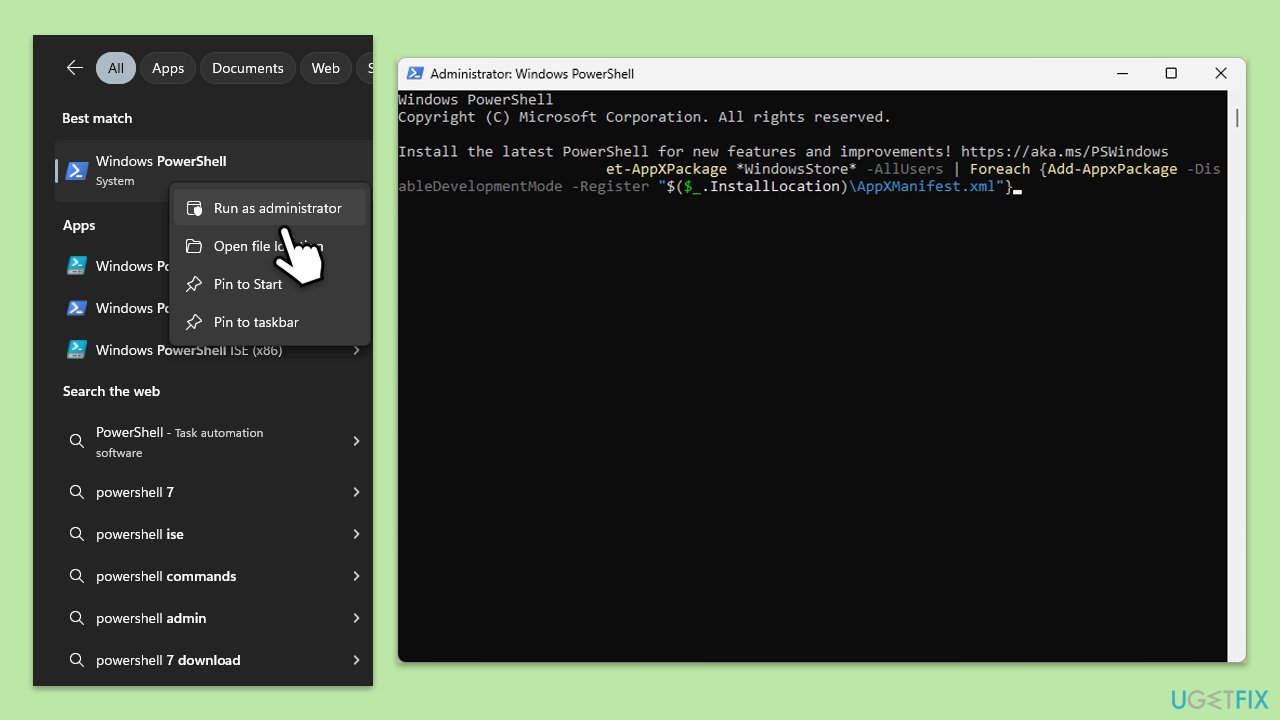
- Right-click on the Start button and select Windows PowerShell (Admin) or Command Prompt (Admin).
- When User Account Control shows up, click Yes.
- Copy and paste the following command, pressing Enter after each:
Get-AppXPackage | Foreach {Add-AppxPackage -DisableDevelopmentMode -Register "$($_.InstallLocation)\AppXManifest.xml"} - Close down PowerShell and restart your computer.
Fix 7. Reinstall Gaming Services in PowerShell
Reinstalling Gaming Services can resolve issues specifically related to gaming services that the Xbox app relies on.
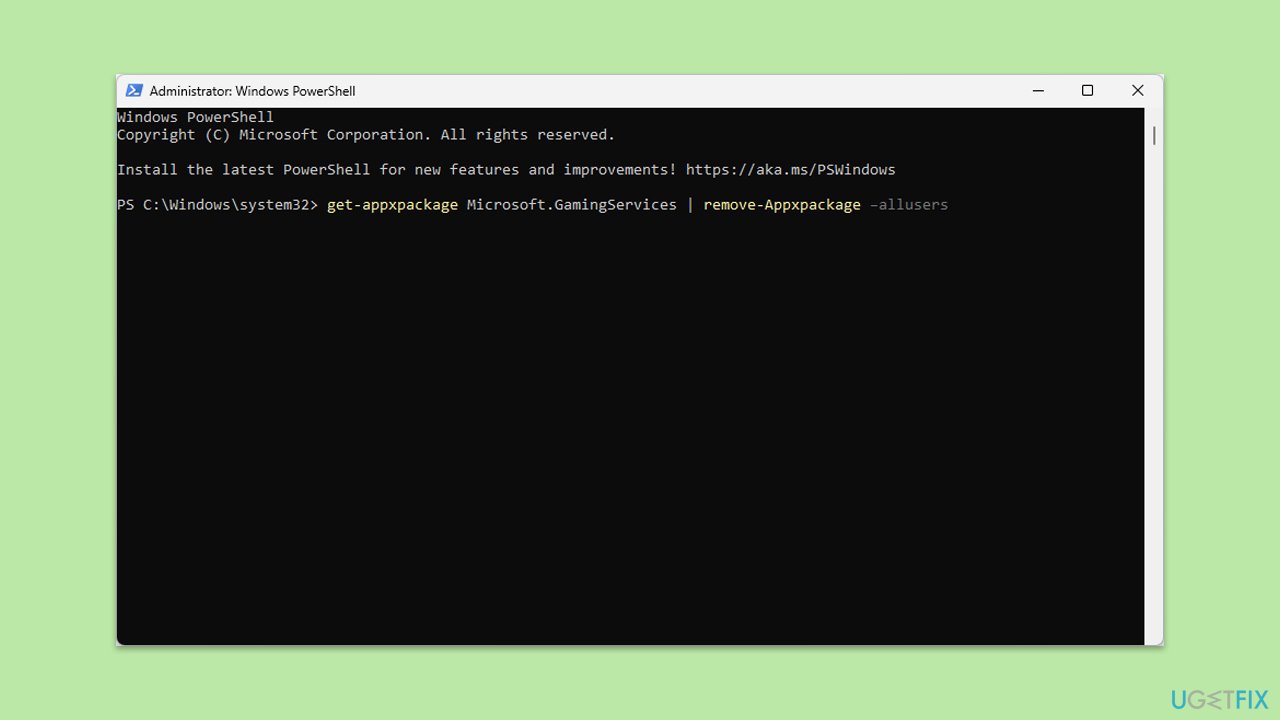
- Open PowerShell as administrator.
- In the new window, copy and paste the following commands and hit Enter:
get-appxpackage Microsoft.GamingServices | remove-Appxpackage –allusers
Remove-Item -Path "HKLM:\System\CurrentControlSet\Services\GamingServices" -recurse
Remove-Item -Path "HKLM:\System\CurrentControlSet\Services\GamingServicesNet" -recurse - Close down PowerShell and restart your system.
- Next, install Gaming Services from the Microsoft Store.
Fix 8. Perform in-place upgrade
An in-place upgrade reinstalls Windows while keeping your files, settings, and applications. It can resolve underlying issues without losing your data.
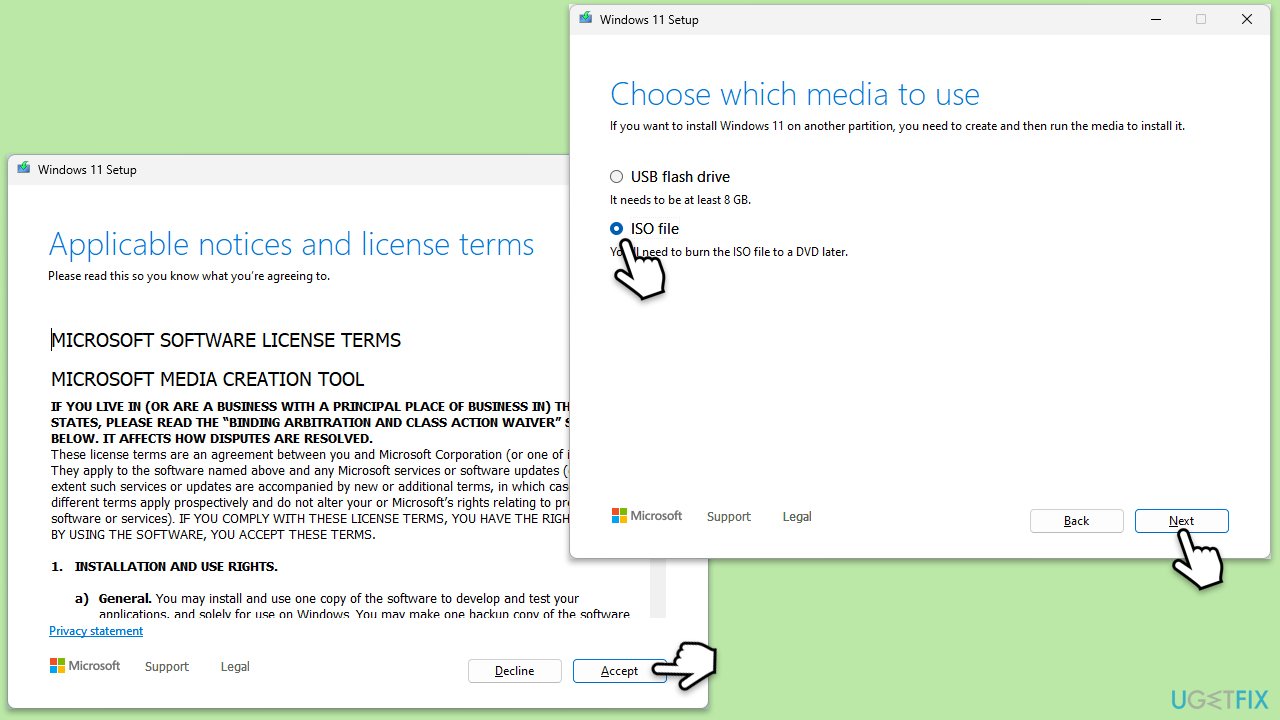
- Visit the official Microsoft website and download Windows 10 installation media (Windows 11 version).
- Double-click the installer, select Yes when UAC shows up, and agree to the terms.
- Select the ISO file and click Next, then follow the instructions to finish the process.
- Right-click on ISO and click Mount.
- Open the location of the ISO, right-click on it, and select Mount.
- Launch the installer.
- Select Upgrade this PC now and click Next.
- Windows will start downloading the needed files.
- Agree to the terms once again and click Next.
- Before installing, ensure you are happy with your choices (otherwise, you can click the Change what to keep option).
- Finally, click Install to begin the upgrade process.
Bottom line
To resolve the 0xc00CEE3A error, you can clear the Microsoft Store cache, update your Windows operating system and all associated applications, and run DISM and SFC scans to repair corrupted system files. If these methods do not work, consider using a professional PC repair tool to automatically identify and resolve underlying Windows problems.
Frequently asked questions
The error 0xc00CEE3A typically indicates an issue with the Xbox app installation or its connection to the Microsoft servers on Windows 10 or 11.
To fix the error, try resetting the Xbox app through the Settings menu or reinstalling the app from the Microsoft Store on Windows 10 or 11.
Yes, ensuring that your Windows 10 or 11 is fully updated can help resolve compatibility issues that may be causing the Xbox app error 0xc00CEE3A.




Report an issue
What's wrong with this guide? We review every report and update or remove content.
Report received — thank you. We'll review and fix it.
You need a free account to submit a report.
Be the first to comment