How to fix
Xbox app error 0xc0EA0001
on Windows
Resolve Xbox app error 0xc0EA0001 on Windows 10 or 11 quickly and efficiently. Get expert-tested solutions guaranteed to fix the issue in minutes.

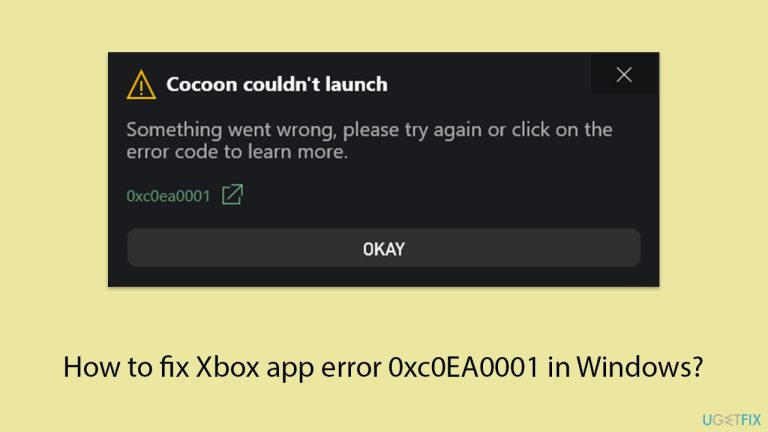
What causes How to fix Xbox app error 0xc0EA0001 in Windows?
- Poor internet connectivity
- Poorly configured network settings
- Temporary server issues from Microsoft
- Corrupted app data
- Older software version
- Interference from third-party security programs
Repairs Windows system files, removes malware, and restores a clean OS state — without reinstalling.
I am using Windows 11 Home and I occasionally get error code 0xc0EA0001 when trying to launch some games on Xbox Game Pass. There's not much explained - the message says "Something went wrong." Would appreciate any help.
Error 0xc0EA0001 is one of those recurring issues with Windows and has been raised by several users trying to access their games or Game Pass library via the Xbox app. Many times, it prevents them from starting up a game or even accessing some features of the app-leaving users pretty irritated with partial functionality.
Though causes for the 0xc0EA0001 error can be variable, in most cases, it implies there was some kind of issue connecting the Xbox app with Microsoft's servers or a problem while syncing your account.
Poor internet connectivity, poorly configured network settings, and temporary server issues from Microsoft's side are the common reasons for this error. Additionally, corrupted app data or an older software version can cause the issue. Third-party security programs interfering with the system process or disrupting the processes in charge of authentication have also been reported to cause the error.
The 0xc0EA0001 error in the Xbox app has often required users to troubleshoot their network settings, update the Xbox app, or sometimes even reset the app. In more persistent cases, reinstalling the app or running system file repairs is done to bring the app to a functional state. If one keeps receiving errors or can't find the cause of this, running [d1] repair will help make troubleshooting easier as it repairs system issues efficiently and quickly.

Fix 1. Sync your time and date
Incorrect time and date settings can cause authentication issues with Microsoft servers, leading to error 0xc0EA0001. Synchronizing your system’s time and date ensures proper communication with the servers.
- Type in Control Panel in Windows search and press Enter.
- Go to Clock and Region and click on Date and Time.
- Pick the Internet Time tab and select Change Settings.
- Make sure that Synchronize with an Internet time server box is ticked.
- Click Update now and OK.

Fix 2. Check your internet connection
The Xbox app requires a stable internet connection to function properly. Connection issues can lead to this error.
Windows 11
- Type Troubleshoot in Windows search and hit Enter.
- Select Other troubleshooters.
- Find Network & Internet from the list and select Run.
- Wait till the scan is finished.

Windows 10
- Right-click on Start and pick Settings.
- Go to the Network & Internet section.
- On the right side, find the Advanced network settings section.
- Click Network troubleshooter and wait.
- The fixes will be automatically applied.
Fix 3. Update Windows
Running outdated software can cause compatibility issues, resulting in error 0xc0EA0001. Keeping both the Xbox app and Windows updated ensures you have the latest fixes.
- Type Updates in the Windows search bar and press Enter.
- The new window will open and you should be notified about available updates - click Install all.
- If none are available, click Check for updates, and they should be installed automatically.
- Don't forget to install all the available optional updates.
- When done, restart your system.

Fix 4. Clear Store cache
Cached data can become corrupted over time, leading to app errors. Clearing the cache forces the app to create fresh files.
- Press Win + R to open the Run dialog box.
- Type wsreset.exe and press Enter.
- Wait for the command to complete and for the Microsoft Store to open automatically.

Fix 5. Repair or reset Xbox app, Microsoft Store and Gaming Services
Resetting Xbox and other related components restores it to its default settings, which can fix issues caused by misconfigurations.
- Right-click on Start and pick Apps & Features/Installed apps.
- Scroll down to locate the Xbox app and click Advanced options.
- Click Terminate and Repair.
- If that does not help, try the Reset option instead.
- Repeat the same with the Microsoft Store and Gaming Services.

Fix 6. Check account synchronization
Error 0xc0EA0001 can occur if there are issues with your Microsoft account. Re-syncing your account can help.
- Open the Xbox app and sign out of your account.
- Restart the app and sign back in with your Microsoft account.
- Ensure you are using same account as the one on your PC and Microsoft Store.
Fix 7. Check relevant services
Some services need to be running in order for games to launch correctly.
- Type Services in Windows search and hit Enter.
- Scroll down to find Gaming Services.
- Right-click on it and select Restart.
- If it is grayed out, double-click the service to open its Properties.
- Under Startup type, select Automatic from the drop-down menu.
- Click Start, Apply, and OK.
- Repeat this process with the following services:
Windows Update
Microsoft Store Install Service
Xbox Live Auth Manager
Xbox Live Game Save
Xbox Live Networking Service
Gaming Services.

Fix 8. Reinstall the Xbox app
Reinstalling the app can resolve issues caused by corrupted installation files.
Uninstall Xbox app using Settings:
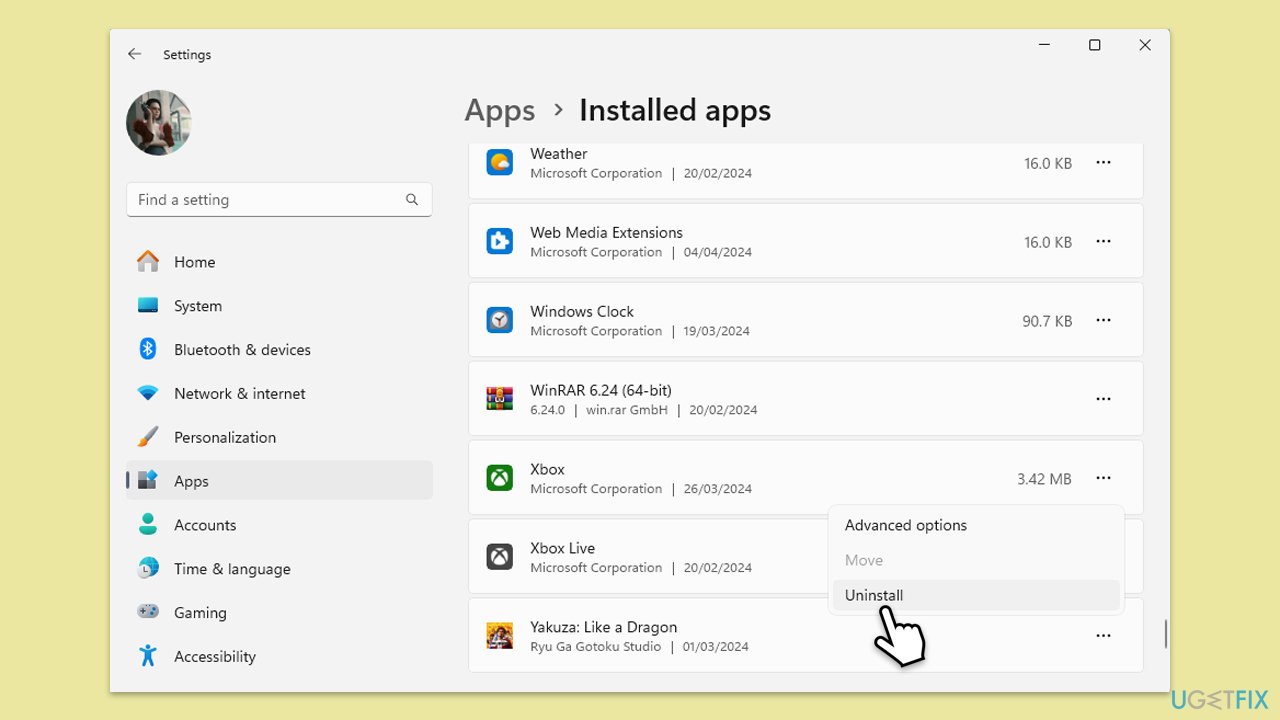
- Right-click on Start and pick Apps & Features/Installed apps.
- Scroll down to the Xbox app, select it (or click three vertical dots), and click Uninstall.
- Confirm any prompts and follow on-screen instructions.
- Restart your PC.
- Reinstall the app from the Microsoft Store.
Uninstall Xbox app using PowerShell:
- Ensure the Microsoft Store and Xbox App are closed.
- Type PowerShell in Windows search.
- Right-click on the result and select Run as administrator.
- When User Account Control shows up, click Yes.
- Copy and paste the following command, pressing Enter after each:
Get-AppxPackage *Xbox* | Remove-AppxPackage
Get-AppxPackage *xboxapp* | Remove-AppxPackage - Close down PowerShell and proceed with next steps.
Bottom line
To fix the Xbox app error 0xc0EA0001, you can sync your time and date, update the Xbox app, or reset the app. If these solutions do not resolve the issue, consider reinstalling the app or running system file repairs for further troubleshooting.
Frequently asked questions
The error 0xc0EA0001 usually occurs due to issues with the Xbox app installation, corrupted files, or network connectivity problems. Ensuring that your Windows is updated and the Xbox app is properly installed can help resolve this issue.
To troubleshoot error 0xc0EA0001, you can try resetting the Xbox app through the Settings menu, checking for Windows updates, or reinstalling the app entirely. Additionally, resetting your network settings may also help.
To prevent the Xbox app error 0xc0EA0001, regularly update your Windows 10 or Windows 11 system and the Xbox app, and ensure your internet connection is stable. Keeping your system free from corrupted files by using built-in tools like System File Checker can also be beneficial.




Report an issue
What's wrong with this guide? We review every report and update or remove content.
Report received — thank you. We'll review and fix it.
You need a free account to submit a report.
Be the first to comment