How to fix
Xbox app error code 0x87DD003
on Windows
Resolve Xbox app error code 0x87DD003 on Windows 10 and 11 effortlessly. Get back to gaming with expert-tested solutions in minutes!


What causes How to fix Xbox app error code 0x87DD003 in Windows?
- Issues with the Microsoft account
- Problems with Xbox service status
- Network restrictions or configurations
- Corrupted Windows Store cache
- Corrupted Xbox app data
- Outdated Windows or Xbox app
Repairs Windows system files, removes malware, and restores a clean OS state — without reinstalling.
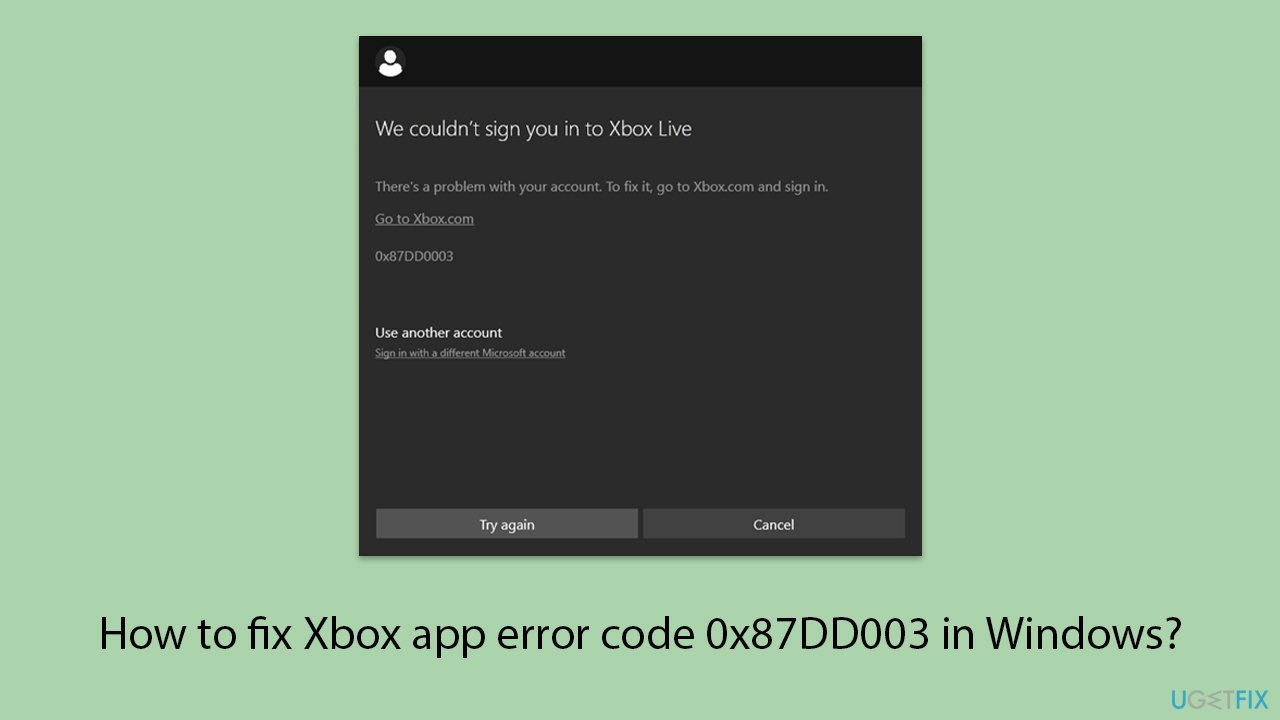
Hello, I can't sign in to Xbox app because I keep getting the following error: "We couldn't sign you in to Xbox Live. There's a problem with your account. To fix it please go to xbox.com, and sign in. Error code: 0x87DD003." How do I fix this?
The Xbox app on Windows offers a bridge to Microsoft's gaming ecosystem, allowing users to access games, communicate with friends, and manage their gaming experience. However, encountering error code 0x87DD003 during login can significantly disrupt this experience. This error typically signifies an issue with the user's sign-in details or problems with Microsoft's servers, which can prevent successful authentication.
Firstly, issues with the Microsoft account or the Xbox service's status can trigger this error. Users should verify their account details and check for any service outages that might be affecting login capabilities. Additionally, network restrictions or configurations that block the app's access to the internet can also cause this error, necessitating a review and adjustment of network settings.
Moreover, a corrupted Windows Store cache or Xbox app data could lead to this error. Clearing the cache or resetting the app can often resolve these issues by removing corrupt data and allowing the app to refresh its connection settings. Updating Windows and the Xbox app ensures compatibility and can fix known bugs that might contribute to the error.
Lastly, more technical solutions involve adjusting privacy settings or using the Windows troubleshooter to identify and fix issues with the app or account settings. These measures can address underlying problems that might not be immediately apparent.
An organized method of fixing Xbox app error code 0x87DD003 will help users regain access and guarantee a smooth gaming experience. Even though the problem can be annoying, figuring out its possible causes and investigating several fixes can frequently result in a speedy fix. Using a specialized PC repair program can help expedite the troubleshooting process by offering a thorough resolution to underlying system problems that may be causing the error.
Fix 1. Run relevant troubleshooters
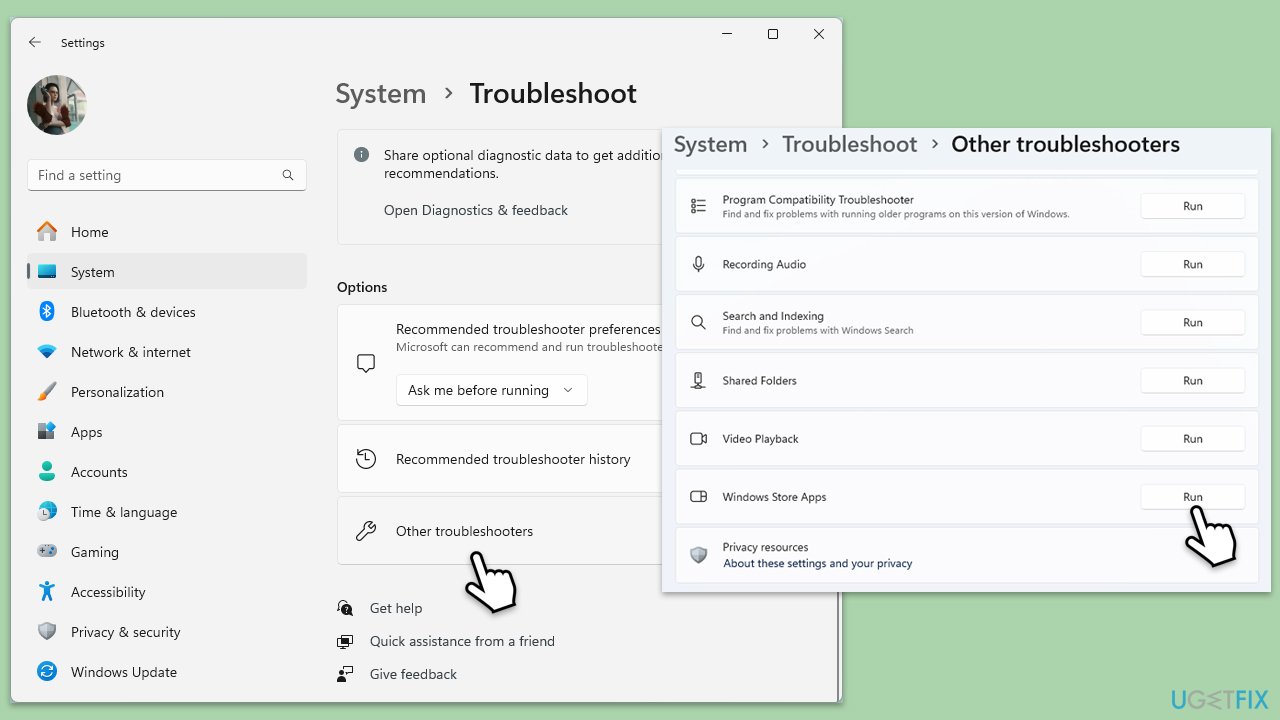
Windows includes built-in troubleshooters for Windows-related issues. In this case, you should run Windows Store apps and Network troubleshooters.
- Type Troubleshoot in Windows search and hit Enter.
- Click Additional troubleshooters/Other troubleshooters.
- Scroll down to find Windows store apps and select it.
- Click Run the troubleshooter/Run.
- Wait till the process is finished and apply the fixes.
- Repeat this process for Network and Internet.
Fix 2. Check Xbox-related services
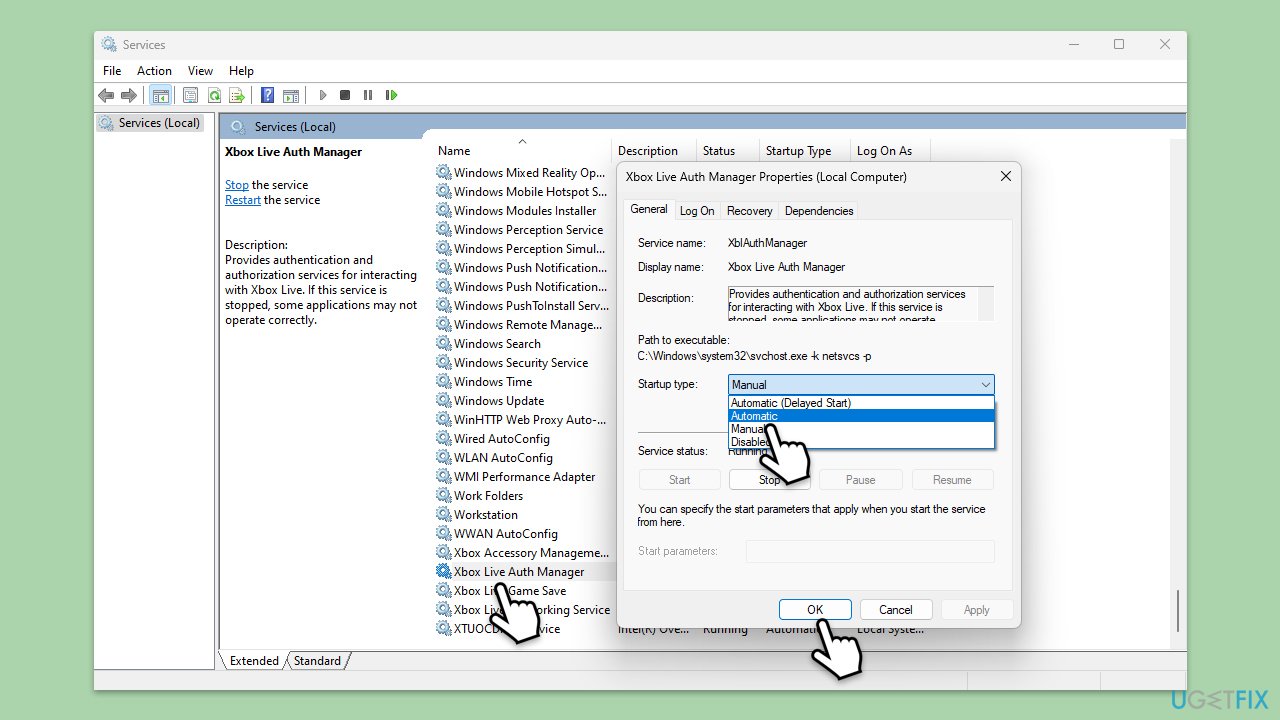
Ensuring that Xbox-related services are running is crucial for the Xbox app to function properly. These services manage various aspects of the app's operation, including authentication and connectivity.
- Type Services in Windows search and press Enter.
- Scroll through the list and ensure the following services are running: Windows Update, Xbox Live Auth Manager, Xbox Live Game Save, and Xbox Live Networking Service. If any are not running, right-click on the service, select Properties, set the Startup type to Automatic, and click Start if the service is stopped.
- Click OK and close the Services window.
- Restart your computer and check if the issue with the Xbox app persists.
Fix 3. Clear Windows Store cache
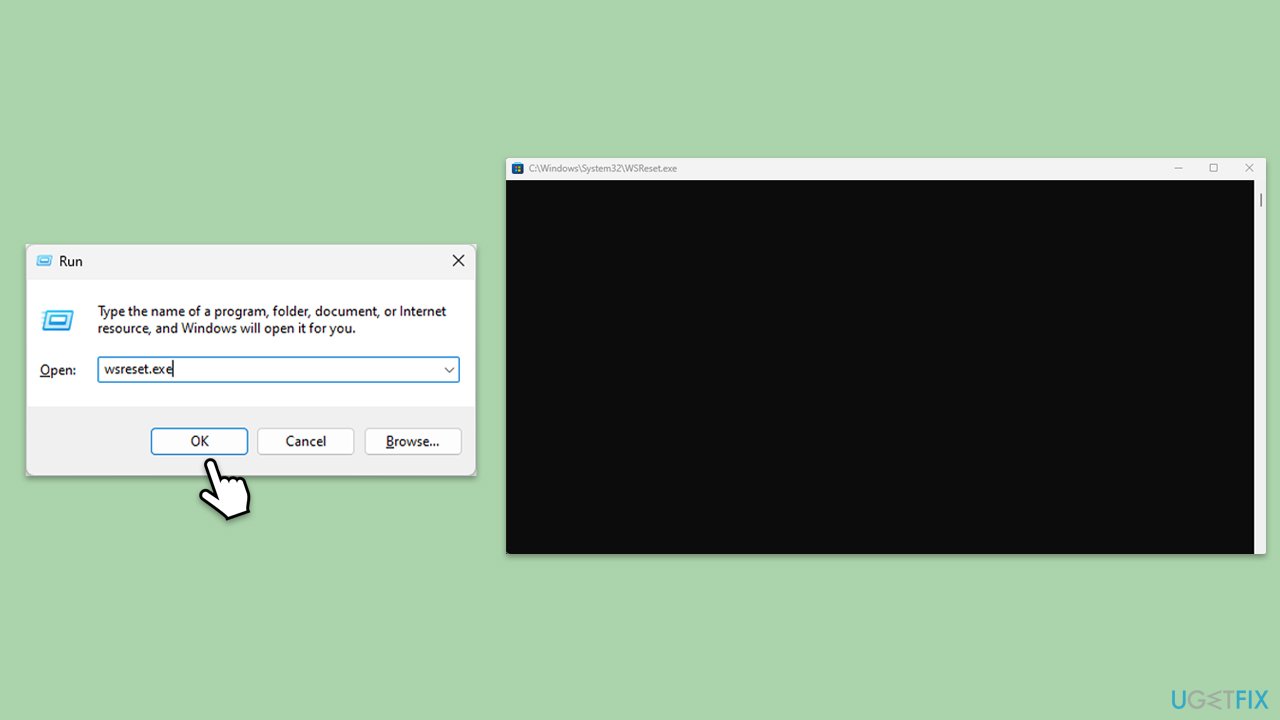
The Windows Store cache can sometimes become corrupted, leading to issues with apps downloaded from the Store, including the Xbox app. Clearing the cache can resolve these issues.
- Press the Win + R to open the Run dialog.
- Type wsreset.exe and press Enter.
- A command prompt window will open and reset the Windows Store cache without any further input needed. Wait for it to close automatically.
- Once the reset is complete, restart your computer and attempt to log in to the Xbox app again.
Fix 4. Try Google's DNS
Changing your DNS settings to Google's public DNS can help improve internet connectivity and resolve issues with logging into online services.
Windows 11
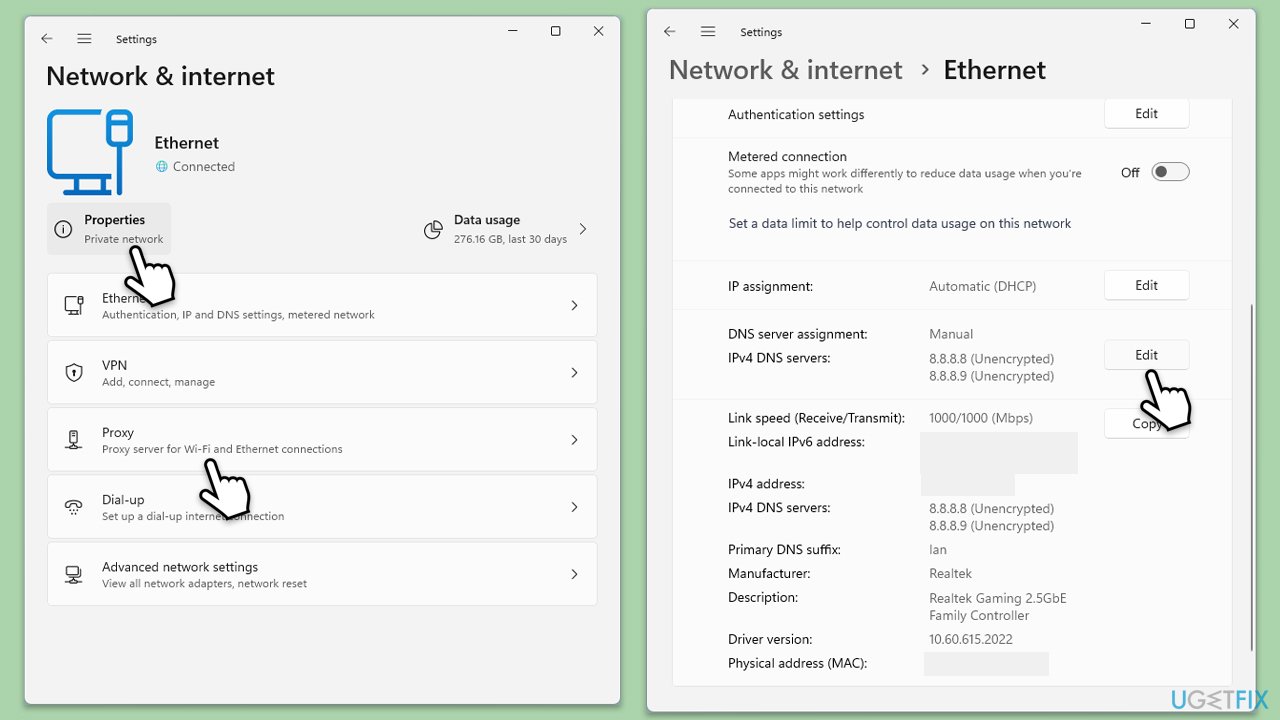
- Right-click on Start and select Network connections.
- Under your connection, click Properties.
- Find the DNS server assignment section and click Edit.
- Set your DNS to Google's:
Preferred DNS: 8.8.8.8
Alternate DNS: 8.8.4.4 - Click Save.
Windows 10
- Right-click on Start and select Settings.
- Go to Network and Internet section.
- Click on Change adapter options.
- Right-click on your internet connection and pick Properties.
- Select Internet Protocol Version 4 (TCP/IPv4) once and go to Properties or select Edit next to the DNS settings.
- Select Use the following DNS server addresses option and set your DNS to Google's:
Preferred DNS server: 8.8.8.8
Alternate DNS server: 8.8.4.4 - Click OK.
Fix 5. Repair or reset the Xbox app
Repairing or resetting the Xbox app can fix issues without deleting your app data, while resetting will revert the app to its default state, potentially fixing more severe issues.
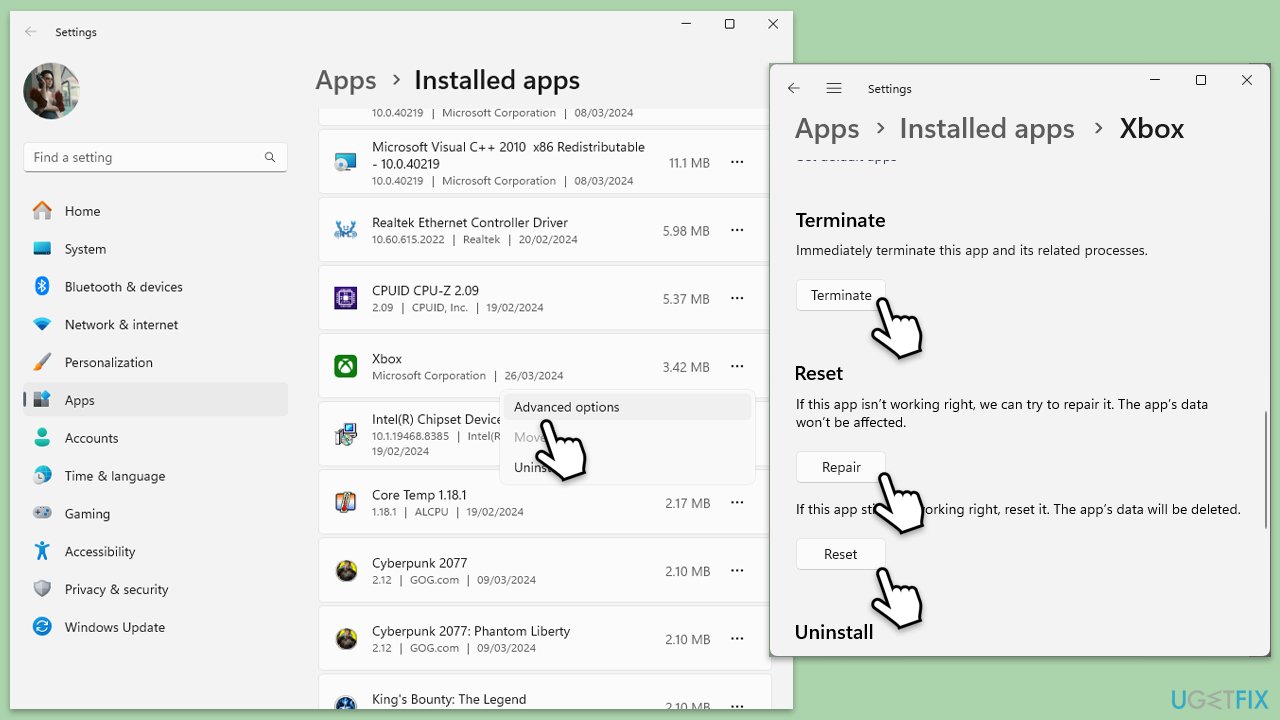
- Right-click on Start and pick Apps & Features/Installed apps.
- Scroll down to locate the Xbox app and click Advanced options.
- Click Terminate and Repair.
- If that does not help, try the Reset option instead.
- Repeat the same with the Microsoft Store and Gaming Services (if applicable).
Fix 6. Reinstall Xbox app
If none of the above solutions work, reinstalling the Xbox app can provide a fresh start and often resolves persistent issues.
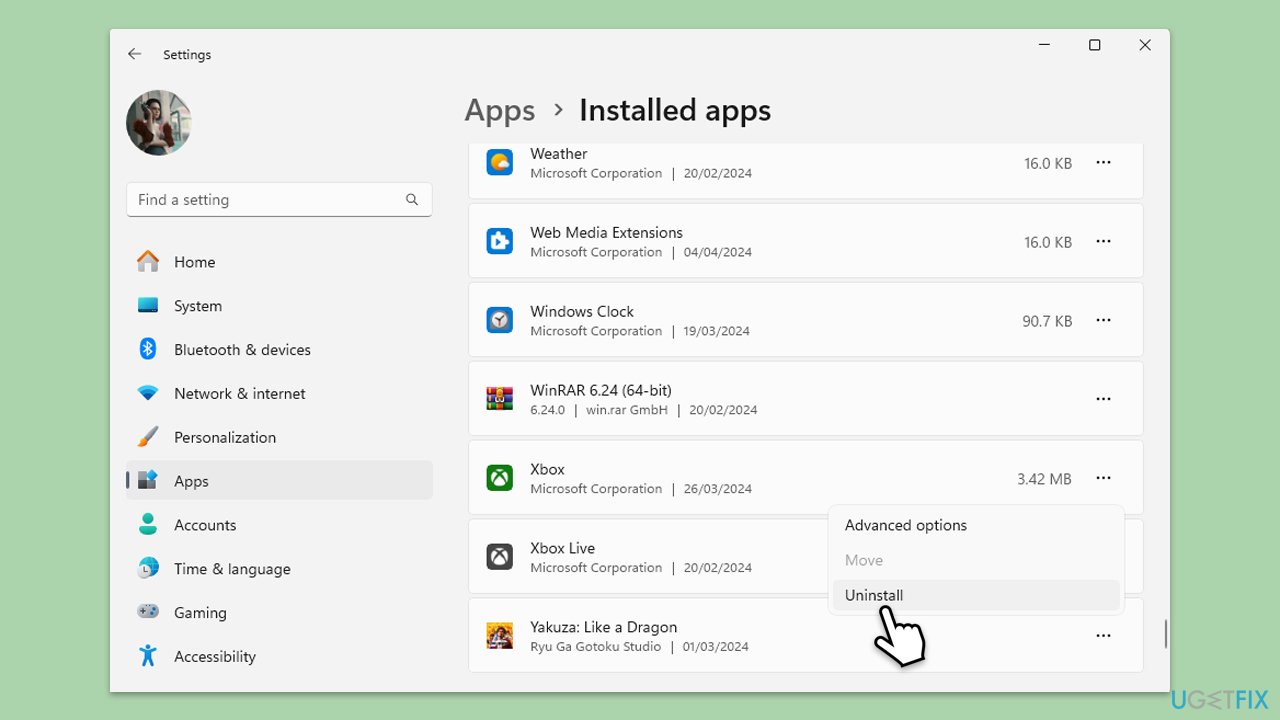
- Right-click on Start and pick Apps and Features/Installed apps.
- Scroll down to find the Xbox app installation.
- Click Uninstall and confirm with Uninstall. In Windows 11, click three dots > Uninstall.
- Follow the prompts to uninstall the app.
- Restart your computer and re-install the Xbox app from the official website.
Note: you can also reinstall the Xbox Live app.
Fix 7. Create a new user account
Creating a new user account can resolve issues caused by a corrupted user profile, allowing you to use the Xbox app without errors.
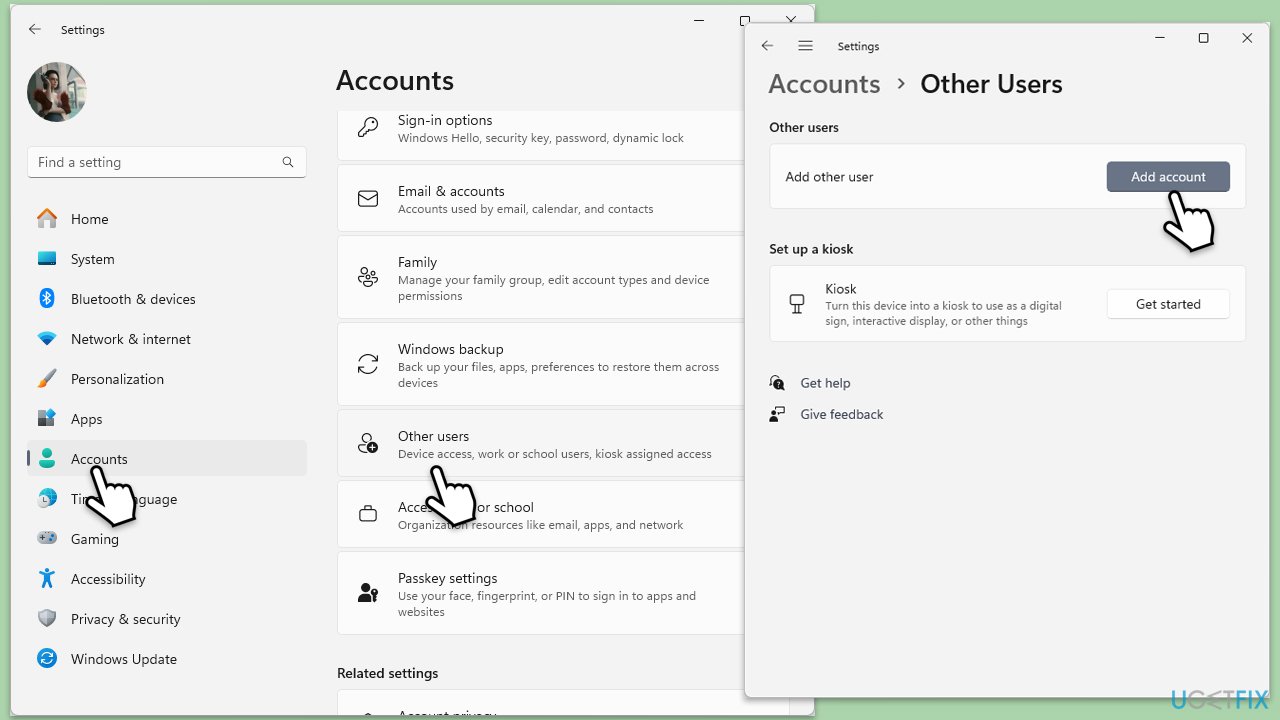
- Open Windows Settings.
- Go to Accounts then Family/Family & other users.
- Under Other users, click Add account/Add someone else to this PC.
- Follow the prompts to create a new user account. If you don't have Microsoft account details, you can choose I don't have this person's sign-in information followed by Add a user without a Microsoft account.
- Assign a username and password for the new account and complete the setup.
- Log out of your current account and log into the new account.
Bottom line
To fix the Xbox app error code 0x87DD003, users should verify their account details, check for service outages, and review network settings. Additionally, clearing the cache, resetting the app, and updating Windows and the Xbox app can help. If these solutions do not work, consider using a specialized PC repair program to address underlying system issues.
Frequently asked questions
First, ensure that your Windows 10 is updated to the latest version. Then, try signing out of the Xbox app and signing back in to refresh your account details.
Yes, clearing the cache of the Xbox app can resolve this error. Go to Settings > Apps > Apps & features, find the Xbox app, and select 'Advanced options' to clear the cache.
Absolutely, uninstalling and then reinstalling the Xbox app can help fix the issue. Simply go to Settings > Apps, uninstall the app, and then download it again from the Microsoft Store.




Report an issue
What's wrong with this guide? We review every report and update or remove content.
Report received — thank you. We'll review and fix it.
You need a free account to submit a report.
Be the first to comment