How to fix
Xbox app error “There seems to be a problem with your store account”
on Windows
Troubleshoot the Xbox app error "There seems to be a problem with your store account" on Windows 10 and 11. Expert-tested solutions for quick fixes!


What causes How to fix Xbox app error “There seems to be a problem with your store account” in Windows?
- Corrupted Microsoft Store Cache
- Account Authentication Issues
- System or App Configuration Changes
- Corrupted Xbox App Installation
- Windows Services Misconfiguration
Repairs Windows system files, removes malware, and restores a clean OS state — without reinstalling.
Hello. I keep getting "There Seems to Be a Problem With Your Store Account" Error Message. Nothing happens, and my login is not accepted when I try to find what the issue is. Help me, please.
Xbox app error "There seems to be a problem with your store account" in Windows appears pretty often. These user reports have been coming regularly. The Xbox app on Windows is a cornerstone for gamers, providing access to Game Pass subscriptions, cloud gaming, and a vast library of titles.
However, some users encounter the frustrating error message: "There seems to be a problem with your store account. A recent change in your machine requires you to log in to your Microsoft Store account again." This error often traps users in a loop, preventing access to the Xbox app and its services.
Xbox app error "There seems to be a problem with your store account" in Windows typically stems from synchronization issues between the Xbox app, the Microsoft Store, and the user's Microsoft account. The error message suggests that a "recent change in your machine" has disrupted the account's authentication process.
Based on user reports and technical analysis, the following are the primary causes:
- Corrupted Microsoft Store Cache: The Microsoft Store relies on cached data to manage account authentication. If this cache becomes corrupted due to interrupted updates, improper app closures, or system glitches, it can prevent the Xbox app from validating the user's account.
- Account Authentication Issues: A mismatch between the Microsoft account logged into the Xbox app and the Microsoft Store can trigger the error. This often occurs after password changes, two-factor authentication updates, or switching between accounts on the same device.
- System or App Configuration Changes: Hardware upgrades, Windows updates, or changes to system settings (e.g., date and time, region, or registry entries) can disrupt the Xbox app's ability to communicate with the Microsoft Store, prompting the re-authentication request.
- Corrupted Xbox App Installation: A faulty or incomplete installation of the Xbox app, often caused by interrupted downloads or conflicts with other software, can lead to persistent errors.
- Windows Services Misconfiguration: The Xbox app depends on background services like the Windows Store Install Service and Xbox Live Auth Manager. If these services are disabled or malfunctioning, the app may fail to authenticate the account.
- Network or Regional Settings: Incorrect region settings or network connectivity issues can interfere with the Microsoft Store's ability to verify the account, especially if the user's region does not match their Microsoft account's registered location.
Xbox app error "There seems to be a problem with your store account" is relatively common among Windows users, particularly those using Windows 11 with Game Pass subscriptions. Posts on platforms like X and Microsoft Community forums indicate that the issue has persisted across Windows 10 and 11 versions, with a noticeable uptick in reports following major updates like the Windows 11 23H2 release.
While exact prevalence is hard to quantify, the error affects a small but significant subset of users, often those with recent system changes or active Game Pass subscriptions. The issue is particularly disruptive for gamers relying on the Xbox app for daily gaming sessions.

How to fix Xbox app error "There seems to be a problem with your store account" in Windows
Below are step-by-step solutions to fix Xbox app error "There seems to be a problem with your store account" in Windows, ordered from basic troubleshooting to advanced fixes. Before proceeding, ensure your Windows system is up to date and your Microsoft account credentials are correct. Corrupted files and parts that need repair can cause issues, so you should run [d1] to ensure all processes run properly.
Sign out and sign back in
- Open the Xbox app and click your profile picture in the top-left corner.
- Select Sign Out.
- Close the app, then reopen it and sign back in with your Microsoft account.
- Repeat the process for the Microsoft Store app (open the Store, click your profile, sign out, and sign back in).
Note: If the error persists or the app loops back to the error message, proceed to the next solution.
Reset the Microsoft Store cache
- Press Windows Key + R to open the Run dialog.
- Type wsreset.exe and press Enter.
- A blank Command Prompt window will appear, and the cache will reset. The Microsoft Store will reopen automatically.
- Restart your PC and try launching the Xbox app again.
Check for Windows Updates
- Press Windows Key + I to open Settings.
- Navigate to Windows Update and click Check for updates.
- Install any available updates, including optional updates for drivers or features.
- Restart your PC and test the Xbox app.
Repair or reset the Xbox App
- Press Windows Key + I to open Settings.
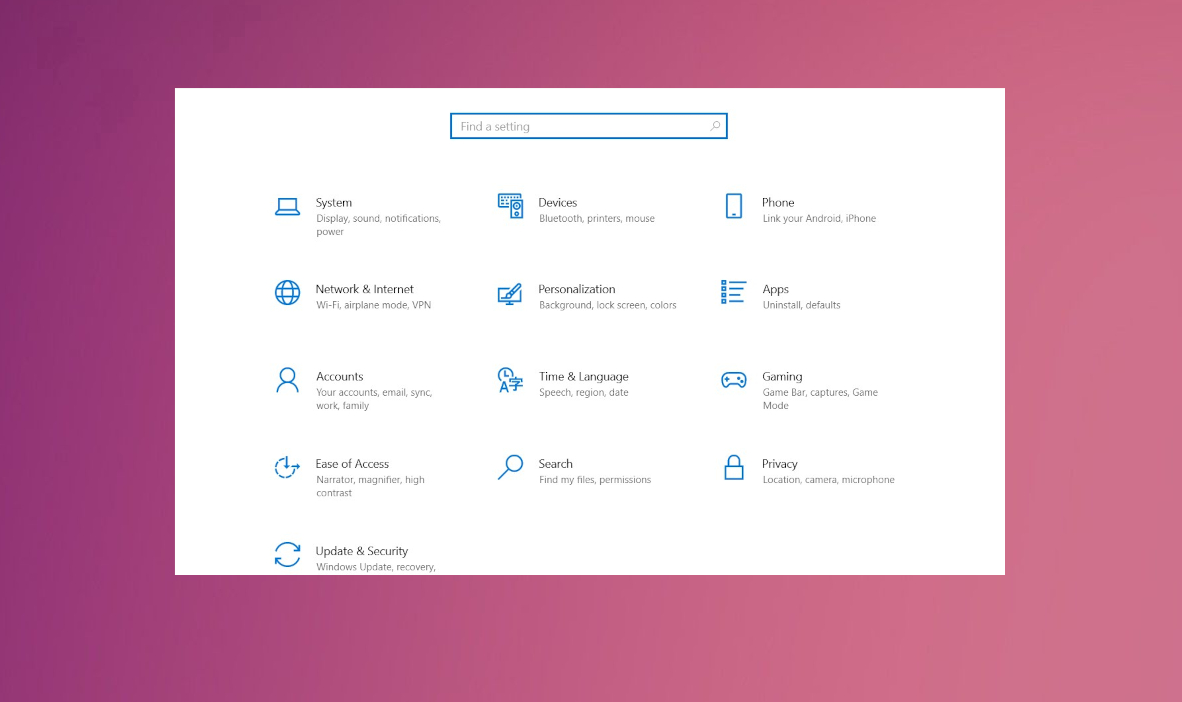
Xbox error there is something wrong settings - Navigate to Apps > Installed Apps (or Apps & Features in Windows 10).
- Search for Xbox, click the three-dot menu, and select Advanced Options.
- Click Repair and wait for the process to complete. Test the app.
- If the error persists, return to Advanced Options and click Reset. Note that this will clear app data, requiring you to sign in again.
Re-register the Microsoft Store
- Press Windows Key + X and select Terminal (Admin) or Command Prompt (Admin).
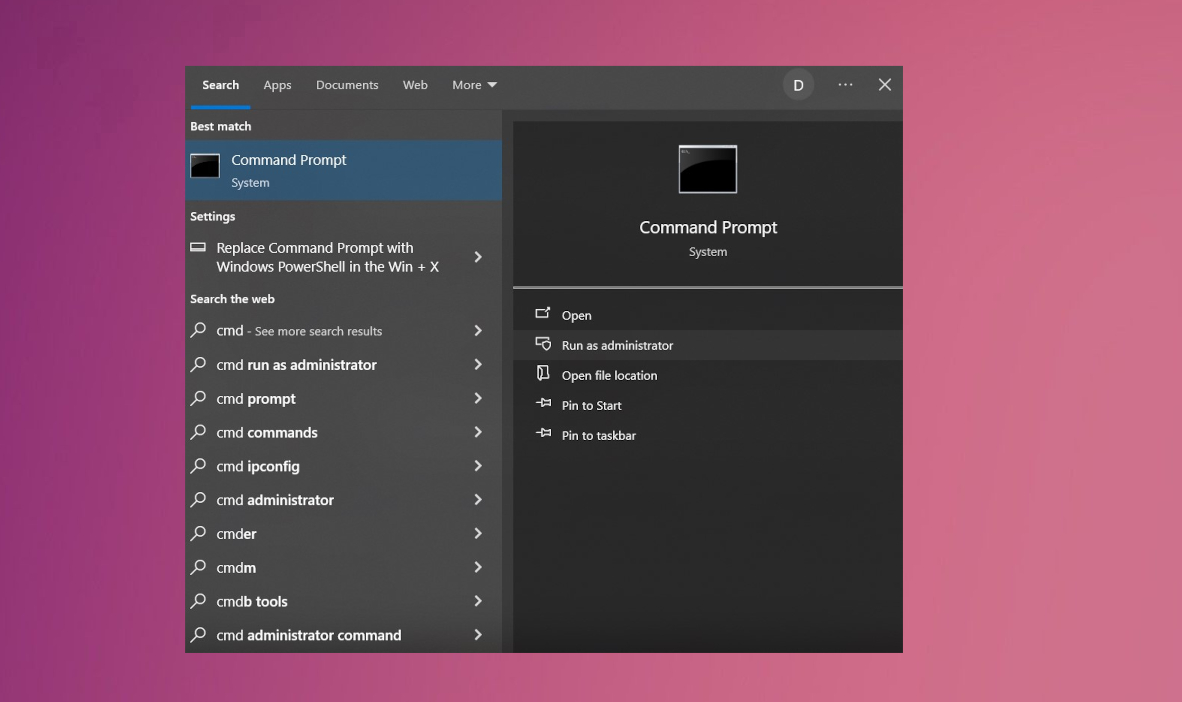
Xbox error there is something wrong cmd - Copy and paste the following command, then press Enter:
Get-AppXPackage *WindowsStore* -AllUsers | Foreach {Add-AppxPackage -DisableDevelopmentMode -Register "$($_.InstallLocation)\AppXManifest.xml"} - Wait for the command to complete, then restart your PC.
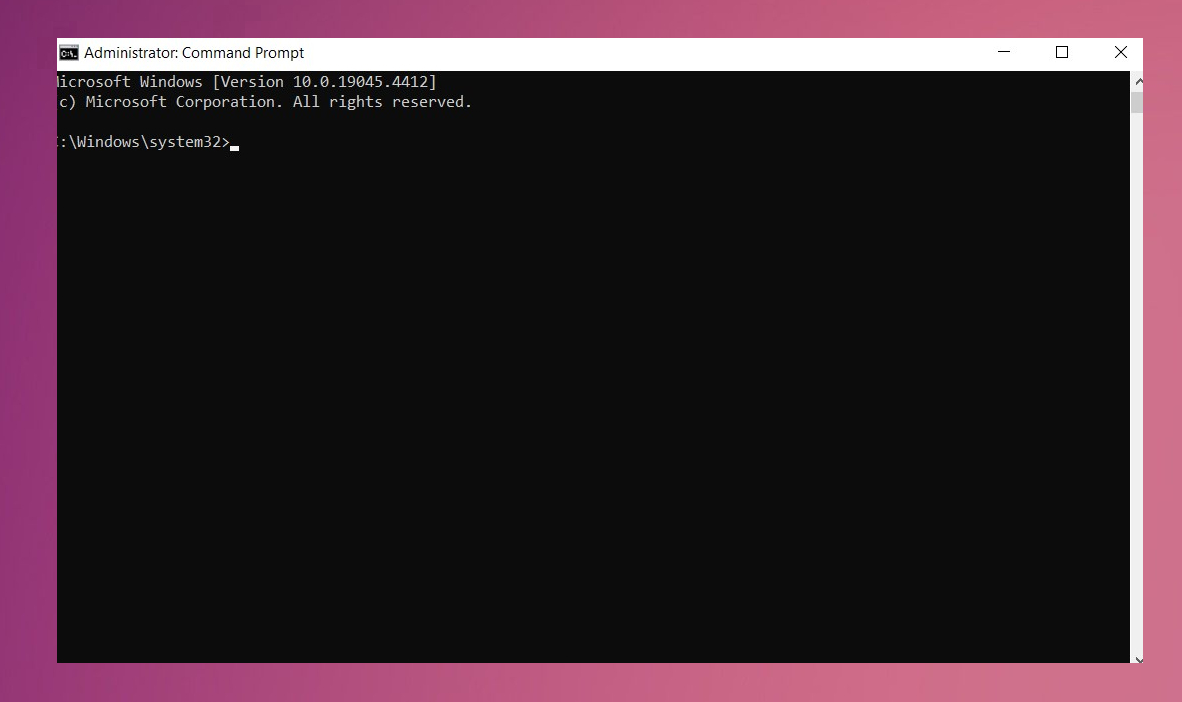
Xbox error there is something wrong control - Launch the Xbox app to check if the error is resolved.
Check Windows Services
- Press Windows Key + R, type services.msc, and press Enter.
- Locate the following services:
Xbox Live Auth Manager
Xbox Live Game Save
Microsoft Store Install Service - For each service, right-click, select Properties, and ensure the Startup type is set to Automatic. If the service is stopped, click Start.
- Click OK and restart your PC.
Verify Region and Time Settings
- Press Windows Key + I to open Settings.
Xbox error there is something wrong settings - Navigate to Time & Language > Region and ensure the region matches your Microsoft account's registered location.
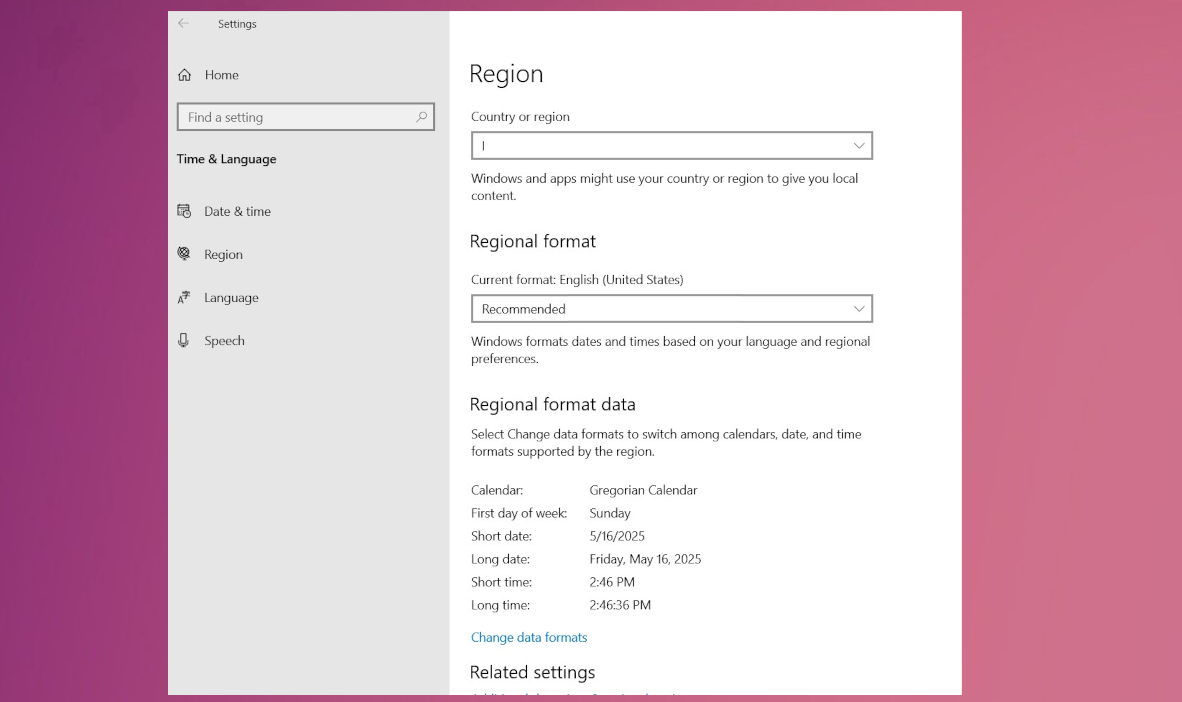
Xbox error there is something wrong time - Under Date & Time, enable Set time automatically and Set time zone automatically.
- Restart your PC and test the Xbox app.
Reinstall the Xbox App
If previous steps fail, uninstall and reinstall the app:
- Open Settings (Windows Key + I) and navigate to Apps > Installed Apps.
- Search for Xbox, click the three-dot menu, and select Uninstall.
- Open the Microsoft Store, search for Xbox, and reinstall the app.
- Sign in and check if the error is resolved.
Bottom line
To resolve the error, users can clear the Microsoft Store cache, ensure their Microsoft account credentials are consistent across apps, check system settings, reinstall the Xbox app, and verify Windows services. If none of these solutions work, consider reaching out to Microsoft support for further assistance.
Frequently asked questions
You can start by signing out of your Xbox app and Microsoft Store, then signing back in. Additionally, ensure your Windows 10 is updated to the latest version to fix any compatibility issues.
Resetting the Xbox app can clear any corrupted data that may be causing the error. Go to Settings > Apps > Apps & features, find the Xbox app, and select 'Advanced options' to reset it.
Yes, you can check your Microsoft account status by visiting the Microsoft account website and signing in. Ensure there are no issues with your account and that it is properly linked to your Xbox profile.




Report an issue
What's wrong with this guide? We review every report and update or remove content.
Report received — thank you. We'll review and fix it.
You need a free account to submit a report.
Be the first to comment