How to fix
Xbox app error “There was a problem loading installation locations”
on Windows
Resolve the Xbox app error "There was a problem loading installation locations" on Windows 10 or 11 effortlessly. Expert-tested solutions await you!

What causes How to fix Xbox app error “There was a problem loading installation locations” in Windows?
- Network connectivity issues
- Outdated Windows operating system
- Flaw in the Xbox Networking feature
- Pending updates causing compatibility issues
Repairs Windows system files, removes malware, and restores a clean OS state — without reinstalling.
I purchased a game from Microsoft Store, and everything worked fine until I decided to download DLCs as well. Since then, Xbox App has stopped showing my installed games. In general Settings in the Xbox app, I also see "There was a problem loading installation locations" in Startup settings. Any tips would be appreciated.
The Xbox app for Windows is a popular platform that enables users to enjoy a variety of video games, with options to purchase individual titles or subscribe to the Game Pass service for unlimited access to a vast library. Offering a seamless integration of gaming resources into the Windows operating system, the Xbox app has redefined how PC users experience games.
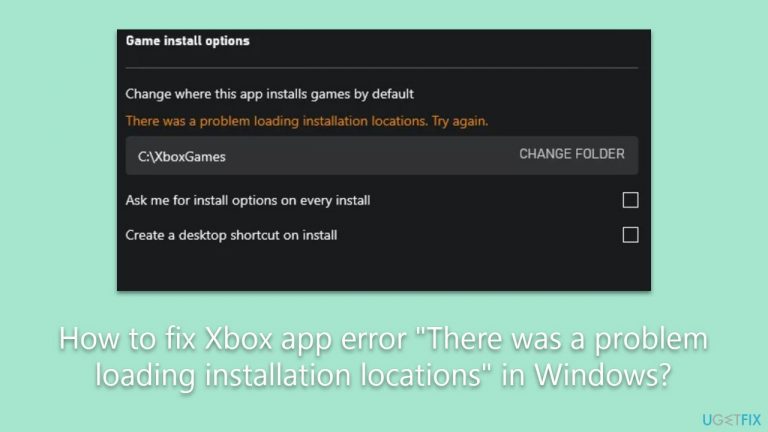
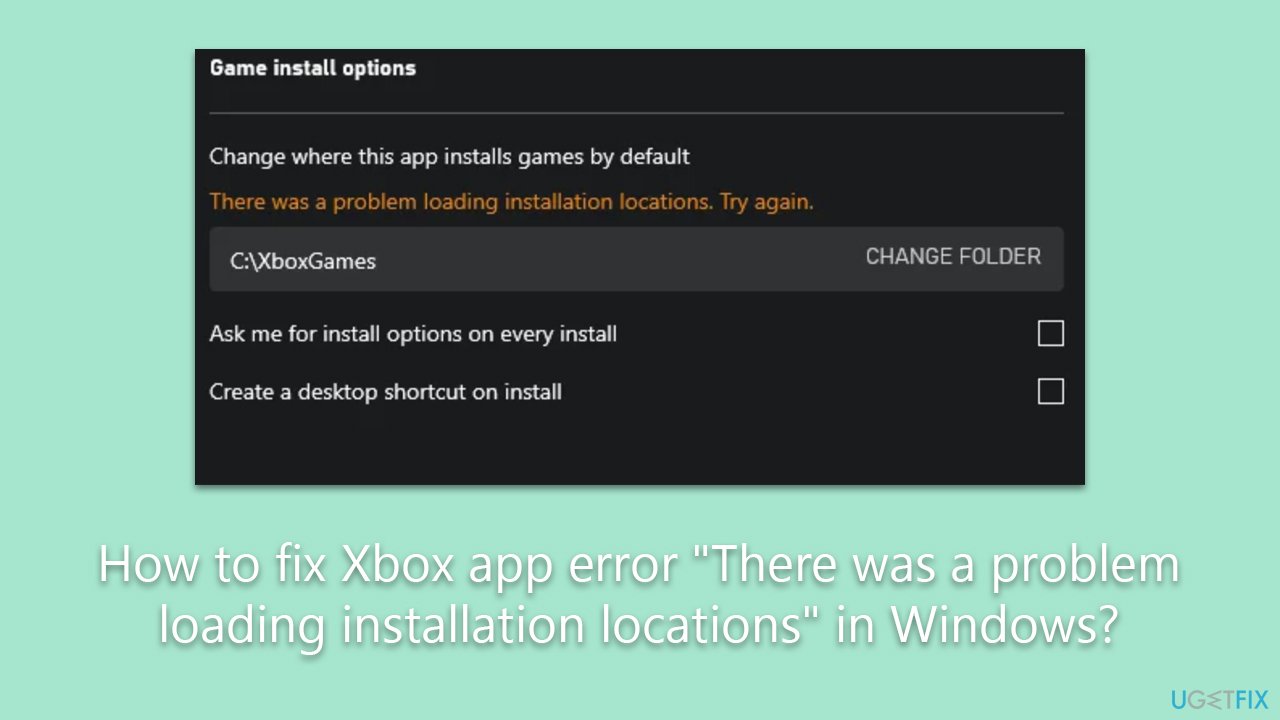
However, some users have recently reported issues with their Xbox app. Upon accessing their game libraries, the entries for all installed games appear as blank, thereby obscuring the visibility of the games. When these users attempt to rectify the situation via the settings, they encounter an error message that reads, "There was a problem loading installation locations. Try again."
There are several potential causes for this issue. Network connectivity issues can sometimes lead to these sorts of problems, given that the Xbox app relies heavily on the internet to function properly. Hence, one possible solution might involve running a network troubleshooter or resetting the internet connection on the user's computer.
Additionally, outdated Windows operating systems can also be a contributing factor to the "There was a problem loading installation locations" error. The Xbox app is closely integrated with the Windows operating system, and if there are pending updates, they could be causing compatibility issues with the app. Therefore, users should ensure that their Windows operating system is up-to-date.
The issue could also be rooted in the Xbox Networking feature itself. A flaw in the Xbox Networking component of the Windows operating system could lead to the problem, which would call for a more specialized troubleshooting approach.
While these solutions can potentially rectify the problem, for more intricate or persistent issues, the [d1] PC repair tool can be a valuable resource. This tool is designed to diagnose and resolve a wide array of Windows issues and errors, aiding in overall system optimization.
Fix 1. Install all Windows updates
Windows updates ensure that your system is running with the most recent software patches, fixes, and enhancements, which can improve the performance of applications like the Xbox app.
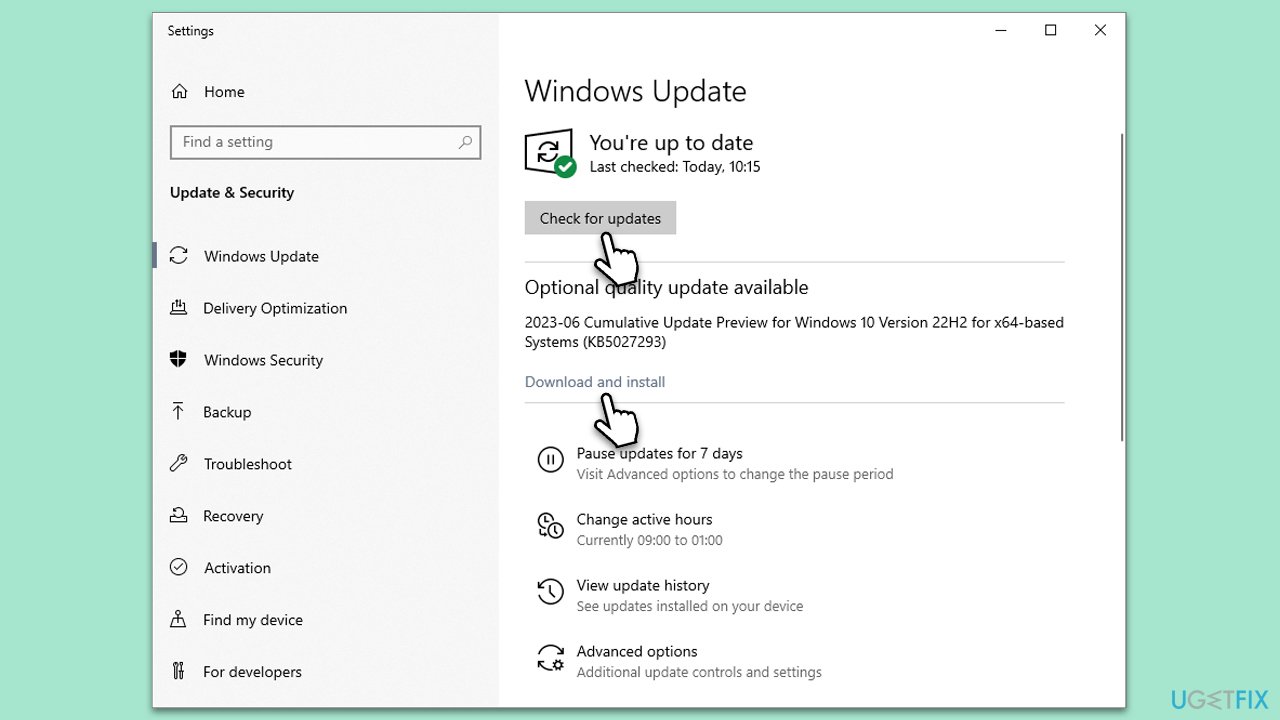
- Type Updates in Windows search and hit Enter.
- Under the Windows Update tab, select Check for updates.
- If there are any updates available, proceed to download and install them.
- Once completed, restart your device to apply the updates.
Fix 2. Run Network troubleshooter
Network troubleshooter is a tool built into Windows that can diagnose and resolve various types of network issues, potentially fixing the "There was a problem loading installation locations" issue on Xbox app.
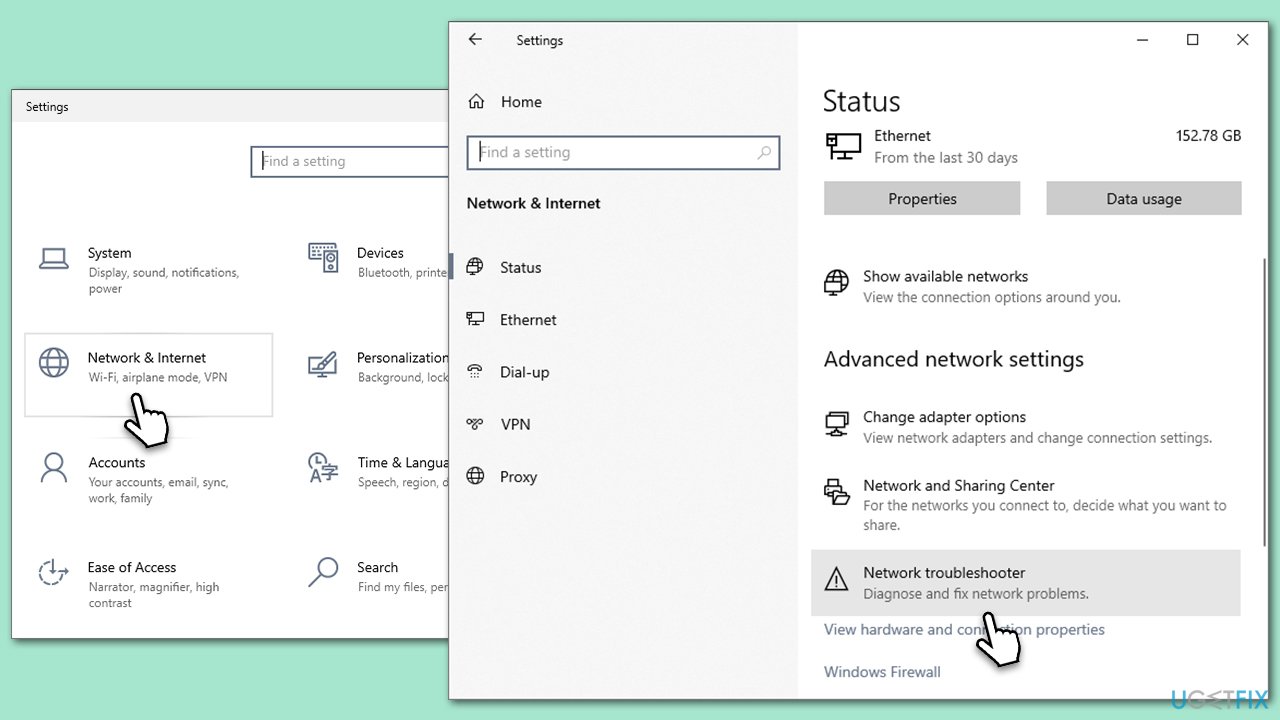
- Open the Settings app by clicking Start and then picking Settings.
- Navigate to Network & Internet.
- Within this, locate and select Troubleshoot.
- Select Network troubleshooter and allow the tool to scan for potential issues.
- If any issues are identified, follow the on-screen instructions to resolve them.
Fix 3. Reset your internet connection
Internet connection issues can cause various problems with applications that rely on network connectivity.
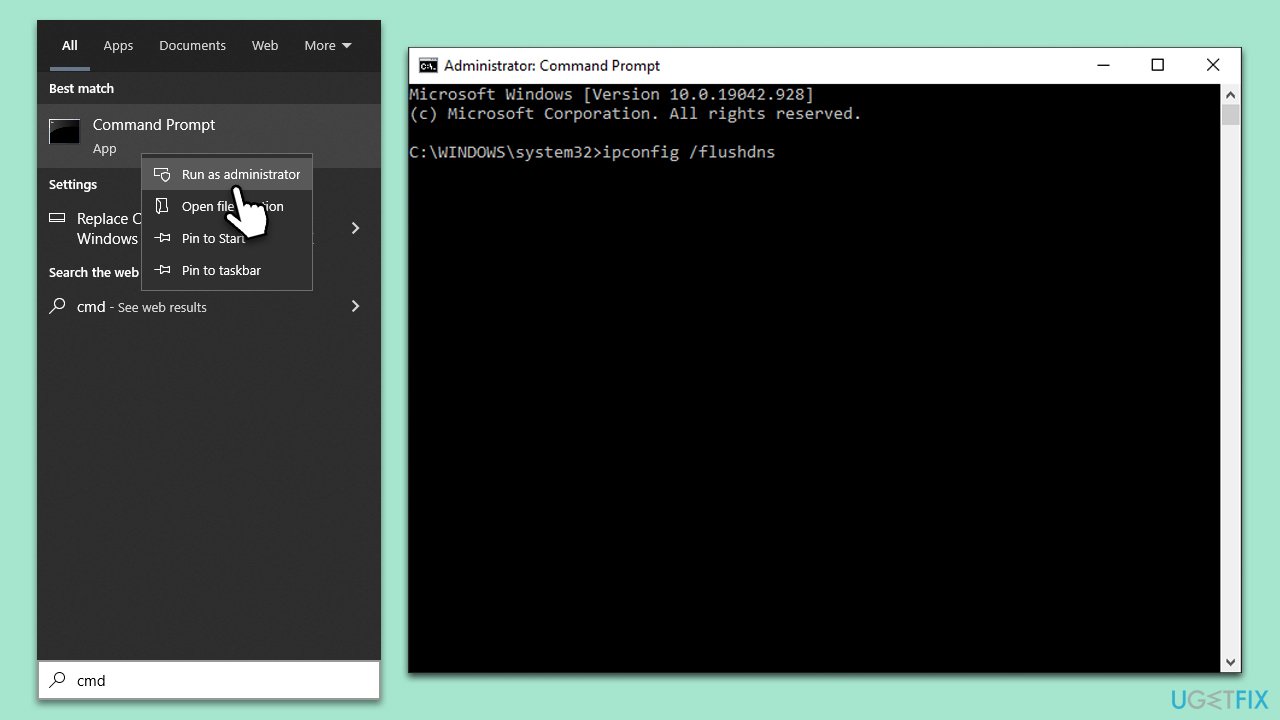
- Type cmd in Windows search.
- Right-click on Control Panel and choose Run as administrator.
- User Account Control will ask whether you want to allow changes - click Yes.
- Copy and paste each of the following commands, pressing Enter after each:
ipconfig /flushdns
ipconfig /registerdns
ipconfig /release
ipconfig /renew
netsh winsock reset - Restart your device.
Fix 4. Perform Disk Cleanup
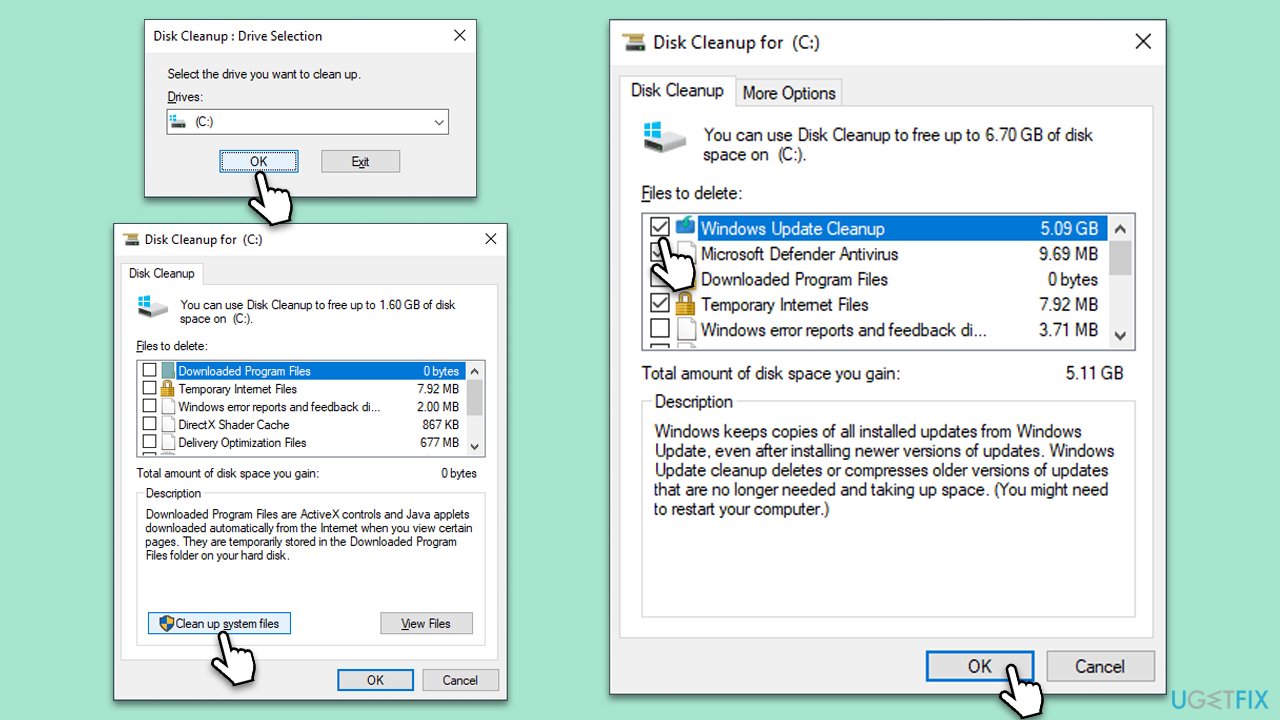
- Type Disk Cleanup in Windows search and press Enter.
- If your Windows is installed on drive C, pick it from the list (it should be by default) and press OK.
- Click Clean up System Files.
- Here, mark the areas you want to be deleted, such as Windows update files, Setup log files, Recycle bin, Temporary files, etc.
- Click OK - the removal process of various leftover files will begin.
Fix 5. Use the "Fix it" option in the Xbox Networking
The "Fix it" function in Xbox Networking is a built-in tool for resolving connectivity issues with Xbox Live servers.
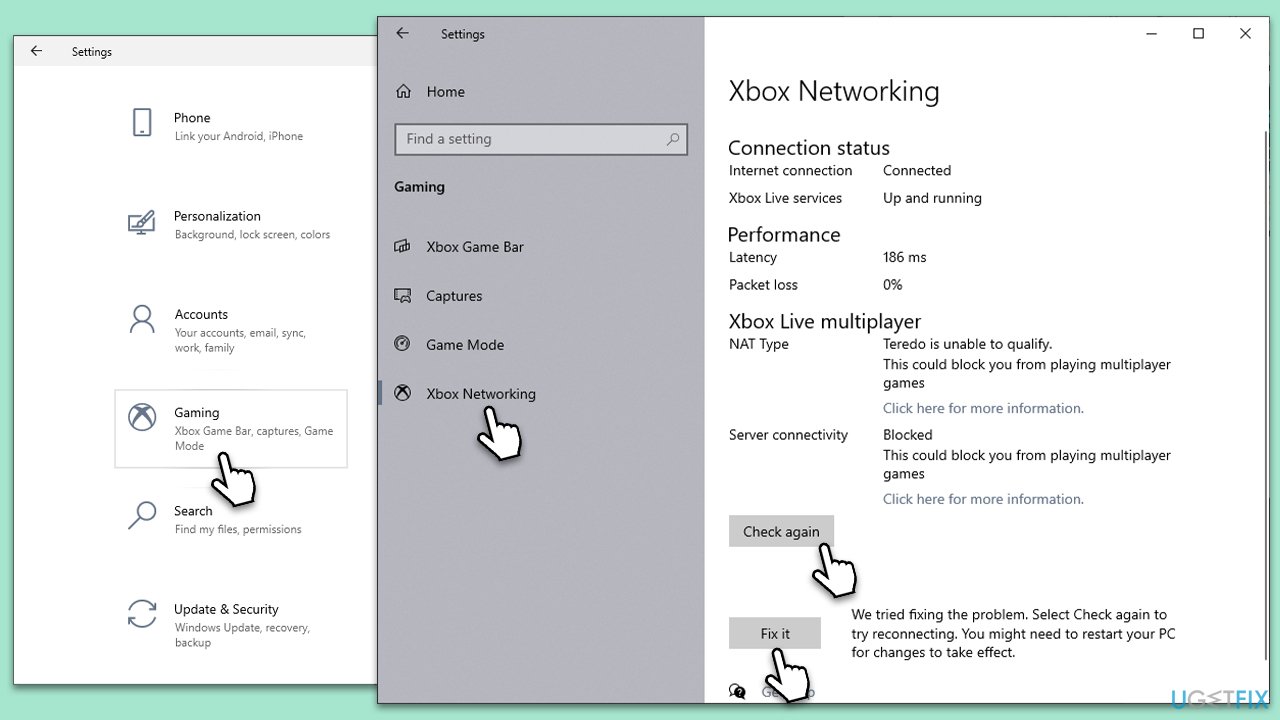
- Open the Settings app and navigate to the Gaming section.
- Click on Xbox Networking - Windows will check your Xbox Networking performance.
- If any issues are detected with the connection, click on the Fix it button.
- Wait till Windows fixes these issues and click click Check again.
Fix 6. Reset Xbox and Microsoft Store apps
Resetting the Xbox and Microsoft Store apps clears their cache and resets their settings to default, which can resolve issues caused by temporary files or incorrect settings.
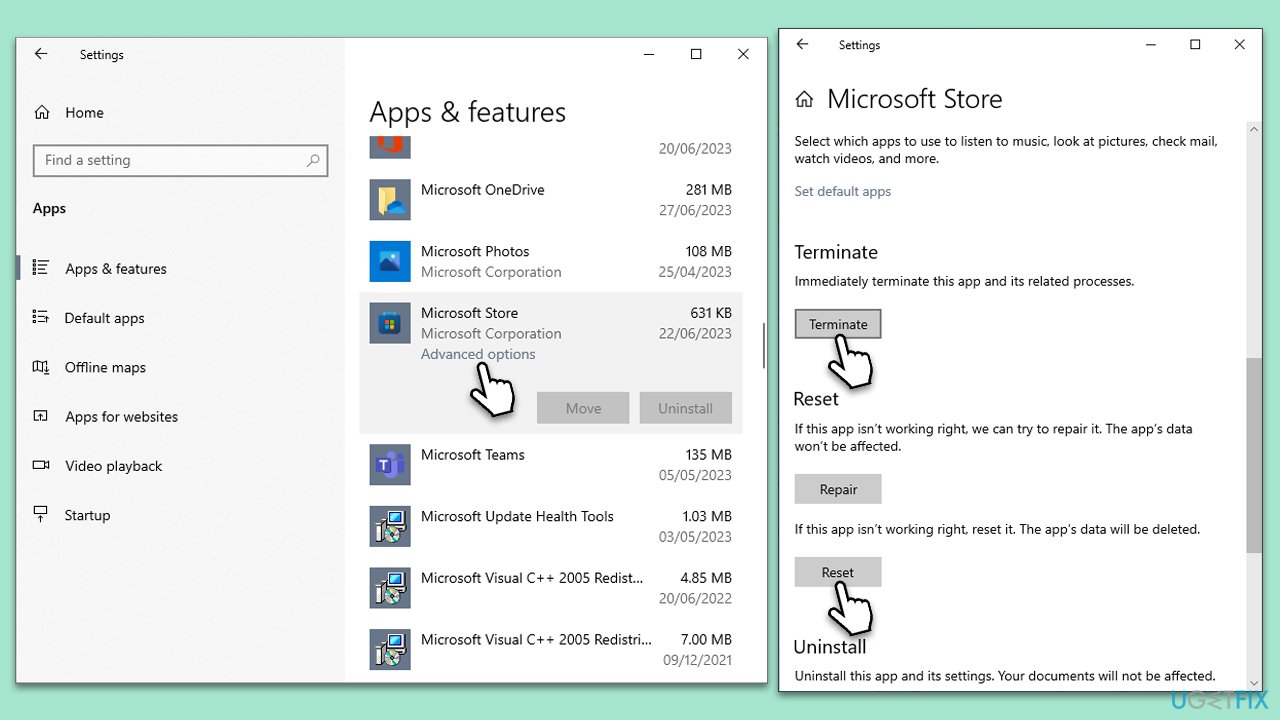
- Navigate to the Settings app and select Apps.
- Scroll to find the Xbox app and click on it, then select Advanced options.
- Click the Reset button to revert the app to its default settings.
- Repeat this process for the Microsoft Store app.
Fix 7. Install games into the same location where Windows is installed
Installing games into the same directory as your Windows installation can help avoid potential errors associated with file paths and permissions.
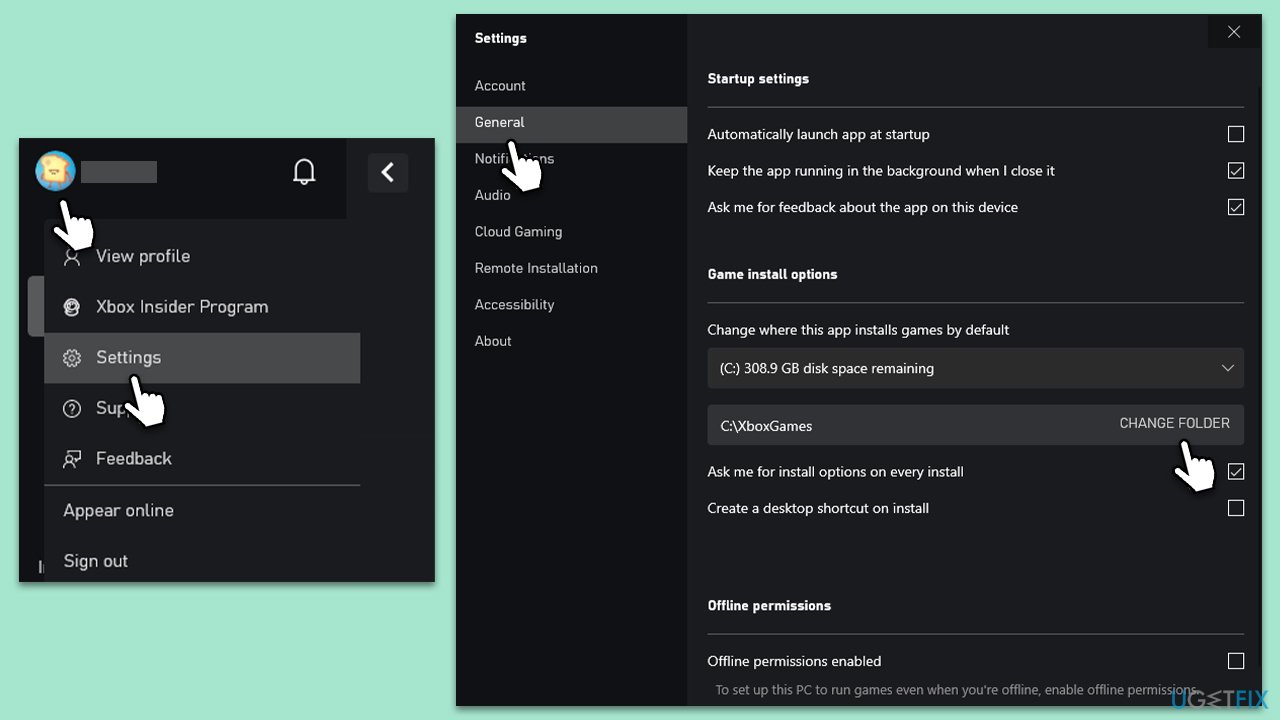
- Open the Xbox app, click on your profile picture, and select Settings.
- Navigate to the General tab, and locate the Game install options section.
- Click Change folder and select the same drive where your Windows operating system is installed, usually the C: drive.
Fix 8. Use Media Creation Tool to repair-install Windows
The Media Creation Tool allows you to reinstall Windows without deleting your personal files or installed apps, which can resolve underlying issues with your system.
Create Windows ISO
- Download Windows 11 Installation media from the official Microsoft website. [Windows 10 version]
- Double-click the MediaCreationTool.exe file to launch it.
- When UAC shows up, click Yes.
- Accept license terms.
- Select Language and Edition (make sure it matches the one you have currently installed) or simply mark the Use the recommended options for this PC and click Next).
- Select the ISO file and click Next.
- Pick the location for your ISO file and wait till all the needed files are downloaded, then click Finish.

Repair-install Windows
- Go to the location of your ISO file, right-click, and select Mount.
- Run the setup.exe file.
- You will be asked whether you want to update Windows to the latest version - pick Not right now and click Next.
- Accept Terms and Windows will make several checks to ensure everything is fine.
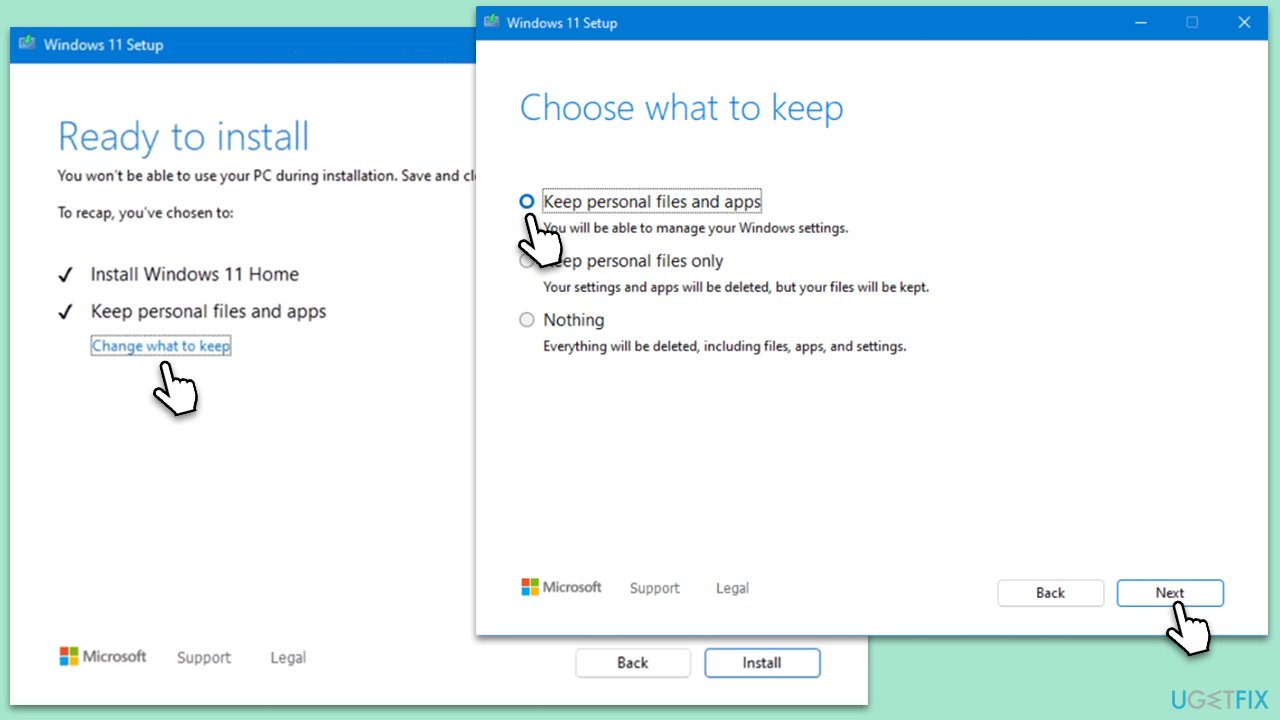
- Click Change what to keep.
- Here, you have several options: Keep your files and apps, Keep files only, or Keep nothing - choose what suits you the best. Click Next.
- Finally, click Install to begin the installation process.
Bottom line
To fix the Xbox app error, users can run a network troubleshooter, reset their internet connection, and ensure their Windows operating system is up-to-date. If the problem persists, a more specialized troubleshooting approach may be necessary.
Frequently asked questions
This error typically occurs due to incorrect installation settings or issues with the Xbox app's permissions in Windows 10.
To resolve this issue in Windows 11, try resetting the Xbox app through Settings > Apps > Apps & features, then select the Xbox app and click on 'Advanced options' to reset it.
Yes, ensure that the Xbox app has the necessary permissions to access your storage locations by going to Settings > Privacy > File System and allowing access.




Report an issue
What's wrong with this guide? We review every report and update or remove content.
Report received — thank you. We'll review and fix it.
You need a free account to submit a report.
Be the first to comment