How to fix
Xbox app not launching
on Windows
Resolve Xbox app launch issues on Windows 10 or 11 effortlessly. Discover expert fixes that work fast, with screenshots for your convenience. Updated 2025.

What causes How to fix Xbox app not launching in Windows?
- Server issues with Xbox services
- Incorrect date and time settings
- Problems with Xbox gaming services
- Corrupted files
- Registry issues
Repairs Windows system files, removes malware, and restores a clean OS state — without reinstalling.
Hello. The Xbox app on my Windows PC is not launching for some reason. How do I resolve this?
The Xbox app for Windows is a great way to stay connected to the gaming community and enjoy your favorite games on your PC. With the Xbox app, you can view your achievements, connect with friends, and share game clips and screenshots. It also allows you to play games from the Xbox Game Pass library and join multiplayer games. With the Xbox app, you can do the following:
- View and track your achievements.
- Connect with friends and see what they are playing.
- Share game clips and screenshots with the community.
- Join multiplayer games and join or create parties.
- Play games from the Xbox Game Pass library.
- Stay up-to-date with the latest gaming news and updates.
However, some users have reported that the Xbox app is not launching on their Windows computers. This can be frustrating and can prevent you from accessing all the features of the app. There are several possible causes for this issue. It could be due to server issues with Xbox services, incorrect date and time settings on your system, or problems with the Xbox gaming services on your computer.
In this guide, you will find 8 steps that should help you fix Xbox app not launching in Windows. Keep in mind that the manual troubleshooting process can be lengthy. You can use a maintenance tool like [d1] to fix most system errors, BSODs,[ref en-1] corrupted files, registry[ref en-2] issues, or clear cookies and cache.[ref en-3] Otherwise, follow the step-by-step instructions below:
Method 1. Check the Xbox server status
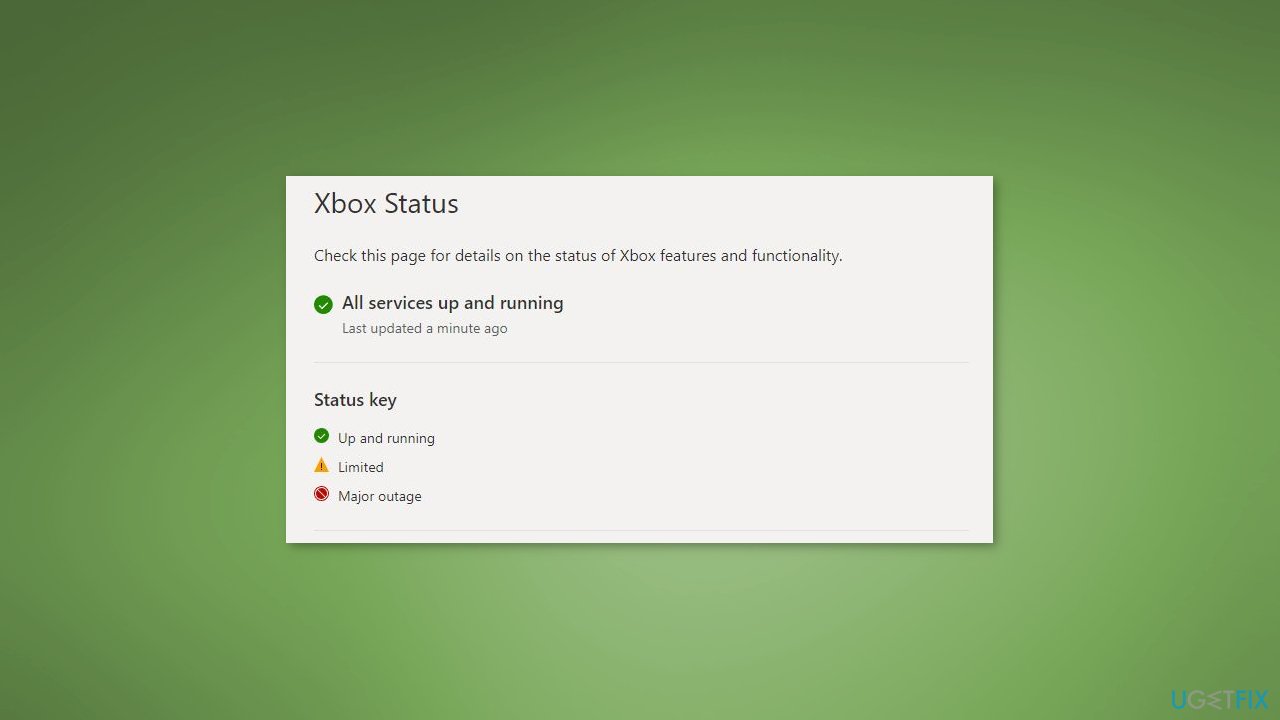
To begin, verify that the Xbox services are not experiencing any issues by checking the server status on the Xbox Status page. If the services are down, it may cause the Xbox app or its features to not function properly on your PC. If the Xbox services are not experiencing any issues, proceed to the next solution to resolve the problem.
Method 2. Set the correct date and time
This issue may be caused by incorrect date and time settings on your system.
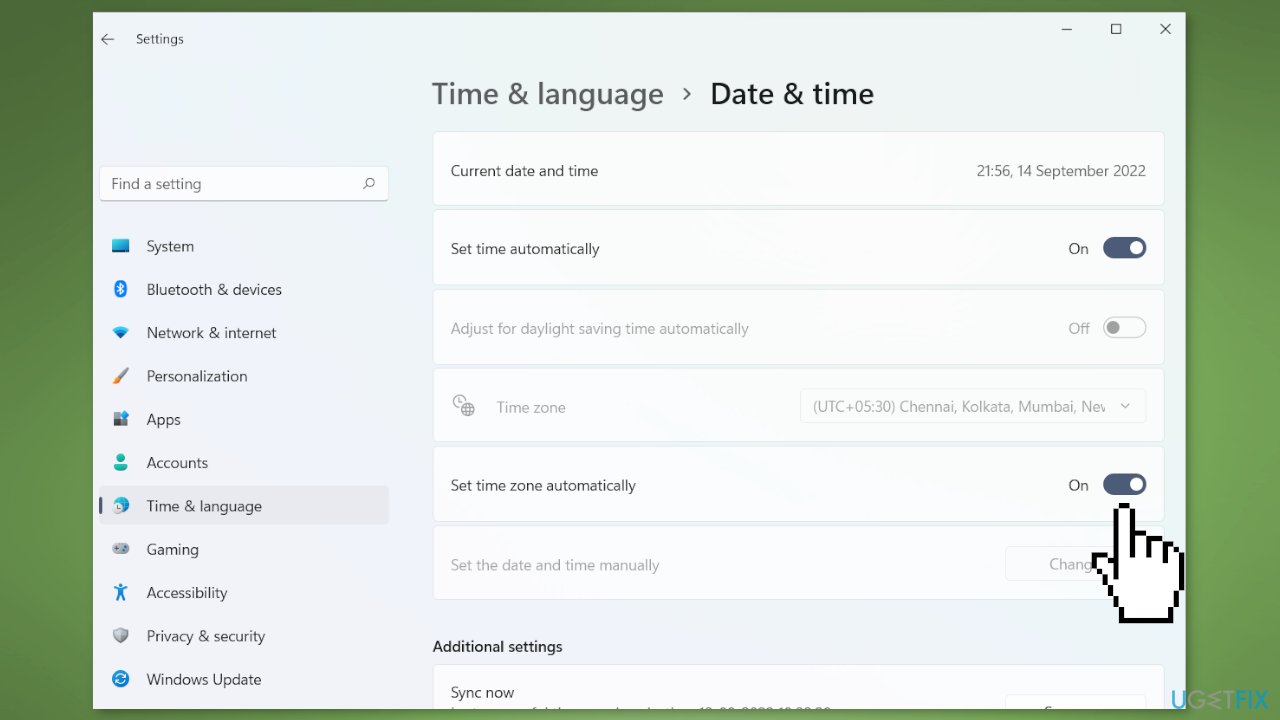
- Press the Windows key + I to open the Settings app, then navigate to the Time & Language tab
- Select the Date & Time option on the right-side panel
- Enable the Set time automatically and Set time zone automatically options
- Try opening the Xbox app again to see if the problem has been resolved
Method 3. Change your region
Some users have reported that this fixed the problem for them. To change your region in Windows 11/10:
- Open the Settings app and go to the Time & Language tab
- Select the Language & Region option, and choose a different region from the Country or region dropdown menu
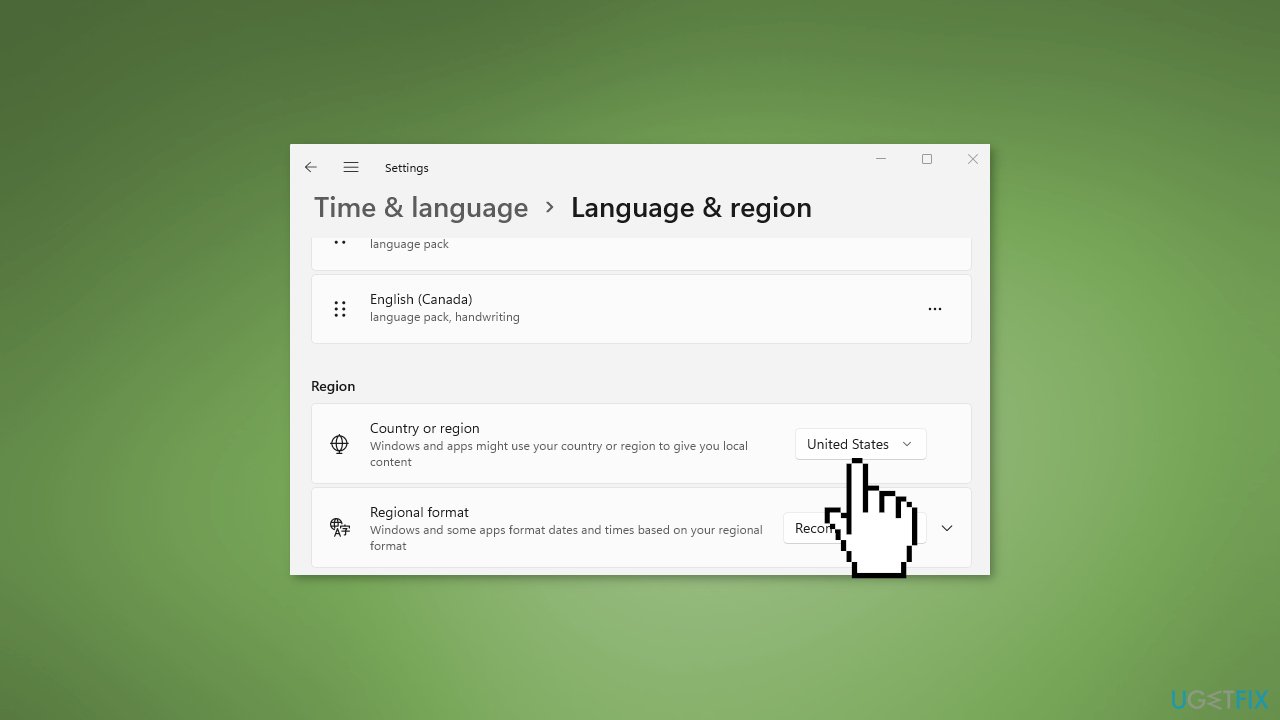
- Open Xbox and see if it works properly
Method 4. Run the Windows Store Apps Troubleshooter
- Press the Windows key + I to open Windows Settings
- Select the System section and scroll down until you see Troubleshoot and click on it
- Click on Other troubleshooters to see more troubleshooters available on your computer
- Scroll down at the bottom until you see Windows Store Apps
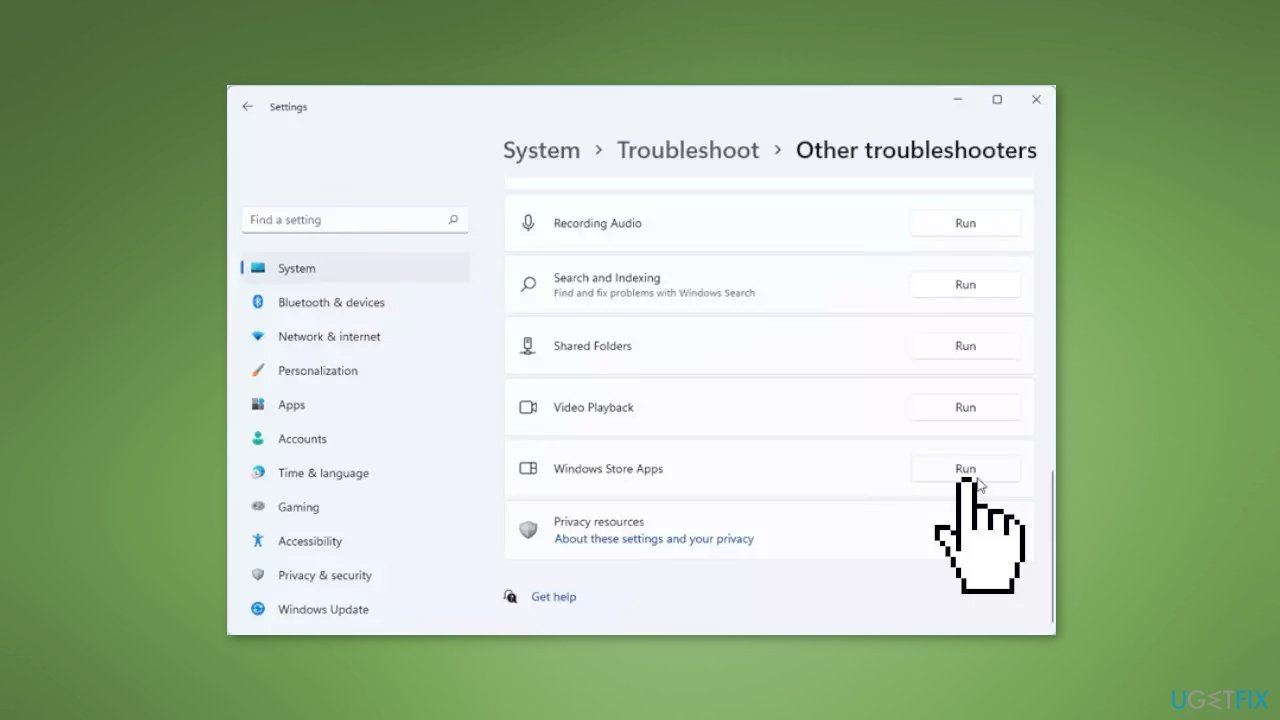
- Click on Run to start the troubleshooting process
- Wait until the process is complete
Method 5. Update Windows
- Click Start and select Settings
- Go to the Windows Update section
- Click Check for updates and wait
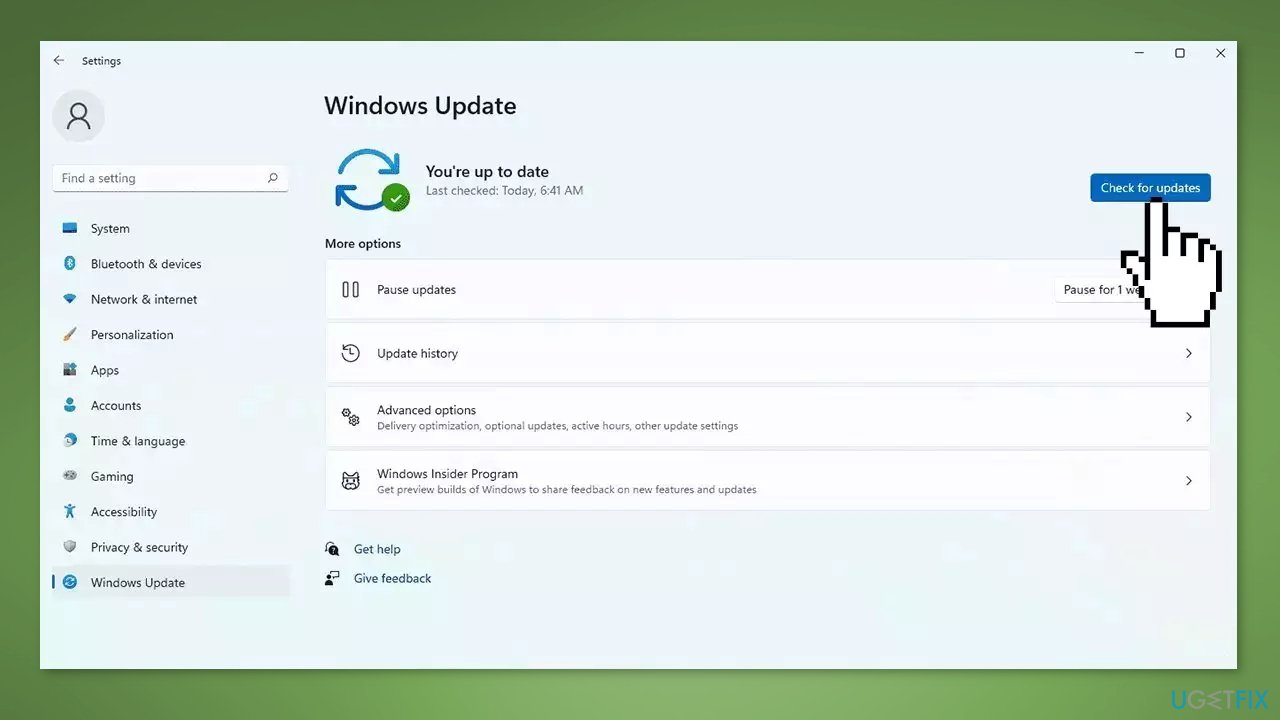
- Go to the Advanced options and install optional updates
- Reboot your system.
Method 6. Restart Xbox Gaming Services
The Xbox app may not be functioning properly because the Xbox gaming services on your system may be stuck in an intermediate state. To fix this, try restarting the services related to Xbox and see if it resolves the problem. Here's how:
- Type Services in the Start menu search box and click on the Services app
- Find the Gaming Services service, right-click on it, and select Restart
- Right-click on Gaming Services again and select Properties
- In the Properties window, set the Startup type to Automatic
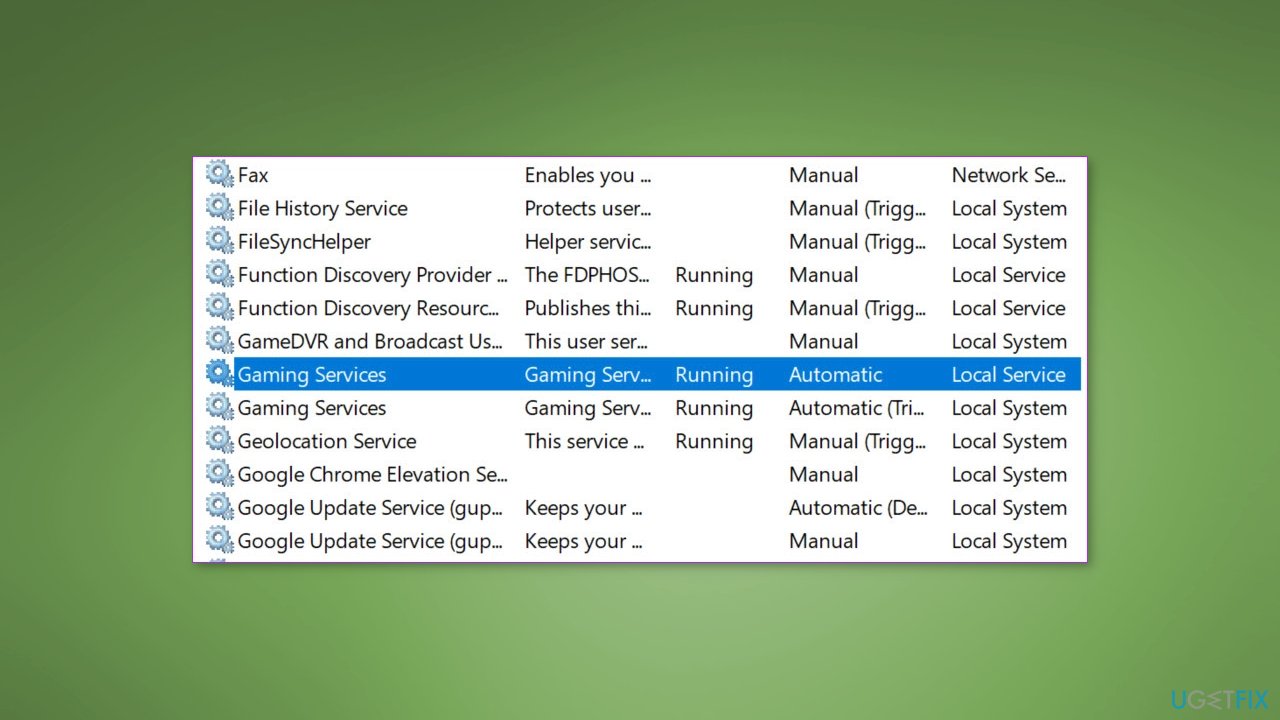
- Repeat steps for the Xbox Accessory Management, Xbox Live Auth Manager, and any other Xbox-related services
- Try launching the Xbox app again and see if it works correctly
Method 7. Clear Microsoft Store Cache
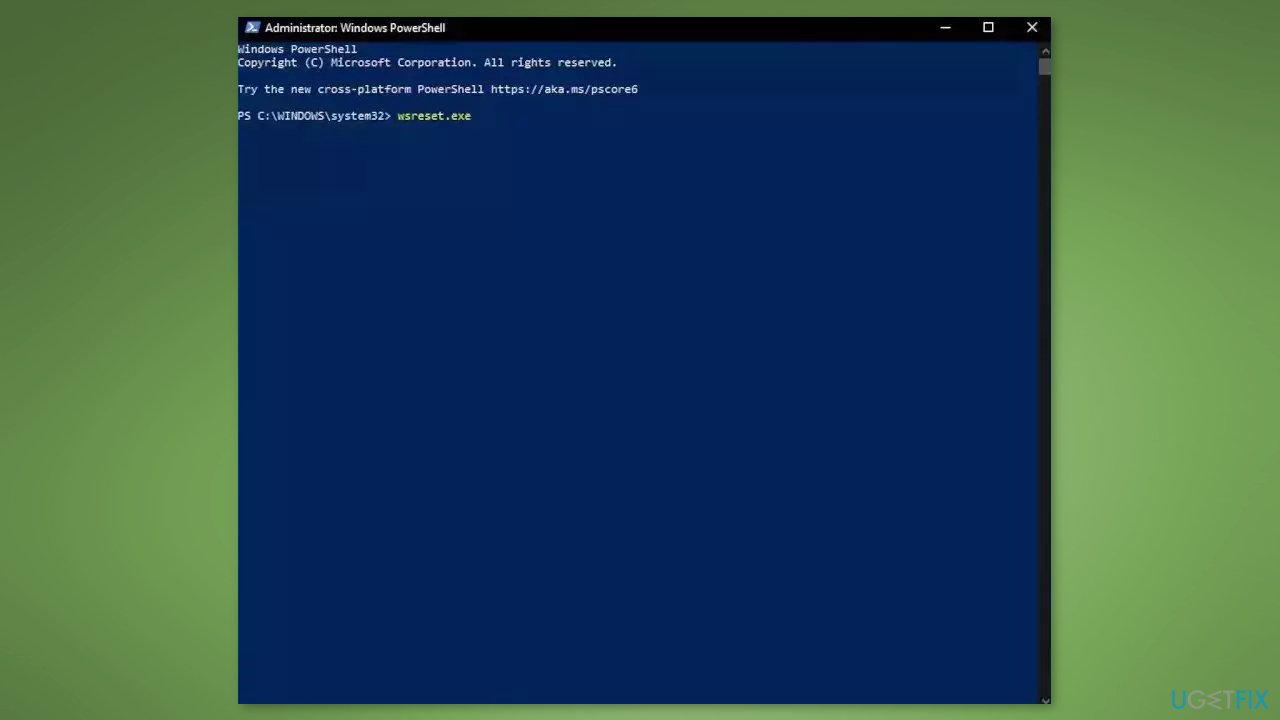
- Open the Windows Powershell from the search bar by typing powershell
- Right-click on the search result and select Run as Administrator
- If a UAC opens, hit Yes to provide your consent
- Type WSReset.exe and hit Enter
Method 8. Repair or Reset the Xbox app
If the problem you're experiencing with the Xbox app is due to corruption, you can try repairing the app to fix the issue. To do this:
- Open the Settings app by pressing the Windows key + I, and go to the Apps tab
- Select the Installed apps option, and then find the Xbox app in the list
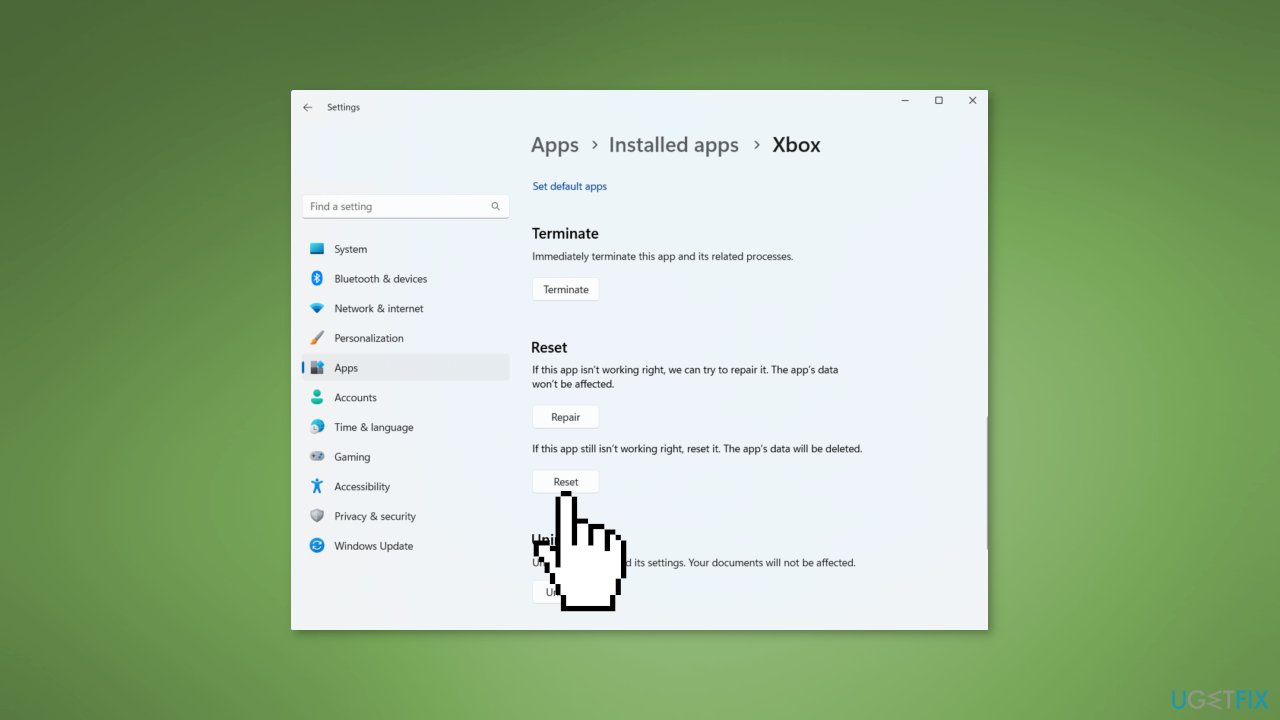
- Click the three-dot menu button, and then choose Advanced options
- Scroll down to the Reset section, and click the Repair button
- Once the repair process is finished, reopen the app and see if the problem has been resolved
If repairing the app doesn't help, you can try resetting it to its original state and settings:
- Follow the first three steps above to access the Advanced options for the Xbox app
- Instead of clicking the Repair button, click the Reset button and follow the prompts to reset the app
- Reopen the app and see if the problem has been fixed
Bottom line
To fix the Xbox app not launching, you can check the Xbox server status, ensure your date and time settings are correct, and troubleshoot Xbox gaming services. If these steps do not resolve the issue, consider using a maintenance tool to address system errors or corrupted files.
Frequently asked questions
First, try resetting the Xbox app through Settings > Apps > Apps & features, then select Xbox and click 'Advanced options' to reset it. If that doesn't work, consider reinstalling the app from the Microsoft Store.
Go to Settings > Update & Security > Windows Update and click 'Check for updates' to ensure your system is running the latest version. An outdated OS can cause compatibility issues with the Xbox app.
Yes, a slow or unstable internet connection can prevent the Xbox app from launching properly, so check your network status and try resetting your router if needed. Ensure that your Windows 10 or Windows 11 firewall or antivirus is not blocking the app as well.




Report an issue
What's wrong with this guide? We review every report and update or remove content.
Report received — thank you. We'll review and fix it.
You need a free account to submit a report.
Be the first to comment