How to fix
Xbox App (XboxPcApp.exe) crashing
on Windows
Resolve Xbox App crashes on Windows 10 or 11 with our expert-tested solutions. Get back to gaming in minutes, with step-by-step fixes and screenshots.

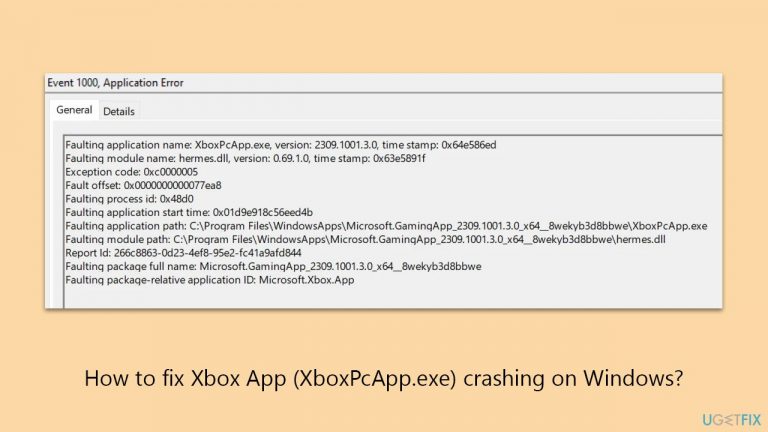
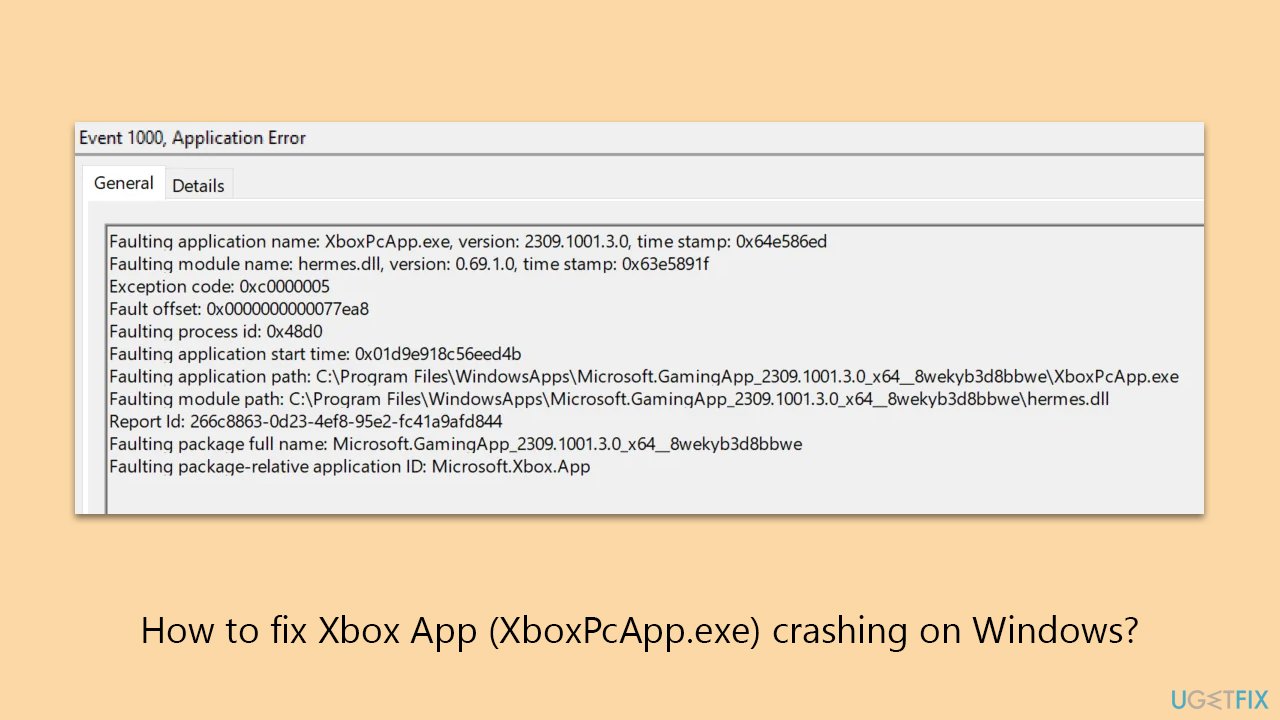
What causes How to fix Xbox App (XboxPcApp.exe) crashing on Windows?
- Buggy application
- Corrupted files within the Xbox app
- Malfunctioning related services
- Issues with Gaming Services
- Problems with the Microsoft Store
Repairs Windows system files, removes malware, and restores a clean OS state — without reinstalling.
Xbox application on Windows 10 is constantly crashing at startup. I checked the event log and it says "Faulting application name: XboxPcApp.exe." I also can't install or uninstall games, so there's something definitely wrong.
Xbox App is Microsoft's platform for purchasing, downloading, and playing games on Windows systems. However, some users have reported a recurring issue where the Xbox app crashes, rendering them unable to enjoy or install games. The diagnostic logs pinpoint the cause of these crashes as XboxPcApp.exe itself.
As is usual with many Windows errors or application crashes, there is no universal reason why these issues happen. In this case, the issue could be related to the whole Windows gaming ecosystem, such as the Xbox app itself, Gaming Services, and even the Microsoft Store.
A buggy application, corrupted files within the Xbox app, or malfunctioning related services can all be potential culprits. Therefore, there are numerous things you can do in order to fix Xbox app crashes on Windows. Below you will find numerous methods that could help you fix this issue.
If the issue persists or if you encounter any underlying Windows problems, consider utilizing a reputable PC repair tool like [d1] to automatically rectify any Windows-related issues. This tool can help ensure the stability and performance of your Windows system.
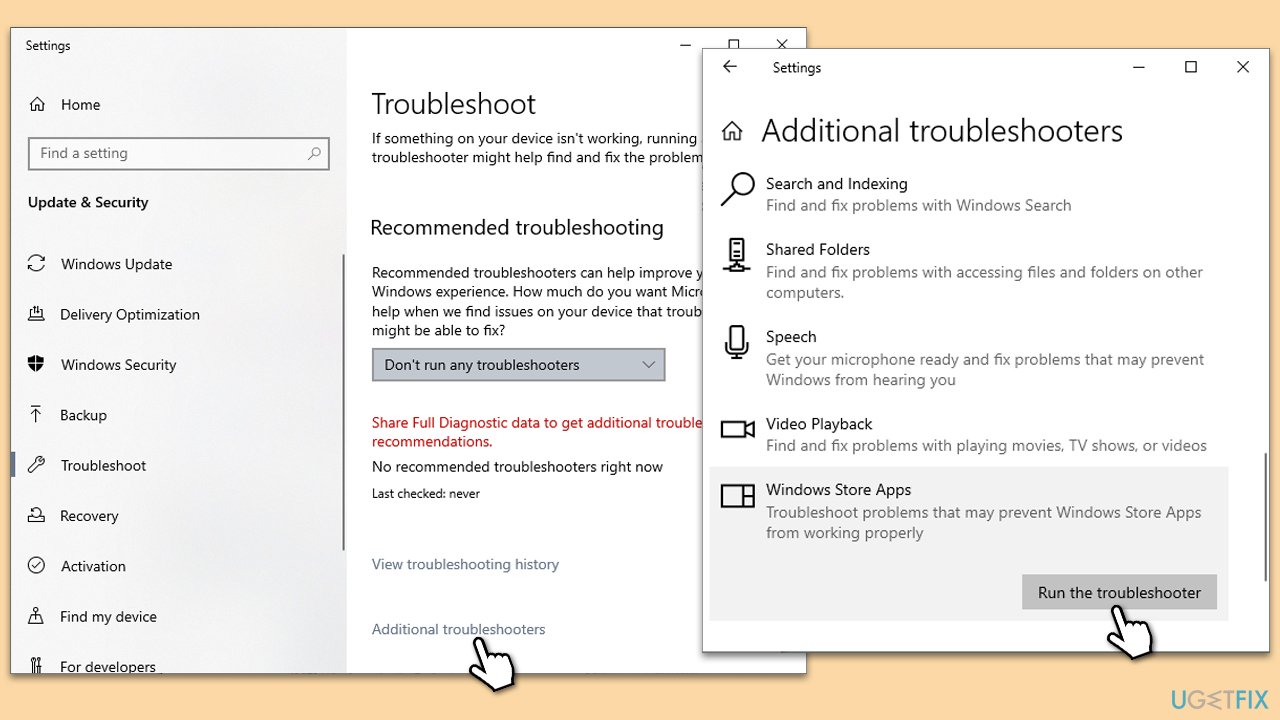
Fix 1. Use Windows Store Apps troubleshooter
Windows Store Apps troubleshooter is a built-in tool in Windows that can automatically detect and resolve issues with Windows Store apps, including the Xbox app.
- Type Troubleshoot in Windows search and hit Enter.
- Click Additional troubleshooters/Other troubleshooters.
- Scroll down to find Windows store apps and select it.
- Click Run the troubleshooter/Run.
- Wait till the process is finished and apply the fixes.
- You can also try running the Windows update troubleshooter.
Fix 2. Reset Microsoft Store cache
Resetting the Microsoft Store cache can help resolve issues related to app downloads and updates, which might be affecting the Xbox app.
- Type WSReset.exe in the Windows search bar and press Enter.
- Wait till a black pop-up window shows up – do not close it.
- The pop-up window will close soon, and the Windows Store should reopen.
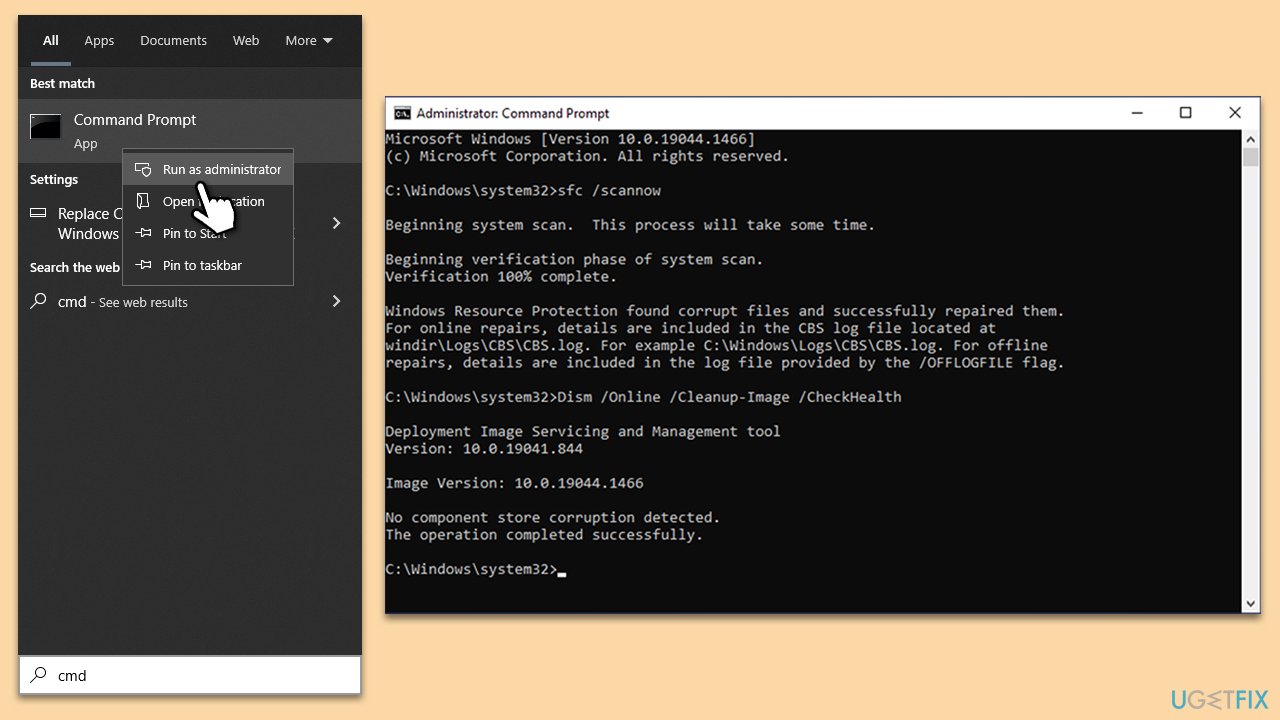
Fix 3. Check for corrupted files
Certain commands run via elevated Command Prompt can help repair corrupted system files that may be causing the Xbox app to crash.
- Type in cmd in Windows search.
- Right-click on Command Prompt and select Run as administrator.
- When User Account Control shows up, click Yes.
- In the Command Prompt window, paste the following command and hit Enter:
sfc /scannow - Next, use the following commands, pressing Enter each time:
Dism /Online /Cleanup-Image /CheckHealth
Dism /Online /Cleanup-Image /ScanHealth
Dism /Online /Cleanup-Image /RestoreHealth
(Note: if you get an error executing this last command, add /Source:C:\RepairSource\Windows /LimitAccess to it and try again). - Reboot your system.
Fix 4. Install all Windows updates
- Enter Updates in the Windows search bar and hit Enter.
- Select the Check for updates button and wait.
- If optional updates are available, make sure to install them as well.
- Open the Microsoft Store.
- Navigate to the Library section.
- Click on Get updates and wait for the installation to complete.
- Finally, restart your system when the process is done.
Fix 5. Repair or reset Xbox app, Gaming Services, and Microsoft Store
Repairing or resetting these apps can help resolve issues with their functionality, potentially resolving Xbox app crashes.
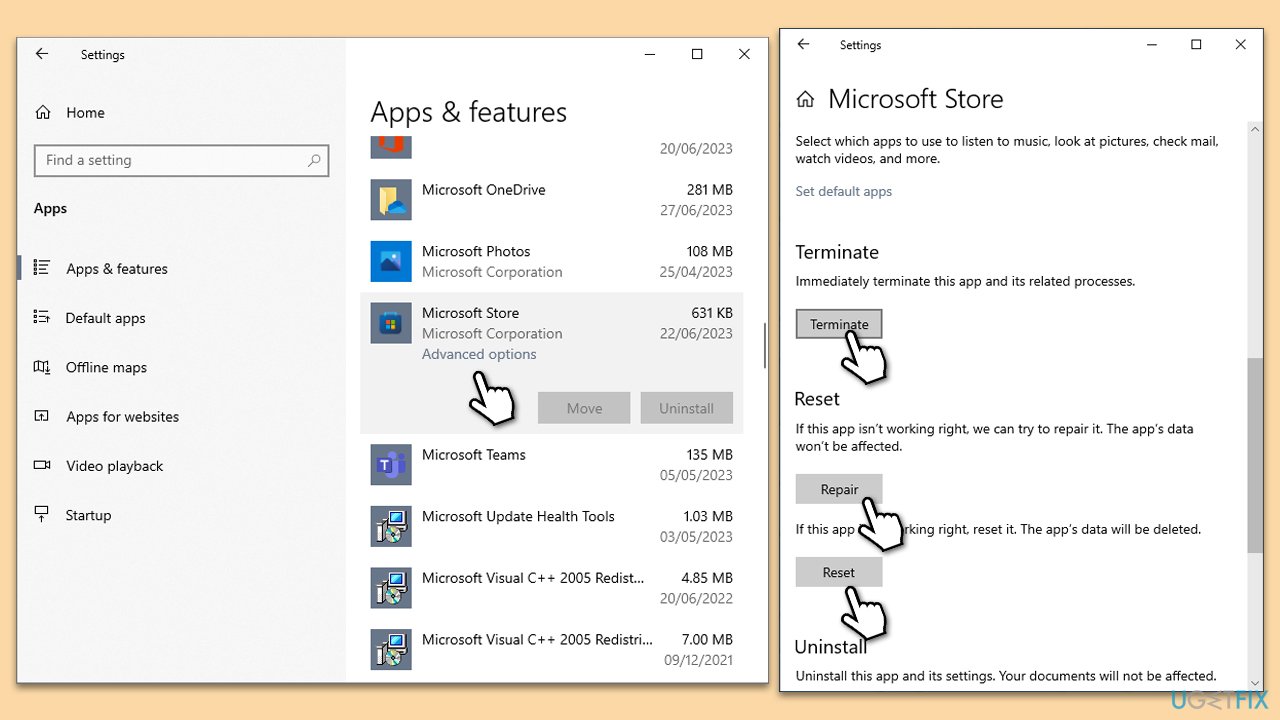
- Right-click on Start and select Apps & Features.
- Scroll down to find Microsoft Store and click Advanced options.
- Scroll down again and click Terminate and Repair.
- Next, click Reset.
- Repeat this process with the Xbox app and Gaming Services.
Fix 6. Ensure Xbox Live Multiplayer is connected
An active Xbox Live Multiplayer connection is essential for the proper functioning of the Xbox app.
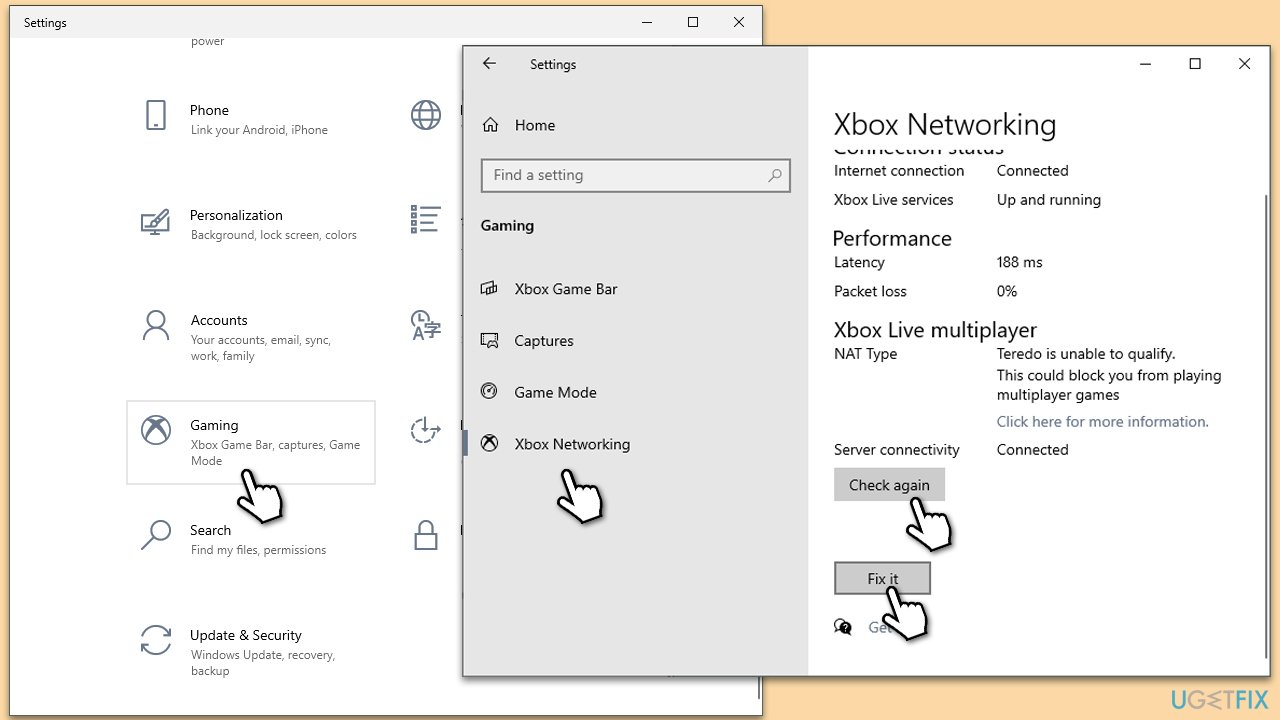
- Right-click on Start and pick Settings.
- Go to the Gaming section.
- Select Xbox Networking on the left.
- Under Xbox Live multiplayer, make sure the Internet connection shows as Connected.
- If not, you can click the Fix it button and follow the on-screen instructions.
Fix 7. Make sure relevant services are running
Description: These services are essential for the Xbox app to function correctly. Ensuring they are running is vital to prevent crashes.
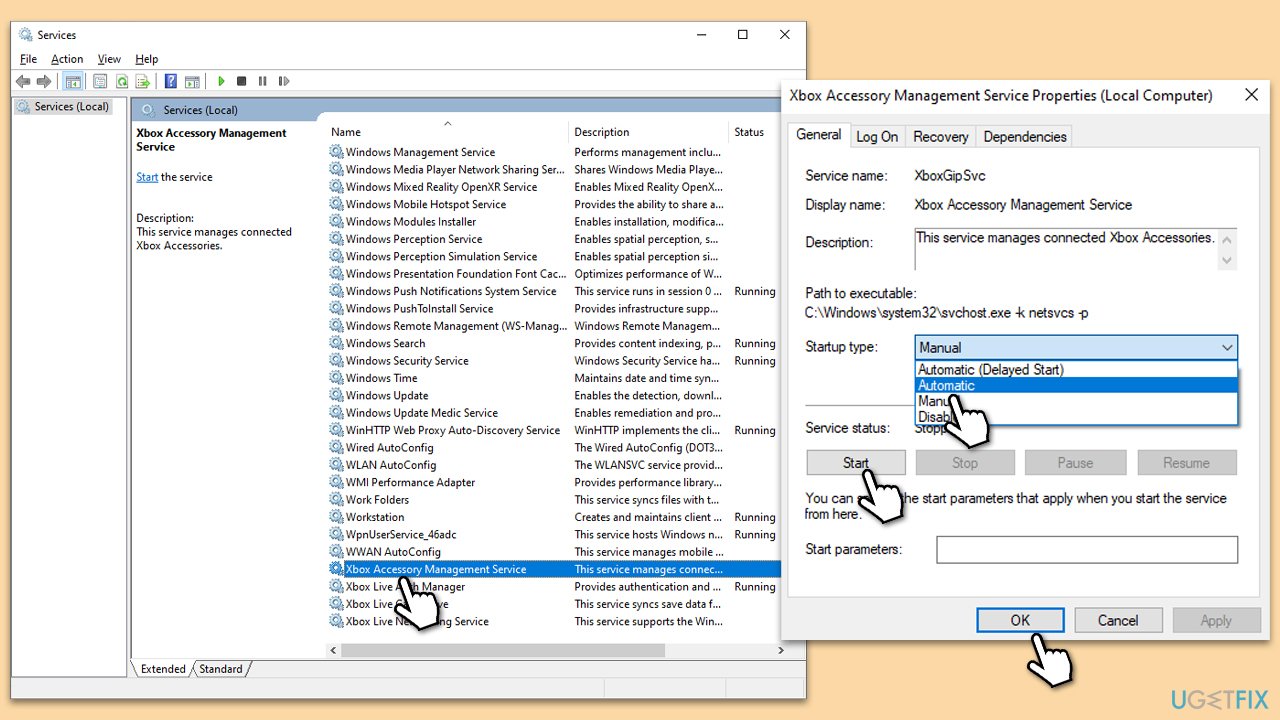
- Type Services in Windows search and press Enter.
- In the Services window, find and double-click on Xbox Accessory Management Service.
- Set the Startup type to Automatic and click Start if the service is not running. Click OK.
- If the service was already running and set to Automatic, right-click it and select Restart.
- Repeat the process with the following services:
- Live Auth Manager
- Live Game Save
- Live Networking Service
- Gaming Services
- Close down Services and try launching the Xbox app.
Fix 8. Reinstall Xbox app
Completely reinstalling the Xbox app can help resolve issues stemming from corrupted app files.
- Right-click on Start and pick Apps and Features.
- Scroll down and find the Xbox app.
- Select it and pick Uninstall > Uninstall.
- Follow the prompts to remove the app.
- Restart your computer and reinstall the app.
Fix 9. Reinstall Microsoft Store
If the Microsoft Store itself is causing issues with the Xbox app, reinstalling it can help.
- Type PowerShell in Windows search.
- Right-click on PowerShell and select Run as administrator.
- In the new window, copy and paste the following command, pressing Enter after:
Get-AppxPackage Microsoft.WindowsStore | Remove-AppxPackage - With the next command, you will install the Store:
Add-AppxPackage -register "C:\Program Files\WindowsApps\Microsoft.WindowsStore*\AppxManifest.xml" -DisableDevelopmentMode - Press Enter and close down PowerShell.

Fix 10. Reinstall Gaming Services
Reinstalling Gaming Services can resolve issues related to this component, which is crucial for the Xbox app's functionality.
- Open PowerShell as administrator.
- Type these three commands, pressing Enter each time:
PowerShell -ExecutionPolicy Unrestricted -Command "& {$manifest = (Get-AppxPackage Microsoft.WindowsStore).InstallLocation + '\AppxManifest.xml' ; Add-AppxPackage -DisableDevelopmentMode -Register $manifest}
get-appxpackage Microsoft.GamingServices | remove-AppxPackage –allusers
start ms-windows-store://pdp/?productid=9MWPM2CQNLHN - Once done, close down PowerShell and restart your computer.
Fix 11. Perform an in-place upgrade
An in-place upgrade of Windows can help repair system files and resolve issues with various applications, including the Xbox app.
- Visit the official Microsoft website and download Windows 10 installation media (Windows 11 version).
- Double-click the installer, select Yes when UAC shows up, and agree to the terms.
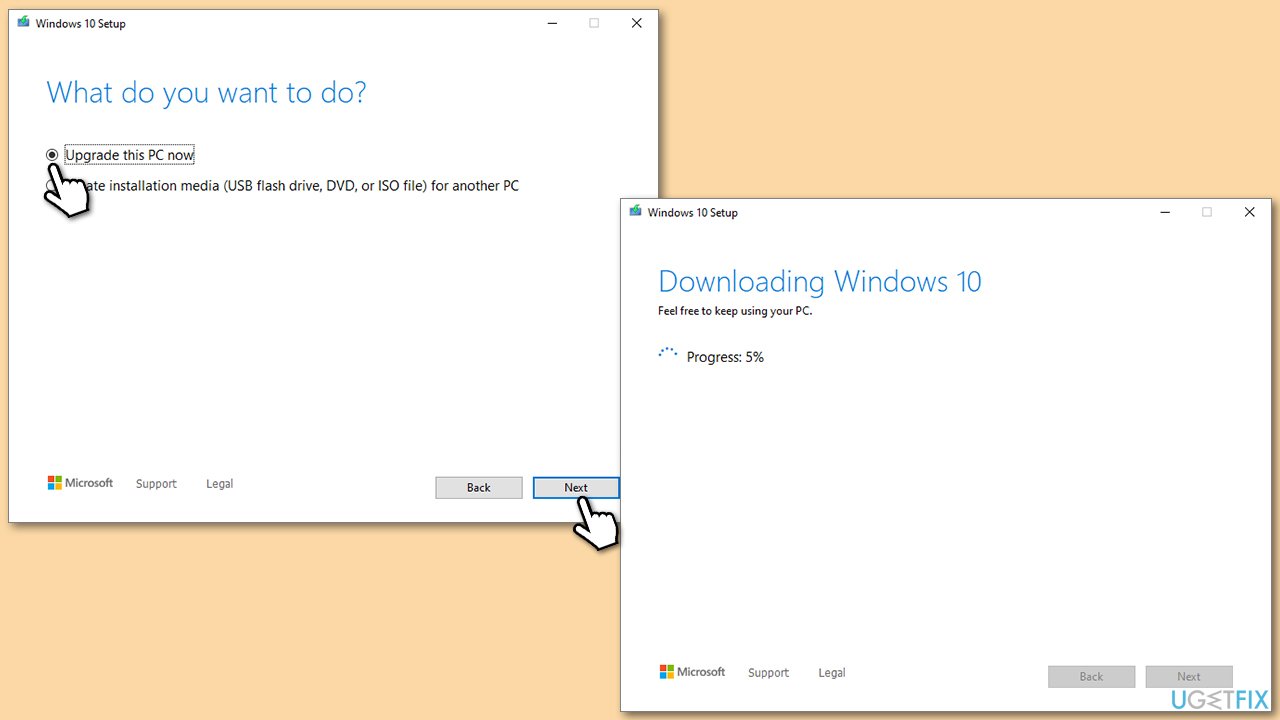
- Select Upgrade this PC now and click Next.
- Windows will start downloading the needed files.
- Agree to the terms once again and click Next.
- Before installing, make sure that you are happy with your choices (otherwise, you can click Change what to keep option).
- Finally, click Install to begin the upgrade process.
Bottom line
To fix the Xbox App crashing issue, you can use the Windows Store Apps troubleshooter and reset the Microsoft Store cache. If the problem persists or if you encounter any underlying Windows issues, consider utilizing a reputable PC repair tool to automatically rectify any Windows-related problems.
Frequently asked questions
Try resetting the Xbox App by going to Settings > Apps > Xbox App and selecting 'Advanced options.' From there, click on 'Reset' to clear any corrupted data.
Ensure that your Windows 11 is updated to the latest version, then check your network connection and try running the Xbox App as an administrator.
Open Settings, navigate to Apps > Apps & features, find the Xbox App, select it, and click on 'Repair' to fix any installation issues.




Report an issue
What's wrong with this guide? We review every report and update or remove content.
Report received — thank you. We'll review and fix it.
You need a free account to submit a report.
Be the first to comment