How to fix
Xbox Game Pass error 0x80073D24
on Windows
Resolve Xbox Game Pass error 0x80073D24 on Windows 10 or 11 effortlessly with our expert-tested solutions and tips. Fixed in minutes!

What causes How to fix Xbox Game Pass error 0x80073D24 in Windows?
- Incomplete or unsuccessful updates
- Corrupted system data
- Problems installing the Xbox app
- Inaccurate system configurations
- Conflicts with other software
Repairs Windows system files, removes malware, and restores a clean OS state — without reinstalling.
Since not too long ago, I can no longer update games on Xbox Game Pass (PC) - I always get the 0x80073D24 error. Can this be fixed? I'm using Windows 11.
Xbox Game Pass is a well-known membership service that gives players access to an extensive list of games and provides hours and hours of fun. Xbox Game Pass makes sure that players always have fresh content to explore by adding new games regularly and receiving updates from developers. But just as with any digital service, problems can occasionally ruin your game experience. Error 0x80073D24 is one such problem that users may run into when trying to install or update games on Windows.
The fact that error 0x80073D24 could keep you from playing your favorite games or accessing new stuff makes it especially annoying. Conflicts or issues with the Windows operating system or the Xbox program itself are usually the cause of this error. It may impact one or more games, or in certain situations, every game that is accessible via Game Pass.
Error 0x80073D24 can come up for a number of reasons. It could have to do with incomplete or unsuccessful updates, corrupted system data, or problems installing the Xbox app. Inaccurate system configurations or problems with other software may possibly be the cause.
There are various troubleshooting techniques that can be followed to fix the 0x80073D24 error. These could involve updating Windows and the Xbox app, looking for and fixing faulty system files, and modifying system settings to avoid incompatibilities.
You may fix the 0x80073D24 error and resume uninterrupted Xbox Game Pass gameplay by following the instructions we provide below. Furthermore, by employing the [d1] PC repair tool, any underlying Windows issues can be instantly addressed, guaranteeing a more reliable and smooth gaming experience.
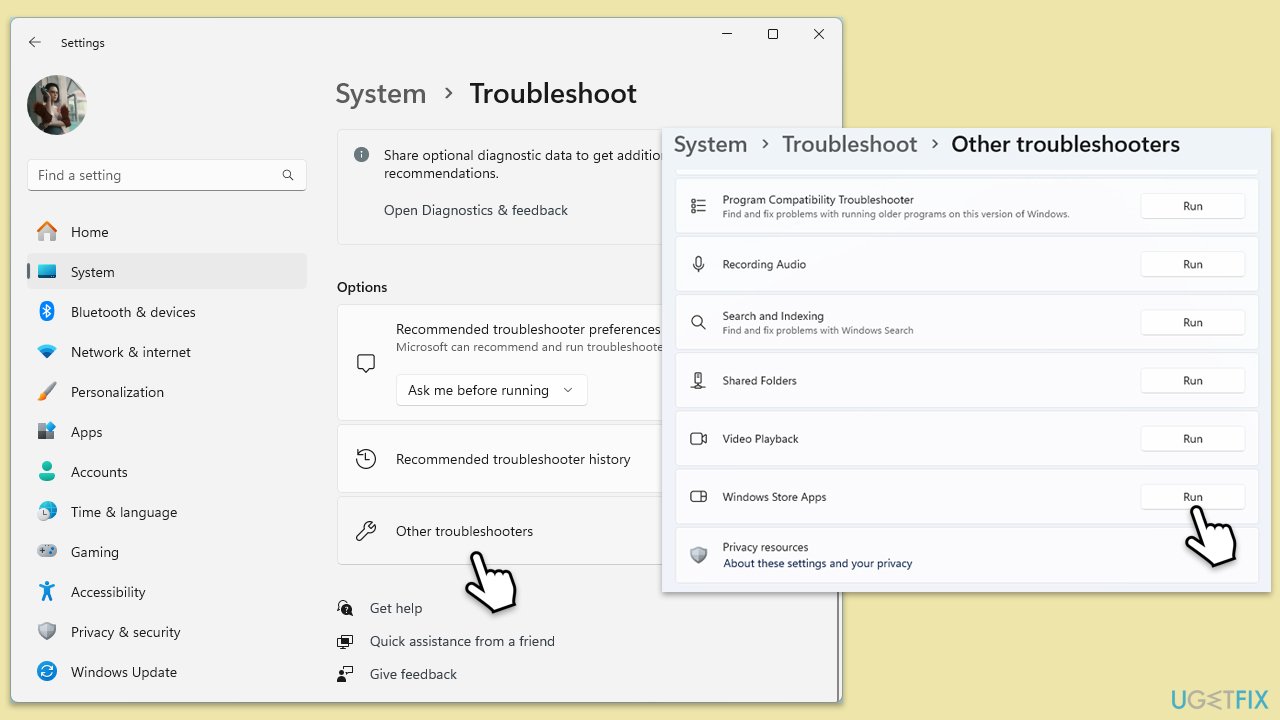
Fix 1. Start with the troubleshooter
To iron out any possible bugs with the app itself or internet connection issues, run the following troubleshooters:
- Type troubleshoot in Windows search and press Enter.
- Select Additional troubleshooters/Other troubleshooters.
- Find Windows Store Apps and click Run the troubleshooter/Run.
- Once done, find Internet Connections/Network and Internet and run it as well.
- If troubleshooters find anything, they will repair the issues present.
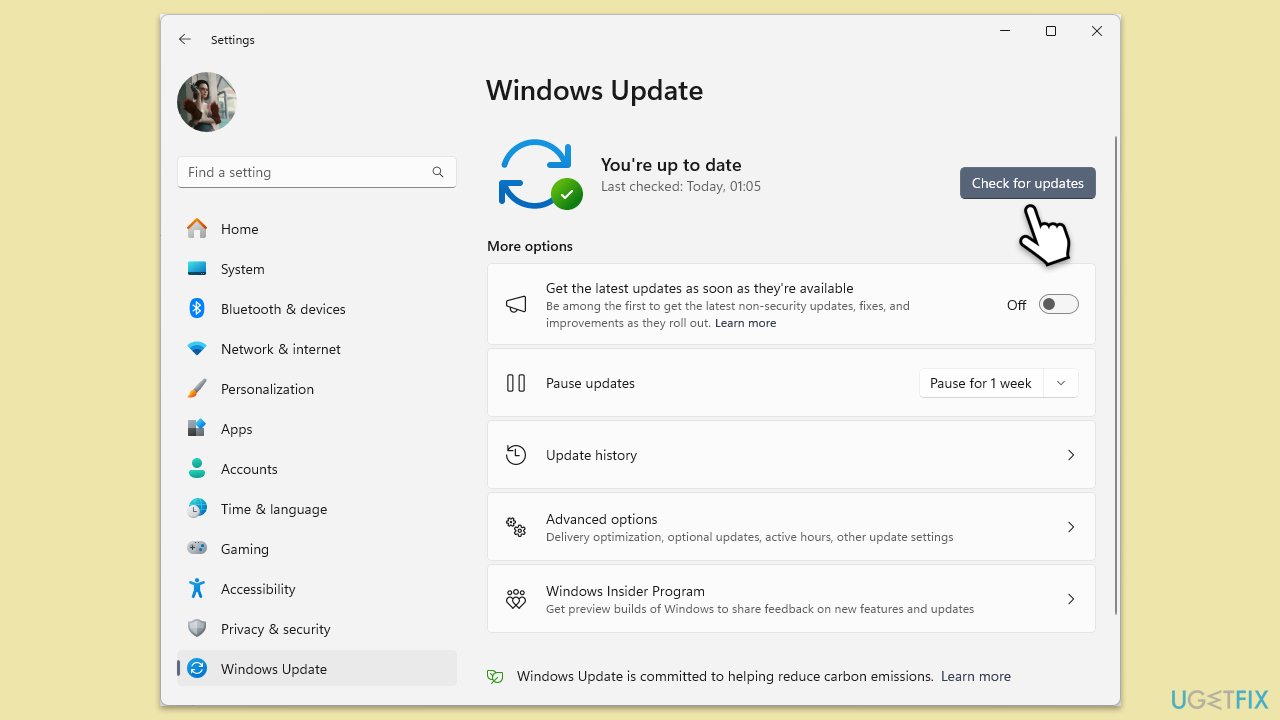
Fix 2. Install all Windows updates
Windows updates can fix any system-related bugs so please make sure you are running the latest version of the OS.
- Type Updates in Windows search and press Enter.
- When the new window opens, click Check for updates (or Install all if pending) and wait.
- If there are optional updates available, install them as well.
- After updating, restart your computer.
Fix 3. Run SFC and DISM
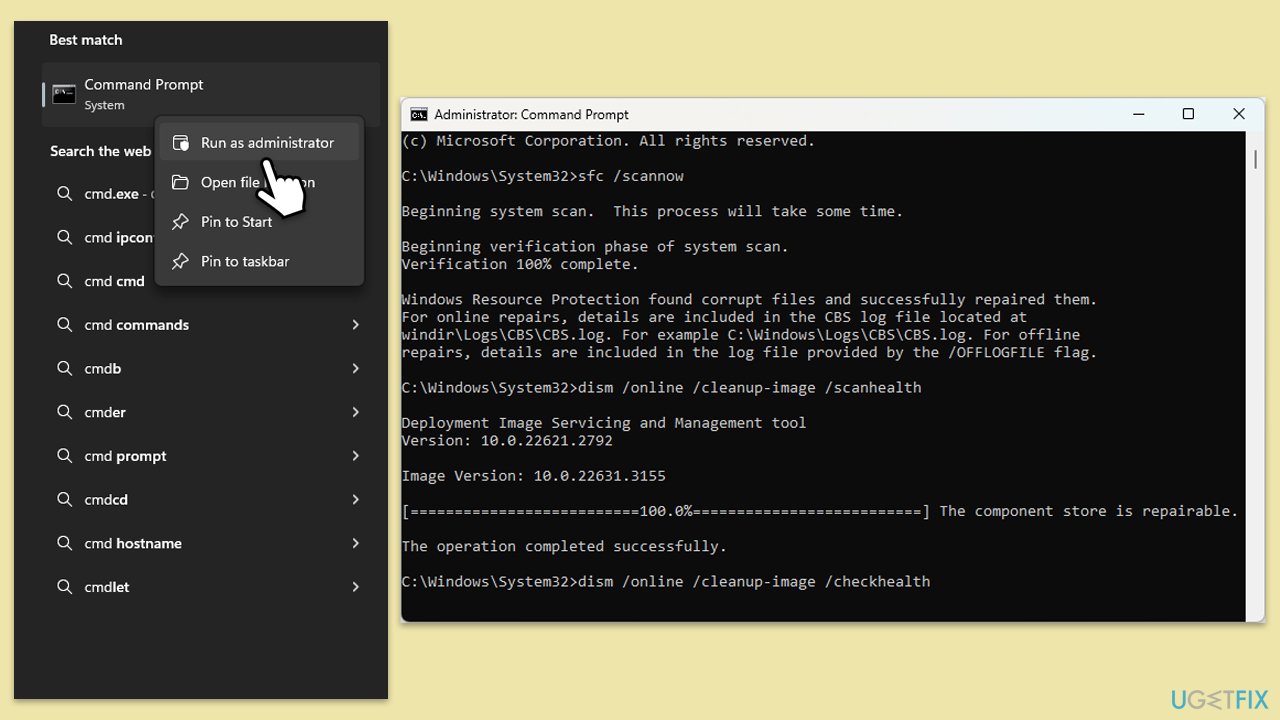
- Type in cmd in Windows search.
- Right-click on Command Prompt and select Run as administrator.
- In the User Account Control window, click Yes.
- In the Command Prompt window, paste the following command and hit Enter:
sfc /scannow - Next, use the following commands, pressing Enter each time:
Dism /Online /Cleanup-Image /CheckHealth
Dism /Online /Cleanup-Image /ScanHealth
Dism /Online /Cleanup-Image /RestoreHealth
(Note: if you get an error executing this last command, add /Source:C:\RepairSource\Windows /LimitAccess to it and try again). - Reboot your computer.
Fix 4. Reinstall your game on the same drive as the Xbox app is located
Installing the game on the same drive as the Xbox app can avoid potential path conflicts and permission issues.
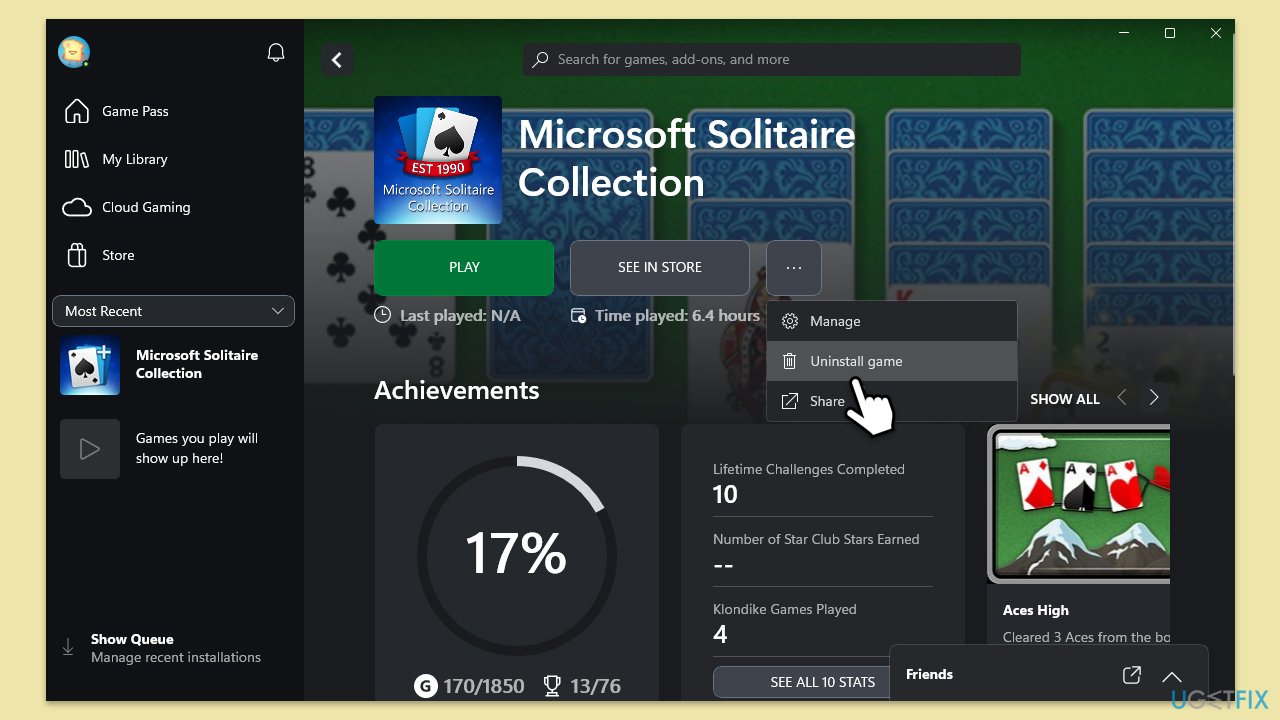
- Open the Xbox app.
- Go to My Library.
- Find the game causing the issue.
- Click on the three dots next to the game and select Uninstall the game.
- Reinstall the game, ensuring it is installed on the same drive as the Xbox app.
Fix 5. Repair or reset Xbox app, Gaming Services, and Microsoft Store
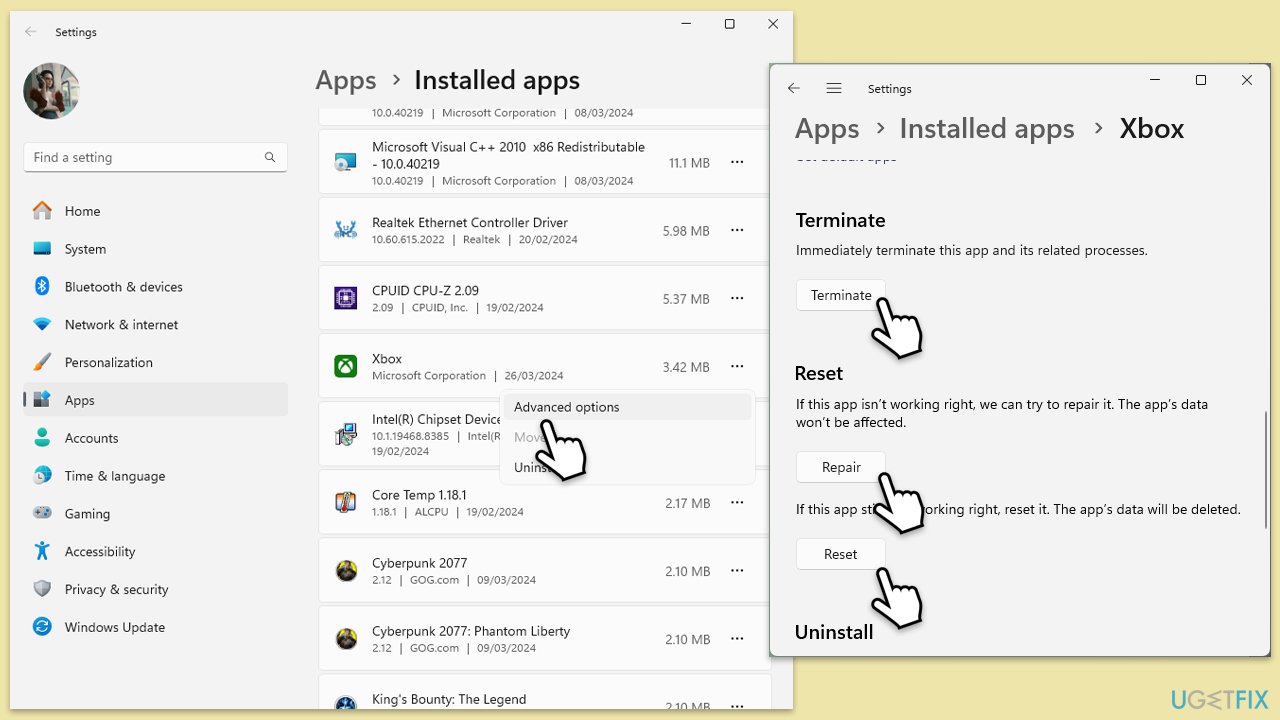
- Right-click on Start and select Apps & Features/Installed apps.
- Scroll down to find Microsoft Store and click Advanced options.
- Scroll down again and click Terminate and Repair.
- If that does not work, try using Reset.
- Repeat this process with the Xbox app and Gaming Services.
Fix 6. Check services
Ensure that relevant services are enabled and running:
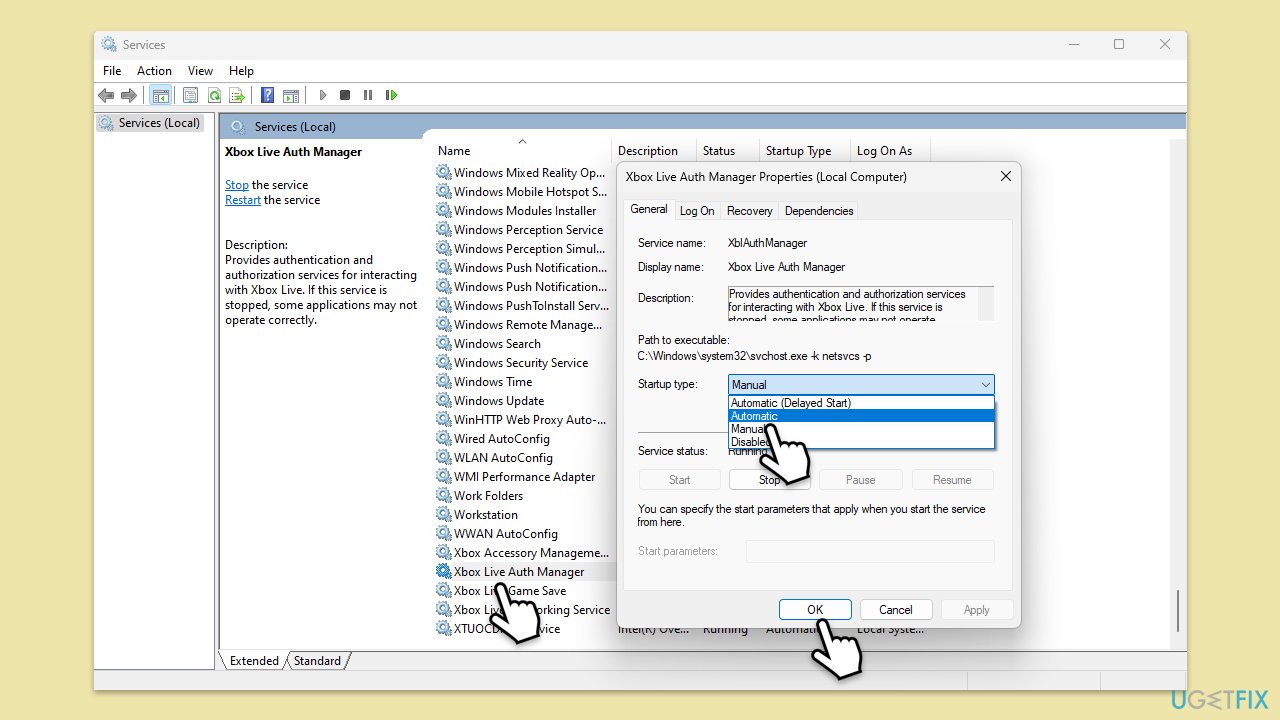
- Type Services in Windows search and hit Enter.
- Scroll down to find Gaming Services.
- Right-click on it and select Restart.
- If it is grayed out, double-click the service to open its Properties.
- Under Startup type, select Automatic from the drop-down menu.
- Click Start, Apply, and OK.
- Repeat this process with the following services:
Windows Update
Microsoft Store Install Service
Xbox Live Auth Manager
Xbox Live Game Save
Xbox Live Networking Service.
Fix 7. Reinstall Gaming Services
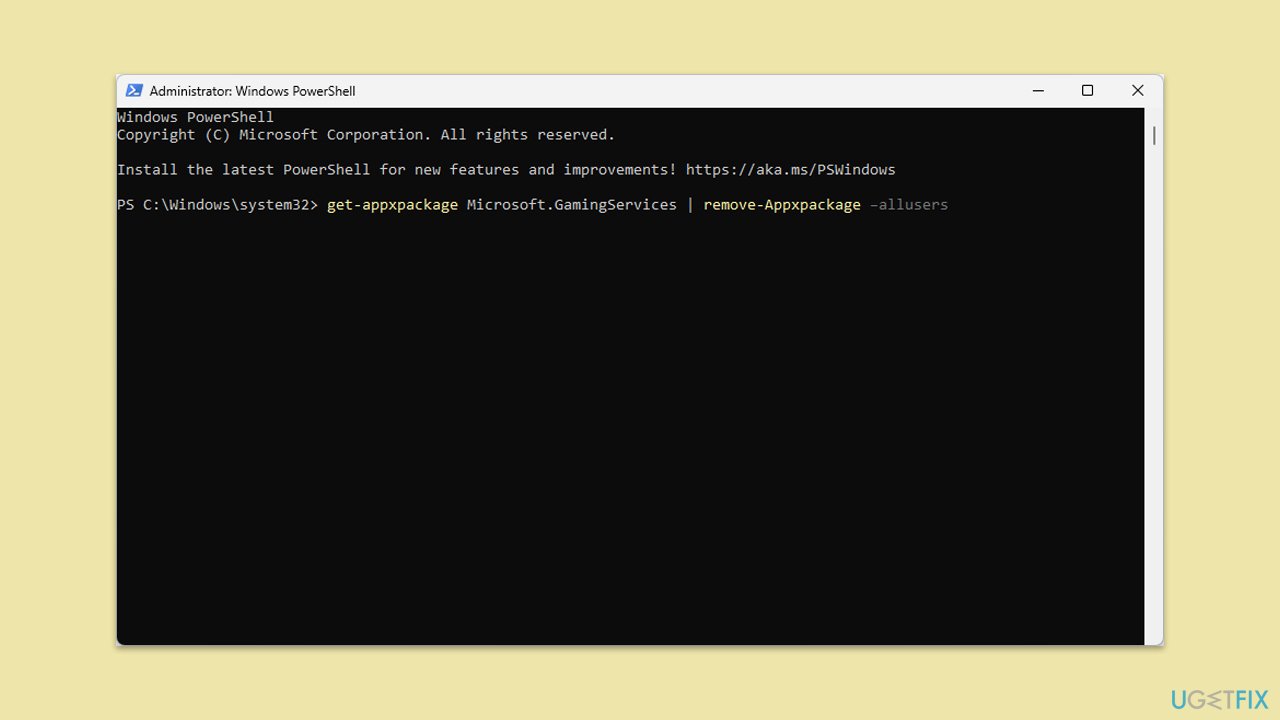
In certain regions, you can uninstall Gaming Services as you do any other apps. If you can't do so, report this step in an elevated PowerShell:
- Type PowerShell in Windows search.
- Right-click on it and pick Run as administrator.
- In the new window, copy and paste the following commands and hit Enter:
get-appxpackage Microsoft.GamingServices | remove-Appxpackage –allusers
Remove-Item -Path "HKLM:\System\CurrentControlSet\Services\GamingServices" -recurse
Remove-Item -Path "HKLM:\System\CurrentControlSet\Services\GamingServicesNet" -recurse - Close down PowerShell and restart your system.
- Next, install Gaming Services from the Microsoft Store.
Bottom line
To fix the 0x80073D24 error, you can start by running the troubleshooter for Windows Store Apps, updating Windows and the Xbox app, and checking for faulty system files. If these steps do not resolve the issue, consider using a PC repair tool to address underlying Windows problems.
Frequently asked questions
The error 0x80073D24 typically indicates that there is an issue with the installation of a game or app from Xbox Game Pass, often due to corrupted files or a problem with the Microsoft Store.
To troubleshoot this error, try resetting the Microsoft Store cache by running 'wsreset.exe' in the Run dialog, and ensure that your Windows 11 is fully updated.
Yes, reinstalling the Xbox app can help resolve error 0x80073D24; simply uninstall the app, restart your PC, and then download and install it again from the Microsoft Store.




Report an issue
What's wrong with this guide? We review every report and update or remove content.
Report received — thank you. We'll review and fix it.
You need a free account to submit a report.
Be the first to comment