How to fix
Xbox games not showing
on Windows
Resolve Xbox games not showing on Windows 10 or 11 effortlessly. Boost your gaming experience with expert-tested solutions that fix the issue in minutes.

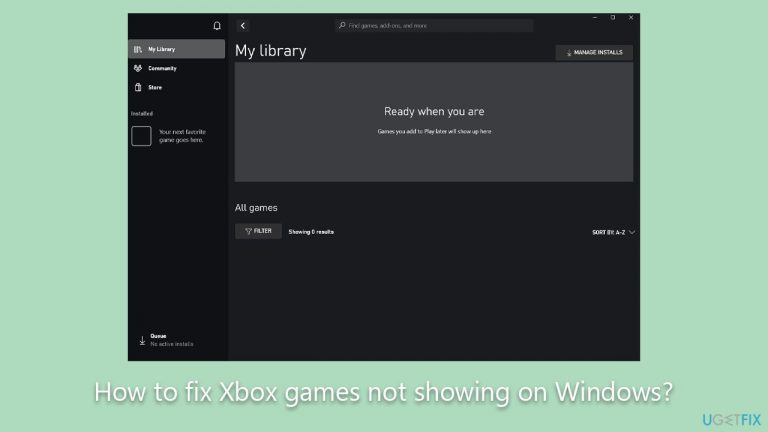
What causes How to fix Xbox games not showing on Windows?
- Incorrect Microsoft account logged in
- Synchronization issues between Xbox and Windows
- Minor discrepancies in account details
- Temporary glitches in the Xbox app
Repairs Windows system files, removes malware, and restores a clean OS state — without reinstalling.
So I was always an Xbox gamer and recently have decided to expand my horizons and try some PC gaming instead, considering it provides a lot more options. As such, I wanted to play the games I own on Xbox on Windows instead but whenever I log into my Xbox app, no games are showing on the list. I shouldn't have to buy these games twice...
The integration of Xbox games with Windows has seen a remarkable transformation, particularly with the advent of the Xbox app on Windows PCs. The Xbox app allows players to access and play their favorite Xbox titles directly from their computer. This capability hinges on the seamless integration of the player's Microsoft account across both the Xbox console and the Windows platform.
Once logged in, players can peruse their library of owned games and play them without the need to switch on the actual Xbox console. This feature not only offers convenience but also broadens the gaming experience to a more versatile environment. However, as with any technology, there have been reported glitches.
A recurring issue that has been noted by a number of players is the mysterious absence of their owned games in the Xbox app library. In some instances, these games are missing not just from the library but from the app altogether. This anomaly defeats the very essence of the game-sharing feature, rendering players unable to utilize the intended functionality, leading to both frustration and confusion.
One predominant reason behind Xbox games not showing on Windows is typically associated with the Microsoft account being used. The synchronization between the Xbox and the Windows platform is contingent upon the correct Microsoft account being logged into on both ends. Discrepancies, even minor ones, can result in games not appearing as they should.
If Xbox games are not showing for you on Windows, the initial step would be to ensure you're logged into the correct Microsoft account on your Windows PC. At times, simply logging out and then logging into the Xbox app can rectify the situation, prompting the system to refresh and recognize the owned games.

It's imperative to understand that while this is a common solution, it might not work for everyone. Further instructions and troubleshooting steps would be essential to delve into, to address the myriad of potential causes. For those who may still encounter challenges, or for those keen on maintaining the general health and performance of their Windows operating system, employing the [d1] PC repair tool can prove beneficial.
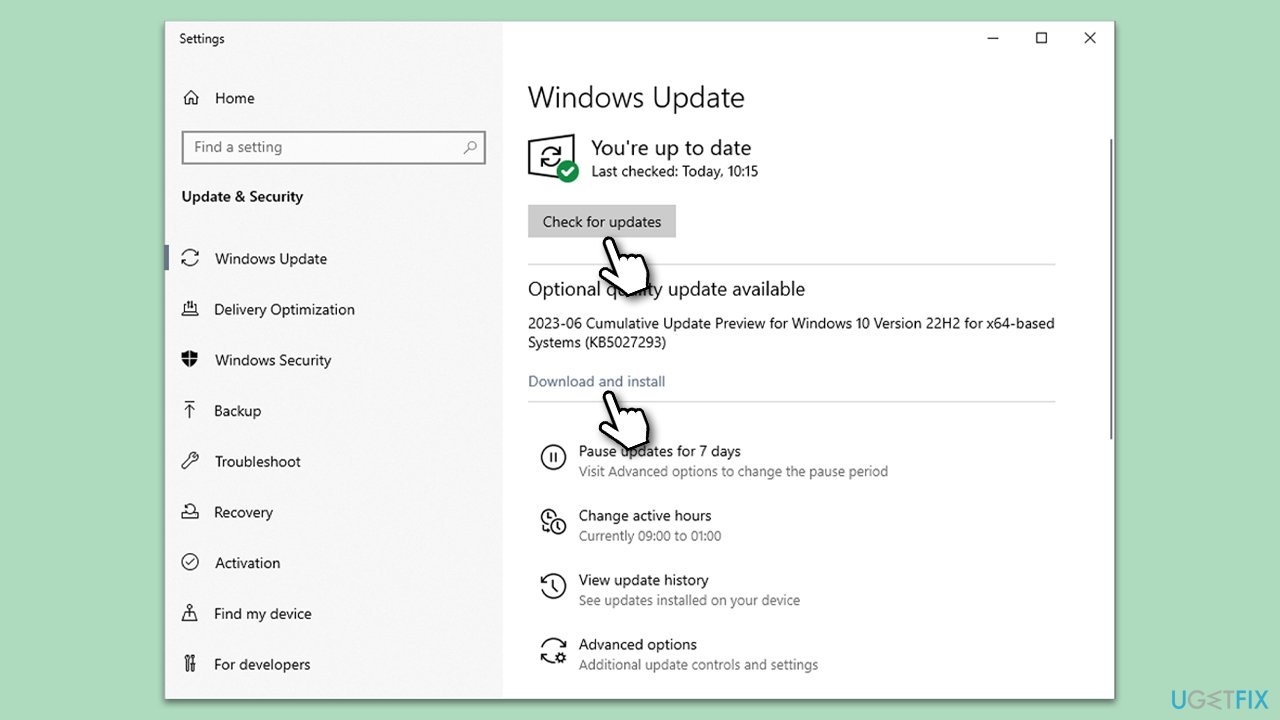
Fix 1. Install Windows updates
Windows periodically releases updates to fix bugs, improve system performance, and introduce new features. It's essential to keep your system updated to ensure compatibility with the latest versions of apps and services, including the Xbox app.
- Click on the Start and go to Settings.
- Select Update & Security.
- Click on Windows Update.
- If there are updates available (including optional ones), click Install. If not, click Check for updates.
- Restart your PC to implement the changes.
Fix 2. Perform Disk Cleanup
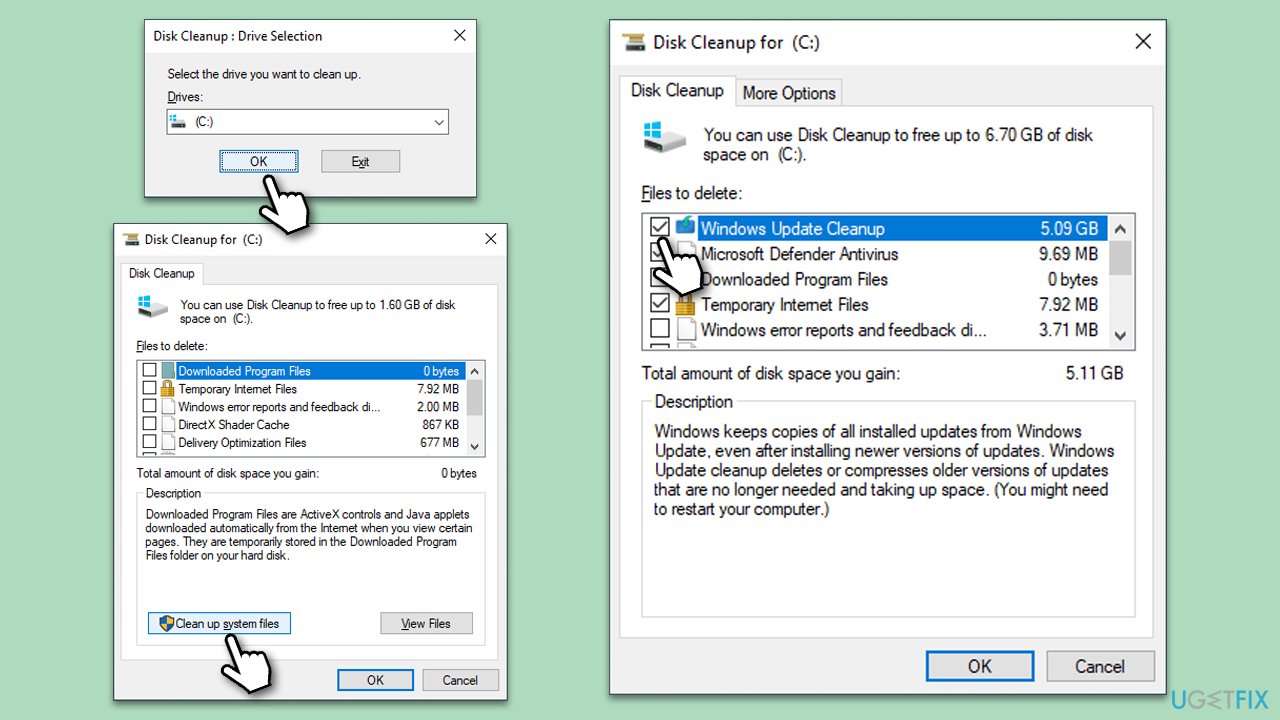
Accumulated temporary files can sometimes interfere with apps functioning properly. Disk Cleanup helps in deleting these unnecessary files and frees up space.
- Open the Windows search bar and type Disk Cleanup. Press Enter to open the Disk Cleanup utility.
- In the Disk Cleanup window, select the drive where your Windows operating system is installed (usually drive C:) and click OK.
- Click Clean up system files.
- Select the drive again and click OK.
- In the list of files that can be cleaned up, select the largest portions of data, such as Temporary Internet Files, Windows Update, Temporary Files, and others.
- Click OK to begin the cleanup process.
Fix 3. Log in to Microsoft and Xbox accounts
Ensuring that you're properly logged into both your Microsoft account on the computer and your Xbox account on the Xbox app is essential for synchronization. If discrepancies arise, re-logging can often rectify issues.
Microsoft Account:
- Open Settings.
- Select Accounts.
- If you're not logged in, click on Sign in with a Microsoft account instead and follow the prompts.
- If already signed in, consider signing out and then signing back in for a refresh.
Xbox App Account:
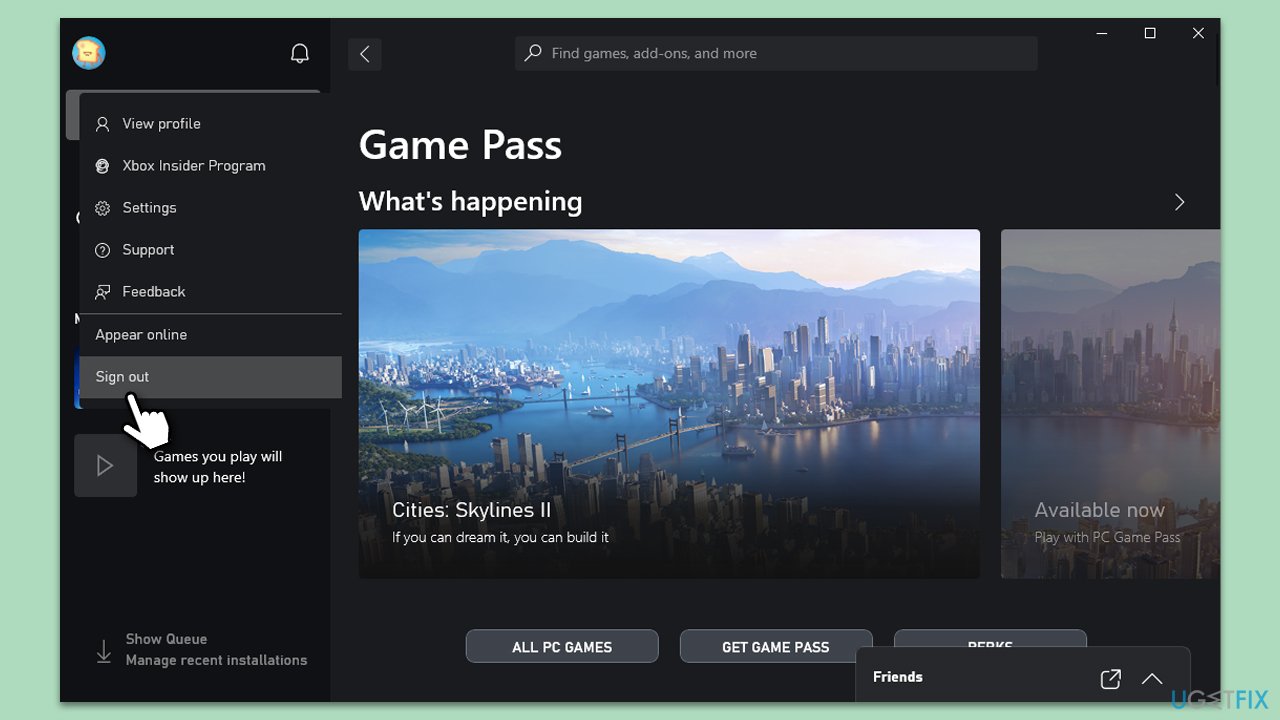
- Launch the Xbox app.
- Navigate to the profile icon.
- If not signed in, click Sign in and enter your credentials.
- If you're already signed in, click on your profile, select Sign out, and then Sign in again to refresh the connection.
Fix 4. Install updates on the Microsoft Store
Keeping the Microsoft Store updated ensures that all related apps and services run smoothly.
- Open the Microsoft Store.
- Navigate to the Library section.
- Click on Get updates and wait for the installation to complete.
- Finally, restart your system when the process is done.
Fix 5. Reset Microsoft Store cache
Cache issues can hinder app performance. Resetting the cache can resolve these problems.
- Press Win + R on your keyboard to open the Run dialog.
- Type wsreset.exe and press Enter.
- Wait till a black window shows up – do not interact with it or close it.
- Once it's gone, Microsoft Store should restart.
- Try downloading apps once again.
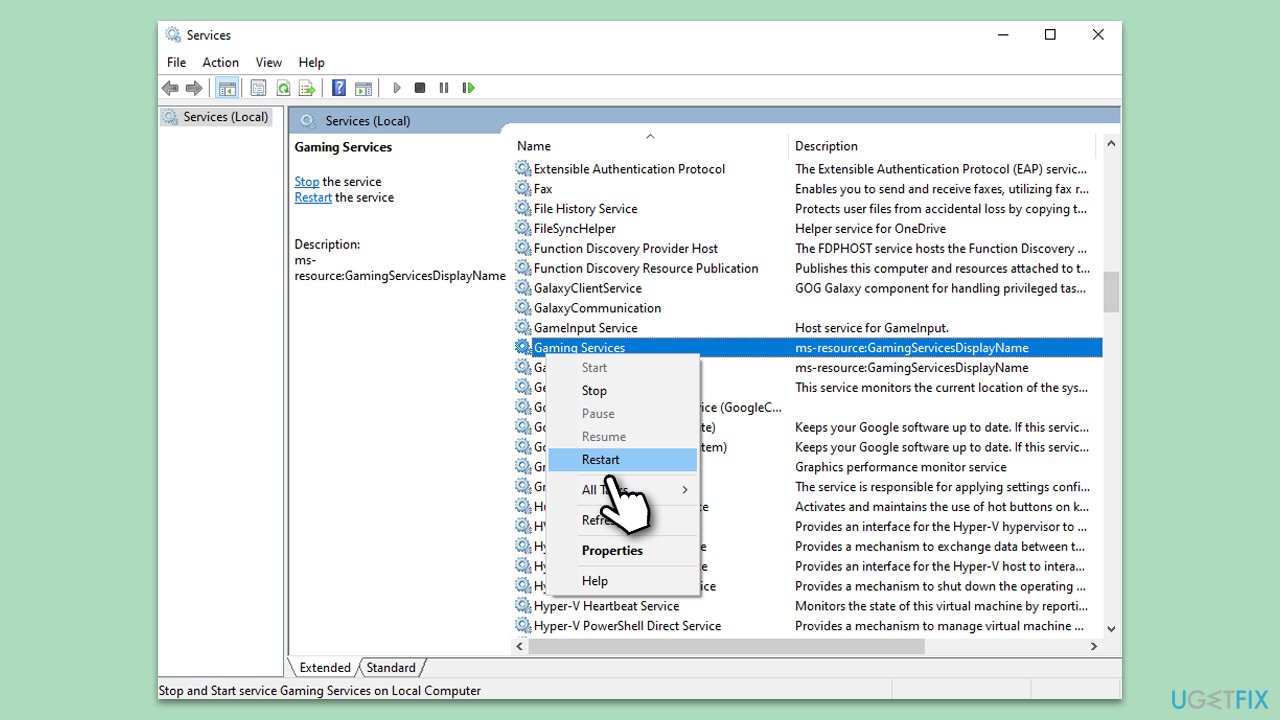
Fix 6. Restart Gaming Services
Restarting gaming services can help in resolving conflicts and refreshing connections.
- Type Services in Windows search and hit Enter.
- Scroll down to find Gaming Services.
- Right-click on it and select Restart.
- If it is grayed out, double-click the service to open its Properties.
- Under Startup type, select Automatic from the drop-down menu.
- Click Start, Apply, and OK.
Fix 7. Reset your internet connection
Resetting the internet connection can help in resolving potential network issues.
- Type cmd in Windows search.
- Right-click on Control Panel and choose Run as administrator.
- User Account Control will ask whether you want to allow changes - click Yes.
- Copy and paste each of the following commands, pressing Enter after each:
ipconfig /flushdns
ipconfig /registerdns
ipconfig /release
ipconfig /renew
netsh winsock reset - Restart your device.
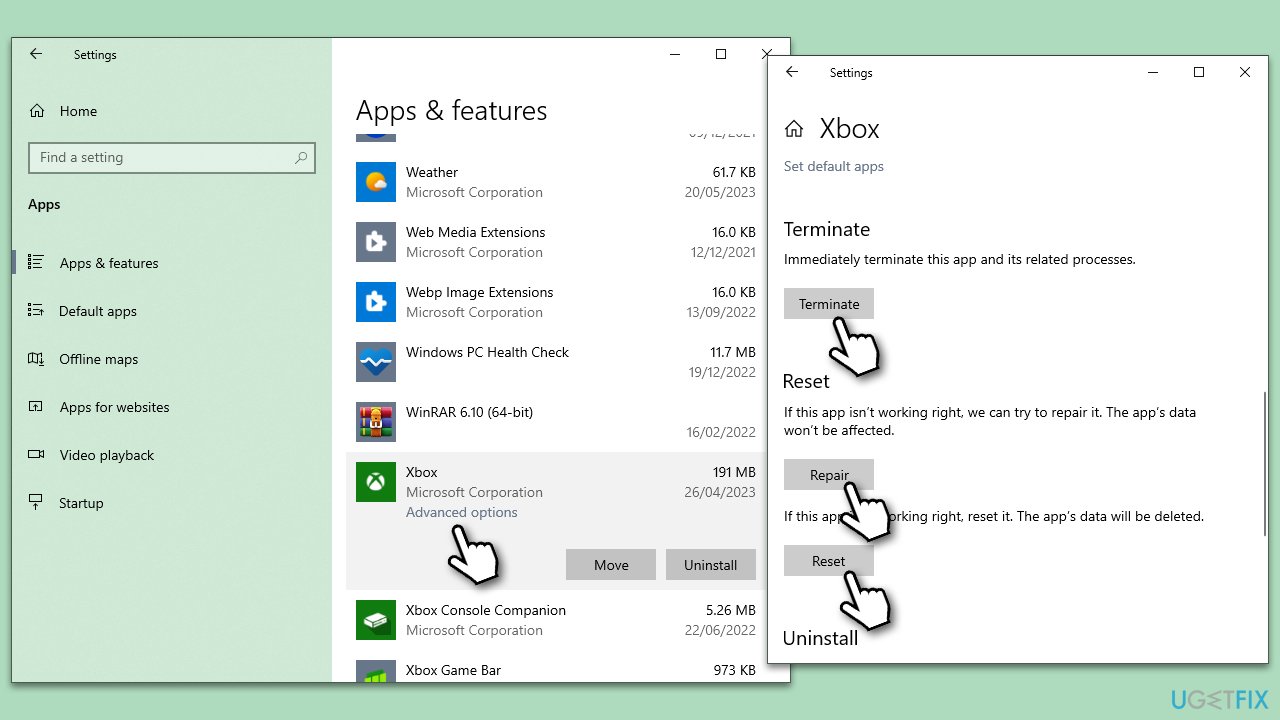
Fix 8. Repair or reset Xbox app, Gaming Services, and Microsoft Store
This helps restore default settings and potentially fix any errors.
- Right-click on Start and pick Apps & Features.
- Scroll down to locate the Xbox app and click Advanced options.
- Click Terminate and Repair.
- If that does not help, try the Reset option instead.
- Repeat the same with the Microsoft Store and Gaming Services.
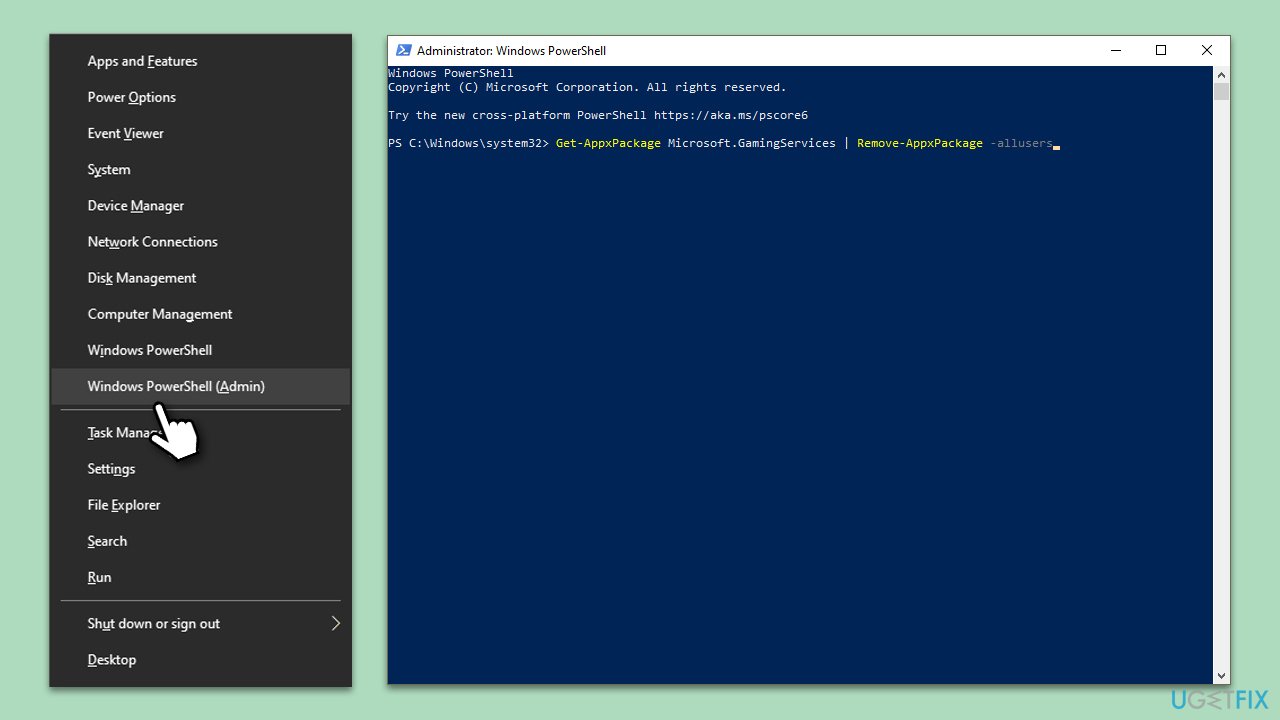
Fix 9. Reinstall Gaming Services through PowerShell
Reinstalling can address any underlying installation issues.
- Right-click on the Start button.
- Choose Windows PowerShell (Admin).
- Type the following command and press Enter:
Get-AppxPackage gamingservices | Remove-AppxPackage -AllUsers - After it is executed, run the following command:
start ms-windows-store://pdp/?productid=9MWPM2CQNLHN - Install Gaming Services when prompted.
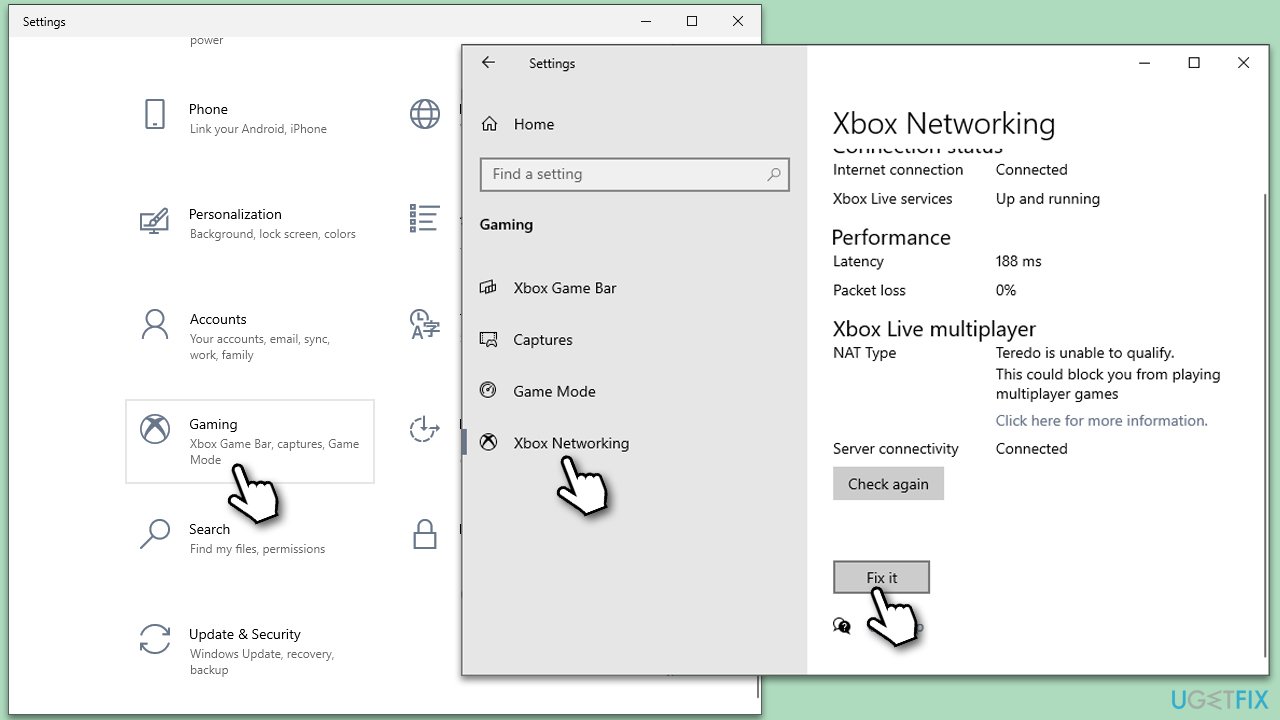
Fix 10. Check Xbox Live Multiplayer
- Right-click on Start and pick Settings.
- Go to the Gaming section.
- Select Xbox Networking on the left.
- Under Xbox Live multiplayer, make sure the Internet connection shows as Connected.
- If not, you can click Fix it and wait till the fixes are implemented.
Bottom line
To fix the issue of Xbox games not showing on Windows, ensure you are logged into the correct Microsoft account on your PC and try logging out and back into the Xbox app. If the problem persists, consider checking for any discrepancies in your account details or refreshing the app. If none of these solutions work, further troubleshooting may be necessary.
Frequently asked questions
Xbox games may not appear due to issues with the Xbox app or the Microsoft Store, or if the games are not installed correctly. Check your account and ensure that the games are downloaded and updated.
You can refresh the Xbox app by signing out and then signing back in, or by restarting the app altogether. This often resolves syncing issues with your game library.
If the games are still not showing, try repairing the Xbox app through the Settings > Apps > Apps & features menu, or consider reinstalling the app to fix any underlying issues.




Report an issue
What's wrong with this guide? We review every report and update or remove content.
Report received — thank you. We'll review and fix it.
You need a free account to submit a report.
Be the first to comment