How to fix
Yellow tint screen
on Windows
Resolve the yellow tint screen issue on Windows 10 and 11 effortlessly. Enjoy a clearer display with expert-tested solutions and zero traces left.

What causes How to fix yellow tint screen in Windows?
- Hardware issues due to manufacturing defects
- Gradual wear and tear of components
- Incorrect color calibration
- Inadvertent changes following updates
- Issues with the graphics card or its drivers
- External factors like magnetic interference or room lighting
Repairs Windows system files, removes malware, and restores a clean OS state — without reinstalling.
Suddenly, my laptop's screen has a yellow tint to it, which is weird, and I'd like to get rid of it. I am just not sure how because I don't know how it was enabled in the first place.
In the modern digital age, computer screens are our gateways to vast virtual worlds. They allow us to access, interact with, and even create digital content. Whether you're reading an article, watching a video, or working on a project, the clarity and quality of your screen are crucial. A crisp, high-quality screen provides an immersive experience, accurate color representation, and reduces eye strain.
However, some of you might recently have noticed an unsettling issue: a yellow tint on your screen. This discoloration can be distracting and might interfere with the normal operation of your PC. Images can look washed out, and colors may not be true to life, making tasks that require exact color matching or clear visuals more challenging.
There are several reasons why a yellow tint might appear on your screen. It could be due to hardware issues arising from manufacturing defects or the gradual wear and tear of components. Alternatively, it might be linked to software conflicts, such as incorrect color calibration or inadvertent changes following updates. Issues with the graphics card or its drivers can also result in color discrepancies. On occasion, the problem might even be caused by external factors like magnetic interference or particular types of room lighting.
To tackle the yellow tint issue, you can start by adjusting the screen settings and recalibrating the color. If the problem persists, try updating or reinstalling the graphics card drivers. If neither approach yields results, it might be time to seek professional advice or inspect for potential environmental factors causing the issue.
For those facing broader Windows challenges, whether related to screen tints, errors, BSODs, or registry complications, specialized software tools can be invaluable. The [d1] PC repair tool, for instance, is adept at automatically detecting and resolving a wide range of Windows problems, paving the way for a seamless computing experience.
Fix 1. Turn off the Night light
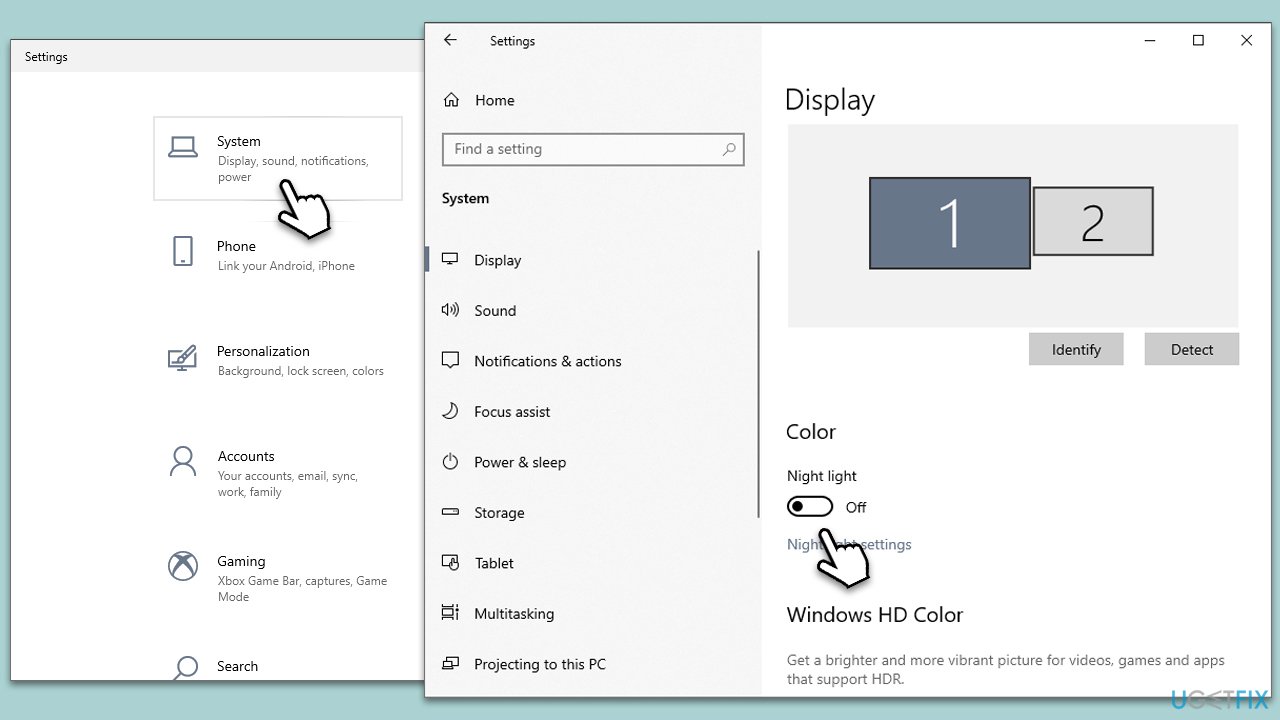
The Night Light feature in Windows adjusts the color temperature of your screen to reduce blue light during the evening hours, which can cause a yellowish or warmer hue. Turning it off will revert the screen to its regular color settings.
- Click on the Start menu.
- Open the Settings (represented by a gear icon).
- Click on System.
- Navigate to Display.
- Find the Night Light section.
- Toggle the switch to Off.
Fix 2. Calibrate the display color
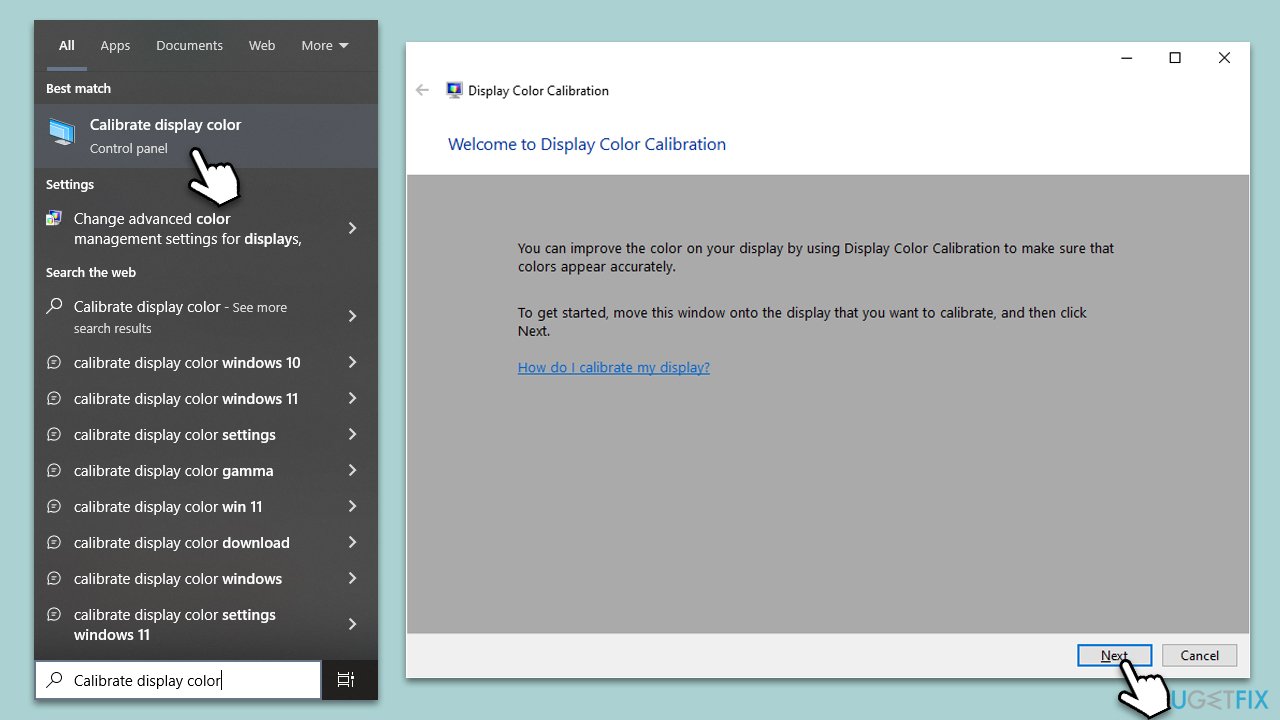
Calibrating the display color ensures that the colors on your screen are accurate and representative of their true hues. The built-in Windows color calibration tool guides you through adjustments for optimum color accuracy.
- Type Calibrate display color in Windows search and hit Enter.
- Maximize the window.
- Click Next and follow the on-screen instructions to calibrate your screen.
Fix 3. Update GPU drivers
Outdated or corrupted graphics card drivers can affect the color output on your screen. Updating them ensures you're using the latest, most compatible version for your hardware. You can do this automatically with tools like [rev id="DriverFix"], installing the drivers from the official website manually, or simply employing the Windows update feature:
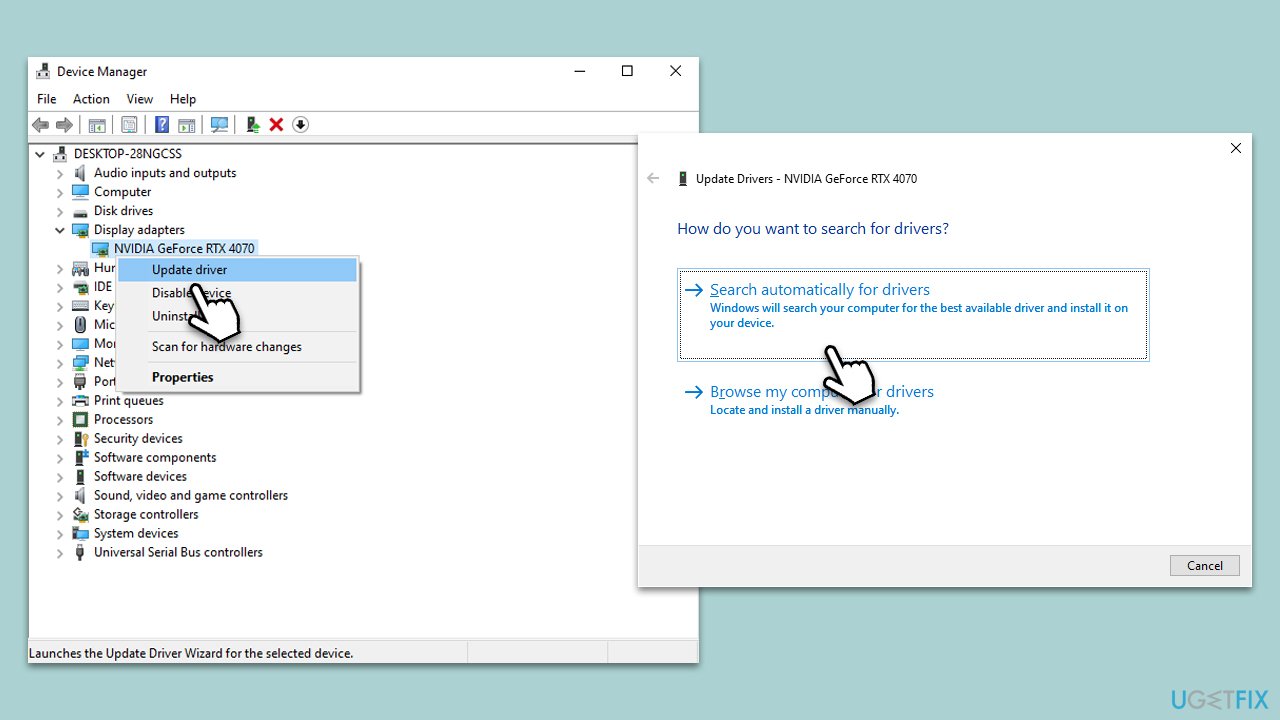
- Right-click on Start and pick Device Manager.
- Expand the Display Adapters section.
- Right-click on your graphics card and select Update Driver.
- Select Search automatically for drivers and wait.
- Once done, restart your device.
Fix 4. Check for physical monitor issues
Sometimes, the issue might be with the monitor's physical components or cables. Ensuring they are properly connected can resolve any tint issues.
- Turn off your PC and monitor.
- Unplug and replug all the monitor cables.
- Ensure connections are secure.
- Turn on the PC and monitor.
Fix 5. Reset color profile
A corrupted color profile can lead to display discoloration. Resetting to the default profile can help.
- Right-click on the desktop.
- Select Display settings.
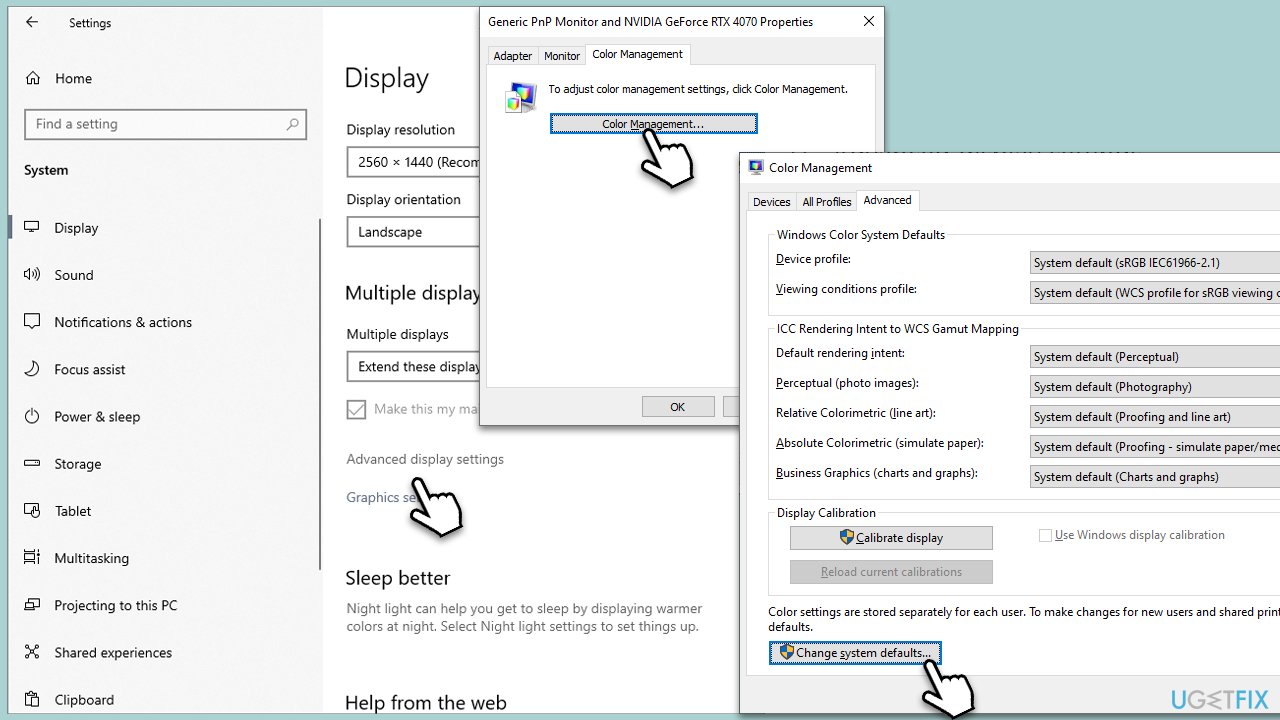
- Click on Advanced display settings.
- Click Display adapter properties for Display 1.
- Go to the Color Management tab and click Color Management.
- Select the Advanced tab.
- Click Change system defaults at the bottom.
- Go to the Advanced tab again and mark the Use Windows display calibration checkbox.
- Close everything and restart your computer.
Fix 6. Adjust monitor settings
Monitors come with onboard settings that allow color adjustments. Tweaking these can resolve any off hues.
- Use the physical buttons on your monitor.
- Navigate to the Color settings.
- Adjust the RGB values to neutral or default.
- Save and exit.
Fix 7. Check for software interference
Some software applications can alter display settings. Ensure no third-party applications are causing the tint, and for that, you can run Clean Boot.
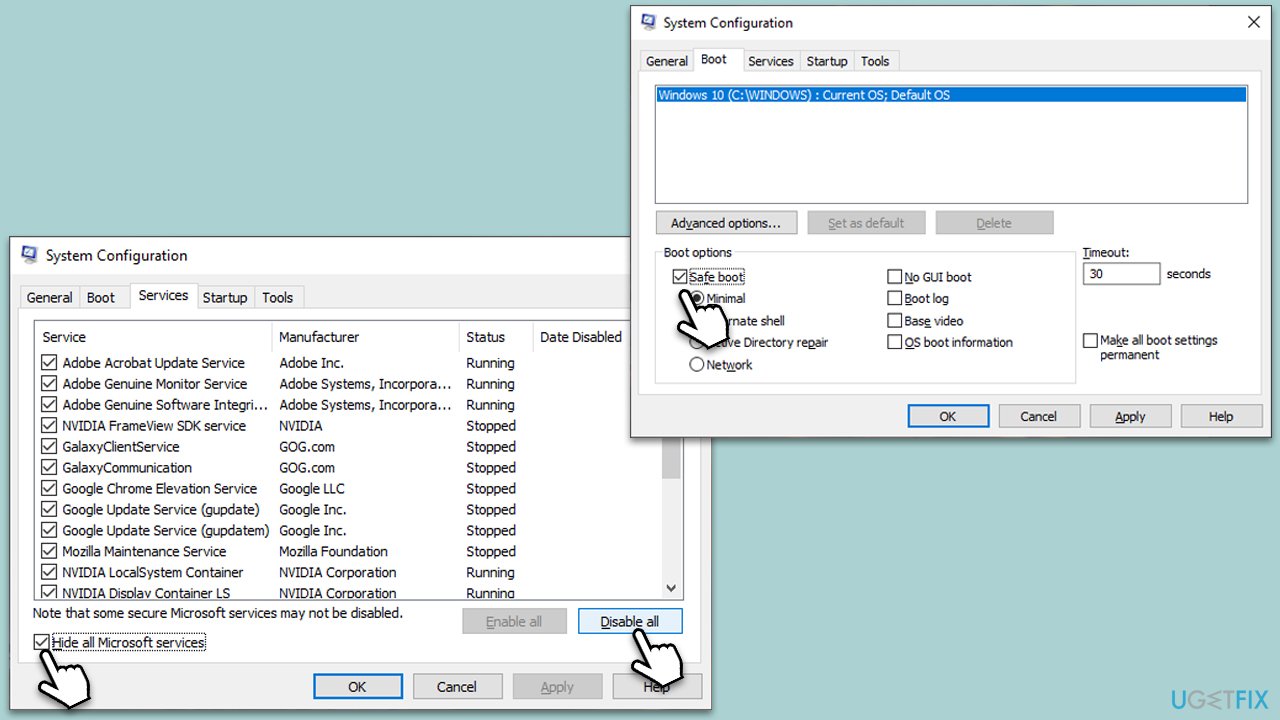
- Press Win + R, type msconfig, and hit Enter.
- Go to the Services tab and tick the Hide all Microsoft services checkbox.
- Select Disable all.
- Go to the Startup tab and click Open Task Manager.
- Here, right-click on each of the non-Windows entries and select Disable.
- Close down the Task Manager.
- Go to the Boot tab and tick the Safe boot option.
- Restart your device.
Fix 8. Replace monitor cable
Faulty cables can send incorrect color data. Replacing it can often fix any tinting problems.
- Turn off your PC and monitor.
- Remove the current cable connecting the PC to the monitor.
- Connect a new, compatible cable.
- Turn on the PC and monitor.
Bottom line
To fix the yellow tint screen issue, start by adjusting the screen settings and recalibrating the color. If the problem persists, try updating or reinstalling the graphics card drivers. If neither approach yields results, consider seeking professional advice or inspecting for environmental factors.
Frequently asked questions
A yellow tint on your screen can be caused by incorrect color calibration, night light settings being enabled, or outdated graphics drivers.
To disable night light in Windows 10 or Windows 11, go to Settings > System > Display and toggle off the Night light option.
To recalibrate display color settings, open the Control Panel, navigate to 'Color Management', select your display, and follow the calibration wizard to adjust the color settings.




Report an issue
What's wrong with this guide? We review every report and update or remove content.
Report received — thank you. We'll review and fix it.
You need a free account to submit a report.
Be the first to comment