How to fix
“You are currently not connected to any networks” error
on Windows
Resolve the "You are currently not connected to any networks" error on Windows 10 or 11 effortlessly. Follow expert-tested solutions for a quick fix!


What causes How to fix “You are currently not connected to any networks” error in Windows?
- Incorrect network settings
- Outdated network drivers
- Malfunctioning wireless adapter
- Temporary problems with the router
- Conflicts with other devices
Repairs Windows system files, removes malware, and restores a clean OS state — without reinstalling.
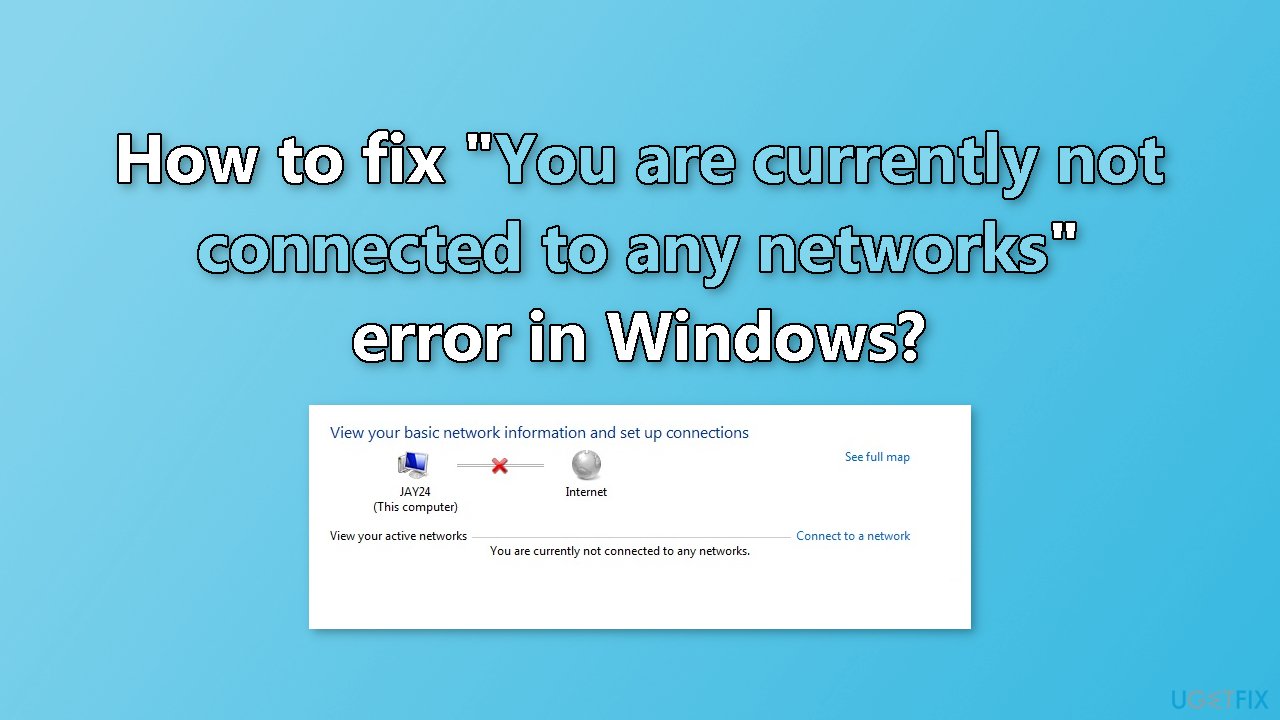
Hello. I cannot connect to the wireless network on my Windows laptop. When I open the Network and Sharing Center I see the "You are currently not connected to any networks" message. What should I do?
The "You are currently not connected to any networks" error in Windows is an indication that the computer is not able to detect any available wireless networks. This issue can impact users in several ways, such as preventing them from accessing the internet, connecting to other devices on the network, and accessing shared resources.
This error can be caused by a variety of factors, such as incorrect network settings, outdated network drivers,[ref en-1] or a malfunctioning wireless adapter. If people encounter this error in Windows, the very first thing they should do is restart their router. This can resolve many connectivity issues, as a simple restart can often clear up any temporary problems with the router.
If restarting the router doesn't solve the problem, there are several other possible solutions. They include running the network adapter troubleshooter, resetting the network, switching to Google DNS, or reinstalling the network driver. In this guide, you will find 5 steps that should help you fix "You are currently not connected to any networks" error in Windows.
Keep in mind that the solution may vary depending on the cause of the problem and the specific configuration of the user's computer. You can also use an automatic maintenance tool like [d1] that can fix most system errors, BSODs,[ref en-2] corrupted files, or registry[ref en-3] issues. Otherwise, follow the step-by-step instructions below.
Method 1. Run Network Adapter Troubleshooter
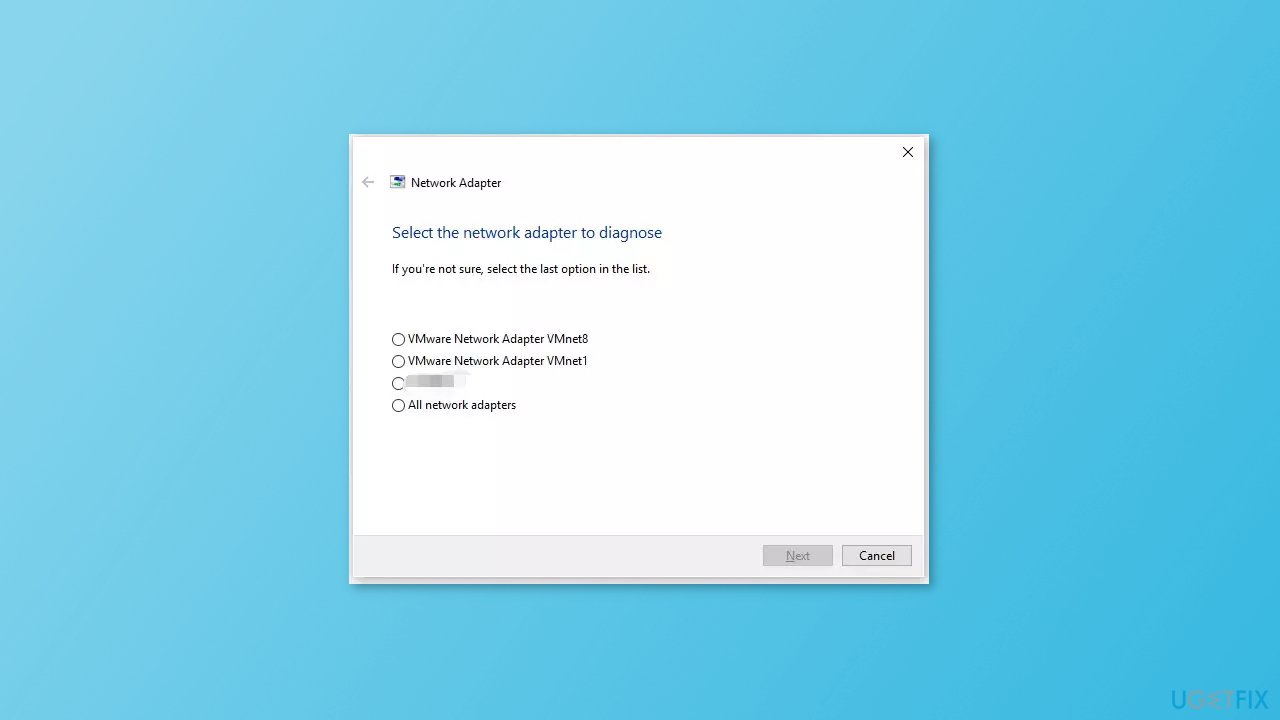
The Network Adapter Troubleshooter in Windows is a built-in troubleshooting tool that can help diagnose and resolve problems with network adapters on a Windows computer. The troubleshooter can identify and fix common issues with network connections, such as incorrect settings, outdated drivers, and conflicts with other devices.
- Click Start menu and go to Settings
- Click System and press Troubleshoot on the right
- Click Other troubleshooters and find the Network Adapter option
- Click on the Run button next to it
Method 2. Restart your Network Adapter
- Press the Windows key + R to open the Run dialog box
- Type ncpa.cpl in the dialog box and press Enter to open the Network Connections window
- Right-click on the WiFi adapter and select Disable
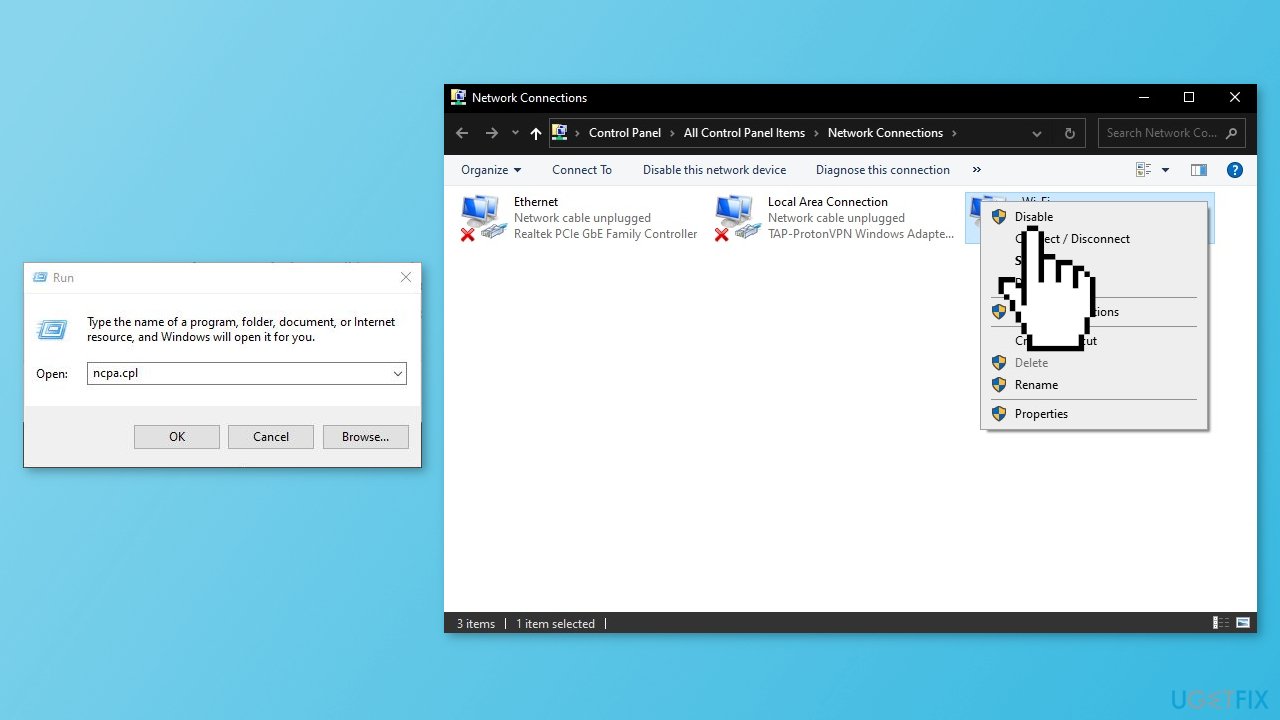
- Right-click on the WiFi adapter again and select Enable
- Check if the issue is resolved
Method 3. Perform a Network Reset
- Press the Windows key + I on your keyboard and click on Network & Internet
- Go to the right pane and click on Advanced network settings
- On the next Settings page, go to the right pane and scroll down to the bottom
- Click on Network reset and then Reset now
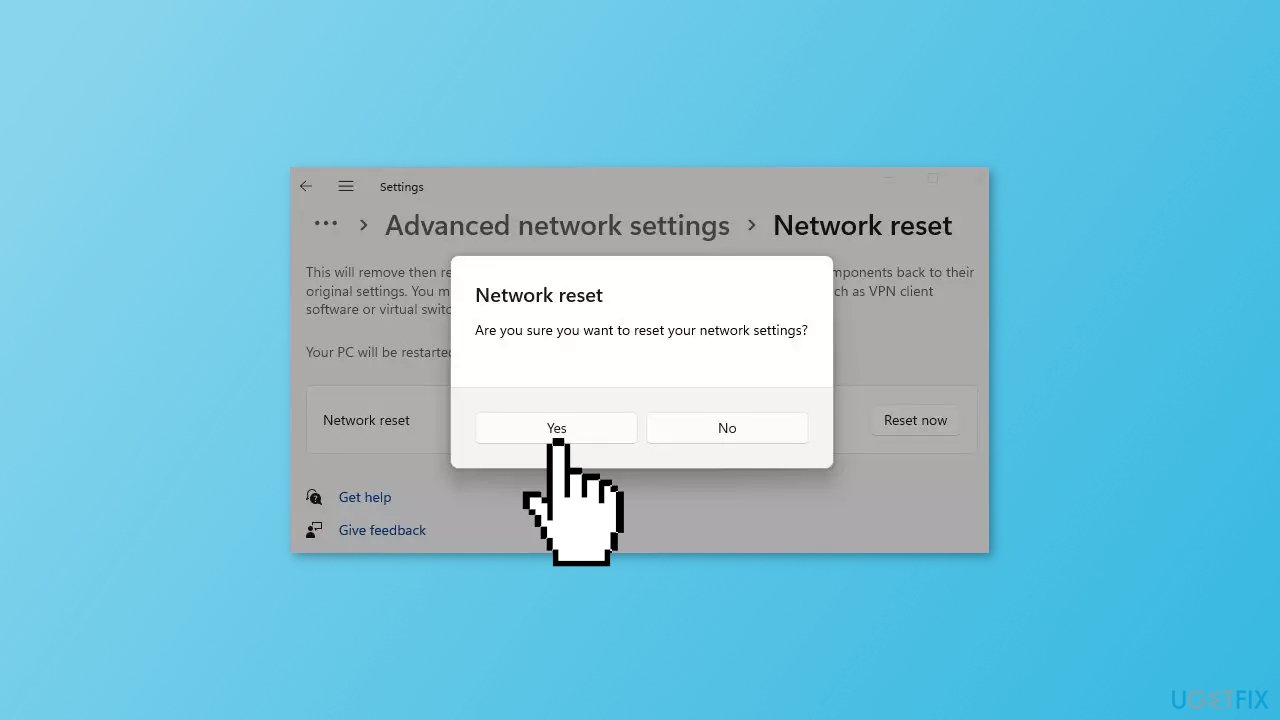
- Wait for the PC to restart and check if the issue is solved
Method 4. Change to Google DNS
Google DNS (Domain Name System) is a public DNS service offered by Google that aims to make the internet faster and more secure by providing users with faster and more reliable domain name resolution.
- Right-click on the network/connectivity icon on your taskbar
- Choose Open Network & Internet settings from the context menu
- Select Change adapter options from the new window
- Right-click on the network adapter you wish to configure and select Properties
- From the list under This connection uses the following items, click on Internet Protocol Version 4 (TCP/IPv4)
- Click on Properties
- Select the Use the following DNS server addresses option
- Enter 8.8.8.8 as the Preferred DNS server and 8.8.4.4 as the Alternate DNS server
- Hit the OK button to save the configuration
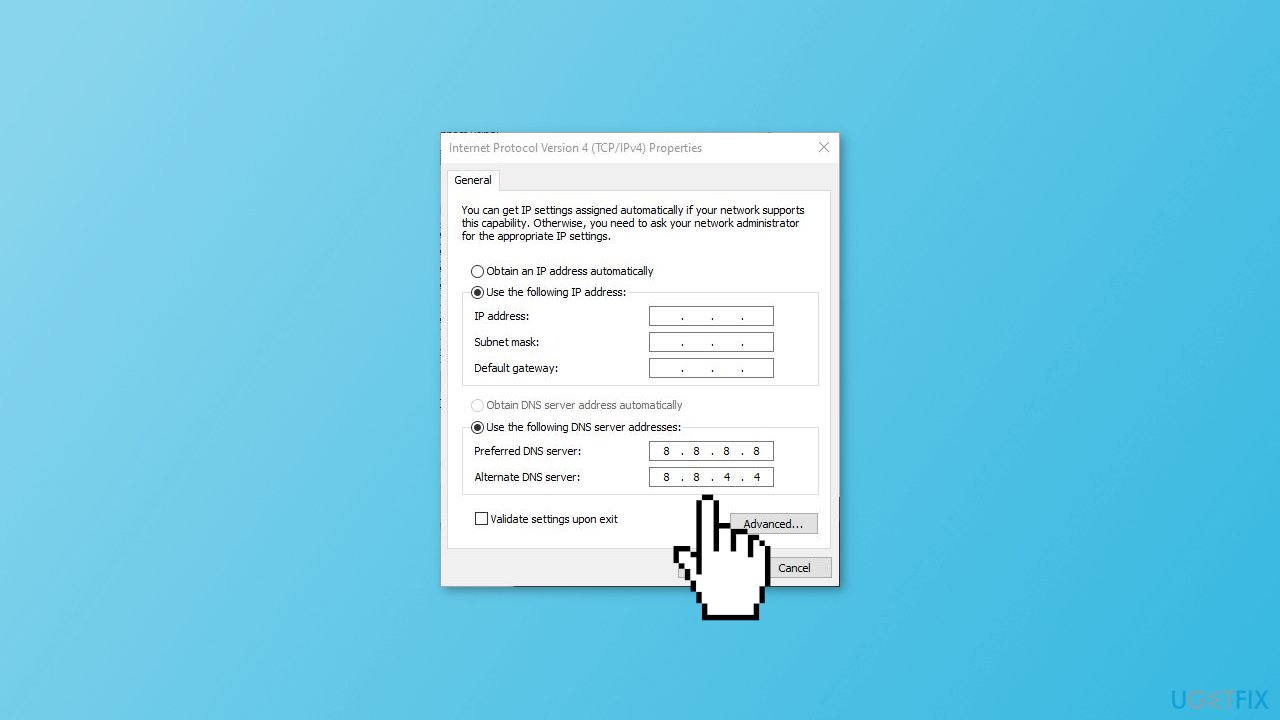
- Make sure to edit the adapter that you will connect to
Method 5. Reinstall Network Adapter Driver
You can also use a dedicated utility like [rev id="DriverFix"] that can find the best drivers for your machine and install them automatically If you want to proceed with the manual process, follow these steps:
- Press the Windows key + X to open the Quick Link menu
- Click on the Device Manager feature
- Expand the Network adapters option and right-click on the Wireless driver and select Uninstall device
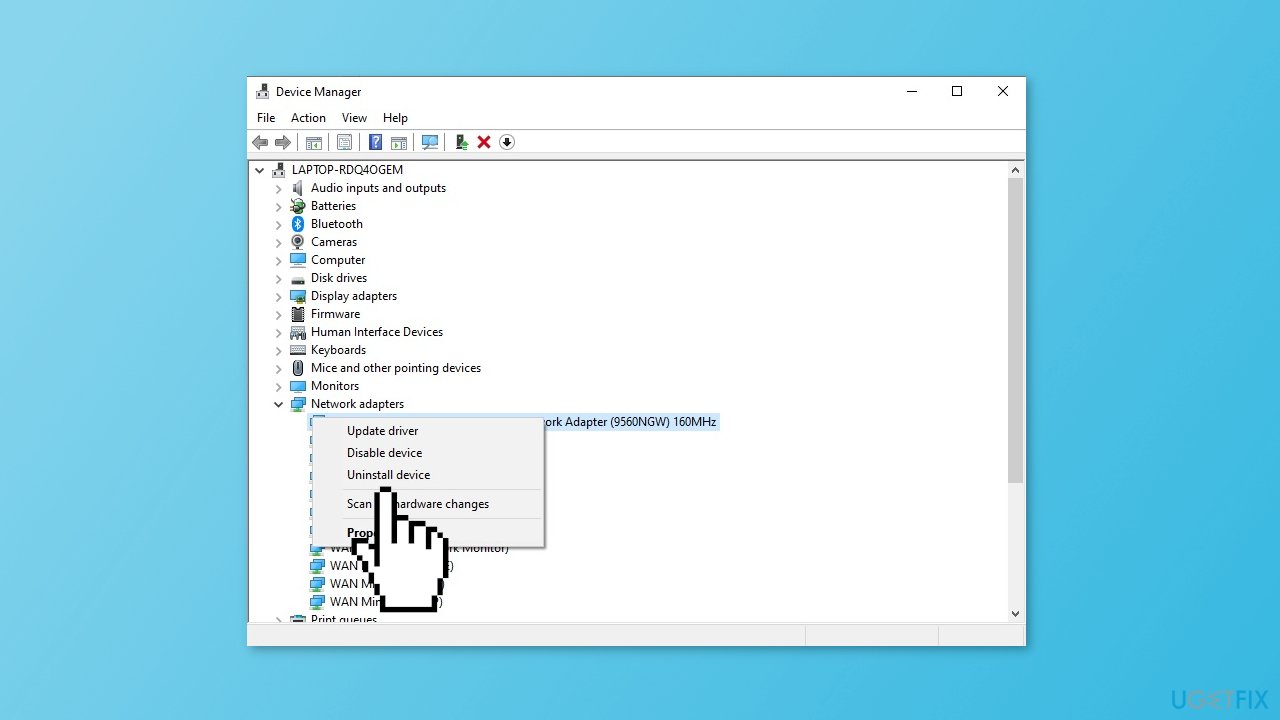
- Restart your device
- After reinstalling Network Adapters, right-click on it and select Scan for hardware changes
- If the installation fails, run the installation package of the driver you downloaded earlier
Bottom line
To fix the 'You are currently not connected to any networks' error in Windows, you can try restarting your router, running the Network Adapter Troubleshooter, resetting the network, switching to Google DNS, or reinstalling the network driver. If none of these solutions work, consider using an automatic maintenance tool to address potential system errors.
Frequently asked questions
First, ensure that your Wi-Fi is turned on and airplane mode is disabled. You can check this by clicking on the network icon in the taskbar.
You can run the Network Troubleshooter by going to Settings > Network & Internet > Status, and then clicking on 'Network troubleshooter' to identify and fix any issues.
Yes, you can reset your network settings by going to Settings > Network & Internet > Status, scrolling down to 'Network reset', and following the prompts.




Report an issue
What's wrong with this guide? We review every report and update or remove content.
Report received — thank you. We'll review and fix it.
You need a free account to submit a report.
Be the first to comment