How to fix
“You cannot play online multiplayer through Xbox Live because of how your account is set up” error
on Windows
Resolve the Xbox Live multiplayer error on your Windows 10 or Windows 11 device effortlessly. Get back to gaming in minutes with our expert-tested tips.

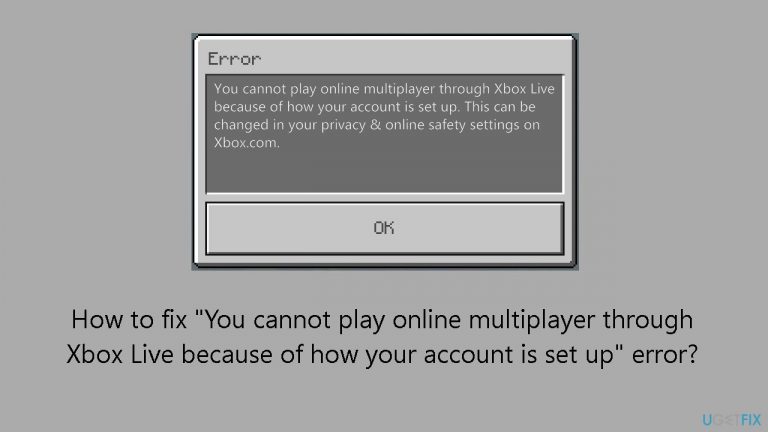
What causes How to fix “You cannot play online multiplayer through Xbox Live because of how your account is set up” error?
- Account privacy settings
- Console not rebooted
- Subscription status
- Network connectivity issues
- Account type restrictions
Repairs Windows system files, removes malware, and restores a clean OS state — without reinstalling.
Hello. When I try to play multiplayer on Xbox, I get the "You cannot play online multiplayer through Xbox Live because of how your account is set up" error. How can I fix this?
For several years now, a significant portion of users have been plagued by the annoying "You cannot play online multiplayer through Xbox Live because of how your account is set up" error on a variety of online forums. Users are left disappointed and looking for other options because it seems Microsoft has not taken sufficient action to address and correct this issue, despite the numerous complaints.
Xbox Live is Microsoft's online gaming service, which is essential to the Xbox gaming experience. It allows gamers to play games in multiplayer, access digital content, and communicate with other Xbox users worldwide. The paid service improves the gaming experience by giving users access to premium material, enabling online multiplayer, and offering other benefits.
The persistent problem has a significant negative effect on users' ability to engage in online multiplayer games on Xbox Live. The fact that Microsoft doesn't seem to have a comprehensive solution adds to the irritation. While some customers have successfully fixed the issue by changing their privacy settings or hard rebooting their consoles, many users have not found success with these fixes, which has added to their discontent.
Given the persistent issue, several users propose that subscribing to Xbox Live is the only workable option. This perspective introduces an additional layer of frustration for users who may view it as an unexpected financial burden, especially if the error arose due to factors beyond their control.
The shift towards requiring users to pay for access to multiplayer features on Xbox, primarily through the Xbox Live Gold subscription, marked a notable change in Microsoft's approach to online gaming. Historically, Xbox Live Gold was a paid subscription service that provided users with various benefits, including access to online multiplayer gameplay, free monthly game offerings, and exclusive discounts.
Later in 2021, Microsoft announced a strategic decision to make online multiplayer gaming free for free-to-play games on Xbox consoles. This move aimed to align with the broader trend in the gaming industry, where some competing platforms provided free access to online multiplayer.
The fact that users are still encountering the "You cannot play online multiplayer through Xbox Live because of how your account is set up" error highlights the necessity for Microsoft to take extensive measures to address and resolve it. The aggravation and inconvenience that the impacted users have to deal with emphasize how crucial prompt and efficient help is to preserving a pleasant gaming experience within the community.
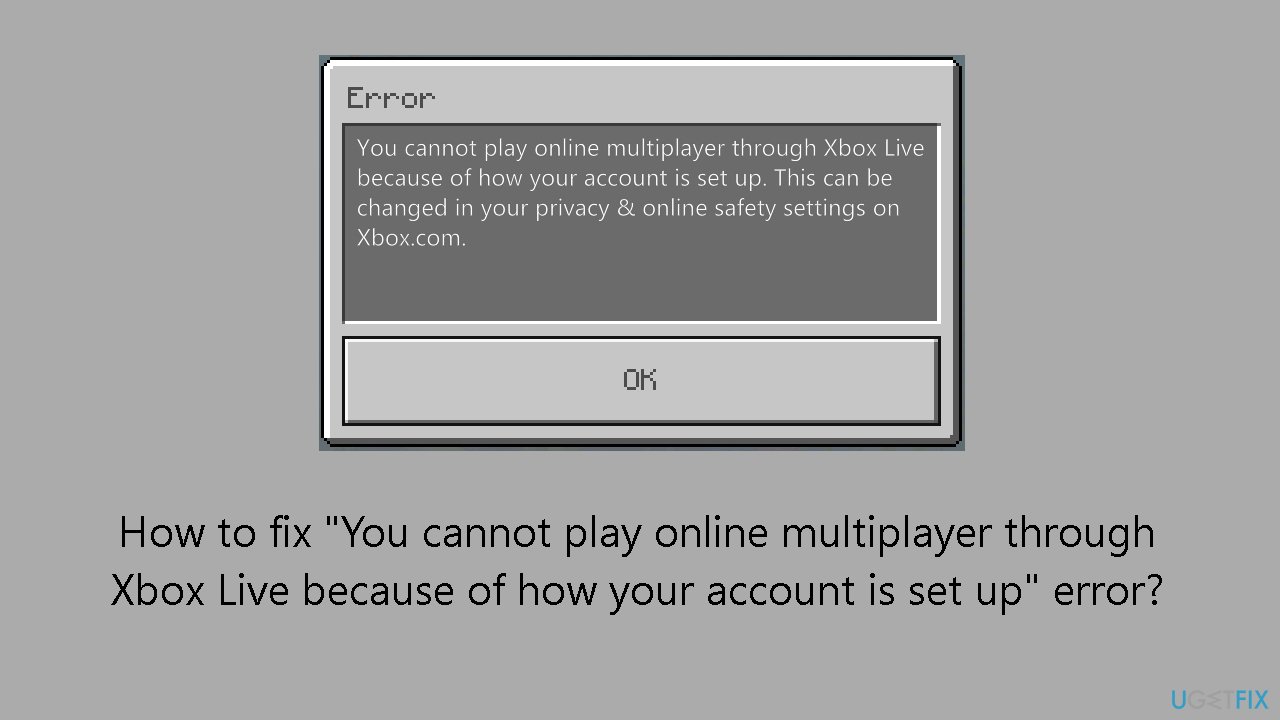
In this guide, you will find instructions on how to modify privacy settings to fix the "You cannot play online multiplayer through Xbox Live because of how your account is set up" error.
Step 1. Change your Privacy Settings
- Navigate to Xbox.com.
- Sign in using your Microsoft account credentials.
- Locate and click on the Xbox One/Windows Online Safety tab.

- Adjust all settings to Allow.
- Click Submit.
Step 2. Adjust Family Settings
- Navigate to the Xbox Live Settings page.
- Ensure that both you and your family members are listed.
- Select the account you wish to modify.
- Review and confirm that the necessary checkboxes are marked.
- Thoroughly check all three columns: Privacy, Xbox One Online Safety, and Xbox 360 Online Safety. Pay special attention to the Join multiplayer games settings.
Step 3. Perform a Hard Reset
- Press and hold the power button on the front of the console for 10 seconds. Release the button only after the device has completely shut down.
- Unplug the power cable and wait for an additional 10 seconds.
- Reconnect the power cable and turn the console back on.
Bottom line
To fix the error, users can try changing their privacy settings or performing a hard reboot of their consoles. If these solutions do not resolve the issue, it may be necessary to consider subscribing to Xbox Live for full access to online multiplayer features.
Frequently asked questions
Ensure that your Xbox Live account is set to allow multiplayer gaming and that you have a valid Xbox Live Gold subscription. Additionally, check your privacy settings in the Xbox app on Windows.
Open the Xbox app, go to settings, and then select 'Privacy & online safety' to adjust your settings for multiplayer gaming. Make sure to save any changes before exiting.
Yes, you can try signing out and signing back into your Xbox account on your Windows 10 or Windows 11 device, as this can often refresh your account settings and resolve the issue.




Report an issue
What's wrong with this guide? We review every report and update or remove content.
Report received — thank you. We'll review and fix it.
You need a free account to submit a report.
Be the first to comment