How to fix
“You do not have sufficient access to uninstall” error
on Windows
Resolve the "You do not have sufficient access to uninstall" error on Windows 10/11 effortlessly. Follow our expert-tested guide for quick fixes!

What causes How to fix “You do not have sufficient access to uninstall” error in Windows?
- User Account Control (UAC) limits access to installed applications
- Altered registry entries
- Affected system files
- System corruption
- Insufficient administrator privileges
Repairs Windows system files, removes malware, and restores a clean OS state — without reinstalling.
I get the error that keeps me from uninstalling the program. The error is the "You do not have sufficient access to uninstall" pop-up. I somehow do not have admin rights and am instructed to contact the administrator. It is the first time when I cannot uninstall the program properly. Can you help me? I am the only user, so there shouldn't be any issues like this. I am confused.
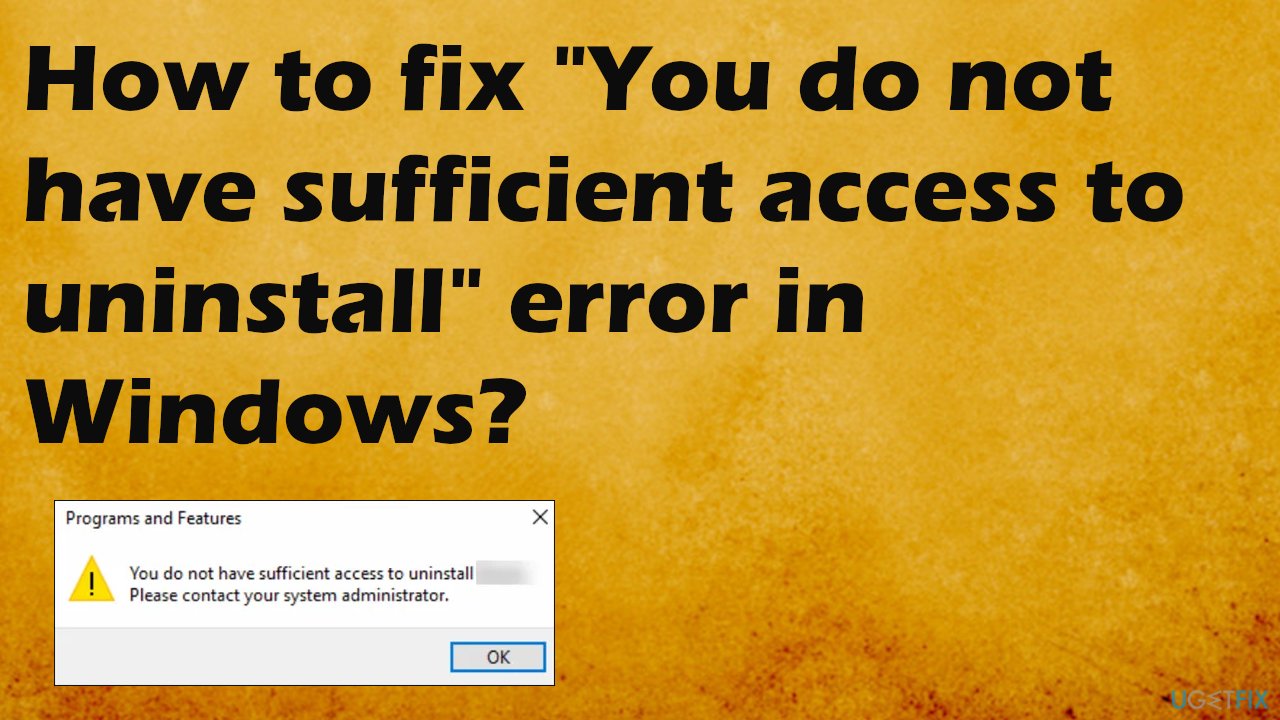
"You do not have sufficient access to uninstall" error in Windows is the error that appears when the User Account Control or UAC[ref en-1] limits the access to installed applications and files. You cannot uninstall the program, and the issue is frustrating. Users[ref en-2] state that the problem occurs again and again, so this administrator privileges problem becomes annoying.
This functionality of administrator rights prevents automatic installs, malware[ref en-3] infections, and other problems. It limits the access rights to user accounts. The elevated access provides the opportunity to install or uninstall programs. However, even when access to operating system changes is granted, the error still appears out of nowhere.
There are a few workarounds and fixes for the issue because these errors can be caused by altered registry entries, affected system files, and other issues regarding system corruption. You can solve the "You do not have sufficient access to uninstall" error by repairing those pieces or updating the needed data of the machine.
The feature ith account control was added to ensure the security of the Windows system, so the particular access is limited. However, all the devices and operating systems have flaws. You want to recover the proper performance, so all activities can be operated perfectly. Disabling the UAC protocol can get rid of the error, but there are many other functions that might need to get altered or fixed.
As for the affected or even corrupted files in system folders, Windows registry entries, you might want to rely on proper tools for such tasks. You can fix those damaged pieces with tools like [d1] and fix the "You do not have sufficient access to uninstall" error in Windows easily. This step also can be one of the troubleshooting steps if the error didn't get solved only with this step. Then rely on the methods below and follow the guide thoroughly.
1. Modify registry entries
- Launch the Registry Editor by typing regedit in the Run box.
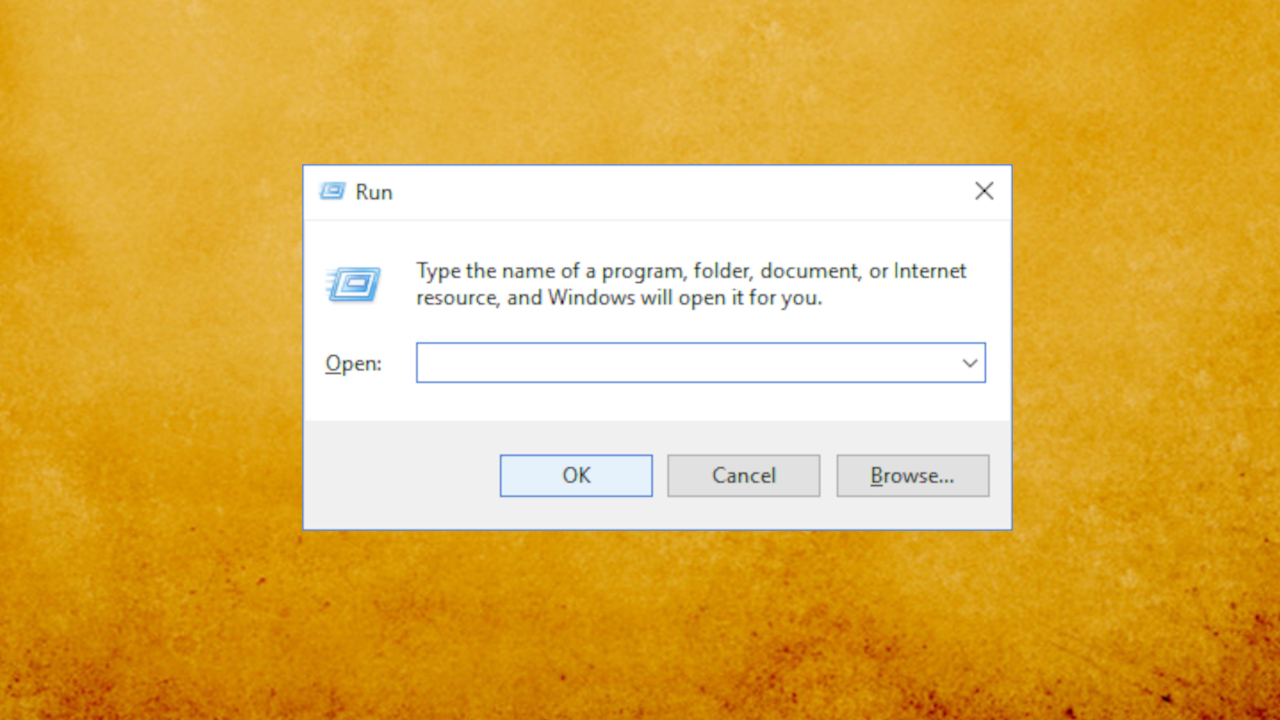
You dont have admin permission uninstall error run box - Navigate to the Installer key.
- Create a new DWORD value:
DisableMSI.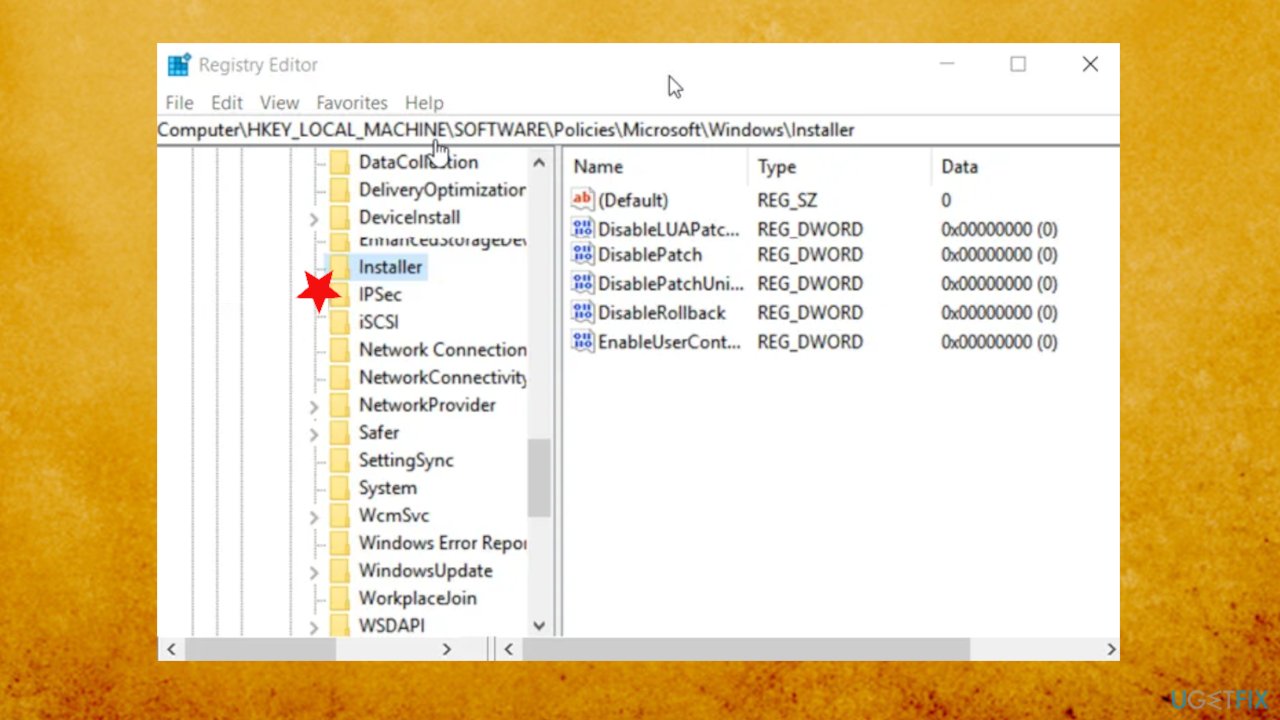
You dont have admin permission uninstall error fix installer - Enter the REG_DWORD value as 0.
- Close the Registry Editor and Exit.
- Restart your PC.
2. Turn off User Account Control
- Type user control in search.
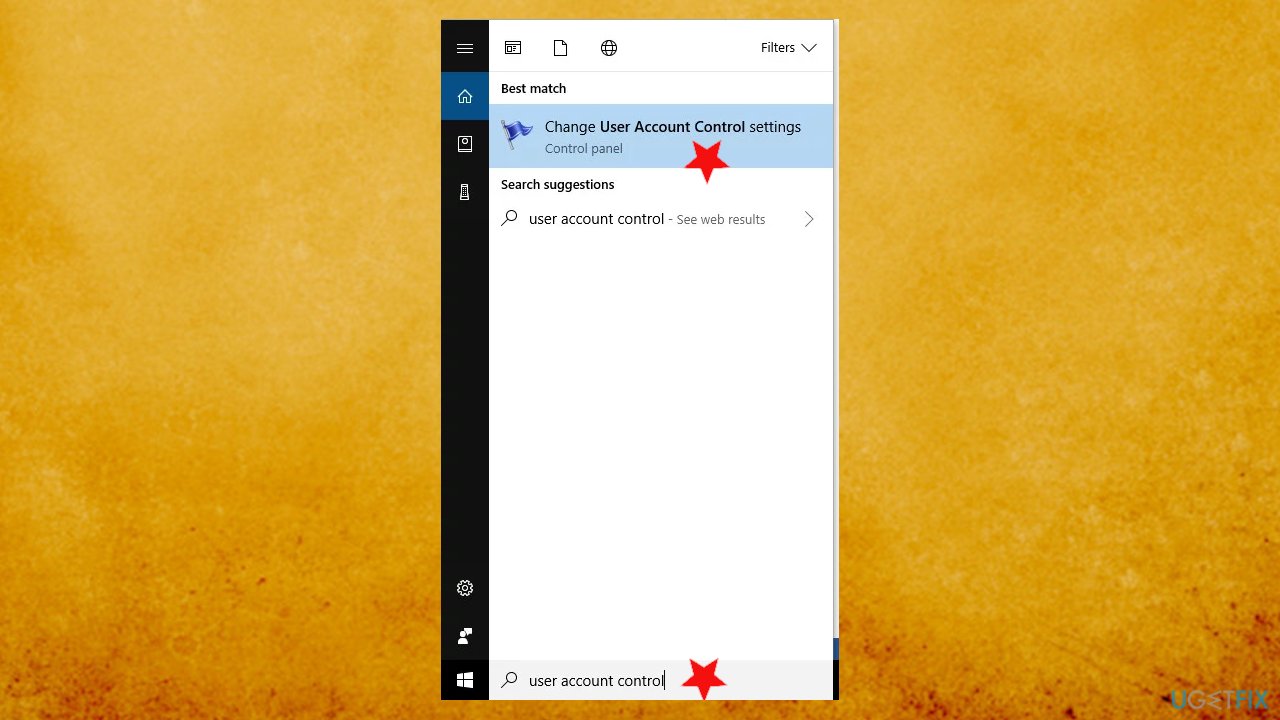
You dont have admin permission uninstall error fix user control - Select Change User Account Control settings from the menu.
- Move the slider all the way down to the Never notify.
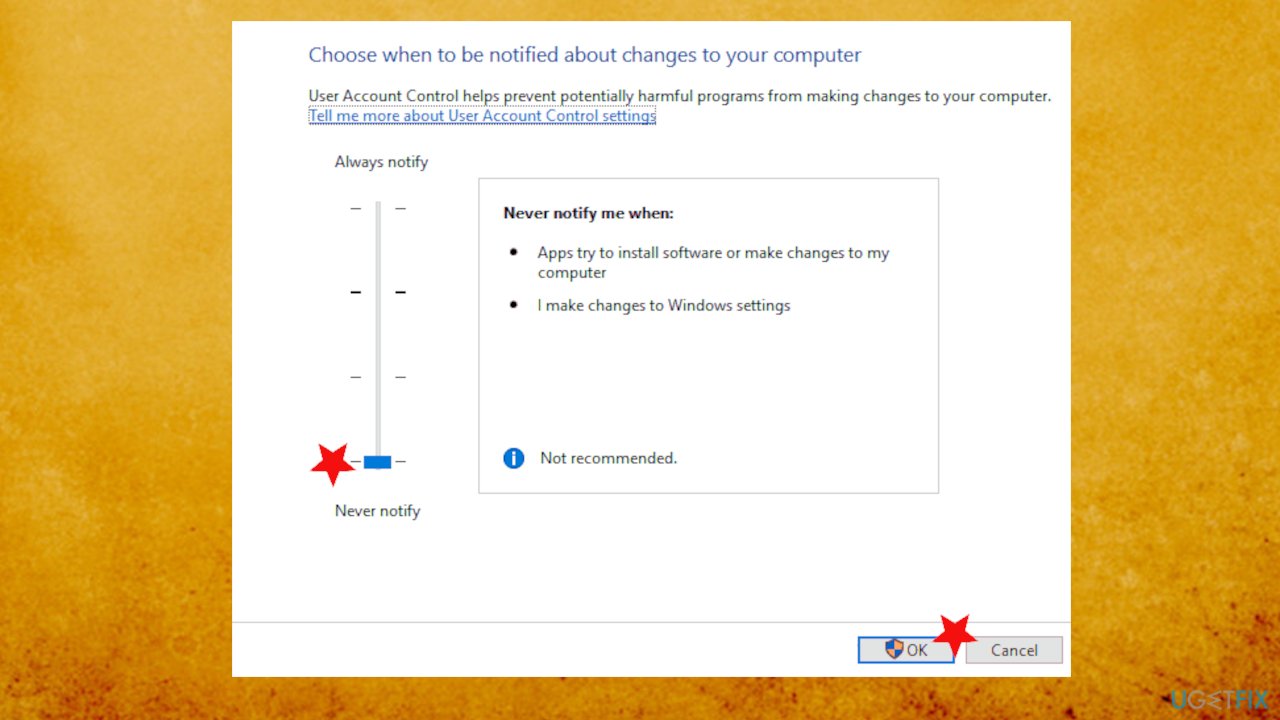
You dont have admin permission uninstall error fix permissions - Click on OK to save changes.
- After disabling User Account Control, you should be able to uninstall your applications without any problems.
3. Uninstall the app via registry
- When in Registry editor go to:
HKEY_LOCAL_MACHINESOFTWAREMicrosoftWindowsCurrentVersionUninstall - If you click on each key from that path you will be able to access each program from your device, thus you will be able to uninstall the same.
- Select the software and take a look at the right panel of the Registry editor.
- Double-click on UninstallString to open its properties.
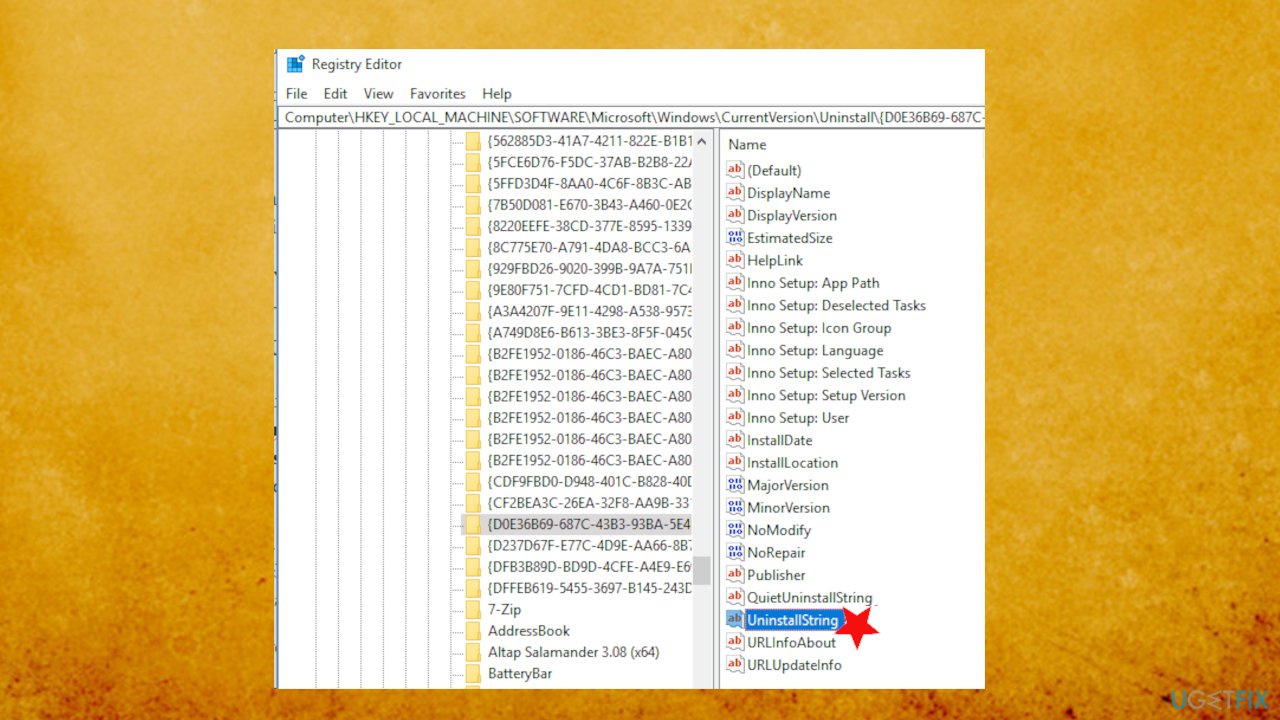
You dont have admin permission uninstall error fix uninstall string - When the Properties window opens, copy the path from the Value data field.
- Type command prompt in the search box and select Run as administrator.
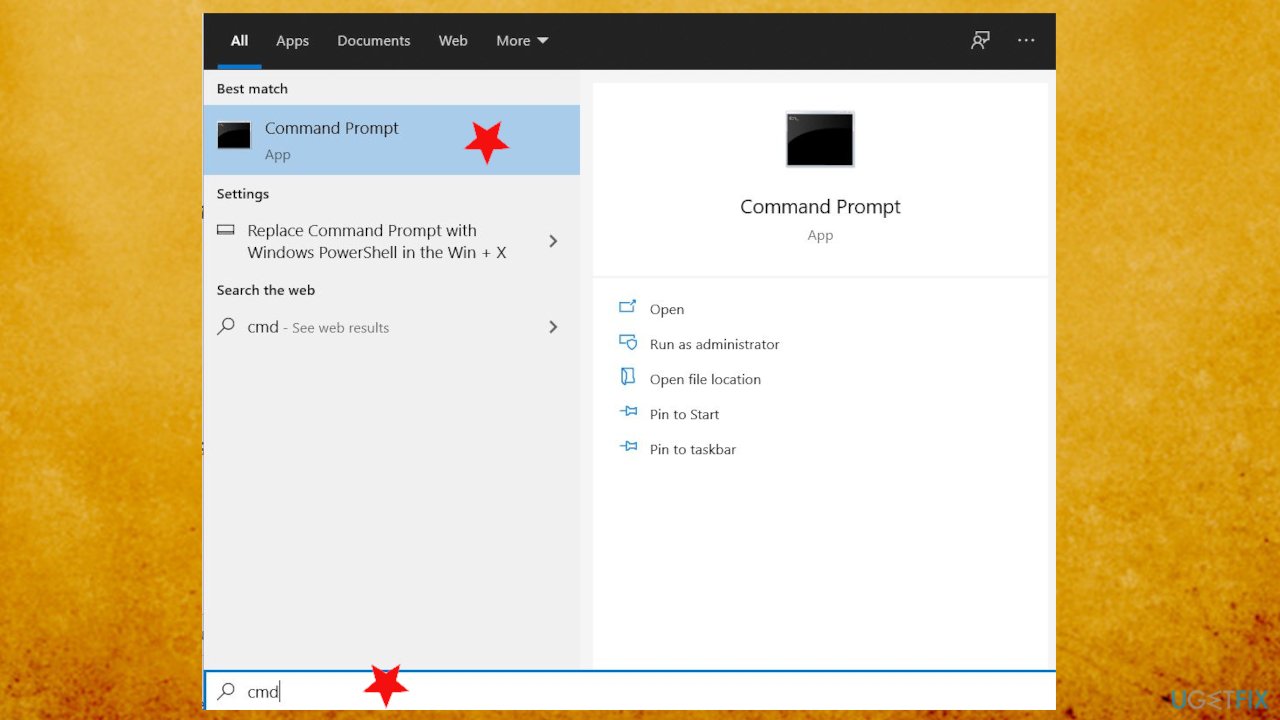
You dont have admin permission uninstall error cmd - Once it opens, paste the command we copied earlier and press Enter.
- This should effectively uninstall the application.
Bottom line
To resolve the 'You do not have sufficient access to uninstall' error, you can try repairing altered registry entries, fixing affected system files, or updating necessary data on your machine. Disabling the UAC protocol may also help, but be aware that it can affect other system functions. If none of these solutions work, consider using specialized tools to address damaged system components.
Frequently asked questions
Try running the uninstaller as an administrator by right-clicking on it and selecting 'Run as administrator.' If that doesn't work, check your user account permissions to ensure you have the necessary access.
Yes, you can fix this error in Windows 11 by adjusting the permissions of the program you want to uninstall or by using the Control Panel to uninstall it as an administrator.
Yes, you can use the Command Prompt with administrative privileges to run commands like 'wmic product get name' followed by 'wmic product where name="Program Name" call uninstall' to remove the application.




Report an issue
What's wrong with this guide? We review every report and update or remove content.
Report received — thank you. We'll review and fix it.
You need a free account to submit a report.
Be the first to comment